Limited Release Dates: August 21, 2026 (26R2.2); October 2, 2026 (26R2.3); October 16, 2026 (26R2.4) | General Release Date: December 4, 2026
We are pleased to bring you new functionality with each limited release. These release notes are updated with upcoming new features one week before the limited release date. See the following explanations for enablement options:
- Auto-on: Automatically activated and no configuration is required before using the feature; in some cases, a new feature is dependent on another feature that must be enabled or configured.
- Admin Checkbox: Admins must turn on the feature with an Admin checkbox. Some “Auto-On” features have a checkbox setting that hides the feature; these will show “Auto-On.”
- Configuration: Admins must configure the feature (separately from an Admin checkbox) before it is available to use or is active; for example, an Admin must add document templates before users can create documents from templates.
- Available for Use: Used only by the eConsent, eCOA, and SiteVault applications. Sponsors must make a study-specific configuration change to implement new capabilities.
Platform
Highlights
Document RedactionConfiguration26R2.4
Vault now delivers a native document redaction framework for authoring, processing, and distributing redacted content. This helps to maintain a secure, traceable, and efficient disclosure process.
Previously, users likely exported renditions, redacted content in external software like Adobe Acrobat, routed approvals via email, and uploaded the finished file back into Vault. This external process was error-prone, broke traceability, and duplicated effort across versions.
The document redaction framework introduces the following key capabilities:
- Built-in Compliance Subtypes: The framework provides standard annotation subtypes for protected personal data (PPD) and commercially confidential information (CCI), along with an Other option.
- Preview Redactions: Users can preview their redactions in Vault itself using the document viewer, Split View mode, or by downloading a preview of the redacted rendition from the source document.
- Automated Output Generation: Users can invoke the Generate action to automatically produce a flattened, distribution-ready redacted document.
- Hardcoded Security: During generation, Vault automatically sanitizes hidden metadata, removes concealed text, and strips permalinks under redacted regions to ensure no sensitive information remains in the redacted document.
- Offline Batch Redaction: Users can export redaction annotations to a markup PDF, perform redactions offline in Adobe Acrobat, and import the file back into Vault to reconcile the changes automatically.
To start using this functionality, Admins must enable redaction on specific document types by configuring the Redacted rendition type and the Redacted To and Redacted From relationship types, as well as configure either a user action or an entry action (but not both) on the Redaction (redaction__sys) object lifecycle to generate the redacted copy.
Users with the new Redact document lifecycle state permission can place redaction annotations directly on original documents within the document viewer.
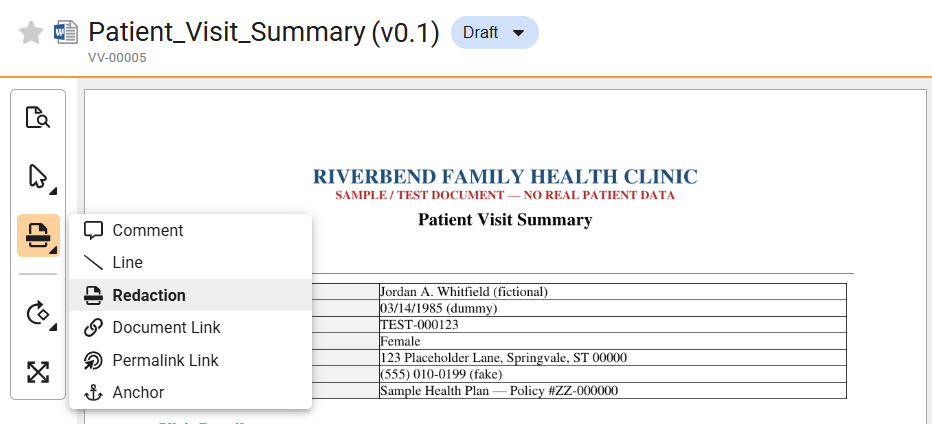
Users can access the new Redactions panel, located on the Doc Info pane, to change the redaction lifecycle status, view out-of-date signals, and generate the final output without leaving the document.
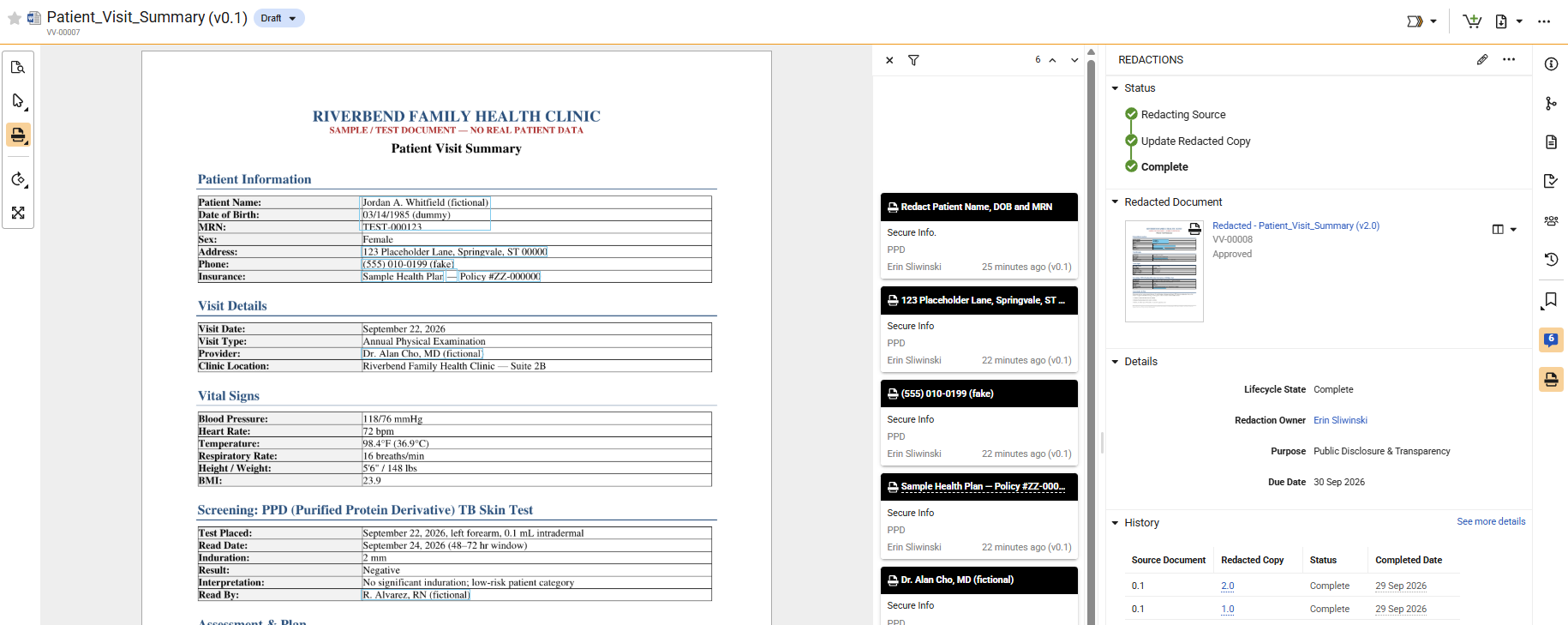
If either the document’s digital fingerprint or redaction annotations on the originating document change, an out of sync warning is displayed in the Redactions panel. A document’s digital fingerprint may change even when the visual content remains identical, because it tracks updates to the file’s underlying code instead of relying solely on what appears on the screen.
Document TranslationConfiguration26R2.3
Vault now includes a seamless integration for document translation that allows users to translate documents using DeepL or Google Cloud Translate. When initiating a translation, users can select one or more target languages. The service runs asynchronously and automatically returns the translated output as either a new document or a new version of an existing document while preserving the original layout and formatting.
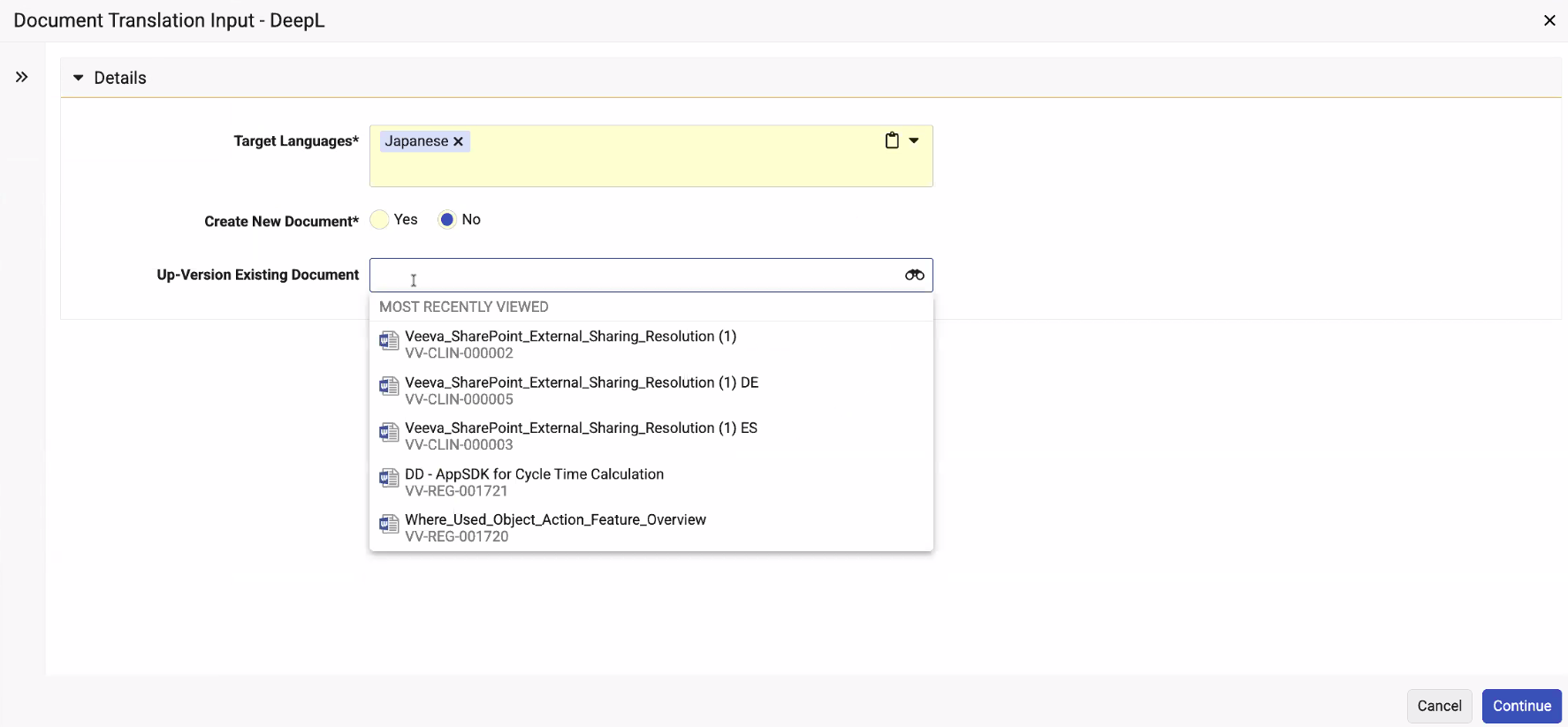
Once a translation is complete, Vault sends a notification to the initiating user containing a summary of the newly created or updated documents and any failed requests.Supported document formats include PDF, Word (DOCX), and PowerPoint (PPTX). By default, newly created translations automatically receive a Platform-managed Translation Of relationship linking them back to the original source document.This feature replaces the need to manually move documents in and out of external translation systems, streamlining localization workflows so that teams can review and process multi-language content without leaving Vault. Admins and developers can easily configure this feature to fit specific business needs:
- Setup Connections: Add URL and Authorization details on the translation provider Connection record to connect Vault with DeepL or Google Cloud Translate. Then, run the Sync Supported Translation Languages action from the All Actions menu
- Enable Actions: Add the translation document actions to document lifecycle states as user actions, or configure them as entry actions
- Customize Outputs (Optional): Define default document relationships or exclude specific non-required fields from copying over to newly translated documents
- Advanced Extensibility: Use the new Public Translation SDK to build custom translation flows or integrate translation capabilities into workflow job steps and agent tools
Learn more about Translating Documents and Configuring Document Translation.
Enhanced Migration Mode for DocumentsAuto-on26R2.3
Document Migration Mode is now enhanced to relax field validation to improve document import performance.
The existing migration mode behavior of bypassing entry actions, entry criteria, event actions, and notifications remains the same, as does the related option to bypass triggers when in migration mode.
Learn more about Document Migration Mode.
Settings Migration Support & APIAuto-on26R2.3
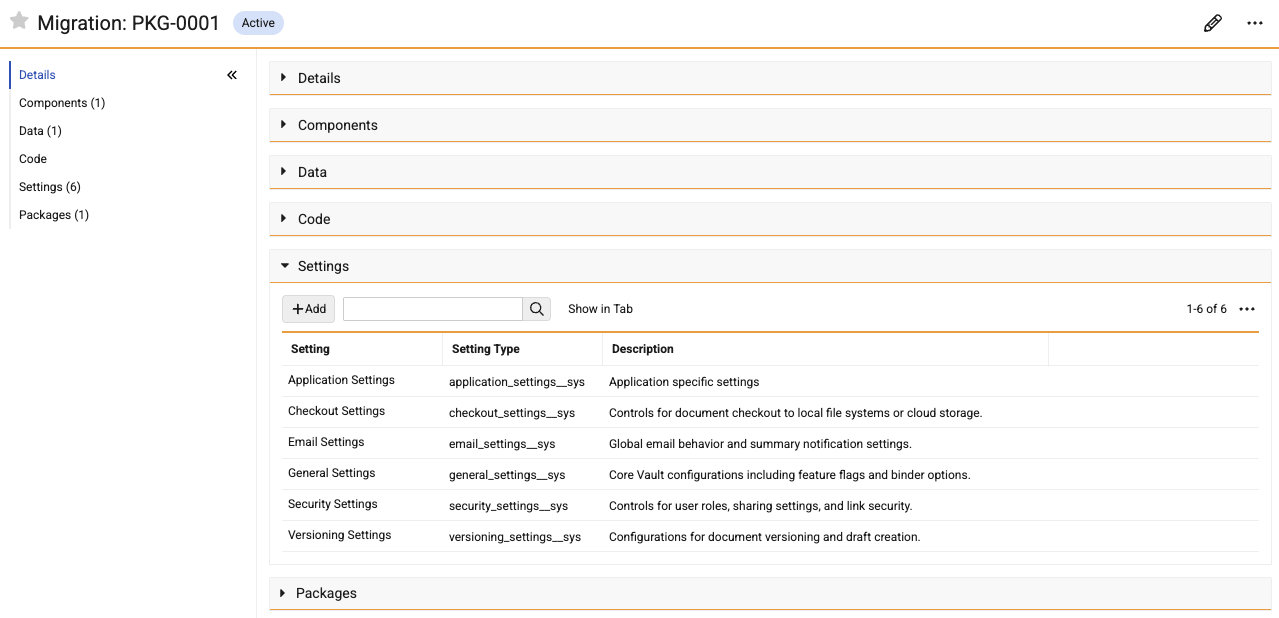
Admins can now use Vault configuration migration packages (VPKs) to migrate settings between Vaults, which eliminates the need for manual configuration during deployment.
Configuration migration packages now have a new Settings section, which allows Admins to add settings categories to the package.
Admin Configurable Entry Criteria Validation MessagesConfiguration26R2.2
To provide a better user experience for entry criteria on document and object lifecycles, Admins can now configure an optional Validation Error Message for each rule with up to 500 characters. When no custom validation message is configured, the default system error message is returned.
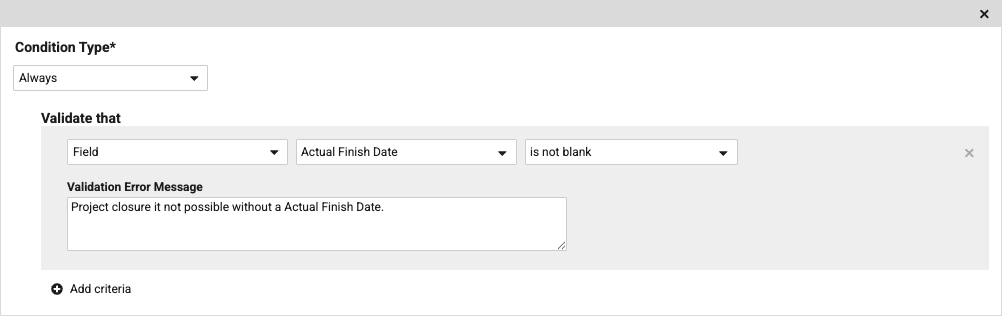
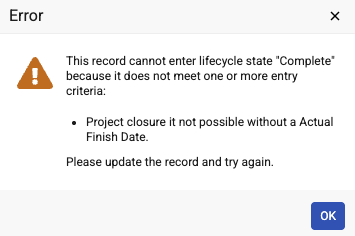
Additionally, we have made enhancements to the default system messages:
Document Entry Criteria
- Messages will list the affected documents in the new
Document ID: {ID} v{major version}.{minor version}format (for example,Document ID: 701 v0.2) - Messages where there is no Field validation will no longer display the Edit Fields button, and will display OK instead.
Object Entry Criteria
Messages will display the complete list of each entry criteria validation failure.
Learn more about Configuring Entry Criteria, Entry Actions & User Actions for Object Lifecycle States and Defining Document State Entry Criteria.
Legal Hold Constraint ChangesAuto-on26R2.3
Documents under legal hold now allow specific changes that were previously restricted. Users with the appropriate permissions can now:
- Reclassify documents currently placed under a legal hold.
- Delete and replace renditions while under legal hold.
In addition, documents can be deleted after the legal hold is lifted with standard deletion permissions. Power Delete permissions are no longer needed to delete versions that were blocked from deletion while under legal hold.
Learn more about Legal Holds.
Improved Report Type AdministrationAuto-on26R2.3
Admins can now edit existing report types even when they are in use by reports or report views, as long as the change does not adversely affect an existing report or report view.
Prior to this feature, to edit an in-use report type, Admins needed to delete all existing reports and report views that use the report type before being able to edit it.
Vault now allows Admins the following actions on in-use standard and Multi-Pass report types:
- Add a new up object (outbound relationship)
- Add a new view in chain Multi-Pass reports
- Edit joins for report view relationships
- Copy report types
- View related reports
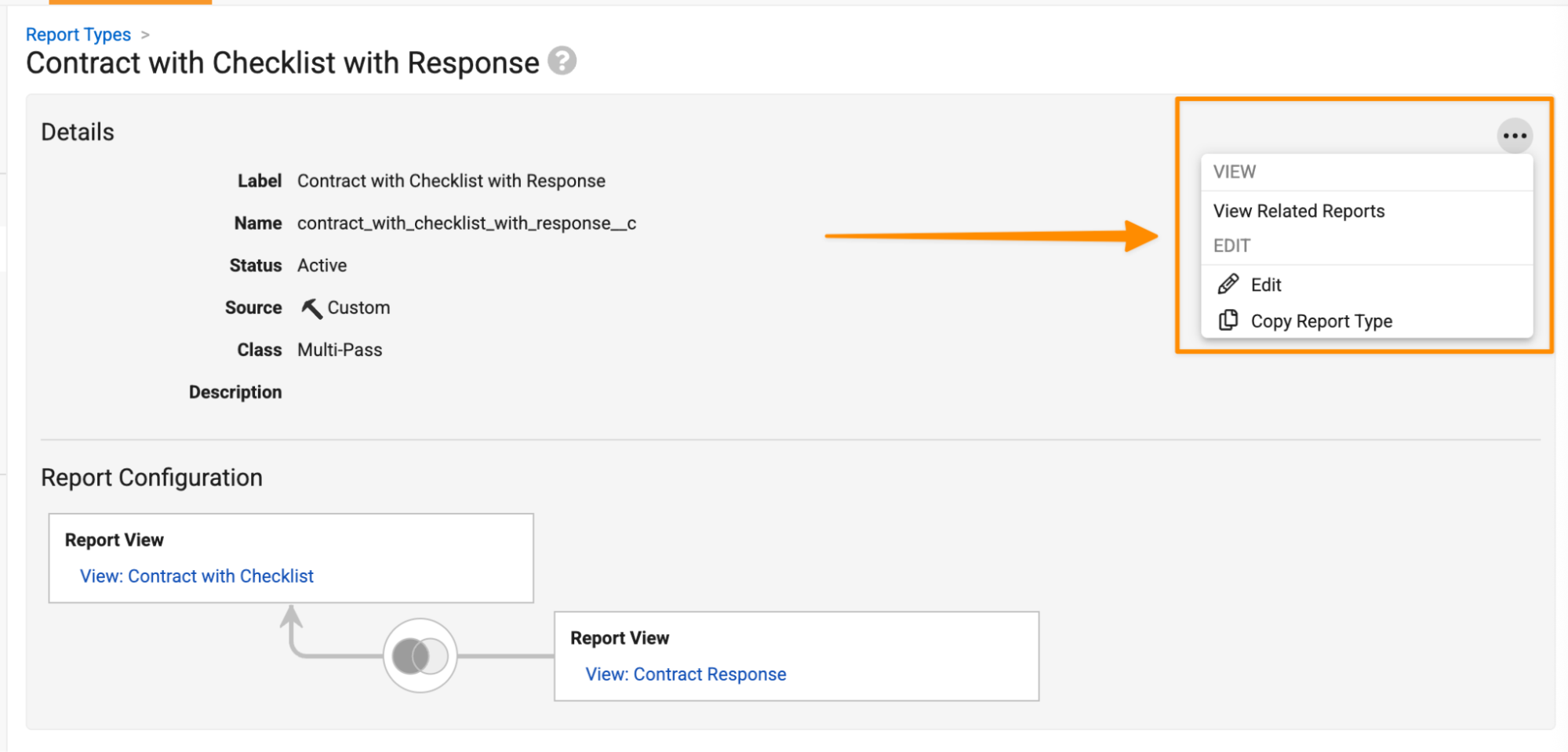
When accessing report types in Admin > Configuration, an Action menu is now always available, allowing Admins to easily see related reports used by the report type, edit the report type, or copy the report type:
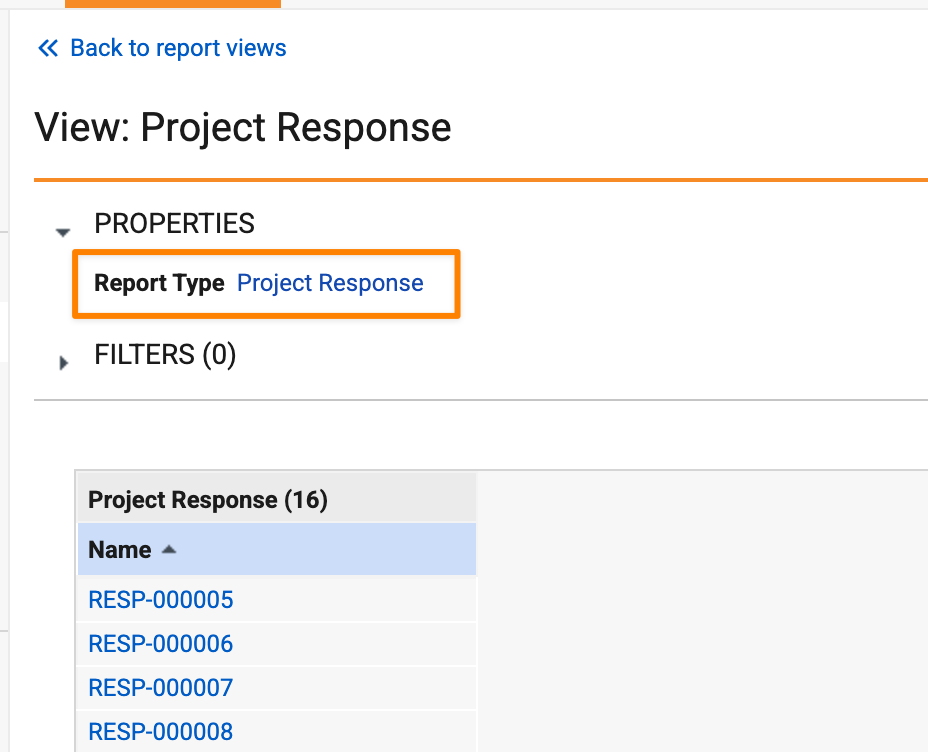
Additionally, when working with report views, the report type name is now a clickable link so that Admins can easily view more details about the report type.
Learn more about Configuring Report Types.
Object Role ReportingAuto-on26R2.3
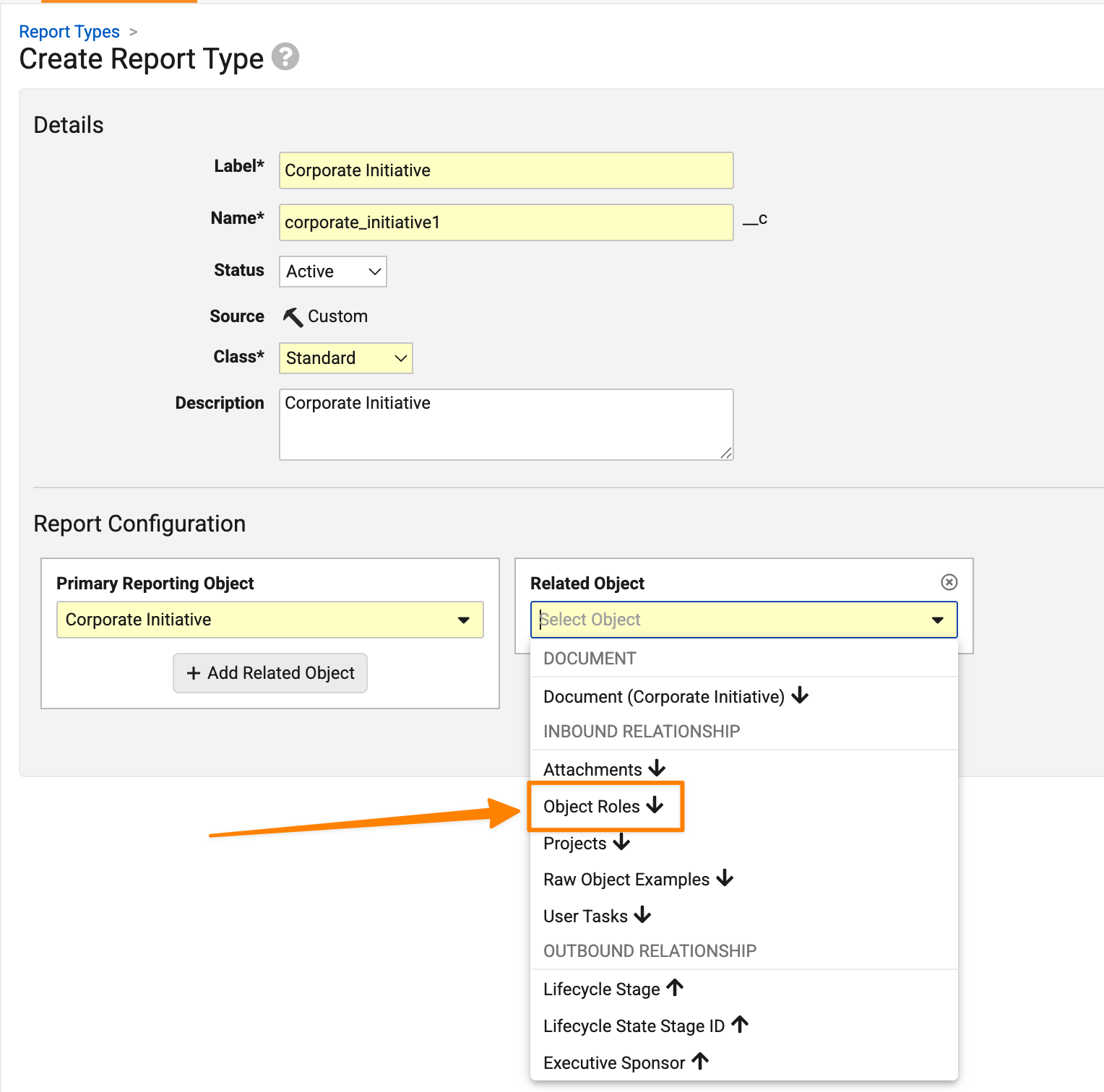
Vault now supports creating reports that include object role information, similar to existing capabilities for reporting document roles. This allows for consistent user access reporting across objects and documents.
When creating report types, Admins can now select Object Roles as a related object:
Admins can then add a third layer to include users or groups in those roles:
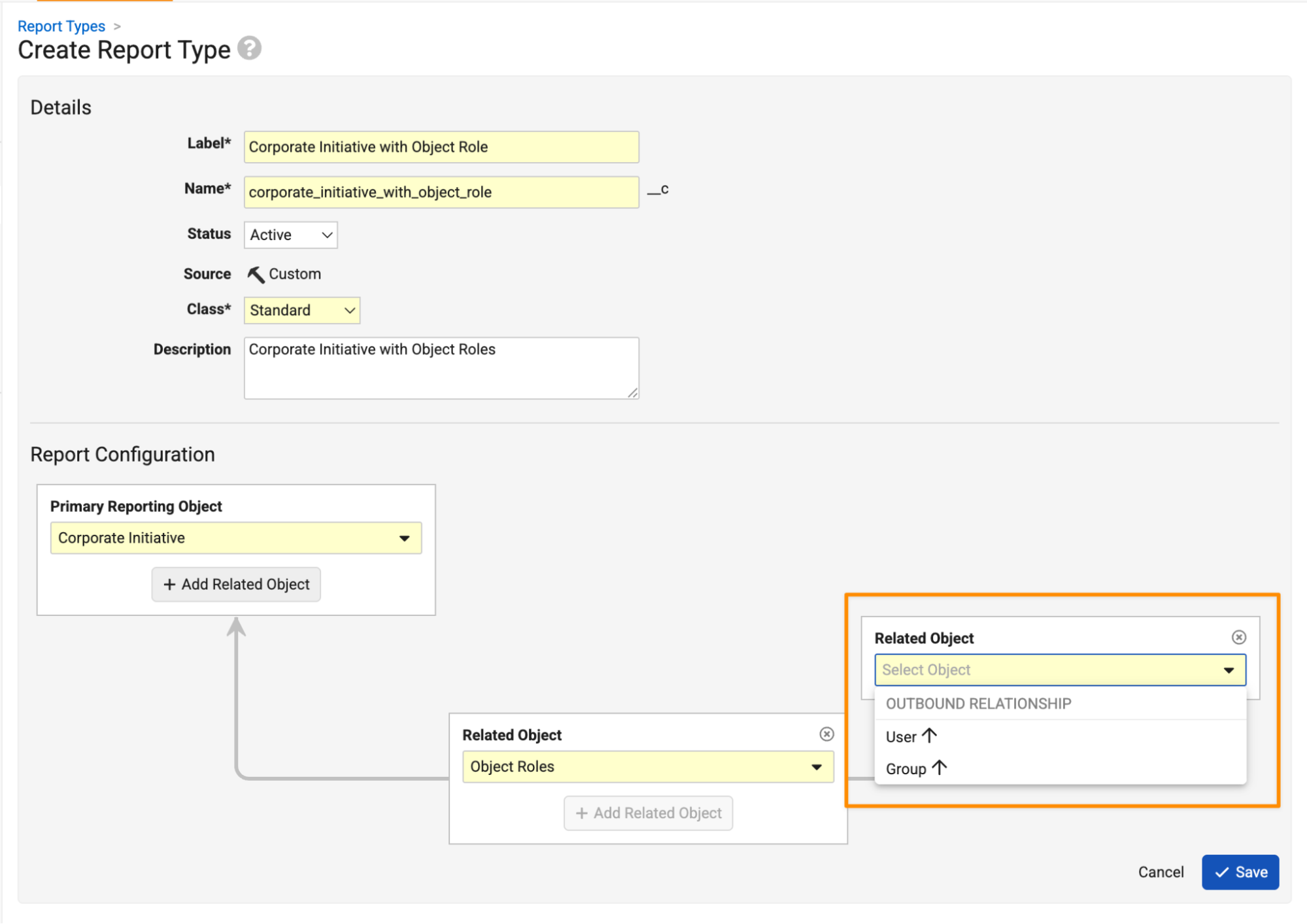
Admins can also create report types to show roles on reports themselves.
Learn more about Configuring Report Types.
Vault AI
Agent Action Tool TypeAuto-on
Vault now supports the new Agent Action tool type, allowing an agent to invoke another agent’s action directly through an agent tool call. Each invoked agent action runs in its own execution context, with information passed to it through the call. This feature enables LLM-driven orchestration, where an agent can decide at runtime which other agent actions to invoke.
Additionally, Admins can now extend the Super Agent’s Chat Action by assigning it custom agent tools, including ones configured using the new Agent Action tool type.
Query Agent EnhancementsAuto-on26R2.3
The Query Agent has been updated to deliver faster response times and more efficient token usage.
Query Agent Enhancements: List ViewAuto-on26R2.3
The Query Agent has been enhanced to return additional fields based on the object list view configuration. This provides additional information about records for the user and improves the capabilities to respond to followup questions without needing to run a second query.
AI Tab Progress UI 26R2.2
We’ve enhanced the AI tab user interface to provide agent progress information for long running operations. This enhancement also makes it clear that end users can navigate away to work on something else while the agent is running.
Enhanced AI Tab Record Detail Retrieval Tool 26R2.3
Enhanced the record retrieval tool, used by the AI Tab super agent, to retrieve multiple record details with a single call. Reduces tool calls to improve AI Tab performance.
AI Metadata Enhancements for Platform ObjectsAuto-on26R2.3
We are introducing additional AI Metadata for Platform objects related to connections, glossary, language, permissions, persons, roles, and reports to improve agent understanding of the Platform data model.
AI Metadata for Object TypesAuto-on26R2.3
Vault AI Metadata has been enhanced. With this feature, AI Entities can now be defined for Object Types. Provides semantic descriptions of object types and fields to improve the understanding of AI agents.
AI Metadata Support for Document LifecycleAuto-on26R2.3
AI Picklist metadata now supports document lifecycles allowing users to define semantic descriptions for document lifecycles and lifecycle states.
Standard Reports & Dashboards for Vault AIAuto-on26R2.3
Vaults with Vault AI enabled now include a new standard Dashboard and related reports. This functionality allows simple monitoring of agent usage to understand how users are leveraging Vault AI, and how much token consumption is occurring.
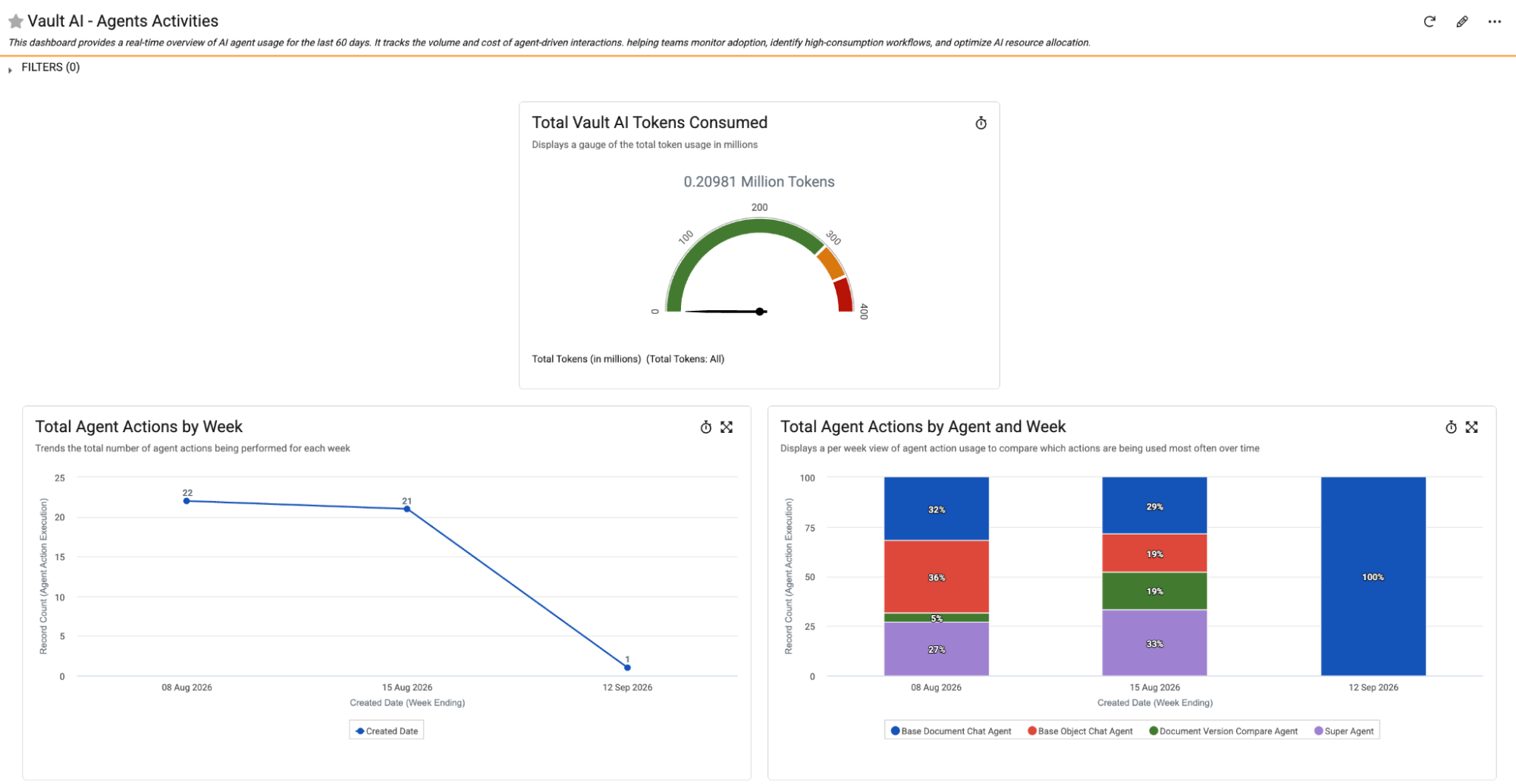
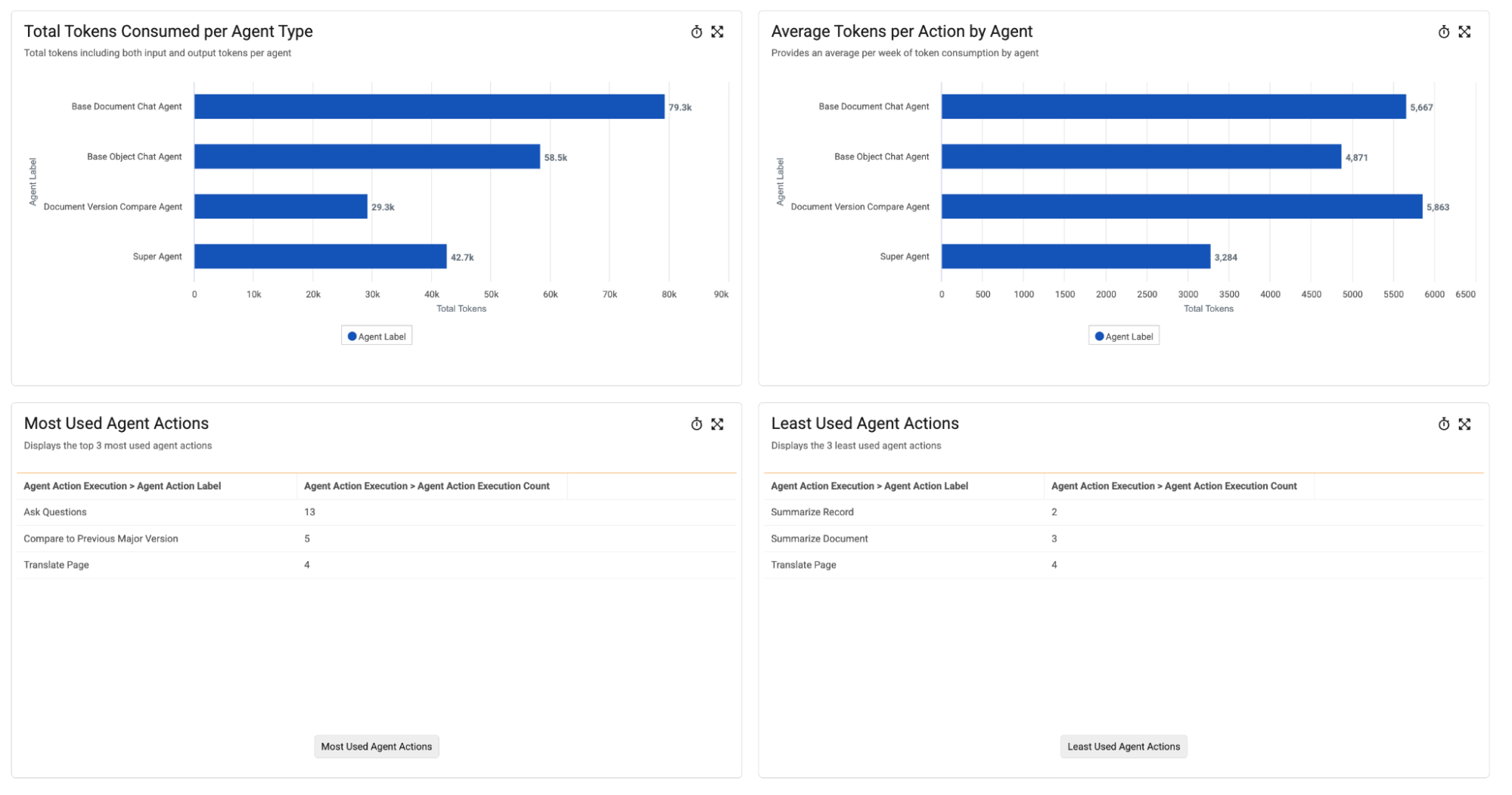
This Dashboard displays data for the last 60 days.
Learn more about Monitoring Agents & LLM Token Usage.
Increase Agent Trace Detail LimitsAuto-on26R2.3
To facilitate custom agent development and troubleshooting, the number of trace detail logs retained for a given Agent Trace has now increased from 5 to 20 in AI Chat and from 20 to 50 in Admin Log > Agent Traces, reducing the need to frequently reset Agent Traces.
Increased Related Record Limit for Base Object Chat Agent 26R2.3
The Base Object Chat Agent now includes up to 250 related records in its context, an increase from the previous limit of 25, and also includes the total count of related records. This expanded capacity provides the agent with a more complete data picture when analyzing records with numerous relationships.
Optimized Query ExecutionAuto-on26R2.3
Known or simple questions that result in a Vault query will be answered using an optimized query tool with improved performance and lower token utilization. Novel or more complex queries will continue to be handled by the more capable Query Agent.
Falcon Integration UserAuto-on26R2.2
This feature adds a Falcon Integration User in all Vaults. This change has no effect on customers who are not using Veeva Falcon. The Falcon Integration User is a system-owned user that operates similarly to other Veeva-owned user accounts, such as Application Owner or Java SDK Service Account. Its core role will be to create and update agent users for Veeva Falcon, and to create or delete API access tokens for those agent users.
Veeva Falcon will be available for early adopters in late 2026. The purpose of proactively creating Falcon Integration Users in all Vaults with the 26R3 General Release is to enable rapid adoption of Veeva Falcon in early 2027.
Application Known Question EnhancementsAuto-on26R2.3
Additional standard known questions for Safety, Medical, and QualityOne. Improves performance, token utilization, and capability of AI Tab.
Managing Documents
Auto-Filtering Disabled by DefaultAuto-on26R2.3
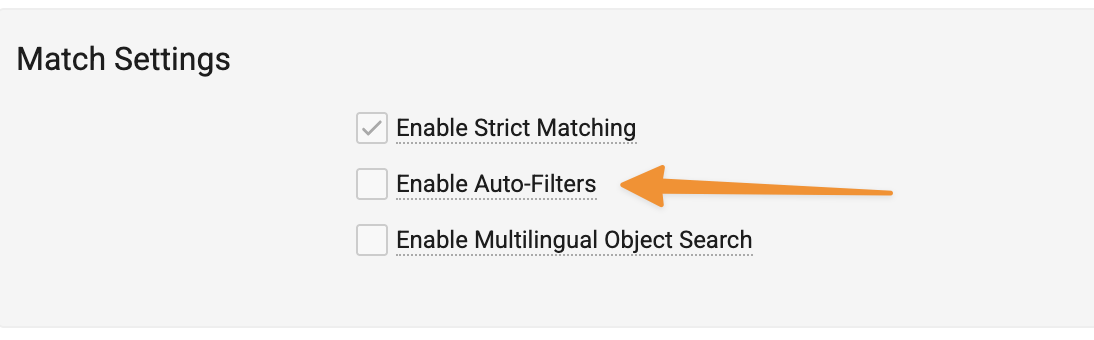
The Auto-Filtering setting for document search that converts search terms to filters is now disabled by default. This setting will be disabled in all existing Vaults to provide a more intuitive search experience, though for Vaults where this functionality is desired, Admins can enable it from the Search Settings page in Admin.
View Rendition Types in Document ViewerAuto-on26R2.3
Users can now use Split View mode with custom renditions, allowing users to see the viewable rendition that Vault generates side-by-side with a custom PDF rendition.
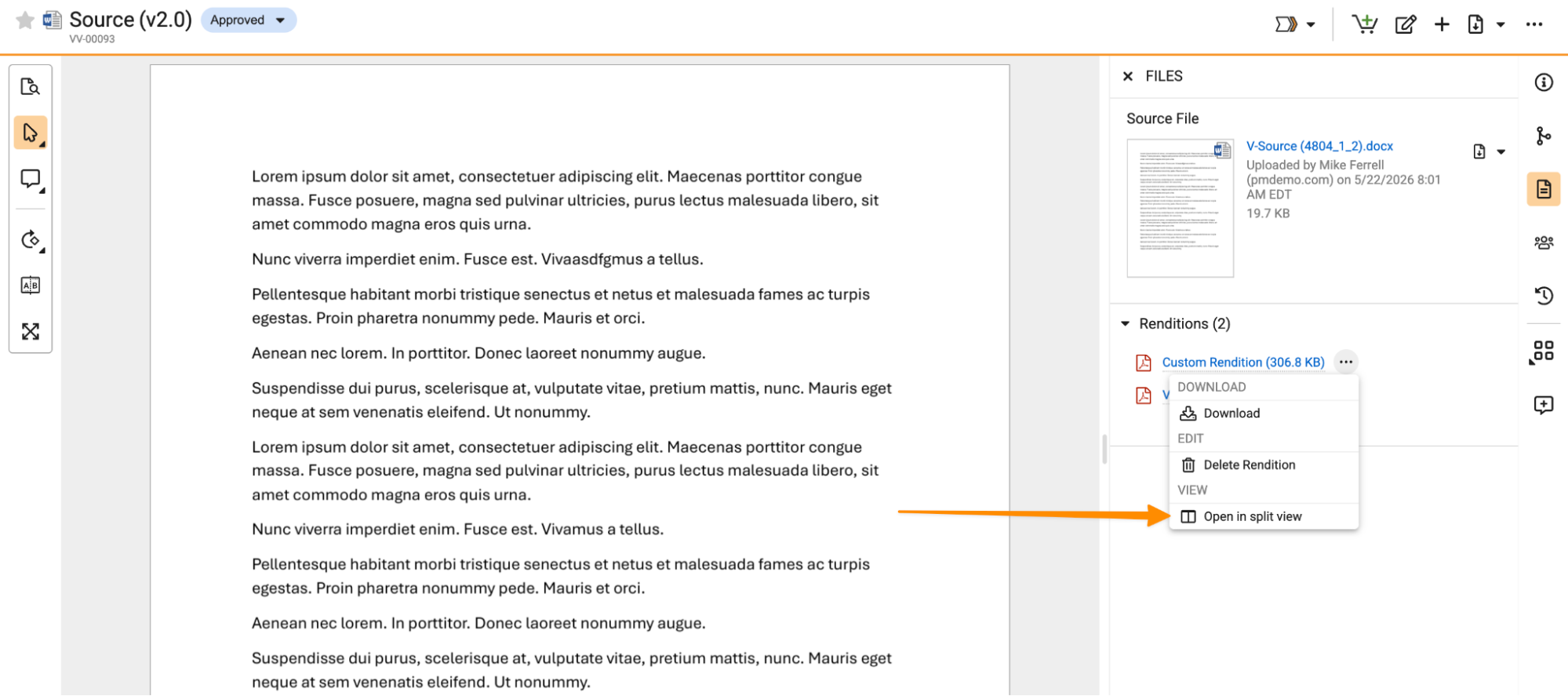
This enhancement only applies to custom renditions that are PDF files with no security.
Learn more about Split View mode.
Report Action to Export DocumentsAuto-on26R2.3
When viewing a report in Vault, users can now export up to 1,000 unique document versions directly from the All Actions menu using the new Export Documents action. This new action streamlines the workflow by exporting exact report results in their exact display order and with duplicate versions automatically removed, so that users can quickly retrieve historical records and audit sets.
The action appears only on reports that return at least one document version and remains hidden for object-only reports.
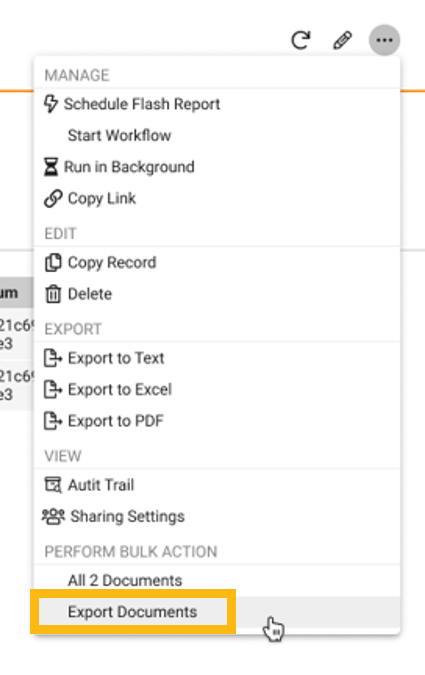
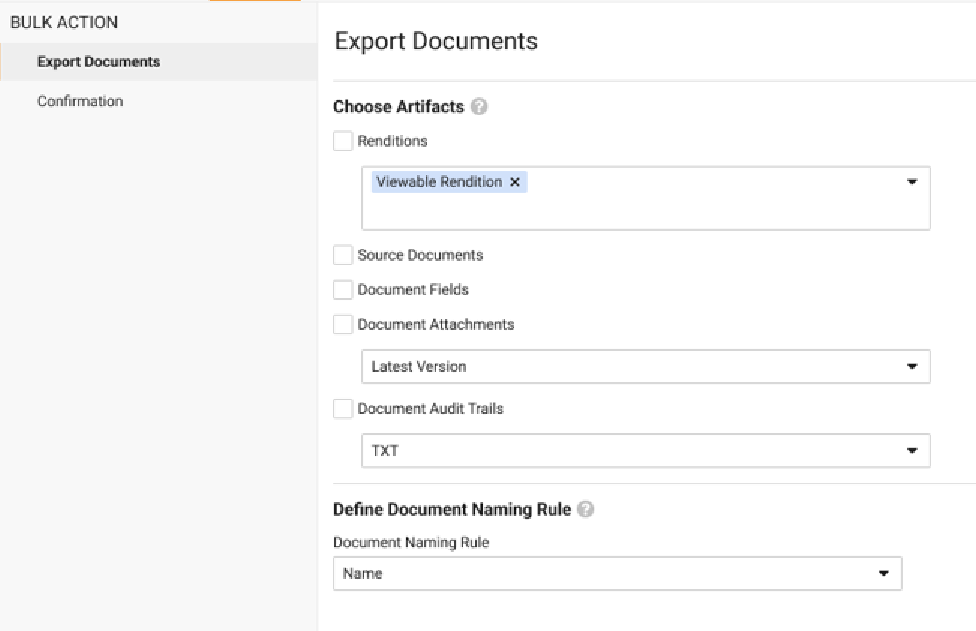
When using the Export Documents action, users can choose to export renditions, source documents, document fields, attachments, or audit trails. The document versions shown in the report will be exported. Users must have the appropriate download permissions (such as Download Source or Download Rendition) for the specific artifacts to export.
Once the export finishes processing in the background, Vault sends a notification and an email containing a downloadable ZIP file. This ZIP file includes the requested files alongside a CSV manifest that details the successful and failed exports.
Learn more about Exporting, Sharing & Copying Reports.
Improved Spreadsheet RenderingAuto-on26R2.3
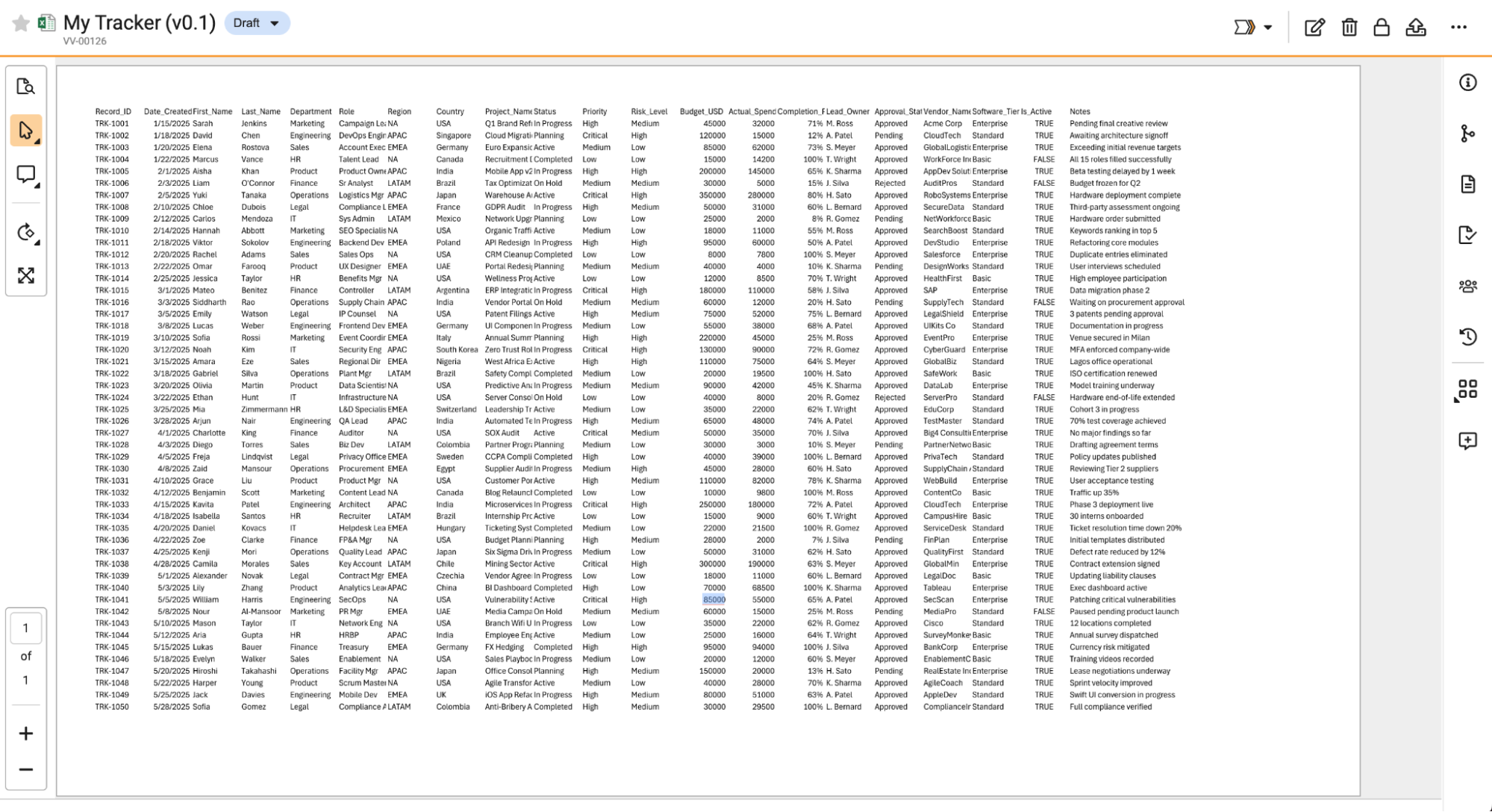
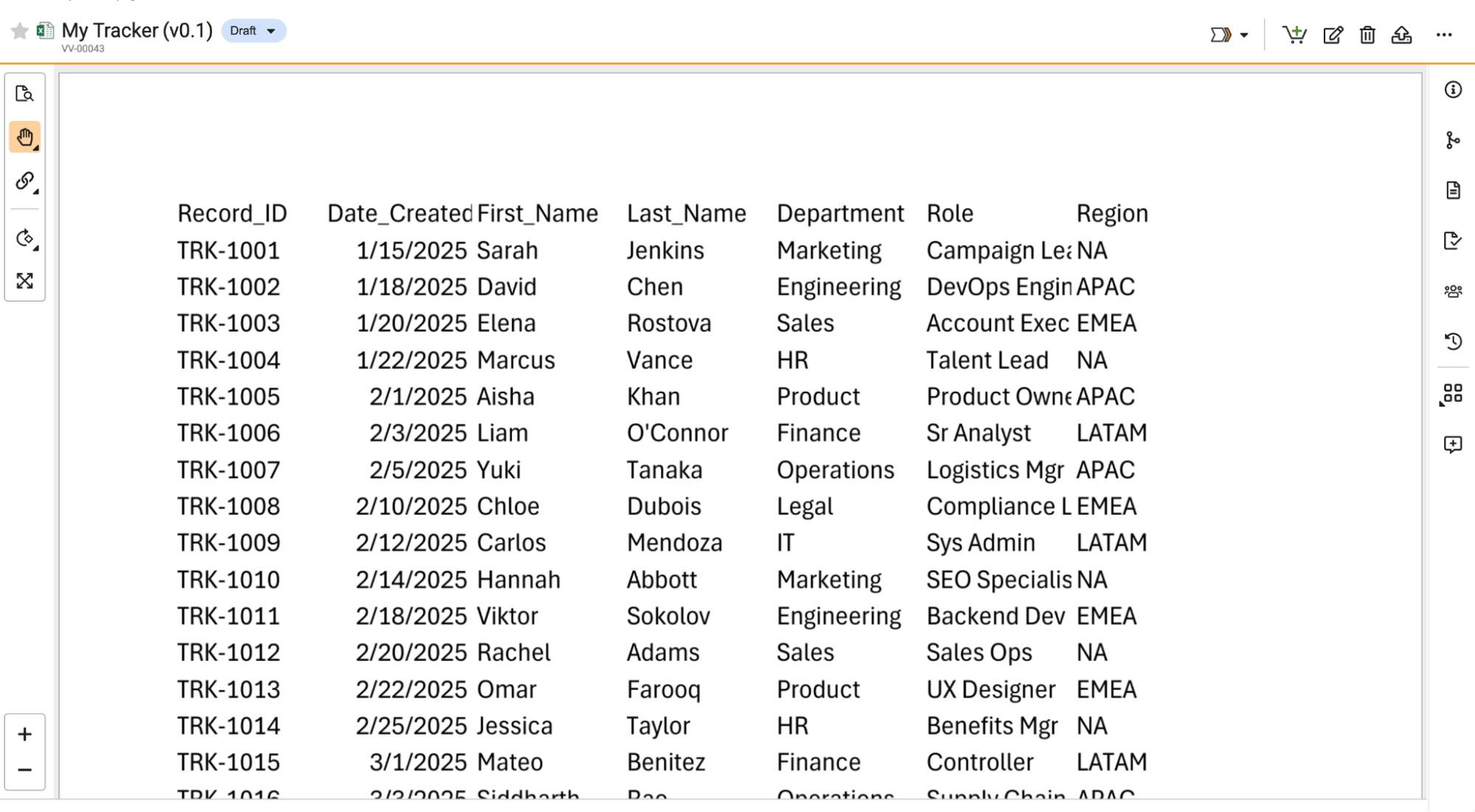
Vault now renders spreadsheets (XLSX, CSV, XLS, XLSB, and XLSM) with a much larger page width and height, and often eliminates page breaks. This updated viewing experience ensures that wide columns and long rows remain connected, making large datasets easier to read in Vault’s document viewer.
As an example, with 26R3, a wide spreadsheet showed all columns:
Whereas, prior to 26R3, this same sheet broke across pages at the Region column:
If specific print areas or page breaks are defined in the source file, Vault respects those settings.
Accessibility Support for RenditionsConfiguration26R2.3
Viewable renditions in Vault can now carry forward the source file’s accessibility information, such as document structure tags (headings, reading order, order, lists, and tables) and alternative text (alt text).
The Carry Forward Accessibility Information option is now available on rendition profiles:
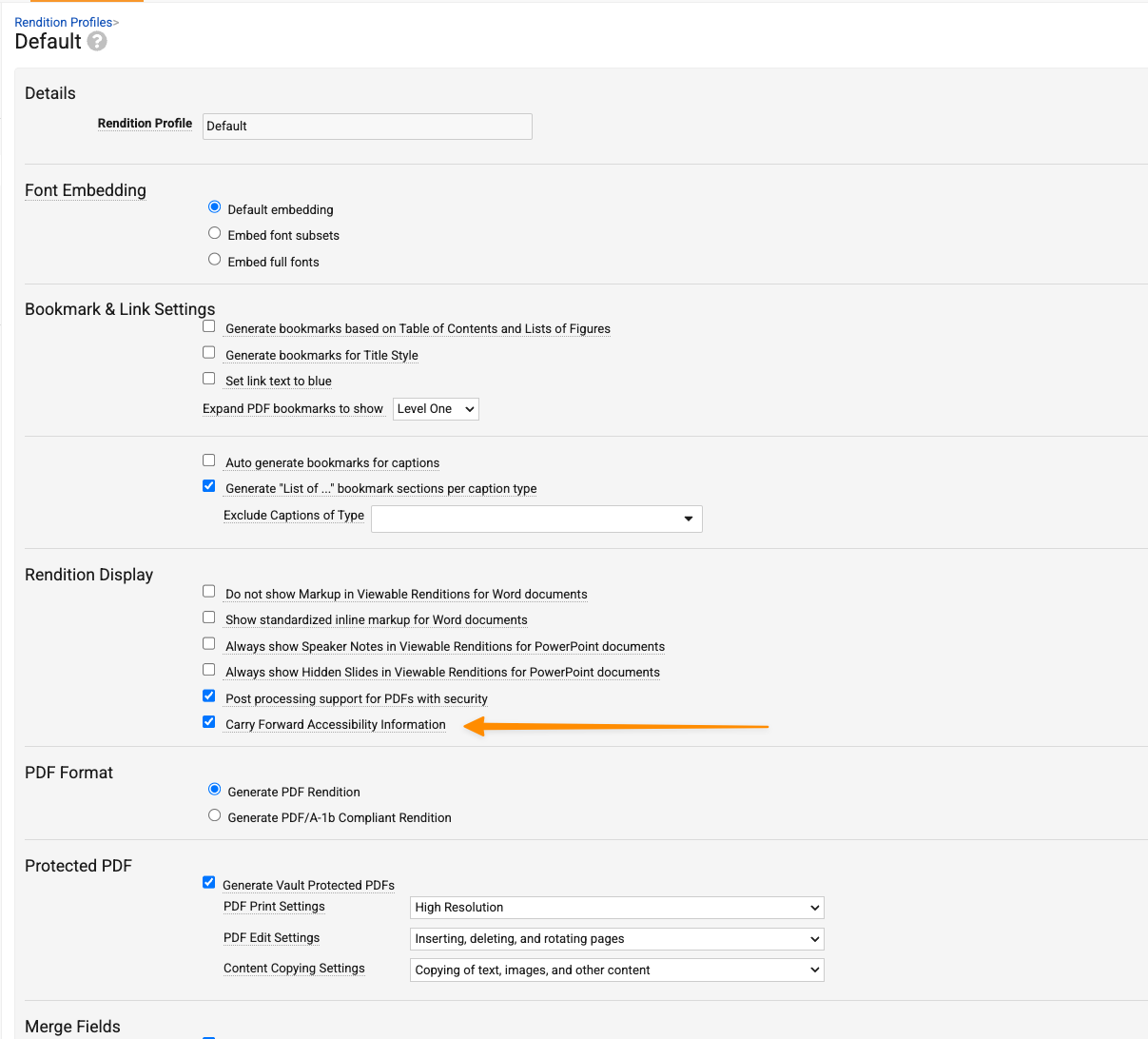
This setting is configurable on the default and custom rendition profiles.
Learn more about Configuring Rendition Profiles.
Sort Document Type Filter AlphabeticallyAuto-on26R2.2
When using the Document Type filter in the Library, the available document types, subtypes, and classifications will be sorted alphabetically, providing a more intuitive experience for users.
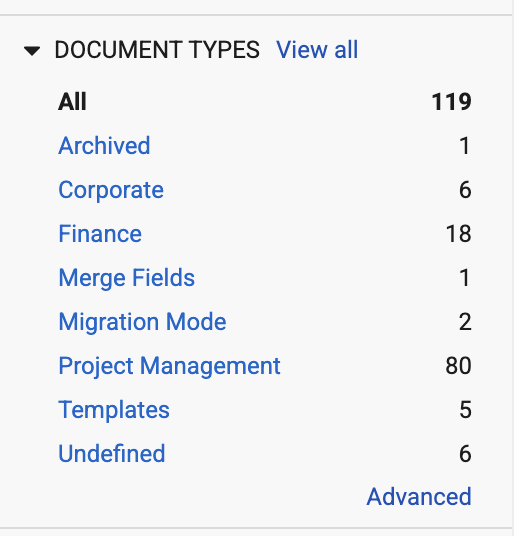
Prior to 26R3, this list was sorted based on the number of documents in each document type.
Filter Fast Search Results by Steady StateAuto-on26R2.3
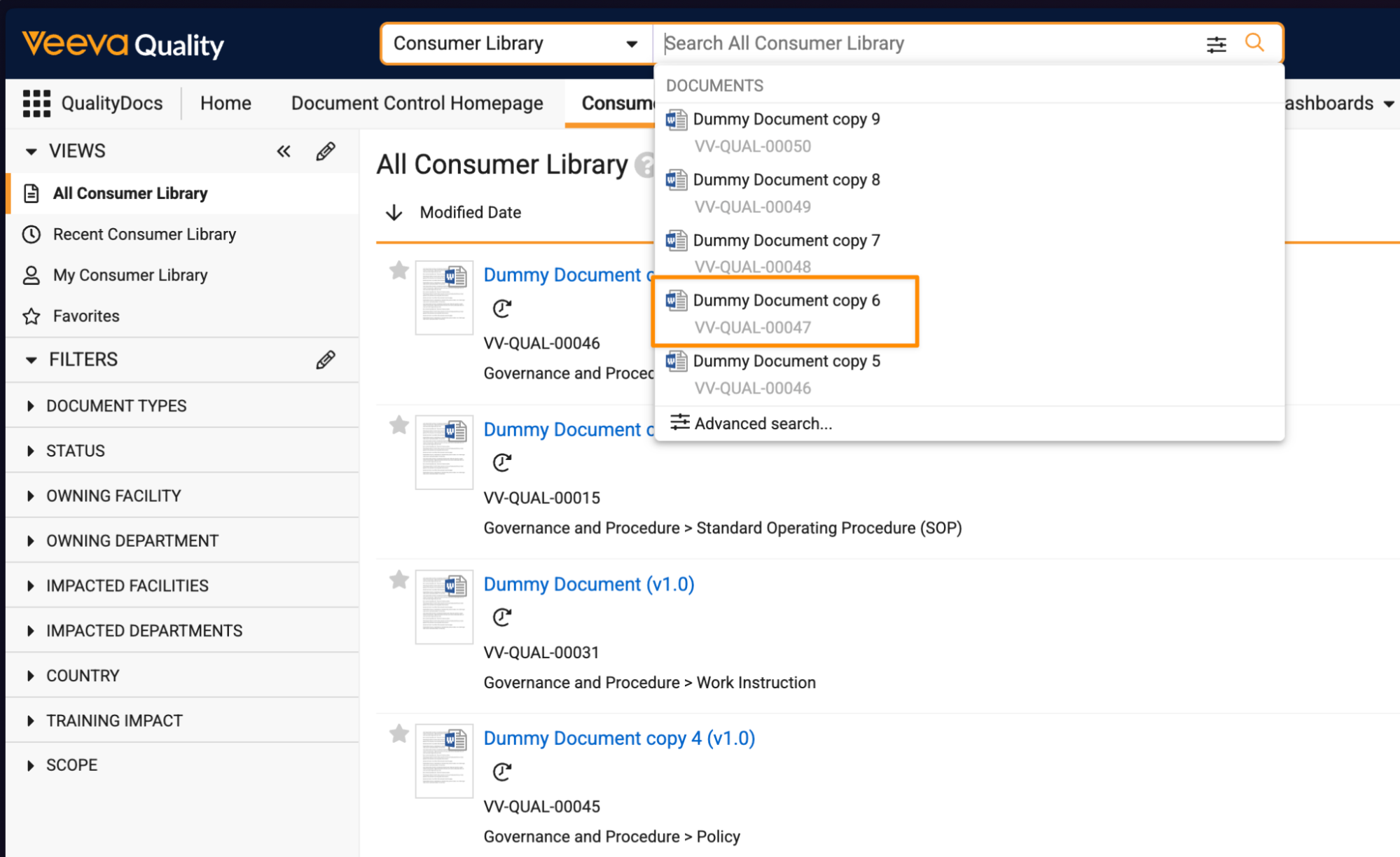
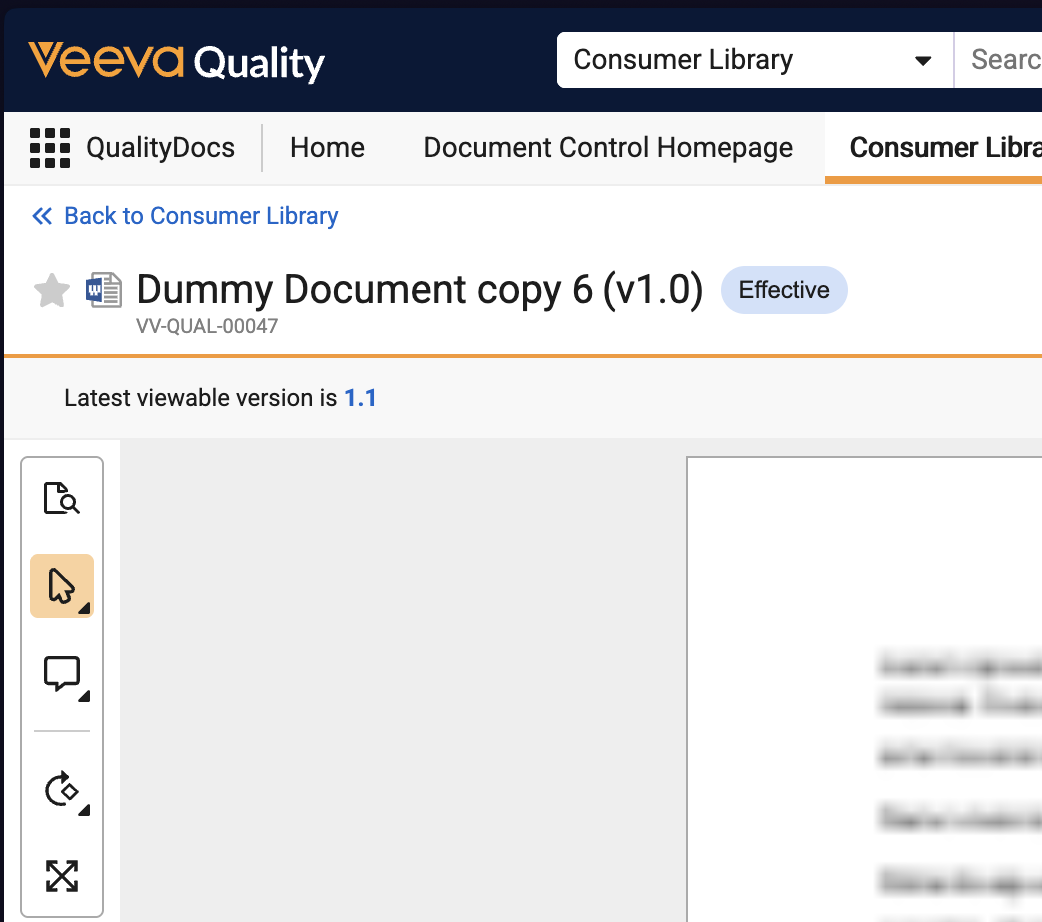
Documents displayed in Fast Search will now automatically filter on steady-state documents if the user is on a document tab that is filtered via configuration to only display steady-state documents.
For instance, the Consumer Library tab in the image below only displays steady-state document versions, so when a user clicks on a document in Fast Search, they are taken to that steady-state version, rather than the latest draft.
Create Incomplete Documents via Drag & Drop into LibraryAuto-on26R2.2
Users can now create Unclassified documents in the Incomplete state by dragging and dropping documents from their desktop into the Library tab or other custom document tab:
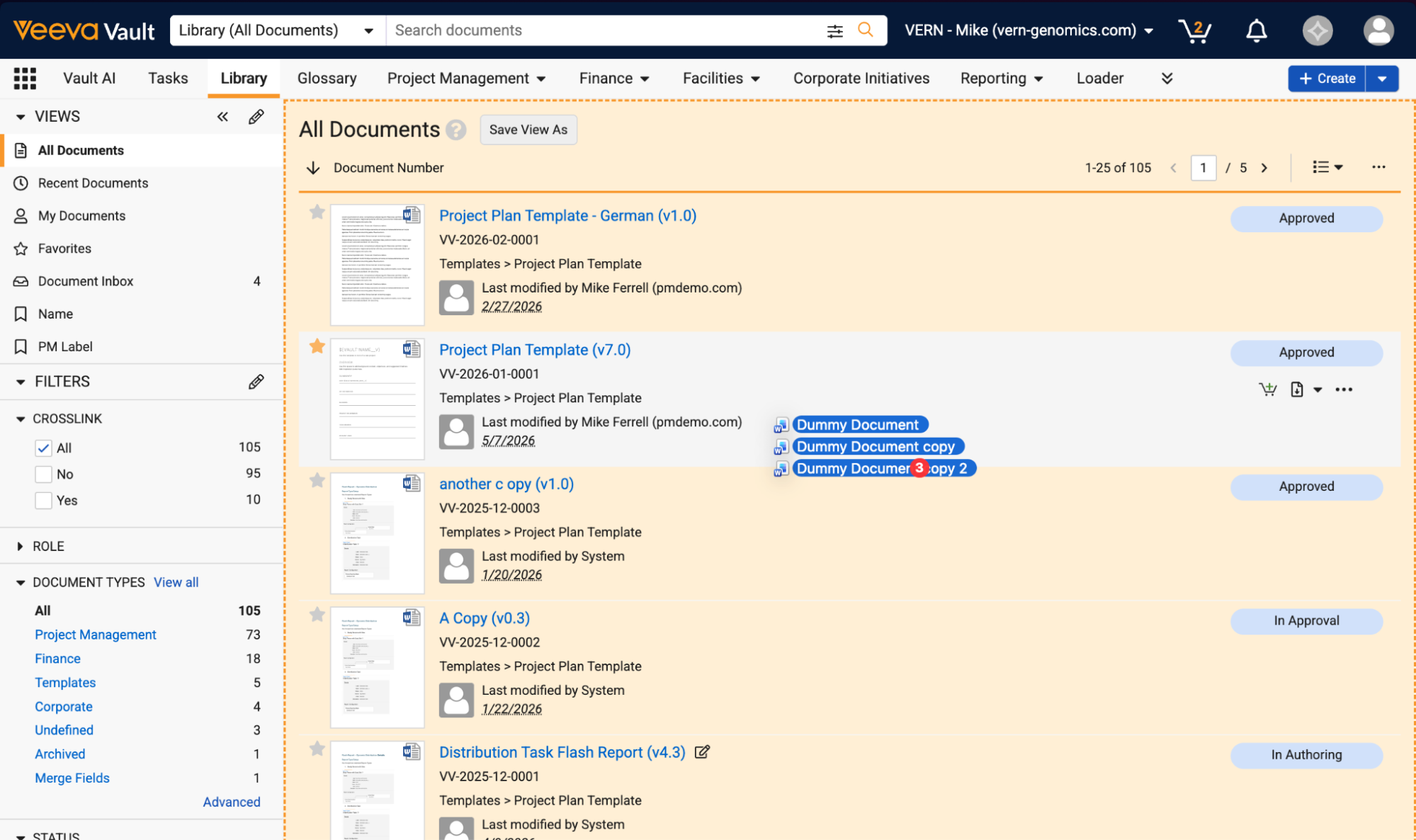
This creates the documents in the Incomplete state and adds them to the Document Inbox. This allows users to upload more content more quickly and easily. Prior to 26R3, this drag-and-drop option was only available directly within the Document Inbox.
Learn more about Incomplete Documents.
Document Action to Reclassify DocumentAuto-on26R2.3
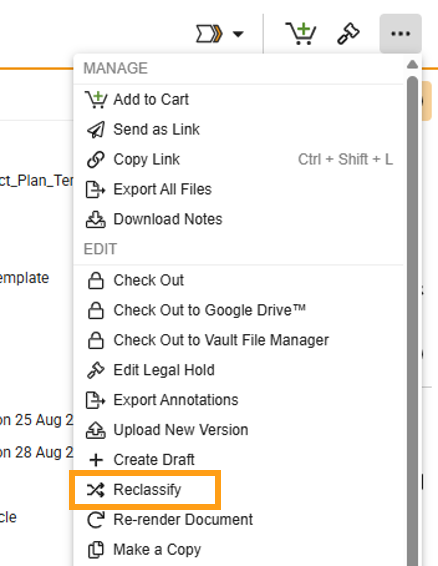
The action to reclassify documents is now available in the All Actions menu for consistency with other document actions.
Export with Overlays & Signature Pages SettingAdmin Checkbox26R2.3
Admins can now choose whether overlays and signature pages are included during bulk exports of viewable renditions. Prior to 26R3, this option was not available in the Vault UI, so customers needed to log a support request if change in behavior was needed. This enhancement provides Admins the ability to manage this behavior directly.
This behavior is controlled by the Export Viewable Renditions with Overlays and Signature Pages setting available in Admin > Settings > General Settings > Documents:
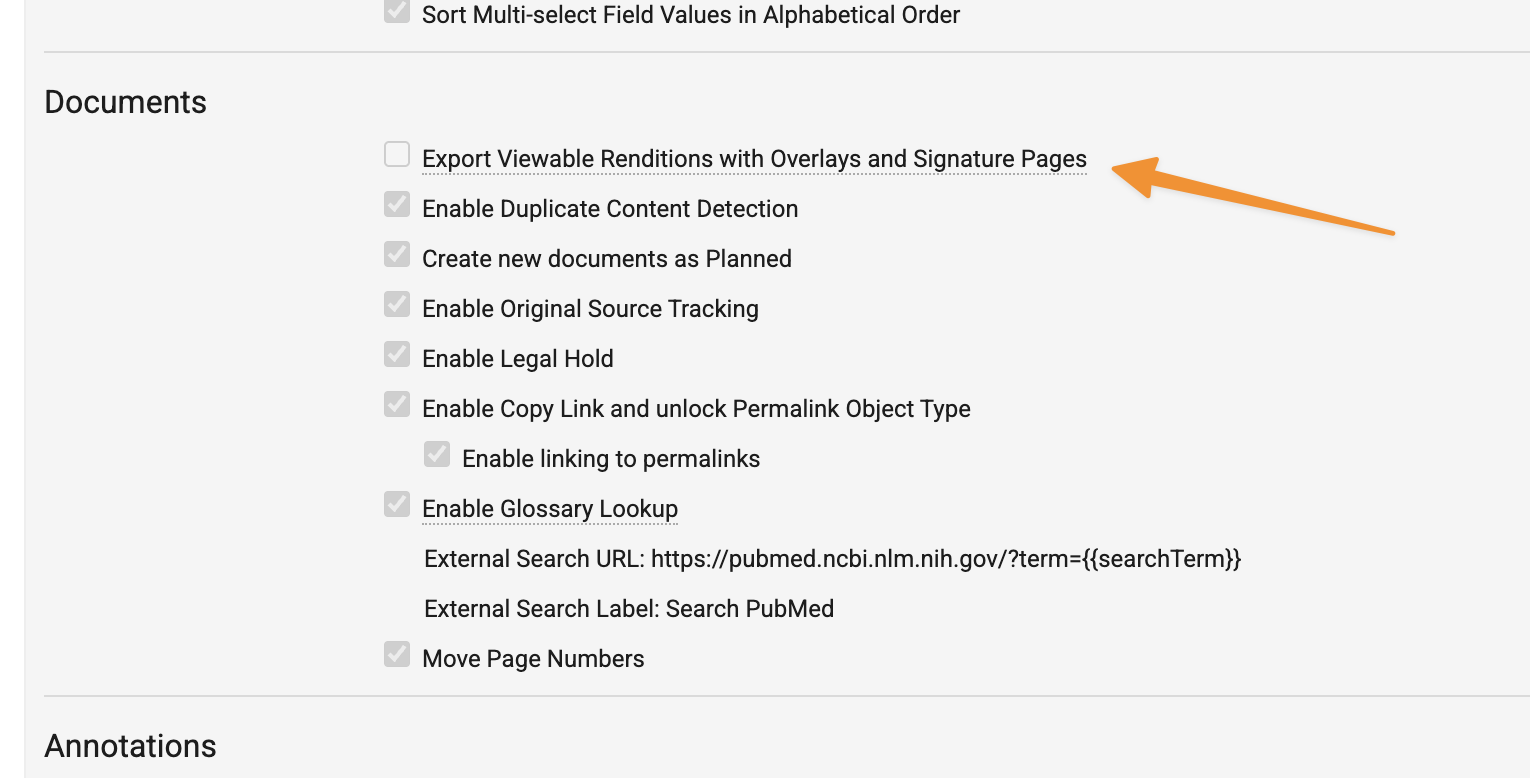
The initial setting of this checkbox is defaulted based on each Vault’s current setting to ensure no change in behavior with 26R3.
Managing Data
Current User Field FiltersAuto-on26R2.3
When adding field filters in a report, if the field has a corresponding field on User, users now have additional Current User options available. This can significantly reduce the number of reports that need to be maintained by providing more dynamic options based on the viewing user’s information.
For instance, filtering on a field that points to Organization shows an option for Current User Organization because Organization is also a field on User:
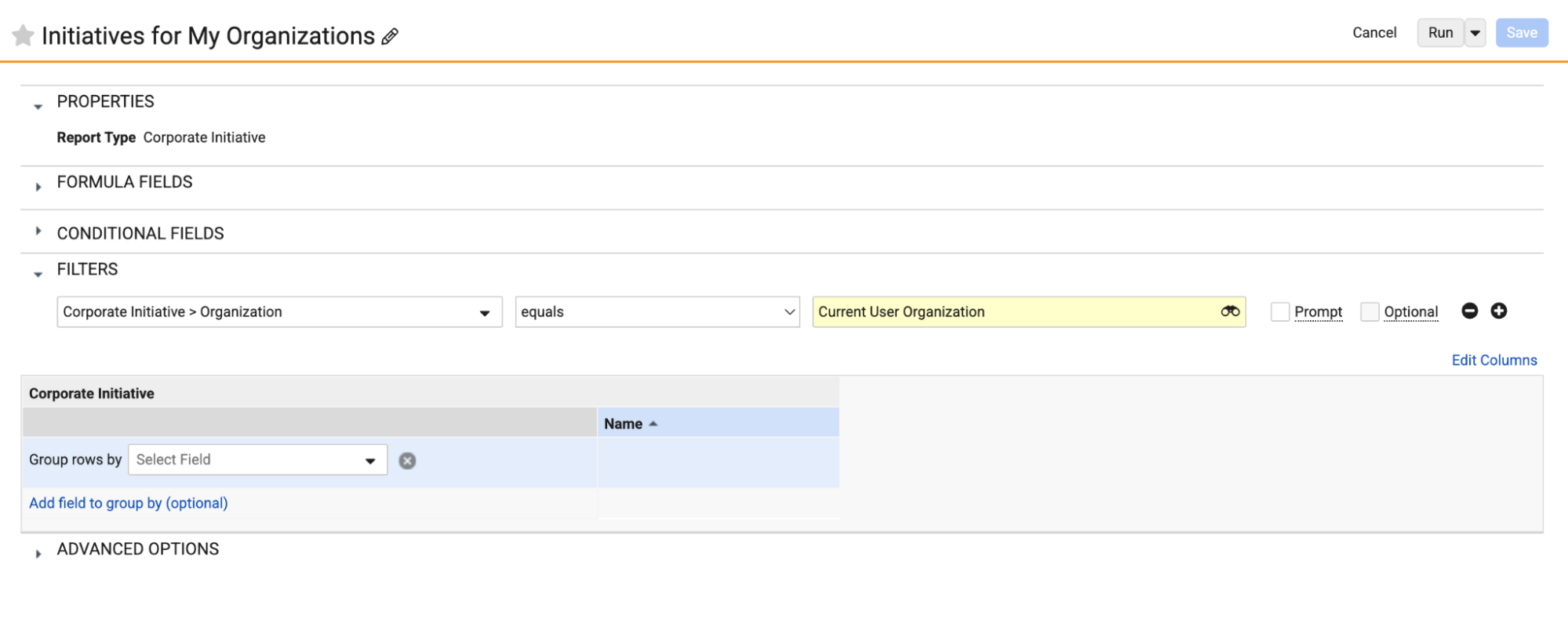
Learn more about Using Report Filters.
Last Initiated By for Object RecordsAuto-on26R2.3
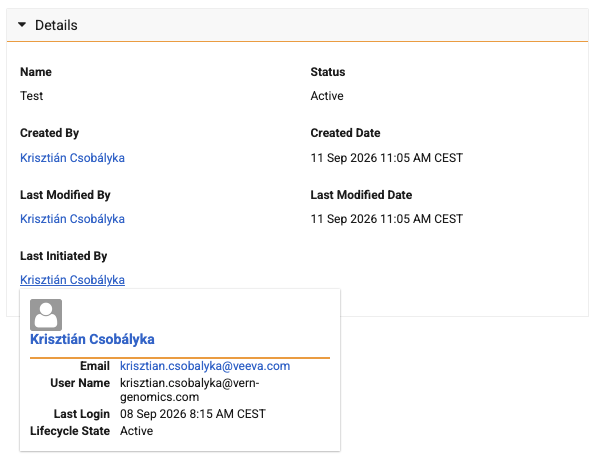
Vault introduces a new Last Initiated By system field across all objects to capture the user who “initiated” the record update. Currently, SDKs and Vault AI agents can update records as the System user on behalf of the initiating user. This feature makes it clear at a glance who initiated the transaction that led to the modification of the record.
Additionally, this feature enhances the Created By, Last Modified By, and Last Initiated By fields so they will now display the value as a link and display a hovercard on hover in Detail View.
Dynamic Reference Constraints for Object Fields: Current UserConfiguration26R2.3
Vault object fields now support the ability to configure dynamic reference constraints based on the current user, allowing dynamic constraints based on the current logged in user.
Admins can use the {{current_user}} token to reference the currently logged in user or {{current_user.field_name}} tokens to reference attributes of the current user. Admins can also use it together with the existing {{this.field_name}} tokens.
This enhancement enables Admins to support use cases such as: “Users should only select records where the referenced record’s Country matches the user’s Country, and the referenced record’s Currency matches this record’s Currency.”
A major difference between {{current_user.field_name}} tokens and {{this.field_name}} tokens is that if {{current_user.field_name}} token is empty (null) at runtime, Vault skips that comparison instead of blocking the user from selecting any value. In other words, current user tokens are permissive when undefined, while current record tokens are restrictive.
This behavior means that, in the below example, if the user’s Country is not defined, the reference constraint is only applied based on the Currency restriction and the Country restriction is ignored.
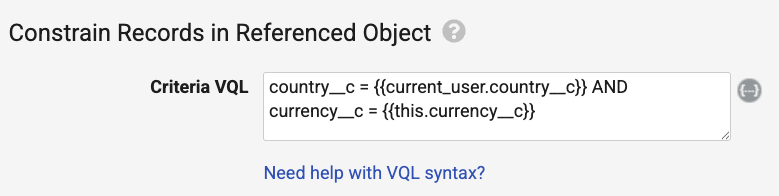
Learn more about Configuring Reference Constraints.
Dynamic Date ConstraintsConfiguration26R2.3
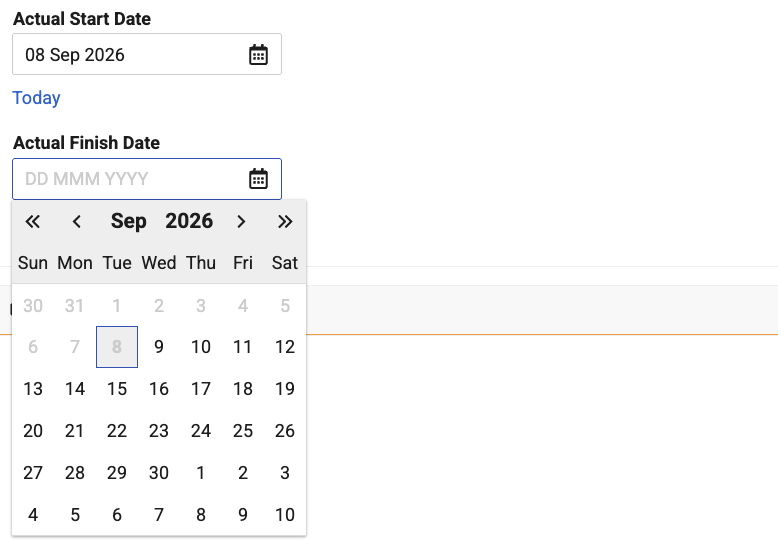
To improve end user experience when selecting dates, this feature allows Admins to set the minimum and maximum dates allowed based on a formula, which is enforced in the calendar picker and on record save. The formula must return a Date return type.
When using the calendar picker, users can no longer select invalid values for the dates based on the minimum and maximum value formulas.
If the formula resolves to null at runtime, Vault skips the constraint. For example, if Actual Start Date above is empty (null), Vault ignores the minimum date constraint for the Actual Finish Date.

Learn more about Configuring Vault Objects.
Checklists: Conditional Questions & SectionsConfiguration26R2.3
Checklists now support conditional questions and sections so that only relevant questions appear to your respondents. As a Business Admin, you can drive whether a checklist Response or Section record is created based on the field values of the checklist’s target object record.
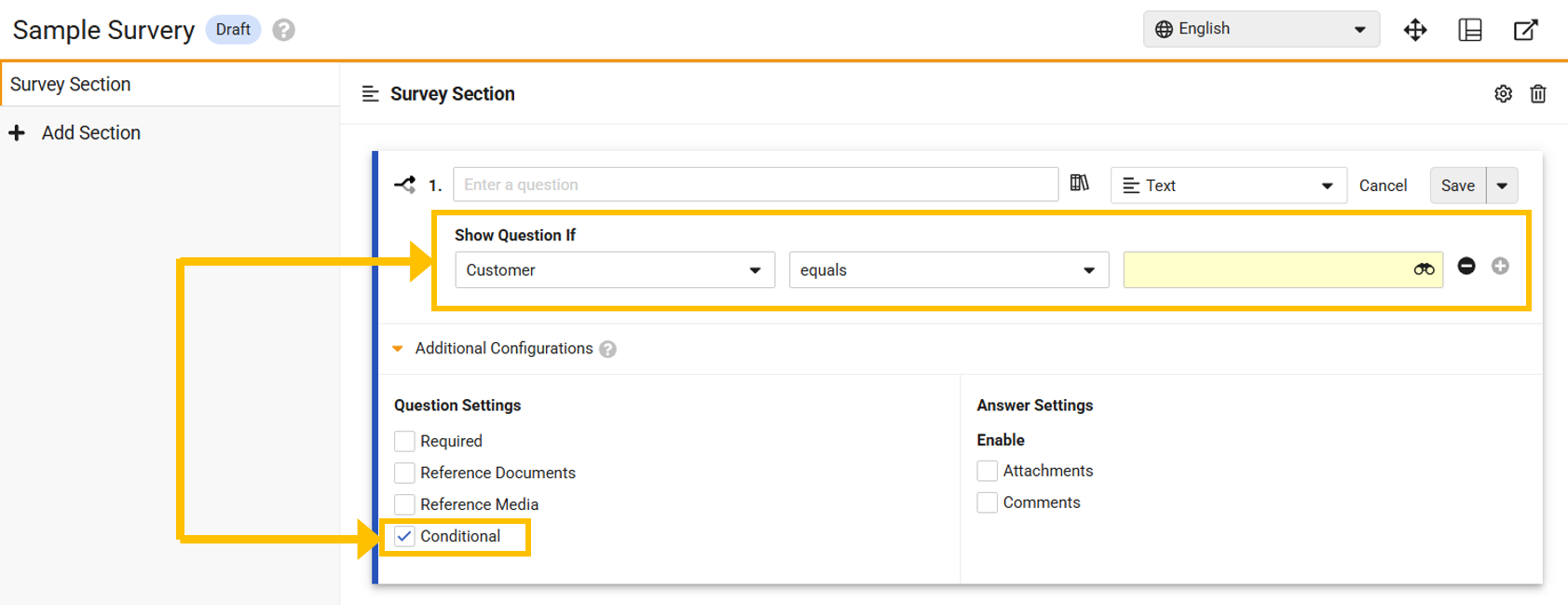
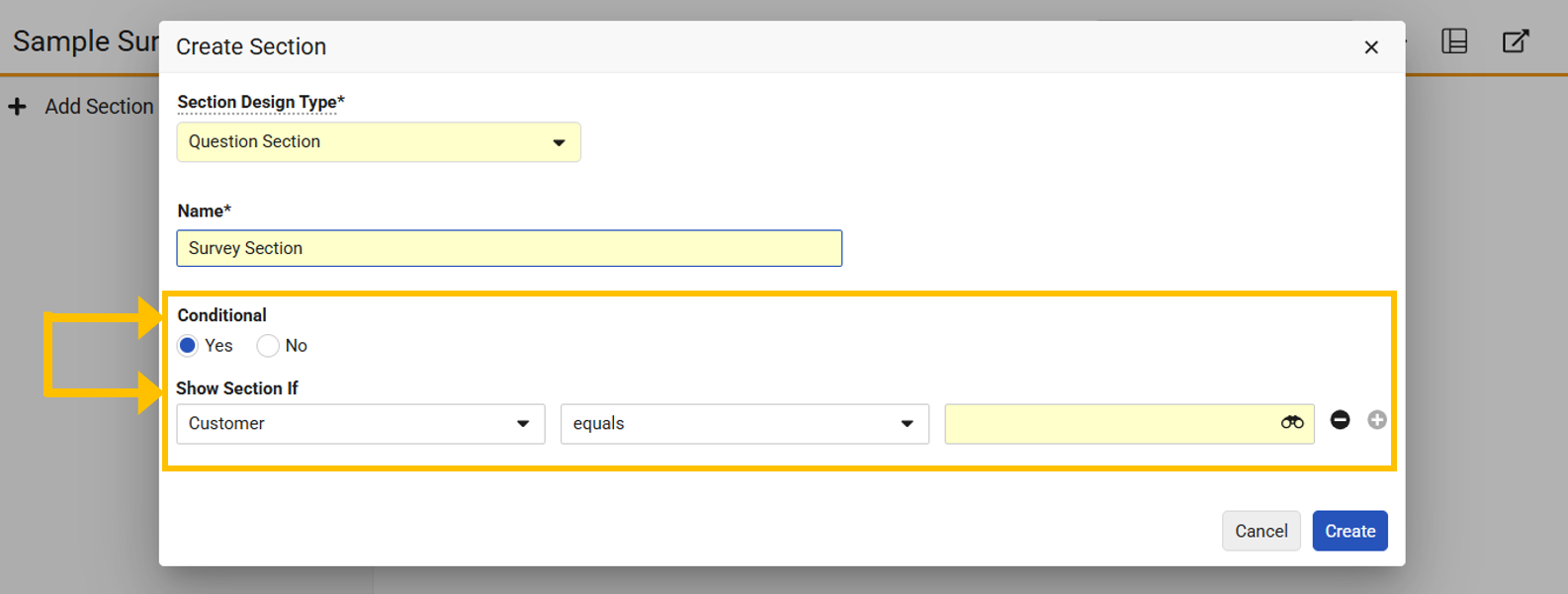
If a condition is not met, Vault does not create the Response or Section record at all. This differs from dependent questions, which are always created but are only displayed based on user responses. By skipping the creation of unnecessary records entirely, this feature results in shorter, highly targeted checklists and can help prevent your organization from reaching system limits for sections and questions.
Before building conditional paths, Admins must add the new conditional configuration fields to the Optional Fields list on the Visual Checklist Designer Fields section of the Checklist Types record so that they are visible. Once enabled, Admins can easily build these conditional paths directly in the Visual Checklist Designer using the following configurations:
- Define Conditions: Checklist creators can check the new Conditional box under the Additional Configurations section to set your visibility rules
- Supported Fields: Checklist creators can create conditions based on boolean, single- and multi-value picklists, object reference fields, and parent object reference fields
- Checklist Limits: Checklist creators can configure up to 20 conditional questions and 20 conditional sections per checklist
- Design Constraints: Conditional sections and questions cannot use dependencies or be configured as dynamic questions
- Accurate Scoring: Checklist scores are automatically calculated based on the created conditional questions only
Learn more about Using the Visual Checklist Designer.
Word Formatted Output: Support Dot Notation in Rowset() SyntaxConfiguration26R2.3
Word formatted output templates now support the use of dot notation to traverse inbound and outbound object relationships within a ${Rowset()} syntax. This new functionality can significantly reduce the complexity of templates by minimizing the need to use nested tables.
For instance, prior to 26R3, a formatted output on Quiz in Veeva Training required nesting of tables to pull information from Curriculum:
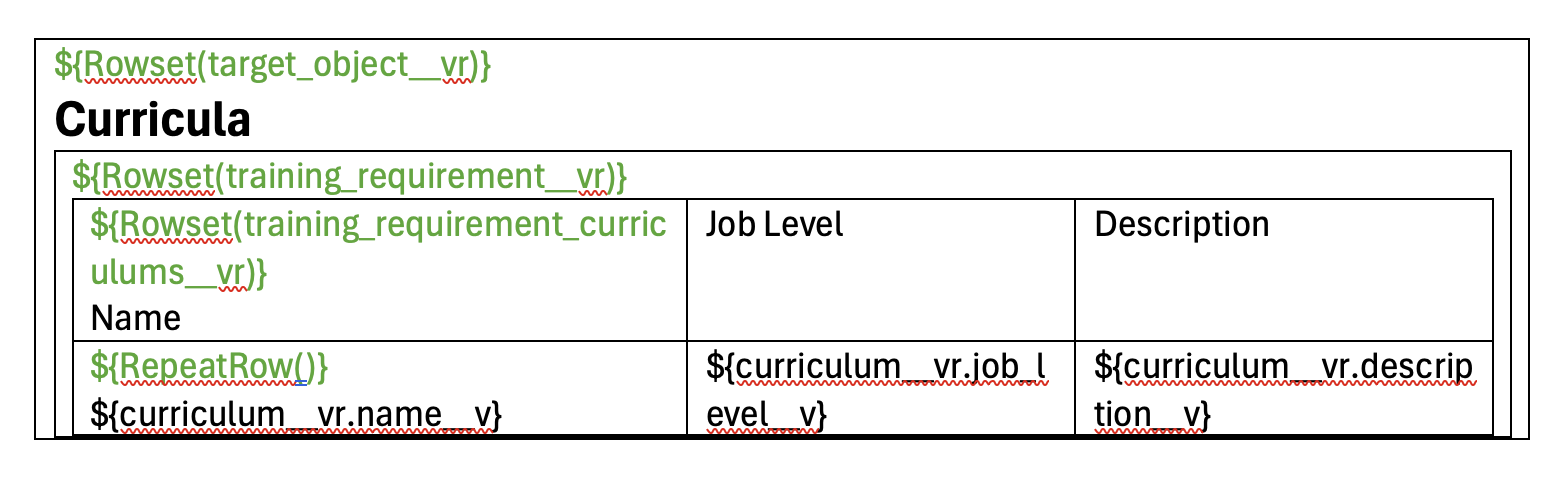
With this enhancement, Admins can accomplish that same table without any nested tables:
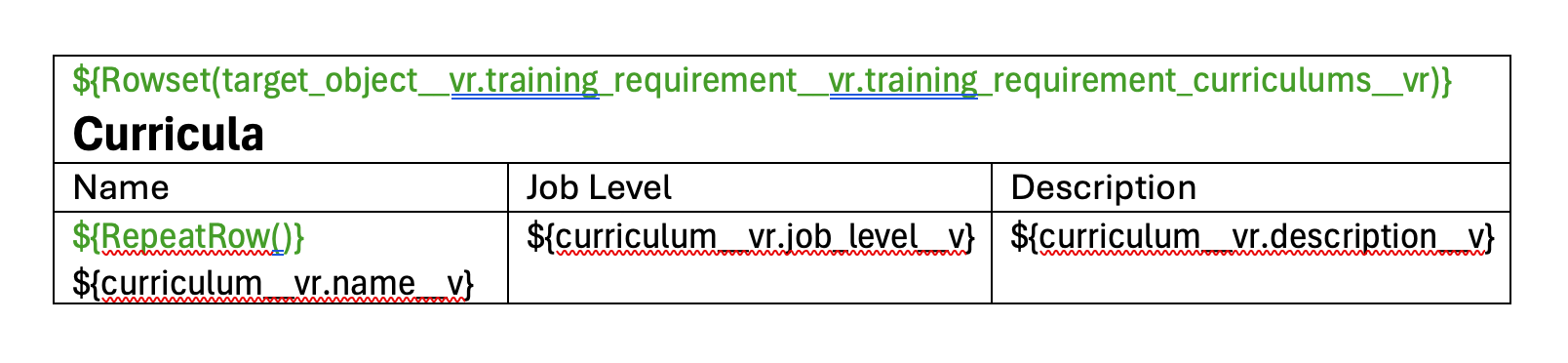
When using dot notation in a ${Rowset()}, up to three relationship traversals are supported. When using criteria VQL to filter the ${Rowset()}, only filtering on the last relationship is supported.
Learn more about Managing Word Formatted Output Templates.
Additional Word Formatted Output EnhancementsAuto-on26R2.3
To improve the experience of creating and managing Word formatted output templates, the Formatted Outputs page in Business Admin now contains additional columns to make it easier to identify different templates:
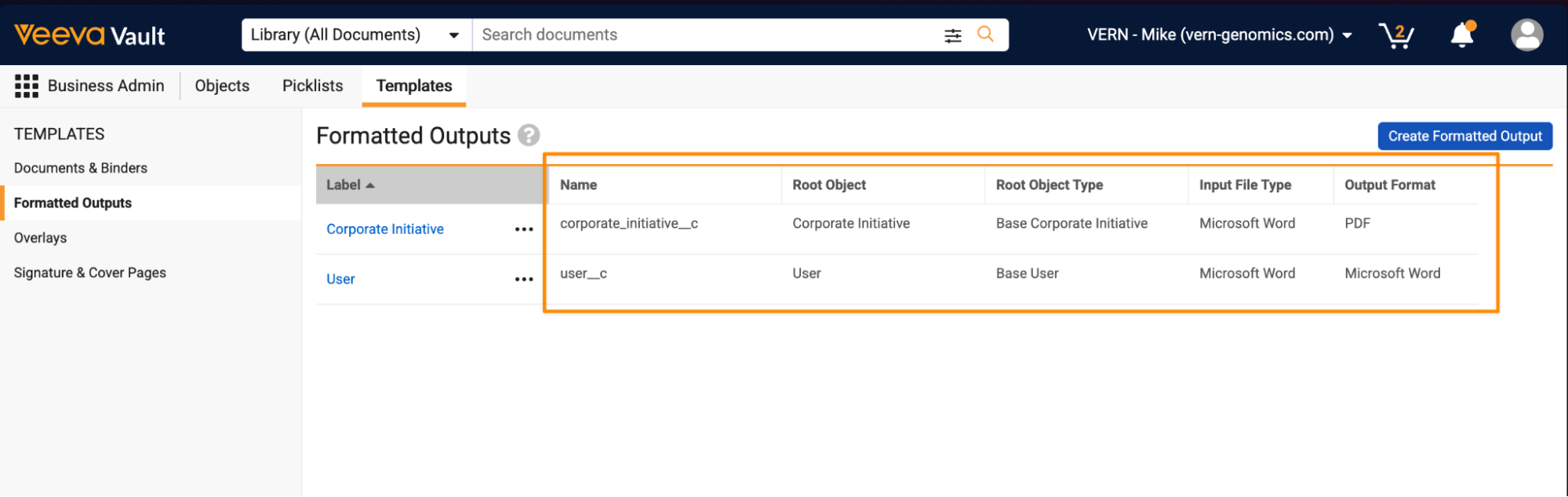
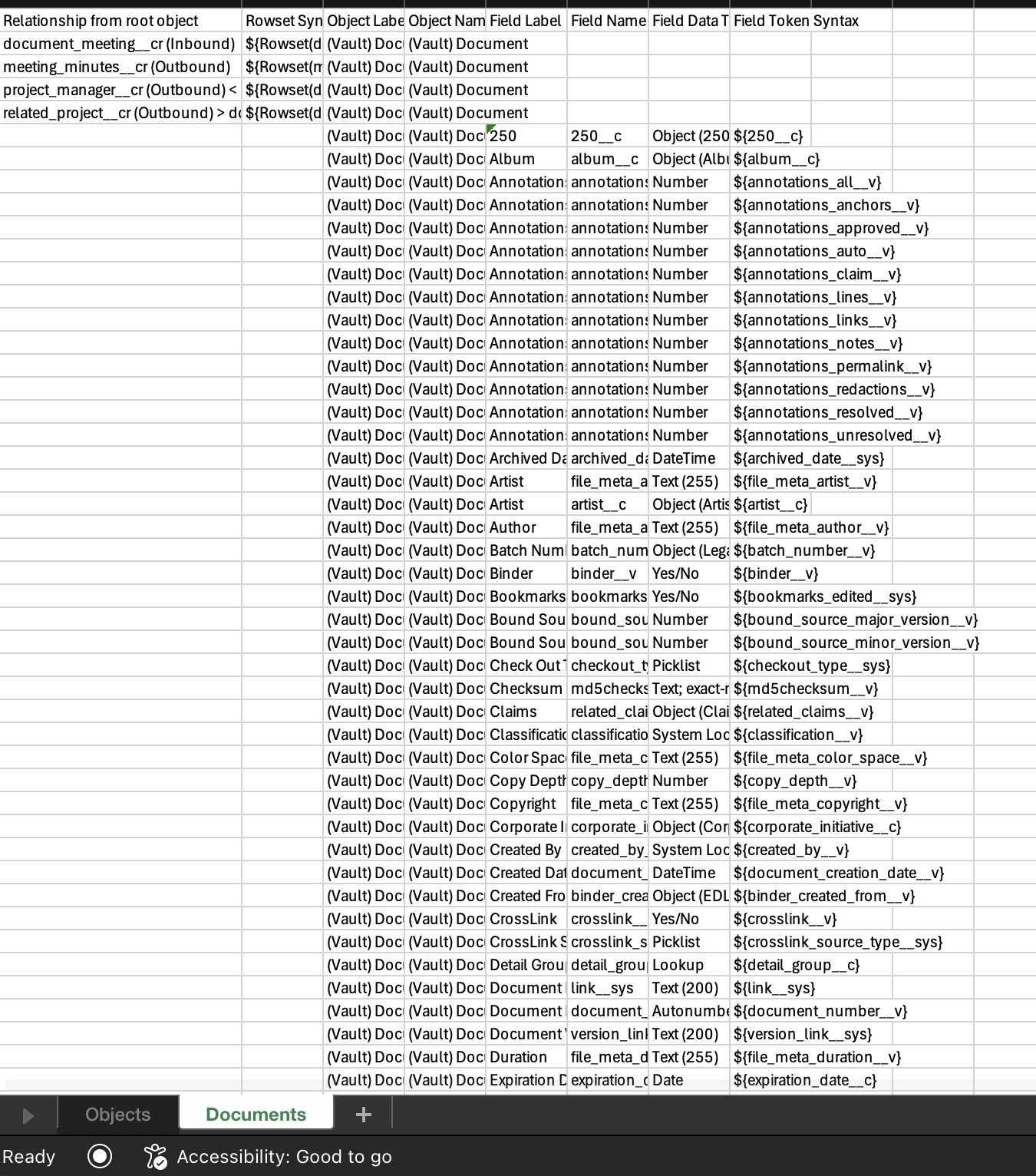
Additionally, the Data Model files Admins can download when designing templates is now an Excel file (XLSX) that separates object and document relationships into separate tabs. The Document tab contains all document relationships (inbound and outbound) and displays the relationships first, followed by all document fields:
Lastly, null Yes/No checkbox fields (neither true nor false) will now respect the X-VAULT-EMPTYVALUE syntax, if defined. If X-VAULT-EMPTYVALUE is not used, a null value checkbox will display in the output as an empty checkbox.
Analytics
Drill Down from Metrics & ChartsAuto-on26R2.2
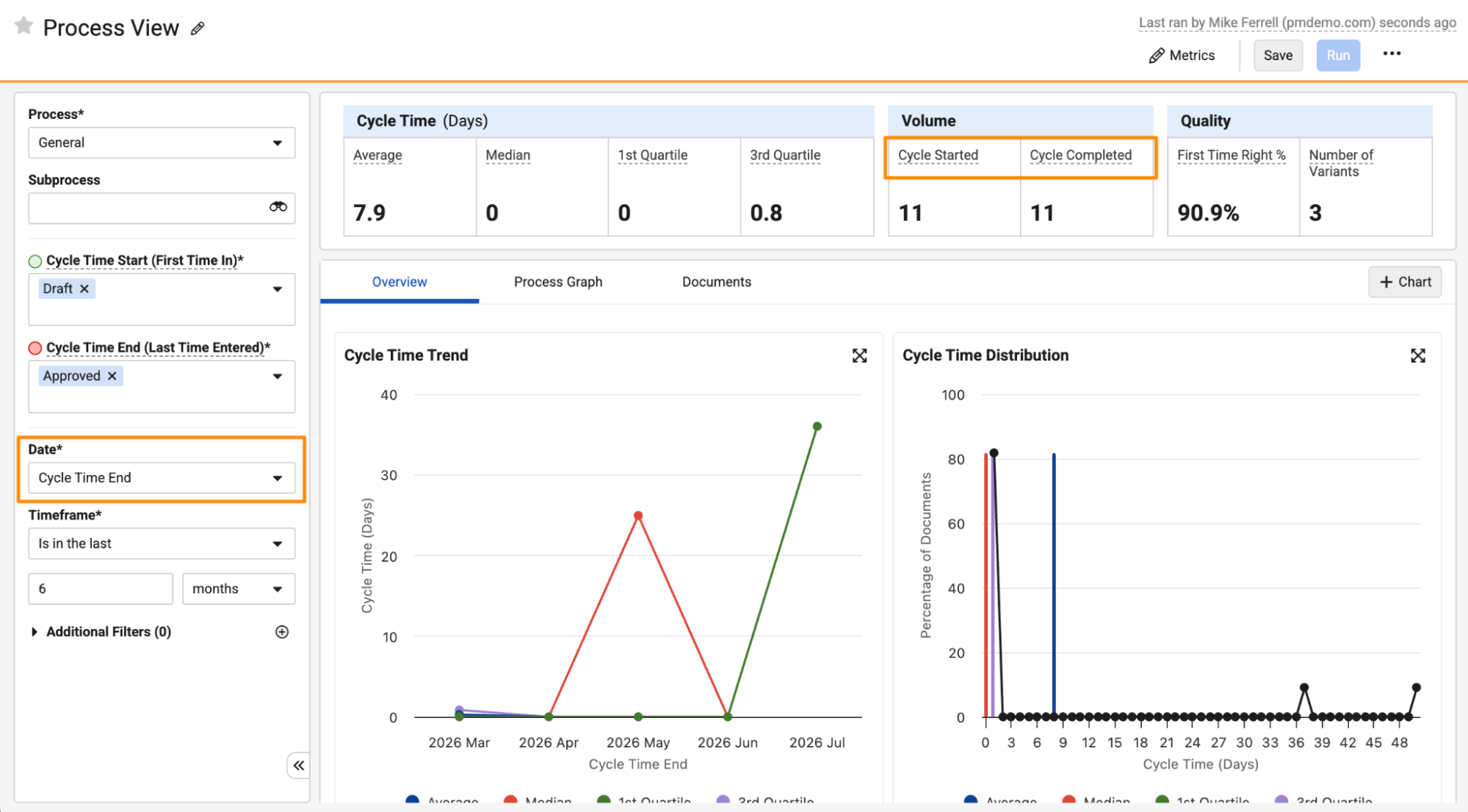
Users can now drill down into specific records or documents from metrics and charts in Process Views, making it easier to dive into details when assessing process efficiency in Process Monitor.
For instance, when looking at the Cycle Time Distribution chart, a user could easily click in to see more information about the outliers represented by the point on the chart:
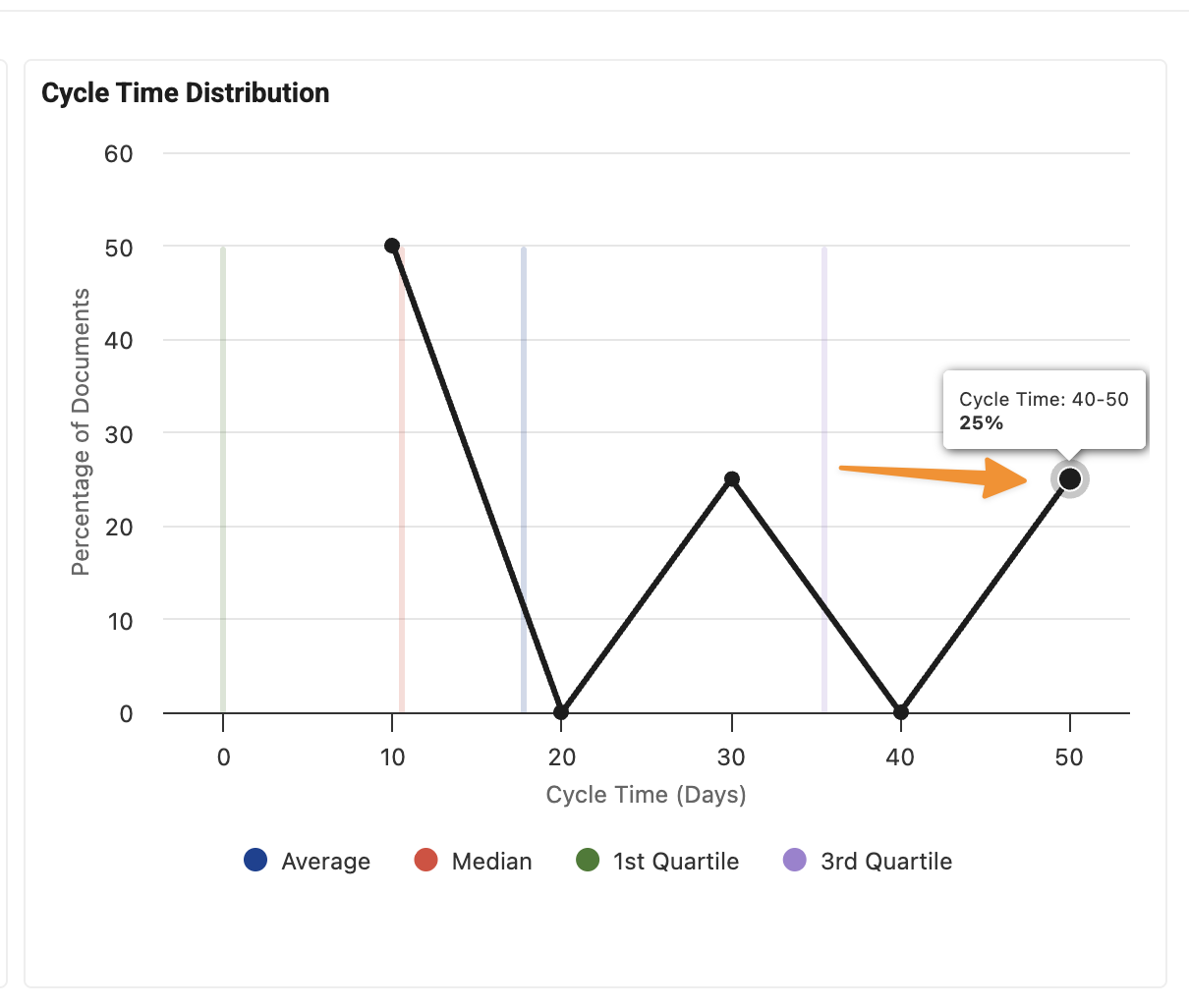
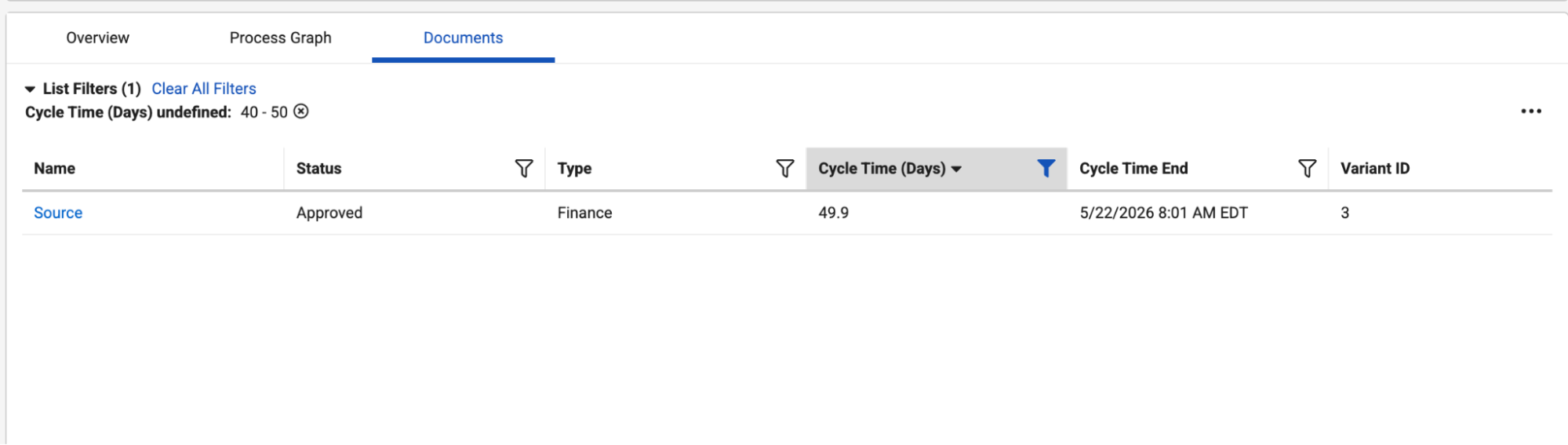
This ability applies to standard and custom charts, as well as the following metrics that may be displayed at the top of a Process View:
- First Time Right (Total and %)
- Total with Rework
- Completed Late (Total and %)
- Completed Ontime (Total and %)
- 1st Quartile
- 3rd Quartile
- Entered End State
- Entered Start State
Learn more about Process Monitor.
Process Graph: Full Screen & ExportAuto-on26R2.2
When working with the Process Graph, users can now make graphs full screen and easily export graphs as image files.
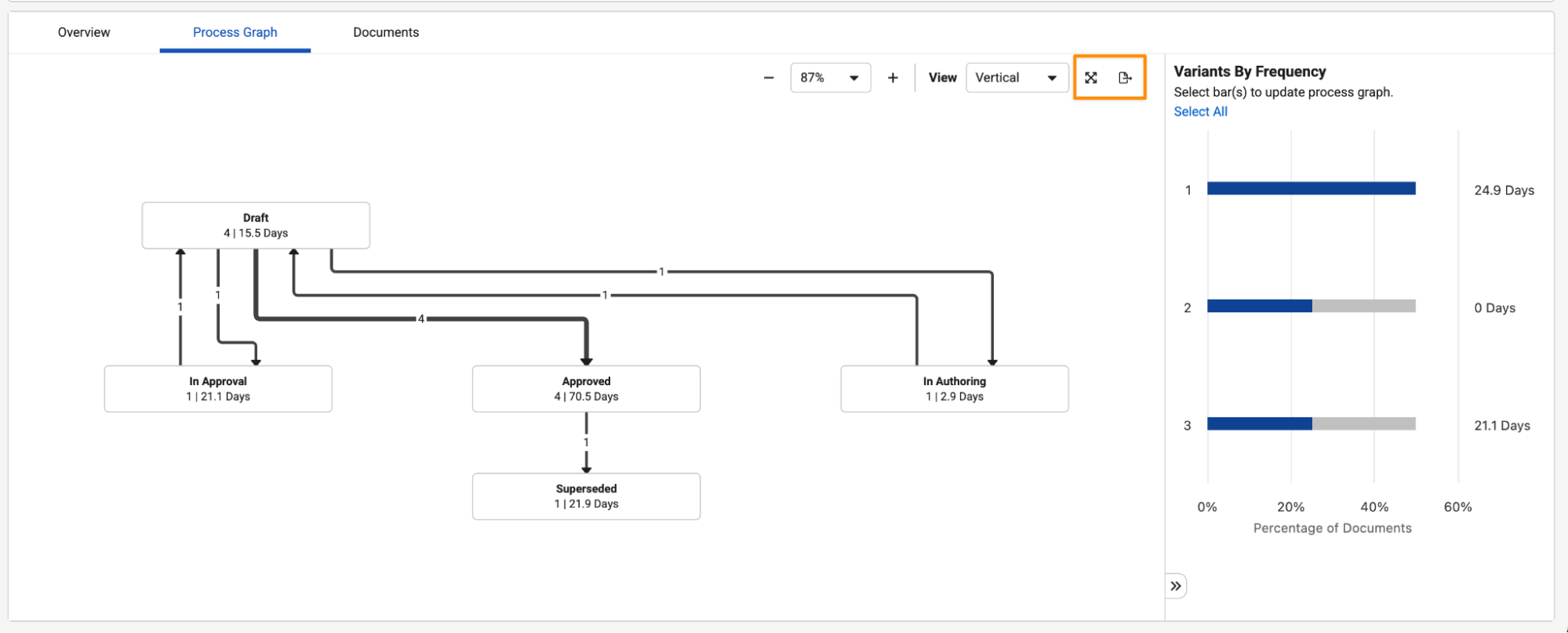
Viewing a graph in full screen makes it easier for users to navigate more complex process variants:
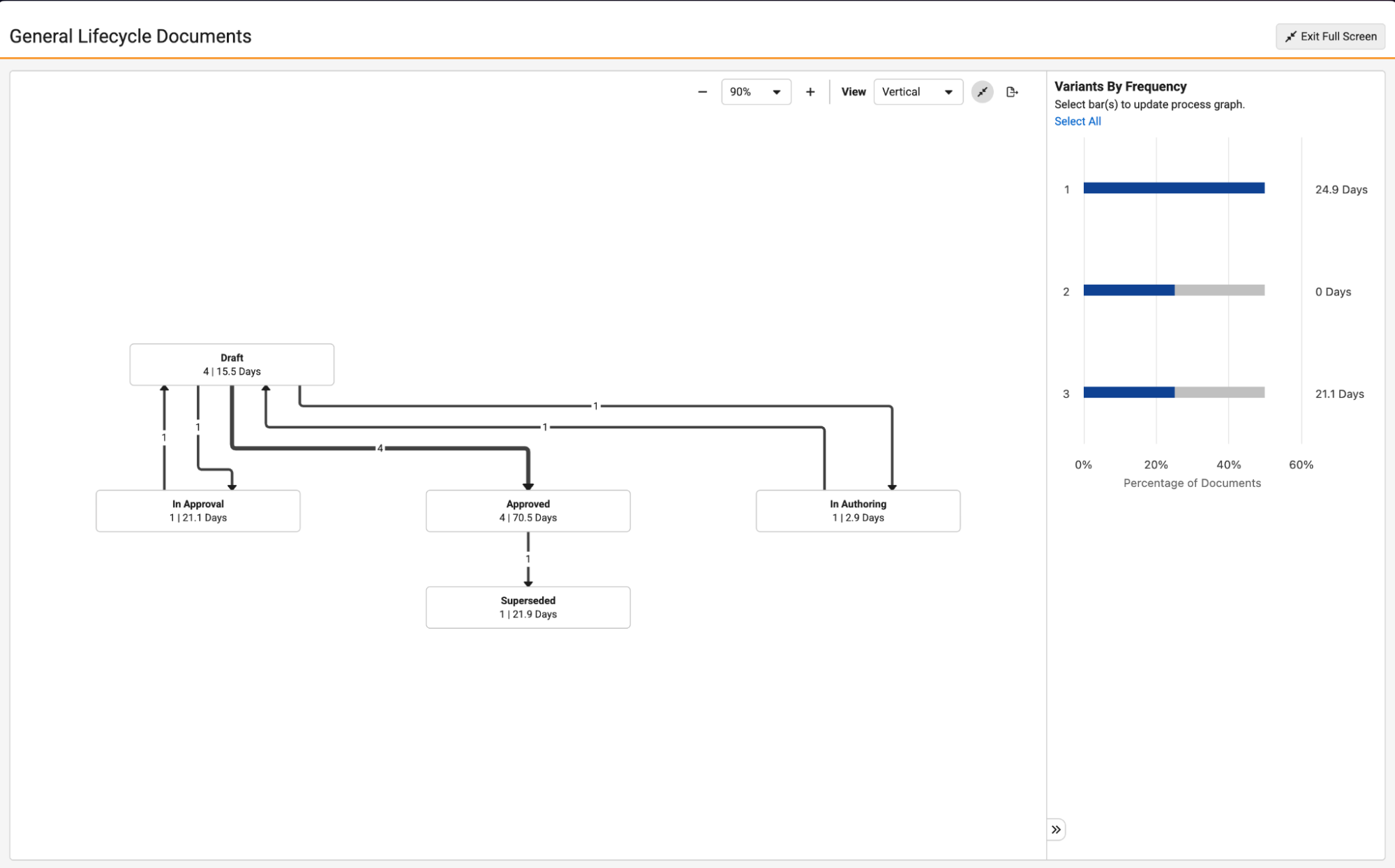
Being able to easily export Process Graphs as images supports users who may need to include these visualizations in presentations or sharing with others within the organization.
Learn more about Process Monitor.
Expand & Export ChartsAuto-on26R2.3
In Process Views, users can now expand charts and download the charts as images, similar to existing Dashboard functionality.
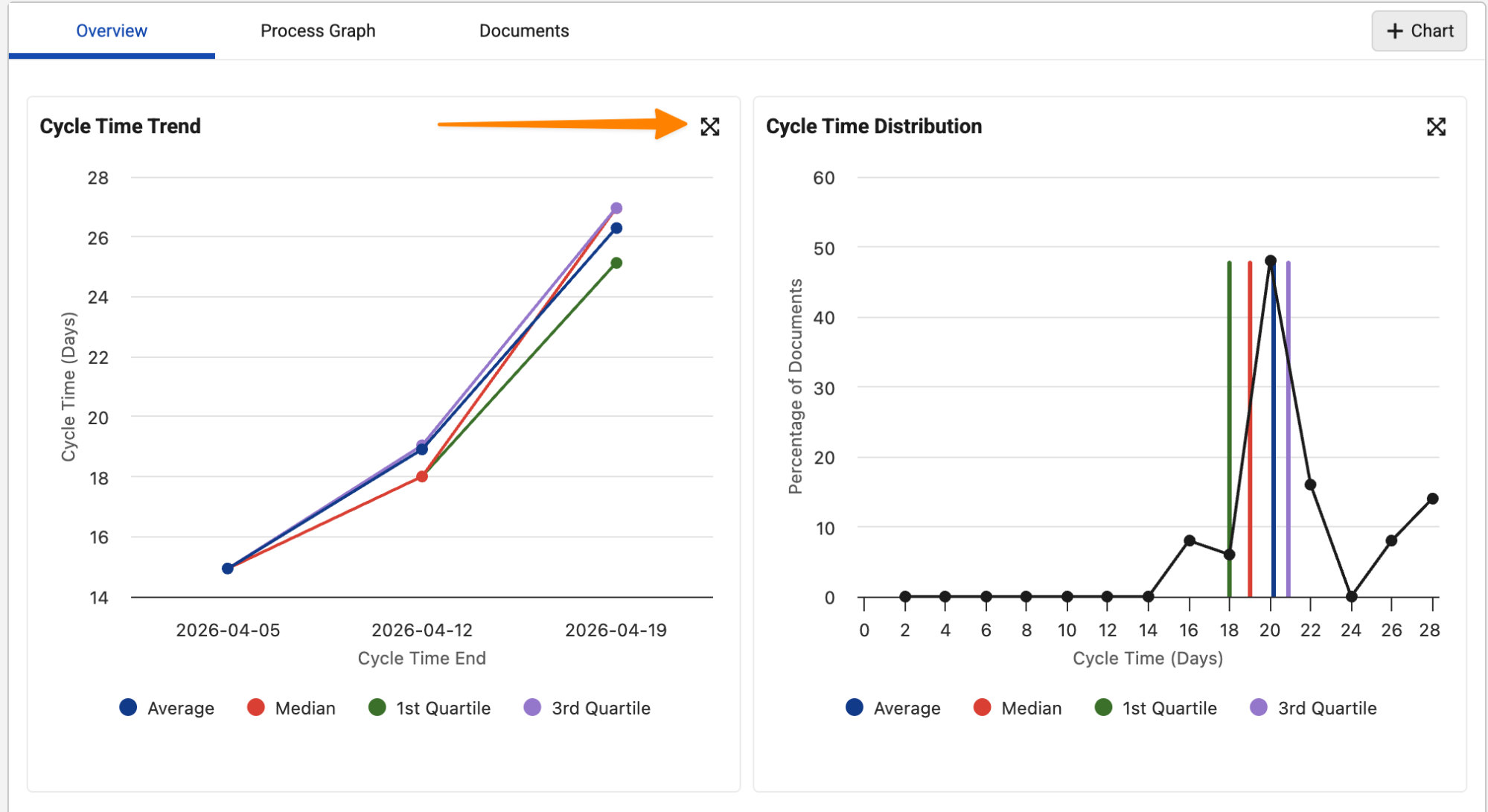
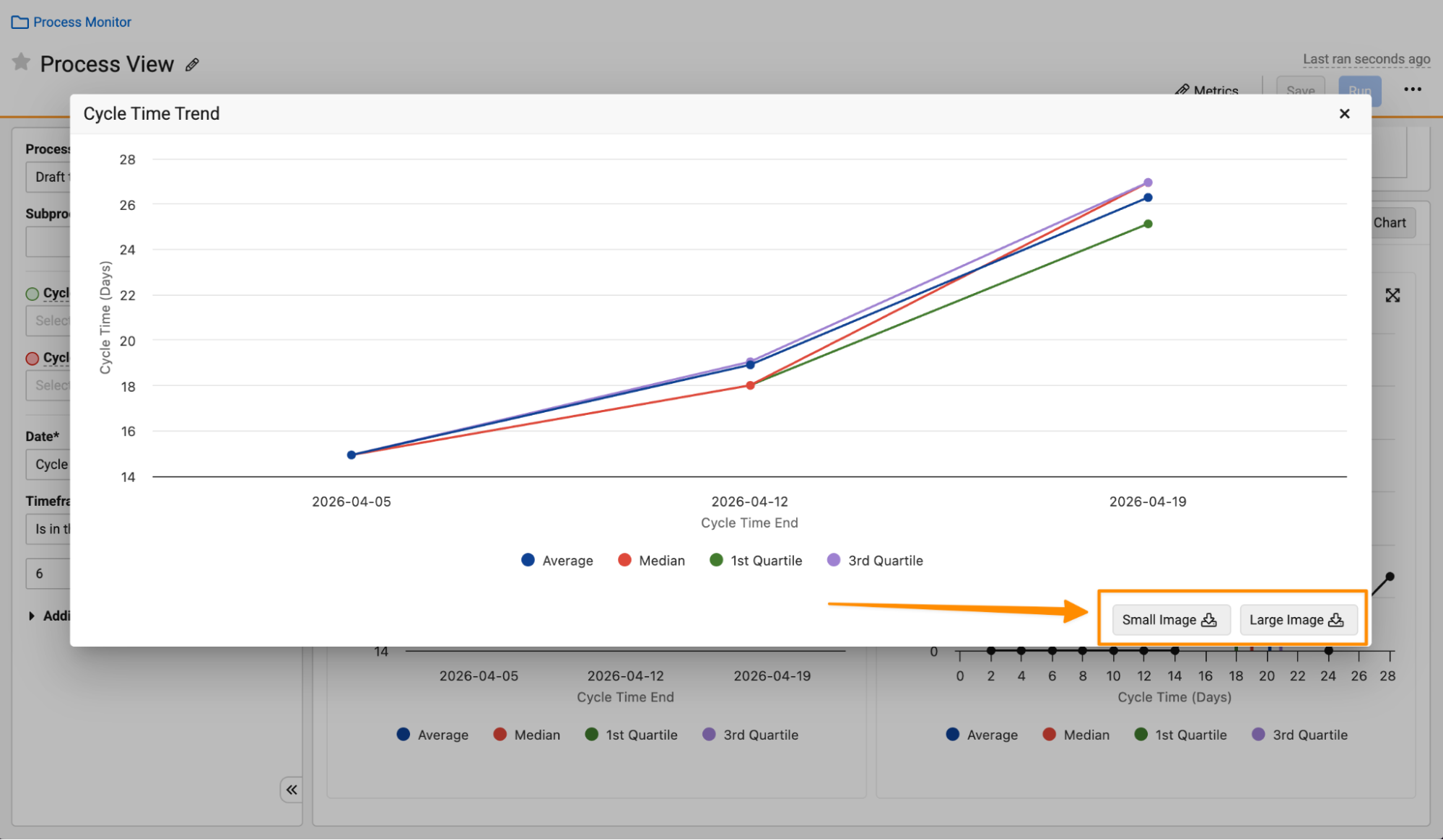
Additionally, Process Views now support up to seven custom charts.
Learn more about Process Monitor.
Scheduled RunsAuto-on26R2.3
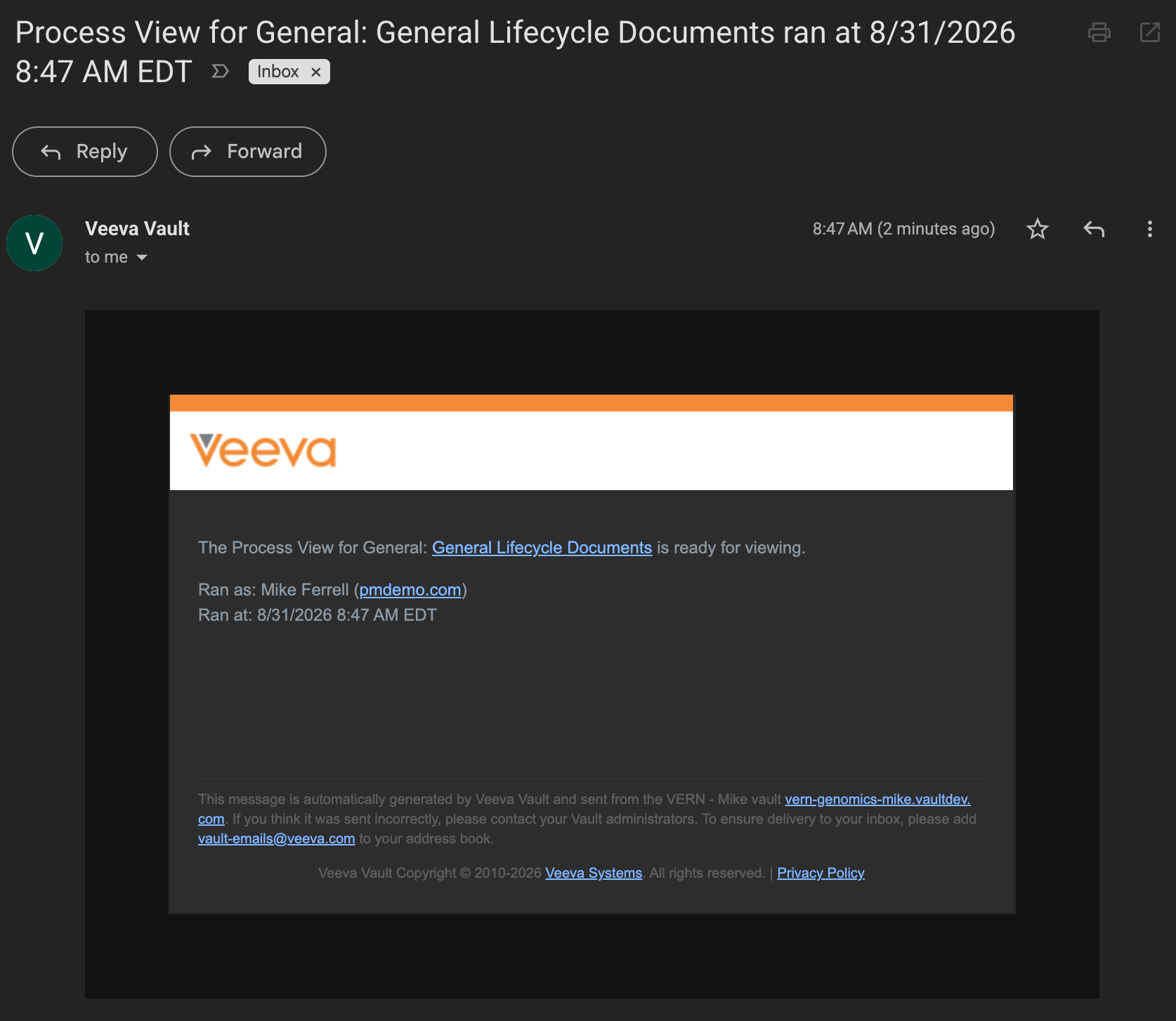
Users can now schedule Process Views to run automatically on a daily, weekly, or monthly schedule. This can help provide a better user experience by more quickly loading Process Views. In addition, Vault also notifies users via email when the data is refreshed during a scheduled run.
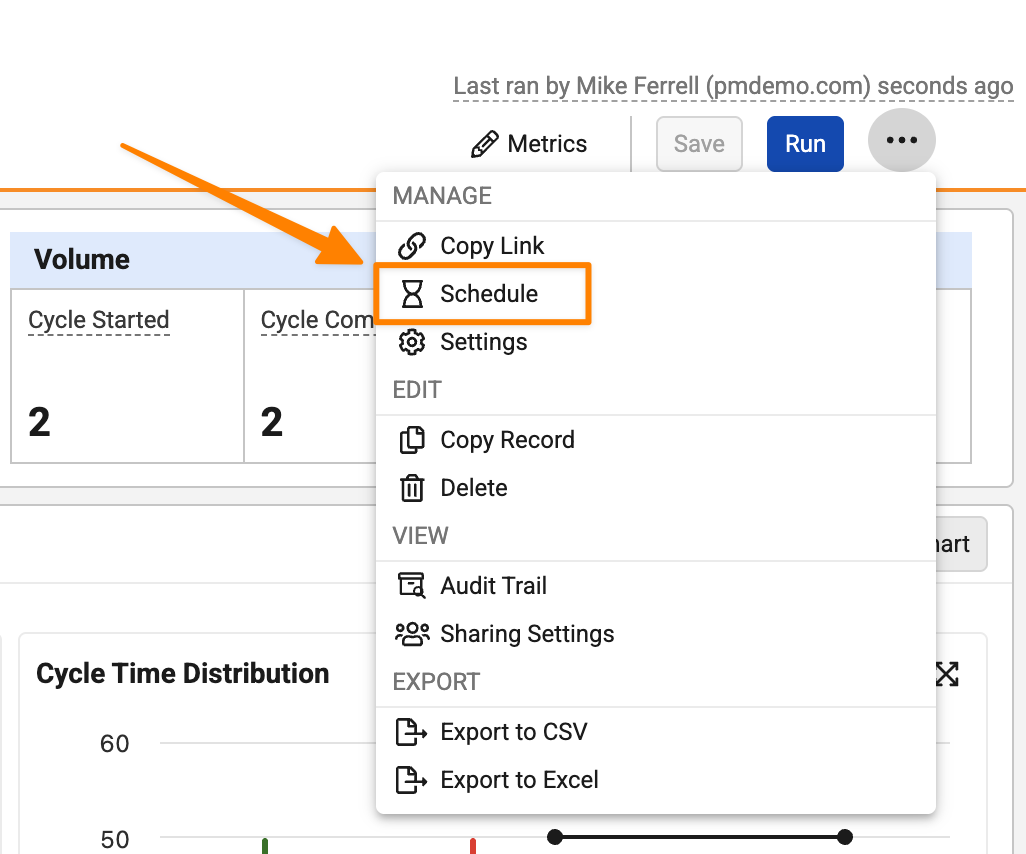
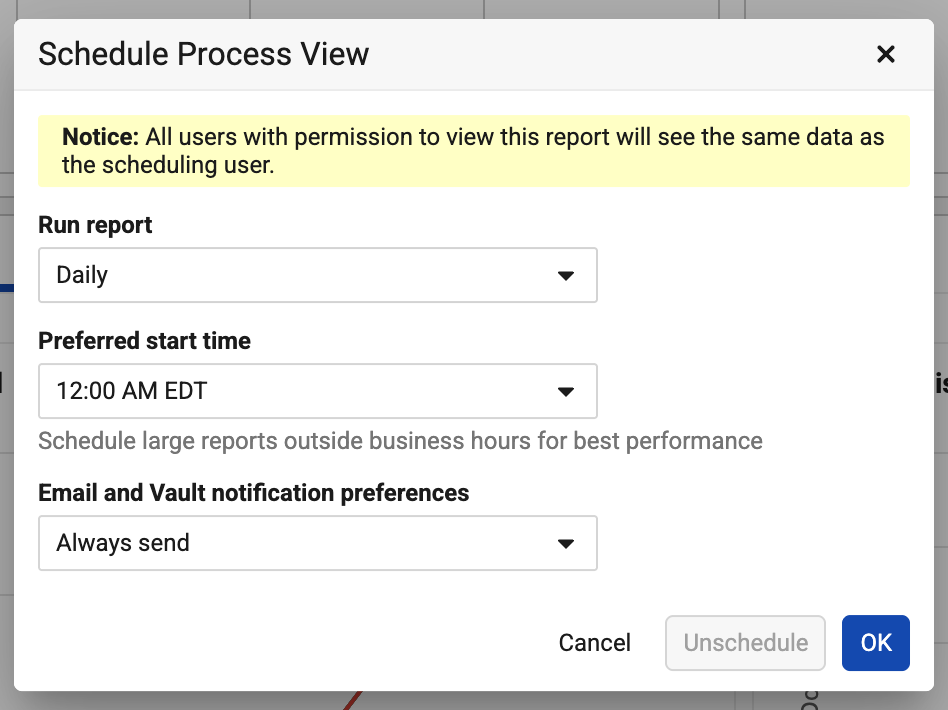
Similar to flash reports, the results of the scheduled Process View run are based on the permissions of the user who scheduled it.
If configured to send an email notification, users with access to the Process View receive an email notification with a link to the Process View when it is ready for viewing:
Learn more about Process Monitor.
Cycle Time ExclusionsAuto-on26R2.3
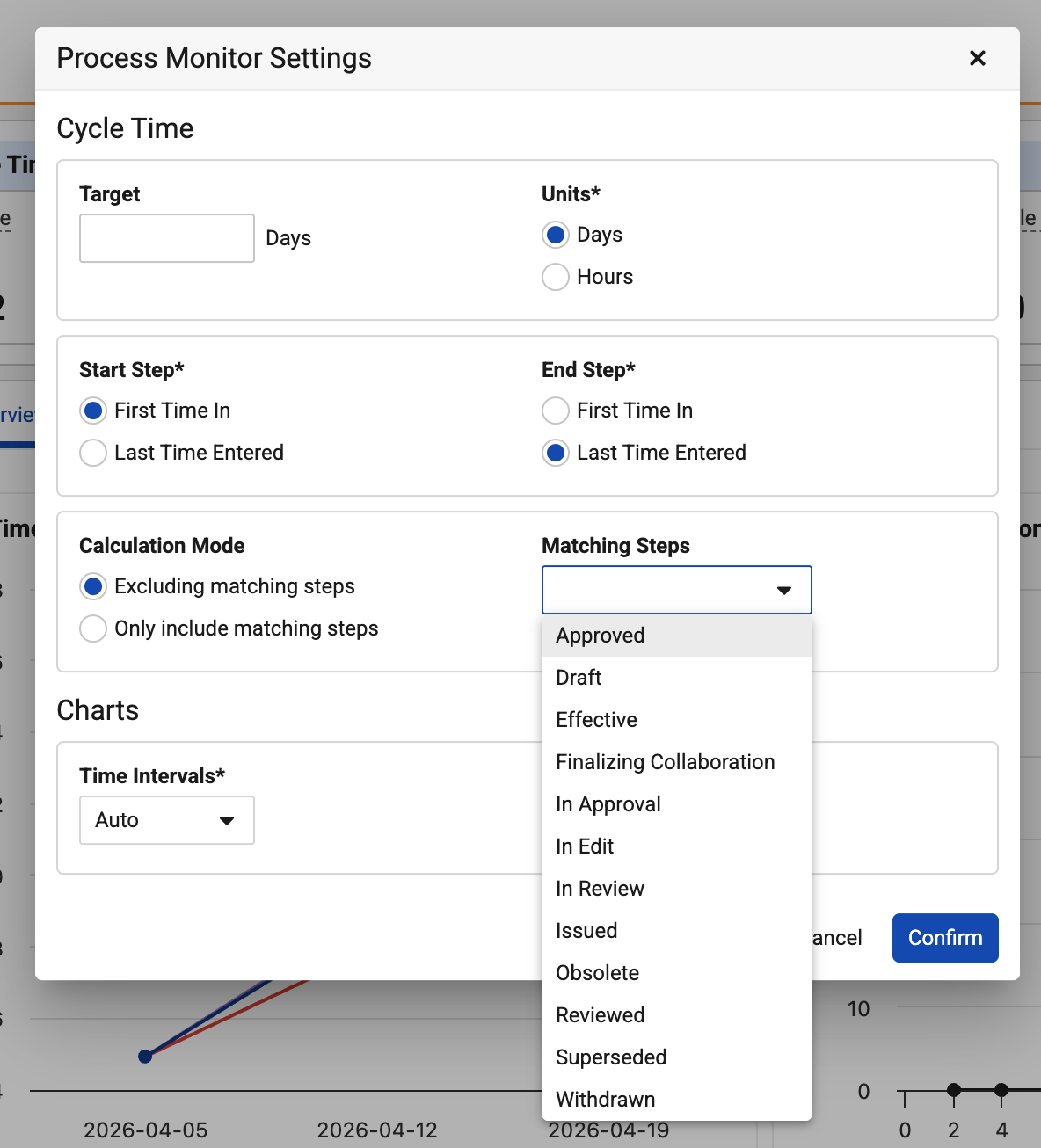
When creating Process Views, users can now control what specific process steps are included or excluded in cycle time calculations. Often lifecycles may include states that are not truly representative of a part of the business process, so this allows users to exclude those to have focused data to review.
This option is available in Settings on a Process View. Users can choose to exclude steps, or choose to only include certain steps:
Learn more about Process Monitor.
Cycle Time Start & End MultiselectAuto-on26R2.3
When creating Process Views, users can now select multiple process steps for the Cycle Time Start and Cycle Time End fields. This provides greater flexibility in analyzing processes that may have multiple starting or ending points.
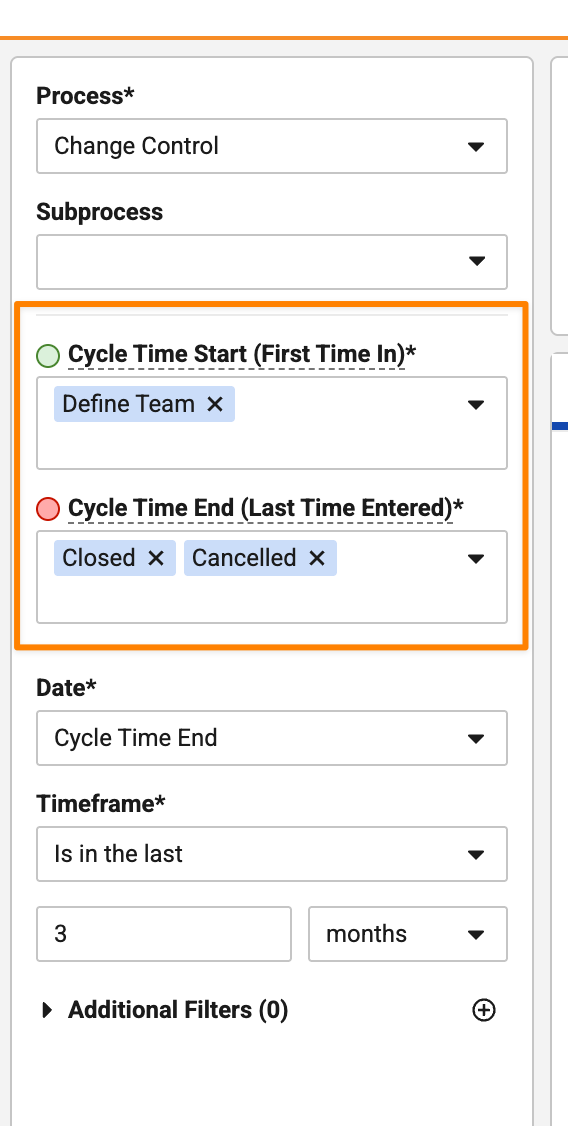
In the example above, Vault automatically calculates cycle time metrics for any records that enter Closed or Cancelled in the last three months.
In Process Graphs, all start steps are displayed in green and all end steps are displayed in red.
Learn more about Process Monitor.
Export to ExcelAuto-on26R2.3
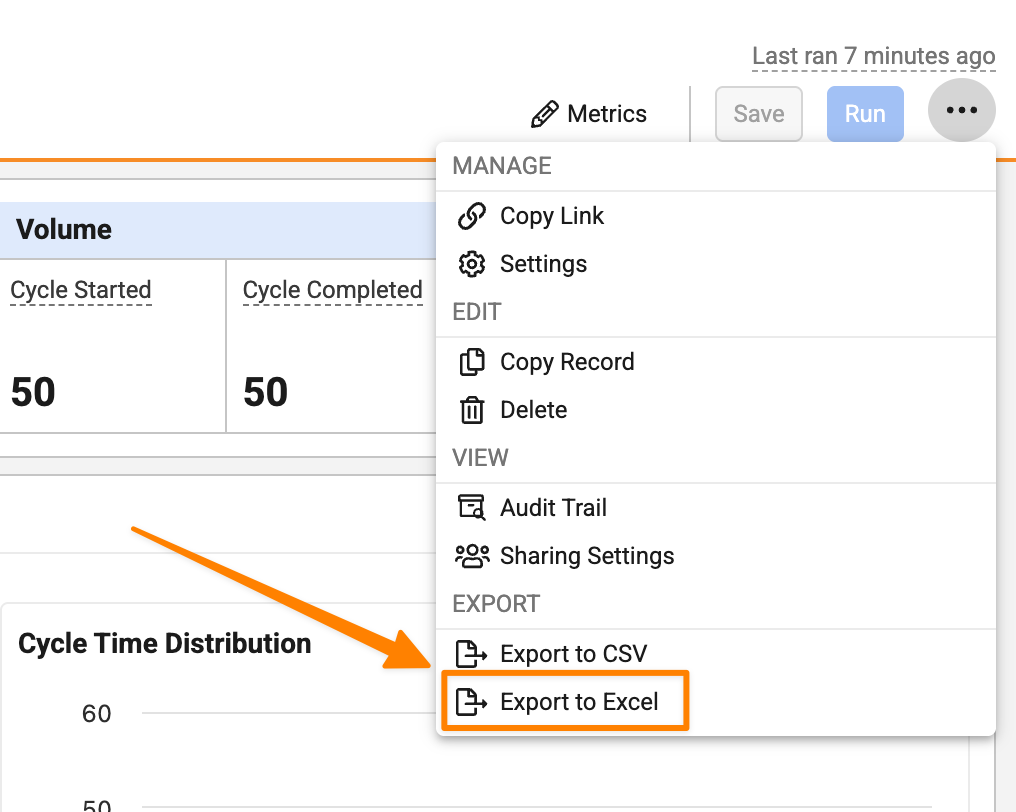
Users can now export data from Process Views to Excel in addition to CSV and TXT formats.
Learn more about Process Monitor.
Cycle Time End ConsistencyAuto-on26R2.3
Process Views now use Cycle Time End consistently across metrics and charts, providing a more intuitive experience, particularly when using Process Views that filter on segments of an overall process.
Prior to 26R3, users would select a Cycle Time Start and Cycle Time End state with a date filter of Entered End Step or Entered Start Step. In scenarios where records may enter states more than once, this could result in charts that showed data outside of the filter time range.
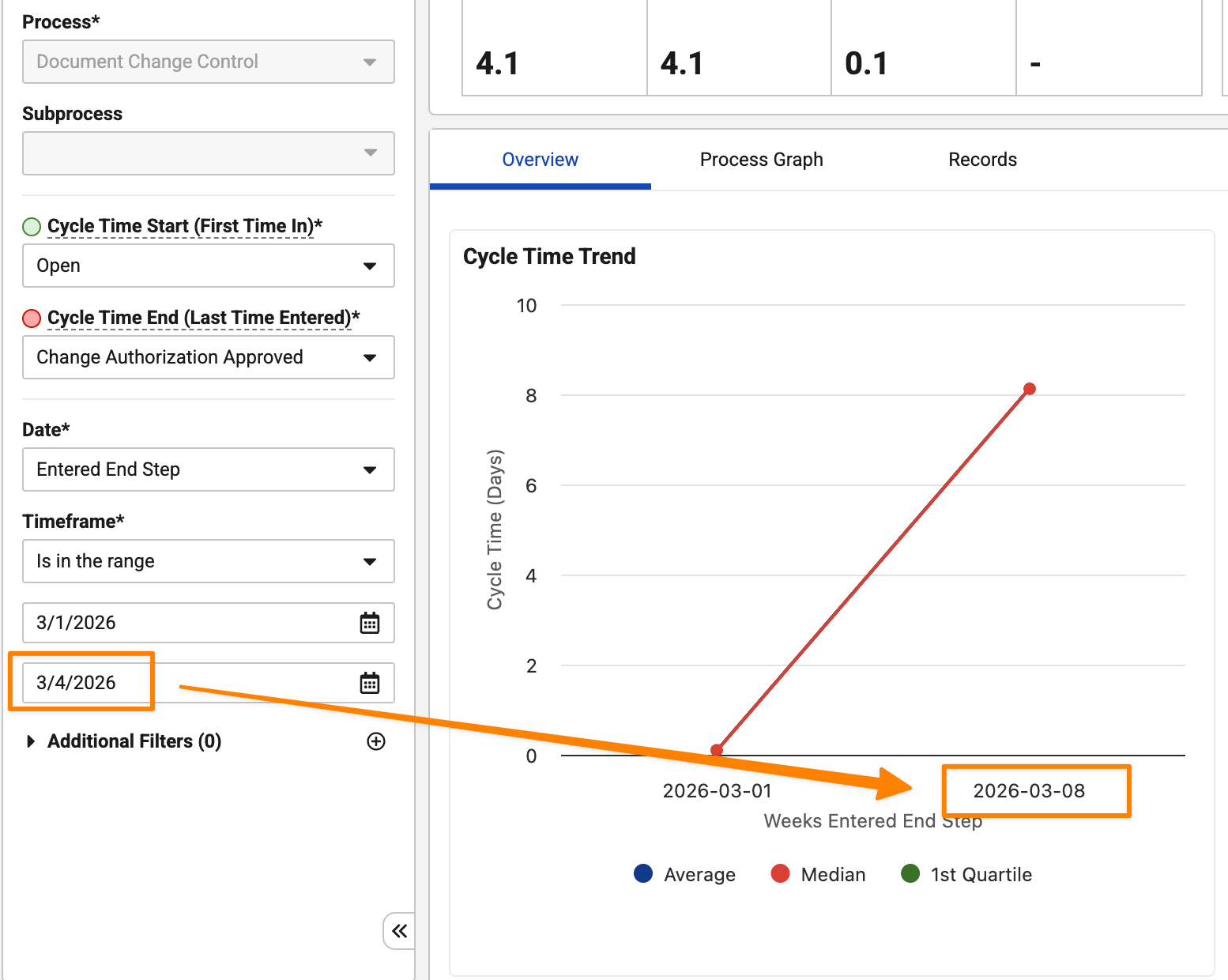
Now, Process View data is based solely on Cycle Time Start or Cycle Time End. This ensures a more consistent user experience and reduces potential confusion.
As part of this change, anywhere Entered Start Step or Entered End Step was used, users now see Cycle Time Start or Cycle Time End.
Aggregate Functions in Matrix & Multi-PassAuto-on26R2.3
Aggregate functions are now supported in matrix and Multi-Pass reports, allowing report creators to have full flexibility to perform calculations on aggregated data, regardless of report type.
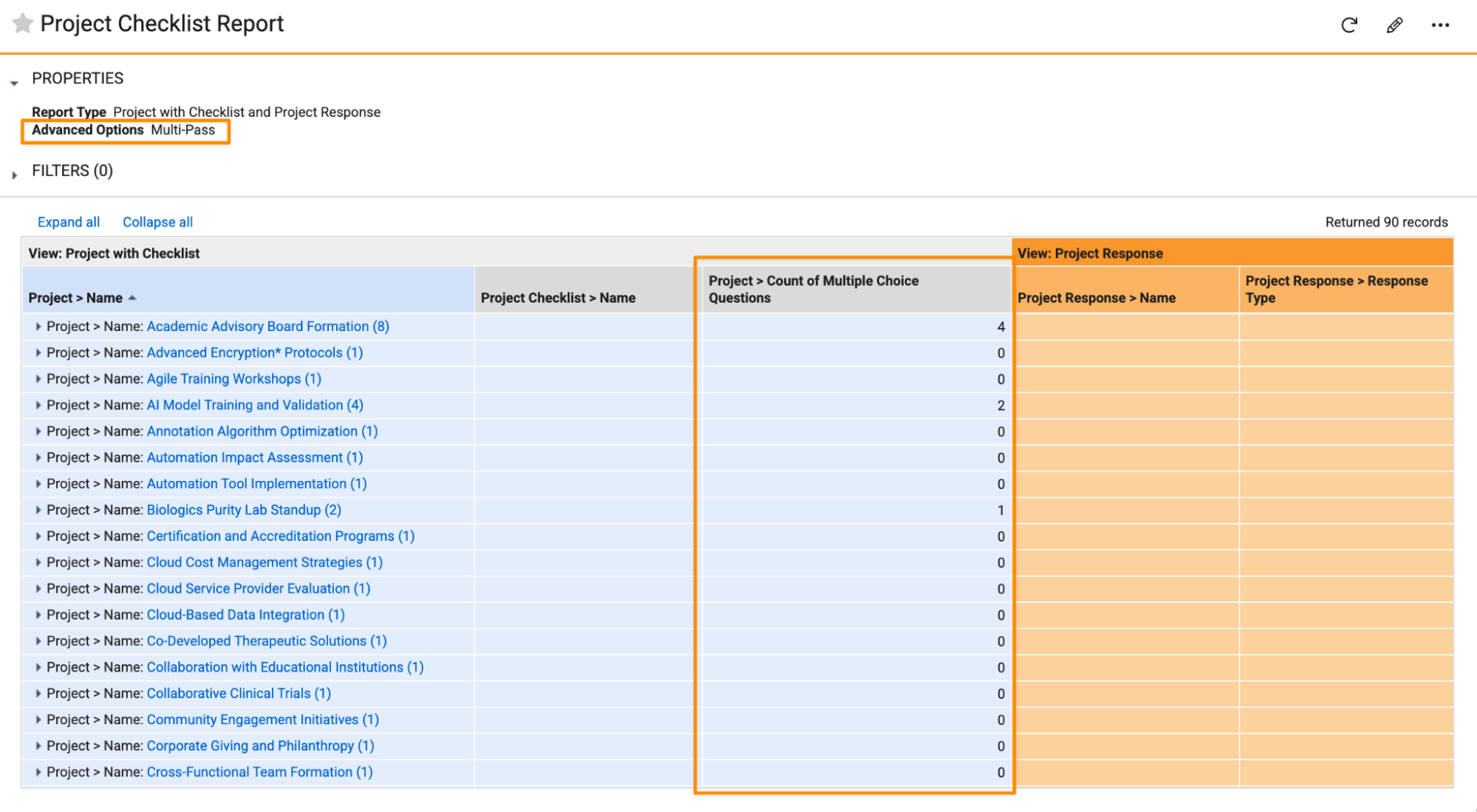
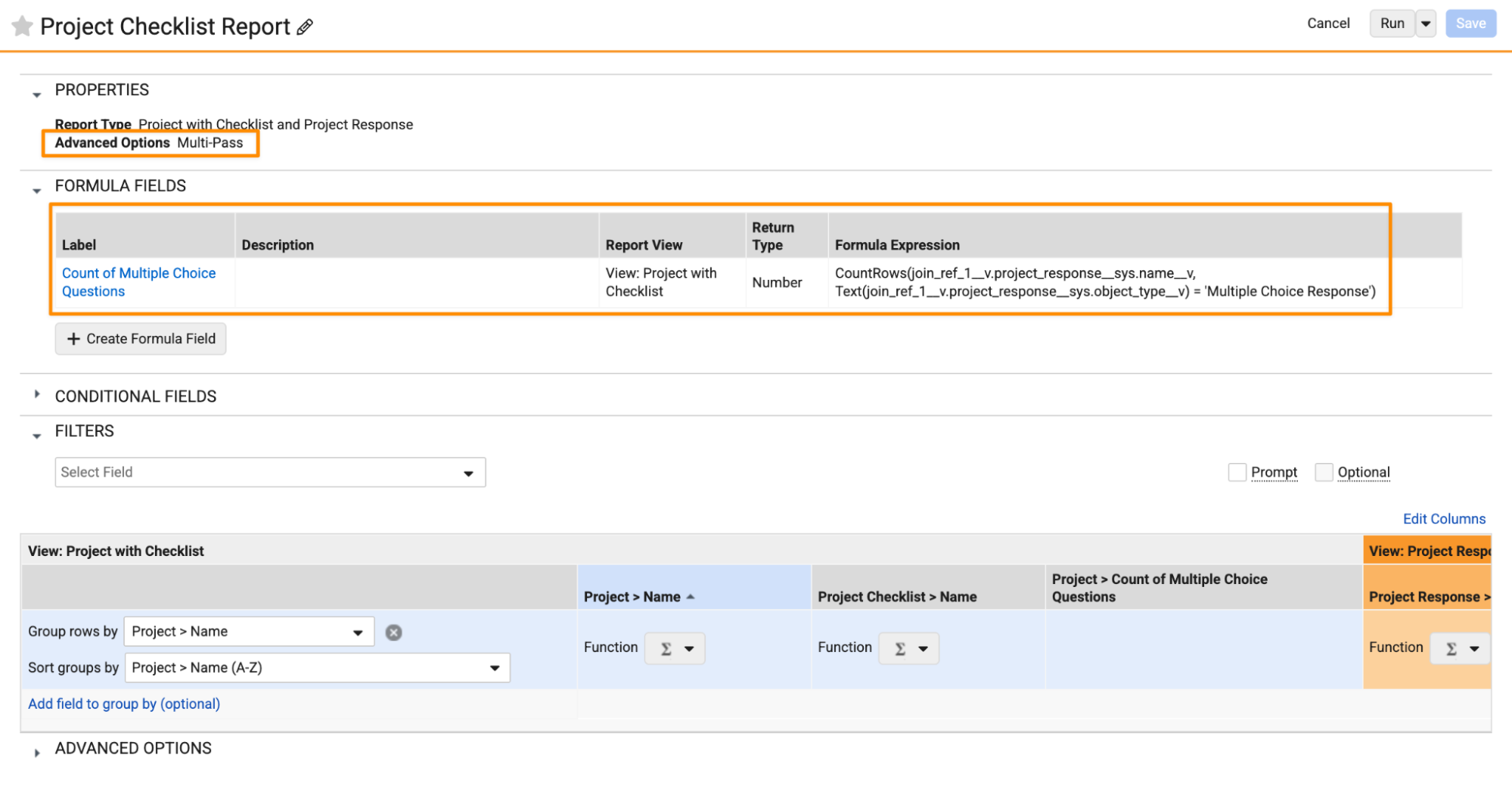
Prior to 26R3, aggregate functions could only be used in standard report types with a tabular format.
Learn more about Aggregate Formula Fields.
Enhanced Report & Dashboard Prompt ExperienceAuto-on26R2.3
When adding prompts to reports, users can now set default values, making it easier for report viewers to run reports while still giving them the flexibility to adjust prompts, if needed.
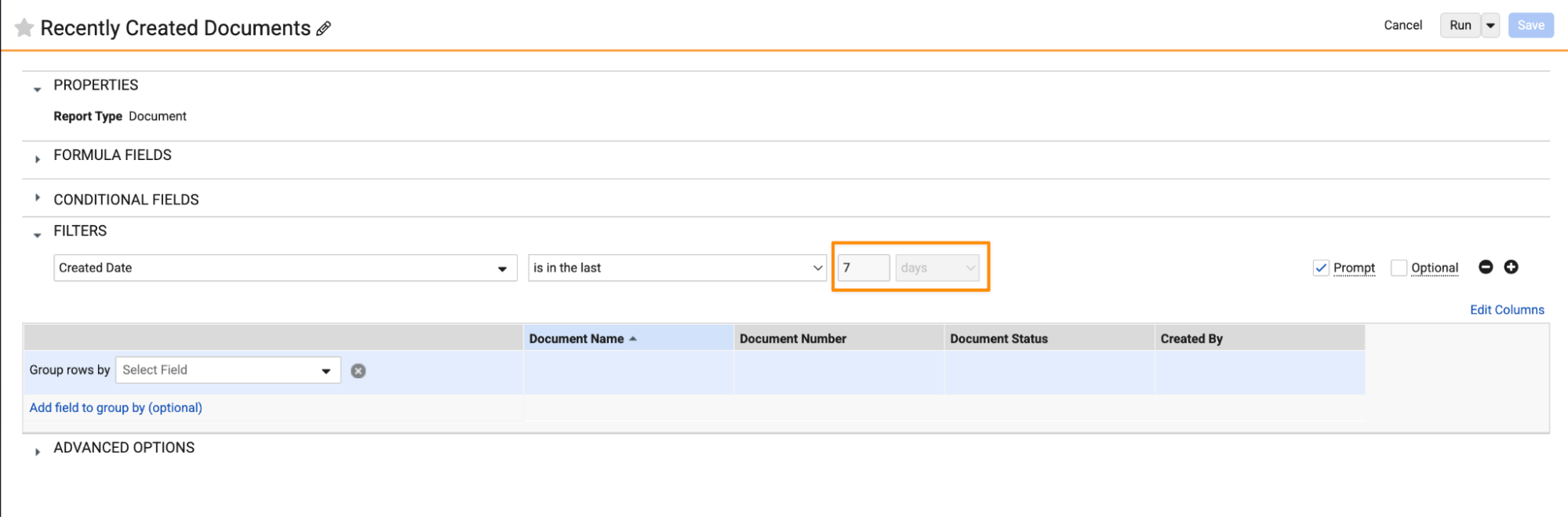
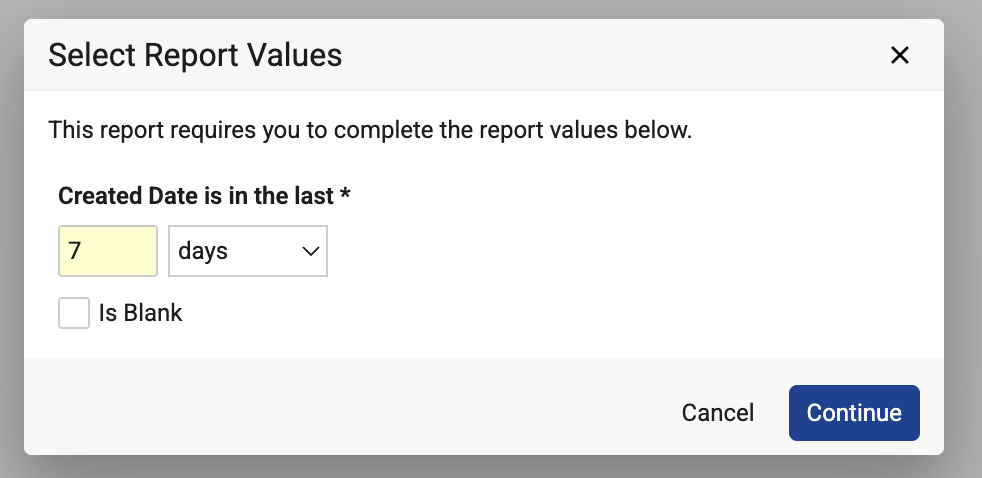
Additionally, when running a report or dashboard with prompts, users can now choose to explicitly filter on blanks.
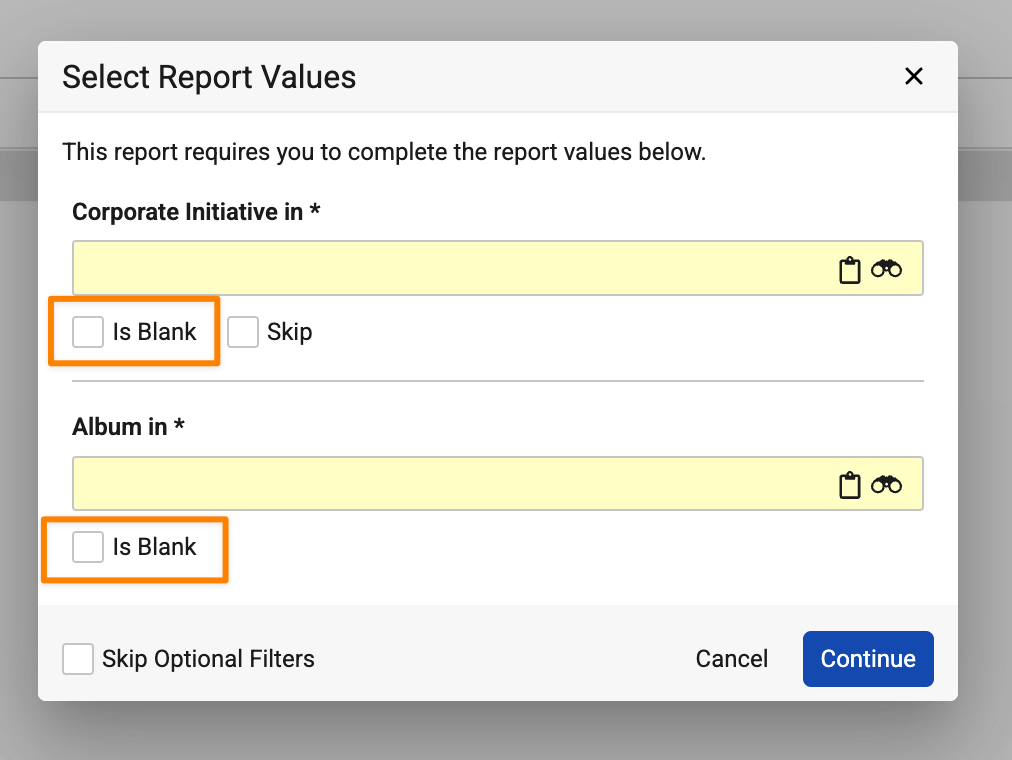
Prior to 26R3, if a user left an optional prompt field blank, Vault treated that as Is Blank in the returned results. This enhancement reduces confusion and gives users a clear option to filter on blanks when needed.
This also allows users to filter on blanks for required prompts.
Learn more about Using Report Filters.
Reorder Objects in Reports with Multiple Down ObjectsAuto-on26R2.2
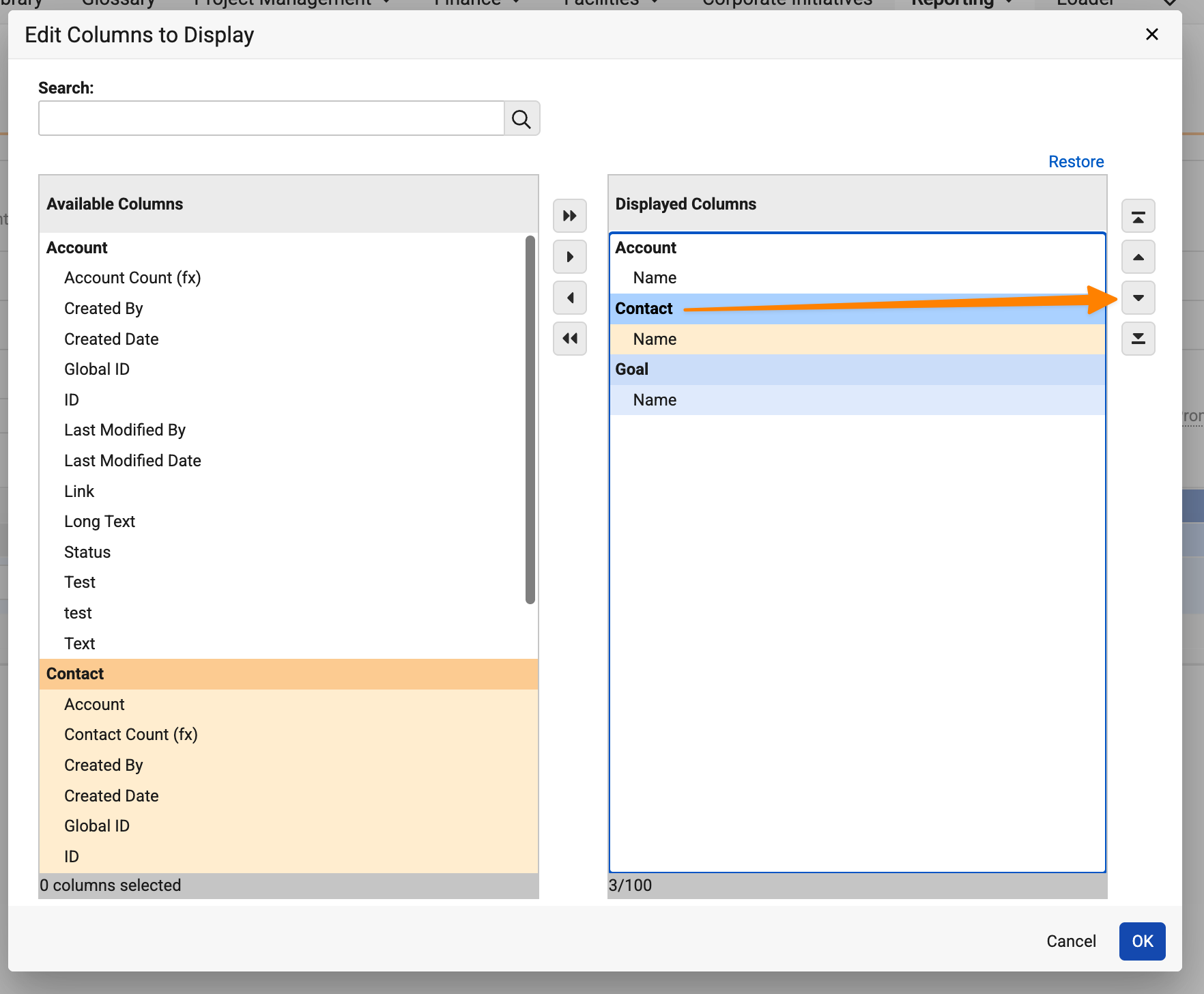
For reports that contain more than one down object, report editors can now reorder the objects with their columns when editing reports, providing more flexibility in formatting for more complex reports.
In the example below, this report type for the Account object contains two down objects: Contracts and Goals.
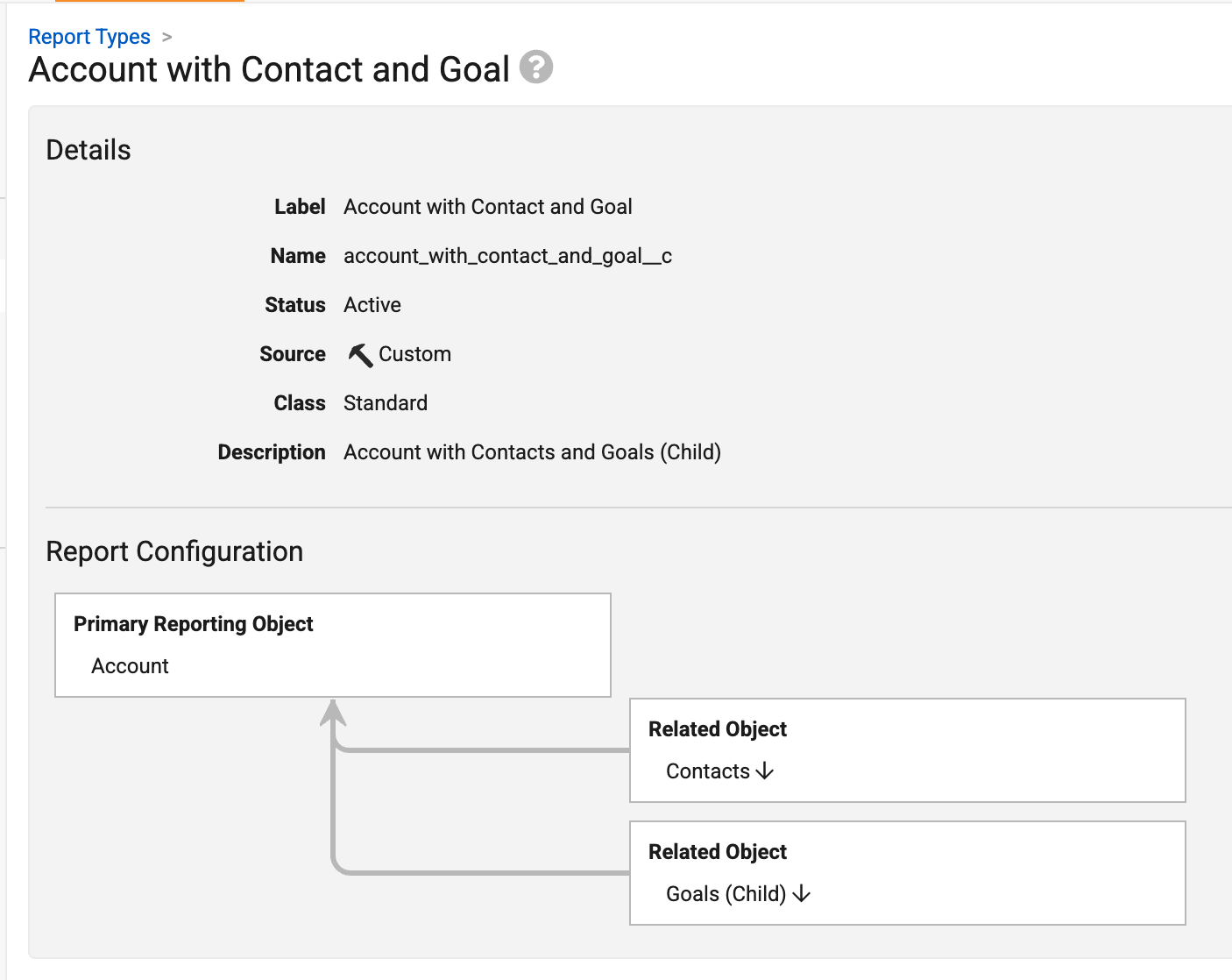
These related objects are now displayed in the order in which they were added, and when editing a report based on this report type, users can select the object headings and reorder them:
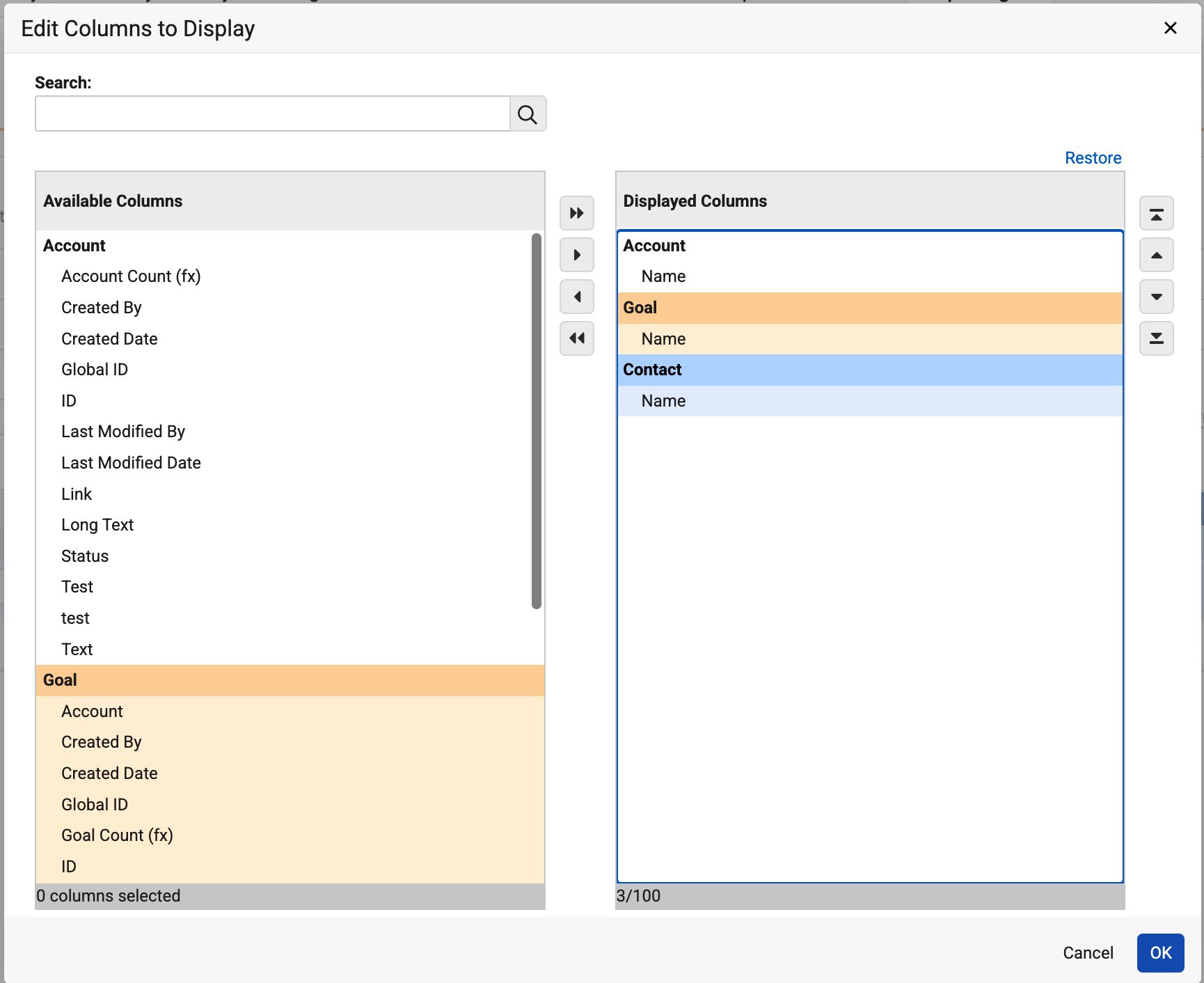
Note: Documentation of this feature is included as part of the 26R3 release, though the change was previously deployed as a hotfix after the 26R2 release.
Permissions & Access
VeevaID: Synchronization & Authentication ImprovementsAuto-on26R2.3
This feature introduces real-time identity propagation between VeevaID and connected Vault applications. Previously, Vault applications learned about identity changes reactively, discovering updates only when a user logged into a specific Vault, which caused stale email records.
With this update, when a user’s email address changes in VeevaID, VeevaID propagates the change immediately to all Vaults where the user holds membership. This ensures that your user profiles, audit logs, and system notifications remain fully accurate without waiting for the user to log in again. Additionally, immediate user creation in VeevaID no longer triggers user provisioning in just-in-time Vaults so that your environment avoids accumulating inactive user profiles. Finally, Vault prompts users to complete multi-factor authentication no more than once every seven days. This provides users with a smoother, faster login process while maintaining system security.
Learn more about Veeva ID and Administering VeevaID.
VeevaID: Upgraded Anti-bot ProtectionAuto-on26R2.3
VeevaID now features Friendly Captcha, an upgraded privacy-first anti-bot protection layer, alongside an improved user experience and updated cookie consent management.
Previously, VeevaID account registrations and password resets relied on traditional verification systems, which often created form friction and data privacy concerns. VeevaID now replaces legacy CAPTCHA tools with a background cryptographic mechanism. Verification runs silently in the browser so that users experience a seamless and secure authentication process without compromising security.
Both users and Admins will see benefits of this update across many key areas of the VeevaID portal:
- Invisible Anti-Bot Protection: Friendly Captcha automatically secures account registrations and password resets in the background without requiring user input.
- Enhanced Privacy Compliance: The verification process operates without tracking cookies and maintains European Union data residency to align with General Data Protection Regulation (GDPR) standards.
- Standardized Registration Fields: The account creation form now features dedicated fields and dropdowns for Prefix, First Name, Middle Name, Last Name, and Suffix to ensure consistent name data across systems.
- Terms of Service Acknowledgment: The VeevaID registration screen includes an explicit agreement checkbox for updated Terms of Service and Privacy Policies, capturing an audit record upon account creation.
Learn more about Veeva ID and Administering VeevaID.
Standardizing VeevaID & Vault User ProfilesAuto-on26R2.3
Prefix, Middle Name, and Suffix standard fields now exist within the VeevaID portal and Vault User object. This enhancement standardizes the identity data model across the Veeva ecosystem.
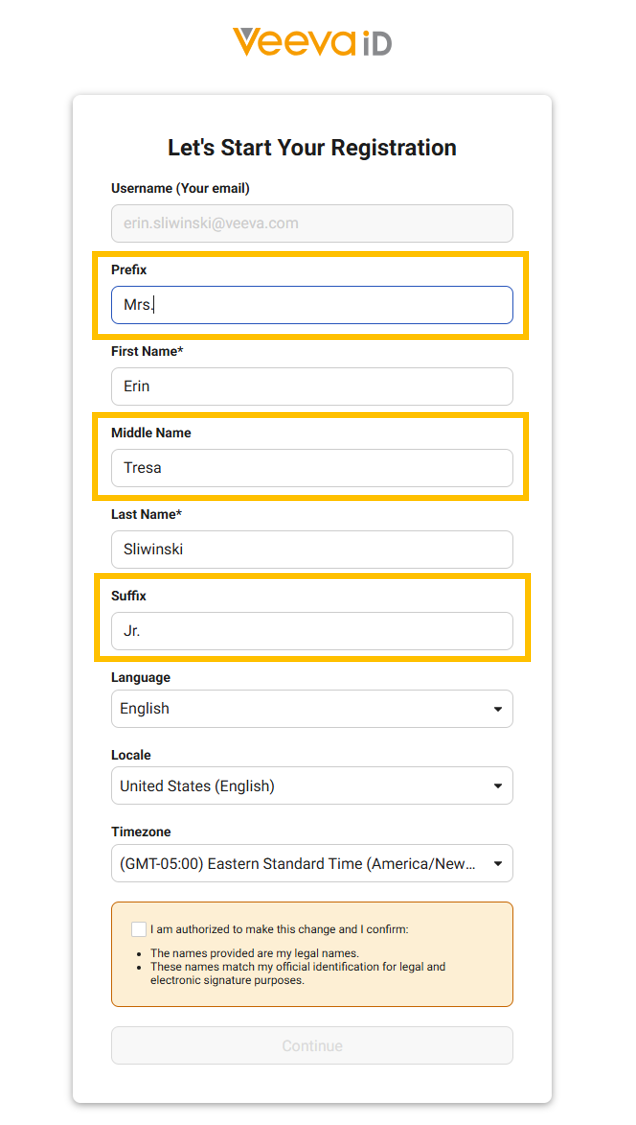
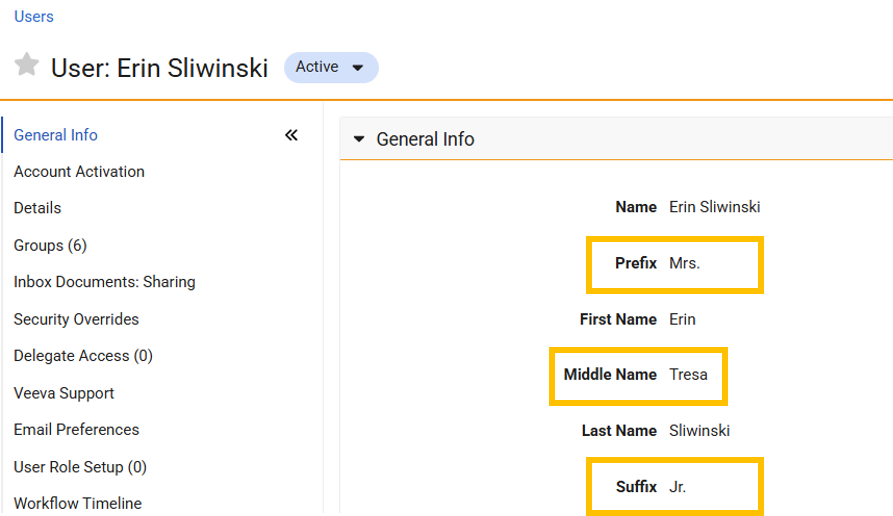
Previously, users often embedded titles, middle initials, or suffixes directly into the First Name or Last Name fields, which caused operational inefficiencies, disrupted integrations, and complicated electronic signature compliance. By establishing the VeevaID portal as the global source of truth for VeevaID users and mapping these attributes to Vault User, authentication User, Person, and Prior Person objects, this feature ensures that Vault user schemas perfectly mirror the VeevaID schema so that your environments maintain unified, compliant, and synchronized identity profiles.
Feature Details:
- Standardized System Fields: New system fields added for Prefix (
prefix__sys), Middle Name (middle_name__sys), and Suffix (suffix__sys) across the identity layers. These new system fields are currently unavailable in the Veeva ID Portal (My Account > General) and remain untranslated on the User object until the 26R3.0 General Release. - Enhanced Person and Prior Person Objects: The Person and Prior Person objects now capture the new standard system fields. Standardizing the Person object ensures that business-level records, such as Clinical Study Teams, use the exact same name components as authentication records. These new fields are also updated during the User-Person sync.
- Expanded Character Limits: The Mobile field character limit on the User, Person, and Prior Person objects has increased from 20 to 40, and the Email field character limit has increased from 120 to 128. Values with the increased character limit can not be applied until 26R3.0.
- Seamless Authentication Sync: During login, the active session security token now carries the new standard system field attributes, automatically updating the local Vault record to match the global identity.
- Preserved Integrations: System fields will handle the automated platform synchronization. Existing application fields are preserved so that downstream applications and integrations do not break.
Admin Consideration: We recommend using the VeevaID Portal as the exclusive interface for managing user identity changes to prevent automated synchronization issues and mismatched identity states.
Learn more about Veeva ID and Administering VeevaID.
Maximum Sharing Setting WarningAuto-on26R2.3
Vault now provides maximum sharing setting warnings to proactively alert Admins when a document approaches or reaches its hard limit of 1,500 sharing settings entries.
Previously, Admins had no visibility into how close a document was to the 1,500 sharing settings limit until an operation failed. Reaching this limit could silently block workflows, access grants, and bulk actions without prior warning. With this enhancement, Vault automatically monitors sharing setting entry counts and alerts Admins in advance so that they can consolidate or remove assignments before user access or business processes are disrupted.
Users see the benefits of this feature directly within the Sharing Settings panel on the Doc Info pane, which now displays two types of visual warning indicators when a document approaches the limit:
- Preventive Warning: Scans recently modified documents and provides a warning for when a document reaches 85% capacity (1,275 entries). This provides at least 225 entries of headroom so Admins have time to act before the document is blocked.
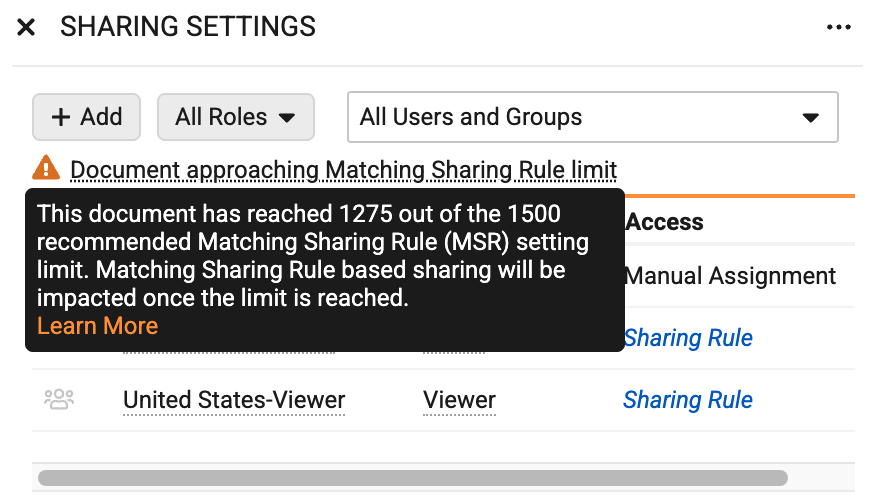
- Detective Warning: Performs a full sweep of all active documents and provides a warning for when a document has reached the 1,500 limit, catching sudden increases caused by large bulk actions or API loads.
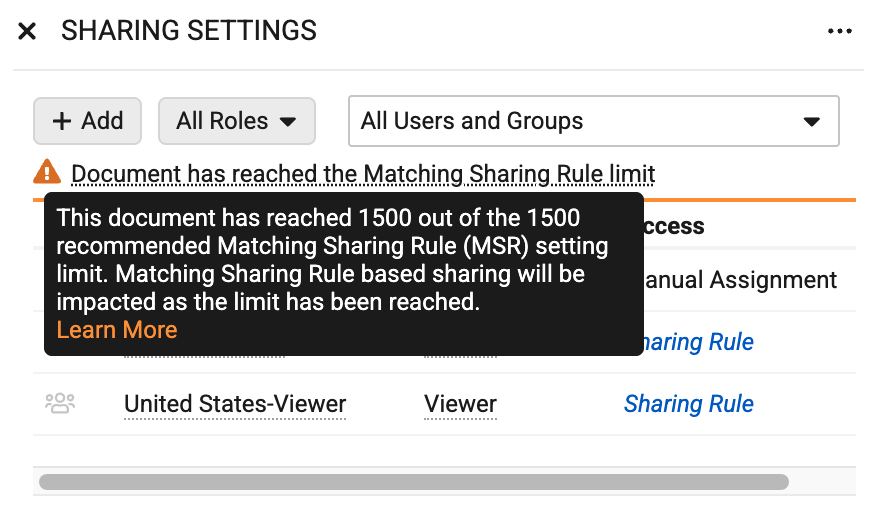
Learn more about Using Document Sharing Settings.
Maximum Number of Groups for User AssignmentAuto-on26R2.3
Vault now warns Admins of users currently assigned to more than 20,0000 groups.
Previously, when a user belonged to an extremely high number of groups, processing queries during task searches could saturate system resources, leading to performance degradation or system timeouts.
To help Admins identify and remediate affected user accounts Vault now displays a warning triangle icon and an informative tooltip on the User Profile page and the Vault User Detail page, for any user currently assigned to more than 20,000 groups. This non-blocking warning provides Admins with advance visibility to consolidate or clean up group assignments.
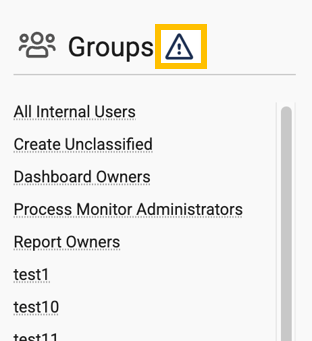
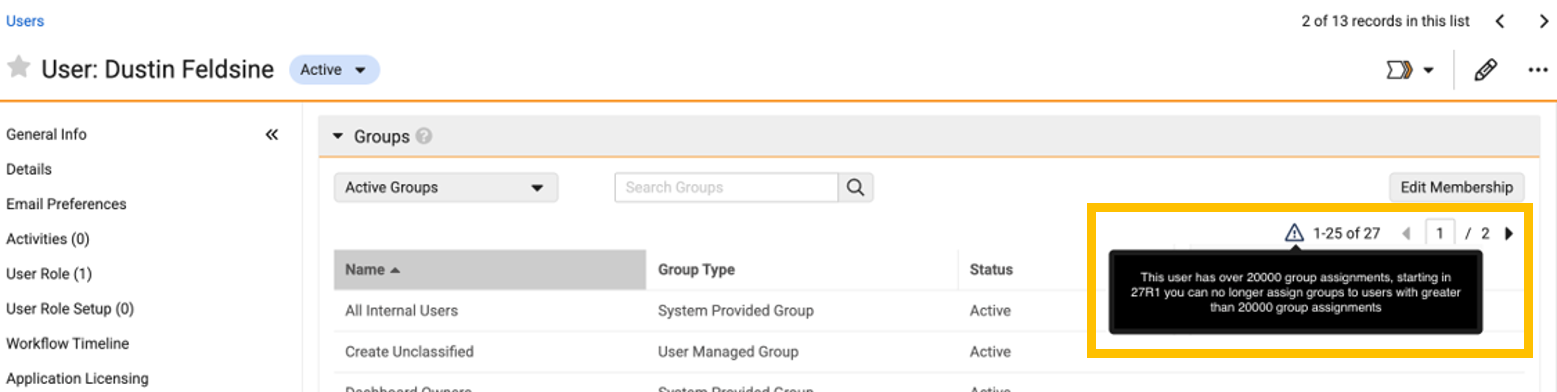
Learn more about Creating & Managing Groups.
URCP for System & Integration UsersAuto-on26R2.3
We are exposing the User Record Control Profile values for users, which can help Admins determine if certain users in the system are controlled by special behaviours. Special users include system managed users, Vault AI agent users, and App Integration users.
To support this feature, a new field is now added to the User object: User Record Control Profile (user_record_control_profile__sys).
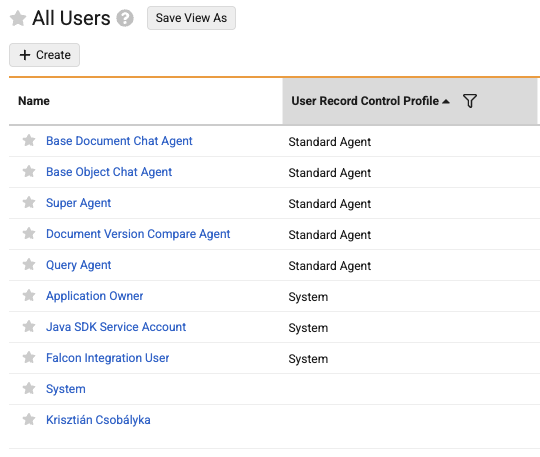
DAC Suspension for Security Model OptimizationAdmin Checkbox26R2.3
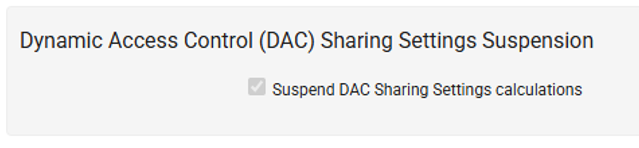
Vault Admins can now suspend and resume Dynamic Access Control (DAC) recalculations directly within Vault so that Admins can make bulk configuration changes without triggering repeated system recalculations.
Previously, pausing DAC recalculations required submitting a support request with a three-week lead time for Veeva Support to execute the change. Now, Admins can manage DAC suspension directly within Vault whenever large-scale configuration edits are required.
The Suspend DAC Sharing setting is located in Admin > Settings > Security Settings under the DAC Sharing Setting Suspension section. When preparing to make extensive updates, such as modifying User Role Setup records, Matching Sharing Rules, Document Type Group records, or lifecycle role permissions, selecting the Suspend DAC Sharing setting checkbox pauses automatic calculations. After applying all edits, clearing the checkbox resumes recalculations in a single, efficient bulk pass.
Admins can now see the following capabilities and visual indicators in Vault:
- Self-Service Controls: Pause and resume DAC calculation updates on demand using the new Admin setting.

- Single-Pass Recalculations: Consolidate multiple configuration edits into one single recalculation pass upon resumption, significantly reducing system processing load and total execution time.

- Status Visibility: View live status updates, including a persistent DAC calculation is in progress banner that alerts all Admins while a recalculation job is running and locks the Admin setting checkbox until completion.


- Audit Traceability: Track every suspension and resumption event in the Vault Security Audit Log, capturing the user identity and timestamp for complete regulatory compliance
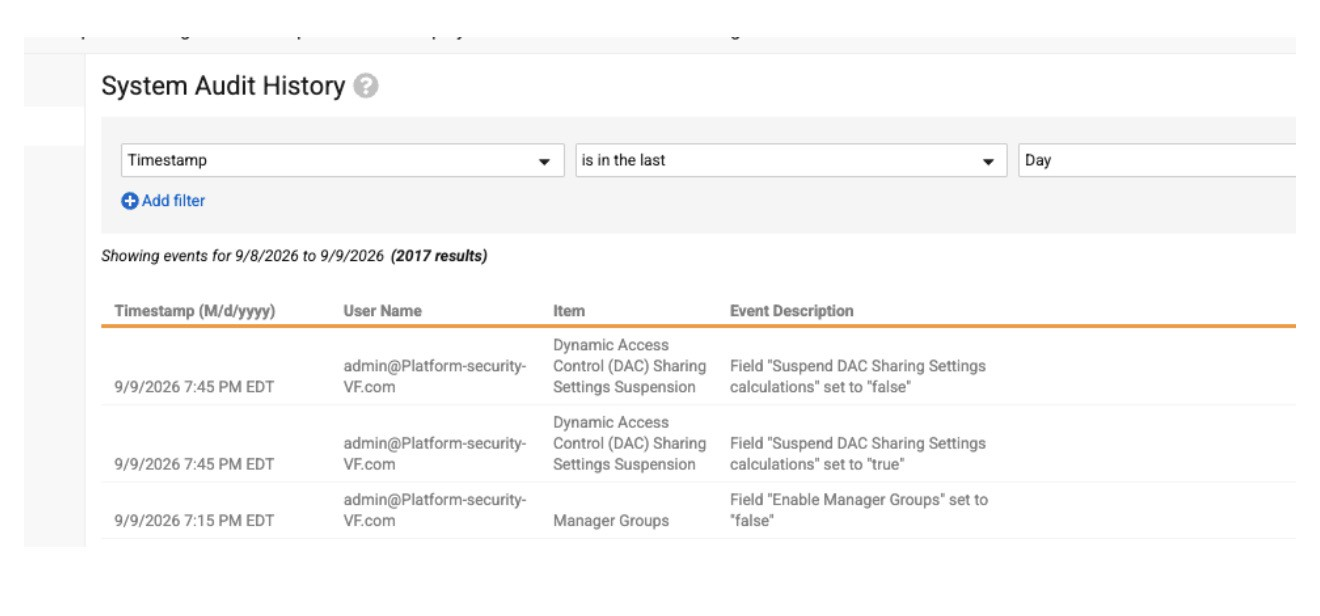
Learn more about Suspending Dynamic Access Control.
Admin Experience
Filter Admin Audit by Document Number & Record IDAuto-on26R2.2
Admins can now filter the Document Audit History log and Object Record Audit History log for specific lists of documents or records using new Document Number, Document ID, and Record ID filters.
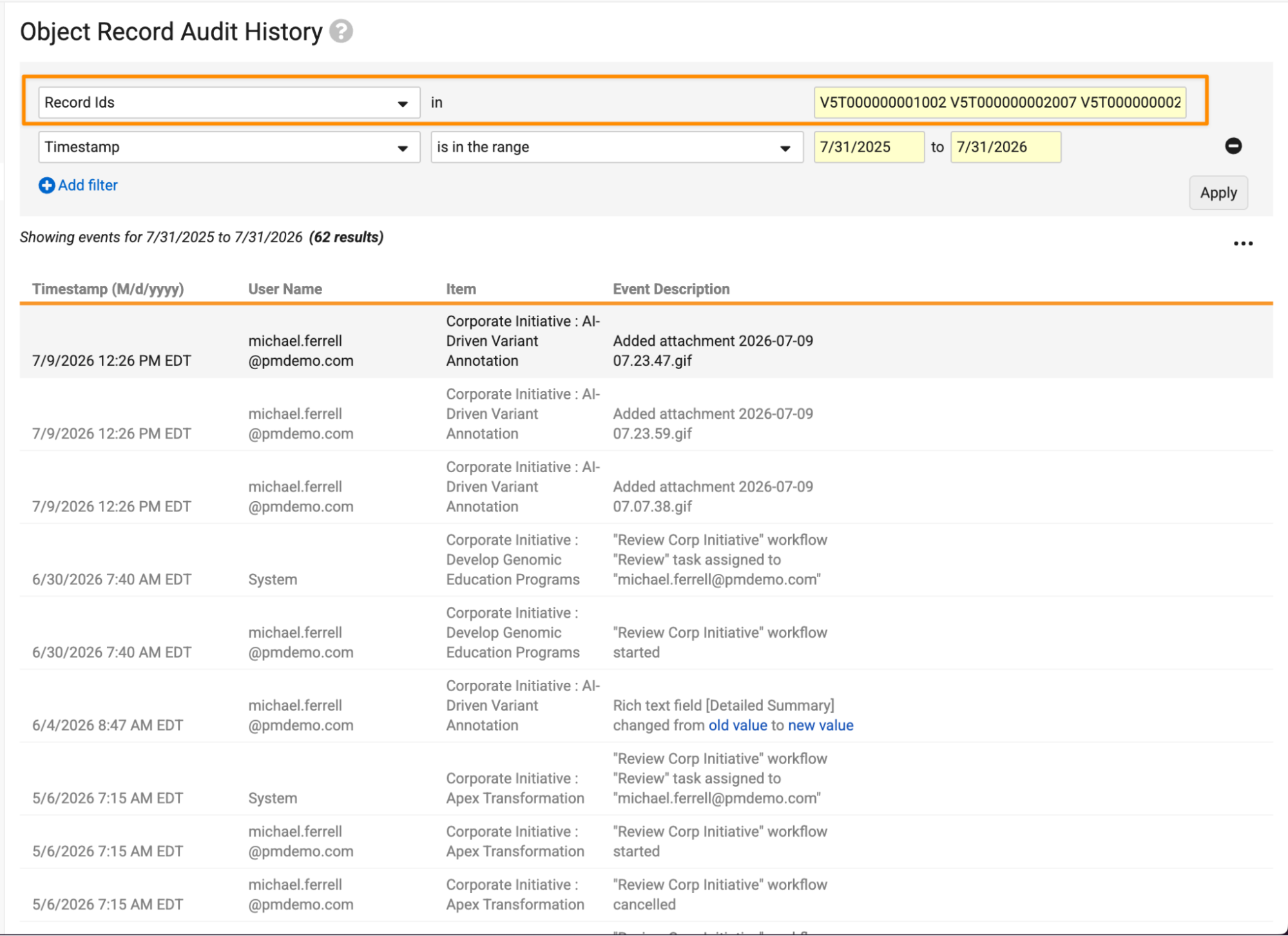
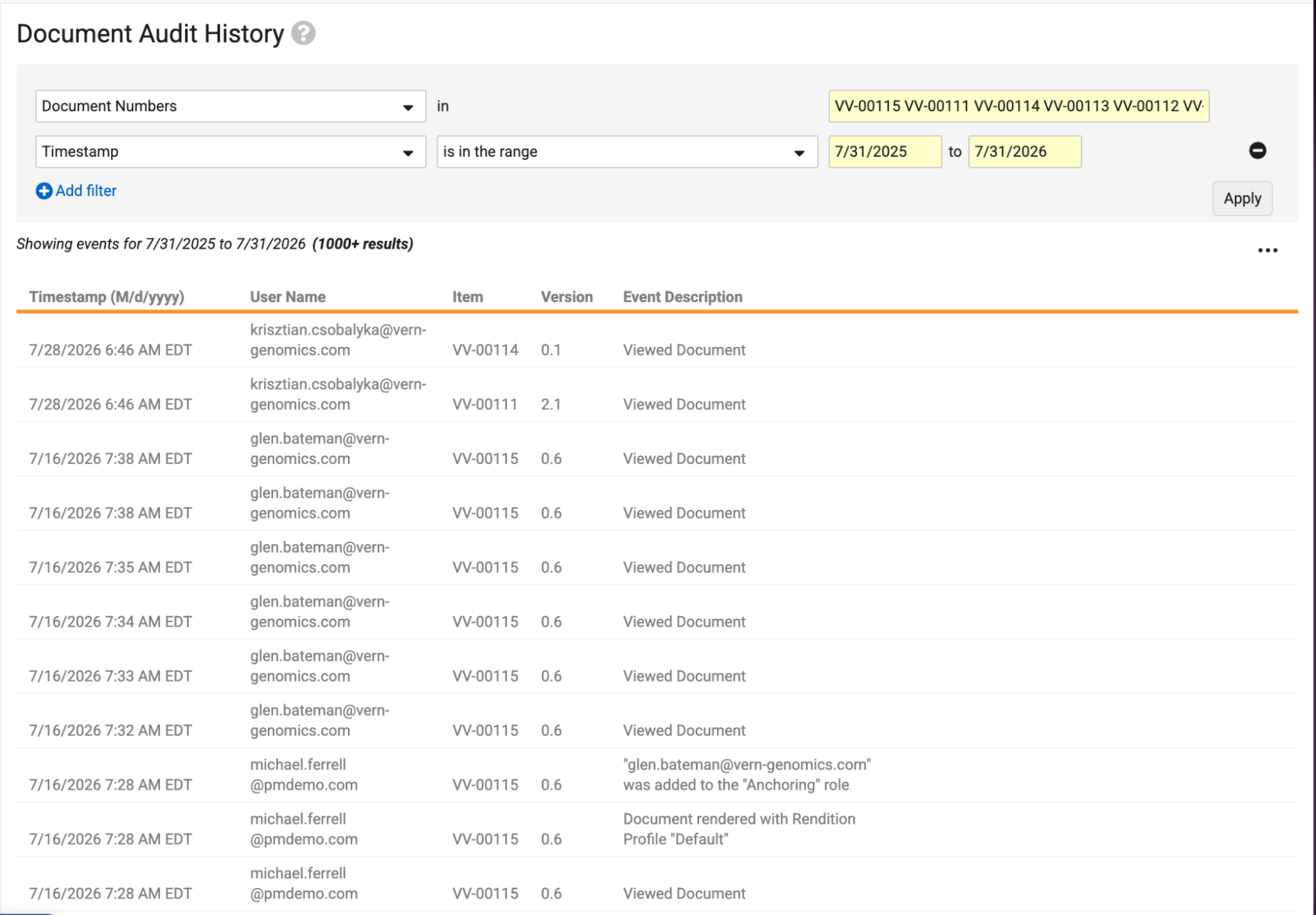
This makes it easier for audit trail reviews to occur based on specific records, without needing to pull each record’s audit trail individually, or to filter through more information than needed.
Users can paste up to 1,000 values copied from a spreadsheet.
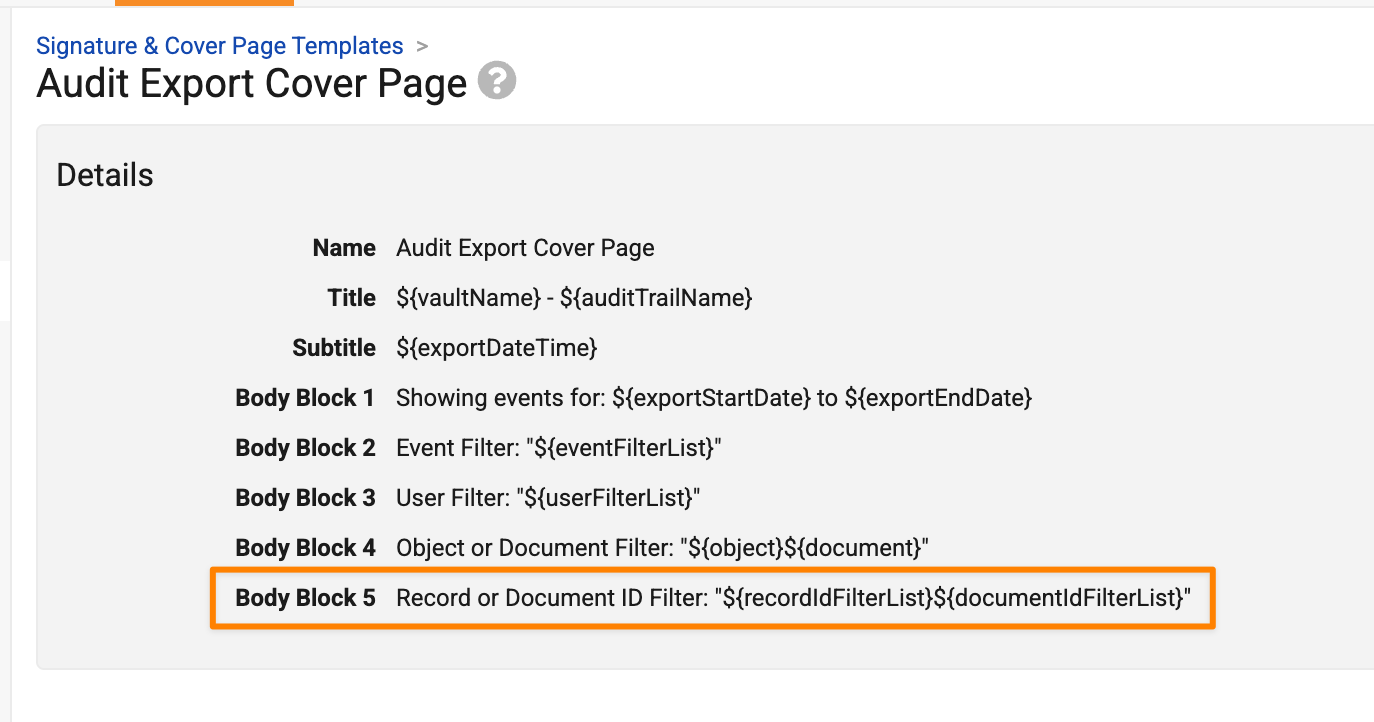
Exporting the audit trail in PDF format also shows the Document Number, Document ID, or Record ID filters on the cover page.
Learn more about Viewing Admin Logs.
Enhanced Object Type Configuration UIAuto-on26R2.3
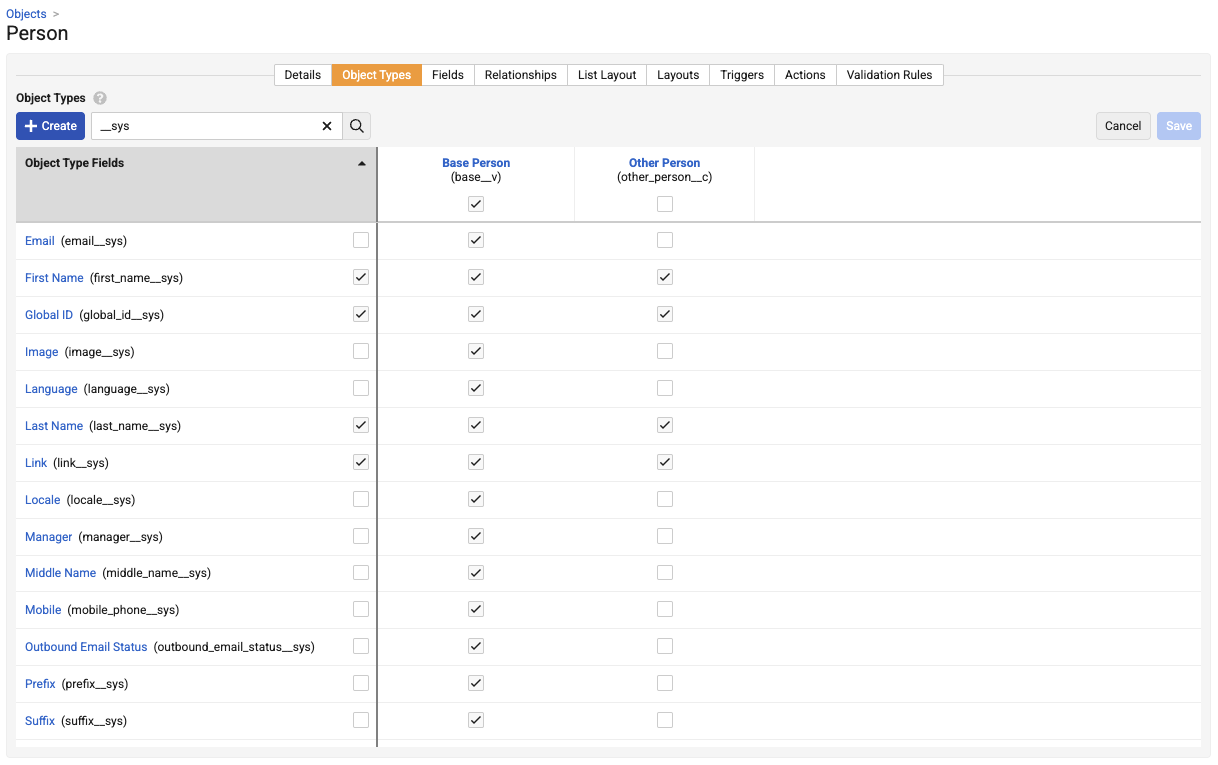
We have added several usability improvements to the Object Types grid in object configuration to provide a better experience for Vault Admins:
- All fields are loaded in a single view without pagination
- A search bar is available to allow finding a specific field in the list
- API names of object type fields are displayed in the view
- Header row and first columns are frozen for easier navigation
- You can select across full rows and columns with a dedicated checkbox
- Shortcut to toggle edit and save
- Improved accessibility for navigating each cell and toggle
Custom Margin Sizes for Overlay TemplatesConfiguration26R2.2
When creating or editing overlay templates, Admins can now specify margin sizes, making it easier to create precise templates that align with business formatting needs.
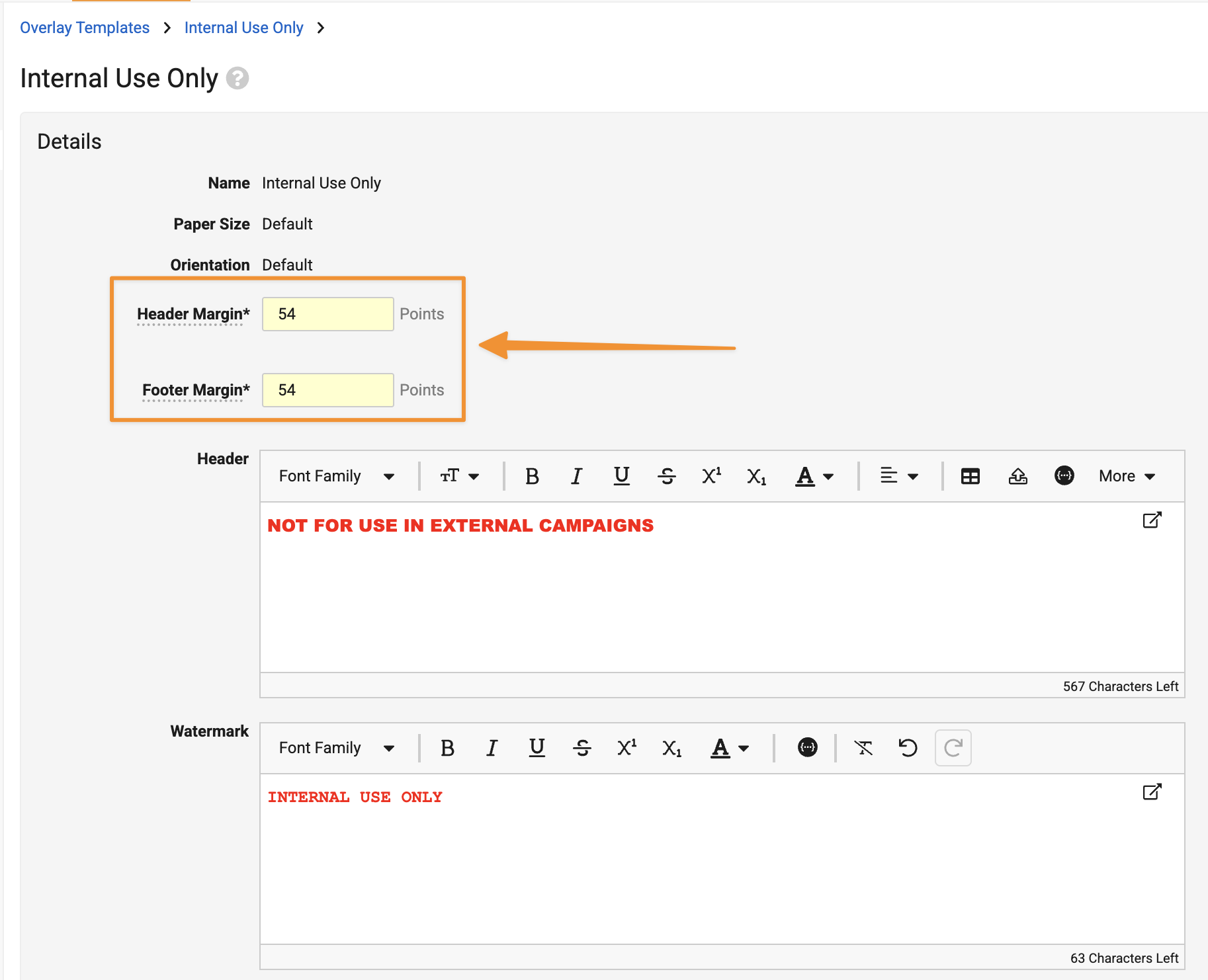
The size is set in points, which is a universal unit commonly used for typography and printing, equivalent to 1/72 of an inch. The default values are 54 points for each margin, which ensures parity with current margin sizes.
Learn more about Managing Overlays.
Sandbox Refresh Preserves ConnectionsAuto-on26R2.4
To save time and effort for Admins, Vault will now preserve the existing connections and their status when a sandbox Vault is refreshed.
The refresh process will not copy over the connection from the source Vault (such as, Production). Instead, the connections that were in the sandbox Vault before the refresh remain in place.
Unified Time Management for Vault JobsAuto-on26R2.3
Adjustments have been made to how Vault jobs handle timezones to streamline configuration for Admins. To make managing job schedules more intuitive, a Use Vault Time attribute (use_vault_time) is now added to Vault job configurations. This update simplifies existing timezone behaviors, providing Admins clearer control over whether a job follows the default Vault timezone or a specific, Admin-configured timezone.
Here is how this adjustment improves day-to-day schedule management:
Simplified Execution Logic
Managing and reviewing job schedules is now much more straightforward. The new attribute clarifies exactly which timezone dictates the job’s execution:
- Use Vault Time Enabled: The job bypasses individual job timezone settings and bases its schedule entirely on the central Vault timezone.
- Use Vault Time Disabled: The job continues to honor the specific custom timezone configured for it.
Consistent Daylight Saving Time Behavior
This update brings enhanced stability during time changes. Jobs now always run at their originally configured local times, completely respecting the time changes of Daylight Saving Time (DST). The system logic has been adjusted so Admins no longer need to worry about the system shifting the underlying time attribute when DST begins or ends.
What does this mean in practice?
If a job is set to run at 9:00 a.m., it always runs at 9:00 a.m. according to the current DST status of its selected timezone (or Vault timezone, if Use Vault Time is enabled).
| Time of Year (DST Status) | Configured Job Time | Active Timezone | Actual Local Execution Time | Equivalent UTC |
|---|---|---|---|---|
| Winter (Standard Time) | 9:00 a.m. | US Eastern Time (EST: UTC-5) | 9:00 a.m. | 2:00 p.m. (14:00 UTC) |
| Summer (Daylight Saving) | 9:00 a.m. | US Eastern Time (EDT: UTC-4) | 9:00 a.m. | 1:00 p.m. (13:00 UTC) |
Seamless Transition for Existing Jobs
This adjustment requires zero Admin effort. Existing jobs are automatically updated to guarantee no disruption to the current schedules, the only difference being the jobs respecting the DST of the job’s timezone (job or Vault specific).
Here is how the automatic transition is applied to current configurations:
- Timezone is Null: If an existing job’s timezone is null, the Use Vault Time (
use_vault_time) attribute is enabled automatically. - All other jobs: For all other jobs, the setting remains disabled, ensuring the jobs continue executing on their specific, preconfigured timezone without interruption.
Hierarchy Node: Loader Export & ImportAuto-on26R2.3
Vault Loader now supports loading and exporting hierarchy node data for objects that support hierarchy.
Disable Scheduled Data ExportsAuto-on26R2.3
As previously communicated, the Scheduled Data Export functionality is no longer available for all Vaults starting in 26R3. This includes existing and new Vaults as well.
Vault Loader Empty Row HandlingAuto-on26R2.3
Vault Loader now automatically skips empty rows in CSV input files and displays a notification about skipped rows in Vault. This ensures that even if there are unintentional gaps in the rows of a CSV file, Vault processes all rows without errors.
Minor Enhancements
Allow Removal of Name Column by DefaultAuto-on26R2.3
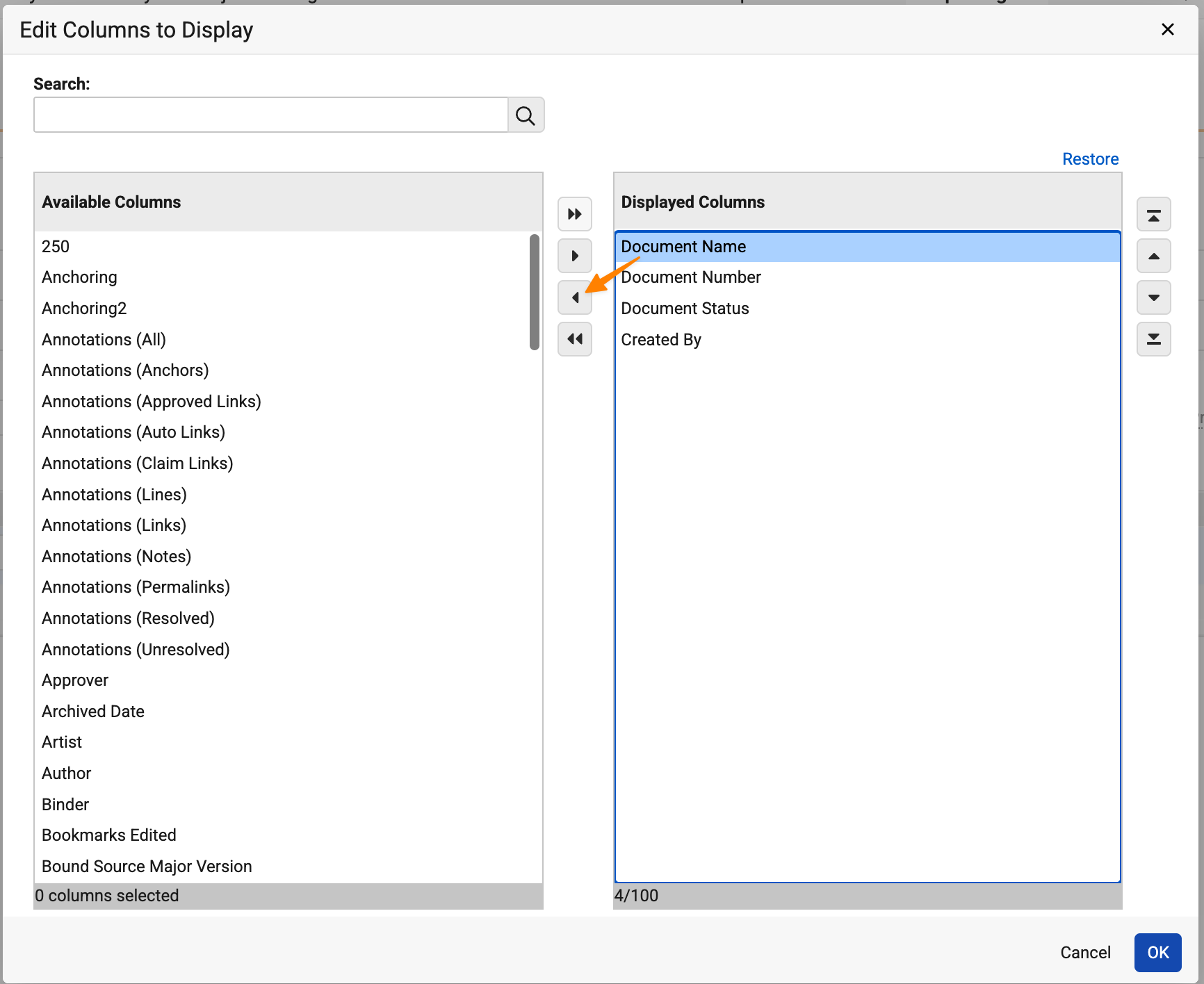
When creating or editing reports, users can now remove the standard Name column from any report. In some cases, the Name value may not be the most meaningful identifier for users, so this enhancement provides flexibility to exclude it if needed.
Display DateTime for Specific Time ZonesAuto-on26R2.3
Report formula fields now support a new Text() function to display DateTime fields in specific timezones.
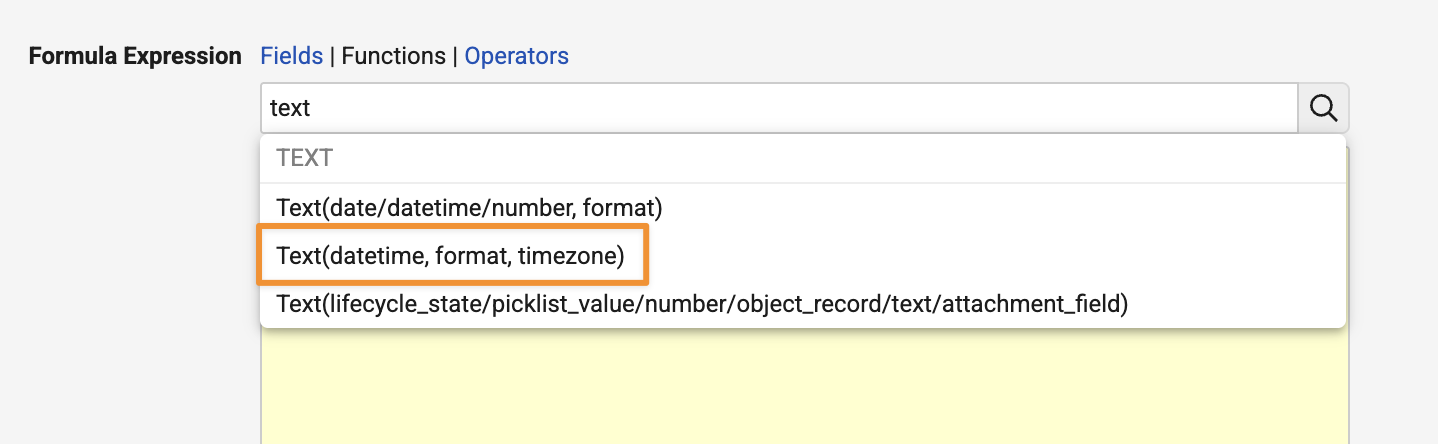
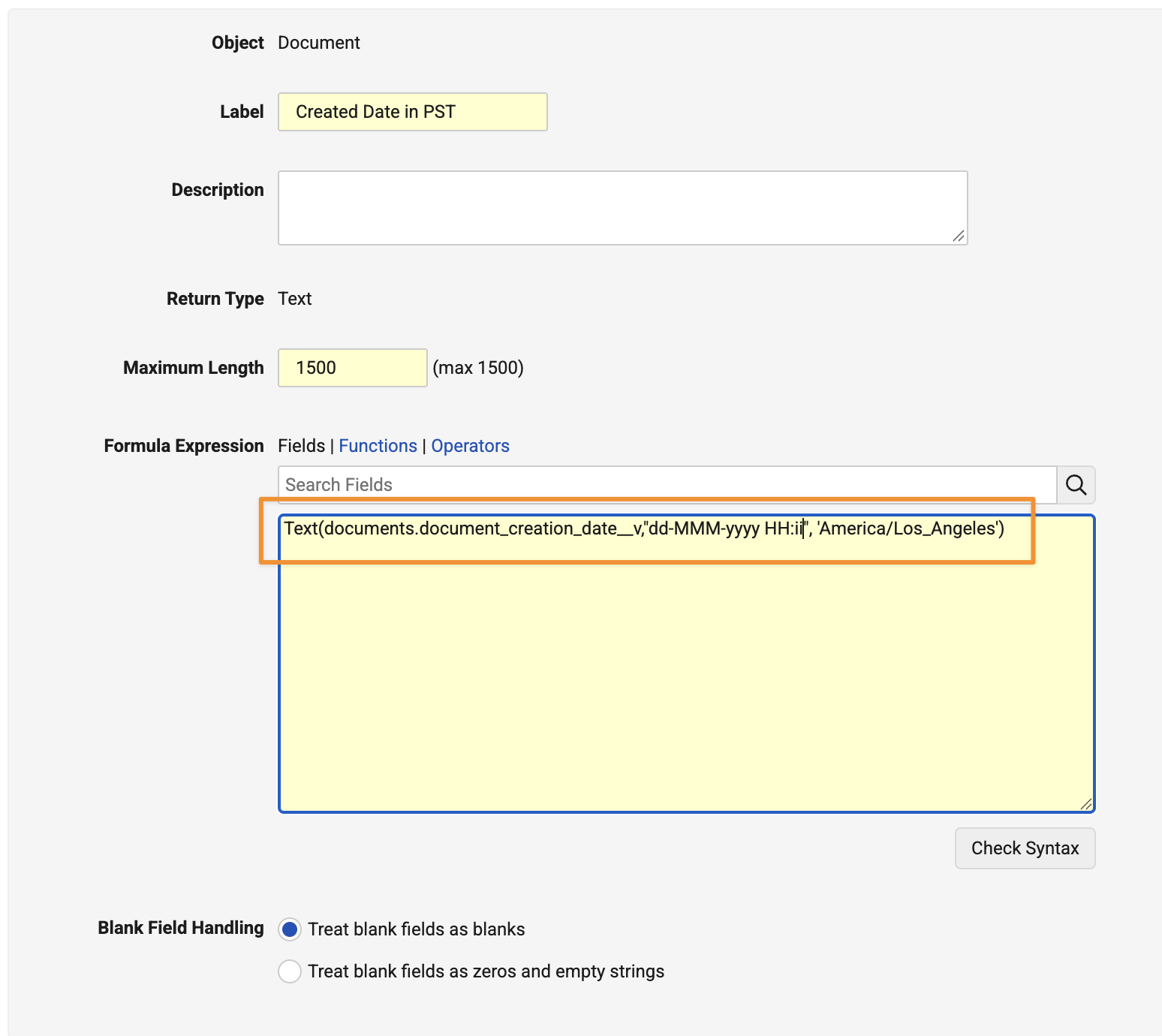
Prior to 26R3, all DateTime values were displayed in the user’s timezone or the Vault timezone when wrapped in Text(). This provides the flexibility to display data in the specific timezone needed for a given use case.
Grouping ID in Audit ExportsAuto-on26R2.2
When exporting audit trails from Vault to CSV, the export files now include a Grouping ID column. This allows users to identify updates that occurred as part of a single action (sharing a Grouping ID value).
In this example, several changes that occurred on a given document as a result of reclassification, all with the same Grouping ID value:
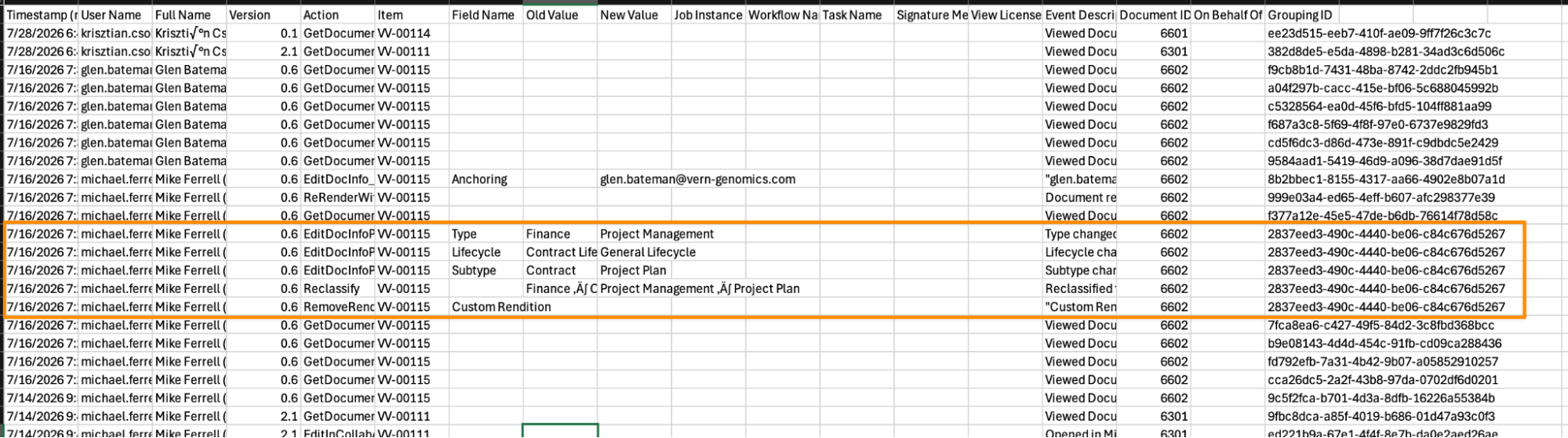
Prior to 26R3, this was only available when using the Vault API to retrieve the audit history for a single object record. This feature applies the Grouping ID column to all document and object record audit exports, in both the API and the user interface.
Learn more about Viewing Audit Trails and Viewing Admin Logs.
User Role Limit IncreaseAuto-on26R2.2
Admins can now add up to 100 user roles to a single user. Prior to 26R3, this was limited to 50 user roles per user.
Learn more about Managing Permissions with User Roles.
Respect Page Size for HTML FilesAuto-on26R2.2
When rendering HTML files that have a page size defined in the HTML, Vault now respects the page size in the generated PDF viewable rendition.
Simplified Label Ordering for Object Reference FieldsAuto-on26R2.3
Vault now provides consistent behavior for viewing or querying object reference field labels when choosing between alphabetical and entered order. This update delivers a more predictable and efficient user experience by removing sorting inconsistencies between the user interface and system queries.
Picklists: Increase Limit for Active ValuesAuto-on26R2.3
A single picklist can now include up to 3,000 active picklist values available. This is an increase from the prior limit of 2,000.
Email Suppression List EnhancementsAuto-on26R2.3
Vault no longer adds emails to the Email Suppression List if the failure is caused by a Veeva-owned IP address.
In the past, intermittent issues have occurred with email providers blocking emails sent from Vault, creating unnecessary work for Admins to remove those from the Email Suppression List.
This enhancement removes the need for Admins to take action in these cases to mitigate and restore Vault’s ability to send emails to suppressed addresses.
Learn more About the Email Suppression List.
Word Formatted Output: Consistent Field Permission HandlingAuto-on26R2.3
When users generate Word formatted outputs, Vault now more consistently handles field level security and Atomic Security. In many cases prior to 26R3, a Word formatted output generation may fail if a user does not have access to certain fields.
With this change, Vault allows generation in most instances, while still respecting security. For example, if a user does not have access to an object field due to field-level security in their permission set, the output successfully generates with a Cancel icon () for that field.
There are two instances where field security may generate errors:
- If a
${Rowset()}uses a particular field in theWHEREorORDER BYclause, and the user does not have access to that field. - If a
${HideTableIf()}or${HideRowIf()}statement uses a field to which the user does not have access.
Learn more about Learn more about Managing Word Formatted Output Templates.
Capture Changes to System Fields in System Audit LogAuto-on26R2.3
Changes to the following system-managed fields are now audited in the System Audit Log:
- Last Modified Date (
modified_date__v) - Last Modified By (
modified_by__v) - ID
- Global ID (
global_id__sys) - Created Date (
created_date__v) - Created By (
created_by__v)
These fields support limited editing (Label, Description, Help Content and Display in default lists and hovercards), but updates to these are now included in the System Audit History.
Common Data Architecture: Updates to Language & Country PicklistsAuto-on26R2.2
The standard Country (country_cda__v) and Language (language_cda__v) Picklists now include the following updates:
- Country
- Great Britain has been updated to United Kingdom
- Language
- New values added:
- Armenian
- Kyrgyz
- Indonesian
- Filipino has been updated to Tagalog
- New values added:
Veeva Connections
RIM-PromoMats Connection
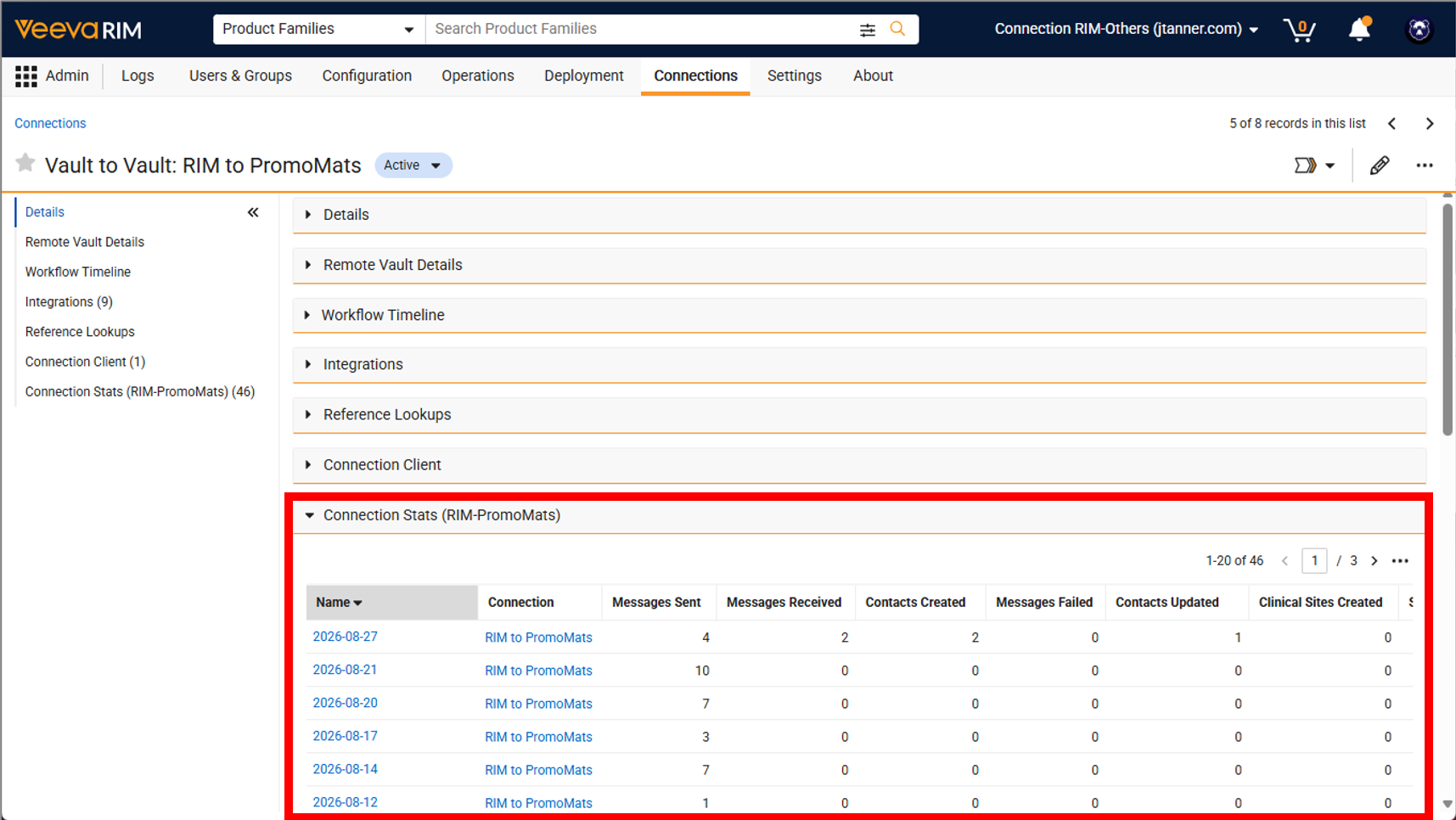
RIM-PromoMats Connection: RIM Connection StatsAuto-on26R2.3
RIM Vaults using the RIM-PromoMats Connection will leverage Vault Platform’s Connection Stats object to track daily automated transactions completed from PromoMats to RIM.
What’s New
The following fields are added to the Connection Stats object in RIM:
- Contacts Created: Tracks created contacts.
- Contacts Updated: Tracks updated contacts.
- Submissions Created: Tracks created submissions.
Vault also uses several standard Connection Stats fields for Quality-RIM statistics:
- Unique Crosslinks Created
- User Exception Messages
- User Exception Items
A new section on the Connections object layout displays these statistics specifically for RIM-PromoMats Connection records.
Key Benefits
- Performance & Usage Monitoring: Vault Admins now have visibility into the daily number of automated transactions completed by the RIM-PromoMats Connection into RIM via the Connection Stats object.
- Actionable Insights & Reporting: Delivers data at both individual connection and system-wide levels, enabling users to build reports and dashboards to track operational trends and overall system usage.
Additional Considerations
- Historical Data: Statistics do not include records created or updated prior to feature enablement, so all-time historical reporting is not available for existing connections.
- Feature Scope: Statistics for inbound processing stats within PromoMats will be introduced as separate features.
RIM-PromoMats Connection: Co-Packaged Product SupportConfiguration26R2.3
This feature enhances the existing RIM-PromoMats Connection’s Product Data feature to support packaging scenarios, where the RIM Vault is configured to store the co-packaged or even integral devices via the Packaging setup.
What’s New
- A new Packaging Product Variant object is added in PromoMats to store details of the multiple products contained within a co-packaged record.
- A new RIM Packaging Product Variant Integration Point has been added to the RIM Product Integration in PromoMats to transfer the co-packaged product details.
Key Benefits
- This enhancement makes the connection more inclusive for unique and/or legacy RIM product data configurations, which is supported today with other product data connections including RIM-Medical and Safety-RIM.
Additional Considerations
- The new integration point will need to be enabled in PromoMats if this data is needed. For existing users it will be necessary to reset the last successful run date to sync historic data from RIM. No changes are needed within RIM.
Quality-RIM Connection
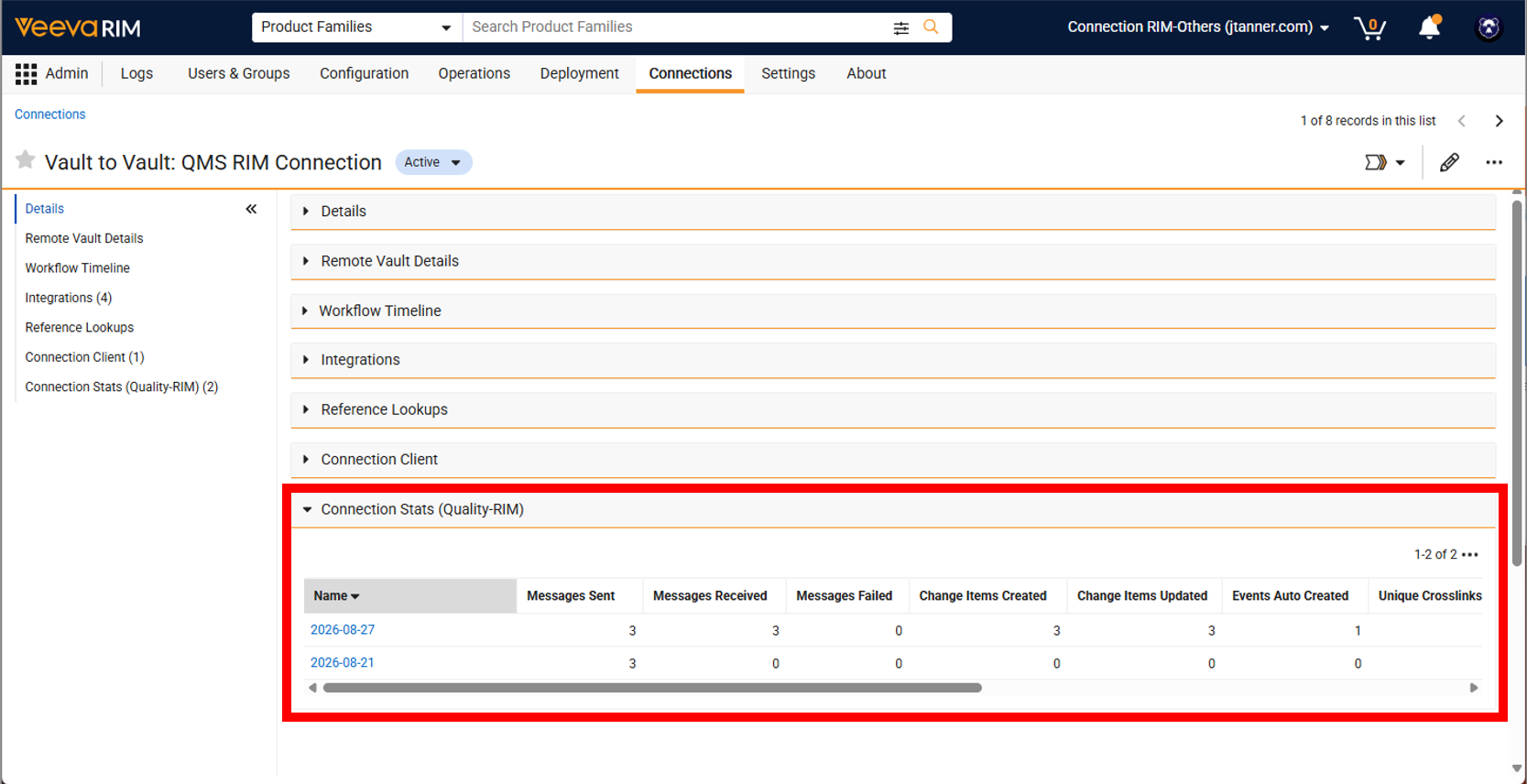
Quality-RIM Connection: RIM Connection StatsAuto-on26R2.3
RIM Vaults using the Quality-RIM Connection will leverage Vault Platform’s Connection Stats object to track daily automated transactions completed from Quality to RIM. This capability provides Admins and users with clear visibility into connection activity.
Vault adds the following new fields to the Connection Stats object to capture connection-specific metrics:
- Change Items Created: Tracks created change items.
- Change Items Updated: Tracks updated change items.
- Events Auto Created: Tracks automatically created events.
Vault also uses several standard Connection Stats fields for Quality-RIM statistics:
- Unique Crosslinks Created
- Crosslink Versions Created
- Document Metadata Updates
- User Exception Messages
- User Exception Items
A new section on the Connections object layout displays these statistics specifically for Quality-RIM Connection records. Vault updates Connection Stats during RIM inbound processing jobs for the Quality-RIM Connection. Admins can view these metrics on the Connection records.
Key Benefits
- Performance & Usage Monitoring: Offers visibility into daily performance and usage metrics for connections directly within a connected Vault.
- Actionable Insights & Reporting: Delivers data at both individual connection and system-wide levels, enabling users to build reports and dashboards to track operational trends and overall system usage.
Additional Considerations
- Historical Data: Statistics do not include records created or updated prior to feature enablement, so all-time historical reporting is not available for existing connections.
- Feature Scope: Statistics for inbound processing stats within Quality will be introduced as separate features.
Quality-Safety Connection
Quality-Safety Connection: Expedited PQC Processing Data ModelConfiguration26R2.3
This feature introduces the necessary data model that will support expedited Product Quality Complaint (PQC) transfer from Safety to Quality Vaults, laying the foundation for a feature planned for a future release.
Quality-Safety Connection: Create Complaint ContactsConfiguration26R2.3
This feature enhances the automatic transfer of a Case record’s associated Case Contacts in Safety Vaults to Complaint Contacts associated with Complaint Intake records in Quality Vaults. This feature benefits organizations by creating standardized contacts across QMS and Safety Vaults, improving data integrity and downstream reporting consistency.
Key capabilities include:
- Multiple Case Contacts: Prior to this release, the connection transferred Safety Initial Reporter data to a QMS Complaint Intake, but did not transfer additional contacts such as physicians and patients typically associated with Safety Cases. This enhancement eliminates the limitation by introducing a new Alternate object type for the QMS Complaint Contact object that captures these additional Case Contacts.
- Initial Reporter Details: Prior to this release, the connection transferred initial reporter details (such as Title, First Name, Middle Name, Last Name, Organization, Department, Telephone, and Email) to the Initial Reporter Details field of a Complaint Intake record in a comma separated list format. Quality team members manually transcribed the information into the Complaint Contact record. This enhancement eliminates manual transcription by automatically transferring data to Complaint Contact fields.
- Related Complaint Intake: Vault populates the Complaint Intake field for each Complaint Contact created by the Quality-Safety Connection to establish a parent-child relationship with the Complaint Intake and Complaint Contact records.
- Increased Maximum Characters: The Fax and Zip Code fields on the Complaint Contact object increase to match the equivalent fields in Case Contacts.
This feature also introduces the Complaint Intake Contact Integration Rule, which does the following when the connection creates Complaint Contacts from Case Contacts:
- Initial Reporter & Alternate Contacts: Vault creates a Safety Case’s primary reporter as a Complaint Contact with the Initial Reporter type, and creates all other Safety Case Contacts as Complaint Contacts with the Alternate type.
- Country: Vault assigns the Country field of the Complaint Contact based on the corresponding values on the source Safety Case Contact.
- Selectively Transferring Case Contacts: Admins can configure Query Object Rules within the Complaint Intake Contact Integration Rule to control exactly which Case Contacts transfer to QMS.
An Admin must activate the new Complaint Intake Contact Integration Rule. Admins should also inactivate the existing Complaint Intake Case Contact Integration Rule, which remains active and will continue to concatenate initial reporter details into a Complaint Intake record’s Initial Reporter Details field unless inactivated.
Quality-Safety Connection: Transfer Related Complaint DocumentsConfiguration26R2.3
Managing cross-functional workflows between Quality and Safety teams requires seamless document sharing during issue investigations. Previously, the Quality-Safety Connection only transferred standard attachments via the connection. This forced users to manually locate and attach linked Complaint library documents to Safety records, an often tedious process that was prone to information gaps.
With this release, the Quality-Safety Connection enhances automated document transfer capabilities. The integration now automatically transfers linked Complaint library documents alongside standard attachments upon Safety Inbox Item creation. This ensures Safety teams receive comprehensive documentation upfront without reintroducing manual administrative effort into event processing workflows.
Clinical Operations-EDC Connection
Clinical Operations-EDC Connection: Site PI AssignmentsConfiguration26R2.2
This feature enhances the Clinical Operations-EDC Connection to automatically transfer Principal Investigator (PI) records and PI site assignments from CTMS Vaults to EDC Vaults. By establishing a single source of truth, this automation eliminates duplicate manual data entry, reduces reconciliation errors, and simplifies downstream data usage such as safety reporting.
When you assign a PI to a Study Site’s Principal Investigator field in CTMS, their core details first name, last name, email, language, locale, and timezone are automatically transferred to create or update a corresponding Person record in EDC. Vault links Person records by populating the Link field in EDC with the record’s Global ID from CTMS.
As part of the Site Integration data transfer, EDC automatically updates the Site’s Primary Contact field with a reference to the transferred PI record. Person records created or updated via the Connection are designated as CTMS-managed in EDC and cannot be edited, inactivated, or merged. In Veeva CTMS, the Merge Persons action is blocked if the losing Person record is actively assigned as a PI on a connected Study Site.
This feature is delivered inactive.
Learn more about Site PI Assignments.
Clinical Operations-EDC Connection: Protocol Deviations from DQSAuto-on26R2.3
Veeva CTMS serves as the primary system for reviewing and managing all protocol deviations (PD). Programmatic PDs are automatically fed from Veeva EDC to Veeva CTMS. However, third-party data (non-EDC) sources, such as central laboratories, frequently generate PDs that are recorded in Veeva DQS, but previously did not automatically transfer into Vault CTMS. This left third-party PDs isolated in Veeva DQS, forcing study teams to review data across disconnected systems and increasing the risk of incomplete oversight.
This new feature leverages the existing Clinical Operations-EDC Connection to automatically retrieve non-EDC Protocol Deviations (PDs) from Veeva DQS directly into Vault CTMS. When a new non-EDC PD is created in Veeva DQS, the system automatically transfers the record through EDC into CTMS. During this transfer, the system populates key details such as Study, Site, Subject, Event, Category, and Severity, while populating dedicated fields including Linked Data Origin, Source System Name, and Third Party to ensure complete data traceability.
This enhancement centralizes all PDs within Vault CTMS, regardless of where the data originated, to facilitate review and oversight while Veeva DQS retains a complete dataset for statistical analysis and health authority filings. By replacing manual data handling with automated synchronization, it eliminates repetitive operational effort and manual errors.
Additionally, with this feature, if a PD is initially transferred from EDC to CTMS as Blinded and later updated to Unblinded in EDC, that updated status will now sync to CTMS automatically—even if the Enable Restricted Data Transfer setting is disabled.
Learn more about Protocol Deviations from DQS.
Clinical Operations-EDC Connection: Inbound Transfer ReconciliationAuto-on26R2.3
This feature introduces an automated background reconciliation process that increases the overall reliability of data transfer between Veeva EDC and CTMS.
A new daily background job compares EDC source records against CTMS to identify any missed record creations or out-of-date updates. Any missing or out-of-date items are automatically flagged and retried without requiring manual intervention.
Reconciliation tracking information is captured in three High Volume Objects (HVOs):
- Received Source Reconciliation: Master tracking record that establishes context for a specific Integration, Integration Point, and Study mapping
- Received Source Items: Child table storing all remote item record IDs successfully identified or processed during real-time connection worker runs
- Received Source Items Missing: Child table storing missing or out-of-date item identifiers discovered during background sweep runs, acting as the recovery queue
By automatically recovering missed transfers, this feature eliminates silent data transfer errors, improves overall connection robustness, and maintains data parity between EDC and CTMS without administrative overhead.
Learn more about Inbound Transfer Reconciliation.
Learn more about other new Clinical Operations features below.
Clinical Operations-DQS Connection
Clinical Operations-DQS Connection: Support RBQM Key Indicators in CTMSConfiguration26R2.3
This feature automates cross-vault data synchronization of study key risk indicators between Veeva DQS and CTMS in support of Risk Based Quality Management (RBQM). By bridging complex statistical metric calculations performed in DQS with operational study oversight in CTMS, this enhancement provides study teams with real-time visibility into study, country, and site risk profiles.
In this architecture, Key Risk Indicators (KRIs) are fully defined, configured, and computationally calculated within DQS. This connection automates the underlying data transfer required to pull those calculated metrics into CTMS, where they feed into the RBQM Key Indicators in CTMS feature to evaluate threshold limits, trigger automated risk signals, and execute remediation workflows.
Key Capabilities:
- DQS Metrics: On a Study Risk Assessment record in CTMS, users can execute the Select Veeva DQS Metrics action. This action launches a multi-select dialog of active metrics calculated in DQS. Upon selection, CTMS automatically generates corresponding Study Key Indicator (SKI) records and locks mapped fields, such as Name, Formula, and Level, to maintain cross-system alignment.
- Automated Threshold Inheritance: Threshold boundaries configured in DQS are automatically inherited as read-only on the corresponding CTMS SKI records. Updates to threshold parameters or metric definitions in DQS are automatically updated in CTMS.
- Automated Data Synchronization: SKI values are synchronized between systems to ensure daily updated values in CTMS.
- Downstream Signal Triggering: Once outcome values are updated, CTMS evaluation is automatically triggered to determine if signal records or automated remediation actions are required.
By connecting advanced statistical risk calculations defined in DQS directly to operational risk management in CTMS, study teams are provided with a single, integrated risk management workspace. KRI threshold breaches immediately feed into CTMS signal evaluation and automated action workflows, reducing response time to risks and improving study compliance.
Safety-EDC Connection
Safety-EDC Connection: Case Compare Matching ImprovementsAuto-on26R2.3
To prevent data corruption and eliminate downstream follow-up errors, Veeva Safety enhances Case compare matching for Inbox Items generated by the Safety-EDC Connection. In clinical trials, site investigators frequently clear data from one CRF form and re-enter identical clinical details under a new visit form, generating a new Link value. Previously, the Inbox Item to Case Compare page considered these as two separate events, leading processors to ignore incoming changes and inadvertently wipe clinical data lineages (such as changing a product state to Drug Not Administered). Smarter Case Compare introduces fallback score matching, visual record ID match locking, automated ID migration, and promotional safety guardrails.
Key capabilities include:
- Fallback Value Matching Engine: When an incoming EDC record’s Link value does not find an exact match, Vault evaluates field-level data to identify potential matches rather than assuming the record is net-new.
- Record ID Match Locking & Visual Lock Icon: Vault locks records with matching ID values and the page displays a lock icon on the row header, preventing processors from manually breaking verified matches.
- Automated ID Migration: When an EDC user resets a form (flagging an old form as deleted while also transmitting identical data with a new form ID), Vault automatically identifies the deletion and new entry as a match Promoting the update overwrites the old tracking ID with the new Link value without creating duplicate records or data loss.
- Automated Deletion of Removed EDC Records: Records removed by study sites in EDC automatically default to a delete state on the Inbox Item to Case Compare page, with an Undo Delete button available if processors choose to retain the data.
- Context-Aware Promotion Guardrails: Displays alerts when processors attempt to remove EDC-sourced clinical records, reminding them that ignoring or removing data suppresses future follow-up updates from the trial site.
Safety-EDC Connection: EnhancementsAuto-on26R2.3
To complement compare and matching updates for the Inbox Item to Case Compare page, Veeva Safety introduces key processing, clinical data mapping, and payload parsing enhancements for the Safety-EDC Connection. These updates improve data integrity for clinical trial cases, prevent improper manual overrides, expand support for trial subject metrics, and ensure uninterrupted data ingestion from Veeva EDC. This enhancement enables users to:
- Primary Adverse Event Protection: Prevents non-EDC-sourced Adverse Events (such as events added manually by a Safety user) from being designated as primary (with a Rank of 1) on an EDC-sourced Case, ensuring the primary event always reflects clinical trial source data.
- Multi-Event Site Narrative Concatenation: Automatically concatenates and delimits site narratives in Safety Vaults when inbound EDC data contains multiple Adverse Events with individual narrative entries.
- Combination Product Selection Safeguards: Updates the Add Relevant Subject Information dialog to block selection of combination products, preventing misclassification while keeping standalone devices and non-combination products selectable. The dialog also includes contextual tooltips explaining product selection restrictions.
- Expanded Patient Metrics & Field Mapping:
- Transfers patient Weight, Height, and Last Menstrual Period Date details from EDC, automatically updating or clearing Case field values when EDC users modify forms.
- Supports custom EDC field mapping for Child Information types of Cases and Study Drug objects.
Study Training-Clinical Operations
Study Training-Clinical Operations Connection: Merge Person Enhancements for Study Training UsersConfiguration26R2.2
This feature introduces foundational backend support for merging Person records in Clinical Operations, eliminating previous system roadblocks that prevented merges whenever a Person was related to a Study Person on a study connected to Vault Study Training.
This initial implementation provides essential functionality, with further refinements planned for subsequent releases.
When duplicate Person records are merged within Clinical Operations, the Study Training-Clinical Operations Connection synchronizes the event to Study Training. A background worker job logs the transaction in a new Person Merge History object record, marks the duplicate Person record as deprecated, and links it to the surviving profile.
This deprecation safeguards compliance by preventing future automated assignment logic and canceling any open Training Assignments to eliminate accidental training generation. To achieve full data consolidation, Vault Admins must perform manual cleanup steps to merge historical training completions, update document Sharing Settings, and inactivate the deprecated User account.
Study Training-Clinical Operations Connection: Person Data SyncConfiguration26R2.3
When site staff update their profile information in the VeevaID self-service portal, these changes propagate to Study Training: Vault now supports inbound data synchronization to Clinical Operations (ClinOps) for VeevaID-linked individuals who do not have an active user account in ClinOps.
This enhancement eliminates manual data reconciliation by automatically updating matching ClinOps Person records when profile changes occur in Study Training. Automated background processing ensures ClinOps teams maintain accurate site contact details without creating duplicate records or requiring manual record corrections.
To enable this feature, Admins can configure the Inbound Integration Point on the Study Training to ClinOps Connection using Field Rules to specify which Person fields to sync (First Name, Last Name, Email, Language, Locale, Timezone, Mobile Phone, Prefix, Middle Name, and/or Suffix). Admins can also define Query Object Rules to restrict profile updates to specific clinical roles, such as Site Staff or Investigator, and track managed profiles using the new Linked VeevaID User field on the ClinOps Person object.
Study Training-Clinical Operations Connection: Training Matrix TemplateConfiguration26R2.3
To accelerate study setup and enforce global compliance, Vault now supports central Training Matrix Templates, reducing manual matrix configuration and uploads for new studies created via the Study Training-Clinical Operations Connection.
When this feature is enabled, Vault Administrators with configuration rights can create up to five Excel templates in the new Matrix Control Center to manage non-study-specific Training Requirements. Connected requirements will be supported in a future release.
When setting up a template, Admins can either define one Match Field (picklist, text or boolean) and a Match Value to restrict applicability to corresponding Study types, or leave it blank to automatically apply the template to all new studies.
- Study Training Matrix creation: A job generates a draft matrix on the Study record upon creation. If a draft already exists when the job runs, Vault appends the template configuration directly to that existing draft.
- No retroactive Updates: Modifying a template never overrides a live, study-specific Training Matrix.
- Dynamic Country Handling: Skips uncreated study countries during setup. If those countries are added to the study later, relevant template rules will be automatically applied to the draft matrix.
- Error Recovery: Admins can manually re-trigger the draft matrix creation action in case the job is not successful and / or ends in error
Working alongside Training Requirement Auto-Naming within the Matrix Control Center, this enhancement allows your organization to establish centralized standard rules while ensuring study-level teams maintain control over local requirements.
Study Training-Clinical Operations Connection: Training Requirement Auto-NamingConfiguration26R2.2
Today, when documents are synchronized from Clinical Operations, auto-created Training Requirement names default to Clinical document names, which are often cryptic or unintuitive for Learners.
To address this, we are introducing automated Training Requirement naming, which sets the foundation for the broader Matrix Control Center.
Vault Admins can now configure Vault-wide rules to dynamically control Training Requirement record naming based on up to three document fields of supported field types (Picklist, Date, or Text). Admins can optionally append the system document version to the generated name.
To ensure seamless record generation, missing metadata is automatically skipped, and Vault falls back to the standard Clinical Operations document name when all configured fields are empty.
By enforcing standardized naming conventions, this enhancement ensures Learners receive clear, context-rich assignments on their Learner Homepage rather than raw clinical file names, improving overall clarity and comprehension.
Learn more about other new Clinical Operations: Study Training features below.
Medical-CRM Connection
Medical-CRM Connection: Event Management Metadata Sync EnhancementsConfiguration26R2.2
Sync objects and picklists now support Approved Email transferring CRM Event Management content. The Medical-CRM Connection transfers Event Topic and Event Type metadata from Vault CRM to Medical Vaults. The metadata is stored as records or picklist entries available for users to associate a document with specific events.
Medical-CRM Connection: Approved EmailConfiguration26R2.3
This feature transfers steady state Email Templates and Email Fragments from Medical Vaults to Vault CRM. Document relationships are retained during the transfer.
Medical-CRM Connection: Document TransferConfiguration26R2.3
This feature introduces transferring steady state documents from Medical Vault to Vault CRM. When a document in a Medical Vault reaches a steady state, the Document Transfer integration automatically creates a CrossLink document in the connected Vault CRM. This integration allows Vault CRM to have access to up-to-date, approved contents.
Medical-CRM Connection: CLM Presentations Link Support for PDF & WordAuto-on26R2.2
This feature introduces link support for multi-slide PDF and Microsoft Word CLM presentations. By automatically converting PDF and Microsoft Word hyperlinks into actionable CLM navigation elements during presentation creation, field medical team members will be able to seamlessly skip to specific slides and open external reference URLs, all while capturing individual slide analytics.
Medical-CRM Connection: Approved Email Auto-Publishing Make a Copy SupportAuto-on26R2.3
When users perform a Make a Copy action on a document with Publish for Veeva CRM (Email) set to Yes, Vault now automatically generates corresponding Email Fragments upon the creation of the copied document.
Learn more about other new Medical features below.
PromoMats-CRM Connection
PromoMats-CRM Connection: Event Management Metadata Sync EnhancementsConfiguration26R2.2
Sync objects and picklists now support Approved Email transferring CRM Event Management content. The PromoMats-CRM Connection transfers Event Topic and Event Type metadata from Vault CRM to PromoMats Vaults. The metadata is stored as records or picklist entries available for users to associate a document with specific events.
PromoMats-CRM Connection: Approved EmailConfiguration26R2.3
This feature transfers steady state Email Templates and Email Fragments from PromoMats Vaults to Vault CRM. Document relationships are retained during the transfer.
PromoMats-CRM Connection: Document TransferConfiguration26R2.3
This feature introduces transferring steady state documents from PromoMats Vault to Vault CRM. When a document in a PromoMats Vault reaches a steady state, the Document Transfer integration automatically creates a CrossLink document in the connected Vault CRM. This integration allows Vault CRM to have access to up-to-date, approved contents.
PromoMats-CRM Connection: CLM Presentations Link Support for PDF & WordAuto-on26R2.2
This feature introduces link support for Multi-Slide PDF and Microsoft Word CLM presentations. By automatically converting PDF and Microsoft Word hyperlinks into actionable CLM navigation elements during presentation creation, field representatives will be able seamlessly skip to specific slides and open external reference URLs all while capturing individual slide analytics.
PromoMats-CRM Connection: Approved Email Auto-Publishing Make a Copy SupportAuto-on26R2.3
When users perform a Make a Copy action on a document with Publish for Veeva CRM (Email) set to Yes, Vault now automatically generates corresponding Email Fragments upon the creation of the copied document.
Learn more about other new Commercial features below.
Clinical Operations
Features in the Veeva Connections section also affect the Clinical Operations application family.
All Clinical Operations Applications
Address Type EnhancementsAuto-on26R2.2
To standardize tracking and improve data consistency for imaging and radiology facilities, the Address Type (address_type__v) picklist now includes a standard Imaging Location value, added as Active by default. This is fully compatible with Site Connect, enabling site users to create or reuse Imaging Location addresses when managing Site Address records and completing the Form FDA 1572.
Additionally, the Address Type field is now available on the Location object in an Inactive status. Once activated by an Admin, this enables the Address Type to be automatically populated on Location records created by utilizing the Create Location from Address action on Study Site Addresses.
Word Formatted Output: Support Document Field Mapping in Object Action & Job ConfigurationAuto-on26R2.2
To provide administrators with greater control over document field population during document generation, Vault now supports granular field mapping for Word Formatted Outputs configured through object actions and job steps. Previously, system-level rules automatically copied object fields to all available document fields. Administrators can now specify which active document fields are populated from the source object. If no specific fields are selected, Vault falls back to standard default mapping behavior.
Person Name Standardization & MigrationAuto-on26R2.3
The Standardizing VeevaID & Vault User Profiles feature introduces standard system fields for Prefix (prefix__sys), Middle Name (middle_name__sys), and Suffix (suffix__sys) across the User, Person, and Prior Person objects.
To align Clinical Vaults with this standardized identity data model, the character limit for middle_name__v on the Person object has been expanded from 35 to 60 characters to match the new system fields. On release night, existing values in the prefix__v, middle_name__v, and suffix__v fields will be migrated into the new, standard __sys fields on Person records, excluding VeevaID and Cross Domain Persons. Following the release, any updates made to the __v fields on Person records will sync to the __sys fields to ensure data consistency. The Person-to-User system trigger will automatically synchronize these __sys values on the Person record to the corresponding __sys fields on the linked Vault User record.
Additionally, Admins will be able to manage the status attribute of the prefix__v, middle_name__v, and suffix__v fields on the Person object, enabling teams to inactivate the previous name fields as they fully adopt the standard system fields.
Furthermore, features such as Site Staff Change Requests Filters for Study Site, the Study Training Person connection, the EDC Person connection, Disclosures Protocol Registrations, and OpenData Clinical have been updated to incorporate these new system fields as applicable.
Programmatic Subject Relabeling to ParticipantAdmin Checkbox26R2.3
With the implementation of the updated ICH GCP E6(R3) guidelines, clinical trial terminology has shifted from “Subject” to “Participant”. To stay compliant with global regulatory standards, organizations must update their system interfaces to reflect this updated terminology. Prior to this feature, System Admins had to manually edit each label across their environment. This manual work was inefficient, error-prone, and risked creating inconsistent terminology across integrated applications.
This release introduces the Subject to Participant Relabelling application setting which enables an automated, system-wide conversion of standard English labels from Subject to Participant across Clinical Operations. When an Admin enables this feature flag, a background system job, subject_to_participant_relabelling__v, automatically updates standard system components such as standard object labels, field labels, object lifecycles, picklist entries, system messages, and standard layouts. Customer data records such as study-specific milestone names, custom data models, and eTMF components are out of scope.
This enhancement removes the heavy administrative burden of manual relabeling, guarantees terminology consistency across standard Clinical Operations applications, and provides a clear, controlled path toward ICH GCP E6(R3) compliance.
CTMS
User Action & Bulk Action for Copy Study SDR Plan Available for Study SitesConfiguration26R2.2
During clinical trial planning and setup, organizations frequently deploy standardized Source Data Review (SDR) plans across various sites to maintain compliance and consistency. Prior to this feature, users had to manually create SDR Plans for each individual site when they wanted to apply an existing SDR plan to multiple active sites. This repetitive, time-consuming process was inefficient and prone to manual error.
This new feature introduces a user action and a new bulk action to Copy Study SDR Plan, which facilitates the rapid and accurate deployment of SDR plans across multiple sites.This allows the execution of copying SDR plans to multiple sites simultaneously, or on an individual basis.
This enhancement removes the inefficiency of manual, one-by-one copying and guarantees the consistent implementation of monitoring strategies across a trial portfolio, ultimately streamlining study setup and improving overall operational oversight.
Automated Forecast Rollup for Metrics Over TimeAuto-on26R2.2
Streamlining recruitment planning and enrollment metrics tracking, this feature introduces a new Forecasted Roll Up field on the Metrics object that behaves identically to the existing Planned Roll Up field. The Forecasted Roll Up field shows the sum of the number of subjects forecasted in the Metrics Over Time records.
When a Forecast value is added, updated, or deleted on a Metric Over Time record, Vault automatically recalculates and sums these values to the parent Metrics record. These values also roll up through the clinical hierarchy, Site > Country > Study, so that aggregate forecast recruitment data can be accurately tracked across the study without manual actions. For complex study designs using Subject Groups, forecast data aggregates accurately within the assigned group.
By eliminating manual data calculations, this feature provides study teams with immediate visibility into metric forecasting, reducing reconciliation errors and improving oversight.
Clinical Global Directory Merge Enhancements: History TrackingAuto-on26R2.2
In Clinical Operations, maintaining accurate Global Directory records, including Persons, Organizations, and Locations, is essential for effective study administration and data integrity. However, duplicate records are routinely generated in clinical environments due to decentralized operations running multiple workflows or manual data entry errors. For effective and accurate data quality management, industry standards require cleaning up these redundant records while enforcing strict guardrails to prevent accidental merging or deletion of protected identities, all while maintaining a complete, persistent audit trail.
To facilitate data cleanup, Vault provides native record consolidation capabilities including dedicated Clinical Merge actions for Person records, alongside Platform Merge tools across other Global Directory entities (Persons, Organizations, Locations, and Contact Information). Prior to this change, executing data cleaning activities using these tools presented key operational and technical challenges. When utilizing Clinical Person merge tools, system validation rules restricted merges whenever a duplicate Person record was associated with Study Training. Additionally, because duplicate records are permanently deleted upon merge completion across all Global Directory objects, historical context was lost during cleanup, compromising the granular audit trail required for compliance and downstream reconciliation (such as Veeva ID tracking).
This new feature introduces the following improvements:
-
Study Training Unblocking: The system updates merge validation rules to allow merges involving duplicate Person records associated with Study Training, removing previous operational blockers.
-
Automated Audit Tracking: Upon successful reference repointing, attachment migration, and deletion of the duplicate record, the system automatically creates a persistent tracking record in the new Global Directory Merge History object. During this process, the system automatically links the main record (Person, Organization, Location, or Contact Information) and populates key audit details from the deleted record, including its duplicate identifiers, initiating user, completion timestamp, and cross-referenced Job ID.
This enhancement eliminates the risk of data corruption from merges, streamlines administrative workflows for Study Training, and guarantees the complete historical visibility required for data quality management and compliance.
Learn more about Managing Clinical Operations Person & Organization Objects.
Previous Monitoring Event Refinements: Ignore Inactive Records & Records Without Actual DatesAuto-on26R2.2
This feature refines the logic for evaluating Previous Monitoring Events. Vault now automatically excludes inactive records and events that lack actual dates when establishing previous monitoring event references.
This update includes:
-
Exclusion of Inactive Records: The system now ignores inactive Monitoring Event records as well as active Monitoring Events linked to inactive Milestones. If a Monitoring Event or its related Milestone is set to inactive, it is automatically removed from consideration and replaced with an eligible active record.
-
Actual Visit End Date Requirement: To be eligible as a Previous Monitoring Event, a record must have an Actual Visit End Date. Monitoring Events with only planned dates are now excluded.
This update applies to the Previous Monitoring Event, Previous Blinded Monitoring Event, and Previous Unblinded Monitoring Event fields. Any existing references to ineligible records will be automatically updated to an eligible record when the Previous Monitoring Event logic is triggered.
By ensuring only completed, active Monitoring Events are linked, these enhancements eliminate unexpected data seeding and improve overall accuracy.
Auto-Populate Open FUI & Open Issues for Trip Report Question ResponsesConfiguration26R2.2
This enhancement adds a new Pull Forward Open Issues and Follow-Up Items setting to the Seed Trip Report Question Responses system action. When enabled, Vault automatically generates new Response Issue or Response Follow Up Item join records, linking open items directly to the seeded Trip Report Question Responses in the new Monitoring Event when they were previously referenced in Trip Report Question Responses.
This feature improves visibility into unresolved items and streamlines trip report completion, ensuring records are not overlooked between visits.
Oversight Planning & ScheduleConfiguration26R2.3
Under ICH E6(R3) guidelines, clinical trial sponsors are required to maintain clear oversight of trial activities. In regulatory inspections, the common principle applies: what you cannot show does not exist. Consequently Sponsors must have clear, documented evidence showing that oversight activities actually took place in alignment with the approved Oversight Plan. Prior to this feature, study teams managed oversight using spreadsheets or relied on the Recurring Milestone Schedule feature. Spreadsheets created significant compliance risks, while recurring milestones lacked granularity and flexibility regarding the defined frequency.
This new Oversight Planning & Schedule feature introduces an automated engine in Vault CTMS to define, schedule, execute, and document recurring oversight activities. The feature works as follows:
- Targeted Oversight Definition: Study managers create an Oversight Plan (
oversight_plan__v) containing Oversight Schedule Items (oversight_schedule_item__v). - Automated Task Creation and Continuous Recurrence: When the Oversight Plan is Approved and initiated (manually or via selected milestone completion), individual Oversight Schedule Items are activated. A daily job generates automatically new Oversight Task (
oversight_task__v) records at the configured frequency (e.g. every 30 days) until an ending milestone occurs or the item is ended. - Role-Based Task Assignment: Each Oversight Schedule Item specifies a Responsible Role (e.g. Oversight Manager, Study Manager…). Upon Oversight Task creation, the system automatically starts an assignment workflow sent to all users holding that application role for the specific study, country, or site. When a user accepts the task, the system automatically populates them as the assigned task owner.
- Execution and Evidence Capture: Assigned users conduct the review, log findings directly as Oversight Issues, and can attach oversight activity evidence (e.g. Snapshot Report). Completing a task requires entering a mandatory completion date and summary comment, creating an unalterable history.
This enhancement removes the administrative burden of coordinating oversight activities using spreadsheets or rigid milestone schedules. By providing level-specific task generation, automated ongoing recurrence, and role-based assignment, study teams ensure oversight execution happens strictly according to approved Oversight Plans while providing clear, audit-ready evidence for regulatory inspectors.
Learn more about using Oversight Plans & Schedules.
CTMS Transfer: Oversight Issue Response TransferAuto-on26R2.3
In fully outsourced clinical trials, Sponsors receive daily CTMS data transfers from Clinical Research Organizations (CROs) to conduct trial oversight within their own Vaults. When a Sponsor identifies an operational finding that impacts patient safety, trial result quality, or study conduct, standard practice requires logging an Oversight Issue and remediating it in collaboration with the CRO. Prior to this feature, while CRO users could view transferred Oversight Issues in their Vault, they had no direct way to respond within the system. As a result, study teams had to rely on emails and manual tracking spreadsheets to communicate updates and confirm resolutions. This disconnected process was inefficient, time-consuming, and increased the risk of communication gaps.
This feature introduces Oversight Issue Response transfer. This enhancement leverages the new Oversight Response (oversight_response__v) object and enables seamless, bi-directional communication between Sponsors and CROs directly within Vault CTMS. The process works as follows:
- Oversight Issue Creation: A Sponsor creates an Oversight Issue referencing transferred CTMS data, such as a Monitoring Event, Issue, or Milestone, and sets it to share externally.
- CRO Response: The Oversight Issue transfers to the CRO Vault as a read-only record. The CRO initiates the required remediation and creates an Oversight Response record to detail the actions taken.
- Automated Transfer: The system automatically transfers the CRO’s responses back to the Sponsor Vault as read-only records during the next scheduled CTMS Transfer job.
- Review & Resolution: The Sponsor reviews the CRO responses and any updated related records. The Sponsor can send follow-up responses to continue the dialogue on some actions or mark the Oversight Issue as Resolved, which syncs the updated status back to the CRO Vault.
This enhancement removes the reliance on external email threads and offline trackers, significantly accelerating the issue resolution lifecycle. By enabling fast, in-system communication, study teams can close out issues quicker, safeguard participant safety, preserve trial result quality, enforce proper study conduct, and ensure full transparency and auditability for regulatory compliance under ICH E6 guidelines.
RBQM Study Key Indicators in CTMSConfiguration26R2.3
During clinical trial execution, Clinical Operations teams may continuously monitor Key Risk Indicators (KRIs) and Quality Tolerance Limits (QTLs) across Study, Study Country, and Study Site levels to identify operational risks before they compromise trial integrity. For effective Risk-Based Quality Management (RBQM), industry standards recommend establishing continuous oversight that seamlessly links calculated metric data directly with structured risk remediation workflows.
Historically, tracking risk metrics across disconnected clinical systems required cross-platform data alignment and manual calculations. This process was inefficient, time-consuming, and prone to human error. Furthermore, the lack of automated signal triggering and centralized action workflows created a possibility of delayed risk detection, uncoordinated oversight, and an inability to track whether remediation actions successfully mitigated realized risks over time.
This enhancement expands CTMS capabilities by introducing an integrated RBQM suite for Study Key Indicators (SKI), automated risk signals, and remediation workflows. The solution functions as follows:
- Study Key Indicator (SKI) Definition: Users can define SKIs directly under a Study Risk Assessment record. When creating an SKI in Veeva CTMS, the user defines what is being measured, such as Important Protocol Deviation Rate per Site; the calculation formula of Z-score, rate, or percentage; and the evaluation level, Study, Country, or Site.
- Veeva DQS Metric Selection: For studies integrated with Veeva EDC or DQS, users can execute the Select Veeva DQS Metrics action directly on a Study Risk Assessment record. This launches a multi-select dialog displaying active metrics calculated in DQS. Upon selection, CTMS automatically generates corresponding SKI records and locks fields, such as Name, Formula, and Level, to maintain sync with Veeva DQS.
- Threshold Configuration: Up to four threshold boundaries, Lower Red, Lower Yellow, Upper Yellow, or Upper Red, can be specified on the SKI record. Thresholds are entered manually for DQS SKI records. The records are read-only from Veeva DQS, where they are configured and calibrated.
- Signal Triggers & Alert Rules Configuration: On the SKI record, users set Signal Triggers, choosing which thresholds will automatically trigger an alert when exceeded and an Alert Interval from one to 90 days to control how often alerts are sent.
- SKI Value Tracking & Automated Signal Generation : Each SKI maintains a single Study Key Indicator Current Value record representing its latest outcome at the designated level, Study, Study Country, or Study Site. DQS-connected SKIs values are synchronized between systems to ensure daily updated values in CTMS, while non-DQS SKIs can be updated via custom integrations or manual entry. Veeva CTMS automatically compares updated values against defined Thresholds and Signal Triggers. If a designated threshold limit is crossed, the system generates a Study Key Indicator Signal record. The configured Alert Interval prevents duplicate signals from being created when values fluctuate, while continuously capturing maximum and minimum score changes on active signals.
- Automated Remediation Execution: To automate follow-up actions, study teams configure Key Indicator Action records. Each setting defines the action type of Signal Notification or Risk Remediation Action, target threshold, triggering Signal Lifecycle state such as Under Investigation, remediation description, and responsible application role. When a signal record enters the specified lifecycle state, CTMS automatically evaluates matching settings to launch a notification workflow or generate an assigned Risk Remediation Action record populated with remediation guidance.
- Historical Trending: A High Volume Object, Study Key Indicator Value History, automatically captures monthly snapshots of active values for long-term operational trending.
This feature removes the operational burden of manual Study Risk Indicator tracking, accelerates response times to trial anomalies through automated signals, and establishes true continuous Study Risk Oversight helping to demonstrate risk control effectiveness throughout the study lifecycle.
Decision LogConfiguration26R2.3
During clinical trial execution, critical decisions with material impact on study execution, patient safety, quality, timelines, or compliance occur constantly. Under regulatory guidelines such as ICH E6 R3, sponsors are accountable for formally documenting these study decisions, their rationale, and the associated decision-makers. When study teams rely on fragmented offline spreadsheets, emails, or meeting notes without a standardized framework, decisions frequently go unlogged or suffer from a lack of quality, such as missing rationale or incomplete context. This creates a complete lack of visibility across study teams, making it difficult for cross-functional stakeholders to track decisions and their associated action items. In such a context, retrieving or justifying past decisions during regulatory inspections becomes extremely challenging, especially long after key personnel have departed, while assembling a complete Decision Log for the Trial Master File at study closeout drives up compliance risk and administrative effort.
This new feature introduces the standard Decision Log (decision__v) object and associated data model directly within Veeva CTMS, providing a centralized framework to document, manage, and close out study decisions. This feature works as follows:
- A Study Team member, such as a Study Manager, creates a Decision record assigned to a specific Study and defines key details, including the Decision Date, Origin, Description, and Rationale.
- Users can quickly select and attach multiple Study Countries, Study Sites, or Decision Makers at once using simple search pop-ups.
- The Decision record connects directly to related Clinical Operations data, including Study Risks, Issues, ensuring full operational traceability.
- Each Decision record follows a structured lifecycle ,moving through states such as Draft, In Review, and Decided, and enables users to assign and track associated action items to drive the decision to complete resolution.
- At the conclusion of a study, users can generate a standardized Decision Log export document formatted for seamless filing in the TMF.
This enhancement improves decision documentation quality and full cross-team visibility, removes the effort of manually chasing down scattered files at study closeout, guarantees permanent audit readiness during inspections regardless of team turnover, and provides the structured governance required for ICH E6 R3 compliance.
Informed Consent Tracking & Informed Consent Site Effective Tracking UpdatesConfiguration26R2.3
This feature introduces new standard object and document fields to improve Informed Consent Form (ICF) management, lineage reporting, and document version visibility across Study, Country, and Site levels.
The new fields are:
- Source ICF (
source_icf__v): A self-referencing object field on the Informed Consent Tracking object. This enables study teams to explicitly link Site ICF tracking records to Country and Study Master records, allowing users to build object reports that clearly map Master → Country → Site ICF lineage. - ICF Document (
icf_document__v): A new version-specific document field on the Informed Consent Tracking object. This field makes it easier to surface specific ICF versions directly on tracking records. - Informed Consent Tracking (
informed_consent_tracking__v): A new standard document field. This field replaces the existing custom Informed Consent Tracking (informed_consent_tracking__c) document field. - Informed Consent Site Effective Tracking (
site_effective_icf__v): A new standard document field. This field replaces the existing custom Informed Consent Site Effective Tracking (informed_consent_site_effective_tracking__c) field.
By providing standard support for ICF object relationships and version-specific document linking, this enhancement eliminates the need for custom fields, improves tracking ICF relationships, and enables lineage robust reporting.
Dynamic Monitoring Event Review Comment Badge PlacementAuto-on26R2.3
With this feature, Vault now dynamically places review comment badges on Monitoring Event sections based on the record’s current location.
Previously, if a record moved sections on the page layout (such as an Open Issue moving to the Closed Issue section), the badge remained tied to the section where the comment was originally created. Now, review comment badges display on the section where the record resides, ensuring monitors and reviewers can correctly pinpoint outstanding feedback.
This feature is auto-on in Vaults configured for Monitoring Reviewer comments.
Expanded Object Support for Study MigrationAuto-on26R2.3
To support the new Risk-Based Quality Management (RBQM) and Oversight features introduced in this release, Study Migration now extends its scope. Records for following objects will be marked In Migration while the Study is in Migration mode:
study_critical_to_quality_factor__vstudy_key_indicator__vstudy_key_indicator_value__vstudy_key_indicator_signal__vkey_indicator_action__vdecision__voversight_plan__voversight_schedule_item__voversight_task__v
CTMS, eTMF
Clinical Homepages Enhancements: AccessibilityAuto-on26R2.2
Providing an accessible user interface is essential to ensure all clinical personnel, including those relying on screen readers or touch-screen devices, can seamlessly navigate operational views. This update aligns key clinical homepages (including the TMF Homepage, CRA Homepage, and Study Management Homepage) with Web Content Accessibility Guidelines (WCAG).
Key enhancements included in this release:
- Descriptive Filter & Field Labels: Added standard screen reader labels (aria-label) to key dropdown selectors, including Study, Study Country, Site, Milestone Category, and Quality Issues status filters, enabling screen readers to clearly announce each control without altering visual page design.
- Action Button Labels: Added accessibility titles and labels to ellipsis action buttons across the CRA and Study Management homepages so screen reader users can identify contextual menus.
- Improved Color Contrast: Updated text colors and warning highlights (refining gray
#555555and orange#D47C0Ato compliant shades like#CC6600) to increase visual contrast and readability for low-vision users. - Larger Touch Targets: Increased the size and spacing of interactive buttons to a minimum of 24 pixels, making controls significantly easier to tap on mobile and touch-screen devices.
This enhancement removes critical usability barriers and ensures an inclusive, reliable experience for all clinical users across devices.
Clinical Transfers: Support Archived Document AttachmentsAuto-on26R2.3
TMF Transfer now supports Transfer of Document Attachments directly to Archive.
CTN Data Automation & Change Log EfficiencyConfiguration26R2.3
This feature introduces key usability and data correctness improvements to Japanese Clinical Trial Notification (CTN) support in Veeva CTMS. By automating routine data entry and refining global change log processing, these updates reduce administrative burden, eliminate redundant review noise, and improve system scalability for trials in Japan.
Automated data entry and record creation enhancements include:
- Automatic Order Numbering: The Order (
order__v) field used to sequence CTN items is now assigned automatically. Sites are numbered sequentially, while Investigators within each site are independently numbered starting at one (1). - Automated CTN Site IP Records: CTN Site IP records are now automatically created when a site is included in a CTN or when a new IP product is added to the study.
- Person Name Auto-Population: When a CTN data record is created for an Investigator, the local Japanese name from the Person record automatically populates the CTN Name (
ctn_name__v) field. Updates to the local name on the Person record also automatically update the CTN Name and generate a Global Change Log entry.
Learn more about using Japanese CTN.
CTMS, eTMF, Study Startup
Study Level EDL Overrides Based on Study CountriesAuto-on26R2.2
When a study-level Template EDL includes a country-specific override designed to add study-level milestone types, Vault will now conditionally apply those milestone types. The milestone types will only be added if an active Study Country exists for that specific country. This enhancement prevents the unnecessary linking of Expected Documents to study-level Milestones for clinical trials participating in limited regions, reducing administrative overhead.
This feature is Auto-On for all Vaults utilizing study-level EDL Template Overrides.
Lock Milestone Rollup DatesAdmin Checkbox26R2.3
Vault now prevents users from manually editing dates calculated via rollup dependencies, while keeping other milestone dates editable according to existing user permissions.
Together with the Site Automated Enrollment Milestone Locking feature, this safeguard eliminates unauthorized overwrites of system-calculated dates, preserving data integrity and reducing time-consuming manual data reconciliation for study management.
This behavior is enabled by the Prevent User Updates to Milestone Dates Populated by Rollups setting, which is automatically enabled in all vaults with Enable Milestone Rollups on release night.
To enable this feature, Admins can navigate to Admin > Settings > Application Settings and select the Prevent User Updates to Milestone Dates Populated by Rollups setting.
New System Behavior
- Vault displays an error message when users try to edit locked Milestone dates
- In the Milestone Planning View, Vault does not allow users to initiate edits on locked Milestone dates and replaces the edit pencil icon with a lock icon
How the System Determines Locked Milestone Dates
- Actual Start and Actual Finish dates are locked when an active and previous Milestone rollup dependency exists
- Baseline Start / Finish and Planned Start / Finish dates are locked when an active, previous Milestone rollup dependency exists if the rollup is not blocked via the Block Automatic Updates field set to TRUE or the date field listed in the Block Rollup Dates field.
Note: Automated system actions (such as Autocomplete, Automated Approvals, or RIM-ClinOps connection) can still update locked Milestone dates. However, API calls from integrations are considered user updates and will be blocked from updating values if the dates meet the criteria above.
To disable this feature, Admins can navigate to Admin > Settings > Application Settings > Milestones and uncheck the Prevent User Updates to Milestone Dates Populated by Rollups setting.
Targeted Milestone-Specific Expected DocumentsAuto-on26R2.3
When Vault creates an Owning Milestone, it now limits Milestone-specific Expected Document generation strictly to the newly created milestone, even if an open Owning Milestone of the same type already exists. Previously, changes to study setup (such as adding new sites) or subsequent Owning Milestone creation while another milestone remained open caused Vault to retroactively generate unnecessary Milestone-specific EDs for the older milestone.
Vault now ensures accurate, targeted expected document creation across several scenarios:
- Newly Added Sites: A user creates a Protocol Amendment and Vault generates expected documents for existing sites. If a new site is added and progressed to Planning, Vault does not generate Milestone-specific EDs for the new site under that Protocol Amendment, even if still open.
- Template Expected Document Updates: When an admin links a new Template Expected Document to an Owning Milestone type, Vault applies the updated template exclusively to newly generated milestones (e.g. a new Ad Hoc Event), rather than retroactively creating them for open milestones.
- Selective Ad Hoc Events: A user initiates an Ad Hoc Event and selects Japan, while excluding Canada, generating Milestone-specific Expected Documents solely for Japan. When the user later initiates a second Ad Hoc Event of the same type and selects Canada, Vault generates Milestone-specific Expected Documents for Canada under the second event only, without retroactively generating Expected Documents for Canada for the first event.
Learn more about Milestone-Specific Expected Documents.
Recurring Milestone Creation ParityAuto-on26R2.3
With this feature, the system now populates additional fields on recurring milestones when they are created from template. The additional fields are:
- Sequence
- Autocomplete
- Gating Override Eligible
- Block Automatic Updates
- Block Rollup Dates
- Expected Duration (Days)
- Expected Duration - Resubmit (Days)
- Select Specific Country and Site
- Auto-document Exchange
This update ensures consistent behavior when milestones are generated from a template.
Template Behavior Validation on EDL OverridesAuto-on26R2.3
To prevent system misconfigurations that can lead to data integrity issues or unexpected behavior, Vault now blocks setting Template Behavior to Create or Update on Template EDL Items within Override EDL Templates.
This restriction applies exclusively when a Template Expected Document belongs to an EDL Template with country_override__v set to TRUE. For overrides, the only acceptable values for Template Behavior are Blank or Reuse.
Previously, unsupported configurations could be saved, potentially triggering errors during system operation or testing. This update provides real-time feedback to Admins by displaying an error message upon saving to intercept and prevent invalid setups.
Exclude Subject Group Milestones from Study Milestone Process ViewsAuto-on26R2.3
Subject Group Milestones (milestones where the arm__v field is populated) are now automatically excluded from Study Milestones, Study Country Milestones, and Study Site Milestones process views in Process Monitor.
Because Subject Group Milestones occur at the arm level, including them alongside core study milestones created skewed metrics and inconsistent cycle time calculations. By restricting these process views exclusively to milestones where the Subject Group field is blank, Process Monitor provides cleaner, more accurate cycle time metrics and KPI reporting.
This enhancement is automatically enabled, and all existing milestone process views will be fully refreshed on release night to recalculate and reflect this update.
Milestone & EDL Performance ImprovementAuto-on26R2.3
Users now experience significantly faster Milestone and Expected Document List (EDL) creation times without any changes to what records get created. This performance improvement affects Milestone and EDL creation during state change operations, Ad Hoc Events, and Apply Template EDL Update bulk actions so that organizations can generate expected document lists with far less waiting time.
Milestone Document HardeningAuto-on26R2.3
Vault now generates Milestone Documents in near real-time, including when the Generate Missing Milestone Documents action is executed, further reducing the delay for record creation. Additionally, this release introduces several backend improvements to enhance stability and accuracy for Milestone Documents. As a result, the Milestone Workspace reliably displays the correct documents when an EDL Item is selected and seeds the correct Milestone Package Documents for Submissions, delivering a faster and more reliable document management experience.
CTMS, Site Connect, Study Training
Standard Responsibility List UpdatesAuto-on26R2.3
To align with updated global regulatory standards under ICH GCP E6(R3), the standard Responsibility record name has been updated from Recruit Study Subjects to Recruit Study Participants.
This feature is auto-on in Vaults where the Programmatic Subject Relabelling to Participant feature is enabled.
This update ensures consistency across terminology without requiring manual record updates.
eTMF
Clinical Transfer ManifestAuto-on26R2.3
End of Study TMF Transfer replaces time consuming and expensive migrations for the simple use case where a trial has come to an end and the TMF should be transferred from the Clinical Vault where the trial was operated to the Clinical Vault that owns the trial. This is a critical business process for Sponsors and CROs. After transfer, confidence and transparency that all items expected to transfer, actually transferred is key.
This feature introduces a new, robust manifest reconciliation process to Clinical Transfers. A new Verification Step has been added to the transfer process which ensures all documents, components of documents (such as attachments, renditions, and versions), and records are accounted for, or a transfer failure exists to alert the user. This Manifest is not only a new step that runs in the background for additional confidence, but also a tangible artifact that the Source or Target system can download for review at any time while the Agreement is active. When executed, the new Generate Transfer Manifest action provides a full itemized list of document versions, viewable renditions, imported audit trail renditions, attachments, and records and provides the status of the item in the Target system.
eTMF, Study Startup
TMF Export: Export Source Files Without RenditionsAuto-on26R2.3
When exporting a Trial Master File (TMF), organizations may decide to export only document renditions (viewable PDF files) rather than original source files as they provide a standardized format that includes required electronic signatures, watermarks, and document metadata for regulatory compliance. However, certain file types, such as ZIP archives, do not generate a viewable rendition. Prior to this feature, if a user chose to export document renditions without including source files, any document lacking a viewable rendition was left out of the export. This created a risk of generating an incomplete TMF package and required users to manually identify and export missing source files.
To address this scenario, users can now select the new Include Source Files when Rendition not Available? option on the TMF export dialog to automatically export source files whenever a Viewable Rendition is missing. When enabled, the system checks each document in the export set: if a Viewable Rendition exists, only the rendition is exported and if a rendition is unavailable, the system automatically exports the original source file instead. Additionally, administrators can configure the default for this option using the new Include Source File when Rendition not Available Default field within the TMF Export Configuration screen.
This enhancement removes the risk of missing files during an export, and guarantees a complete TMF package.
Learn more about creating TMF Export Packages.
TMF Viewer: View Previous Document VersionsAuto-on26R2.3
In documents applying to multiple Studies, when a new version of a document is unlinked from one of the Studies, the TMF Viewer now automatically displays the most recent version that carries an active link to that study as the primary document.
For example, if a V1.0 applies to Studies A, B, and C, but the latest version (V2.0) removed “Study A,” TMF Viewer will now show V1.0 when viewing documents for Study A. Previously, unlinking a newer version would hide the document when searching within that study’s context in TMF Viewer.
This update guarantees an accurate representation of TMF completeness and saves time during document search, for example for audit preparation.
Learn more about viewing previous versions in the TMF Viewer.
Disclosures
Disclosures: Support EU Substantial Modifications & Additional MSCsAuto-on26R2.3
Vault Disclosures now supports EU Substantial Modification, Non-Substantial Modification, and Additional Member State Concerned (MSC) disclosure forms aligned with CTIS requirements. Disclosures Specialists can draft modification applications with study data and supporting documents copied automatically from initial filings, preventing manual duplication so that compliance teams can easily keep EU regulatory filings up to date.
Learn more about Disclosure types.
EU Rules to Trigger DisclosuresAuto-on26R2.3
Vault Disclosures now automatically creates EU Disclosures (Initial Applications, Substantial Modifications, and Notifications) when key clinical events, milestones, or protocol data change in CTMS. This automation eliminates manual tracking of trial milestone changes so that disclosure deadlines are consistently met without oversight.
Learn more about using Disclosure rules.
US Disclosure UpdatesAuto-on26R2.3
Users can now remove rows from the Reasons Not Completed table and enter up to 3,000 Adverse Events for US Results Disclosures. US Registration Disclosures now prepopulate the Study Completion Date from the Last Subject Out milestone and include Middle Names in the site list.
Disclosures: EU Prepopulation & EnhancementsAuto-on26R2.3
EU Initial Applications, EU Substantial Modifications, and EU Additional MSC Disclosures now automatically pre-populate more key clinical timelines, enrollment metrics, and Study Countries directly from CTMS values. Additionally, field indicators now visually distinguish public vs. non-public data, and the Period section is now optional. This reduces manual data entry errors so that submission packages are accurate and ready for CTIS portal entry.
Learn more about about Disclosure data prepopulation.
Disclosures: EU Application Product SectionAuto-on26R2.3
This feature adds the Part I Product Section to the EU Application Disclosure form. Users can now configure dynamic product roles, specify placebo details, and add product details with all required fields and logic. This ensures complete product-level disclosure reporting directly within Vault so that sponsors can comply with regulatory submission requirements.
Learn more about editing Disclosures.
OpenData Clinical
Prevent Linking OpenData Clinical Investigator to Non-VeevaID UserAuto-on26R2.2
OpenData Clinical now exclusively supports linking VeevaID site users to OpenData Clinical Investigators to streamline identity management and reduce complexity. System triggers now prevent non-VeevaID site users from being linked to mastered OpenData Clinical records via Vault UI, API, and Vault Loader. The system now prevents both associating non-VeevaID users to mapped OpenData Clinical records and adding an OpenData ID to Investigators linked to non-VeevaID users.
Learn more about OpenData Clinical Investigator records.
Data Change Request Hyperlink in Resolution NotificationAuto-on26R2.2
Notifications sent upon the resolution of a Data Change Request (DCR) now include a direct hyperlink to the specific DCR record in Vault. This enhancement streamlines navigation, allowing users to quickly navigate to review resolution details and data updates without manually searching for the record.
OpenData Clinical Matching: DCR to Global Directory SyncConfiguration26R2.3
OpenData Clinical’s enhanced matching process streamlines how existing Global Directory records are aligned to the OpenData Clinical dataset by automatically generating bulk Data Change Requests (DCRs). Using a dedicated Match Clinical Record DCR type, the system routes requests to Veeva data stewards to manage and track matches.
This release introduces a new Vault job that can be run to automatically sync OpenData IDs or exclusion statuses from resolved DCRs back to corresponding Person and Organization records.
When the job to sync details from resolved DCRs to existing records is complete, CSV log files provide visibility into successes and errors.
Learn more about matching existing records to OpenData Clinical.
OpenData Clinical Search & Filter EnhancementsAuto-on26R2.3
This feature expands search capabilities, search filters, and search display results for OpenData Clinical Investigator and Site searches within Vault.
By increasing results relevancy and delivering additional details directly within search results, research teams can locate OpenData Clinical records faster. The enhanced filtering and detailed display grids significantly reduce search noise, minimizing duplicate record creation and accelerating site selection workflows.
The key capabilities added for each search experience include:
- Investigator search enhancements: Adds exact-match searching on primary affiliation emails, enables searching on local names, expands search result tables to display State, and introduces location filtering by Country and State.
- Site search enhancements: Enables searching on local names, expands search result grids to display State and Address columns, enables Country and State filtering, as well as Parent Site filtering.
OpenData Clinical Support for Person Name StandardizationAuto-on26R2.3
This feature updates OpenData Clinical to adopt system platform fields (middle_name__sys and suffix__sys) across the Person, User, and Prior Person objects. During the release, OpenData Clinical populates the new system fields using values from the OpenData Clinical database and updates existing functionality to use the new system fields moving forward.
Building on existing logic for First Name, Last Name, and Email, OpenData Clinical will not populate or overwrite these new system field values on release night or during regular updates if the Investigator record is linked to a VeevaID User. The linked VeevaID User maintains primary control over these fields.
OpenData Clinical Support for Person Data Sync from Study TrainingConfiguration26R2.3
This feature supports Vaults with OpenData Clinical enabled that use the Study Training-Clinical Operations connection to synchronize Person records. When a Person record in Study Training is linked to a VeevaID User, the new Linked VeevaID User field on the corresponding Person record in Clinical Operations tracks the active VeevaID User in Study Training.
When the Linked VeevaID User field is populated, OpenData Clinical suppresses updates for shared name and contact attributes (First Name, Middle Name, Last Name, Suffix, and Email). The VeevaID User, with access to Study Training, maintains primary control over these fields.
If the linked VeevaID User becomes unlinked, OpenData Clinical automatically resumes control of the shared fields.
Public Name for OpenData Clinical SitesAuto-on26R2.3
A new Public Name (public_name__v) field is introduced on the Organization object to store the site name as it publicly appears on web sources. This update supports OpenData Clinical’s standardized site naming convention for the primary Name (name__v) field. Enforcing a consistent naming format clearly separates parent institutions from specific operating units, improving search accuracy and record consistency across Clinical Operations Vaults.
When an Organization is mapped to an OpenData ID, the system automatically populates the Public Name field from the master dataset and locks it against direct edits. The system also tracks previous values for Public Name on related Prior Organization records during OpenData Clinical updates.
Merged OpenData ID TrackingAuto-on26R2.3
This feature adds dedicated tracking fields to record historical lineage when OpenData Clinical record merges occur in data cleanup. When duplicate records are excluded from the OpenData Clinical dataset, the system flags the removed record and writes the main record’s OpenData ID to the Merged With field on related Institution/Site and Investigator records.
If an OpenData ID is updated or if a previously excluded record is reinstated, the system automatically clears the merge tracking field. This foundation supports downstream record reconciliation and sets the stage for advanced automated merge functionality in upcoming releases.
Learn more about using excluded OpenData Clinical records.
OpenData Clinical Update Failure Notifications to System AdministratorsAuto-on26R2.4
Vault now sends the OpenData Clinical Update Failure notification to the System Administrators group in addition to Vault Owners.
Payments
Fee Schedule Builder: Data ExportAuto-on26R2.3
This feature allows users to extract Fee Schedule Builder data directly into formatted Microsoft Excel workbooks. By providing a structured Excel export format complete with spreadsheet formulas, this feature allows for external review.
Users with the appropriate permissions can initiate the Export action directly from the Fee Schedule Builder layout to asynchronously generate and download a multi-tab Excel file. The exported workbook includes a Cover Page summary that displays key information including the Fee Schedule (or Fee Schedule Template) Name, Record ID, Study, Study Site (if applicable), Version, Export Timestamp, and the user who generated the file. Additional tabs mirror each builder tab for Procedures, Additional Subject Costs, and Additional Site Costs, preserving the visual layout and cost delineation in the builder UI.
Built-in Excel formulas automatically calculate total amounts. When payment teams or sites adjust costs or quantities offline in Excel, dependent totals update dynamically, eliminating manual recalculations and spreadsheet errors during site negotiation.
This feature is auto-on for users with All Vault Actions permissions with the release in Vaults with both Payments and the Fee Schedule Builder enabled. This action is available for both Fee Schedule Templates and Fee Schedules.
Fee Schedule Builder: Version HistoryConfiguration26R2.3
This feature introduces change tracking and version comparison tools for Fee Schedule Builder data. By providing itemized summaries of version updates, this feature helps financial teams easily understand modifications made over time and streamlines internal reviews.
A new object action, View Fee Schedule Builder Version History, allows authorized users to launch a modal summarizing differences between Builder versions directly from the record. Itemized change tracking captures added, deleted, or updated Procedures, Visit Definitions, and Costs across all builder tabs. Changes are automatically recorded each time the Fee Schedule or Fee Schedule Template Builder is checked in, capturing the user, version comments, and timestamp. Users can export the change summaries directly to CSV or Excel formats for offline analysis and reporting. This action is available for both Fee Schedule Templates and Fee Schedules.
Create Study Procedure & Site Fee Definitions from Global DefinitionsAuto-on26R2.3
With this feature, users can now create Study Procedure Definitions and Site Fee Definitions by inputting the referenced Global Definition.
- Procedure Definitions: When creating a base-type (study-specific) Procedure Definition record referencing a Global Procedure Definition, Vault automatically copies over the following upon saving:
- Name
- Short Description
- Long Description
- Sequence
- SNOMED CT ID
- Site Fee Definitions: When creating a base-type Site Fee Definition record, referencing a Global Site Fee Definition, Vault automatically copies over the following upon saving:
- Name
- Code
- Milestone Type
- Sequence
To prevent accidental data overwrites, Vault only populates these fields if they are blank (null) when the record is saved. If a user needs to update the Study Procedure Definition, these fields can be input prior to save.
Provision Standard Payments ActionsAuto-on26R2.3
To streamline payment configuration and ensure consistent lifecycle management, standard object actions for Generate Payment Request and Generate Payable Items have been provisioned on the Study, Study Country, and Study Site objects.
Admins can configure these actions across all lifecycle states on the target objects, replacing legacy user and entry action configurations with standardized record actions.
Calculate Upper Limit in Fee DefinitionsAuto-on26R2.3
This feature adds a dedicated Upper Limit field to the Fee and Fee Template objects across Visit, Procedure, and Site Fee object types.
For organizations using the Fee Schedule Builder, Upper Limit values are automatically populated directly from the builder upon record creation:
- Visit Fees & Fee Templates: The Upper Limit is calculated as the sum of all related Procedure Upper Limit values multiplied by their total quantity for that Visit.
- Procedure Fees & Fee Templates: The Upper Limit is set based on the related ˆvalue.
- Site Fees & Fee Templates: The ˆ is populated based on the related ˆvalue.
Overhead percentages are excluded from Upper Limit calculations.
Organization Type: PayeeConfiguration26R2.3
This feature adds a new Organization Type for managing Payees. Including a separate record for managing financial details allows customers to integrate with related financial systems and manage security for access to these details.
For customers with Veeva Payments, this standard object type allows for managing clinical Payees that may not otherwise be tracked as an organization in Clinical Operations.
Payments, Vault AI for Clinical Operations
Fee Creation Agent
This feature will release with the 26R3.0 general release. Managing study finances in Veeva Payments requires converting negotiated site contracts into site specific Fee Schedules. Today, payment teams must manually build Fee Schedule Templates and set up individual site-level Fee Schedules for each Payee. Users must manually input Fee Amounts, refine Overhead Percentages, and add or remove line items based on negotiated site contracts. For complex studies, setting up a single Fee Schedule can be time consuming, creating significant administrative burden and increasing data entry risks.
This release introduces the Generate Fee Schedule Agent, which automates the extraction and creation of site-level Fee Schedules and Fees directly from finalized contract documents. When initiated, the agent reviews contract content against existing study data and drafts the site-level Fee Schedule and Fees, eliminating the need to maintain separate Fee Schedule Templates or input individual fee amounts.
The Generate Fee Schedule Agent works as follows:
Contract Analysis: The agent reads the text of a site contract, extracting financial terms, currencies, holdback percentages, overhead rates, and key payment rules.Reference Data Analysis: The agent retrieves active study data, including Visit Definitions, Procedure Definitions, Site Fee Definitions, Visit Groups, and Subject Groups, to establish the related objects needed for Fee generation.Draft Fee Schedule Creation: If no active draft Fee Schedule exists, the agent creates a Site Fee Schedule record and populates standard metadata, including Default Holdback Percentage, Default Overhead Percentage, Default Currency, Version, Name, Study, Country, and Site.Fee Creation Tool: The Fee Creation tool converts the AI agent’s analysis to automatically generate Visit Fees, Site Fees, and Procedure Fees under the target Fee Schedule. Across all fee types, the tool populates a standardized baseline of financial metadata, including pricing amounts, overhead/holdback rules, sequence numbers, and organizational context (Study, Country, Site). It then applies specialized reference logic based on the fee type:Visit Fees: The tool maps contract visit costs to matching Visit Definitions and assigns a Visit Status of Submitted. This includes Visit Group and Subject Group information as applicable.Procedure Fees: It extracts procedure costs and matches them to active Procedure Definitions. Sets the Procedure Status to Submitted.Site Fees: The tool identifies administrative Site Fees and maps them to Site Fee Definitions. It then sets the Site Fee Status to Completed and includes Site Advance information where applicable.
Subject Group Handling: When contracts specify varied rates across Subject Groups, the agent creates Fee Subject Group records to align specific fee costs with their corresponding Subject Group context.Unmatched Item Feedback: The agent highlights line items that lack corresponding study data (such as unmatched Procedures or Visits), allowing payment specialists to quickly identify missing study definitions.
The Generate Fee Schedule Agent operates under the security context of the requesting user, strictly respecting Vault permission sets and record access controls.
By automating the drafting of Site-level Fee Schedules, this agent removes repetitive manual steps, eliminates the need to maintain Fee Schedule Templates, and enables payment specialists to shift their focus from manual data entry to fee verification.
Site Connect
Document FilteringAuto-on26R2.2
Users can now filter by Document Type across applicable tabs within the Document Exchange and Payment Information sections of Site Home. This will allow users to quickly narrow down exchanged files using multi-selection as well as search within the filter.
Distribute PDFs to SitesAdmin Checkbox26R2.2
This feature provides a new application setting, Distribute Viewable Rendition. When an administrator enables this setting, documents exchanged via Site Connect with an Expected Action of None will distribute the Viewable Rendition rather than the Source File. This behavior applies only to the following document formats:
- Microsoft Word
- Microsoft PowerPoint
- Text
Additionally, if these documents are filed to SiteVault, the Viewable Rendition is filed rather than the Source File.
If a Site Rendition exists, that rendition will be exchanged or filed rather than the Viewable Rendition. Administrators can enable this setting by navigating to Admin > Settings > Application Settings > Connected Studies. If left disabled, system behavior remains unchanged.
Cancel Distribution Tasks When Recalled or Not RequiredAuto-on26R2.2
To prevent unnecessary site effort and reduce confusion, Vault now automatically cancels open Document Actions when:
- Recalled Document: Open Revise & Return, Acknowledge Receipt, and Sign tasks are automatically moved to the Cancelled state and removed from the Site’s Document Actions tab.
- Requiredness Updated to Not Required on Expected Documents: Open Provide Original tasks related to that Expected Document are automatically moved to the Cancelled state and removed from the Site’s Document Actions tab.
Recall Notification for Safety RecipientsAuto-on26R2.2
To ensure relevant Site Connect users are informed of safety letter updates, Vault now sends recall notifications to users assigned the Assess Safety Notifications (Primary or Secondary) responsibility, even if they do not hold the Maintain Essential Documents responsibility.
Conditional Auto-Create for Safety DistributionAuto-on26R2.2
Automatic Safety Distribution has been enhanced so that the auto creation of a Safety Distribution record will be bypassed if no Study on the document is set up to use Safety Distribution. To do this, Vault checks that at least one tagged study is configured with a Connected Study Type containing Safety Distribution before generating the record.
Site Home User Interface ImprovementsAuto-on26R2.2
This feature introduces user interface enhancements across Site Home to streamline navigation and improve information visibility for sites:
- Column Layout Optimization: The Sponsor/CRO Comments field has been moved directly to the right of the document name in the Received tabs of both the Document Exchange and Payment Information sections, making contextual notes faster and easier for sites to read.
- Exclusion of Obsolete and Deleted Documents: Document grids across Site Home now fully restrict access or actions from being taken on documents that have been hard-deleted or are associated with an Obsolete or Deleted state type. This update applies across the Document Exchange section, Safety Distribution section, Payment Information section, and End-of-Study Media section.
- Focused View for Study Announcements: When a user logs into Site Connect from an announcement email or clicks an in-app announcement notification link, Vault now opens a focused view displaying only that specific announcement allowing users to immediately review relevant details without distraction. A Show All button is also available to easily return to the full list of announcements.
Update Document Fields on Distribution Task on Classify or ReclassifiedAuto-on26R2.2
When you classify or reclassify a document linked to a distribution, Vault now automatically updates the Document Type, Document Number, and Site Document Type fields on the associated Distribution Task to reflect the latest document metadata.
Cloning Enabled for Safety Distribution Default Mapping ObjectAuto-on26R2.2
Safety Distribution Default Mapping records are now classified as configuration data so that they will be included when cloning a Vault.
Edit Comments & Due Date on Distribution TaskAuto-on26R2.2
Users with edit permissions on Distribution Tasks can now edit the Due Date and Sent Comments directly within the Document Exchange tab as well as edit Sent Comments within the Document Exchange sections on Study Sites and Milestones.
Request & Confirm Study Site AddressesConfiguration26R2.3
Sponsors and CROs can now request Study Site Addresses (such as IP shipment locations) and the confirmation of existing addresses directly from Site Staff.
Unified Study Site Address Workspace
A new Study Site Addresses control section can be added to replace the legacy Study Site Address object section on the Study Site page layout, allowing Sponsor and CRO users to:
- Toggle seamlessly between viewing Study Site Addresses and tracking Address Requests
- Create new Study Site Addresses or trigger Address Confirmations
- Use the new Request Address button within the Study Site Address Requests view to request Address Types and enter optional comments associated with each request
- Cancel an Address Request, which removes the request from the Site’s view and moves the record to the Cancelled state
Site Staff Experience & Task Fulfillment
Site users receive and complete address tasks directly within Site Connect:
- Requested Addresses Banner: Displays outstanding address requests under the Site Addresses tab within the Site Profile section.
- Task Fulfillment: Site staff can click +Add Address or edit an existing record to include the requested address type(s). Creating or updating an address with multiple requested types automatically satisfies all matching open requests simultaneously. Matching addresses created or edited by Sponsor/CRO users also automatically satisfy open requests.
- System Updates: Once saved (or approved by the Sponsor/CRO), the system updates the request to the Received state and links the new address in the Returned Address field.
Address Confirmation & New Address Review Workflow
- Confirm Address with Site Action: Configurable as a user action, event action, or workflow step, this action transitions an address into the In Site Review state for site verification.
- Confirmation Resolution: Site staff resolve tasks by editing record details or selecting Confirm Address, which updates the Last Confirmed Date on both the Study Site Address and linked Location records to today’s date. Sponsors/CROs can also resolve tasks manually by advancing the record out of review.
- Review New Site Address Workflow: A standard workflow that routes net-new site-created addresses through an In Review state before transitioning to Active or Inactive based on Sponsor/CRO approval.
Notifications & Admin Enhancements
- Ad Hoc Email & Vault Notifications: Initiating an address request or confirmation task automatically queues the new Send Address Request and Confirmation Emails background job. The job waits 10 minutes to run, aggregating all requests and confirmation tasks created during that window into a single, consolidated email and Vault notification for Site Connect users.
- Weekly Summary Email: Open address requests or confirmation tasks are included in a dedicated section in site user’s weekly summary emails.
- Visual Summary Indicators: Active address requests or address confirmation tasks trigger an orange status indicator on the Site Profile section.
- New Notification Tokens: Admins can now utilize Study, Site, Address Type, Full Address, and Principal Investigator tokens within address approval and rejection email templates. New system actions must be used to send notifications containing these tokens.
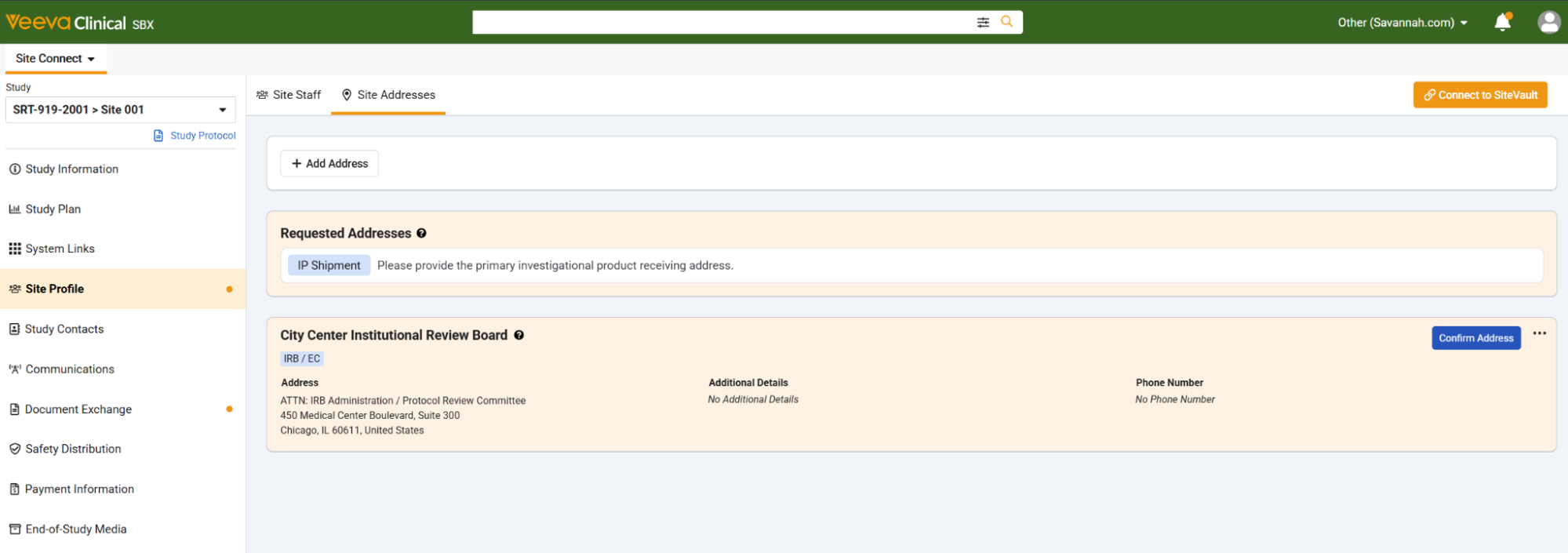
Learn more about Request & Confirm Study Site Addresses.
Deprecate Email Safety When Connected Field on Study SiteAuto-on26R2.3
The Email Safety when Connected (email_safety_Connected__v) field on Study Site has been deprecated (set to inactive) and will automatically be removed from page layouts where it was previously configured. Because this setting was only used for legacy Safety Distribution, removing it keeps the Study Site page layout clean and eliminates outdated fields.
Document Reconciliation: Without SiteVaultAuto-on26R2.3
Document reconciliation capabilities have been expanded to support Study Sites not connected to SiteVault. Additionally, new administrative settings and data model enhancements give users greater control over reconciliation scope and improve record tracking.
Non-Connected Site Reconciliation Initiating reconciliation for non-connected sites populates child check records based on the following logic:
- Documents to Send: Identifies major version documents mapped to Vault Clinical Docs that have not yet been sent to the site. These records are created with a status detail of Site missing latest steady state version.
- Documents to Request: No records are generated under this category for non-connected Sites.
- Follow-up with Site: Identifies sent distribution tasks with a None action. These records are created with a status detail of Site version state unknown.
- TMF Doc Not Steady: Identifies received distribution tasks where the sponsor document is not a major version. These records are created with a status detail of Clinical Ops version not in Steady State.
- Closed Checks: No records are generated under this category for non-connected sites.
Similar to existing document reconciliation functionality, records generated for non-connected sites follow standard closure actions. Child records under Documents to Send include a direct Reconcile action, allowing users to distribute the documents to the Site. Records under Follow-up with Site and TMF Doc Not Steady do not display a Reconcile action, but users can manually close them once verified.
New Administrative Settings & Enhancements
To support expanded tracking across all Study Sites (whether connected to SiteVault or not), new system-populated fields have been introduced on parent Site Document Check records. Upon creation, the system automatically sets Connected to SiteVault to Yes or No based on site connectivity, populates Last Initiated By with the user who triggered the run, and evaluates all child records to populate the Content field (content__v) with Blinded, Unblinded, or both.
Child Document Check records have also been expanded with several new system-populated fields to improve record visibility and compliance tracking. Newly created child checks now capture Content, Last Initiated By, Recalled by Sponsor/CRO, Reconciled Date, SiteVault Doc Version ID, Study, Study Country, and Study Site.
Finally, a new administrative setting gives users control over reconciliation scope when configuring workflows. When adding or editing the Perform Document Reconciliation system action within site or monitoring workflows, administrators can select a value for the new Reconciliation Scope setting. Selecting Reconcile all documents performs a full document reconciliation regardless of prior checks, whereas selecting Reconcile last modified documents performs a partial reconciliation that skips previously reconciled records if a closed check already contains a populated Reconciled Date. If the action is configured with a null (blank) value, the system defaults to running a full reconciliation.
Update Automatic Document Exchange Job Queuing LogicAuto-on26R2.3
Queuing logic for automatically distributing documents and document requests to Sites is now standardized to establish a consistent, predictable processing model. Previously, enabling specific settings—such as Auto-document exchange on a Study Site—triggered immediate distribution, while other actions waited for the hourly background job. Now the following updates will queue items for processing for the next hourly Automated Document Distribution job.
- Connected Study Type Updates: Updating a Study’s Connected Study Type to include Document Exchange
- Site Settings Updates: Enabling the Auto-document exchange flag on a Study Site
- Expected Document List (EDL) Item Updates: Modifying EDL criteria—such as enabling Auto-request from site, setting Requiredness to Required, or increasing the # Expected count.
Automatic EDL task cancellations remain unaffected and continue to process immediately upon criteria removal or fulfillment.
Document Exchange Email & Document Exchange Page User Interface ImprovementsAuto-on26R2.3
In the Daily Document Exchange email that Sites receive, Sponsor/CRO comments are now formatted with an indent to improve readability.
Additionally, within the Document Exchange tab, the Open Task counter on the left-side panel now includes open Sign tasks.
Validate Study of Origin & Country of Origin Document FieldsAuto-on26R2.3
Site Connect now validates the Study of Origin and Country of Origin fields when Sponsor or CRO users create or edit Safety Documents. To prevent misattribution, the system ensures the selected Study of Origin is a Study associated with the document, and the Country of Origin is a participating Country within either the selected Study of Origin or the document’s associated studies. If an invalid selection is made, Site Connect displays a clear error message prompting the user to update the fields to align with valid study parameters.
Site Home Column Header & Action State UpdatesAuto-on26R2.3
When viewing a Form FDA 1572 while not connected to SiteVault, the File to SiteVault button will remain grayed out and display a tooltip reading “To file to SiteVault, use Connect to SiteVault” upon hover.
Additionally, the column header in the Payment View grid on Site Home has been updated from Subject to Participant.
Enhanced System Links VisibilityAuto-on26R2.3
Sponsor and CRO users can now only view System Links within Site Home if they have Read permission for the Site System Link object, ensuring consistent permission controls across the application.
Advanced Search on Site Staff Change Requests Filters for Study SiteAuto-on26R2.3
When reviewing new Site Staff Change Requests, using the Advanced Search feature on the Link Study Person field now automatically applies a permanent filter for the specific Study Site. This ensures that search results only display Study Persons relevant to the Site for which the request was created.
Study Plan Sponsor App SectionConfiguration26R2.3
A new Study Site Plan control section can now be added to Study Site page layouts, providing Sponsor and CRO users with an interface nearly identical to Site Home for end-to-end plan management. Users with create permissions can initiate a plan by selecting Create when no plan exists. The interactive section enables real-time, inline editing for Sponsor and CRO users, direct Send for Review triggering, and in-place task completion via embedded review banners. Once a plan reaches the Final state, the section displays finalization metadata (approving Site user and date) and allows authorized users to edit Forecast and Actual dates for unmapped, incomplete plan items via a pencil icon. Admins can configure this section to replace the legacy Study Site Plan object section.
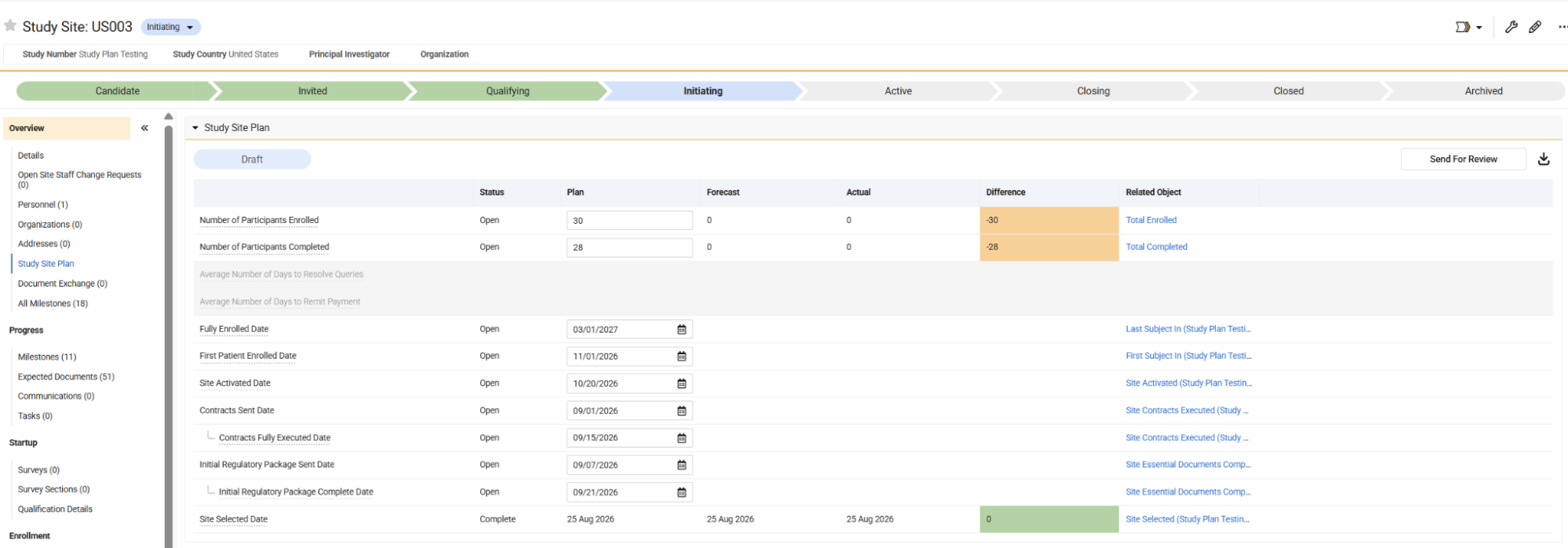
Non-TMF Document SiteVault & Site Connect ExchangeAuto-on26R2.3
Site Connect now supports non-TMF document exchanges for Sites connected to SiteVault. Site Admins can activate this capability using the new Enable Non-TMF document upload from SiteVault setting on Site Settings. Once enabled, site users can choose the new Internal Study Materials Site Document type or select non-TMF documents directly from SiteVault when fulfilling tasks or completing ad-hoc exchanges. This enhancement provides organizations that operate as both a Sponsor and a Site with a secure, dedicated mechanism to transfer non-TMF documents between Vaults.
Validation to Prevent Multiple Recalls on Same DocumentsAuto-on26R2.3
Site Connect now prevents users from issuing duplicate recalls on the same document version for a Site. If a recall is attempted on an already-recalled document version, an informational banner appears. For bulk multi-Site recalls, the system processes eligible Sites normally while automatically skipping Sites where the document version was previously recalled, maintaining accurate historical records and preventing redundant actions.
Enhanced Error Messaging on Failed Distribution Task RecipientsAuto-on26R2.3
Error messaging for failed Distribution Task Recipients now provides clearer, actionable root-cause visibility in the Email Detail field. When a Safety Distribution email fails because a recipient’s Site Home Access record is Inactive, the system explicitly displays: “Site Home Access record for the email recipient is inactive.” This replaces the legacy generic message (“Not a valid recipient at this study site”), allowing Sponsors, CRO, and Safety Ops users to immediately identify and resolve distribution failures.
Require Phone Number for IP AddressesAuto-on26R2.3
A Phone Number field is now available on Study Site Addresses and is visible to Site users when creating or editing addresses. To ensure contact details are captured upfront and minimize shipment delays, completing this field is now mandatory whenever the Address Type includes IP Shipment.
Prevent Duplicate Distribution Tasks for Failed DistributionsAuto-on26R2.2
Vault now prevents duplicate Distribution Tasks from being created when the Distribute to Sites action is executed multiple times on a Safety Distribution record.
If a Distribution Task fails on an initial attempt, subsequent executions will not generate additional distribution tasks for that study site. The original task remains in a Failed state, allowing Safety and Administrator teams to investigate and resolve the issue directly on the existing record.
Safety Email Job RefactorAuto-on26R2.2
The architecture of the Safety Email Job was enhanced to optimize performance and better support failed distributions when generating safety notifications. Previously enabled via Vault Support request, this refactored job is now automatically active across all Vault environments without requiring additional action.
Site Connect, Study Startup
USN Modal EnhancementsAuto-on26R2.2
This enhancement updates the terminology and messaging sites see when interacting with Universal Site Number (USN) entry modals, search and sign-up dialogs, FAQs, and related notifications. This update replaces more technical terminology with user friendly language and provides sites with clearer context on how entering a USN allows them to easily re-use standard survey answers and store Study Site Addresses.
Learn more about USN Modal Enhancements.
Study Startup
Feasibility Homepage: Survey ResultsConfiguration26R2.2
Feasibility surveys are a critical driver in determining whether a site is a good fit for a clinical trial, especially when a Sponsor or CRO has not worked with a specific institution. Without a streamlined, interactive view, Feasibility Managers face significant risks of delays in identifying and qualifying the best sites for their trials.
The new Feasibility Homepage introduces a dedicated application page that allows users to dynamically filter and assess site feasibility data. This feature functions as follows:
- The user applies required page-level filters for a Study or Outreach Campaign and selects up to four Survey Type, such as Initial Interest with eCDA, Initial Interest without eCDA, Site Feasibility Survey, and Fast-Track Feasibility Survey.
- A structured table displays survey results and the user can scroll through and expand or collapse detailed survey sections and questions.
- The system uses visual indicators, such as color-coded Response Flags, including High, Medium, and Low tiers or Electronic Confidentiality Confirmed, to highlight key information instantly.
- An advanced filtering modal supports specific criteria for multiple-choice, date, or number questions, automatically highlighting corresponding answers in the table. This modal supports filtering across survey types to support analyzing across surveys, such as Initial Interest with eCDA and Site Feasibility Survey.
- Users can execute site-specific or bulk action, such as Select Site, Reject Site, or Send Survey, directly from the table.
Note: The 26R2.2 release introduces the functional survey results table and 26R2.3 will add additional enhancements including survey results export, saved filter views, and UI enhancements. The full feature set will be available in the 26R3 release.
Feasibility Homepage: Survey Results EnhancementsConfiguration26R2.3
This enhancements feature introduces new components to the application page including extensive UI refinements and the following functionality additions:
- Viewing a Survey Question’s comments within the results grid via a ‘sticky note’ icon
- Saving filter views for commonly applied filters for streamlined navigation
- Applying filters from a question column header for quick advanced filter additions
- Searching for questions across a Survey’s sections within the advanced filter modal
- Advanced filter validation to ensure filters are properly applied to Survey Questions
- Exporting survey results to a consolidated CSV
Site Greenlight Critical Path in Milestone Planning ViewAuto-on26R2.3
Study Startup teams can now view real-time critical path changes directly within the Milestone Planning View to quickly assess schedule changes and increase planning efficiency. By immediately showing delays or improvements impacting Site Greenlight, Vault eliminates the need to manually trace dependencies or navigate across multiple pages to evaluate schedule changes.
When a user clicks the critical path button in the Milestone Planning View or when the Site Greenlight (site_greenlight__v) milestone is changed, Vault highlights the critical path to Site Greenlight. When the Site Greenlight milestone’s Planned Finish Date is changed, the system displays a visual indicator detailing the exact number of days delayed or advanced.
Vault calculates the critical path based on which upstream dependencies changes impact the Planned Finish Date for Site Greenlight, accounting for Date Offsets, and prioritizing Actual Finish Dates over Planned Finish Dates when both exist.
This non-blocking alert streamlines the user experience by providing instant visibility without interrupting ongoing work.
Site Greenlight Critical Path NotificationConfiguration26R2.3
Today, users must log in to Vault periodically to check and confirm timelines for Site Greenlight Milestones. With this feature enabled, Vault automatically notifies select Study team members whenever the Planned Finish Date changes for a Site Greenlight Milestone, increasing efficiency by eliminating the need for manual checks.
Notifications specify whether the date is delayed or advanced, the exact number of days changed, and if the reason for the update is due to an upstream milestone. When paired with the Site Greenlight Critical Path in Milestone Planning View, these features work together to provide instant visibility and proactive alerts, empowering teams to address potential delays.
To enable this functionality, Admins must activate the Critical Path Notification Job and Notification Templates and identify role(s) in the new Critical Path Notification Recipients application setting.
Update Standard QuestionAuto-on26R2.3
To align with updated global regulatory standards under ICH GCP E6(R3), the standard question (site_caps_22__v) has been relabeled to replace the ‘subject’ reference to ‘participant’:
“Is your site able to provide evening or weekend/public holiday hours for participant visits if required?”
This update to the Library Question is auto-on in all Clinical Operations Vaults. In order to inherit the change on Surveys, the Library Question must be re-added to existing Survey Template(s), re-approved and used for newly created or re-generated Surveys. Existing Survey Templates, Surveys, Questions and Responses will not be updated with this change.
Learn more about Standard Questions.
Set Response ID for Multiple Choice Reusable QuestionsAuto-on26R2.3
When configuring reusable Library Questions, users are no longer required to enter an API name on the question. If your Vault has a layout rule requiring this field entry, then the user will continue to see the field as required in the UI.
Additionally, Vault now automatically populates the Response ID for Answer Designs when configuring multiple-choice reusable Library Questions, simplifying survey setup by eliminating technical data entry requirements.
This autonaming applies automatically when the Reusable field is set to True on questions that are not standard Veeva questions (Veeva Question field is False or blank). The system will still allow for user input on Response IDs and will only apply the following naming conventions when a Response ID field is blank:
- For Person Response IDs: investigator_##
- For Organization Response IDs: organization_##
Custom Email Sender CC/BCC ExtensionAuto-on26R2.2
Custom Email Sender supports defining which emails a survey should be sent from and those who should be copied. This extension feature reduces manual effort by supporting the copy functionality at a higher level for Site or Outreach Target Surveys. Copied individuals can now be defined at the Study Country or Study level for Site Surveys, while copied individuals can be defined at the Outreach Campaign level for Outreach Target Surveys. In doing so, all Site or Outreach Target Surveys that exist within a Study Country/Study, or Outreach Campaign, will include the copied email, respectively.
Learn more about Custom Email Sender CC/BCC Extension.
Custom Email Sender Support for Outreach Target Survey RemindersAuto-on26R2.3
Custom Email Sender now includes the From and CC/BCC emails set on an Outreach Target Person when a survey reminder is sent for an Outreach Target Survey. This capability is auto-on when a customer is using Outreach Target Survey reminders with custom email senders.
Learn more about Custom Email Sender Support for Outreach Target Survey Reminders.
Standard Formatted Output Updates for Site & Outreach Target SurveysAuto-on26R2.3
The standard formatted outputs for Site Survey Response and Outreach Target Survey Response are updated to include reference to the Sorting Order field instead of the Display Order to properly sort questions by number rather than text. This change is auto-on for customers using these standard formatted output templates.
Study Training
In addition to the features described below, the Study Training application also received enhancements from the following features described in the Quality: Training section:
- Curriculum Periodic Review
- My Team Page: Manage Learner Training
- My Team Page: Nudge Accuracy Improvements
- My Team Page: Training Designee
- Quiz Time Limit
- Training Assignments: Identify Most Recently Completed Assignment
- Training Assignments: Document Revision Due Date for Initial Assignment
- Training & Study Training Enhancements
Learner Exemption Request: Study ContextAuto-on26R2.2
To ensure Learner Exemption Requests are reviewed by the appropriate personnel, this feature introduces study-level metadata to exemption requests. This allows Vault to route review tasks directly to the responsible study team members (such as CRAs) based on matching study, country, or site data.
When a Learner Exemption Request is created, Learners are prompted to enter optional Study, Study Country, and Study Site fields. These fields display pre-filtered options showing only the study paths associated with the Learner’s Training Assignments. For non-study specific training (such as LearnGCP), Vault sets a new Non-Study Specific field so that the request can be routed to a non-study specific reviewer.
By adding study context to exemption verifications, this feature enables targeted review by the appropriate study personnel, improving security and accelerating the review process.
Cross-Study Substitute Training Requirement NamingAuto-on26R2.3
When a document linked to multiple studies is transferred to Study Training, Vault creates a Training Requirement (TR) for each study. With the 25R3 Multi-Study Document Training Requirement Equivalencies feature, Vault automatically treats these study-specific TRs as equivalent substitutes via a background Cross-Study Substitute Training Requirement.
To ensure that all study-specific Training Requirements consistently follow the the structure defined in Training Requirement Auto-Naming, the background Cross-Study Substitute Training Requirement name will default to [Doc Name] (Cross-Study) (vX.Y).
Note: This feature is auto-on even if the Auto-Naming feature is not configured.
Training Matrix Copy Checkbox ConfigurationAuto-on26R2.3
Training Admins can now copy role assignments directly from one Training Requirement to another within the Training Matrix.
When in Edit mode, selecting Copy to prompts Admins to choose one or more target Training Requirements to apply the source checkbox configuration to the selected targets.
This feature is particularly valuable alongside Geographic Assignment Rollout, as it allows Admins to quickly replicate role assignments across document versions, reducing manual set up time and preventing data entry errors.
Study Training EnhancementsAuto-on26R2.3
With this release, we are introducing the following capabilities:
- Individual Training Assignment Resolution on My Study Team Page: Training Admins can now resolve individual Training Assignments directly from the Learner Details page on the My Study Team tab. When an Admin selects Resolve from the Actions menu on a single assignment, Vault prompts them to select a Resolution Reason, simplifying single-item record resolution.
- Veeva ID Invitations are sent only for Person Type Updates: Vault now limits VeevaID invitations for existing Person records updated in Clinical Operations to prevent unnecessary invitation emails. Previously, updating a Person record in Clinical Operations triggered an invitation regardless of update type. Vault now only issues a VeevaID invitation if an update changes a record’s Person Type from an ineligible type (such as Project Team) to an eligible type (such as Site Staff). To achieve this, the existing field rule
clinical_person_type__vwill be activated on release night. Additionally, this will result in the previously non-populated source_object_type field on some Person records being populated.
eCOA
Studio
Veeva eCOA Studio Navigation and Interface Revamp Auto-On26R2.3
This feature allows Study Builders to build and manage studies in a reorganized Studio navigation structure, including the ability to:
- Go directly to the most recent Study Version when opening Studio
- Manage the available languages in version and access UAT-related actions from the new Manage Version tab
- Access read-only configurations of past study versions through an interactive version history viewer
- Generate Study Design Specifications and Screenshot Reports from a new consolidated Documentation tab
- Access Deployments in a dedicated new tab outside of Settings
The following tabs are also relabeled:
- Study Settings is relabeled to Settings
- Collection is relabeled to Study Build
- Within the Study Build, Groups is relabeled to Participant Groups
- Within the Study Build, Languages is relabeled to Translations
Participant-Level Protocol Version Control Auto-On26R2.3
This feature enables Study Builders to assign a specific Protocol Version to each Study Version in Studio and configure whether sites must manually activate study versions for participants upon deployment. This allows participants to remain on their current version until Site Staff are ready to transition them to the latest version, either individually or in bulk.
Block-Level and Real-Time Scoring Available for Use26R2.3
This feature allows Study Builders to configure scores to display on individual blocks on a survey, with options to show the score label to the Site Staff and show score calculations on the block in real-time. These settings enable Site Staff to view calculated scores inline next to the input fields during an active eClinRO assessment or after survey completion to help them perform faster clinical evaluations.
New Survey Image Type: Body Maps Available for Use26R2.3
This feature allows Study Builders to configure interactive image questions using three new body map image types to support surveys, such as the Brief Pain Inventory (BPI). MyVeeva Users and Site Staff can complete these diagrams by selecting multiple regions on diagrams representing the front or back of the body or by selecting a single region on a diagram representing both the front and back of the body. Additionally, Study Builders can configure cross-question validations in Studio to verify that the selected area on the single select diagram is included in the selected front or back areas. Cross-question validations now also support referencing blocks with optional answers, as well as new functions to handle null answer cases.
Generate Electronic Patient-Reported Outcome (ePRO) Screenshot Reports in Tablet Size Auto-On26R2.3
This feature enables Sponsor/CRO Staff to generate Screenshot Reports with all screenshots taken using a tablet-sized screen. Sponsor/CRO Staff can choose to generate screenshot reports in either the default sizes (phone for ePRO and tablet for eClinRO) or all in the tablet size.
Streamlined Audit Trail Accessibility and Regulatory Compliance Auto-On26R2.3
This feature helps ensure regulatory compliance for electronic records by adding a User Role column to Audit Trail reports and validating user-entered Reasons for Change to prevent blank submissions. The system automatically captures user roles at the time of the action and adds the event label to the Item Data column for survey actions in the Site Clinical Audit Trail.
Personalized Study Home Compliance Views Available for Use26R2.3
This feature enables Study Builders to pre-configure standard compliance views in Studio by specifying a custom threshold, selecting events and surveys from approved study versions, and publishing a view to sites. It also allows Sponsor/CRO Staff to quickly access these standard views or save, edit, and delete up to 50 of their own personalized ad hoc views in Study Home. Site Staff can access the published compliance view on their site dashboard to monitor critical trial criteria.
eCOA to EDC API Connection Enhancements Auto-On26R2.3
This feature allows Study Builders to configure more robust eCOA to EDC API connections in Studio by tracking form and item group sequences, automatically dividing calls containing more than 100 items into multiple calls, and defining when EDC fields are externally owned. Additionally, the outbound API logs include new columns for Study Number, Site Number, Participant ID, Rule Name, Event Group Name, and Event Name to help reconcile integration failures.
Site Audit Trail Support in FTP Connections Available for Use26R2.3
This feature allows Study Builders to configure FTP connections in Studio to include Site Clinical and Site Non-Clinical Audit Trail reports that can be sent to a specified location on a defined cadence.
Transcription and Schedule Fields in Custom Reports Available for Use26R2.3
With this feature, transcription and schedule fields are available for selection for custom reports. This enables Sponsor/CRO Staff to configure custom reports to include transcription details and survey schedule datetimes.
Automated Missed Survey Records in Study Data Exports Available for Use26R2.3
This feature allows Sponsor/CRO Staff to automatically include records for Missed and Intentionally Left Blank surveys in the Survey Data report. Sponsor/CRO Staff can manually toggle the inclusion of Missed survey records when executing on-demand reports or configuring scheduled export jobs.
System Usability and Accessibility Enhancements Auto-On26R2.3
This feature ensures the following updates to enhance usability:
- The Study Number no longer requires translations into other study languages.
- Inactivated and deleted events, participant groups or group types, and rules are no longer displayed in the Study Design Specifications (SDS).
- In the survey display label, the dynamic Day of Week token can be used even when the survey has as-needed schedules. Previously, this was not allowed.
26R3 Feature Event Audits Auto-On26R2.3
This feature ensures that relevant user actions associated with new features are recorded as audit events in the MyVeeva audit trail. This provides Sponsor/CRO Staff and Site Staff with a comprehensive record of system activity for compliance purposes.
Automated Audit Trail ExportsAuto-On26R2.2
Sponsor/CRO Staff can now automate an FTP connection to export site audit trails. Options for Site Clinical, Site Non-Clinical, and Studio and Study Home reports will be included. Users can also choose to include a log file with the export.
Library Manager
Library Viewer Role Available for Use26R2.3
This feature adds a new read-only Library Viewer role to Veeva eCOA. eCOA Vault Owners and System Administrators can assign this role to Sponsor/CRO Staff, allowing them to access a simplified, read-only view of the Survey Library to search, filter, and preview published surveys and download audit trails.
Library Manager Survey and Translation Management Enhancements Auto-On26R2.3
This feature enables Sponsor/CRO Staff to keep library surveys organized by automatically sorting archived surveys to the bottom of the survey list. It also allows Sponsor/CRO Staff to permanently delete archived surveys and clear unreleased translation strings from specific survey versions, while generating audit trail records for these actions.
Library Survey Copyright Version and Date Auto-On26R2.3
This feature allows Sponsor/CRO Staff to track and view their copyright version and copyright date metadata for library surveys. Sponsor/CRO Staff can configure these optional free-text fields in the Library Survey Editor, which then are displayed throughout Library Manager and the Library Snapshot report and as read-only information in the Studio survey editor for Study Builders when a library survey is used in a study build.
Streamlined Audit Trail Accessibility and Regulatory Compliance Auto-On26R2.3
This feature helps ensure regulatory compliance for electronic records by adding a User Role column to Audit Trail reports, validating user-entered Reasons for Change to prevent blank submissions, and allowing Sponsor/CRO Staff to download Library Survey Audit reports in Library Manager. The system automatically captures user roles at the time of the action and adds the event label to the Item Data column for survey actions in the Site Clinical Audit Trail.
Library Viewer RoleAuto-On26R2.2
Sponsor/CRO Staff can now access a read-only view of the survey library. Administrators can assign the new Library Viewer role in Vault to grant users access to the Library Manager tab to see only published versions of surveys.
Study Home
Participant-Level Protocol Version Control Auto-On26R2.3
This feature enables Sponsor/CRO Staff to track pending participant activations across sites in Study Home when the Protocol version requires sites to manually activate study versions for participants upon deployment.
Study Home Survey Viewer Auto-On26R2.3
This feature allows Sponsor/CRO Staff to view individual participant survey responses directly in Study Home using read-only survey viewer functionality. When restricted, only users with the appropriate Restricted Data permissions can access this view. The view is available from hyperlinks on completed or transcribed surveys within the Participant Survey List, Compliance Schedule drawer, Data Change Request table, and Data Change Request drawer. This update reduces the need for manual data exports for routine data review while ensuring compliance with restricted data access controls.
Streamlined Audit Trail Accessibility and Regulatory Compliance Auto-On26R2.3
This feature helps ensure regulatory compliance for electronic records by adding a User Role column to Audit Trail reports and validating user-entered Reasons for Change to prevent blank submissions. The system automatically captures user roles at the time of the action and adds the event label to the Item Data column for survey actions in the Site Clinical Audit Trail.
Automated Missed Survey Records in Study Data Exports Auto-On26R2.3
This feature allows Sponsor/CRO Staff to automatically include records for Missed and Intentionally Left Blank surveys in the Survey Data report. Sponsor/CRO Staff can manually toggle the inclusion of Missed survey records when executing on-demand reports or configuring scheduled export jobs.
Displaying Site User Names in Study Home Auto-On26R2.3
This feature allows Sponsor/CRO Staff to view the first and last name of the Site Staff who completed an eClinRO survey in Study Home. A tooltip displays the name and role of the site user when Sponsor/CRO Staff hover over or click the respondent text.
eCOA API
New Inbound API Endpoints to Support Participant Versioning Available for Use26R2.3
This feature adds new authenticated inbound API endpoints that allow Sponsor/CRO Staff to retrieve a participant’s available study groups and event datetimes based on their current approved study version. It also ensures that inbound requests to assign study groups or set event datetimes are validated against the correct participant version to prevent integration failures.
eCOA (Sites)
Site Updates: Landing Page and Participant Management Auto-On26R2.3
This feature adds a dedicated home page for Site Staff that provides optimized participant search, quick jump links, action items for outstanding tasks, and compliance insights. Additionally, it introduces a redesigned participant page that optimizes white space, features a new actions side tab for immediate tasks, and includes a new Compliance tab to evaluate participant, caregiver, and site compliance metrics at a glance. Finally, it ensures clean data entry by automatically trimming leading and trailing whitespace from participant and screening IDs during creation or edits.
Participant-Level Protocol Version Control Auto-On26R2.3
This feature enables Site Staff to manually transition participants to the latest study build version, either individually or in bulk, when a Protocol Version update requires it. The manual process can help reduce study scheduling disruptions that may happen if the study version is automatically activated.
Configurable Site Compliance Views Available for Use26R2.3
This feature enables Site Staff to access the published compliance view on their site dashboard to monitor critical trial criteria.
Participant Event List Updates Auto-On26R2.3
This feature updates the participant event list layout and default load logic when site staff access a participant page. The updates include the following:
- The system orders events by sequence.
- The Today heading is removed and a Today label is added next to events that start on the current date.
- The event list and event details panes scroll independently.
- The system will not load the “Study Withdrawn” or “Study Complete” events as the default event when no date is set.
Extend Session Timeout During Transcriptions and Data Changes Auto-On26R2.3
This feature ensures that the Veeva eCOA session for Site Staff remains active while they perform transcriptions and data changes. The system automatically extends the session when Site Staff interact with and edit data in the application, preventing the session from timing out during longer data entry tasks.
Site Time Zone Discrepancy Alerts Auto-On26R2.3
This feature ensures that Site Staff are alerted when their browser time zone does not match the configured site time zone on the Study Details page to help prevent data collection discrepancies. It also displays a warning message on the Study Details page when site contact information is missing.
Streamlined Audit Trail Accessibility and Regulatory Compliance Auto-On26R2.3
This feature helps ensure regulatory compliance for electronic records by adding a User Role column to Audit Trail reports and validating user-entered Reasons for Change to prevent blank submissions. The system automatically captures user roles at the time of the action and adds the event label to the Item Data column for survey actions in the Site Clinical Audit Trail.
Standardized Last Online Datetime for In-Person Sessions Auto-On26R2.3
This feature ensures that the Last Online datetime field on the participant page and Details panel updates automatically when a participant completes an authenticated session or action, regardless of their registration method or information restriction status. This allows Site Staff to view a uniform indicator of recent participant activity to better support study progress. If a participant has not registered, logged in, or completed an authenticated in-person session, the field displays an empty state “–”.
Improved Visibility for Sequenced and Training SurveysAuto-On26R2.2
Site Staff can now access the Start In Person button on events with available surveys, even when a sequenced survey on another event blocks those surveys. Additionally, available training surveys now are displayed in the To Do list during an in-person session, and under the Today bar when a participant logs into the application. This helps users quickly identify that training surveys are available, especially if they block other pending surveys.
MyVeeva for Patients
MyVeeva
Offline Support for Completed Diaries Auto-On26R2.3
This feature allows MyVeeva Users to view completed diaries while offline so they can track their progress even without an internet connection. MyVeeva Users can access cached content on the Completed page, including a list of items completed today and all past diaries.
System Usability and Accessibility Enhancements Auto-On26R2.3
This feature ensures the following updates to enhance usability:
- MyVeeva for Patients displays when training surveys are sequenced relative to other surveys. Previously, training surveys were listed in a separate section.
- A few updates are made to MyVeeva for coloration and alignment to improve accessibility.
26R2.0.8 Hotfixed Translations and New Languages Available for Use26R2.3
This feature enables MyVeeva Users to view application text, emails, notifications, and policy documents in Arabic (Saudi Arabia), English (India), English (Hong Kong), English (Malaysia), Malay (Malaysia), Chinese, Simplified (Malaysia), Tamil (Malaysia), Galician (Spain), and Tsonga (South Africa).
Commercial
Features in the Veeva Connections section also affect the Commercial application family.
PromoMats
MLR: Standard Created From ReportsAuto-on26R2.2
This feature provides a standard report: Materials with Expiring Created From Documents. We recommend that Admins create a custom copy of the standard report, adjust filters if desired, and schedule a Flash Report to send a notification to source document owners that link to an expiring target document.
Claims: Auto-Linking Matching EnhancementsAuto-on26R2.2
Auto-Linking now considers the Indication/Disease field on a document when filtering the Text Asset Library for eligible Claims to link. When a document carries one or more indication values, only Claims whose Indication/Disease field matches at least one of those values or is blank will be surfaced as candidates for linking. Documents with no indication specified remain unrestricted, allowing all Claims to be evaluated regardless of their indication value. This same logic has been applied when matching for Product Family, Product Form, and Product Variant fields, so that the document matches with Claims whose corresponding values are blank.
Additionally, Country matching has expanded to account for regional hierarchies, so that documents with a specific country will now match Claims assigned to broader parent regions. As an example, a document set to France will automatically pull in Claims tagged as EU, Global, or any region that lists France in its Included Countries (country_cda__v) field. To have a Country record represent a region and add multiple countries to it, be sure to select the Allow user to select multiple values checkbox in the field first.
Reviewer Queue EnhancementsAuto-on26R2.2
In this release we made a selection of small enhancements to Reviewer Queue, including defaulting to the current period rather than the last viewed period, respecting the Vault date format setting, and ordering tasks by due date when they have the same priority score.
eCTD Submission Ready Copies File Name ExclusionsAuto-on26R2.2
The functionality to remove unsupported characters from eCTD Compliance Packages is expanded to remove diacritics from characters and remove all characters defined as spaces, special characters, non-English letters, and other non-alphanumeric symbols. The characters included in the eCTD Submission Ready document names are limited to alphanumeric characters, underscores, and hyphens.
Modular Content: Standard Report for Documents Added to Content ModulesAuto-on26R2.2
Vault now provides a new standard report, Documents Added to Content Modules, enabling users to track document usage across Content Modules and identify where specific components are being used. This auto-on feature is available to all users immediately after release, with the underlying Report Types and Report Views also accessible to Admins for further customization. We recommend that Admins create a custom copy of the standard report and adjust the filters and layout as desired.
Generate QR CodesConfiguration26R2.3
For customers who manage Website records through objects, this feature introduces the ability to generate a QR code for URLs within the record. Traditionally, users would generate and manage QR codes through external tools or vendors, often storing a QR code as a separate Component asset. This feature cuts down on the task of generating the QR code and reduces the steps linking it to the appropriate Website object record, allowing for a seamless experience of not only generating the code but storing it alongside the destination URL.
Rights Manager: Compliance AutomationConfiguration26R2.3
This feature delivers three capabilities to strengthen rights management compliance:
- A daily expiry job that automatically transitions expired Rights documents to an Obsolete state and notifies relevant users via a summary email.
- An out-of-the-box multi-pass Expiring Rights Impact report that surfaces the rights status across the full rights-to-component-to-material chain.
- A new material-level Components Manager panel that gives Content Owners and Brand Managers an at-a-glance aggregate rights status across all linked Components.
Collectively, these three enhancements extend the scope of Rights Manager, improve the user experience, and simplify the rights management compliance processes.
Claims: Enhancements for Auto-Approving ClaimsConfiguration26R2.3
Customers can configure a new job titled Linked Claims Validation Job as an asynchronous step within a single or multi-documents workflow. This job validates whether unapproved Claims linked to a document are eligible to be approved at the time of document approval, verifying that all Suggested Links are accepted or rejected and that linked Claims include approved references. Once the job completes, it issues a notification for each failed document validation along with a summary notification indicating which documents passed or failed validation. This feature also includes a standard report, Approved Materials with Unapproved Linked Text Assets, that indicates if any unapproved Claims are linked to an approved document.
Claims: Refresh Claim AnnotationsConfiguration26R2.3
This feature enables new entry and user actions called Refresh Linked Claims, enabling users to update all linked Text Asset annotation cards on a document to reflect the latest Reference document versions prior to review and approval. The actions remediate situations where new Claim records are created, references are added, and annotation cards cannot be refreshed without manually removing and re-running Suggest Links or the Claims Agent. Upon completion, the user receives a notification with the total linked Claims found, total Claims refreshed, and a hyperlink to the latest document version. Additionally, these actions can only be initiated when the document is in non-steady states as the steady state material’s annotations validation should be final upon document approval.
Claims: Duplicate Check on CreationConfiguration26R2.3
This feature introduces duplicate checking at the point of record creation for Text Asset records, rather than waiting until the record moves to steady state. When a duplicate of an existing Approved record is detected, an error dialog is shown displaying the name of the existing record. The check is not performed when users intentionally use the Copy Record user action, but the existing steady state duplicate check still executes to catch unmodified duplicates.
Claims: Harvested Claim Annotation LinkConfiguration26R2.3
With the new standard Harvested Annotation field, users can now directly click through to the exact source document annotation on any harvested Claim instead of being directed to the beginning of the document, bypassing a manual search.
Enhanced Task Support for Reviewer QueueAuto-on26R2.3
The Reviewer Queue page now includes the option to directly accept and unaccept tasks from legacy workflows, allowing users to perform these actions without needing to navigate to the related document.
MLR: Content Similarity Page Limit Is 30Auto-on26R2.3
Previously, the Content Similarity Score was limited to evaluating the similarity of the first 15 pages; with this release, we have extended this to include up to 30 pages of content.
Multichannel
PromoMats: CLM Publishing Only Marks Low Confidence Slides as Needs ReviewAuto-on26R2.2
With this feature, slide pairs flagged as low confidence are automatically set as Needs Review in the CLM Slide Comparison page when the CRM Rendition Setting for Presentation Requires Verification is set to Always in CLM Publishing. This ensures that users have to manually accept only slide pairs that match with a low confidence score upon up-versioning.
PromoMats: Placeholder for Manually Added Slides in CLM Publishing Presentation VerificationsAuto-on26R2.2
For manually added binder slides, Vault now displays a placeholder image with the text “Slide Rendition Unavailable” and a link titled “View the Slide in the Binder” when the rendition of the current version of the slide is not available after up-versioning.
PromoMats: Re-Publish Action for CLM PublishingConfiguration26R2.2
This feature introduces the Re-Publish to CRM (CLM) user action, which can be used to republish CLM content to Vault CRM if an error occurs as Vault attempts to create a binder and slides for the CLM content or when the task to validate the binder and slides for up-versioning has expired. Admins can configure this action on lifecycle states as desired.
PromoMats: Azure Digital PublishingConfiguration26R2.3
Veeva Vault Digital Publishing now supports content delivery through customer-purchased Microsoft Azure Content Delivery Networks (CDNs) in Vault PromoMats environments.
PromoMats: Label Sets Support for Multichannel Notification TemplatesConfiguration26R2.3
This feature allows tokens, which resolve to field labels in Multichannel notification templates, to support label sets.
Digital Publishing Connection StatusConfiguration26R2.3
Admins can now manage the operational state of Digital Publishing by toggling between Active and Inactive, providing total control over document synchronization.
Vault AI for PromoMats
Quick Check Agent & Content Agent EnhancementsAdmin Checkbox26R2.3
This release brings improvements for Quick Check Agent across four areas.
Scale & Reliability
Quick Check Agent now accepts documents up to 300 pages in length (up from 100), and a raised output token ceiling improves the completeness of results across all Quick Check Agent checks. Together, these changes allow Quick Check Agent to ingest longer documents and consistently produce full, untruncated results.
Detection Accuracy
The Spelling and Grammar checks now report each occurrence of a repeated error as a distinct finding, verifies all findings against the document text to reduce inaccurate results, and no longer flags trademark symbols (®) or footnote markers (†, ‡) as errors. Allowed Term and Prohibited Term matching is now case-insensitive across the Spelling, Grammar, and Phrase Assessment checks.
Navigation & User Interface
Jump links are now more reliable. Page number validation across all checks ensures that links land on the correct page, and Accessibility findings with multiple instances on the same page now each link to their unique location. Bounding boxes are also drawn at the correct position. The Phrase Assessment field label has been updated from Suggestion to Observation, and hyperlink anchor text in the Privacy Policy Link and Unsubscribe Link findings is no longer truncated incorrectly.
Content Agent
The Reviewer Summary now uses compliance-neutral language throughout, replacing labels like Critical Compliance and Language Risks with Compliance Disclosures and Language Patterns, and removing risk-verdict framing from the document overview and the Complexity Assessment section.
Claims Agent EnhancementsConfiguration26R2.4
A new lifecycle state, AI Created, and lifecycle state type, AI Generated, are added to the Text Asset lifecycle that can be used for Claims Library management and expedited review workflows. Claims Agent annotations are now auto-accepted, removing the need to accept or reject them. The ability to reject a Claims annotation has been moved to the annotation card menu. The library cleanup operation has been updated to remove Claims Agent AI Created Claim records if they are no longer associated with a document.
Medical
Features in the Veeva Connections section also affect the Medical application family.
MedComms
Medical: Standard Created From ReportsAuto-on26R2.2
This feature provides a standard report: Materials with Expiring Created From Documents. We recommended that Admins create a custom copy of the standard report, adjust filters if desired, and schedule a Flash Report to send a notification to source document owners that link to an expiring target document.
Scientific Statements: Auto-Linking Matching EnhancementsAuto-on26R2.2
Auto-Linking now considers the Indication/Disease field on a document when filtering the Scientific Statement Library for eligible Statements to link. When a document carries one or more indication values, only Statements whose Indication/Disease field matches at least one of those values or is blank will be surfaced as candidates for linking. Documents with no indication specified remain unrestricted, allowing all Statements to be evaluated regardless of their indication value.
Additionally, Country matching has expanded to account for regional hierarchies, meaning documents with a specific country will now match Statements assigned to broader parent regions. As an example, a document set to France will automatically pull in Statements tagged as EU, Global, or any region that lists France in its Included Countries (country_cda__v) field. To have a Country record represent a region and add multiple countries to it, be sure to select the Allow user to select multiple values checkbox in the field first.
Scientific Statements: Auto-Linking on State ChangeAuto-on26R2.2
This enhancement for Auto-Linking Settings configuration extends the functionality to trigger Auto-Linking automatically when a document moves into a configured lifecycle state.
Content Similarity for MedCommsConfiguration26R2.2
This feature introduces Content Similarity functionality to MedComms, facilitating a more efficient review of medical content. Previously added in PromoMats, these capabilities for MedComms include generating a similarity score for two related documents and the document compare action highlighting the differences between the documents.
Scientific Statements: Enhancements for Auto-Approving StatementsConfiguration26R2.3
Customers can configure a new job titled Linked Statements Validation Job as an asynchronous step within a single or multi-documents workflow. This job validates whether unapproved Scientific Statements linked to a document are eligible to be approved at the time of document approval, verifying that all Suggested Links are accepted or rejected and that linked Statements include approved references. Once the job completes, it issues a notification for each failed document validation along with a summary notification indicating which documents passed or failed validation. This feature also includes a standard report, Approved Materials with Unapproved Linked Scientific Statements, that indicates if any unapproved Scientific Statements are linked to an approved document.
Scientific Statements: Refresh Statement AnnotationsConfiguration26R2.3
This feature enables new entry and user actions called Refresh Linked Statements, enabling users to update all linked Scientific Statement annotation cards on a document to reflect the latest Reference document versions prior to review and approval. The actions remediate situations where new Statement records are created, references are added, and annotation cards cannot be refreshed without manually removing and re-running Suggest Links or the Statement Agent. Upon completion, the user receives a notification with the total linked Statements found, total Statements refreshed, and a hyperlink to the latest document version. Additionally, these actions can only be initiated when the document is in non-steady states as the steady state material’s annotations validation should be final upon document approval.
Scientific Statements: Duplicate Check on CreationConfiguration26R2.3
This feature introduces duplicate checking at the point of record creation for Scientific Statement records, rather than waiting until the record moves to steady state. When a duplicate of an existing Approved record is detected, an error dialog is shown displaying the name of the existing record. The check is not performed when users are intentionally using the Copy Record user action, but the existing steady state duplicate check still executes to catch unmodified duplicates.
Scientific Statements: Harvested Statement Annotation LinkConfiguration26R2.3
With the new standard Harvested Annotation field, users can now directly click through to the exact source document annotation on any harvested Scientific Statement instead of being directed to the beginning of the document, bypassing a manual search.
Medical: Content Similarity Page Limit Is 30Auto-on26R2.3
Previously, the Content Similarity Score was limited to evaluating the similarity of the first 15 pages; with this release, we have extended this to include up to 30 pages of content.
SCP Commenting for Review & ApprovalAuto-on26R2.4
Reviewers now have an enhanced experience when reviewing Communication Platform records in the Scientific Communication Platform (SCP) UI. Commenting functionality has been added, allowing users to comment on specific fields and objects directly within the interface. Users can provide feedback on the Communication Platform fields, Pillars, Communication Objectives, and Scientific Statement records, without needing to navigate away. Reviewers are able to reply to comments, filter comments, and view all comments.
SCP: Filter on Localized StatementsAuto-on26R2.4
Localized Scientific Statements are now easier to find within the Scientific Communication Platform (SCP) UI. This release introduces country filtering and expand/collapse controls to help local market teams quickly navigate to the statements most relevant to them.
MedComms, MedInquiry, Publications
Team Security ManagementConfiguration26R2.2
The creation and management of User Role Setup records, User Role records, and user-managed groups can now be automated in Vault Medical via the Team, Team Assignment, and Team Member objects. This streamlines the process of managing user access in Vault Medical applications.
With this feature, which was previously introduced in PromoMats, adding a Team Member to a Team automatically provides that user with the security template associated with their Team Assignment.
Reviewer QueueAuto-on26R2.2
With the Reviewer Queue UI for the Vault Medical Home tab, content reviewers will see their tasks organized in a more user-friendly way. The new view displays reviewer tasks in two-week increments, with interactive charts and filters providing enhanced visibility. Support for expedited tasks is also added through this feature.
MedComms, Publications
Medical: Rights Manager: Compliance AutomationConfiguration26R2.3
This feature delivers three capabilities to strengthen rights management compliance:
- A daily expiry job that automatically transitions expired Rights documents to an Obsolete state and notifies relevant users via a summary email.
- An out-of-the-box multi-pass Expiring Rights Impact report that surfaces the rights status across the full rights-to-component-to-material chain.
- A new material-level Components Manager panel that gives Content Owners and Brand Managers an at-a-glance aggregate rights status across all linked Components.
Collectively, these three enhancements extend the scope of Rights Manager, improve the user experience, and simplify the rights management compliance processes.
MedComms, Vault AI for Medical
Statement AgentConfiguration26R2.3
The Statement Agent identifies Scientific Statements in documents, contextually matches to existing Statement records, and creates new Statement records for any variations detected. This significantly reduces the effort to annotate Statements and automatically manages the variability of core Statements.
MedInquiry
Telephony Support: Moveable Telephony WindowAuto-on26R2.2
Users can now drag and reposition the Telephony pop-up window and minimized dock anywhere across the Vault UI. This enhancement allows for unobstructed access to crucial on-screen elements, for example, filters and Case details, while maintaining an active telephony session. By using the drag handle on the top of the header, the window can be moved to float over all UI elements.
Rename OmniConnect to OmnichannelAuto-on26R2.2
To better reflect our expanding suite of engagement capabilities and align with industry-standard terminology, we have renamed OmniConnect to Omnichannel. This update ensures consistency, clarity, and a more unified experience across your Vault configuration.
As part of this enhancement, the Omnichannel terminology has been comprehensively updated across all relevant objects and fields, including their labels, descriptions, and Help content texts. API names remain unaffected.
Case Management UI: Case Contact PanelAuto-on26R2.3
A new Case Contact panel has been added to the left-hand side of the Case Management UI, enabling users to view details about the Case Contact, as well the related Contact Information, Affiliated Organization, and Previous Inquiries.
Case Management UI: Timeline Panel EnhancementsConfiguration26R2.3
This feature adds a number of usability enhancements to the Case Management UI’s timeline panel:
- The panel’s functionality is extended so that users can select CC/BCC for Case Response emails.
- Acknowledgement emails are now shown as collapsed by default within the panel.
- When the Case Processing Agent runs in AI-enabled Vaults, the status of the agent’s actions is provided in the panel.
Case Management UI: Display Case Processing Agent StatusAuto-on26R2.3
This feature displays the status of the Case Processing Agent in the timeline panel for all Inbound Interaction object types, not just email.
Frequently Asked Question & Standard Response: Copy & IterateConfiguration26R2.3
The new Copy & Iterate feature introduces versioning capabilities for Frequently Asked Questions (FAQs) and Standard Responses.
Using the new New Draft Frequently Asked Question and New Draft Standard Response object actions, users can initiate an asynchronous deep copy of the selected record. This process automatically assigns an incremental Iteration number to the new draft while maintaining a clear reference link to the original iteration. Once the updated draft is reviewed and approved, MedInquiry seamlessly transitions the previous iteration into a Superseded state.
Reuse Previous Responses in New CasesAuto-on26R2.3
This feature enables Medical Information Specialists to quickly search for and reuse previously fulfilled inquiries directly within the Case Management UI. Users can now select a previous Case Request to instantly draft a new Case Response, automatically pulling in the corresponding fulfillment documents.
The Suggested Response section, formerly called the FAQ Suggestion section, auto-applies filters (Local Product and Product Family) based on the request details, streamlining the search for relevant FAQs, historical responses, and library documents.
MedInquiry, Vault AI for Medical
Standard Response Selection AgentConfiguration26R2.3
The new Standard Response Selection Agent in MedInquiry accelerates Tier 1 workflows by automatically mapping inbound medical inquiries to pre-approved standard content.
Utilizing semantic search and an LLM, the agent analyzes the specific clinical context of a Case Request to pinpoint the most relevant Frequently Asked Question (FAQ) and its optimal Standard Response. Upon finding a match, it automatically drafts a Response record in the AI Created state, allowing human agents to quickly review and fulfill inquiries ingested via email or Veeva CRM.
To maintain strict compliance and accuracy, if no suitable FAQ and Standard Response combination exists for the case, the agent safely bypasses creation and explicitly reports that no match was found.
Multichannel
Medical: CLM Publishing Only Marks Low Confidence Slides as Needs ReviewAuto-on26R2.2
With this feature, slide pairs flagged as low confidence are automatically set as Needs Review in the CLM Slide Comparison page when the CRM Rendition Setting for Presentation Requires Verification is set to Always in CLM Publishing. This ensures that users have to manually accept only slide pairs that match with a low confidence score upon up-versioning.
Medical: Placeholder for Manually Added Slides in CLM Publishing Presentation VerificationsAuto-on26R2.2
For manually added binder slides, Vault now displays a placeholder image with the text “Slide Rendition Unavailable” and a link titled “View the Slide in the Binder” when the rendition of the current version of the slide is not available after up-versioning.
Medical: Re-Publish Action for CLM PublishingConfiguration26R2.2
This feature introduces the Re-Publish to CRM (CLM) user action, which can be used to republish CLM content to Vault CRM if an error occurs as Vault attempts to create a binder and slides for the CLM content or when the task to validate the binder and slides for up-versioning has expired. Admins can configure this action on lifecycle states as desired.
Medical: Azure Digital PublishingConfiguration26R2.3
Veeva Vault Digital Publishing now supports content delivery through customer-purchased Microsoft Azure Content Delivery Networks (CDNs) in Vault Medical environments.
Medical: Label Sets Support for Multichannel Notification TemplatesConfiguration26R2.3
This feature allows tokens, which resolve to field labels in Multichannel notification templates, to support label sets.
Publications
Project BuilderAuto-on26R2.2
The new Project Builder feature streamlines your workflow by automatically creating project Work Items, such as Workstreams and Milestones, based on preconfigured templates. Admins can easily configure these templates and tag them with specific metadata, for example, Project Type or Document Type, to ensure that the system selects the correct framework upon project creation.
To further reduce manual data entry, the feature automatically populates standard baseline dates for both the project and its Work Items using predefined durations and reference types like Start on or Submit by. Additionally, this feature utilizes a dedicated Template object model that allows Admins to clearly designate which specific Work Items represent the project’s official start, end, submission, and publication milestones.
Related Project Deep CopyAuto-on26R2.3
Publication teams can now carry key attributes of a project, such as metadata, supporting documents, and related references, to a new project using the Copy Record action on a Project record page.
Publications: PubMed IntegrationConfiguration26R2.4
This feature eliminates the manual, error-prone literature metadata entry for Publications teams, extending the PubMed integration functionality available in Veeva MedComms to the Publications application ecosystem. Users are able to automatically import citation data from PubMed, simplifying metadata entry for reference content. The structured linkage between Reference records and Publication Projects also lays the data foundation for future automated citation generation.
Vault AI for Medical
Case Processing Agent ConfigurationAuto-on26R2.3
This feature allows Admins to configure the Case Processing Agent to run based on the object type of the Inbound Interaction and the Country.
Quality
Batch Release
Market Specific MaterialsConfiguration26R2.2
With this release, Markets can be associated directly with Materials so that a Market Ship decision can be constrained by the Material instead of the Disposition Plan.
Check InstructionsAuto-on26R2.2
Admins can now show user instructions for each Check on the Batch Release Execution page. Admins can configure Check Instructions by adding text to the Check Requirement Decision field and adding this field to the Check/Item grid layout in Pages > Batch Release Page > Batch Release Page Layout > Check Grid > Options > Fields.
Parent Market for Market-Ship ChecksConfiguration26R2.2
This feature introduces a new self-referencing Related Market/Country object that enables Markets and Countries to be related to each other. Relating countries can be valuable in Batch Release when evaluating market specific checks which will evaluate “parent” markets when making market ship decisions for “child” markets. For example, customers can track regulatory approvals against the European Union (EU) as a “parent” market which will be evaluated for all related countries in the EU.
Add Materials to Disposition PlanAuto-on26R2.3
This release introduces the new join object between Disposition Plan and Material using parent object relationships so that customers can add multiple materials to a Disposition Plan with a checkbox interface. This requires data migration, part of which will be done by Veeva upon upgrade, and the following, which needs to be performed by Admins after the upgrade:
- Replacement of the existing Material section with the new section on the Disposition Plan layout
- Updates to permissions sets and atomic security
- Selection of Use Action security to control Sharing Settings on the new object as needed
Learn more about configuring Batch Release.
Disposition Check for No DispositionConfiguration26R2.3
This feature enables Disposition Checks to track when there is no Disposition record found for an input batch by creating a Disposition Item linked to the batch.
Check Behavior for Disposition CheckConfiguration26R2.3
This feature adds the Check Behavior setting and field to the Disposition Check Requirement so that, when used to evaluate a market-ship decision, Admins can configure whether to generate a check for GMP Dispositions using Regular behavior and/or checks for each market using Market Specific behavior. Prior to this feature, Vault always created a Check for GMP Dispositions and market-ship decisions.
Learn more about Batch Disposition Checks.
Bulk Check CompletionAuto-on26R2.3
This feature speeds up Check completion with a new bulk action on the Batch Disposition Execution Page. When performed, users can complete multiple Checks by setting their lifecycle state to Complete and the decision to Compliant.
Check Behavior EnhancementsAuto-on26R2.3
This feature enhances Checks for market-ship decisions by enabling the Check Behavior field for Regulatory Check Requirements and enhancing how it works for Document and Manual Checks.
- Regulatory Checks can evaluate just Impacted Finished Materials (Regulatory Change Items) or Impacted Markets (Regulatory Activity Items) on Changes.
- When using a Document Check Requirement on a market-ship decision, setting the Check Behavior to Regular only monitors Documents not tied to a market, and setting it to Market Specific monitors documents tied to a specific market. Prior to this enhancement, Market Specific monitored all documents by creating a general check and market specific checks.
- The same update has been applied to the use of Check Behavior on a Manual Check Requirement. Setting it to Market Specific only creates market specific checks, not a general check.
- In addition, data migration will populate existing Check Behavior fields with the default setting for Regulatory, Disposition, Document, and Manual Check requirements.
Learn more about Batch Disposition Checks.
Batch Release, QMS, QualityDocs, Training, Validation Management
Create Related Record: Logging EnhancementsAuto-on26R2.3
In prior releases, related record automation has been difficult to troubleshoot and resolve in the event of failure. Because the Create Related Record action executes asynchronously, users could not always see and resolve any errors before a record moves through its own processing. Even when users successfully identified issues, resolution of those issues required bespoke-per-process investigation and record management. With this release, we’ve introduced the Quality Job Status object to serve as a dedicated, centralized place for surfacing issues encountered during key asynchronous automation activities, such as related record creation.
With the introduction of the Quality Job Status object, Quality Vault users can now create flash reports which surface related record creation failures, including details such as the record upon which the operation ran and the reason for the failure. This ensures the right users are notified in a timely manner, regardless of the process in which the failure occurs. This centralized place for issue handling means less configuration to define a streamlined, user-friendly issue resolution process applicable to multiple business processes.
This feature is automatically enabled, with new records being written to the Quality Job Status object immediately upon release. However, to take full advantage of this feature, your organization should plan for some configuration activities, such as defining flash reports, to ensure that failures are surfaced effectively to your user base.
Learn more about Related Record Configurations.
QMS
Complaint Intake Follow-Up EvaluationConfiguration26R2.2
In complaint handling, critical safety and quality data is often delivered through follow-ups with an initial reporter or complainant and captured directly within Complaint Intake Follow-Up records. Previously, evaluating the downstream impact of newly received information across associated complaints required manual tracking and review coordination.
This release introduces automated assessment of Complaint Intake Follow-Ups to optimize how organizations process updates to Complaint Intake records. The automation ensures that critical safety information, which often arrives after promoting a Complaint Intake to one or more Complaints, receives immediate review to assess potential impact.
A new Follow-Up Evaluation process automates impact analysis and streamlines task assignments when new information is received. When users create a Complaint Intake Follow-Up on a Complaint Intake, Vault automatically generates Followup Evaluation records for each related, active Complaint (excluding those in a Cancelled state). Each new Followup Evaluation captures a point-in-time snapshot of the response details and date, instantly routing the evaluation task to the Complaint Owner (who can be assigned through Quality Teams or Dynamic Access Control). This process is also triggered when updates are made to existing Complaint Intake Follow-Ups.
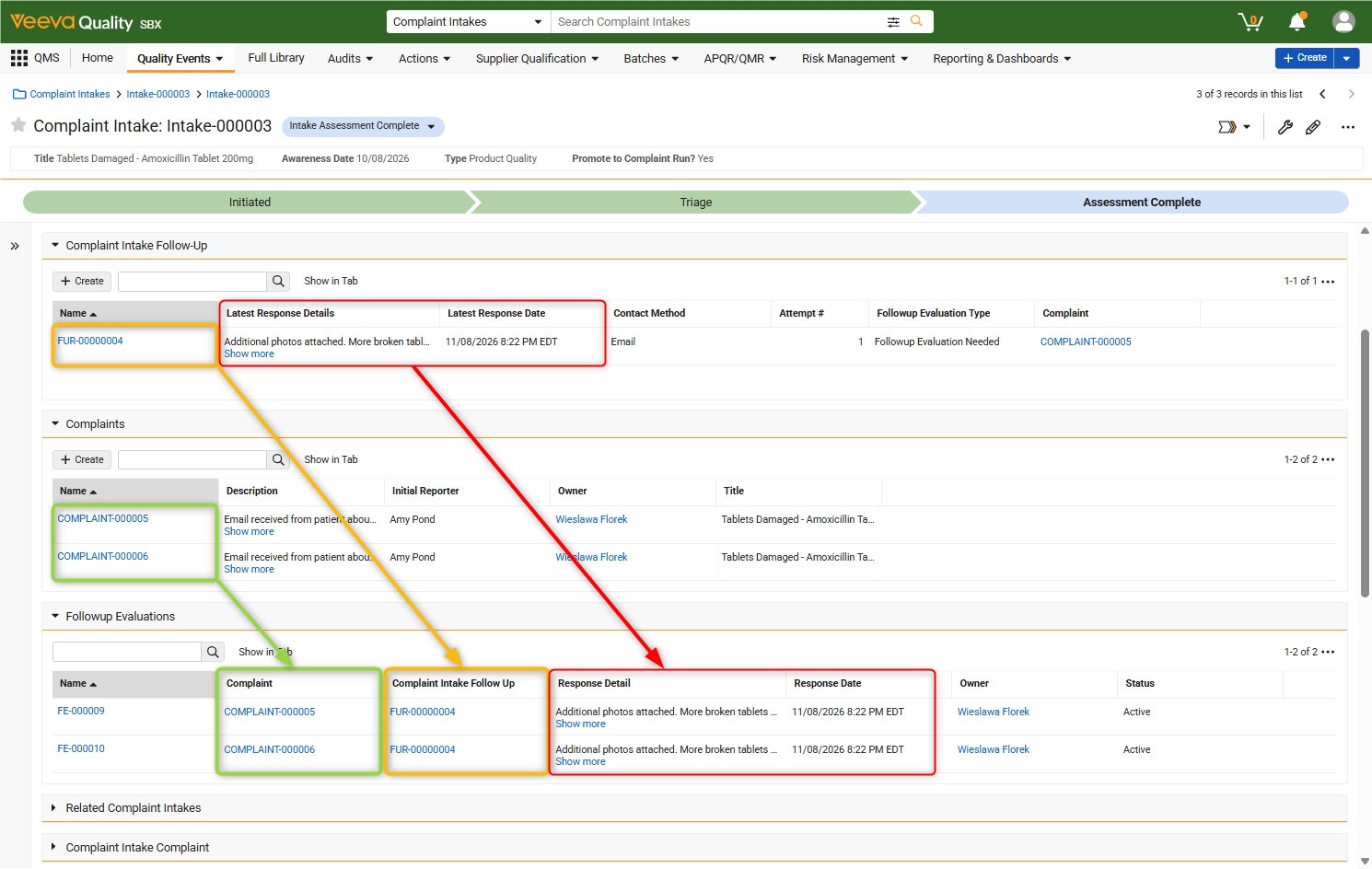
The Followup Evaluation Type field on Complaint Intake Follow-Ups allows users to indicate whether an impact assessment is required. Selecting No Impact allows users to bypass automated record creation for routine updates, such as typo corrections, while selecting Followup Evaluation Needed initiates the automated evaluation process.
This feature requires configuration by an Admin. Note that Quality Event: Complaint and MedTech Complaint object types are not supported.
Learn more about configuring and working with Followup Evaluations.
Promote to Complaint: Promote Specific ProductsConfiguration26R2.2
The Promote to Complaint functionality helps organizations triage and transition quality complaints from an initial Complaint Intake into Complaint records. In some cases, a Complaint Intake may include more reported products than necessary for complaint processing, which can complicate and slow down the triage process.
Users can now choose to promote only a specific subset of products included in the initial Complaint Intake using a new Do Not Promote checkbox field on the Reported Product object.

When a user executes the Promote to Complaint action on a Complaint Intake record, Vault now skips all Reported Products with the Do Not Promote checkbox selected, generating Complaint records only for the remaining products.
Preventing unnecessary or irrelevant Complaint records from being generated allows organizations to maintain cleaner quality data and optimize downstream processing efficiency.
The new Do Not Promote field is provisioned as Inactive with a default value set to No, and requires configuration by an Admin.
Learn more about configuring and using Complaint Intake and Promote to Complaint.
QRM: Capture Inactive Values in Assessment History RecordsAuto-on26R2.2
The Periodic Risk Review feature allows customers to capture a point-in-time snapshot of a Risk Assessment when it is approved, preserving the state of the Assessment and each of its Risk records for traceability and compliance reporting.
This release enhances the feature by addressing a common system administration scenario that sometimes prevented creation of Assessment History records. Admins deactivate data referenced by Assessments, Risks, Risk Documents, and Risk Mitigations when that data represents information that should no longer be available for use. For example, an Admin might inactivate a picklist value assigned to a field on a Risk record that represents a manufacturing process that is no longer used. Similarly, an Admin might inactivate a record representing a vendor that is no longer used, so it cannot be selected in an Assessment.
Prior to this release, the process of generating an Assessment’s history fails when Vault encounters an inactive value. When this happens, Vault sends a notification to the Assessment record owner.
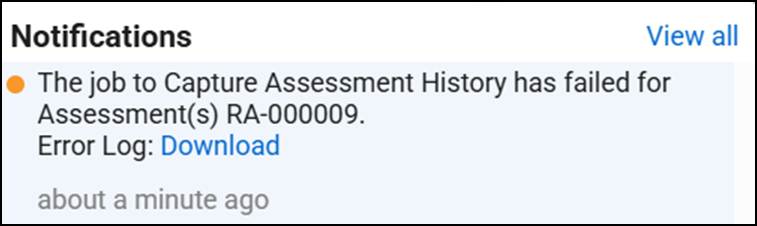
Most organizations configure the Periodic Risk Review feature to capture an Assessment’s history each time it is approved. The error does not block the Assessment’s approval, but it means the Assessment is approved without a history of the latest approved version. The workaround requires customers to identify inactive field values, reactivate them, re-run the action to capture an Assessment’s history, and then deactivate the values again. This is a time-consuming, error-prone, and risky process to temporarily restore values that were intentionally retired.
With this release, Vault now allows the Assessment history generation process to successfully capture deactivated values, eliminating errors caused by deactivated picklist values and referenced records.
The feature is automatically enabled in Vaults with the Periodic Review History feature configured for Assessments.
Important: This feature uses a privileged System account that operates in Record Migration Mode to create history records. This means any automated actions implemented as Action Triggers on the Assessment History, Assessment Risk History, Assessment Risk Document History, or Assessment Risk Mitigation History objects will not be executed. Contact your Admin to assess any potential impact and determine if there are any mitigation actions required prior to the 26R3 release.
QRM: Capture Assessment History in a Workflow StepConfiguration26R2.2
The Periodic Risk Review feature allows customers to capture a point-in-time snapshot of a Risk Assessment upon approval, preserving the state of the Assessment and each of its Risk records for traceability and compliance reporting.
Prior to this release, Admins could only configure the Capture Assessment History action to generate an Assessment’s history when an Assessment record entered a particular state, typically the Approved state.
This feature gives Admins an additional configuration option to run the Capture Assessment History action from a system action step in a workflow. This is useful when your organization wants to:
- Ensure an Assessment’s history is fully generated before generating the Assessment’s formatted output document that includes references to the history records.
- Manually generate an Assessment’s history without changing the Assessment’s state.
To use this feature, an Admin must configure a workflow step to run the Capture Assessment History action.
Note: Refer to the QRM: Capture Inactive Values in Assessment History Records feature for additional enhancements affecting the Capture Assessment History action.
Learn more about configuring Periodic Risk Review.
Delete Quality Team Members After Deletion of Parent RecordAuto-on26R2.2
When users assign Quality Team members to a quality process record, Vault creates a Quality Team Member record for every user assigned to each role. For instance, if a user is assigned to a role on a Change Control, Vault creates a Change Control Quality Team Member record for the assignment. If a record with team assignments is deleted, Vault deletes the associated Quality Team Member record.
Prior to this release, customers encountered scenarios where Vault automatically deleted associated Quality Team Member records when deletion of the parent team-enabled record failed, leaving the record without any Quality Team assignments.
This occurred when bulk deleting team-enabled records through Vault Loader, custom integrations using Vault API, or a bulk object record action, and the bulk operation failed to delete some of the records because they had related records. For example, if several Change Control records were not deleted because they had related Change Actions.
Beginning with this release, Vault now deletes Quality Team Member records only after the successful deletion of the parent team-enabled record.
Quality Team Locking During AssignmentAuto-on26R2.3
Prior to this release, multiple users attempting to simultaneously update a record’s Quality Team membership could result in issues such as duplicated role assignments in the record’s Sharing Settings, and execution of duplicate parallel workflows and task assignments.
This release introduces an enhanced locking process to prevent multiple users from simultaneously updating a record’s Quality Team, eliminating duplicate Sharing Setting and workflow task assignments. The first user to begin assigning roles on a record’s Quality Team triggers a lock on that record’s Quality Team. This prevents other users from updating the Quality Team at the same time. If a user attempts to save changes to a Quality Team that is already locked by another user, Vault now displays an error message like the one shown below.
This feature is automatically enabled in this release.
Change Controls: Identify Impacted MaterialsConfiguration26R2.3
Defining Change Controls for raw or intermediate materials requires manufacturing organizations to identify the impact of the change on finished materials. This is often a labor-intensive process, navigating relationships across many Material records to identify impacted downstream materials and products. This feature helps organizations automate impact analysis by tracing material relationships maintained within the QMS application.
Change Control Owners can execute a new Identify Impacted Materials action that recursively checks a company’s Material record hierarchy to identify downstream Intermediate and Finished Materials, and impacted Products from a source Material.
The following diagram shows an example of the relationships maintained in an organization’s QMS application between a Raw Material and the related downstream Intermediate and Finished Materials, as well as Finished Materials and Products.
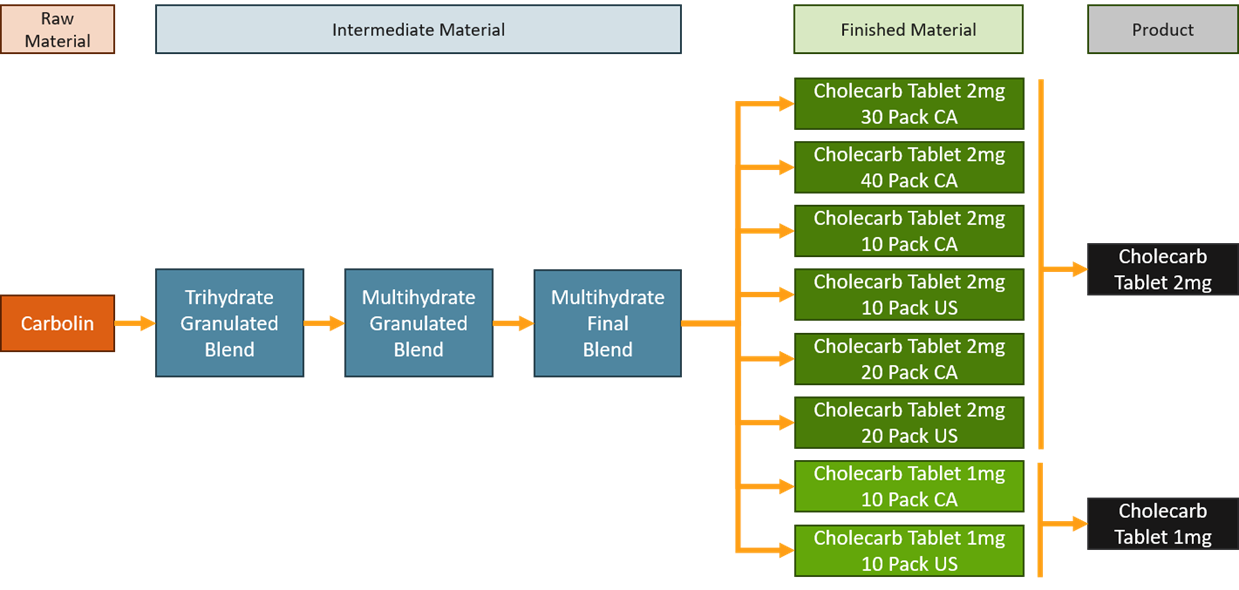
Using the example above, a Change Control Owner adds the Raw Material record to a Change Control as shown below.
Next, the Change Control Owner executes the Identify Impacted Materials action, triggering Vault to automatically create records for the related downstream Intermediate and Finished Material records.
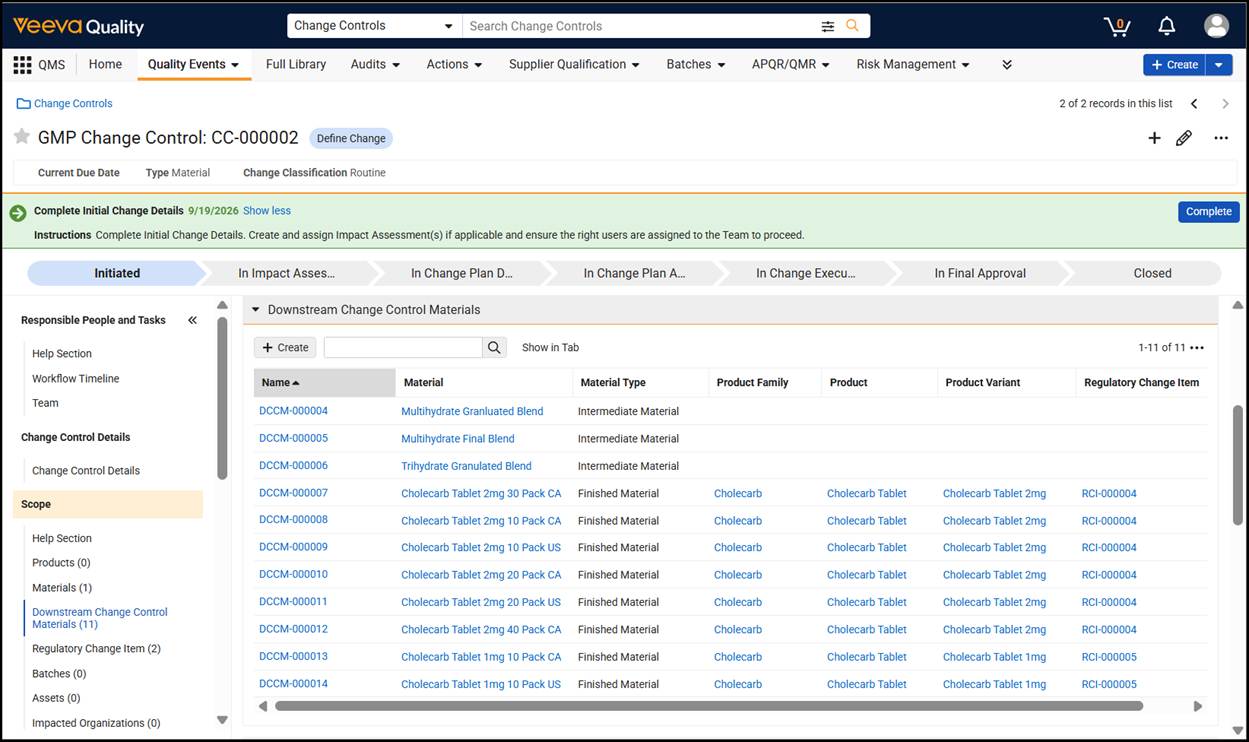
Additionally, the action automatically creates Regulatory Change Item records to identify the affected Products related to Finished Material records.
Change Control Owners can delete Downstream Change Control Material records and Regulatory Change Item records generated by the Identify Impacted Materials action as needed, and manually create new ones if necessary as permissions warrant.
Users can re-run the Identify Impacted Materials action to add new Downstream Change Control Material records and Regulatory Change Item records in the following scenarios:
- A new source Material is added to a Change Control record.
- An organization updates its relationships between Materials and Products.
The Identify Impacted Materials action never deletes records. For example, re-running the action after removing a Change Control’s source Material record, or changing relationships between Materials and Products, does not remove Downstream Change Control Material or Regulatory Change Item records from the Change Control.
Customers can run reports that use Downstream Change Control Materials and Regulatory Change Items to identify Change Controls based on Materials and Products they affect.
This feature requires configuration by an Admin to include the Identify Impacted Materials action in a user action, entry action, or workflow system action step associated with a Change Control lifecycle. An Admin specifies what type of Downstream Change Control Materials generate Regulatory Change Item records. Typically, this is set to Finished Materials, as shown in the screenshot below, but Admins can also include other material types. For example, Intermediate Materials can be included to create Regulatory Change Item records when Intermediate Material records represent active substances.
Learn more about identifying impacted materials and configuring the Identify Impacted Materials action.
Complaints: Known Complaint ProfilesConfiguration26R2.3
Currently, complaint management requires manual processing for each record, even if the issue is a well-documented, known event. This approach leads to redundant data entry and manual bottlenecks. This release introduces the Known Complaint Profiles feature to automate and “short-circuit” the processing of known complaints. By leveraging pre-defined and approved Known Complaint Profiles, Vault can automatically populate key fields and related records (including root causes, adverse event codes, risks, investigations, and CAPAs) directly to target Complaints. This automation reduces the need for manual data entry and processing, significantly reducing cycle times for recurring issues.
Promoting Complaints to Known Complaints
Users can easily create new Known Complaint Profiles directly from existing Complaint records. Executing the Promote to Known Complaint Profile action on a source Complaint creates a new Complaint record and populates it with field values and related records from the source Complaint. The new Complaint record serves as a Known Complaint Profile.
Depending on the object type of the source Complaint, the new Complaint record is classified as one of the designated object types: Pharma Known Complaint or MedTech Known Complaint.
Managing Known Complaint Profiles
Vault can update Known Complaint records with new data as the source Complaint progresses. If a complaint is promoted to a Known Complaint Profile early in the process and prior to its closure, executing the Update Known Complaint Profile action updates the Known Complaint record with the latest field values and newly added related object records from the source Complaint. This ensures that Complaints created based on the Known Complaint Profile always reference the most up-to-date information.
Associating Incoming Complaints with Known Complaint Profiles
To standardize and accelerate complaint handling, incoming Complaints can be associated with a Known Complaint record.
When users execute the Associate Known Complaint Profile action on a processing Complaint, Vault opens a record selection dialog listing all the existing Known Complaint records filtered by the Product, Product Variant, and Material field values populated on the Complaint to ensure precise matching.
Upon selection of the Known Complaint Profile, Vault populates all the key fields and related records defined in the QMS Known Complaint Profile Configuration. If configured by an Admin, depending on if the Known Complaint has entered its closed state or is still being processed, Vault can move the Complaint record to a designated lifecycle state to skip parts of the manual process or indicate that the Complaint is pending Known Complaint resolution.
Associating incoming Complaints with Known Complaint Profiles can also be automated with an entry action when an incoming Complaint Intake already references a Known Complaint record upon promotion to Complaint.
For scenarios where multiple similar complaints arrive while the associated Known Complaint is still being processed, incoming records can be linked directly to the open profile. If configured, when the referenced Known Complaint enters its terminal state, the Update Associated Records from Profile entry action runs asynchronously to update the metadata and related records on the linked Complaints and changes their lifecycle state automatically.
QMS Known Complaint Profile Configurations
Admins can set up QMS Known Complaint Profile Configurations to govern how Vault transfers data from template records to processing Complaints. Configurations are defined per object and object type combination. Admins can define related objects (such as investigations, root causes, risks, adverse event codes, and CAPAs) and up to 20 standard or custom fields to copy during promotion or association of a Known Complaint record.
To access and configure QMS Known Complaint Profile Configurations, you must have a minimum of Edit permission for QMS Known Complaint Profile Configuration, granted from the Admin tab of applicable permission sets.
Additionally, Admins must define lifecycle state type mappings for the Known Complaint Closed and Known Complaint Open state types to control state transitions of processing complaints to specific destination states based on whether the associated Known Complaint record is in a completed state.
Lifecycle State Actions
To support end-to-end automation, this feature relies on multiple user and entry actions configured on the Complaint or Quality Event Lifecycle:
| Action Name | Action Type | Short Description |
|---|---|---|
| Promote to Known Complaint Profile | User Action | Promotes a source Complaint to a Pharma Known Complaint or MedTech Known Complaint record and populates initial data and related records. |
| Update Known Complaint Profile | User Action and Entry Action | Refreshes a Known Complaint record with updated fields and newly completed related records from the source Complaint. |
| Associate Known Complaint Profile | User Action and Entry Action | Opens a pre-filtered selection dialog or automatically links an incoming record with a Known Complaint Profile to copy configured field data, create related records, and transition the complaint to the designated lifecycle state. |
| Update Associated Records from Profile | Entry Action | Runs asynchronously in the background when an open Known Complaint is finalized, automatically updating and transitioning all pending Complaints linked to that Known Complaint Profile. |
To enable this feature, Admin must configure QMS Known Complaint Profile Configurations, lifecycle state mappings, and lifecycle state actions, and ensure all required fields are active across applicable objects.
Learn more about configuring and working with Known Complaint Profiles.
Complaint Intake Follow-Up: Email CollaborationConfiguration26R2.3
Many organizations heavily rely on email for complaint follow-up inquiries, and many of these emails require back-and-forth communication to clarify information such as batch and lot numbers, product details, and pictures of product damage.
Managing email communication outside a QMS Vault requires an organization’s Quality Assurance team to manually copy and paste details from emails into QMS records, and upload email attachments. This creates operational bottlenecks and increases risk from human error.
This feature introduces two-way email communication between a Quality organization and external complaint contacts directly within QMS, eliminating the pitfalls mentioned above. Admins can now configure Vault to allow users to send emails directly from Complaint Intake Follow-Up records to request more information.
When users select the action to send an external email from a Complaint Intake Follow-Up record, Vault displays a dialog that allows users to:
- Identify the email recipients (To, CC, and BCC).
- Enter text in the email subject and email body detailing the information requested from recipients, while preserving the boilerplate text defined in the selected template.
- Optionally provide access to one or more Vault documents that recipients can view through a link included in the email. Documents can provide context for the request.
Emails sent in this manner are tracked with the originating Complaint Intake Follow-Up record.
When an external recipient replies to the email with the requested information, the reply email is received by the Reply To email address, which points to an inbox in the customer’s corporate email system, and then forwarded into Vault for processing.
In addition, QMS updates the state of the Complaint Intake Follow-Up record, populates the relevant follow-up fields, and copies the reply email and its attachments directly to the Complaint Intake Follow-Up record.
If the information provided in the reply is not sufficient, users can reply to the complaint contact’s email to ask for additional information.
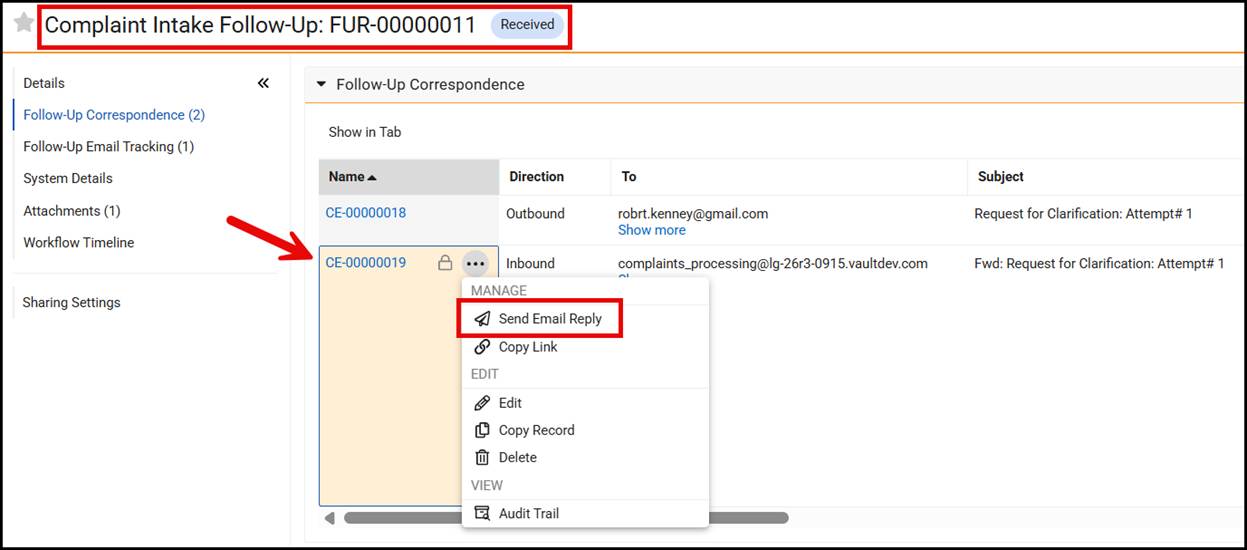
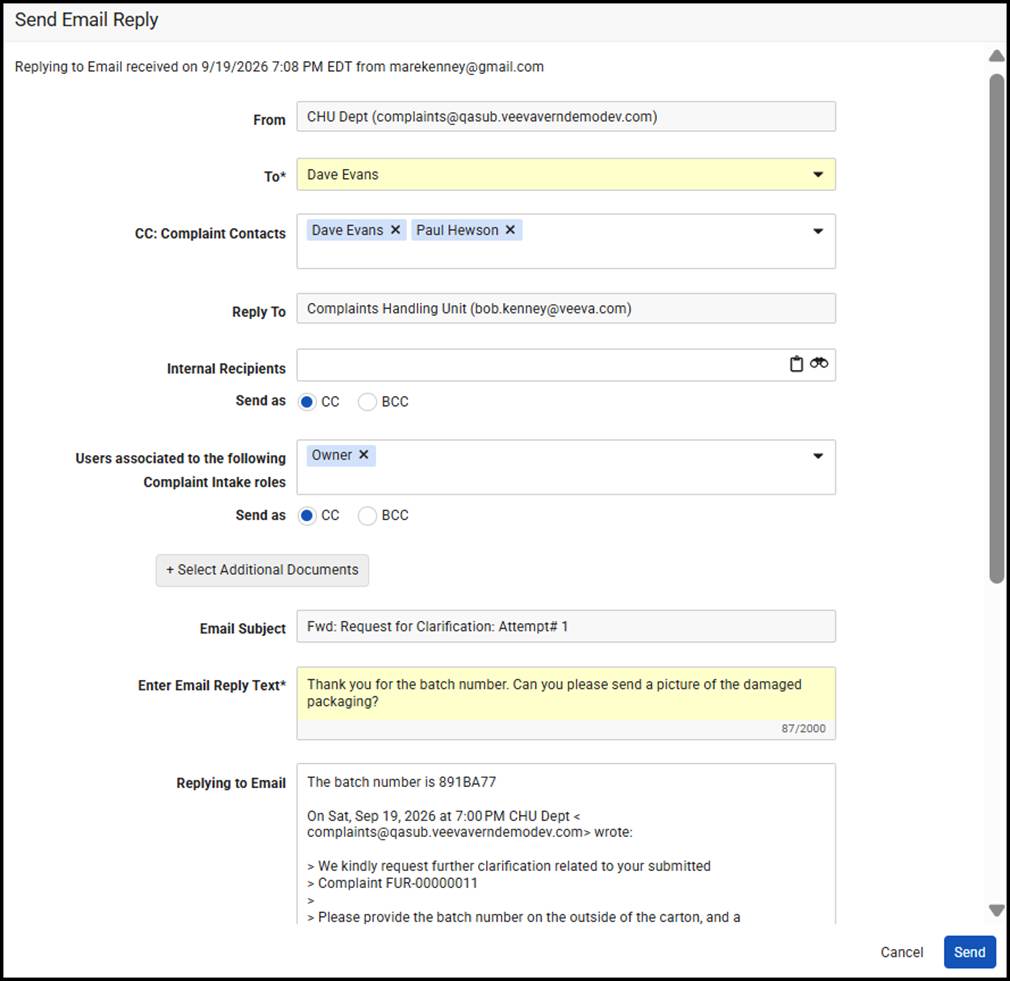
This process of emailing back and forth between users and complaint contacts continues until the necessary follow-up information is received.
If additional recipients were copied on received emails, Vault can automatically create them as Complaint Contacts related to the Complaint Intake record so they can be included in subsequent emails.
Learn more about configuring and working with Complaint Intake Follow-Up.
Complaint Intake Follow-Up: Auto-RetryConfiguration26R2.3
Organizations report most complaints require clarification, and initial attempts to obtain clarification from reporters are often unanswered. Managing follow-up requests is time-consuming and manual work. This Admin-configured feature introduces a rule-based job to automatically generate subsequent follow-up attempts for unanswered requests and optionally send an email to complaint contacts on a scheduled basis.
Complaint Intake Follow-Up records contain several fields that drive this capability:
- Retry?: This field determines whether Vault uses Auto-Retry for a Complaint Intake Follow-Up record. This field must be set to Auto.
- Retry Frequency: Number of days after the last attempt that Vault automatically creates a new attempt to obtain a response from a complaint contact.
- Retry Due On: The date on which Vault automatically creates a subsequent attempt to reach out to a complaint contact based on the Retry Frequency.
- Remaining Retries: The number of attempts Vault makes to reach out to a complaint contact. Each time an Auto-Retry occurs, the number decreases by one.
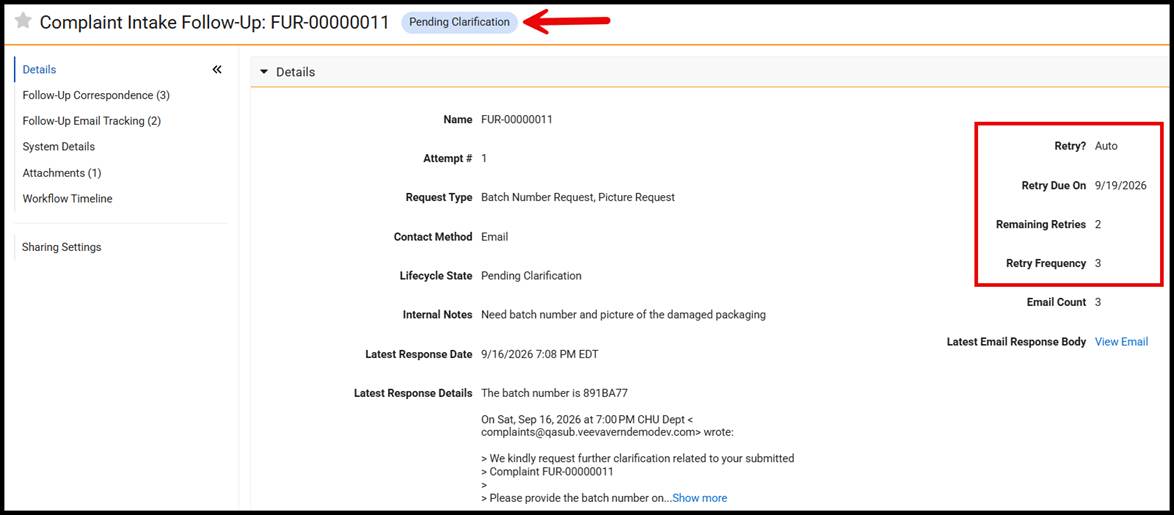
The Auto-Retry functionality is defined by a job that an Admin schedules for execution, typically on an hourly basis. The job looks for Complaint Intake Follow-Up records with fields meeting specific conditions configured by the Admin. When the job finds a matching record, it automatically creates a new Complaint Intake Follow-Up record that represents the next attempt at obtaining a response from the complaint contacts.
If configured by an Admin, the Auto-Retry job can also automatically send an email to the complaint contacts that were the email recipients from the initial attempt.
This feature reduces manual tracking overhead and helps quality organizations meet their good faith effort objectives in high-volume complaint operations.
Learn more about configuring and working with Complaint Intake Follow-Up.
Complaint Contacts: Child Object SecurityConfiguration26R2.3
This feature enables Admins to configure Complaint Contacts to automatically inherit the security from their parent Complaint Intake record, ensuring that Complaint Contact records always have the same Sharing Settings roles as the related Complaint Intake. This is useful because users with access to a Complaint Intake record should have the same access to its related Complaint Contacts. This feature eliminates the need for Admins to manually adjust Complaint Contact permissions. An Admin configures this feature on the Complaint Intake parent field of the Complaint Contact object as shown below. The Complaint Intake object must have Custom or Matching Sharing Rules enabled in order to utilize this capability.
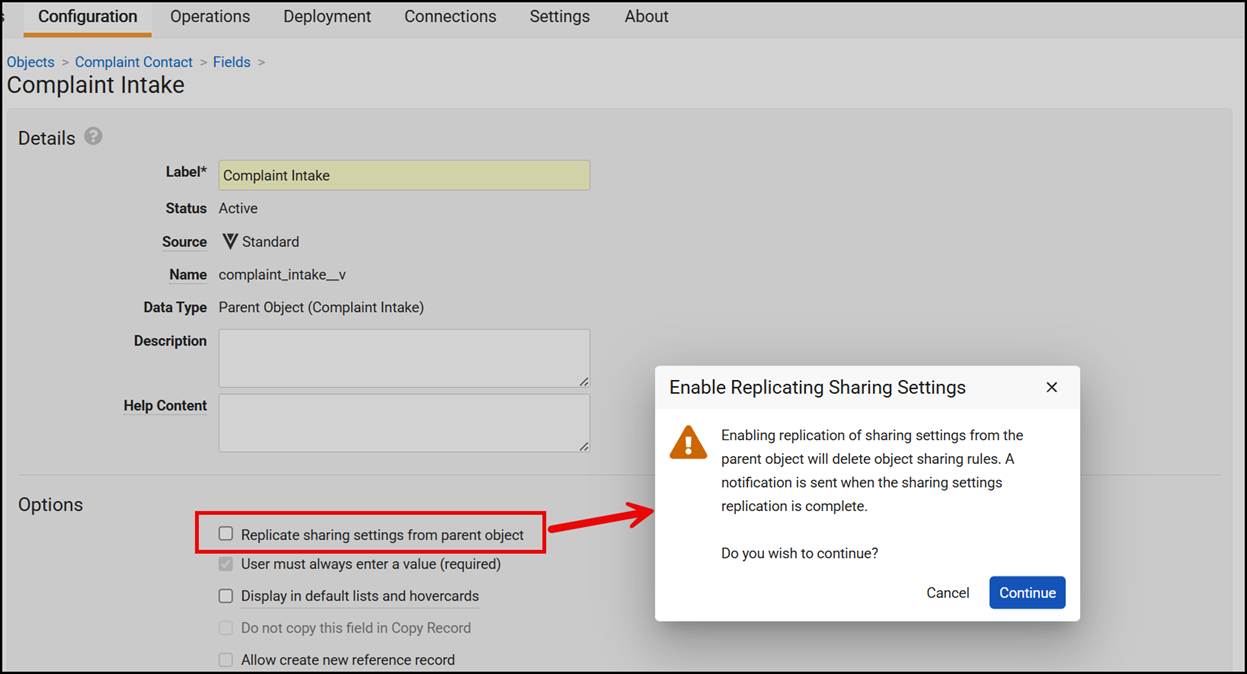
Learn more about configuring Complaint Intake and Promote to Complaint.
Complaint Intake Email Ingestion: Auto-Create Complaint ContactsConfiguration26R2.3
Capturing complaints is a high-volume, time-sensitive process. QMS helps organizations accelerate the process by ingesting complaint emails to create Complaint Intake records for Quality Assurance personnel to triage.
Capturing information about external individuals who send complaint emails is an important but time-consuming part of triaging a complaint. Quality organizations need contact information for reporters to follow up with them if additional information about the complaint is required.
This release introduces a new configurable feature that enables QMS to automatically extract sender information from complaint emails, eliminating manual steps that slow down the triage process.
When this feature is configured and a new complaint email is ingested, Vault automatically parses information from the original email received. The individual in the original sender email is created as a Complaint Contact using the Initial Reporter object type, while additional email addresses in the email’s CC field are created as Complaint Contacts using the Email Contact object type.
Vault automatically relates Complaint Contact records to the Complaint Intake record created from the ingested email, making it easy to see the external individuals involved in the complaint triage process.
Customers are expected to set up a dedicated email address within their corporate email system to receive and forward complaints into Vault for processing. Vault anticipates forwarded emails, excluding the direct sender or forwarder from creation as a Complaint Contact.
Learn more about configuring and working with Complaint Email Ingestion.
Complaint Contacts: Hide Object Types in Application SectionConfiguration26R2.3
This release introduces additional configuration options for the Complaint Contacts application section on Complaints and Quality Events (Complaint and MedTech Complaint object types), allowing for precise control over which Complaint Contact records are displayed. Admins can now define specific Complaint Contact object types to display within the section using a new multi-select field on the layout configuration page.
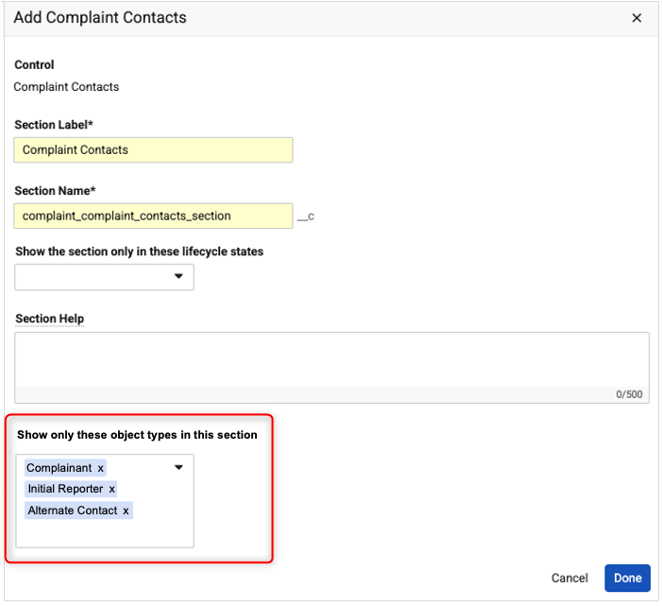
Once configured, the Complaint Contacts section filters and displays only the specified object types, supporting both standard and custom object types. Leaving the field blank preserves default system behavior by displaying all active Complaint Contact object types.
Learn more about configuring Complaint Intake Follow-Up.
Complaint Contacts EnhancementsAuto-on26R2.3
This release introduces two key updates to Complaint Contacts in Veeva QMS.
First, the Complaint Contacts application section on Complaints and Quality Event (Complaint and Medtech Complaint object types) records now aligns with the behavior of other standard sections. If a user lacks permission to view the Complaint Intake field, Vault displays the Complaint Contacts section, but the records remain hidden. Prior to this release, Vault hid the entire section for users without proper permission to view the records.
Second, when a Complaint Contact of Initial Reporter type is created after a Complaint Intake has been promoted to a Complaint, Vault automatically synchronizes the Initial Reporter field across all associated child Complaint records and updates them with the new value.
These enhancements are Auto-on.
Learn more about Complaint Contacts.
Complaint Intake Follow-Up: Picklist Value InactivationConfiguration26R2.3
This release provides Admins with enhanced control over picklist values by allowing specific options to be set to Inactive for key Complaint Intake Follow-Up fields:
- Complaint Intake Follow-Up Request Type
- Complaint Intake Contact Method
Setting a picklist value to Inactive hides it from selection drop-downs when users create or edit Complaint Intake Follow-Up records. Existing records containing an inactive value remain unchanged, preserving historical data integrity and reporting accuracy.
Learn more about configuring and working with Complaint Intake Follow-Up.
External Notifications: Track Skipped Emails for Ineligible Complaint ContactsAuto-on26R2.3
When sending external notifications from Complaint Intake, Complaint, or Quality Event (Complaint and MedTech Complaint object type) records, Vault now tracks emails skipped due to ineligible Complaint Contacts. In situations where a contact is inactive, missing an email address, or lacks affirmative consent (when Consent to Contact is not Yes), Vault skips sending an email to the ineligible contact and automatically creates a corresponding Sent Notification record in the Exception lifecycle state, including the validation error in the new Error Message field.
Recording error details directly on the Sent Notification record helps users quickly fix missing contact information to prevent communication gaps during complaint processing, and ensures that ineligible contacts are not mistakenly emailed.
This feature is Auto-on in all QMS Vaults and does not require additional configuration.
Learn more about External Notifications.
Send External Notification User Action EnhancementsAuto-on26R2.3
This feature introduces two user experience enhancements for the Send External Notification user action. These changes are automatically enabled, so users in organizations that configured the action before this release will notice these changes after the release.
When a user selects the Send External Notification user action, Vault displays a dialog allowing the user to enter details about the notification being sent. Prior to this release, each time a user opened the dialog, a yellow banner appeared at the top of the screen and did not disappear until a user closed it, often leading to many banners as shown below. This enhancement automatically closes the banner without requiring the user to act.
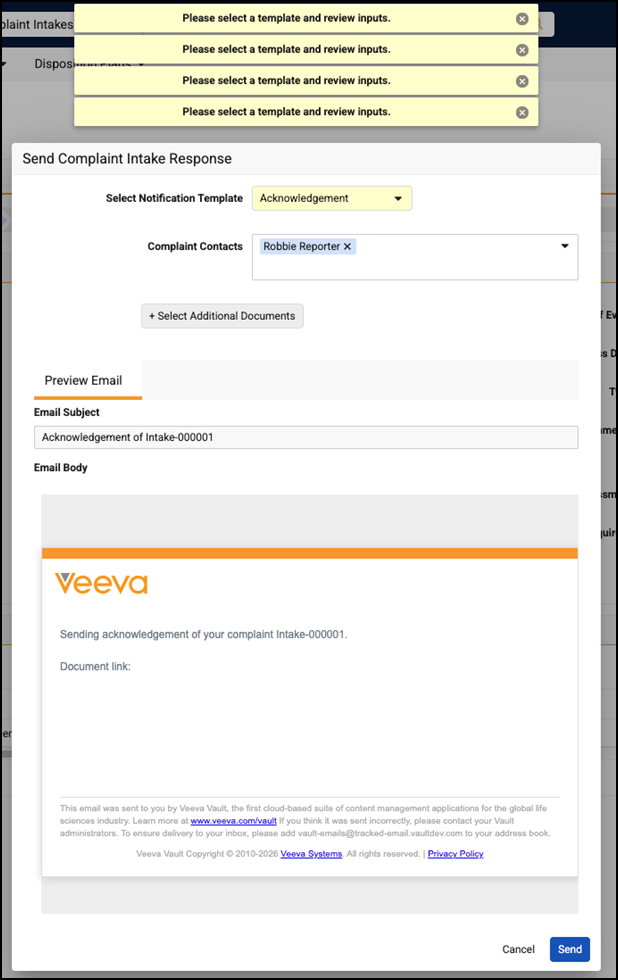
The second enhancement changes the appearance of a link to the documents to be included in an External Notification within the Preview Email tab. Prior to this release, the link displayed as shown below.
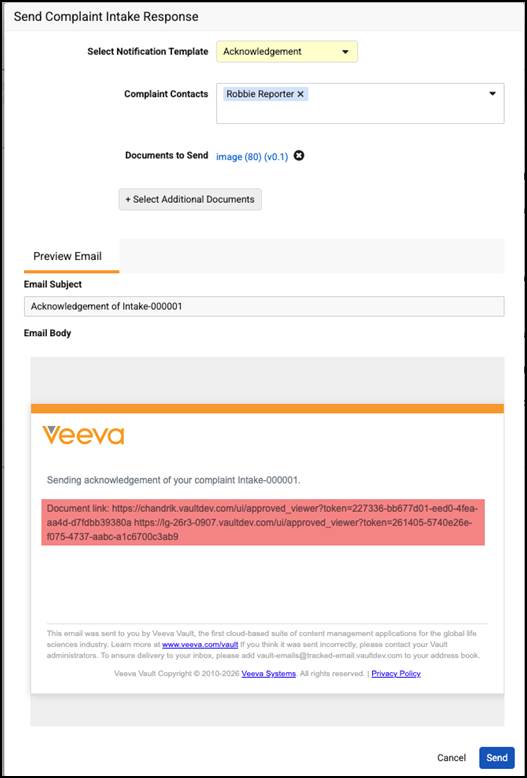
After this release, the document link will be replaced with the placeholder shown below.
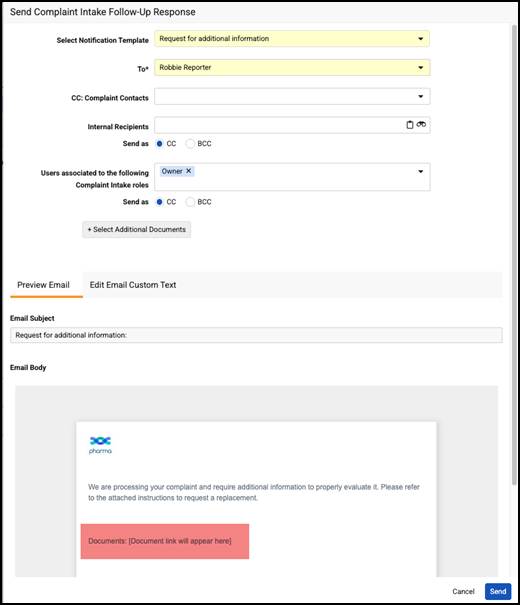
Learn more about External Notifications.
QRM: Assessment Risk Version CompareAuto-on26R2.3
Risk Assessments evolve through continuous iteration as new failure modes are identified, control strategies shift, and mitigations are implemented. Organizations want to understand these changes over time by comparing the current Risk Assessment to previous versions. Prior to this release, evaluating changes between assessment versions required a side-by-side comparison. This proved to be error prone and inefficient, given that assessments contain an average of 300 risks.
The Assessment Risk Version Compare feature makes it easy to see the differences between two versions of an Assessment containing up to 2,000 risks. Users can generate a read-only version comparison that highlights added and modified Assessment Risk records at the cell level. Differences are color-coded and filters help users quickly navigate to changes.
Users start the version comparison process from Risk Builder by selecting Compare Version. The Compare Version action is available whenever an Assessment has Assessment Risks and history records.
Vault presents a list of historical Assessment versions available to compare to the current Assessment. Users can only compare the current Assessment to previous versions.
Once a previous version is selected, Vault presents users with a list of up to 20 Assessment Risk fields to be included in the comparison. This feature supports comparing the following types of risk fields:
- Text, Long Text, Rich Text
- Object Reference
- Number
- Picklist
- Yes/No
After users select fields, Vault generates the read-only view of the version comparison.
Cells that correspond to modified risk fields appear blue, while cells for new risks appear green.
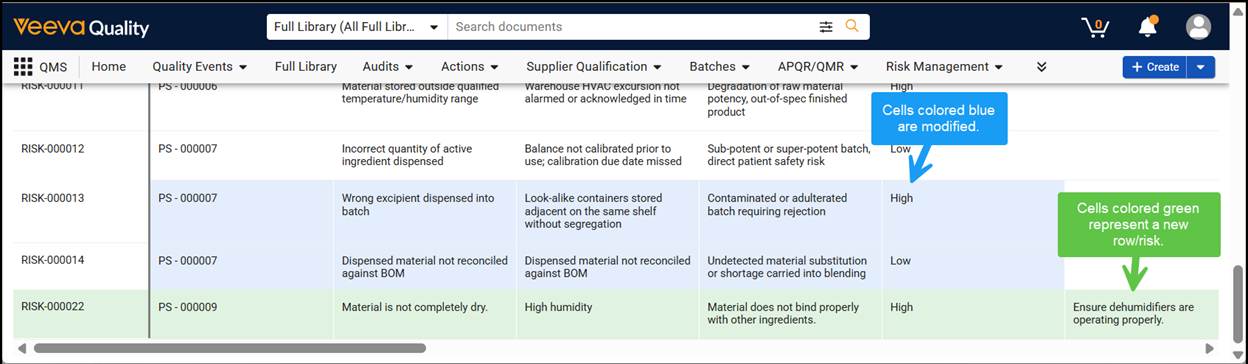
Users can navigate between cells using the keyboard arrow keys. Risks are shown in the order they appear in the current Assessment version.
Hovering over a text, long text, or rich text field displays a dialog that shows a short summary of the risk’s values in the previous and current Assessment versions. Note that comparisons for rich text fields do not show formatting differences.
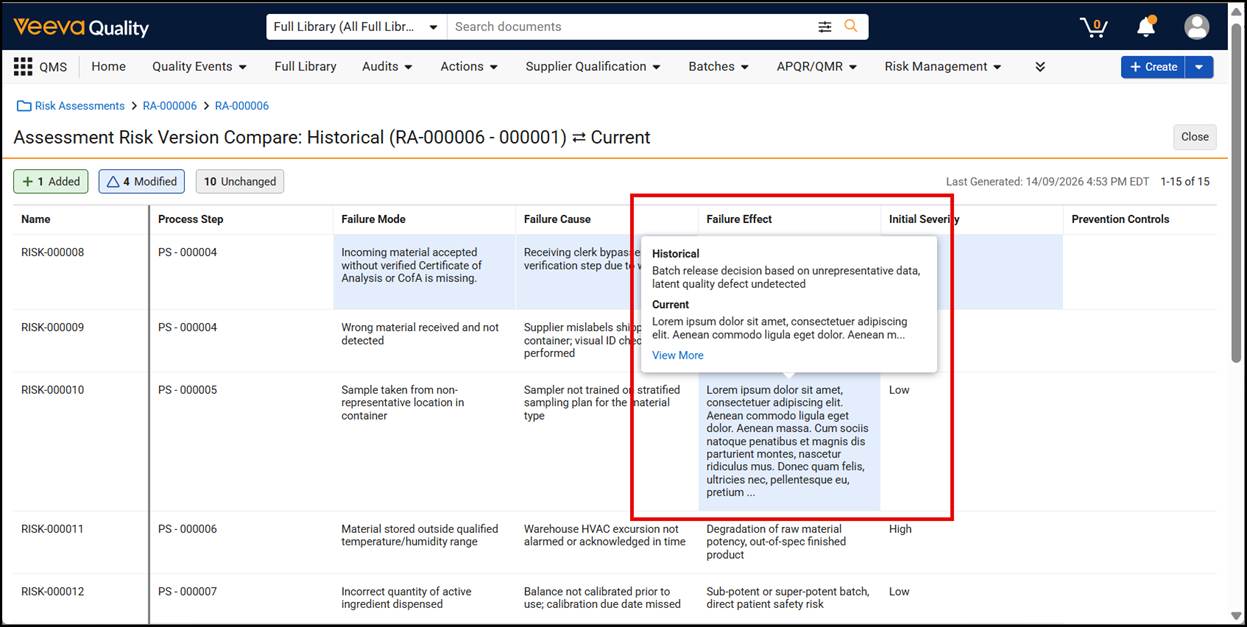
Clicking View More displays a scrollable dialog that allows users to compare the full values of the field between versions.
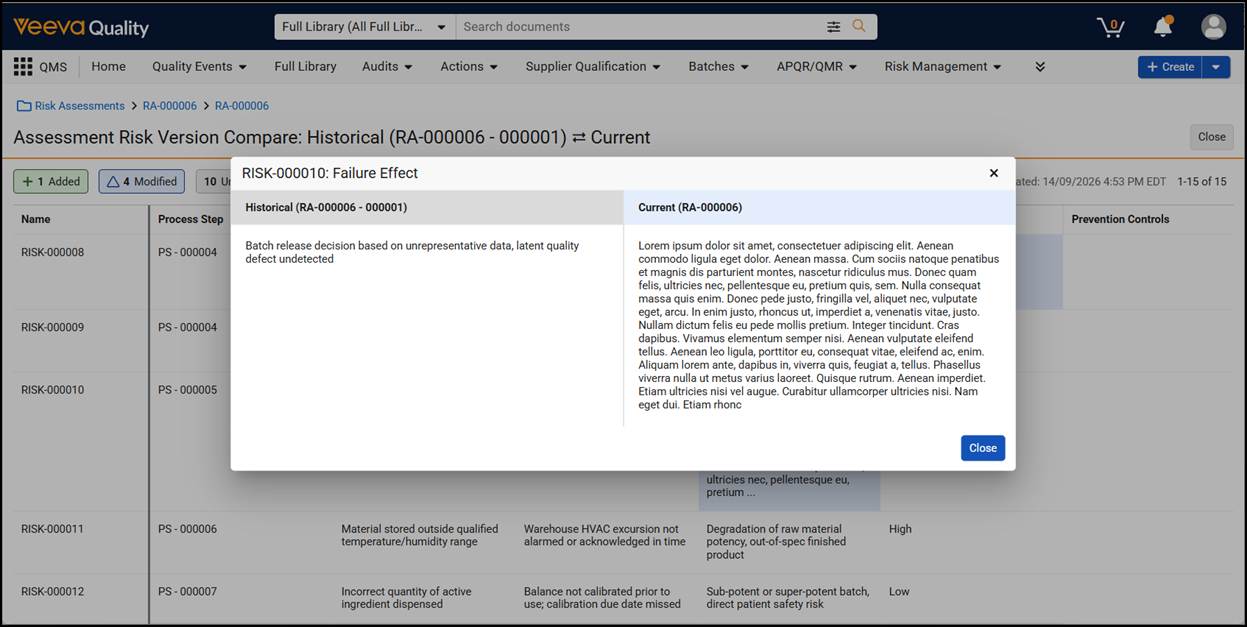
Hovering over a risk field that refers to a record (for instance, Assessment Risk Mitigations) displays the value of the record’s Name field in the previous and current versions of the Assessment. This feature does not compare the fields within a referenced record.
Hovering over a number, picklist or yes/no field displays the risk field’s values in the previous and current versions of the Assessment.
This feature is available for all standard Assessment types, and is automatically enabled in this release.
Learn more about Assessment Risk Version Compare.
Nonconformance & MedTech CAPA Standard Data Model ProvisioningAuto-on26R2.3
This release introduces new join objects to QMS in support of future functionality. The four new objects represent the standard, best practice way to connect Nonconformances to Batches and Materials (Nonconformance - Batch & Nonconformance - Material), and MedTech CAPA records to Batches and Materials (MedTech CAPA - Batch & MedTech CAPA - Material). These new objects will be leveraged by future features within QMS.
QMS, Surveillance
VPS & QMS Admin ImprovementsConfiguration26R2.3
As Vault Product Surveillance grows in maturity, some areas of Admin need to grow as well, resulting in several new pages available to administrators in Admin > Configuration: VPS Adverse Event Report Configurations has moved under the Product Surveillance header, and Reportability Decision Trees is now under the QMS header.
Customers leveraging modified permission sets must update their permission sets (in the Admin tab) to ensure Admins have the appropriate permissions for the VPS: Adverse Event Report Configurations and Reportability Decision Trees pages, or these areas may be inaccessible.
Additionally for our administrators, VPK definitions for Adverse Event Report configurations are updated, allowing for more streamlined migration of such configurations between environments regardless of the enablement of the Use Regional Product Attributes and Do not allow bidirectional data exchange settings.
Surveillance
VPS: Health Authority Forms UpdatesAuto-on26R2.2
This feature enhances each of the health authority forms with several updates regarding data management.
eMDR Health Authority forms now render Country codes using 3 digits as opposed to the 2 digit system used in prior releases. Additionally, Vault now generates the Importer Report Number from section F2 automatically based on the Importer organization selected on the Adverse Event Report record.
EU MIR/UK MHRA smart contact blocks have received several updates to managing various Reporter information. The field for Role of Reporter - Other is now dynamically displayed (and included in the XML/PDF renditions) only when the Role of Report is set to Other. Relatedly, both health authority forms now validate that a Role of Initial Reporter has been captured. Lastly, for these two health authority forms’ smart contact blocks, in sections A2/A3 validations have been added to ensure that either the AER_type_of_report_urgency__v is set to Final or set to Update with Reporter Contact Information also present.
For PMDA health authority forms, the General Name Code message from the quality_surveillance__v message group has received a new translation value, and Periods of Use - Unit can now be correctly captured and rendered in the generated XML.
Support for Voluntary Malfunction Summary Reporting (VMSR)Configuration26R2.3
With this release, users can now automatically perform Summary Reporting evaluations for Complaints as part of the Reportability Assessment flow. These evaluations determine if an incident qualifies for Summary Reporting rather than Individual Reporting, supporting a significant reduction in manual assessment responsibilities for Vigilance Specialists while ensuring regulatory compliance is maintained via rules-based routing.
Summary Report Profiles, a new object in your Vault, describe the rule criteria (Country/Region, Severity, Product/Product Variant/Product Family, Material, and more) which is used to determine if a Complaint is eligible for Summary Reporting. Admins must define and approve Summary Report Profiles before they are leveraged by the system when evaluating events.
When a Complaint is evaluated for reportability, the Summary Report Profiles are consulted to determine the nature of the reportability (Individual or Summary). If exactly one Summary Report Profile matches the data, then the rules defined in that profile determine the nature of the reportability. If no Summary Report Profiles match the event being evaluated, the Reportability Decision Tree is consulted and respected for determining reportability, resulting in either marking the event as non-reportable, or Individually Reportable.
If multiple Summary Report Profiles match the details of a given Complaint, a review is required, the Reportability Assessment Effect record itself is marked as reportable, and it is moved into the Pending Review state. Vault displays these records with a special identifying badge while in this state, calling attention to the fact that they need action to progress.
In support of this feature, the Summary Report information is added to section H, detailing information about the summarized content represented within the report.
Summary Reporting evaluations require configuration to be used in your Vault.
Learn more about Summary Reporting.
VPS: Submit Adverse Event Reports via EmailConfiguration26R2.3
For organizations wishing to submit reports to health authorities that do not support Gateway Submissions, Vault Product Surveillance can now submit Adverse Event Reports (generated XML & PDFs) on your behalf directly from your Vault via email. Users no longer need to manually download and prepare these files for individual submission, which is especially valuable in the event of high volumes of managed events. For the health authorities which support it (EU MIR, Health Canada, and others), Adverse Event Report submission emails are additionally tracked via your Vault’s Tracked Emails features.
The Adverse Event Report object now has its own dedicated Email Processor for working with emails, and supports the existing QMS Send External Notification and Create Distribution Group Membership actions, which can be added to the Adverse Event Report lifecycle in order to generate and send the submission emails. The dedicated email processor is capable of generating emails, saving those emails as attachments to the triggering Adverse Event Report, and saving attachments from reply emails back to the report itself.
This feature also adds new fields to the Adverse Event Report object, linking it to the new Adverse Event Report Email objects in support of capturing data like Reply To, From, and Owner. Adverse Event Report Email object records are supported by Adverse Event Report Sent Notifications and Adverse Event Report - Ext Notif Recipient, which define the message templates and recipient definitions for emailing Adverse Event Report submissions.
Reportability Assessment UpdatesAuto-on26R2.3
This feature introduces a new set of automation enhancements to Reportability Assessments, offering better clarity for viewing the history of assessments, streamlined processing for multiple decision trees and connected data to better allow interpretation of Reportability Assessment Events in the context of which Decision Rules led to them.
When Reportability Assessments are Closed, all previous Reportability Assessments and related information are moved to the Superseded state, allowing for better clarity interpreting the status of assessments’ histories.
Multiple decision trees (MDT) have also received updates aimed at increased clarity of fluidity of business processes. If any country using a particular configuration of the decision tree does not have foreign or global reporting requirements, then that tree is ignored when evaluating the MDT.
Lastly, Reportability Assessment Event records now link directly to Decision Rules records when the Incident is reportable under Individual Reporting rules.
Adverse Event Report UX & PDF Rendition ImprovementsAuto-on26R2.3
This release introduces several visual improvements to the rendition and formatting of Adverse Event Reports (AER) within Vault Product Surveillance. We believe these changes are best summarized in a quick-hits list, such as:
- Join object grids in the bespoke Adverse Event Report app sections throughout the AER process for eMDR, EU MIR, MHRA, and PDMA now support column preferences like other tables.
- In eMDR D9, Device Available for Evaluation can now be edited inline within the AER interface when an override is provided
- Copying and pasting has often contained what looks like errors due to how PDF generation handles certain unicode characters. While your pasted data in the Vault field is not affected, variations of certain unicode characters (like ‘-‘ (hyphen) or ‘-‘ (hyphen-minus)) are automatically converted to a uniform, standardized character in the rendered PDF.
- EU MIR generated XML now has a Version tag for all report types.
These enhancements are automatically enabled, and do not require configuration.
Health Authority Field Label UpdatesAuto-on26R2.3
This feature updates many labels across eMDR, EU MIR, and MHRA Adverse Event Reports to better align with health authority provided templates. Snapshotted older Adverse Event Reports still render with prior field labels, where appropriate.
EU MIR & MHRA: Market Distribution of Device ImprovementsConfiguration26R2.3
With this release, your organization can now configure an override for the Market Distribution of Device section on EU MIR and MHRA forms. Vault then copies the data from the Product Marketed object directly into the Adverse Event Report and allows users to modify the data at the report level.
Adding overrides in this way also displays a new checkbox field to select all EU countries.
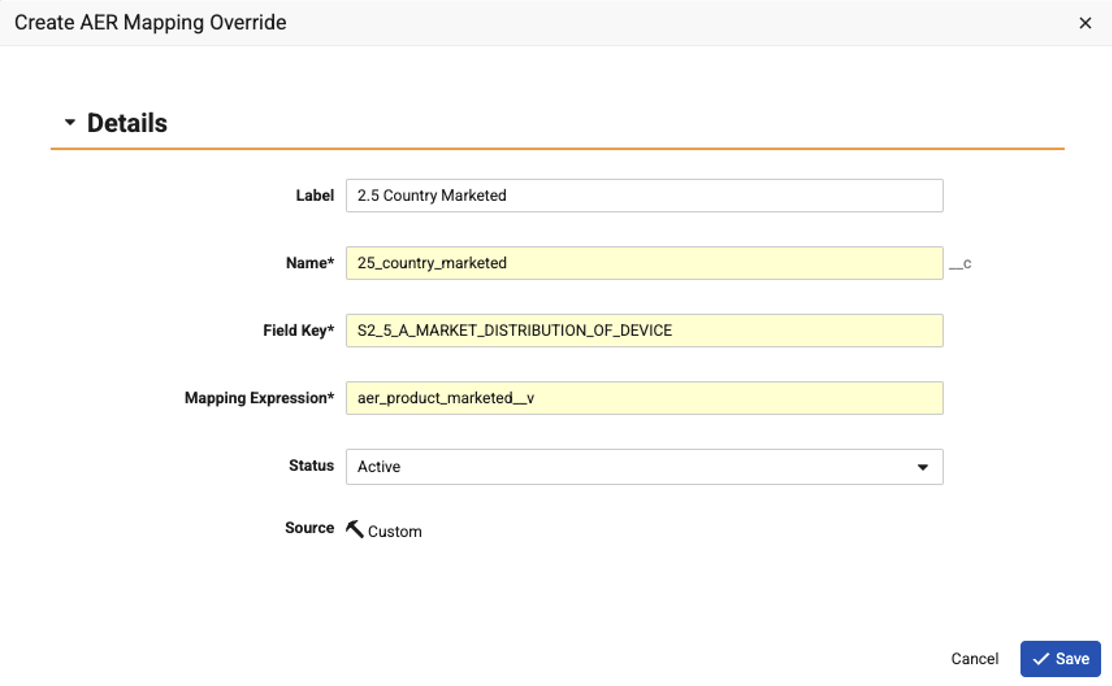
VPS: Mapping Override ImprovementsConfiguration26R2.3
This release adds the ability for VPS administrators to map additional field overrides within the various AER reporting flows.
eMDR: G6. Type of Report: Support for Multiple ValuesConfiguration26R2.3
The G6 Type of Report field is mapped to the type_of_report_urgency__v field on Adverse Event Reports, and supports multiple values, such as 5-Day, 30-Day, Initial, and/or Follow Up. As such, the Type of Report field can now be configured to support multiple values. To enable this function, administrators must configure the Type of Report picklist to be multi-select enabled. If this configuration is changed, other health authority forms (EU MIR, MHRA, PMDA, and Health Canada) are not affected, and their relevant sections remain single select. The Adverse Event Report interface guides users to select one or more values for Type of Report based on the health authority and the value(s) applicable thereto.
EU MIR: Removal of Support for 7.2.1Auto-on26R2.3
This feature removes support for the EU MIR 7.2.1 version. Your Vault is automatically updated to leverage the EU MIR 7.3.1 version.
Smart Contact Blocks: Inline EditingAdmin Checkbox26R2.3
This release introduces inline editing for smart contact blocks, making contact data entry easier and faster without compromising data integrity. Once Admins enable this feature, data entry across Adverse Event Report forms is immediately updated.
Creation of initial Contact information, where no information was previously provided, remains the same with a clear +Create gesture available in the Adverse Event Report to prompt users. However, once that data is created, and anywhere else in reports where Contact information is captured or displayed, using the Adverse Event Report’s Edit gesture now allows you to quickly modify Contact details without losing your place in the wider report.
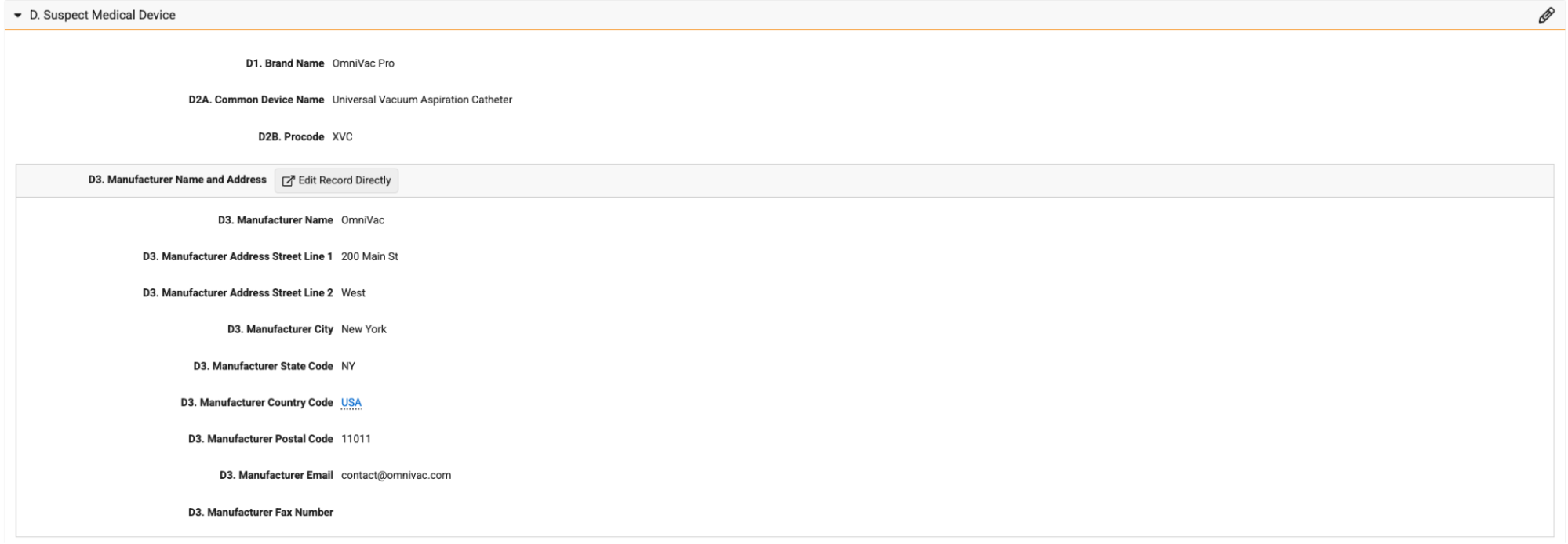
Changes made here are reflected back to the source data.
Should you need to edit the record directly via Vault’s native record editing interface, the section itself provides a link to take you to the source data record.
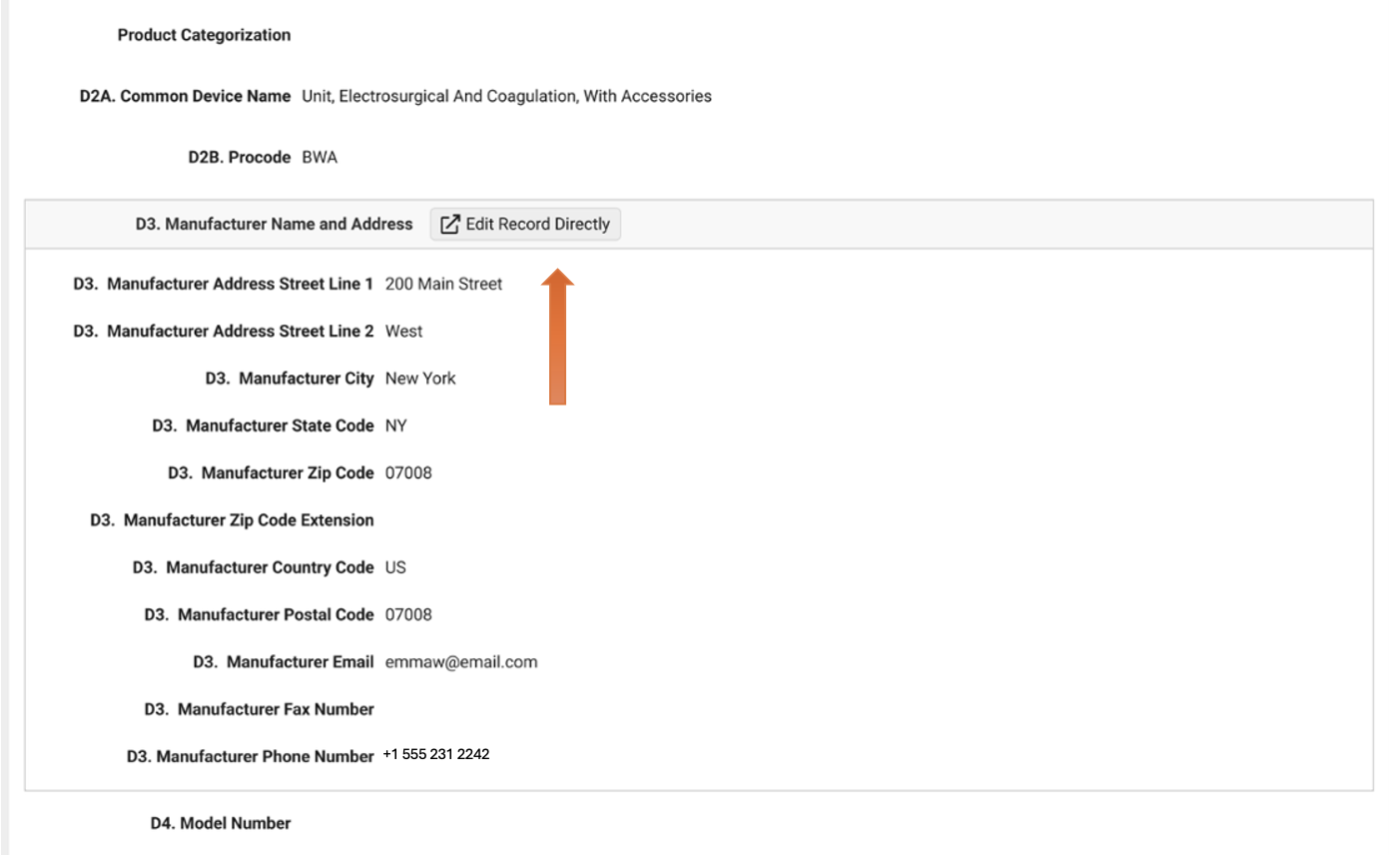
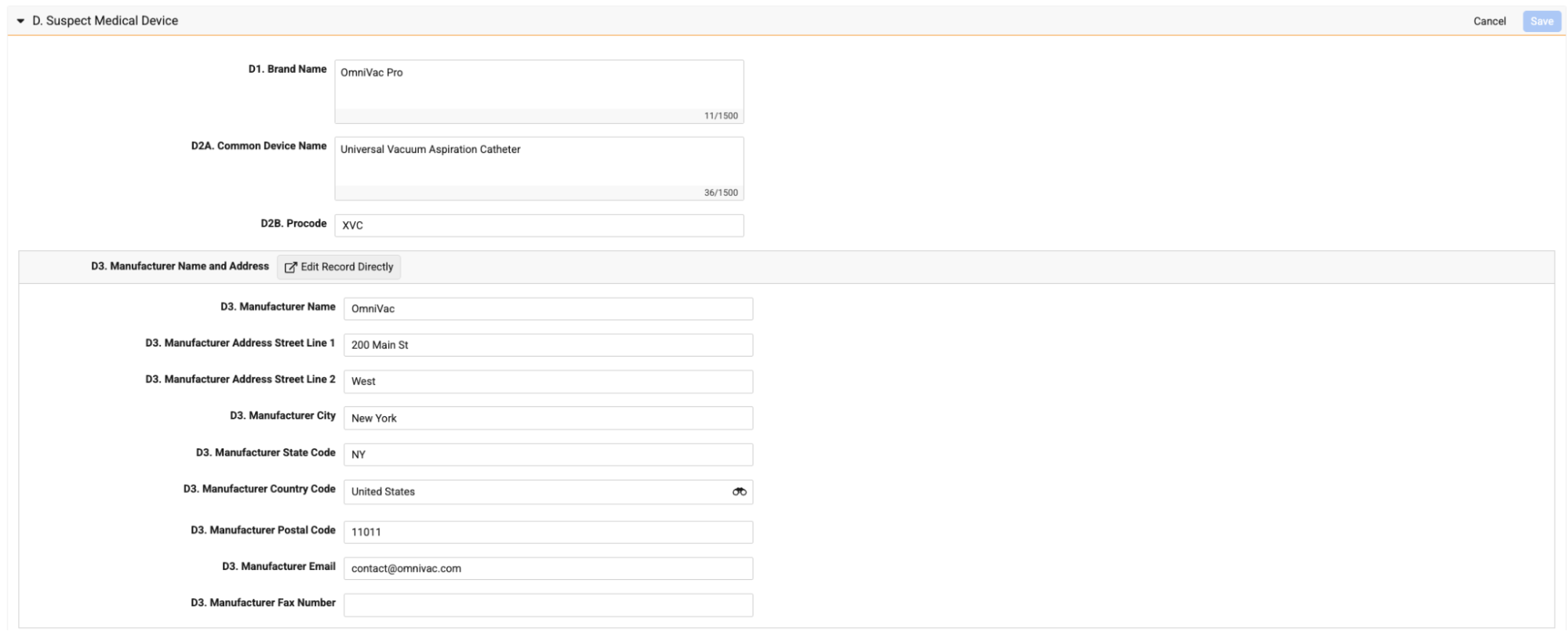
Once enabled, this feature allows users to edit fields on smart contact blocks (on adverse event report) in-line improving the data entry efficiency.
VPS: Remove Support for MedTech Complaint Details ObjectAuto-on26R2.3
This feature removes all data mappings associated with the MedTech Complaint Details (mt_complaint_details__v) object. All new Adverse Event Report records will not use this object in form generation. Previously submitted Adverse Event Reports (PDF and XML) are not impacted.
HACCP
Note: To discuss if Veeva HACCP is right for your business needs, contact your Veeva Representative.
Data Model Updates for Managing Upstream Hazard AnalysisAuto-on26R2.3
This release introduces the Subsequent Step/Group object and additional data model changes to support a feature that is not yet generally available. Customers should not use the new object until they have adopted the related feature. Contact your Veeva Representative for more information.
Learn more about HACCP.
QualityDocs
Process Navigator: Document Association TypesAuto-on26R2.2
Process Owners in Process Navigator have the ability to associate documents to a process manually, as well as the ability to define Document Association Criteria rules to automatically associate documents to the process.
This feature adds a dedicated Association Type column to clearly distinguish whether a document was linked manually or automatically (“Manual” vs. “Auto”) directly within the Process Navigator side panel and process detail page.
This feature also includes a convenient export action on both the landing page side panel and detail view, allowing Process Owners to quickly download a complete, unified list of all associated documents—along with their association methods—to a CSV file.
The Association Type column and Export action are visible and available to users with Edit permission on the Visual Hierarchy and Hierarchy Document Association Rule objects.
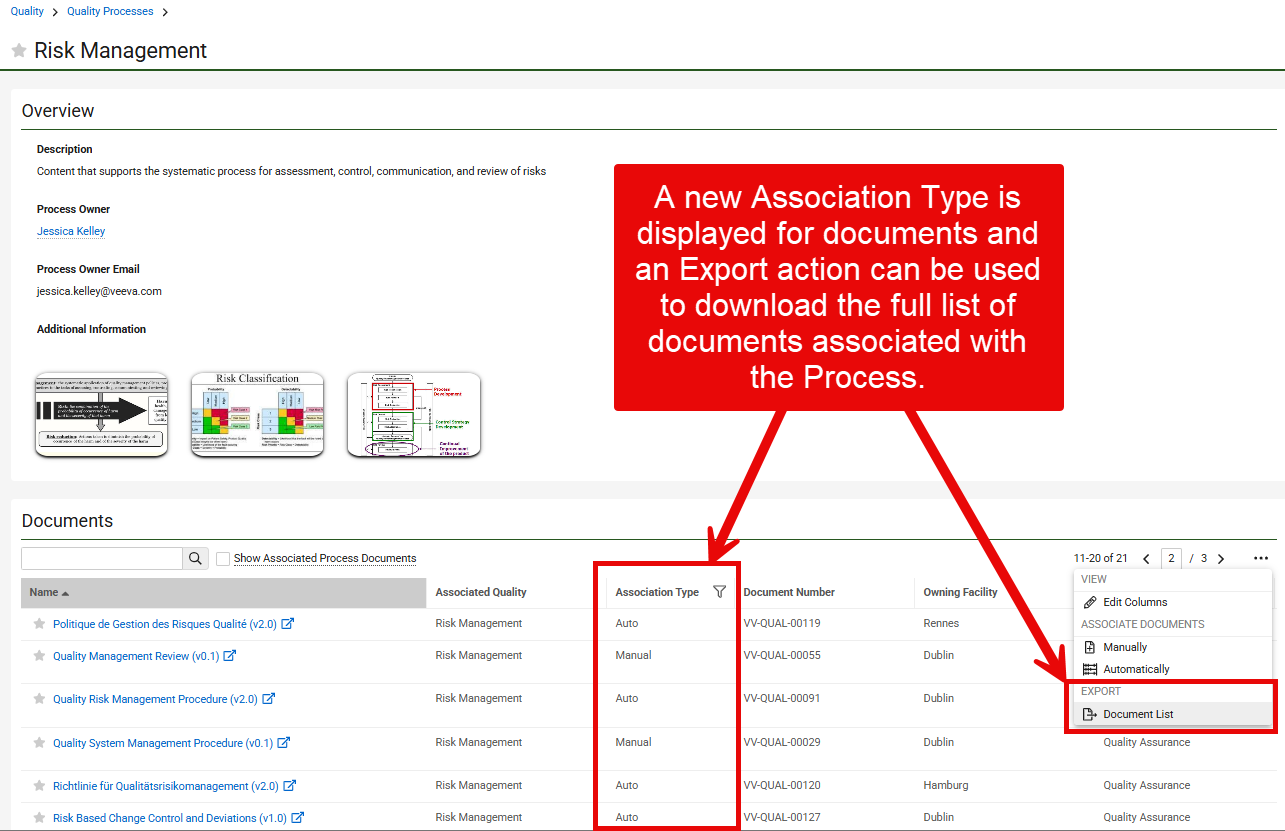
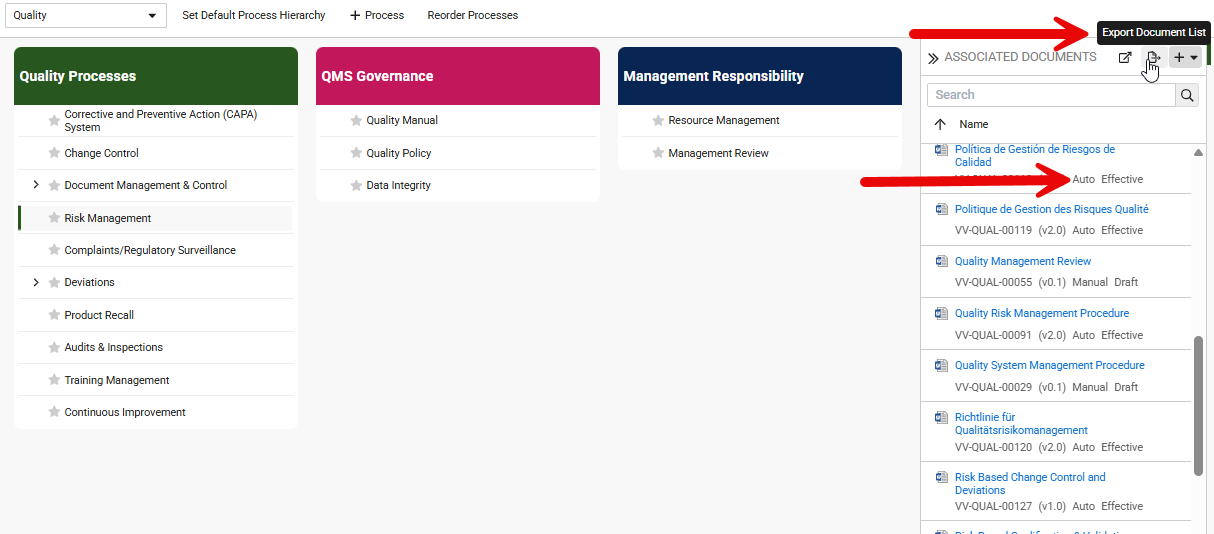
Periodic Review Enhancement: Additional Auto-Start Periodic Review Workflow CriteriaConfiguration26R2.2
This feature provides expanded criteria for automated Periodic Review workflows, providing Admins greater control over when reviews initiate.
When configuring the Start Periodic Review Workflow as an entry action on a Periodic Review Lifecycle state, Admins can now select Do not start Periodic Review if the latest version is in the following state(s) and choose specific document lifecycle states.
In previous releases, if enabled, automated periodic reviews were launched regardless of the state of the latest document version. With this enhancement, the system will not initiate a new periodic review if the latest document version is in an excluded state.
This setting is only available when the Do not start periodic review if a later document version exists setting is disabled.
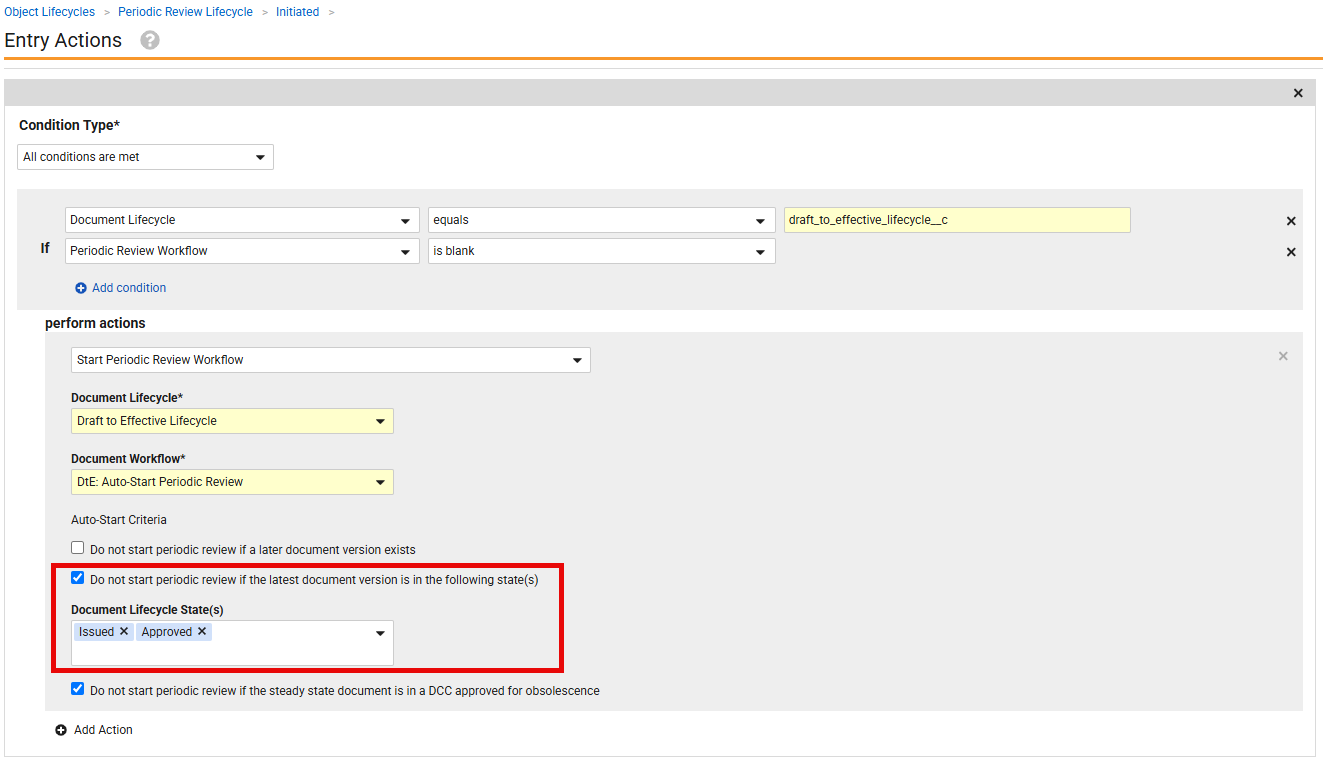
Create Copy from Master FormConfiguration26R2.3
Document consumers can quickly create executable copies of forms directly from the Actions menu on the Doc Info page of the Approved or Effective Master Form. Previously, Master Forms were most commonly managed using controlled document templates, which increased setup effort for both Admins and Owners of Master Forms, and risked exceeding platform template limits for larger organizations.
This enhancement streamlines the creation of executable forms. Consumers no longer have to identify the correct Master Form from a list of templates without being able to view the template’s thumbnail or content prior to selection. Rather, users can now search and locate all Master Forms in a single Library View or dedicated Library Tab. When the consumer performs the Execute Form action on the Master Form, Vault automatically creates a new executable copy of the master, copies required fields, and creates a system-managed relationship linking the new document to its source. Admins also benefit from simplified configuration within Vault application framework actions without reaching template limits.
The feature includes these key elements:
- Master Form Field: A standard Master Form field allows document owners to identify a document as a master form, which controls the visibility of the execution action.
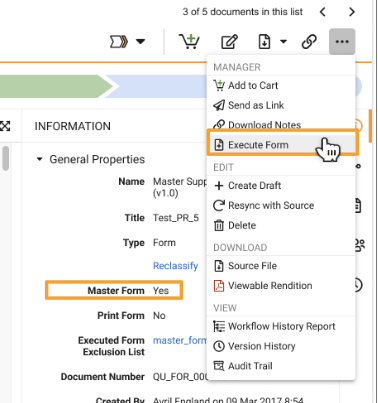
- Execute Form Action: The new Execute Form user action prompts the user for a new document name, creates the executed copy, and automatically redirects the user to the newly created document. The action configuration determines for which document types the action appears, the suffix to be appended to the executable copy, as well as the default lifecycle of the copy.
- Automatic Metadata Copying: The action automatically copies all required document field values from the master form to the executed copy, as well as any optional fields configured on the action by an Admin.
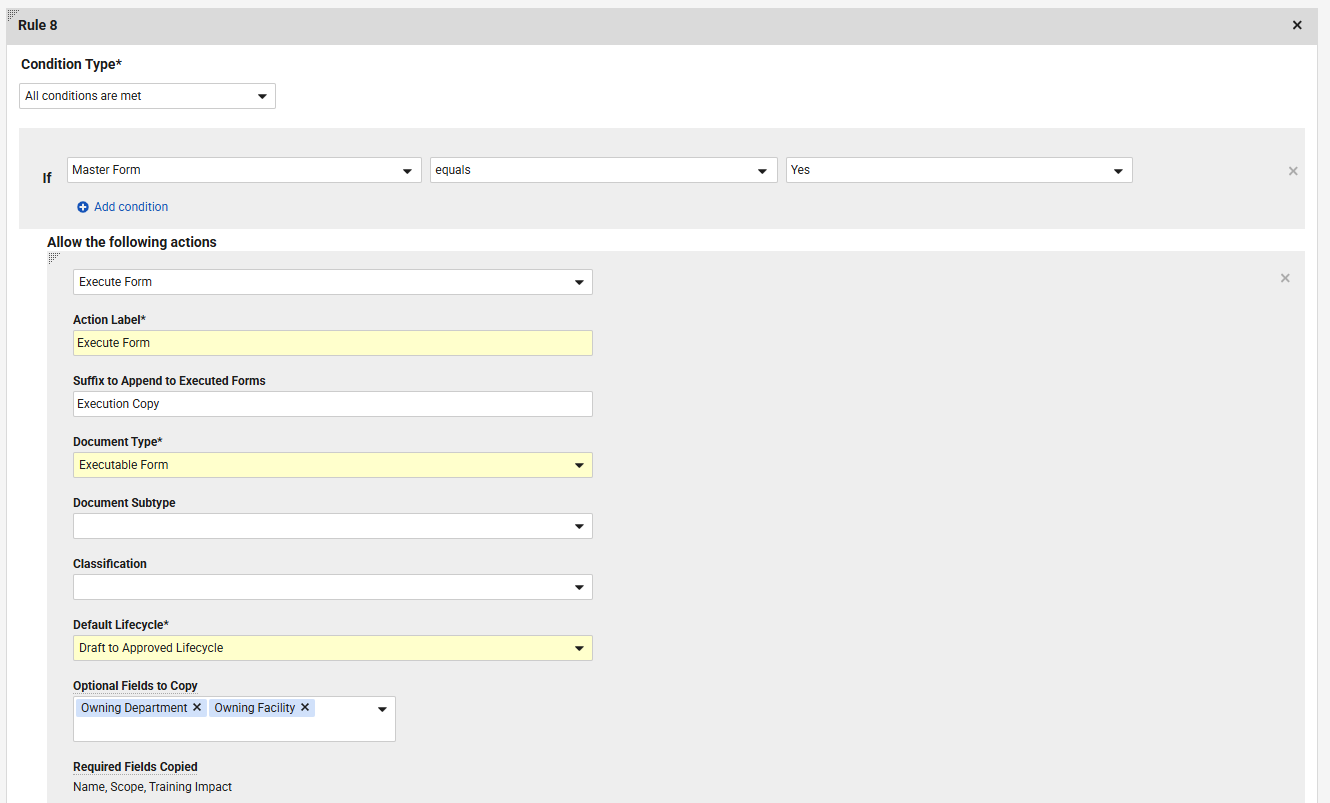
- System-Managed Relationship: Vault automatically links the executed copy back to the original master form using a new unidirectional Based on Master Form relationship type displayed on the executed document.
Learn more about master forms and executable copies.
Document Retention Management with Automated ArchivalConfiguration26R2.3
Vault now provides Document Retention Management with Automated Archival, a standard feature that automates the entire lifecycle of a document through to its final disposition. This feature provides the ability to establish organizational retention schedules, track upcoming retention end dates automatically, initiate multi-record retention review workflows, and archive approved documents in an automated manner.
In previous versions of Vault, moving documents to an archived state required manual, custom, and complex workarounds. This new feature automates the disposition process to help reduce manual administrative overhead, maintain compliance governance, and ensure a seamless final step for every document.
This feature benefits multiple organizational roles:
- Admins: Set up global or local retention policies easily using the new Quality Retention Schedule object.
- Document Owners & Document Control: Save time by bulk-assigning retention schedules to documents and launching retention start dates so that dates no longer have to be tracked in spreadsheets.
- Quality & Compliance Teams: Maintain continuous compliance through governed disposition workflows and automated safeguards that protect documents under active legal hold.
Apply this feature when setting up document lifecycle rules for regulated content that requires formal retention periods, periodic review before removal, and eventual disposition or archiving. It seamlessly integrates into your daily document lifecycle management once a document reaches its Effective state. Active retention schedules and period details can be viewed on a document’s Quality Relationships Panel.
This feature includes:
- Standardized Retention Schedules: Create reusable Quality Retention Schedule records to define retention periods in years so that you can enforce consistent policy compliance across your organization.
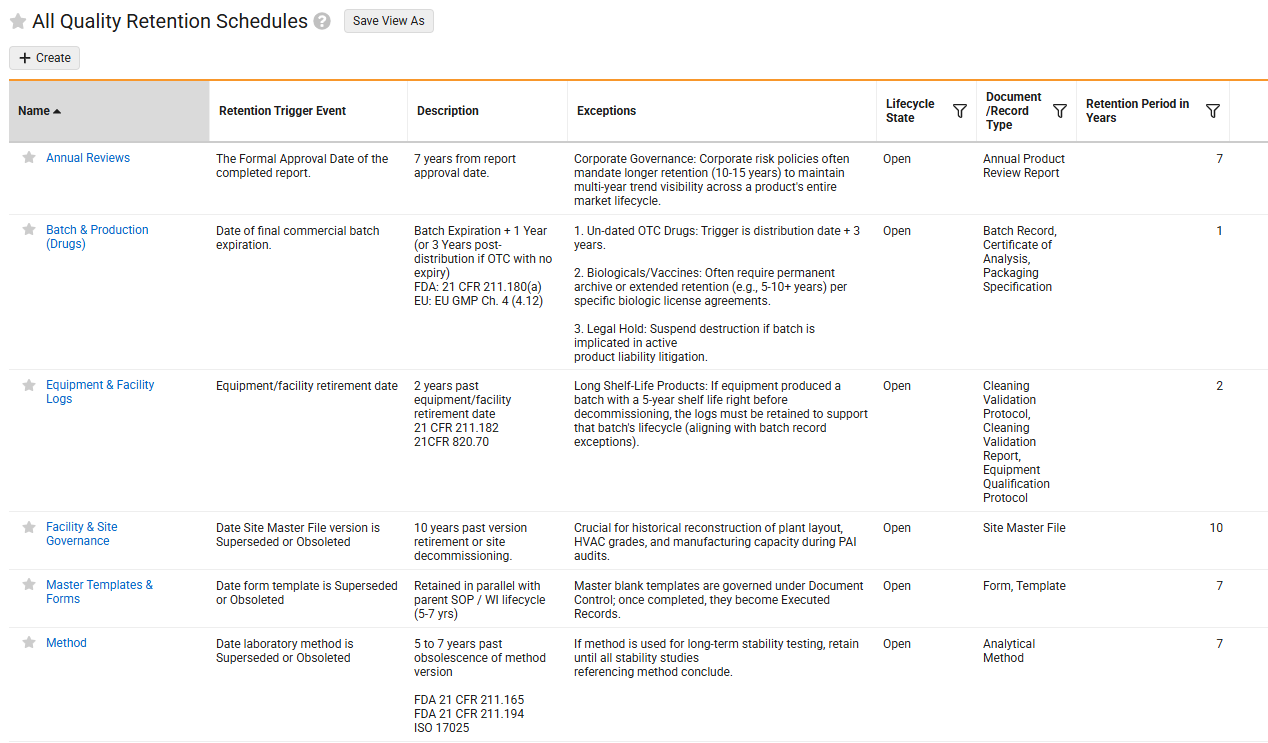
- Bulk Document Actions: Assign or remove retention schedules and update retention start dates across multiple documents simultaneously so that you save time during routine updates.
- Automatic End Date Calculation: Enter a retention start date, and Vault automatically calculates the retention end date based on your retention schedule so that you eliminate manual date calculations.
- Configurable Multi-Record Review Workflows: Run automated multi-record retention review workflows before archival so that stakeholders can approve archival or extend retention periods when necessary.
- Legal Hold Protection: Exclude documents with active legal holds automatically so that you avoid non-compliance and accidental document disposition.
Learn more about retaining and automatically archiving documents.
Prevent Draft Creation of Documents Targeted for ObsolescenceAuto-on26R2.3
Vault QualityDocs now prevents the creation of a new Draft version of any document currently targeted for obsolescence in a Document Change Control. Previously, a new Draft version could be created from an Effective document even while that same document was scheduled for retirement. This could cause duplicate work, process confusion, and conflicting document revisions.
When a major Effective document version has a populated Obsolete DCC field, Vault prevents the creation of a new Draft. Selecting the Create Draft action displays an error message.
The Create Draft action remains visible rather than hidden, so that users receive immediate feedback to guide compliant workflows while allowing Admins to track process effectiveness.
This restriction applies specifically to the Create Draft user action. Other document actions, such as Upload New Version, Check Out, and Check In, remain unaffected. This feature is automatically enabled in all QualityDocs Vaults and requires no Admin configuration.
Document Change Control Enhancement: Download as PDFAuto-on26R2.3
When a user performs the Download as PDF action on a Document Change Control, the following sections are now supported and, if applicable, are populated in the PDF:
- Change Authorization
- Docs to be Made Effective with Workflows
- Docs to be Made Obsolete with Workflows
- Document Change Requests
The Download as PDF action is disabled by default in Quality Vaults. Admins can enable this in Settings > General Settings > User Interface Options.
Document Change Request: State Transition EnhancementAuto-on26R2.2
When a Document Change Request (DCR) record is unlinked from a Document Change Control (DCC) record, either manually or automatically, Vault automatically transitions the DCR record to its initial state.
In previous releases, unlinking a DCR could leave the record in an unexpected lifecycle state. Now, Vault automatically moves the DCR record to the state defined in the Initial State (initial_state__sys) state type configuration on the Document Change Request Object Lifecycle. If no state is configured for the Initial State State Type, Vault transitions the record to the Open (open__v) state so that the DCR can be safely reevaluated or processed.
Process Navigator: Dynamic Association Rule Governance LimitAuto-on26R2.3
This feature limits the number of object reference values that can be selected in the Automatic Document Association Criteria across all the rules for a given Process Navigator Hierarchy to 200.
Station Manager
Support for Secondary URL
Station Manager now supports secondary URLs for iOS and Android devices. This feature allows an organization to update its Vault URL for business reasons while maintaining backwards compatibility with existing saved links and deep links.
When users access a Vault or open a saved deep link using a secondary URL, Station Manager automatically redirects them to the primary URL after they log in. REST API processes using a secondary URL operate normally without interruption.
Secondary URLs are temporary and typically expire after six months. To request a URL change for your Vault, submit a support ticket to Vault Product Operations.
Station Manager: Android 17 SupportAuto-on26R2.3
As of the 26R3 release, Veeva Station Manager for Android will support Android version 17.0. Veeva Station Manager for Android supports the latest Android version through two previous major versions, so with this release, versions 14.0 and earlier will no longer be supported.
Validation Management
Requirements Exports: Reference Table Formatted Output SupportConfiguration26R2.3
Validation Management now supports exporting Validation Requirements along with their associated reference tables using customer-defined Microsoft Word Formatted Output templates. This capability enables organizations to generate complete, audit-ready Validation Activity reports for offline review by inspectors and auditors.
Admins can embed a specific content generator instruction token into custom Word templates to dynamically pull and compile all in-scope requirements and reference tables for a Validation Activity. Admins can also control the export scope directly within the token parameter to dynamically filter between all requirements or approved-only requirements.
Test Authoring: Test Step TableAdmin Checkbox26R2.3
This feature allows authors to group repetitive verification tasks into a single, cohesive tabular view. By defining a common structure once—including instructional prompts, response types, and system settings—authors can rapidly generate a test step with tabular format.
This enhancement eliminates the need to manually build redundant individual steps, significantly reducing script maintenance time and aligning test design with physical resource layouts.
- Column Definitions: Define reusable columns for instructional prompts and response types, including Text, Number, Numeric Spec, and Date/Time.
- Acceptance Criteria: Configure fixed ranges, percentage ranges, or upper and lower limits for Numeric Spec Responses to store the validation logic required to assess pass/fail results during execution.
- Table-Wide Settings: Apply global configurations for system-provided columns, dictating whether attachments, comments, and verdicts are required, allowed, or disabled across all rows.
- Row Management: Add, move, or delete rows dynamically, and use the Apply Table Structure to Rows action to bulk-synchronize master column definitions to all child rows before actual execution.
This feature requires configuration and enablement. Prior to enabling the Test Step Table feature, you must enable the Enable Copy Enhancements for Activities and Protocols setting to support the deep copy feature.
Learn more about configuring Test Step Tables.
Test Execution: Test Step TableAdmin Checkbox26R2.3
This feature transforms the execution experience by presenting grouped steps in a consolidated grid, allowing executors to capture data efficiently without navigating through multiple individual cards. To support ALCOA+ principles and ensure data integrity, all cell values are saved automatically in real-time upon entry.
The system enforces compliance by requiring all mandatory cells within a row to be completed before a ‘Pass’ verdict can be recorded. Post-execution, reviewers and approvers can access dedicated read-only views to verify results.
- Inline Data Entry and Validation: Enter data efficiently using standard keyboard shortcuts, with out-of-spec numeric results automatically flagged with visual indicators based on the authored acceptance criteria.
- Row-Level Exceptions: Upload attachments, add comments, and link existing or create new discrepancies directly for individual rows within the table.
- Post-Approval Review Filters: Filter the Test Script in read-only review modes to display only steps and tables containing exceptions, such as discrepancies, failed steps, or revisions.
This feature is enabled concurrently with the Test Authoring: Test Step Table feature.
Learn more about configuring Test Step Tables.
Test Exports: Formatted Output SupportConfiguration26R2.3
This feature allows users to generate comprehensive test scripts and protocols using customer-defined Word Formatted Output templates. By inserting a specific content generator instruction token into a template, the system dynamically compiles and inserts the test content, including test steps, tables, and attachments.
This capability enables organizations to export complete test execution documents into a standardized format for offline review and regulatory compliance, ensuring validation processes remain fully reportable for auditors and inspectors.
- Dynamic Content Generation: Replaces the configured instruction token with dynamically compiled test step content for Test Script and Test Protocol records triggered via user actions, entry actions, or workflow job actions.
- Embedded Reference Instructions: Renders supported image-type reference instruction prompts (under ten MB) directly within the generated content. Non-image references must be accessed via Veeva Validation Management and downloaded separately as needed.
- Embedded Image Attachments: Embeds supported image-type attachments (under ten MB) directly into the formatted output for test step rows, while non-image files must be downloaded separately. To download all attachments in the test content, you can use the Generate Test Step and Discrepancy Attachment Zip user action.
- Supported Image Types: Limits embedded images to JPEG, PNG, GIF, BMP, and TIFF formats.
Test Step Tables: Row & Cell CommentingConfiguration26R2.3
With the release of the Test Step Tables features in 26R3, dry run and post-approval comment functionality has been extended to support test step tables. Users can add comments for a table row or individual cell within a step table.
Tests: Rich Text Test Step FieldsAuto-on26R2.3
Authors and Executors can now utilize rich text formatting directly within standard step fields. This enhancement enables teams to organize, emphasize, and structure test details with greater visual clarity during authoring, execution, and review.
- Automatic Field Conversion: Standard step fields are automatically updated from long text to rich text across application pages.
- Data Preservation: All existing step data created prior to this update is fully maintained.
- Formatted Output Exports: Exported test documents and PDFs dynamically incorporate rich text formatting for offline review and regulatory compliance.
Study Training, Training
These Training features additionally apply to Study Training, except where noted. See also Clinical Operations: Study Training.
My Team Page: Manage Learner TrainingAuto-on26R2.3
Managers can now view training completions of their Direct Reports on the My Teams page using an interactive completion matrix visualization. This enhancement presents a visual matrix so that Managers can instantly evaluate team qualifications and maintain operational readiness.
Previously, Managers accessed the Learner Comparison action, primarily to initiate Training Change Requests. Now, the action opens directly to a visual matrix landing page, helping Managers quickly identify qualified personnel for immediate operational assignments, or nudge Learners who are close to completing their required training.
- Visualization is automatically available on the My Team page when you select the Learner Comparison action.
- Visual Completion Matrix displays direct reports along the top row and Curricula grouped by Learner Role along the side panel, using visual percentage indicators (Harvey balls) to represent progress from 0% to 100% completion.
- The interactive legend and quick filters enable you to click completion icons in the legend, or use custom drop-down controls to filter direct reports and Curricula to locate specific Learners.
- Nudge allows Managers to send a pre-populated email and Vault notification directly to individual Learners, or to entire Curriculum groups directly from the grid.
- Managers retain full access to existing Training Change Request capabilities through a dedicated tab within the same view.
- Display limits for both the Training Change Request and Curriculum Completion pages are up to 50 Learners and 100 Curricula.
Training Assignments: Identify Most Recently Completed AssignmentAuto-on26R2.3
Vault now automatically tags the latest assigned Training Assignment and latest steady-state Training Content Set for each Learner (Person) and Training Requirement combination.
This feature primarily benefits Training Administrators and Reporting Users by streamlining reporting. Previously, Vault reports displayed all historical Training Assignments for a requirement, making it difficult to filter out older document versions or obsolete completions. Vault now tracks these current states automatically so that administrators can quickly filter and pull reports without manual data cleanup.
You will see the benefits of this enhancement directly within Vault reports and Training Assignment record layouts. Vault updates these fields in real time whenever training is assigned, imported, deleted, or when document lifecycle states change.
- Vault automatically tags the newest system-assigned Training Assignment as the latest record while clearing the tag from previous assignments for that Learner and Training Requirement combination.
- Vault automatically marks a Training Content Set as the latest steady-state set once all of its included documents reach an effective state.
- Importing assignments, updating assignment dates, or power-deleting a Training Assignment prompts Vault to automatically recalculate and reassign the latest status tag.
- When a document transitions to Obsolete or Superseded, Vault automatically clears the steady-state tag from associated content sets to maintain report accuracy.
Training Assignments: Document Revision Due Date for Initial AssignmentConfiguration26R2.3
Training automation now allows system-generated initial Training Assignments to use the related document’s Document Revision Due Date as the assignment’s due date.
Training Admins can now align initial assignment timelines directly with upcoming document releases so that your organization maintains compliance readiness on day one without requiring manual due date adjustments.
- Training Admins can set the Prioritize Document Revision Due Date field on Training Requirements so that initial matrix assignments automatically use the document’s Proposed Effective Date if it is set on the Doc Revision Due Date Field.
- When the Doc Revision Due Date is in the past or left blank, Vault automatically falls back to standard Duration or Initial Duration rules.
Curriculum Periodic ReviewConfiguration26R2.3
Veeva Training now features an automated Curriculum Periodic Review process so that you can systematically review training matrix items, eliminate redundant training, and maintain compliance without relying on manual tracking.
Previously, reviewing curricula required manual record creation or custom configurations. With this enhancement, Vault automatically tracks schedules and generates tasks for assigned reviewers. Both Curriculum Owners and Training Administrators benefit from streamlined workflows: reviewers receive bundled tasks, while administrators gain visibility into review outcomes and the ability to initiate off-cycle reviews whenever updates occur.
- A background job automatically identifies upcoming reviews and creates review records when a Curriculum reaches its start date, automatically updating the next review date once complete.
- Vault automatically combines multiple curriculum reviews assigned to the same user into a single multi-record workflow task so that reviewers can evaluate up to 100 Curricula in one place. Each Curriculum still has its own verdict.
- Reviewers can inspect related Training Requirements and Learner Roles.
- Setting a verdict to retire a Curriculum or creating a Matrix Change Item automatically generates and links a Training Change Request to manage downstream changes.
- Training Administrators can launch off-cycle Periodic Reviews at any time directly from a Curriculum record using a dedicated action.
Quiz Time LimitConfiguration26R2.3
Training Admins and quiz designers can now set maximum time limits on quiz checklists so that your organization can evaluate Learner proficiency under timed conditions.
Previously, Learners could spend an unlimited amount of time answering quiz questions. Admins can now specify a time limit duration (in minutes) on quiz designs and define how Vault evaluates quizzes if time expires before a Learner answers all questions.
When Learners open a timed training assignment, Vault displays a banner and a confirmation pop-up stating their exact end-time before they begin the attempt. Once time runs out, Vault automatically stops accepting responses, submits the quiz, and evaluates the final result based on the configured timeout rules.
- Set a time limit on quiz checklist designs to enforce dedicated completion windows for assessments.
- Select whether an incomplete quiz triggers an automatic failure or calculates a score based on the percentage of correct answers submitted before the time expired.
- Inform Learners that a quiz is timed directly on the task page and display their calculated completion deadline in a confirmation window before they launch the quiz.
- Automatically redirect Learners to the results page and block late answer submissions as soon as the timer reaches its limit.
My Team Page: Training DesigneeConfiguration26R2.3
Managers can now assign Training Designees on the My Team tab to share team training management responsibilities, while Administrators benefit from automated user role assignments that eliminate manual permission updates.
Previously, Managers were required to oversee all team training metrics individually, and Administrators manually updated roles for team access. With this enhancement, Managers can delegate training oversight directly within Vault, while Vault automatically handles the underlying security permissions so that your organization spends less time on manual administrative setup. This is done by assigning a User Role to a manager and a User Role to a person who is a training designee. Both Managers and Administrators see immediate benefits on the My Team page through simplified navigation and reduced maintenance effort.
- Managers can assign up to five users below them in their own organizational hierarchy as Training Designees to view and manage team training details.
- Vault automatically assigns or revokes the designated Manager or Training Designee application roles and permissions whenever Manager assignments or designee statuses change.
- Assigned Training Designees automatically receive an email notification containing direct links to the My Team page so that they can immediately access their assigned team.
- UI Updates: Vault now permanently displays the My Team page in Organizational View, removing the team-only toggle so that Managers and designees can seamlessly navigate hierarchy levels and view training status across the entire organization.
- Training Designees cannot assign other designees, and dueness filters are hidden on the Training Designee tab so that designees see clear, unfiltered team lists.
My Team Page: Nudge Accuracy ImprovementsAuto-on26R2.3
Veeva Training now features enhanced Nudge user interface workflows that give you full visibility into recipient lists before sending notifications.
This feature benefits Managers and Training Administrators by eliminating guesswork around notification delivery, allowing you to review Learner and Manager details so that you can communicate without sending unnecessary or inaccurate messages.
Previously, nudge dialogs displayed simplified user counts without clearly distinguishing whether listed individuals had active user accounts. With this update, Vault performs a real-time lookup and presents detailed preview tables before you confirm delivery. You will see these benefits directly within the Nudge Learners dialog whenever you nudge users regarding overdue or assigned training.
- Headers now dynamically display applied filter criteria, such as Nudging Learners with Overdue Training, to clearly show your targeting context.
- Confirmation screens display searchable tables listing exact learner and manager names, email addresses, and the message content to be delivered.
- A loading indicator updates you while Vault verifies active user accounts, adjusting counts to state “Up to X learners will be notified” for total accuracy.
- Vault automatically hides irrelevant zero-count statements (such as “0 managers will be notified”) and provides alerts upon successful or failed delivery.
Training & Study Training EnhancementsAuto-on26R2.3
Attempting to Self-Enroll While Already Enrolled
When a Learner accessing a self-enrollment link is already self-enrolled in the class, the link now redirects them to the Training Assignment task page.
Training Change Request Learner License
Quality Training users assigned a Learner license can create Training Change Request and Matrix Change Item object records.
Training Change Request is supported for Quality Training only. Training Change Request does not apply to Study Training.
LIMS
Update Reduced Testing Spec Data Builder Label to Testing StrategyAuto-on26R2.4
In this release, we have updated the Reduced Testing label in our Spec Data Builder to Testing Strategies. This label change better reflects the capabilities of the feature, which supports, but is not limited to, Reduced Testing strategies.
Stability Builder: Enhanced Copy CapabilitiesAuto-on26R2.4
With this feature, when using the Copy functionality for a given source Timepoint in Stability Builder, a user can specify which tests to copy to a target Timepoint’s condition. Previously, all tests were copied to the target Timepoint.
Multiple Input Families: Test Set Result RestrictionAuto-on26R2.4
This feature limits the number of Integrations that can apply to a Test Set Result to one.
Design Data Portability: Single Design DataConfiguration26R2.3
This feature introduces a new UI that provides a streamlined, Vault2Vault way for moving a design data record from one Vault to another. Rather than exporting and importing zip files, a Vault Connection handles the transfer. Admins can define target Vaults a source Vault can deploy to and who can perform a deployment.
Design Data Management: Change RequestsConfiguration26R2.3
This feature introduces a series of capabilities that track the end to end process for managing requests to change design data or setup data.
Business users can now initiate a change request, suggesting changes to design or setup data in a visual manner. Reviewers can review the change request and either accept or reject the proposed suggestion.
Design Data Management: LOD, LOQ, & ULOQ Calculated Value Is EditableConfiguration26R2.3
This feature updates the picklist value status for LOD, LOQ, and ULOQ Calculated Values to be editable and allows individual picklist values to be inactivated if not applicable.
Test Definition Builder: Dry RunConfiguration26R2.3
This feature enhances Test Definition Preview by making it fully interactive, allowing Design Data Admins to verify the accuracy of a Test Definition, including complex calculations and dependencies, by entering simulated results without the need to generate Runtime data, sandboxing, or performing deployments.
Calculations: Optional VariablesAuto-on26R2.3
This feature enhances Test Definition Result Variables, allowing for optional and blank values to be used within calculations. If a variable is optional, the system will allow the target result’s value to be blank in the context of the calculation. Existing variables will act as required until either up-versioned or updated in the Test Definition Result.
Calculation: Format Numeric Results as TextAuto-on26R2.3
This feature enables dynamic formatting rules for numeric Results, allowing users to display them as custom text (for example, displaying a numeric result of 0 as No Growth) without changing the underlying numeric data.
Calculations: Result Field SupportAuto-on26R2.3
This feature introduces new suffix syntax to calculations, enabling variables to reference additional target result information. Variables can now dynamically reference the LOD, LOQ, and ULOQ values defined in a Test Definition Result, reducing the frequency of Test Definition revisions due to changes in static values. Suffix syntax can be found in a new drop-down tab for all LIMS calculation formulas.
Calculations: New Array FunctionsAuto-on26R2.3
This feature introduces new calculation functions that can process one or more number arrays as inputs. The new functions being introduced are the follows:
- Slope: Determines the slope of two arrays.
- YIntercept (Y-Intercept): Determines where two sets of data cross the y-axis when graphed.
- RSD (Relative Standard Deviation): Calculates the Relative Standard Deviation or Coefficient of Variation.
- Correlation: Measures the linear relationship (strength and direction) of two sets of data. Returns a value between -1 and 1 where 1 = Strong Positive.
- RSQ (R-Squared): Equivalent to the correlation result squared.
Ad Hoc Criteria: Aggregate SupportAuto-on26R2.3
This feature expands Ad-Hoc Criteria capability to support Sample-level aggregate Results (for example, averages or min/max across Tests in a Sample). Users can now define runtime criteria limits on sample-level Results without modifying master specifications.
Stability Study Report: Lifecycle State Filter EnhancementConfiguration26R2.3
This feature enables filtering report results by Spec Execution Lifecycle State. It also simplifies generated document names to use Study and Timepoint names rather than IDs.
Test Execution: Clickable Sample Name & Display UpdateAuto-on26R2.3
This feature allows users to click a Lab Sample name (name__v) in Test Execution to open the Sample Details screen and view details about the Lab Sample.
Test Execution: Input Sort OrderAuto-on26R2.3
The sorting logic for Inputs has been updated for better consistency with the associated Test Definition. The sorting order (according to the Test Definition Input) is as follows:
- Order
- Test Definition Input Name
- Input Definition ID
- Input ID
Preview No Longer Shows When Opening a Test DefinitionAuto-on26R2.3
As part of the Test Definition Dry Run feature, users must now click Preview Design to enter the preview mode.
Multiple Input FamiliesAdmin Checkbox26R2.3
The feature enhances Test Definition Inputs by allowing multiple Asset and Lab Consumable Families to be selected for a single Input. Inputs that contain multiple families will show a combined list of available Assets and Consumables during test execution, reducing the complexity of Input configuration when managing overlap between Asset and Lab Consumable Families. This feature can be enabled by Veeva, and may require updates to existing permissions.
Stability Date Time Field Values Can Be UpdatedAuto-on26R2.3
Users with edit permission can now edit the Earliest Pull and Latest Pull date/time field values on Study Timepoint and Lab Sample records.
Test Definition Builder: View Result Details When Test Definition Is LockedAuto-on26R2.3
When a Test Definition is locked, users can view details about configuration for its associated Results, such as LOD, LOQ, and Calculation Formula.
Stability Builder: Sample Plan & Spec Data Naming Convention UpdateAuto-on26R2.3
Stability Study Builder now uses the Stability Study’s name value as the name for Sample Plans and Spec Data that are auto-created from the Generate Lab Study action if Copy… is set to Yes.
Test Definition Builder: Max Allowed Results Is Now 1000Auto-on26R2.3
The maximum number of Results that can be created from Test Definition Builder is now 1000.
Test Definition Result: Future Support for Min & Max Value FieldsAuto-on26R2.3
Min and Max Value fields are now available on Test Definition Results and Test Definition Variation Results. These fields will be used for a feature in a future release.
Clear Stability Builder-Related Fields on Design Data Portability ExportAuto-on26R2.3
When a Stability Sample Plan and Spec Data is exported using the design data portability feature, the study__v, and study_design__v fields are not included in the export data set.
Retains Testing: Make Next Retain Pull Date OptionalAuto-on26R2.3
The Next Retain Pull Date field is now optional to accommodate unscheduled pulls where there is not always a schedule to follow for a future pull.
Print Label Action: Show User Input & Update Spark MessageAuto-on26R2.2
This feature enhances the Print Label action by showing the user a configurable form where they can enter additional information such as selecting a Print or entering a Reason. Additionally, each Print Label action now creates a Print Label Request record whose record ID is included in the spark message. Each Request record contains a reference to the source record where the Print Label action was performed, allowing for specific use cases such as tracking success or errors.
Exception Sections: Count of Exceptions DisplayedAuto-on26R2.2
The Exception Summary section now includes a count of exceptions, allowing users to quickly identify whether a given Sample, Test, or Spec Execution has exceptions.
Asset & Consumable Spec StandardizationConfiguration26R2.2
This feature introduces standard object types for Assets and Consumables across Spec Data, Spec Executions, and Lab Samples. Users can now use the Spec Data Builder UI to configure specifications for Assets and Consumables and automatically generate dedicated Asset and Consumable Lab Samples at runtime.
Stability Pull: Hour & Minute Pull Window SupportConfiguration26R2.2
Stability Pull now supports pulls at the Hour or Minute mark.
Generate Document from Record: Workflow Job StepConfiguration26R2.2
This feature makes it possible to generate a document for an object record through a workflow job step. The workflow waits until the processing of the document is complete, allowing for Admins to manage failures in job creation directly within a workflow.
Retains Testing: Support Ad-Hoc CriteriaConfiguration26R2.2
This feature allows Ad-hoc Criteria to be created from a Retains Testing Spec Execution record, which provides more flexibility when performing unscheduled testing.
Test Definition Builder: Add Hover Text for Fields in Variable ViewAuto-on26R2.2
In the Test Definition Builder, when viewing Variables, hovering over the value for Variable Type, Target Test Definition, Target, or Name shows the full value text.
Lab Study: Batch Cannot Be Updated if Timepoint Is InitiatedAuto-on26R2.2
On the Lab Study object, users can no longer update the Batch if at least one Spec Execution is initiated.
Trace ID Is Now a Required Field on All Design Data RecordsAuto-on26R2.2
Trace ID is now a required field on objects. Previously, it was not required, but always populated by code.
Label Definition Criteria VQL Is EditableAuto-on26R2.2
The Label Definition field on Print Label User Input’s VQL criteria can be edited to include or exclude certain Label Definitions.
Stability Report: Configurable Timepoints per TableConfiguration26R2.2
This feature adds a new configurable input parameter to Report actions, allowing users to set a maximum number of Timepoints per table in the generated stability study report.
Prevent Test Definitions from Referencing Unusable ConstantsAuto-on26R2.2
This feature adds version verification checks to ensure that a Test Definition does not mistakenly reference an unusable constant as a variable.
SRE Tests Begin AsynchronouslyAuto-on26R2.2
This feature updates how Sample Result Entry Tests are started. Moving forward, the system updates the states of the Tests asynchronously, meaning that they move from the Not Started state to the In Progress state in the background without blocking the user from progressing to entering results. This is more consistent with the behavior of non-SRE Test Execution Tests and improves the performance and wait times to start SRE with a high number of Samples and Tests.
Stability Builder: Set Study or Study Design on Sample PlanAuto-on26R2.2
This feature adds Study and Study Design fields to the Sample Plan object.
Regulatory
RIM Submissions
Document TranslationConfiguration26R2.3
What’s New?
Vault RIM now supports core Vault Document Translation, allowing users to translate PDF, Word (DOCX), and PowerPoint (PPTX) files directly within Vault while preserving original layout and formatting.
Refer to the Document Translation platform release note for full details on core translation functionality, provider connections (DeepL and Google Cloud Translate) and notes on setup.
RIM-specific requirements
General Vault Platform configurations allow Admins to customize the default document relationship type. However, by default, Vault RIM enforces the standard translation__v relationship.
Key Benefits
- Application Consistency & Downstream Compatibility: Leverages the standard RIM relationship (
translation__v) to ensure data integrity across regulatory processes and guarantee seamless integration with core RIM features such as Active Dossier. - Automated Traceability: Automatically links generated translations to the original source document using the standard
translation__vrelationship, eliminating manual linking steps.
Additional Considerations
- Enablement Setting: To support Document Translation in RIM and display the standard Translation panel across document pages in RIM (
translation__v), Admins must verify that the Activate the standard Translation Relationship checkbox is selected under Admin > Settings > Application Settings > RIM Settings. - Recommended metadata assignment: Once the translated document is generated, ensure the
language_for_submission__vfield is accurately populated with the language of the translation. This will ensure Active Dossier accurately populates the Translated Document field on Active Dossier records.
RIM Submissions Archive
Folder Path View for Single Submission ViewingAuto-on26R2.3
A new Folder Path view is now available in Submissions Archive Viewer. Folder Path view displays folder paths and files in a similar view as seen on desktop file explorers. Folders and files are labeled with the exact folder output names and file names that appear in an exported submission folder structure (based on the Source File Path).
What’s New
When an Application has been filtered to only display a single submission, or Submissions Archive Viewer is launched from a Submission record, users have the option to display Folder Path view. The Folder Path action can be executed from the submission root level, or from any section level action within the submission.
The Folder Path user action launches single submissions in a new mini-browser which surfaces the names of the published output folders as-is, rather than stylized section names or document titles. Users can expand/collapse the mini-browser submission at the root or individual section levels. Clicking on a document from within Folder Path view will open a separate mini-browser window to view the document. Folder Path can be used for imported or Veeva-published submissions, and works for all dossier formats.
Key Benefits
Folder View allows Viewer users to examine the published output folder structure and individual file placement, without having to first export the submission contents. This provides efficiency and continuity, particularly for users of Veeva Submissions Publishing who regularly view and QC the folder structure.
In particular, Folder View will benefit non-eCTD submissions viewers, as these submissions do not contain stylized XMLs that display names and titles beyond what the folder structure actually contains. Folder View allows for viewing non-eCTD submissions exactly as Health Authorities do, with no additional exporting or importing actions required.
Additional Considerations
- Folder View is only available for single submissions. Viewing at the application level, or with more than one Submission record selected will not present the Folder View user action.
- Folder View is specifically designed for review of the published or imported folder structure and file names. Viewing of documents will occur in a separate mini-browser window. All other Submissions Archive actions, such as viewing the source file, accessing document and section historical lifecycles, viewing leaf properties, and embedded document viewing must be completed in standard viewing mode.
United States eCTD 4.0 Archive & Viewing: Grouped SubmissionsAuto-on26R2.3
Submissions Archive now supports importing, viewing, and exporting of US eCTD 4.0 Grouped Submissions. Submissions Archive Viewer supports submissions published with Veeva Submissions Publishing, or imported submissions generated per the US Module Implementation Guide, versions 1.7, 1.8, and 1.9.
With this release, importing of eCTD 4.0 US Grouped Submissions may only be completed via the UI. Importing US 4.0 Grouped Submissions via API or File Staging Servers is not currently supported.
What’s New
Grouped Submission Import: To support a consistent import process between eCTD 3.2.2 and eCTD 4.0, a new import user interface (UI) is being introduced.
Upon initiating an import, users will be prompted to complete any mandatory fields, such as Dossier Format, Actual Submission Date, or Sequence ID. The Actual Submission Date applied to the Lead Submission is automatically applied to all the Related Submissions once the UI mapping is completed.
Upon initiating an import, the system will automatically detect grouped submissions based on the XML values. When grouped submissions are detected, the Import button will be changed to a Next button, and users will be directed to a new Grouped Submission Mapping screen. The Related Application and Related Submission record values will be auto-detected and populated, though users can override the suggested values.
Grouped Submission Export: Users can now initiate export from any Submission record included in the grouping. Previously, users could only initiate export from the Lead Submission, and would receive an error message when attempting export from any Related Submissions. Now, if the Export action is executed on a Related Submission, the system will allow the user to proceed and will retrieve and export the Lead Submission without additional user intervention.
Grouped Submission Removal: When users initiate the Remove action from a Lead Submission, a notification will appear listing the related grouped submissions, and alerting the user that only the Lead Submission will actually be removed. Removing any of the Related Submissions will not remove the Lead Submission, nor any of the sibling grouped submissions.
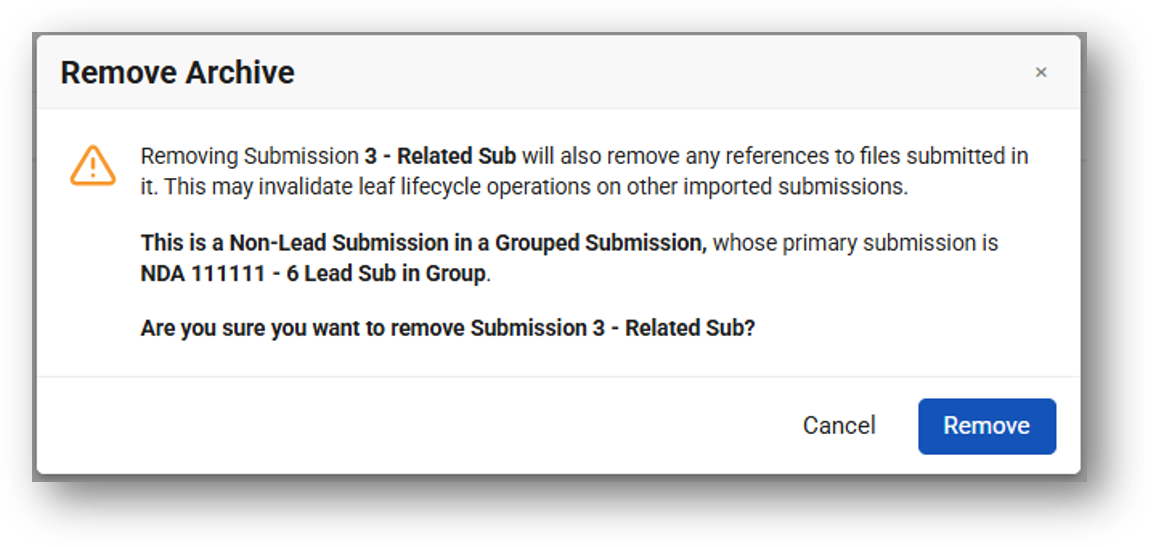
Grouped Submission Viewing: Whether Submissions Archive Viewer is displaying the Lead Submission or any of the group’s Related Submissions, the Lead Submission’s stylized Submission Unit XML will be displayed. Viewer dynamically repeats Application Information blocks for each application included in the group.
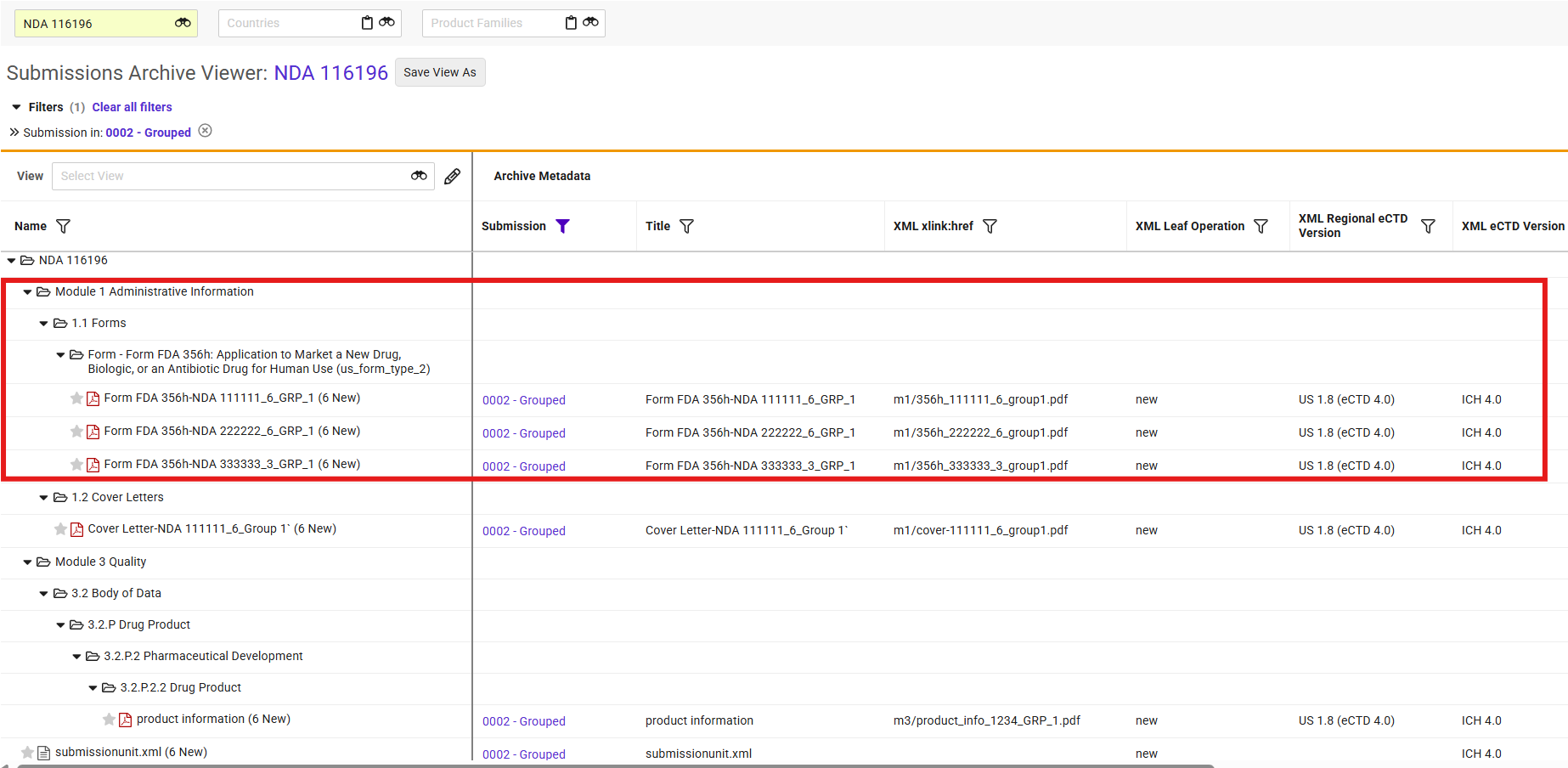
Key Benefits
This feature expands the capabilities of US FDA eCTD 4.0 viewing to include the common use case of Grouped Submissions, further closing the gap between eCTD 3.2.2 and 4.0 global support.
Additional Considerations
- The changes to Import, Export, Removal, and Viewing apply to both US eCTD 3.2.2 and 4.0 Grouped Submissions.
- Importing US Grouped Submissions may only be completed via the Import UI. No other Grouped Submission import methods are currently supported.
- Only a single submission from the group can be viewed at one time. Multiple applications may not be viewed in Submissions Archive Viewer at the same time. A single
submissionunit.xml(orindex.xmlfor 3.2.2) will be displayed. - Sender Keywords (
application_ectd_keywords__v) are created per Application Information block. - Contact information (
ectd_contact_information__v) is created only for the Lead Submission. - The Submission Contains Files field defaults to Yes and must be manually set to No on Related Submissions by customers.
European Union eCTD 4.0 Archive & Viewing (EU v1.2, 1.3 - CP)Auto-on26R2.3
What’s New?
- Centralised Procedure (CP) eCTD 4.0 Support: Enables import, viewing, and export of EU eCTD 4.0 CP submissions compliant with EU Module 1 Implementation Guide v1.2 in Submissions Archive.
Key Benefits
- Regulatory Compliance: Ensures organizations submitting to the European Medicines Agency (EMA) meet the ICH eCTD 4.0 standards and EU specifications.
- Extends eCTD 4.0 Forward Compatibility: Allows users to view the entire lifecycle of an EU application, combining historical eCTD 3.2 content with incoming 4.0 content, without breaking continuity.
Additional Considerations
- Out-of-Scope Procedures: Support for Mutual Recognition Procedures (MRP), Decentralised Procedures (DCP), National Procedures (NP), and EU Grouped Submissions (such as Worksharing) are explicitly excluded from this release.
- Enablement & Deployment: The feature is Auto-On across all Vaults supporting Submissions Archive.
Responsive Submissions Archive UIAuto-on26R2.3
What’s New
The Submissions Archive Viewer now features a dynamic layout that automatically adjusts to your browser window size. UI elements and buttons recalibrate in real-time to maintain full usability across various desktop scales, ensuring a functional and clear interface down to a minimum width of 640px.
Key Benefits
- Optimized Viewport Usability: Delivers a fully functional, clear, and unclipped interface across diverse desktop scales and window sizes down to 640px.
- Improved Context Retention: Standard horizontal grid scrolling remains functional while the Name column stays locked in position and always visible.
Edit Columns EnhancementsAuto-on26R2.2
The Edit Columns user experience in Submissions Archive Viewer now includes column groupings that align with the appearance of columns in the Viewer. Within the Select Columns to Display dialog, the Available Columns and Selected Columns modals include groupings for Archive Metadata, Submission, and Correspondence.
What’s New
When executing the Edit Columns action from Submissions Archive Viewer, users will see better alignment between the column selection modal and the appearance of columns in the Viewer. Previously, all available columns were selected from a single alpha-numeric list, even though the columns are arranged under separate groupings in the Viewer. With this new feature, the available columns are divided into their respective groups. Users can also arrange the order of column appearance within each group so the resulting Viewer appearance is accurately reflected in the column order.
Key Benefits
This feature aligns the column selection behavior of Submissions Archive Viewer with that of the Active Dossier and Content Plan Viewers. The new organization also improves the user experience of creating Saved Views and adding columns to the Viewer, improving its overall organization and usability.
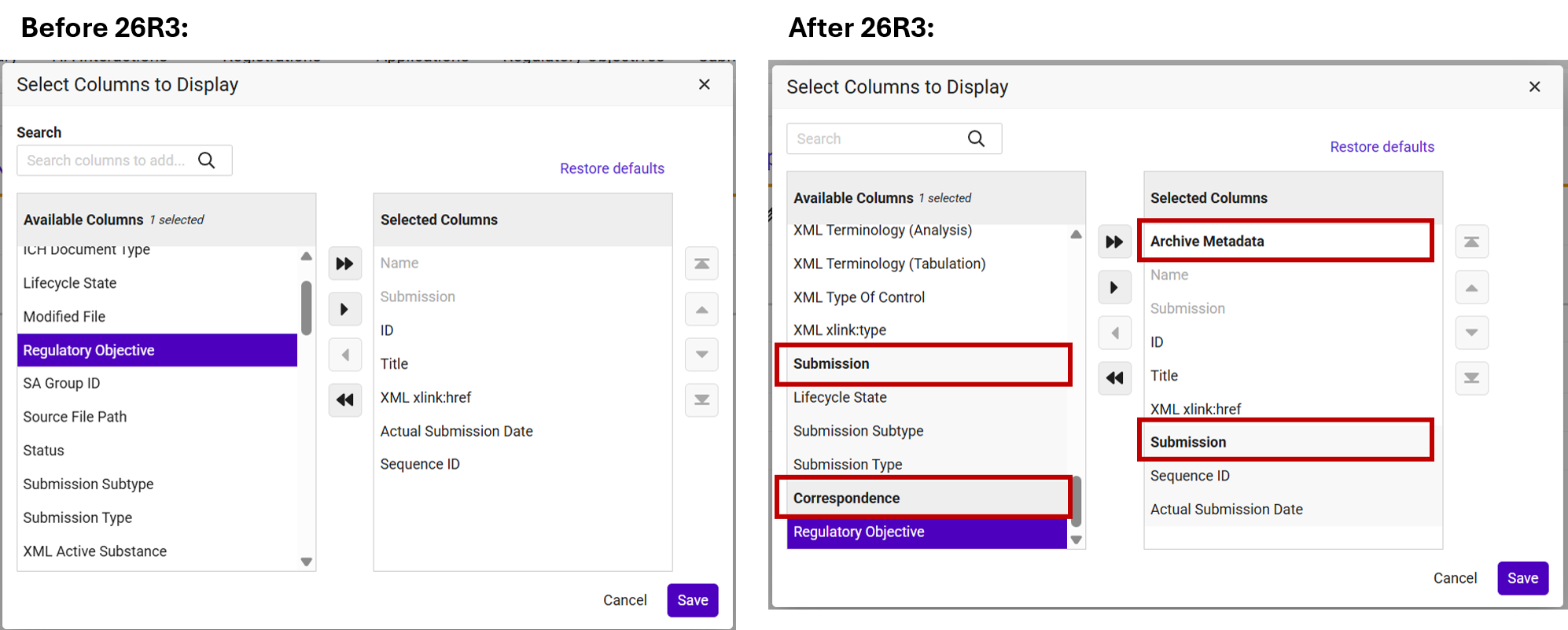
RIM Publishing
EMA Centralised Procedure eCTD 4.0 Publishing & Validation (EMA v1.3)Configuration26R2.3
What’s New
Veeva Submissions Publishing now supports the publishing and validation of European EMA eCTD 4.0 submissions following the Centralised Procedure (CP) pathway. This enhancement ensures Publishing customers can generate eCTD 4.0 submissions in compliance with the EMA’s v1.2 guidance. Customers can also validate published CP submissions per EMA validation criteria v1.1.
Key Benefits
This feature expands Veeva’s regulatory compliance as additional global markets begin accepting eCTD 4.0 submissions, particularly in the European Union.
Additional Considerations
EMA Centralised Procedure eCTD 4.0 publishing requires adoption of the previously released eCTD 4.0 Data Model and common elements. For EMA CP-specific eCTD 4.0 submissions, additional data model updates, data remediation, layouts, and additional configurations are required. To support enablement, a VPK package is available with the required Controlled Vocabularies, Constraints, EU m1 v1.2 Content Plan Template records, Validation Criteria v1.1 records, and additional configuration items.
This feature specifically supports the EU Centralised Procedure, other procedure types and grouped submissions are not supported with this release.
US eCTD 4.0 Grouped SubmissionsAuto-on26R2.3
What’s New?
Veeva Submissions Publishing now supports the publishing and validation of US FDA eCTD 4.0 Grouped Submissions. Publishers are able to publish and submit a single Submission Unit XML, belonging to multiple submissions and applications. New and updated validation rules specific to eCTD 4.0 Grouped Submissions will ensure compliant submissions.
Key Benefits
This feature expands the capabilities of US FDA eCTD 4.0 publishing to include the common use case of Grouped Submissions.
Additional Considerations
-
Grouped submissions published using eCTD 4.0 cannot include any Applications/Submissions still using eCTD 3.2.2.
-
The system will now automatically identify the Lead Submission because it contains files, and will no longer be dependent on the Submission Contains Files field. If a submission besides the Lead Submission contains files, it will fail validation.
-
All Keyword codes and values should be aligned across applications prior to or in the initial Submission Unit of the Grouped Submission.
-
Keyword Definitions should be established prior to or in the initial Submission Unit of the Grouped Submission.
-
Initial grouped submissions should only include new Context of Uses (CoU).
-
When using lifecycle operations of Suspend or Replace in a subsequent grouped submission, the lifecycle operation will apply to all CoU in all submissions referenced in the grouped set of applications.
The grouped submissions’ content must reside in the same location within the eCTD structure for all applications included in the group.
US eCTD 4.0: Implementation Guide v1.9 & Validation Criteria v1.6Configuration26R2.3
Veeva Submissions Publishing now supports US eCTD 4.0 Validation Criteria v1.6, in accordance with US FDA eCTD 4.0 Implementation Guide v1.9.
What’s New
The update includes Controlled Vocabularies, OIDs, as well as additional updates to the Validation Criteria:
- US Context of Use (CTD Heading): updated OID, Code Name ich_2 removed for record 79502d86-d600-4d32-b763-979a29aa3c23
- New Rule eCTD4-084: Message Header requires both valid ICH and Regional IG OID values
- New Rule eCTD4-085: When a Document element is submitted with updateMode=”R”, attribute-level updates to the document content cannot be performed concurrently
Key Benefits
The inclusion of these updates ensures that Submissions Publishing remains fully compliant with the latest regulatory standards for customers working with US eCTD 4.0 submissions.
Additional Considerations
Configuration of Validation Criteria and record updates can be provided to customers via VPK to aid in deployment, provided in the Veeva Product Support Portal.
Enhanced Validation ReportingAuto-on26R2.3
What’s New
The Veeva Help Text (veeva_help_text__v) field will be populated with instructions and troubleshooting tips to help the user resolve open validation results for the most common US eCTD 3.2 Validation Criteria errors. Currently, 96 rules will be populated with notes and suggestions provided by the Veeva Publishing team. The suggestions are specific to Veeva Submissions Publishing and follow Veeva best practices.
Key Benefits
End users will have access to Veeva expert advice for resolving open validation results at the result level, and without having to access training guides or additional outside materials. Unlike the Problem and Corrective Action fields that contain vague Health Authority-provided advice, the Veeva Help Text values specifically identify the Veeva RIM objects, fields, and user actions to address the issue.

Additional Considerations
Veeva Help Text (veeva_help_text__v) was included in the 26R2 Data Model Changes as part of Publishing Validation Results Help field. The field values will be automatically populated for any customer with the publishing validation criteria records and an active Veeva Help Text (veeva_help_text__v) field. Any custom values added to this field by the customer will be overwritten. Additional rules will be populated in upcoming releases.
US eCTD 3.2 Validation Version 4.6Configuration26R2.3
Veeva Submissions Publishing now supports US eCTD 3.2 Validation Criteria v4.6.
What’s New
The update includes Controlled Vocabularies and Constraints for US 4.6 Validation Criteria, as well as additional updates to the Validation Criteria. Updates to US eCTD 3.2 rules:
- Updated Rule 7: Adds fillable form validation for Form 2253 (CBER only)
Key Benefits
The inclusion of these updates ensures that Submissions Publishing remains fully compliant with the latest regulatory standards for customers working with US eCTD 3.2 submissions.
Additional Considerations
Configuration of Validation Criteria and record updates can be provided to customers via VPK to aid in deployment, provided in the Veeva Product Support Portal.
Japan eCTD 4.0 Application Folder Name Updates with Continuous PublishingAuto-on26R2.3
What’s New
Updates made to the Application Folder Name (folder_name__v) field on an existing Japan (JP) eCTD 4.0 Submission will now trigger Continuous Publishing to run. The Continuous Publishing job will update the root folder name without customers having to re-enable Continuous Publishing.
Key Benefits
This enhancement supports the use case of receiving the application number for eCTD 4.0 submissions after content planning and publishing is under way. Previously, customers had to re-enable Continuous Publishing, which republishes the entire submission from the root level, and can take significant time to complete for large submissions.
Continuous Publishing allows priority number overrides added by the customer to remain in place. Previously, these overrides were cleared when publishing was disabled then re-enabled.
Additional Considerations
- As Application Folder Name updates are completed on the Application record, Continuous Publishing will be triggered for all actively publishing submissions in the application (maximum of 10 submissions at a time).
- Customers who choose to run On-Demand publishing at the root level rather than re-enable Continuous Publishing will need to reorder their Content Plan Items via drag and drop to update priority numbers.
Notification for Gateway Certificate ExpirationAuto-on26R2.3
What’s New
To help proactively manage Gateway certificates, automated notifications to the Gateway User can now be configured when a certificate on a Gateway Profile is nearing its expiration date.
Using the Days Before Expiration Notification field, users can define the notification period triggered based on the Health Authority Certificate Expiration Date set on the Gateway Profile. Once the initial notification is triggered, Vault will automatically dispatch follow-up reminders every 5 days until the expiration date is reached or the certificate is updated.
Key Benefits
Admins can configure automated reminders and desired times to ensure certificate expiration can be addressed in advance of the actual expiration date. This allows publishing teams to proactively manage their certificates and avoid transmission delays due to expired certificates.
RIM Registrations
CH UDI Submission Generation for SwissdamedConfiguration26R2.3
Vault RIM Registrations now supports Unique Device Identification (UDI) device registrations for Switzerland’s swissdamed (Swiss Database on Medical Devices) system operated by Swissmedic.
This enhancement extends UDI capabilities to support Swiss-specific business rules, schema constraints, and validation logic for manual portal upload.
What’s New?
- Features & Data Model Enhancements
- Swiss UDI Submission Generation: Expands the Generate UDI Data action to execute a specialized XML generation process when Country = Switzerland.
- Swiss-Specific Business & Validation Rules
- 1:1 Basic UDI-DI to UDI-DI Ratio: The system automatically repeats the Basic UDI-DI for every related UDI-DI in the XML payload to comply with swissdamed regulations.
- 300 DI Pair Batch Limit: Enforces a hard limit of 300 Device Identifier pairs (Basic UDI-DI & UDI-DI combinations) per XML file, automatically generating split UDI Submission records and payloads for larger registrations.
- Language & Omission Controls: Restricts included translations to German, French, Italian, or English. Legal Manufacturer SRN: For Swissmedic UDI submissions, the XML generator automatically defaults an empty Legal Manufacturer SRN to “NA” to ensure compliant processing.
- Swiss UDI Submission Viewer: Updates the UDI Submission Viewer to execute Swiss-specific business validation.
- Manual Response Handling: Reuses standard Set UDI Submission to Accepted/Rejected by Health Authority lifecycle actions. Machine-to-machine (M2M) transfer and Resubmit actions are programmatically disabled for Swiss submissions to reflect the current manual portal upload requirement.
Key Benefits
- Compliance: The extension seamlessly supports critical compliance workflows for Swiss device registrations and updates.
- Pre-submission Validation: The UDI Viewer surfaces XSD technical errors and business rules in real-time, validating data before it is exported for manual upload to swissdamed.
Additional Considerations
Enablement: This feature requires that the Enable enhanced UDI attribute locations setting is enabled, along with minor configuration steps.
Additional Constraints in Create Event DetailsAuto-on26R2.3
What’s New? On the Create Event Details page, Vault now applies hardcoded template constraints to additional fields to improve data entry speed and accuracy.
Vault now includes the following field constraint enhancements:
- Site Product Type: Filters available picklist values based on selected Products in the current or preceding event change detail section. Vault matches values configured in the IDMP Applicable Product Type or Applicable Product Type fields on selected Products. If no Products are selected, both fields are blank across selected Products, or the Product field is missing from the page, all Site Product Type values display.
- Nonclinical & Clinical Study Types & Subtypes: Constrains Nonclinical Study Type and Nonclinical Study Subtype based on selected Nonclinical Studies, and constrains Clinical Study Type and Clinical Study Subtype based on selected Clinical Studies. Vault applies study type and subtype constraints as default filters that users can remove in the advanced view. If study values are blank across all selected studies, no studies are selected, or study fields are missing from the page, all values display.
- Full Indication Text: Filters options based on selected Indications, matching the therapeutic indication referenced on the indication record. Records with a blank Therapeutic Indication value remain available at all times. If no Indications are selected or present on the page, all values display.
- Nomenclature Code: Constrains options based on Product Nomenclature Code joins for selected parent records. Vault evaluates parent selections in hierarchical order: Packaging first, followed by Product Variants, and then Products. If no parent records are selected, all options display.
- Product Family Control & Product Filtering: Introduces an optional Product Family control immediately preceding any Product field. The control defaults to the value set in the Impacted Product Family field on the source Event. Selecting a Product Family constrains available Products by primary product family or Product Family Product join. If no Product Family is selected, all Products display.
- Finished Product Manufacturer: Constrains available manufacturers based on selected values in the Manufacturer field within the Drug Products (Event Product) section. If no manufacturers are selected or the source field is omitted from the page, all values display.
- Storage Condition: Constrains available storage conditions based on selected parent records for specific Event Shelf Life or Condition object types, including Bulk Ingredient (filtered by Inactive Ingredient), Bulk Product (filtered by Product), Bulk Substance (filtered by Active Substance), and packaging-level types (filtered by Packaging).
- Characteristic Type on Manufactured Dosage Form: Constrains and defaults Characteristic Type to the standard Controlled Vocabulary value for Manufactured Dosage Form. When the specified value does not exist, Vault displays all values.
- Visual & Tooltip Indicators: Underlines labels for constrained fields and displays hover tooltips explaining active filters and fallback conditions. Labels without active dependencies do not display hover tooltips.
Key Benefits This feature offers several key improvements:
- Improved Data Accuracy: Ensures users select valid data by constraining picklist and object choices to values associated with selected parent records.
- Faster Data Entry: Accelerates entry speed by filtering long drop-down lists down to contextually relevant choices.
- Enhanced Visual Guidance: Provides clear visual cues through underlined field labels and tooltips when users hover over constrained fields.
Additional Considerations Keep the following points in mind when using this feature:
- Custom Constraints Out of Scope: Custom or customer-specific constraints are not in scope for this feature and Vault does not currently enforce customer-specific constraint rules on the Create Event Details page.
- Automatic Field Clearing: Removing a selected parent record automatically clears dependent fields to prevent invalid selections.
- Active Records Only: Filter logic evaluates active records only and excludes inactive join records.
- VQL Limit Handling: When a constrained field exceeds the query limit of 2,480 relationship record IDs, Vault displays all available values instead of a filtered list and presents an inline warning: “Displaying all available values instead of a filtered list due to limit.”
Change Management Enhancements for Additional Change Item Object TypesAuto-on26R2.3
What’s New? This release extends change management capabilities in Vault RIM to support validation and Impact Assessment Report (IAR) prompt population for three new Change Item object types: Active Substance, Inactive Ingredient, and Container.
When you run the Create Related Records, Update Local Regulatory Information, Bundling, or Splitting wizards, Vault evaluates change item fields to verify applicability to the target market’s registered or application details before creating Activity Change Items. Validation strictly occurs against active Registered join records and Application join records that are active or changed to active in the wizard preview.
When you execute a configurable Impact Assessment Report from an Event or the Affiliate Home page, Vault automatically populates report prompts for Active Substance, Inactive Ingredient, and Packaging using metadata from associated change items. If an Event Active Substance exists and differs from the Change Item Active Substance, the report prompt populates both Active Substance records.
To support these features, Vault RIM introduces the container__v, active_substance__v, and inactive_ingredient__v fields alongside three corresponding object types on the Event Change Item (event_change_item__v) object: Event Container Change, Event Active Substance Change, and Event Inactive Ingredient Change.
Key Benefits
- Material-level accuracy: Ensures you can accurately assess impact and bulk-create records for material-level changes transferred from Quality Vaults via the Enhanced Change Control connection.
- Reduced manual processing: Eliminates manual filtering by validating that changes apply only to relevant local markets before creating Activity Change Items.
- Automated reporting: Automatically populates report prompts during impact assessments based on Event Change Item metadata.
Additional Considerations
- Automatic availability: Updated validation logic is automatically available in Vaults where Create Related Records and Bundling features are configured.
- Container IAR scope: Impact Assessment Report prompts for Container change items are not included in this release.
- Active Substance validation logic: Vault applies specific validation logic based on field populations:
- When the Active Substance field is populated and the Related Change Type field is blank, Add, or Replacing, Vault creates an Activity Change Item only if the Active Substance Product Variant is included in the Registered or Application Products related to the Activity. If the Product field is populated on the Activity, Vault only considers Product Variants related to that product.
- When the Related Change Type field is Update, Withdraw, or Replacing, Vault creates an Activity Change Item only if the Active Substance is included in the Registered or Application Active Substances related to the Activity.
- Prerequisites: Corresponding object types for Change items and Activity Change Items were added in 26R1 for Quality-RIM: Materials Product Data.
IDMP Viewer Collaborative ReviewConfiguration26R2.3
What’s New? The IDMP Viewer Collaborative Review feature allows up to 20 users to review and edit IDMP output simultaneously in the same viewer session. Previously, the IDMP viewer restricted access to a single user at a time to prevent data handling conflicts.
Collaborative Session During a collaborative review session, the system provides the following functionality:
- Saving Updates: Saving edits writes your changes to a temporary delta file and alerts active users within the viewer. Changes are not committed to official IDMP output records yet, and the session stays active as long as at least one reviewer remains assigned.
- In-Viewer Alerts: If another user saves edits to a field you have updated, a banner alert appears at the top of the compare view screen: Changes to IDMP output data have been saved. Refresh the viewer to see updates. Changes include edits in this session that have not yet been saved. These near-real-time alerts apply only to records currently on your screen in compare view. Clicking Refresh in the banner triggers the grid to refresh.
- Grid Refresh (Visual Indicators & Overrides): Upon refreshing, Vault reconciles concurrent edits:
- Dirty Data Indicators: Cells updated and saved by others are highlighted in color and feature a specific icon directly below the cell. Your own unsaved edits show the highlight without an icon.
- Cell Overrides: If another user saves a change to a cell you modified but haven’t saved, their saved changes will override your unsaved edits upon refresh.
- Commit & Session Resolution (The Wrap-up): As individual users complete their review, Vault removes them from the review list. Once the final user finishes, Vault automatically commits the delta file changes to permanent IDMP output records, purges the temporary viewer file, and notifies the user who originally generated the view.
Managing Session Membership You can manage session membership in the following ways:
- Initial Assignment & Session Invites: During IDMP Data View generation, you can select multiple IDMP Data View Owners in the Data View Selection dialog. This populates the Data View Owners field. If you do not select any owners, ownership defaults to the user generating the view. Exceeding 20 users triggers an error in the dialog: No more than 20 data view owners may be assigned. Assigned users receive an automated notification with a link to join.
- Managing Dynamic Membership: Authorized users can run the “Manage Data Viewers” action directly from a related IDMP Grouping (
idmp_grouping__v) or Product Data Submission (idmp_product_data_submission__v) record to add or remove viewers on the fly. If removed while actively working, Vault revokes user access immediately with the error: You do not have access to this IDMP Viewer session.
Supporting Use Cases & Data Model
To support different operational workflows, two inactive object types are provisioned on the Product Data Submission object (idmp_product_data_submission__v):
- Inquiry (
inquiry__v): Used for non-submission workflows, such as general reviews, PMS comparisons, and source data audits. Because inquiries are purely informational, sessions generated under this type do not generate a FHIR message. - Transactional (
transaction__v): Used to review, finalize, and generate a FHIR message for health authority submissions. If you generate the Product Data Submission directly from a Regulatory Objective, the system automatically defaults to this object type.
Key Benefits
- Faster Submissions: Parallel cross-departmental reviews remove sequential bottlenecks.
- Enhanced Source Data Management: Single interface to compare RIM data against PMS.
Additional Considerations
- Enablement & Provisioning: You must enable the Enable Collaborative Review setting (requires the Prompt for IDMP Viewer User setting to be active first) and perform minor configurations.
- Important: The Enable Collaborative Review setting is a one-way setting. Once enabled, you cannot disable it.
- The new object types (
transaction__v,inquiry__v) and fields (data_view_owners__v,data_view_owners_ids__v) are provisioned as inactive.
- Fallback Behavior: If
transaction__vis not active, the system respects the default object type on the Medicinal Product (medicinal_product__rim) object. - Record Purges:
- Cleanup IDMP Viewer Delta Files: A configurable, automated backend job cleans up old session delta files that may have been abandoned or left open. By default, it runs daily. It purges database delta files that are older than 6 months, calculated from the specific date and time the parent IDMP data view was originally generated.
- Standard IDMP Output Record Purge: For informational data views created under the
inquiry__vobject type, the associated IDMP output records follow standard IDMP output record purge behavior and are automatically removed after 90 days. - Immediate Session-End File Purge: As soon as a collaborative session officially resolves, Vault commits the session’s active delta file changes to the permanent IDMP records and immediately purges the temporary viewer file.
- User Selection Component Update: The user selection component in the IDMP Viewer has been updated to align with standard platform components when selecting users. The updated user selection component displays user names but no longer displays user email addresses.
UDI General Data ExportConfiguration26R2.3
What’s New?
Vault RIM now enables you to export country-specific Unique Device Identification (UDI) metadata tracked on Registrations into an Excel file.
Key Benefits
This feature streamlines global regulatory submissions so that you can easily extract UDI metadata from Vault for external transformation, validation, and submission to Health Authority databases.
- Saves Time & Reduces Manual Data Entry: Directly export structured UDI metadata instead of manually gathering records across different country registrations.
Activity Creation Validated by Event ProductsAuto-on26R2.3
What’s New When users run the Create Related Records wizard from an Impact Assessment Report with the activity scope set to Application and Product or Country Application and Product, Vault now validates activities against Event Products.
Previously, Vault generated activities based on all registered products on a Registration and the Primary Product field on the Registration. Vault now exclusively creates activities for products that exist on both the Registration and the Event when Event Products are present. Products on the Registration that are not explicitly listed as Event Products are ignored.
For example, if an Event impacts Products A, B, and C, but the resulting Registration includes Products A, D, and E, Vault creates a single activity for Product A.
Vault includes fallback logic when product data is missing:
- If there are no Event Products, Vault ignores the Primary Product field on the Registration and creates activities based on the Registration Product joins.
- If there are no Registration Products and no Event Products, Vault creates activities based on the Primary Product field on the Registration.
- If Vault finds no matching products, it creates a single Activity record with the Impacted Product field left blank.
Key Benefits
- Reduces Manual Cleanup: Eliminates the need to manually delete extra Activities that are not actually impacted.
- Improves Accuracy: Ensures Activity creation aligns precisely with impacted products identified during event assessment.
Additional Considerations
- Scope: This update only applies to the Application and Product and Country Application and Product activity scope levels.
- Standalone Activity Creation: This feature does not affect how activities are created outside of the Impact Assessment Report.
- Enablement: This feature is automatically enabled in all RIM Registrations Vaults utilizing the Create Related Records wizard. No additional Admin configuration is required.
Deprecate Grouping of Change Items by Product FamilyAuto-on26R2.3
What’s New?
In 26R3, Vault deprecates the Enable Grouping of Change Items by Product Family application setting and removes Change Item grouping support across Veeva RIM. Users now interact directly with individual Change Item, Event Change Item, and Activity Change Item records within all actions.
- Enablement: Auto-on. Vault automatically removes the setting and standardizes wizard behavior for all users.
- Out of Scope:
- This update does not change user permission sets for reading, creating, or editing change item objects.
Key Benefits
- Streamlined User Experience: Enhanced capabilities—such as Assess Local Activities—provide a faster, more efficient way to evaluate change items without relying on grouping.
- Standardized Interactions: Eliminates obsolete application settings to ensure uniform record processing across wizards.
Additional Considerations
We advise all Veeva Registrations customers to audit their settings and disable the feature across environments ahead of 26R3 to keep configurations clean and prevent confusion. For additional information, review the Veeva Connect Post
Support Multiple UDI Validation Criteria VersionsAuto-on26R2.3
What’s New?
When generating UDI submissions, users can select a Validation Criteria Version. Vault defaults this selection based on active Constraint records where the Constraint Type is UDI Constraint, matching the submission’s Region, Country, and the Controlled Vocabulary Type (DTD XSD Version) populated in the CV1 field.
Vault populates the field using the following logic:
- Single matching constraint: Sets the CV1 value as the default Validation Criteria Version and displays it as the only option in the drop-down.
- Multiple matching constraints: Sets the CV1 value with the latest creation date as the default Validation Criteria Version and includes all matching values in the drop-down.
- No matching constraints (EU & US): Fallback logic defaults to the Validation Criteria Version set on the corresponding Medical Device Type Controlled Vocabulary record as the only available option in the drop-down. This is the same behavior that exists today to ensure continuous compatibility.
- No matching constraints (Swiss & other markets): Provides no default value and leaves the drop-down empty.
Key Benefits
- Data Integrity: Enforces field requirements to ensure business validation is performed. Restricts selection options to relevant criteria version records to minimize user error while supporting multiple options when applicable.
Additional Considerations
- The Validation Criteria Version field is required for all markets, including the EU and US.
High-Volume Selection Support in Create & Manage Event DetailsAuto-on26R2.3
What’s New?
In the Create and Manage Event Details action, you can now select up to 1,000 records at once using the advanced search dialog (binocular icon). This increases the previous selection limit of 250 records while strictly enforcing the maximum limit within the search dialog.
Key Benefits
- Increased Efficiency: Select up to 1,000 records in the advanced search dialog without requiring manual workarounds.
- Consistent System Performance: Ensures predictable application behavior by strictly applying record selection caps across a single or multiple searches.
Additional Considerations
- The overall creation limit of 100,000 records using Create and Manage Event Details remains unchanged.
- This change only applies to the Select All button inside the advanced search dialog.
Increase Create Related Records Limit for Number of Applications per CountryAuto-on26R2.3
What’s New?
When executing bulk creation actions from an Event or an Impact Assessment Report (IAR), users can now select up to 50 Applications per country during the Create Related Records action. Previously, Vault limited selection to 14 Applications per country. The increased limit supports high-volume, multi-market global change events without requiring multiple execution cycles.
Key Benefits
- Expanded Selection Capacity: Select up to 50 Applications per country during Create Related Records execution from an Event or IAR to accommodate large application portfolios.
- Consistent User Experience: Preserves existing functionality for Activity, Submission, and Regulatory Objective creation across Preview ON/OFF modes without performance degradation.
Additional Considerations
- Selection Threshold: Selecting more than 50 Applications per country within a single Create Related Records execution remains unsupported.
- Unchanged Functionality: This update does not alter Activity Scope selection options, validation logic, or wizard layout steps within Create Related Records.
Populate PMS Identifiers for EEA CountriesAuto-on26R2.3
What’s New?
In 26R1, Vault RIM introduced support for submissions to the European Medicines Agency (EMA) Product Management System (PMS), including the population of PMS identifiers. Previously, the Populate PMS Identifiers action was available only when the Country field on a Medicinal Product record was assigned to the EU region. Vault now relaxes this requirement, allowing configuration of the Populate PMS Identifiers action on Medicinal Product records assigned to the EEA region as well as the EU region.
The Populate PMS Identifiers action automatically appears on the Medicinal Product object in Vaults that meet the following criteria:
- The Medicinal Product Country is Norway, Liechtenstein, or Iceland.
- The EEA region is active.
- Norway, Liechtenstein, and Iceland are assigned to the EEA region.
- Admins have configured the Populate PMS Identifiers action.
Key Benefits
- Expanded Regional Coverage: Allows organizations that enable both the EU and EEA regions to configure and use the Populate PMS Identifiers action on applicable records.
- Improved Submission Support: Simplifies the population of unique product and packaging identifiers required for EMA PMS submissions.
Additional Considerations
- Available Identifiers: PMS currently populates only the PMS ID and Pack-Level PMS ID fields.
- Future Identifiers: Although the RIM data model and EMA guidance support additional PMS identifiers, PMS has not yet populated these identifiers.
Guided Event ActionsAuto-on26R2.2
What’s New
Guided Event Actions introduce dynamic, context-aware badges directly on Event record pages to guide users through end-to-end event management. This addresses a critical usability gap, especially for infrequent users, by helping them determine the appropriate sequence of actions to perform on an Event.
By evaluating record conditions in real time, these interactive badges serve as user-facing anchors that offer explicit guidance and in-line actions, such as launching the Create & Manage Event Details (CMED) or Update Local Regulatory Information (ULRI) wizards.
The following badges display at the section header level based on specific data triggers:
| Section Header | Target Action(s) | Trigger Condition |
|---|---|---|
| Details | Create Event Details | The Event has no active change items and no active relationships. |
| Details | Update Local Regulatory Information (ULRI) | The Event meets standard criteria for local updates, AND there is at least one active item or relationship that has never been sent to impacted markets (and isn’t currently sitting in In Data Review). |
| Activities | Create Related Records (CRR) & Impact Assessment Report | The Event has active relationships or change items, BUT zero Activities, zero Regulatory Objectives, and zero Submissions. |
| Activities | Assess Local Activities | There is at least one related Activity sitting in a status that requires assessment (based on your system settings). |
| Regulatory Objectives | Create Related Records (CRR) & Impact Assessment Report | The Event has active items or relationships AND at least one Activity, BUT is still missing either Regulatory Objectives or Submissions (or both). |
| Global Content Plan | Create Global Content Plan (GCP) | The GCP field is blank and at least one relationship is flagged as Use for Content Plan = ‘Yes’. |
Vault applies priority rules when multiple conditions are met within the same section or across related functions:
- ULRI vs. CRR: If conditions for both are met, Vault displays only CRR.
- ULRI vs. Create GCP: If conditions for both are met, Vault displays only ULRI.
Key Benefits
- Improved Process Compliance: Interactive badges highlight suggested next steps directly on the Event page, reducing skipped actions and downstream compliance risks.
- Simplified User Experience: Clear guidance helps infrequent users quickly identify and execute necessary bulk actions and wizards without manual analysis.
- Streamlined Operations: Automated identification of data gaps leads to increased data completeness early in the lifecycle and fewer data correction requests for Admins.
Additional Considerations
- Automatic Activation: This feature is Auto-On for all RIM Registrations Vaults and relies on existing RIM actions without requiring changes to the data model or enablement of any setting.
- No Asynchronous Automation: The feature does not create or update records asynchronously without direct user interaction. It strictly highlights process gaps and links to manual actions.
- Page Refresh Required: Badges evaluate display conditions when the Event page loads or refreshes. Changes made to an Event do not trigger automatic updates until you refresh the page.
- Conditional Visibility: Badges only display if the corresponding user action is configured for the Event’s current lifecycle state and all configured display conditions are met. They respect the existing conditions for the actions and wizards from the action UI menu.
- Security & Permissions: Badge visibility respects Atomic Security and permission sets. If your security profile lacks Execute permission for an underlying action, Vault suppresses the badge.
- Referenced Record Permissions: Vault does not consider the user’s permissions on the records referenced by the condition when evaluating whether a badge should display.
- Object Exclusivity: These badges are exclusive to the Event object.
Populate Packaging Field on Pack-Size RegistrationsAuto-on26R2.2
Vault now supports a new Packaging field on pack-level Registration records, enabling you to filter by packaging configuration within Manage Registered Details (MRD).
What’s New
- On Registration Creation: When you run Create Registrations, Vault automatically populates the Packaging field (
packaging__v) on the Registration record (registration__rim) when the Registration Scope is set to Marketed Pack Size. - On Registration Management: The Packaging field can now be added as a viewable column and filter criteria inside the Manage Registered Details (MRD) wizard grid, giving regulatory teams immediate visibility into specific packaging configurations.
- On Packaging Changes: To support replacing packaging on a pack-level registration when a new registration number is not required, a system trigger runs when you create a new Registered Packaging record to evaluate and update the parent Registration record’s Packaging field accordingly. Note: The trigger only runs when the parent Registration field is already populated.
- Extract Packaging Level Registrations Action: To ease the enrichment of existing Registration records, a new action in RIM Maintenance allows Admins to extract a CSV file for active, pack-level registrations with their proposed Packaging values. The extracted CSV includes the record’s ID, Name, Packaging, and Packaging Name. Admins can use these results to perform a bulk update via Vault Loader.
Key Benefits
- Enhanced Filtering in MRD: Filter Registration records directly by Packaging in Manage Registered Details (MRD), improving efficiency when managing Registrations with multiple packaging configurations.
- Automated Data Maintenance: Vault automatically captures the Packaging field during registration creation and updates it if the packaging changes without requiring a new registration number.
- Simplified Data Migration & Review: Admins can quickly extract active, pack-level registrations and proposed Packaging values into a downloadable CSV file for review and evaluation.
Additional Considerations
- Provisioning: Vault provisions the Packaging field (
packaging__v) as inactive on the Registration object (registration__rim) for supported marketed object types (Marketed Drug Product Registration and Marketed Vet Drug Registration). Admins must activate the field, grant edit permissions to appropriate security profiles, and update page layouts and layout rules. - Trigger on Registered Packaging: The trigger executes upon creation of a new Registered Packaging record when the parent Registration record has a populated Packaging value. The trigger does not execute when the field is empty.
- Extract Packaging Level Registrations Action: Vault populates proposed Packaging values using the related active Registered Packaging record. If a registration has multiple related Registered Packaging records, Vault uses the most recently created active record based on the creation date. If no active Registered Packaging records exist for a registration, Vault leaves the Packaging field blank in the extract and details the reason in the Errors column.
RIM Submissions, RIM Submissions Archive
Active Dossier & Health Authority Interactions Panel: Viewer ResponsivenessAuto-on26R2.3
What’s New?
The Active Dossier Viewer, Active Dossier Editor, and Health Authority Interactions (HAI) panel are updated to be responsive to varying window sizes and font sizes set in the browser settings.
- Window Resizing:
- In the Active Dossier Viewer and Editor, global filters now wrap dynamically to maintain visibility of the Save button when adjusting windows down to 640px wide. Horizontal scrolling remains available to view all grid columns.
- In the HAI panel, action buttons (Select, Review, and Done) wrap cleanly to remain visible at smaller window sizes.
- Browser Font Size Settings: User Interface elements across these areas—including text and icons within cards, control elements, and hovercard values—now use REM units instead of pixels. This ensures text and icons render cleanly when users select Medium or Large font sizes in browser settings. Hovercards in the Active Dossier display a vertical scrollbar when row text wraps at larger font sizes.
Key Benefits
- Improved Accessibility: Support for custom browser font sizes allows users to increase text and icon sizes without relying on full-window browser zooming.
- Enhanced Interface Adaptability: Controls and action buttons automatically adjust to smaller screen dimensions without hiding critical functionality.
Additional Considerations
- Responsiveness updates are designed for desktop browsers and do not apply to mobile browsers.
- No configuration changes are required to enable this functionality.
RIM Publishing, RIM Submissions Archive
Submissions Archive Scalability ImprovementsAuto-on26R2.3
What’s New?
In 26R3, legacy Binder substructures will sunset. Customers must review and assess any custom integrations if they are calling Legacy Endpoints before 26R3 which are:
- Export Submission
- Export Partial Submission
- Retrieve Submission Import Results
- Retrieve Submission Export Results
- Retrieve SubmissionsArchive Binder (Deprecated with 23R1)
Although these endpoints will continue to work for legacy content in Submissions Archive that was generated during 26R2 and prior, it will no longer return responses that has Vault Binder substructures for content that is imported or Vault publishing in 26R3 onward, and instead only return the top-level Vault Binder (Submissions Archive > Structure) in its response.
Multi-Submission Export: As of 26R2, users can execute bulk exports directly from the All Submissions grid and All Applications using grid filters and the All Actions > Manage Records > Record Actions “Bulk Export from Submission Archive”. Customers using Custom Object Types on the Application and Submission objects must enable the Record Action on their Object Types via Configuration. More information on submissions export can be found in the 26R3 announcements.
Key Benefits
- Simplified, More Modern Workflows: Defaulting to exporting the entire archive reduces a click, and the ability to bulk-export directly from the grid allows users to target specific submissions without building legacy Vault Reports.
Additional considerations
- This feature is auto-on but only configurable if you are using custom object types on the Application and Submission objects to add content.
Prevent Deletion & Reclassification of System-Managed Document TypesAuto-on26R2.3
What’s New Vault now prevents the deletion and reclassification of system-managed Submissions Archive document types (Structure and Content) when referenced by the system-managed objects Submission Metadata or eCTD Metadata.
Users attempting these actions via the UI or Vault Loader will receive an immediate error. Custom fields on these Document Types will remain entirely editable. The standard relationship document fields (applications__v and submissions__v) on system-managed archive documents are blocked for users to modify or clear.
Key Benefits
- Prevents Archival Data Corruption: Eliminates accidental or user-driven deletion of Submissions Archive > Structure or Submissions Archive > Content documents, protecting customers from accidental data integrity, viewing and export issues.
- Preserves Regulatory & GxP Compliance: Ensures strict immutability and integrity of archived dossier structures and historical sequence records required by compliance teams.
Additional Considerations
- External API Integration Behavior: Attempting to delete or reclassify protected archive documents via API will receive an
SDK_ERROR:OPERATION_NOT_ALLOWEDerror.
RIM Publishing, RIM Registrations
AS2 Gateway Profiles Require Sponsor Email AddressAuto-on26R2.2
What’s New
The Sponsor Email Address field is now a required field for all AS2 Gateway Profiles. Previously, the field was optional, but as it is a required value for the gateway to respond, the RIM field is now also required. This applies to all AS2 profiles, including integrations used by Publishing and Registrations.
When a profile is activated or updated, Vault prevents saving when the Sponsor Email Address is blank.
RIM Registrations, RIM Submissions, RIM Submissions Archive
Active Dossier Processing Validation for ADID Registrations & Product Information TrackingConfiguration26R2.3
What’s New A new standard Active Dossier Processing Validation (ADPV) record is available in all Vaults. When active, this ADPV generates an Active Dossier Processing Issue (ADPI) warning if Vault creates or updates an Active Dossier Item Detail (ADID) upon GCP dispatch or submission population and the ADID is missing expected metadata.
This validation is related to the Product Information & Registrations Tracking feature and checks for missing:
- ADID Registrations
- ADID Product Variants
- ADID Inactive Ingredients
- ADID Manufacturers
Targeted Candidate Evaluation To prevent false-positive alerts, Vault pre-filters and evaluates true candidate Registrations:
- Targeted Matching: Vault evaluates a Registration only if its registered details (such as Product or Active Substance) match the ADID metadata. If a Regulatory Objective links to multiple Registrations, Vault evaluates only the matching Registration and ignores the rest.
- Document-Level Mismatch Warning: Vault generates an ADPI warning only when an eligible candidate Registration or registered detail matches the ADID metadata, but fails to create an ADID Registration or related relationship due to a document-level metadata mismatch.
Validation Scope The specific registered details Vault validates are determined by the Registered Product Information Scope field on the ADID’s Active Dossier Template (ADT). Vault evaluates and flags missing records only for details explicitly included in this scope. For example, in Active Dossiers nodes related only to Product Variant, Vault validates and reports missing Product Variants while ignoring Manufacturers or Inactive Ingredients.
Warning Mechanism & CSV Output If Vault skips potentially expected records due to a document metadata mismatch, the validation generates a single ADPI with an Issue Type of Warning and includes a downloadable CSV Warning File.
This file details the matching status (Success or Error) of candidate Registrations, Product Variants, Inactive Ingredients, and Manufacturers to help identify specific document metadata discrepancies. Vault groups all metadata discrepancies for a single ADID into a single warning, ensuring each affected ADID increases the overall Active Dossier Process (ADP) issue count by one.
Key Benefits
- Enhanced Tracking Visibility: Expands the Active Dossier Processing Status & Issues Tracking functionality to provide immediate, centralized visibility into when and why specific registration or product detail records were skipped during dossier generation.
Additional Considerations
- Smart Wildcard Matching: Validation logic automatically treats blank fields or broad classifications (such as All) as wildcards. This ensures that broad metadata configurations do not trigger unnecessary warning alerts and aligns with standard Registration Tracking logic.
- Application-Level Matching Fallback: If no Registrations link to the Regulatory Objective, or if the Regulatory Objective is blank (and the Submission field is populated), Vault automatically evaluates candidate Registrations at the broader Application level, in alignment with the Registration Tracking logic.
- Provisioning:
- Vault automatically provisions a new standard Active Dossier Processing Validation (ADPV) record with the RIM UUID
cf0d72b3-78a8-4d21-ada7-50b229f42833to all Vaults during the release. - Vault provisions this record in an Inactive state. Admins must manually transition this record to Active to start running background validations.
- Validation logic only runs when you enable the Active Dossier Registration Tracking setting in Vault.
- Vault automatically provisions a new standard Active Dossier Processing Validation (ADPV) record with the RIM UUID
RIM Publishing, RIM Registrations, RIM Submissions, RIM Submissions Archive
Central RIM Standard Reference Data SyncConfiguration26R2.3
Customers are now able to receive automatic updates of certain RIM Reference Data records with each release.
What’s New
A new opt-in setting allows Administrations to enable the acceptance of RIM Reference Data, records that support central RIM functionality. The opt-in setting, Enable Central RIM Standard Reference Data Sync, is available under Settings. Beginning with 26R3, Controlled Vocabulary and Publishing Validation Criteria object records will be available for syncing, with additional reference data objects added in the future. Customers will be able to select the individual objects they wish to sync.
Once enabled, a one-way sync job will run nightly, executing Create, Update, Deprecate (Inactivate), and Ignore operations. Admins can also run the job on-demand, as necessary. All operations will be executed based on the RIM UUID field (vault_rim_uuid__v). Records that exist in a customer Vault today without a RIM UUID populated will not be affected by the data sync (Ignore operation). All records with a RIM UUID populated will become system-managed upon syncing, meaning synced fields cannot be edited and records cannot be deleted. Custom fields will remain editable.
Key Benefits
Previously, reference data records were provided to customers post-release in the form of Vault Loader sheets, and customers were required to load the records to their Vault to ensure they stay current and compliant. Accepting the automatic push of reference data records ensures customer Vaults will always have the most up-to-date core records synced within their system. Admins will no longer need to manually load the data records with every release. Automatically synced records will also be managed by Veeva, eliminating the risk that core reference records are edited or deleted by users.
Additional Considerations
- Reference Data Sync will update and overwrite existing values on selected objects to match to Veeva’s standard, even if those values were previously set by a user. Enabling this setting in a lower environment is recommended so that proper testing can be completed. If there are object dependencies, all dependencies will be automatically addressed. For example, if only Publishing Validation Criteria is enabled, Controlled Vocabularies will automatically be enabled as those records are required for Publishing Validation Criteria to be valid.
- Admins may assign groups as Error Message Recipients. Any data sync errors will be available via Notifications and will be available for 7 days as a downloadable CSV error file.
- Reference Data Sync can not be enabled at the same time that an RMS Integration is active. There are future plans to support Vaults where both features are enabled.
- For objects with a lifecycle assigned to them, the object lifecycle must have states assigned to the new
active__vandinactive__vstate types. The state configured to theactive__vstate type must have Records in this state become inactive = false configured. The state configured to theinactive__vstate type must have Records in this state become inactive = true configured. - Reference data Loader sheets will continue to be available on the Veeva Support Portal. Customers who choose not to enable the feature, or not to enable all available objects, will still need to manually load data to keep their Vaults current.
Health Authority Interactions: Edit Extracted RecordsAuto-on26R2.2
Users using the Health Authority Interaction (HAI) panel to extract Health Authority Questions (HAQs) and Commitments can now update existing record text directly from the document by modifying the related annotation highlight.
What’s New
A new Edit (pencil icon) button is available on individual HAQ and Commitment cards within the HAI panel. Clicking Edit places you into annotation mode and focuses on the existing highlighted text. You can then highlight any text in the document and click Save to update and replace the Full Question (full_question__v) or Full Commitment Text (full_commitment_text__v) field value.
Key Benefits
- In-Context Editing: Effortlessly update extracted HAQs and Commitments without leaving the document viewer.
- Improved Accuracy: Easily re-highlight text to replace full question or commitment values and maintain precise extraction records.
Additional Considerations
- Scope: You can only edit one HAQ or Commitment record at a time.
- Panel Filtering: The Edit button is available only when filtering the panel by Health Authority Questions or Commitments. It does not appear in the All Interactions view.
- Enablement: This feature is automatically enabled for all organizations using HAI extraction for users with Edit permission on HAQ or Commitment objects.
Health Authority Interaction Extraction: Support for Custom Document FieldsAuto-on26R2.2
This feature enables immediate adoption of Health Authority Question (HAQ) and Commitment extraction by significantly reducing the need for prior metadata migrations.
Before vs. What’s New
- Previously: Adopting Health Authority Interaction (HAI) extraction required a tedious metadata migration to map existing custom fields and relationship objects to Veeva standard:
- Custom document fields (such as
commitment__c) had to be migrated to standard fields (such ascommitment__v). - Creation of standard relationship objects (like HA Question Reg Objective (
health_authority_question_reg_objective__v)) required the use of standard document fields (such asregulatory_objectives__v).
- Custom document fields (such as
What’s New:
Customers can now bypass these migrations. Vault natively supports custom document fields by dynamically falling back to alternative namespaces if a standard component is inactive.
Core Functionality
- Dynamic Field Fallback: When processing extractions, Vault automatically searches for active document fields sharing the same base name as the standard document field (such as
commitmentorregulatory_objectives), ignoring the namespace suffix (such as__vor__c). - Namespace Prioritization: If multiple active fields exist with the same base name, Vault automatically prioritizes standard Veeva namespaces over custom ones.
Key Benefits
- Minimal or Zero Migration Effort: Unlocks immediate use of the HAI Extraction tool in all RIM environments.
Additional Considerations
- Enablement: Prior to enabling this feature, custom and standard document fields should be evaluated. Document Types containing both standard and custom versions of the same field (like
regulatory_objectives__vandregulatory_objectives__c) are not supported. Reference Constraints on standard and custom document fields should also be reviewed, so that automatic field population does not fail. - Field Type Requirement: Custom fallback document fields must be Object Reference fields pointing to the appropriate parent object when attempting to create standard relationship objects (like HA Question Reg Objective (
health_authority_question_reg_objective__v)). Picklist fields are not supported. - Multi-Select Field Handling: If a custom document field is a multi-select object reference field containing multiple values, Vault seamlessly generates a unique join record for each selected value—identical to standard behavior.
- Example: If a correspondence document’s
application__cfield references both Application A and Application B, Vault automatically generates two separate HA Question Application join records upon extraction—one linked to Application A and another to Application B.
- Example: If a correspondence document’s
- Backward Compatibility: No impact on existing customers who are already using standard document fields.
- Enablement: Auto-on for any customer with HAI Extraction enabled.
- List of Components: Below is the complete list of fields where the base name must match:
- Document Fields:
health_authority_question__vcommitment__vregulatory_objectives__vhealth_authority_meeting__vproduct__vapplication__vsubmission__v
- Document Fields:
Vault AI for RIM
A new RIM-specific AI agent is now available for customers who have adopted Vault AI. This agent, available in the Vault AI chat launched from a Content Plan record or Content Plan Viewer, will surface Global Content Plan (GCP) issues that block GCP Dispatch and may disrupt downstream local submission publishing. Users can trigger readiness checks, request a readiness summary, and ask for detailed readiness information about specific checks, sections, items, or documents in the GCP from thean AI chat. Users can also ask the agent follow up questions to better understand or clarify the issues and suggested corrections. It makes the GCP end users’ job faster and easier by removing the burden of manual content plan readiness reviews.
What’s New
Vault AI Standard Agent: Customers with Vault AI enabled will have access to a new standard agent, Content Plan Readiness Assistant, and a new Review Content Plan Readiness action is available in the AI chat. When the action is initiated, the agent retrieves and displays a list of issues found in the in-progress GCP, and will suggest the necessary actions to fix them. Users can ask for further clarification using conversational text, and can re-run the action from the AI chat at any time.
Content Plan Checks: In environments with the Content Plan Readiness Assistant enabled, a scheduled job will run automatically each night on all existing GCPs that meet the following in-progress criteria:
- Event Complete Date field on the Event object is blank or in the past
- The root Content Plan state is one of the Admin-enabled Eligible Content Plan Readiness Scheduled Content Plan States (Draft and Baselined by default)
- Content Plan Item(s) being scanned are in one of the Admin-enabled Eligible Content Plan Readiness Report Scan Content Plan Item States
Alternatively, Vault AI users can initiate the readiness check on-demand via the Vault AI chat. Users can review their entire in-progress GCP, or individual sections, items, documents, or checks. On-demand readiness check use is not restricted to any lifecycle state, and there are no limits to the number of times a check can be run by the system.
The following checks will be executed each time the job runs, with the results and suggested actions retrieved by the agent and summarized in the AI chat:
- Document Count Issue
- Blank Published Output Location
- Blank Content Plan Item Title
- Invalid Characters in Published Output Location
- Empty Document Set
- Matched Document Version Not Locked
- Matched Document Outdated
- Approved but Not Ready for Publishing
- Archived Document
Readiness check findings will be categorized as Critical (most severe), Errors (medium severity), and Warnings (lowest severity or informational). Not all findings must be corrected, which is why a human user is required to interact with the agent. For example, Matched Document Outdated is categorized as a Warning. The agent can identify where the version locked to the content plan is not the latest steady state version. A human user, however, is still the keeper of knowledge whether that superseded version is the intended version to be submitted.
Key Benefits
Content Plan Readiness Assessment introduces RIM-specific AI functionality to your Vault users. GCP management has, to this point, been a manual process. Users with sufficient knowledge of both content planning and submission strategy were required to manually review content plans to spot mistakes, mismatches, missing values, and potential dispatch errors by eye. Often, these errors were not identified until dispatch failures, or even further downstream at the point of local SCP publishing.
Now, an AI agent can assist the users who are responsible for building a GCP by retrieving and displaying the results of the readiness check job. The agent provides conversational suggestions and deeper analysis of the issues via chat interactions. The agent will also suggest the fixes required for a successful dispatch and eventual submission publishing. This allows for errors to be caught and corrected much farther upstream in the submission planning process while removing the review burden from the global planning team. The benefits then cascade to the local submissions teams, allowing them to focus on their local planning tasks rather than remediation of errors that were introduced at the global level.
Additional Considerations
- Content Plan Readiness Assessment is only available to customers with an active Vault AI subscription. Vault AI customers will require Admin support to activate the new standard agent, and update permission sets to add permissions for the agent & new readiness check permissions.
- Only the listed checks will be performed by the standard Content Plan Readiness Assistant.
- Content Plan Readiness Assistant will not perform any tasks or complete any actions on the user’s behalf. It will not make any corrections or update lifecycle states of the Content Plan or its Items, nor will it execute content plan-level actions (actions that are run from the grid viewer screen Actions menu). The agent checks for readiness to dispatch or publish, but does not execute dispatch actions or initiate publishing jobs.
- Content Plan Readiness Assessment uses tokens, and will apply to your organization’s invoiced token usage. Please consult with your AI administrator or Veeva Account Partner for all token usage questions.
Safety
For the latest central dictionary updates for your Safety Vault, see Safety Central Dictionary Updates.
For SSL and AS2 certificate updates for your Safety Vault, see the Veeva Certificate Expiry Date Ranges and Frequently Asked Questions (FAQs).
All Safety Applications
26R3 Safety Suite StandardizationConfiguration26R2.3
Veeva Safety introduces several standard data model components, permission refinements, and page layout updates across Safety Management, Signal, SafetyDocs, and Cross-Vault Connections. These enhancements align the Safety Suite architecture with industry best practices, improve data traceability during record operations, and simplify administrative setup across applications.
Key updates include:
- Organization Object Types: Introduces standard Affiliate and Division object types on the Organization object to support structured organizational hierarchy mapping across global safety operations.
- Safety-EDC System Field Protection: Updates system field definitions for Link across all Safety objects to ensure system linking IDs are not copied during case record duplication, preventing clinical trace errors.
- Signal Management Enhancements:
- Introduces the standard Validation Due Date field on the Signal Investigation object to support separate due dates for Signal Validation and Evaluation steps.
- Provisions standard page layouts for Signal Detection Plans, Safety Topics, Search Criteria, Alert Rule Sets, Routing Criteria, and Data Sources.
- Adds the Signal Product Profile tab to SafetyDocs.
- Refines standard Signal Management permission sets to grant proper view/edit access across Signal objects and Workbench actions.
- SafetyDocs Data Model:
- Updates system-managed naming, object actions, and picklist dependencies on PVA Multi-Agreement Activity (MAA) objects.
- Adds the standard Document Type Group field to the User Role Setup object to streamline document access configuration.
- Refines error messaging and notification delivery for Generate PSMF PDF actions.
- Special Situation Picklist Updates: Expands the standard Special Situations picklist with missing standard values to support comprehensive case classification.
Safety
Web Intake Forms: Usability ImprovementsConfiguration26R2.2
With this release, Veeva Safety introduces several improvements to the Web Intake forms including:
- Google reCAPTCHA: The Google reCAPTCHA now displays in the language selected by the respondent.
- Expanded File Support: When configured, attachments now support PPT, PPTX, and PNG file formats.
- Updated Email Response Checkbox: The Email a copy of my response to (email address) checkbox now dynamically shows the recipient’s address after email entry on single-use forms, and it is automatically pre-checked for verified users on repeat-use forms.
- Country-Based Product Alias Filtering: When configured, Product Name field values automatically filter by Products associated with the Reporter Country or Event Country.
Learn More
- Enablement: Enable Web Intake Forms
- Admin Help: Configure Web Intake Forms
- User Help: Web Intake Forms
Potential Matches Page: FilteringConfiguration26R2.2
With this release, Veeva Safety introduces flexible result filters for the Possible Matches section and visual review tracking. Admins can also enable an Intake Setting to specify default category filters on page load. This enables users to quickly isolate the most relevant results for streamlined reviews.
Key updates include:
- Matching Category Filtering: Users can immediately refine returned results in the Possible Matches section by applying filters on matching categories, helping them to quickly isolate specific candidate criteria without prior configuration.
- Default Filter Application: When default category filters are defined by an Admin, Vault applies all selected filter options on page load, displaying the most relevant matches immediately.
- Visited Record Indicators: To help users track their review progress, all potential matches returned in the left panel default to an unvisited state of display, indicated by bolded record names, until selected for review.
Learn More
- Enablement: Safety Application Settings & Configuration Options
- User Help: Promote to Case
Usability Improvements for Case Compare PagesAuto-on26R2.2
To optimize data review and reduce navigation friction when processing cases, Veeva Safety introduces key usability enhancements to the Inbox Item to Case Compare and Case Version Compare pages. Managing follow-up data on large cases previously required repetitive vertical scrolling because section headers and pagination controls moved out of view. Users risked losing manual selections if they accidentally navigated away from the page, and case promotion actions could sometimes execute without confirmation.
Key enhancements include:
Sticky Section Headers & Pagination Controls: As users scroll down the page, the page header minimizes while section headers and pagination controls stay pinned below it, eliminating the need to scroll back to the top to navigate sections or change pages.This enhancement is deferred to a future release.- Auto-Collapsed New Child Records: New child record sections (records that exist only on the incoming side) now default to a collapsed state, significantly reducing page length and visual clutter.
- Enhanced Section Header Labels: Section headers now display improved, standardized labeling to provide clearer context and better readability when reviewing case data.
Learn More
Follow-up Questionnaires: Email Response HandlingConfiguration26R2.2
With this release, Veeva Safety introduces automated questionnaire reply tracking to streamline intake workflows. Outgoing follow-up questionnaire emails now allow Vault to detect, classify, and link incoming replies directly to the originating Case version. This eliminates manual reconciliation and ensures traceability.
Managing follow-up responses from case contacts is critical for maintaining complete and accurate case follow-up. Previously, when a contact replied to a follow-up questionnaire email, users had to manually review the incoming response and correlate the generated Inbox Item to its corresponding Case version. This manual process was time-consuming, introduced administrative friction, and increased the potential for matching errors.
Learn More
- Enablement: Enable Follow-Up Questionnaires
- Admin Help: Set Up Follow-Up Questionnaires
- User Help: Send a Follow-Up Questionnaire to Case Contacts
Follow-Up Questionnaires: Rules-Based Content Data ModelConfiguration26R2.2
With this release, Veeva Safety introduces the necessary data model that enables dynamic content generation in documents sent to eligible reporters for solicited follow-up. This lays the foundation for features planned for a future release.
Multi-Study Product Selector: Usability ImprovementAuto-on26R2.2
With this release, Veeva Safety automatically deletes empty placeholder records when adding Study Products using the multi-product selector and introduces enhanced validation rules to ensure Inbox Items include required product details prior to promotion, streamlining case intake and improving data quality.
Key updates include:
- Automatic Placeholder Deletion: When adding Study Products via the multi-study product selector, Vault marks the default placeholder product for deletion if users have not entered any custom data.
- Role-Based Action Visibility: The Specify Study Products action in the Products section is now visible in View mode based on application role security and displays only to users with Edit permission for the applicable Inbox Item lifecycle state.
- Error Messages: If users do not specify all required product details, Vault displays a section-level error dialog and highlights the Study Product Blinded Name field with an error message upon save or promotion.
Learn More
- User Help: Code and Browse Study Products
FDA E2B(R3) Validation Criteria: Expedited Report StatusAuto-on26R2.2
To prevent FDA submission rejections (NACKs) caused by unpopulated expedited criteria, Veeva Safety now includes a standard validation rule for FDA E2B(R3) ICSR transmissions. Previously, if neither the ICSR Transmission nor the Case record specified whether the case met local expedited criteria, Vault exported element C.1.7 (Does This Case Fulfill the Local Criteria for an Expedited Report?) with a nullFlavor (NI) value, which resulted in FDA FAERS and VAERS gateway rejections. Veeva Safety now validates that element C.1.7 is populated prior to submission.
Key enhancements include:
- Submission Validation Rule: Vault evaluates element C.1.7 during submission validation for both FDA FAERS E2B (R3) and FDA VAERS E2B (R3) file formats.
- Rule Evaluation Hierarchy: Vault checks the Local Expedited Criteria field on the ICSR Transmission record. If blank, Vault then checks the Expedited field on the Case record.
- Validation Failure Safeguard: If both the Transmission-level and Case-level expedited fields are unpopulated, the validation check triggers a Fail result. This prevents the generation and export of invalid E2B messages containing nullFlavor values for element C.1.7.
PMDA Domestic Case Processing EfficienciesConfiguration26R2.2
To optimize Japan domestic Case processing, Veeva Safety now consolidates regional and global data on the global Case, providing complete visibility and execution of PMDA workflows for drug, device, and regenerative product cases. Previously, local domestic Case Processors had to navigate between the global Case and the Localized Case to manage regional data, input device codes, calculate local reportability, and generate PMDA submission documents.
Key enhancements to Japan domestic Cases include:
- Consolidated Regional Case Layout: A new Regional section for Case Product Registrations is integrated into the Case layout. In addition, the Japan Case Product Registration layout includes Local Reporting Details, Localized Case Assessments, and Localized Case Comments, eliminating context-switching.
- Localized Device & Regenerative Tracking: To support device and regenerative product processing, the Company Device and Company Product layouts on the Case now include the Localized Case Product Device Codes section, allowing users to view and edit local device terms, local codes, and patient health damage details.
- PMDA Automation Actions: Users can run PMDA-specific actions directly from the Case:
- Calculate Japan Reportability: Sequentially retrieves reportable Case Product Registrations, evaluates regulatory obligations to determine local due dates, and generates Local Reporting Details records in a single step.
- Retrieve Case Product Registration: Fetches and populates reportable Japan product registrations.
- Generate Localized Case Documents: Initiates generation of Localized Case Documents for all documents and literature articles attached to the Case.
- Expanded Adverse Event Outcomes: Case Adverse Events now support long-text Outcome (Other) field entries. Vault maps values to the Localized Case Adverse Event.
Learn More
- Enablement: Enable Japan Domestic Cases
- User Help:
FDA E2B Reporting: Device Follow-up Type Export AlignmentAuto-on26R2.2
To ensure device follow-up information is accurately reflected in E2B submissions, Veeva Safety updates the population of the FDA.G.k.12.r.2.r (If follow-up, what type?) data element on FDA FAERS E2B(R3) and FDA VAERS E2B(R3) files. In addition to case-level evaluations, Vault now also evaluates product-level device follow-up information. Vault then removes duplicate values and exports all applicable E2B codes in ascending numerical order. Including products in evaluations ensures a complete list of follow-up classifications, particularly for cases involving multiple products or combination products.
Key enhancements include:
- Product-Level Evaluation: For each device product exported in a G.k.12.r block, Vault checks the Device Follow-Up Type field on the Case Product and repeats the FDA.G.k.12.r.2.r data element for each applicable E2B code.
- Case-Level Merging & Fallback: Vault then checks the Case-level multi-select Device Follow-Up Type field (
device_multi_followup_type__v) and exports the FDA.G.k.12.r.2.r data element for any codes that did not apply at the Case Product level. If the multi-select field is blank, Vault checks the Case-level single-select Device Follow-Up Type field (device_followup_type__v) to export E2B codes based on the Device Follow-Up Type controlled vocabulary, if needed. - Ascending Code Ordering: All applicable E2B codes resulting from the aggregated product and case evaluations appear in ascending numerical order in E2B(R3) files.
Learn More
Evaluate One Last Time Reporting from Localized CasesAuto-on26R2.2
To streamline local case processing, when running Re-evaluate Reporting Obligations from a Localized Case, Veeva Safety now automatically executes local One Last Time (OLT) evaluation alongside localized rules. Previously, re-evaluating reporting obligations on a Localized Case processed only local rules, which could cause Vault to misinterpret prior global submission history and incorrectly flag valid submissions as Not Submittable.
Learn More
- User Help: Prepare a Localized Case
Safety Aggregates: Cumulative Start Date FilterConfiguration26R2.2
Preparing regulatory aggregate safety reports sometimes requires control over reporting timeframes to meet global compliance requirements. Previously, cumulative aggregate reports automatically pulled in all historical cases up until the specified Data Period End, preventing organizations from defining a custom start date to align with key milestones such as the International Birth Date (IBD) or country specific registration dates, limiting flexibility when generating cumulative reports for specific health authority guidelines.
With this release, Veeva Safety introduces a new optional Cumulative Start Date filter for Safety Aggregate Reports (DSUR, PBRER and PSUR). Organizations can now filter cumulative cases using key milestones including the International Birth Date (IBD), regional birth dates, or custom dates of interest prior to report generation. This ensures cumulative reports reflect precise regulatory timeframes while eliminating the need for manual data filtering.
Admins must add the Cumulative Start Date field to the Aggregate Report Page Layout details section on the Aggregate Report object. Optionally, to display the filter higher on aggregate reports, move the field on the Aggregate Report object layout to below Data Period End.
Learn More
- User Help:
Safety Aggregates: Country FilterConfiguration26R2.2
Meeting specific Health Authority requirements for aggregate safety reporting often requires localized data views. Previously, users could not apply country-level filters to Safety Aggregate Reports (DSUR, PBRER, PSUR). Generating targeted reports to satisfy regional Health Authority requests required manual data filtering post-generation, increasing operational effort, and the risk of error.
With this release, Safety Aggregate Reports (DSUR, PBRER, PSUR) now support flexible country filtering capabilities. Organizations can easily include or exclude case data based on specific country criteria, streamlining the creation of targeted aggregate reports tailored directly to individual Health Authority requirements.
Learn More
- Enablement: Enable Case Filters for Aggregate Reports
- User Help:
Safety DSUR: Expectedness LogicAuto-on26R2.2
Accurately reporting aggregate safety data in Development Safety Update Reports (DSURs) requires precise handling of adverse event expectedness across complex trials. Previously, when a single DSUR included multiple study products with differing expectedness statuses for the same event, cumulative and interval Serious Adverse Reaction (SAR) tabulations defaulted to displaying the event as Expected if marked Expected for at least one product. This forced safety teams to manually review and adjust tabulations to align with conservative reporting standards.
With this release, Veeva Safety updates the expectedness aggregation logic for multi-product DSURs. Vault now automatically evaluates expectedness across all study products included in the report and applies conservative logic: if an event is Unexpected for any single study product, the aggregate tabulations classify the event as Unexpected overall.
Learn More
- User Help: Create DSUR Aggregate Reports
Safety CIOMS II Complete PDF Export Data VisibilityAuto-on26R2.2
Maintaining complete data visibility for Health Authority (HA) submissions is critical to regulatory compliance. Previously, when large amounts of data were returned for a case, content in single Excel cells could be cut off due to row height limitation. Because PDF exports directly mirror the Excel layout, this truncated content was missing entirely from final PDF submissions, introducing potential compliance risks for organizations.
With this release, Vault introduces updated report formatting to ensure all cell content is fully displayed during PDF export. By restructuring the layout specifically for the CIOMS II, data is now distributed across multiple rows to prevent cell overflow and guarantee that generated PDFs reflect complete case details.
Align MFDS Validation Criteria with Submission LogicAuto-on26R2.2
To ensure pre-submission validation checks accurately reflect actual E2B export behavior, Veeva Safety updates standard MFDS E2B(R3) validation criteria for South Korea ICSR transmissions. Previously, certain out-of-the-box validation rules evaluated global Case fields without accounting for localized data fallback logic, IDMP-MPID configurations, or device constituent product exclusions. This update aligns Validation Criteria expressions directly with Veeva Safety’s MFDS export logic, eliminating false validation failures and ensuring all mandatory data elements are properly populated prior to submission.
Key enhancements include:
- Localized Fallback Logic Alignment: Validation Criteria for Medicinal Product ID (MPID) on Case Products and Past Drug History (MFDS.D.8.r.1.KR.1b and MFDS.G.k.2.1.KR.1b series) now verify the Local MPID on localized records first before checking global Case fields (MPID), matching Vault’s domestic E2B export hierarchy.
- Device Constituent Exclusion: Case Product validation rules now exclude Device object types, preventing false validation failures on Combination Product cases where device components do not carry drug MPID codes.
- IDMP-MPID & Foreign Case Refinements: Validation Criteria for Medicinal Product Version and Substance ID Version (the MFDS.G.k.2.1.KR.1a and MFDS.G.k.2.3.r.1.KR.1a series respectively) incorporate IDMP-MPID lookup logic and restrict foreign-specific WHODrug version checks exclusively to foreign Case submissions.
E2B(R3) Validation Criteria: Adverse Event Date Reason OmittedAuto-on26R2.2
With this release, Veeva Safety updates the E2B(R3) Validation Criteria for data elements E.i.4 (Date of Start of Reaction/Event) and E.i.5 (Date of End of Reaction/Event) to verify that Reason Omitted values use valid E2B(R3) nullFlavors.
Previously, users could select or import non-compliant Reason Omitted values (such as “Unknown” or UNK) for Adverse Event Onset and Resolved dates. When exported to an E2B(R3) XML file, these invalid values caused submission rejections (NACKs) from Health Authority gateways.
Now, when users run the Evaluate Regulatory Conformance action, Vault identifies any Adverse Event with an Onset (reason omitted) or Cessation (reason omitted) value other than Not Asked (NASK), Masked (MSK), or Asked But Unknown (ASKU) as a validation failure. This allows users to correct invalid Reason Omitted entries before generating and submitting E2B(R3) transmissions.
This update provisions standard Validation Criteria (ICH.E.i.4-3 and ICH.E.i.5-3) applicable across the standard ICH, EMA, FDA FAERS, FDA VAERS, PMDA, NMPA, MFDS, and VigiFlow E2B(R3) validation profiles at both the Case and Submission levels.
E2B(R3) Validation Criteria: Worldwide Unique Case IdentificationAuto-on26R2.2
With this release, Veeva Safety updates the E2B(R3) Validation Criteria for C.1.8.1 (Worldwide Unique Case Identification) to identify values that contain spaces or other whitespace characters.
Previously, a Worldwide UID containing whitespace could pass the Evaluate Regulatory Conformance validations, which could result in an incorrectly formatted value in the generated E2B(R3) XML file.
Now, when users run the Evaluate Regulatory Conformance action, Vault identifies a Worldwide UID containing whitespace as a validation failure. This allows users to correct the value before generating and submitting the E2B(R3) transmission.
This update applies to the standard ICH, FDA FAERS, FDA VAERS, EMA, PMDA, NMPA, MFDS, and VigiFlow E2B(R3) Validation Criteria.
Vault also updates the validation to evaluate the Worldwide UID field directly, improving validation consistency when Case data is updated concurrently.
Web Intake Forms: Reported Assessment ResultsConfiguration26R2.3
With this release, Veeva Safety introduces a standardized Reported Assessment Result field that allows respondents to specify relatedness for up to five Products. This field allows respondents to provide structured reporter causality for relevant company products, reducing manual entry, and streamlining intake.
Learn More
- Admin Help: Configure Web Intake Forms
JSON Attachments for Inbox ItemsAuto-on26R2.3
With this release, Veeva Safety introduces standardized source JSON attachments for the following Intake Methods: Safety Form, Online Questionnaire, Literature Promotion, Medical-Safety Connection, Quality-Safety Connection, and Safety-EDC Connection. Vault automatically generates a Creation Transmission Message containing a complete JSON attachment of Inbox Item source data, ensuring full transparency across applicable intake channels and allowing Admins to verify data for troubleshooting.
Invalid & Special Situation Cases: Follow-up Case Compare & MergeConfiguration26R2.3
With this release, Veeva Safety now automates the transfer of Special Situation and Invalid Reason data from Inbox Items to Cases during follow-up comparison and merge processing. Previously, managing updates to these fields during follow-up processing required manual data entry to combine new incoming information with existing case details. This enhancement eliminates manual edits, optimizes follow-up triage, and ensures regulatory integrity across case lifecycles.
Key enhancements include:
- Automated Data Passthrough: Vault automatically maps Special Situation and Invalid Reason field values from Inbox Items directly to the Case during initial case promotion as well as subsequent follow-up comparison and merge actions.
- Flexible Tri-State Compare Options: On the Inbox Item to Case Compare page, users can control how incoming data merges into existing records using an interactive tri-state checkbox for multi-value fields:
- Concatenate (+): This default option combines new incoming Inbox Item values with existing Case values.
- Override (✓): When selected, this option replaces existing Case values entirely with the new incoming Inbox Item data.
- Ignore (☐): When you clear the checkbox, Vault retains existing Case values and ignores incoming data.
- Page-Level “Ignore All” Integration: Selecting Ignore All at the compare page level automatically sets these tri-state fields to the ignored state, retaining the existing case data.
- Merge Log Auditability: The Follow-up Merge Log captures user decisions for Special Situation and Invalid Reason fields, explicitly documenting whether incoming values were concatenated, promoted, overridden, or ignored.
- Invalid-to-Valid Case Transitions: Vault supports transitioning an invalid Case to valid as new information arrives by allowing processors to clear or update the Invalid Reason field during follow-up processing.
Follow-up Questionnaires: Rules-Based ContentConfiguration26R2.3
With this release, Veeva Safety enables dynamic content generation in documents sent to eligible reporters for solicited follow-up. Organizations can now leverage complex Vault expressions within merge fields to conditionally render or suppress document content based on specific case data. Once generated, users can easily refine and distribute these baseline documents directly within Vault or through external channels.
Gathering targeted follow-up information from reporters such as missing batch lot numbers or product-event risk management plans requires flexible and tailored document communications. Previously, Veeva Safety supported document templates with standard merge fields to render basic case data, but complex expressions could not be used to conditionally hide or display content based on Vault expressions. This limited dynamic document customization and often required users to manually adjust generated documents to remove irrelevant sections.
Key updates include:
- Conditional Content Expressions: Document templates now support complex expressions alongside merge fields, enabling dynamic display and suppression of specific document sections based on Vault data.
- Targeted Follow-Up Generation: Vault-provided templates dynamically evaluate case criteria such as missing data points and risk management plan requirements to produce tailored baseline documents for eligible reporters.
- Document Review & Editing: Users can generate baseline documents pre-populated with conditional case data and make manual edits or content adjustments prior to final distribution.
Learn More
- Enablement: Enable Follow-Up Questionnaires
- Admin Help: Set Up Follow-Up Questionnaires
- User Help: Send a Follow-Up Questionnaire to Case Contacts
E2B Imported Narrative Outlines for Rules Based NarrativesConfiguration26R2.3
With this release, Veeva Safety introduces Narrative Outlines for E2B imported narratives. Admins can now set up targeted Narrative Statements that wrap partner narrative content with standardized MAH introduction and closing statements based on the sending business partner or case type. This automation eliminates manual formatting steps, accelerates case processing, and ensures submission-ready narratives.
When handling case narratives imported from E2B files, users had to manually add Marketing Authorization Holder (MAH) introductory and closing statements around the inbound E2B narrative text. This manual intervention created inefficiencies in case processing and increased the risk of inconsistent formatting or missing context prior to regulatory submission.
Key updates include:
- Automated Narrative Framing: Defined Narrative Outlines assemble complete narrative text by combining the MAH introduction, the imported partner narrative content, and the MAH closing statement.
- Partner and Case-Specific Targeting: Admins can configure Narrative Outlines for specific business partners, case types, or a combination of both to apply the correct framing statements automatically.
- Seamless Case Processing: Users can immediately review the framed narrative in the Case record, streamlining internal review and downstream regulatory submissions.
Learn More
- Admin Help: Configure Rules Based Narratives
- User Help: Generate a Case Narrative
Rules Based Narratives: Readability ImprovementsConfiguration26R2.3
To enhance narrative formatting and eliminate complex formula workarounds, Veeva Safety introduces readability enhancements to Rules Based Narrative configuration. These updates provide Safety Admins with finer control over causality summaries, chronological statement ordering, and line spacing for repeated case records.
Key capabilities include:
- Assessment Groupings: A new outline formula function,
VS_AssessmentResults, automatically aggregates and formats Case Assessment (causality) results across multiple products and adverse events. The output orders primary events first, followed by ranked events, and then unranked events by E2B code (such as Related before Not Related), generating concise, natural-language causality summaries. - Statement-Level NSO Ordering: Elevates the Multiple Records and Order By fields on the Narrative Statement Option and Narrative Statement objects. When multiple statement options under the same statement share the same Order By value (such as continuing and non-continuing Medical History both ordered by Start Date), Vault interleaves records across all statement options into a single chronological or rank-ordered sequence instead of rendering each option sequentially.
- Repeating Line Spacing Configurability: Adds an optional spacing parameter to the
VS_Repeatformula function, allowing Admins to specify new or concatenate line breaks. Setting the parameter toconcatdisplays repeated blocks inline as a continuous sentence (such as listing medical conditions on a single line), while new retains the default line-separated format.
Enhanced Long-Text EditingAuto-on26R2.3
To eliminate scrolling and the reliance on external editors to manage text entries, Veeva Safety updates long-text fields to dynamically expand and to include pop-out dialogs. Previously, fixed-height fields forced Medical Reviewers and Case Processors to copy long entries, such as Company Comments, into external applications to read or edit them, introducing data privacy risks and operational friction. With this enhancement, all dual-language long-text fields across domestic and global Cases expand as users type and can be opened in a dedicated dialog.
Key capabilities include:
- Auto-Growing Text Fields: Text boxes expand as users type, accommodating longer paragraphs without scrollbars.
- Dedicated Pop-Out Dialog: Clicking the Expand icon opens the field in a separate, spacious pop-out dialog in both View and Edit modes, providing a full working area for content review and drafting.
- Comprehensive Support: The expandable dual-language fields include
- Additional Pregnancy Related Information
- Company Comments
- Dose Text
- Medical History Text
- Narrative Preview
- Other Additional Information on Case Products
- Reporter’s Comments
- Test Result and Comments on Case Test Results
- Integrated Reason Omitted Logic: For omittable long-text control fields (such as Medical History Text), the Reason Omitted selector displays when the field is empty and hides as soon as users enter characters.
New WHODrug Global BrowserAuto-on26R2.3
Previously, when coding external products using the WHODrug Browser, users had to navigate around limitations such as heavy side-scrolling, narrow filtering, and a strict 50-record search cap. These limitations slowed down coding efficiency and required repetitive searches to find precise dictionary matches.
With this release, Veeva Safety introduces a redesigned WHODrug Browser that enhances search speed, expands record visibility, and provides flexible layout controls for drug lookup and coding.
Key updates include:
- Multi-Column Default Search: Automatically scans across five core fields: Preferred Name, Drug Name, Name Specifier, UMC MPID, and Drug Code to deliver comprehensive search results.
- Expanded Search Result Limit: Increases the record cap from 50 to 1,000 items, reducing the need to run multiple queries to find specific entries.
- Flexible Filtering, Sorting, and Pagination: Introduces column level sorting and filtering controls, and pagination, making it easier to search through large volumes of dictionary data.
- Freeze-Pane Column Lock: Anchors the Drug Name and Preferred Name columns in place while scrolling horizontally, keeping core identifiers in view.
WHODrug Version Snapshotting on Product Registration CodingAuto-on26R2.3
Accurately capturing medicinal product identifiers on Safety Case records is critical for regulatory reporting and dictionary alignment. Previously, snapshotting MPID and PhPID and their dictionary versions was limited to manually created Inbox Items, increasing administrative effort and the risk of missing or inconsistent WHODrug data on the Case.
With this release, Veeva Safety expands this capability to Inbox Items from any source, if the Company Product is coded against a Product Registration containing an MPID or PhPID. When coded, Vault automatically populates the corresponding MPID, PhPID, and active WHODrug Dictionary version directly onto the Case Product record. This ensures regulatory data integrity while reducing manual data entry.
Scheduled MedDRA Synonym Clean-upConfiguration26R2.3
Previously, managing large volumes of MedDRA Synonyms data required ongoing maintenance to prevent legacy records from cluttering system operations. MedDRA Synonym records requiring review accumulated over time without an automated maintenance mechanism, forcing Admins to manually identify and remove synonym entries to maintain data hygiene, which was a process that was tedious and difficult to scale.
With this release, Veeva Safety introduces an automated daily deletion job for MedDRA Synonym records. The job systematically removes outdated non-active records in managed batches, keeping dictionary data clean while safeguarding user-created entries.
Key updates include:
- Valid Record Batch Purging: The primary purge batch targets valid system-created records in the new lifecycle state that exceed the retention threshold specified in Business Admin. User-created records are explicitly preserved and excluded from deletion.
- Cascading Context Deletion: When a valid MedDRA Synonym record is purged, the job automatically deletes all associated MedDRA Synonym Context records to eliminate orphan data.
- Invalid Record Batch Purging: A secondary batch targets invalid records containing no reference to MedDRA, purging them regardless of their current lifecycle state.
- Batch Processing Limits: To optimize system performance, each purge operation processes up to 500 records per batch, prioritizing the oldest entries based on Created Date.
Learn More
- User Help: Manage MedDRA Synonyms
Automatic Adverse Event Device Code CreationConfiguration26R2.3
Facilitating compliant device safety reporting for FDA E2B(R3) and EU MIR forms requires mapping MedDRA terms to corresponding IMDRF codes based on annually updated dictionaries. Previously, users had to manually look up and enter IMDRF codes for any device associated with an adverse event, a process that was both tedious and error-prone.
With this release, Veeva Safety introduces automated IMDRF code generation based on coded Case Adverse Events, streamlining device reporting during causality evaluation and reducing data entry overhead while ensuring regulatory compliance. When the causality of a Case Assessment (linking a Case Adverse Event to a Device-type Case Product) is evaluated as related, Vault creates a Case Product Device Code and populates its IMDRF data based on the MedDRA term mapping. This feature leverages official mappings of IMDRF codes to MedDRA codes to maintain regulatory alignment for FDA E2B(R3) device and EU MIR submission forms.
Learn More
- Enablement: Enable the IMDRF Dictionary for Maintenance, Case Processing, and Submissions
- Admin Help: Manage the IMDRF Dictionary
- User Help: Case Data Entry Overview
Log WHODrug Koda Request DetailsAuto-on26R2.3
With this release, Veeva Safety logs API request and response details on WHODrug Koda MPID Cache records when auto-coding Company Products.
Previously, when auto-coding failed or returned unexpected results, Admins could not view the exact data sent to or received from the WHODrug Koda API. This made it difficult to troubleshoot why certain products did not code, or how Koda selected a specific drug match. Now, when Vault queries Koda and creates a cache entry, it populates dedicated fields on the WHODrug Koda MPID Cache record:
- Koda Request: Captures the query details sent to the API, including the verbatim drug text, route of administration, indication, and country code.
- Koda Response: Captures the highest-confidence drug match returned by Koda, including the drug name, drug code, ATC code, and preferred drug codes.
- Organization: Records the Organization linked to the Product Registration at the time of the query.
These details give Admins transparent insight into WHODrug Koda interactions, simplifying dictionary troubleshooting and audit defense.
Learn More
- User Help: Auto-Code and Browse Products
MIR Submissions: Multiple Patient SupportAuto-on26R2.3
To support group device incidents, Veeva Safety now supports exporting up to 100 affected patients on Manufacturer Incident Reports (MIRs). Previously, Vault restricted patient counts to 1, preventing group incident submissions on a single MIR form.
Core updates include:
- Expanded Patient Capacity: Increases the allowable Number of Patients Involved value on Case Products to 100.
- Multi-Patient MIR Form Export: Updates export logic across MIR XML and PDF generation to transmit patient counts greater than 1 without triggering gateway XSD schema rejections.
Learn More
Device Nomenclature for MIR FormsConfiguration26R2.3
To optimize device case processing and reduce manual data entry, Veeva Safety updates the Product library to store medical device nomenclature for evaluation during Manufacturer Incident Report (MIR) generation. Previously, medical device nomenclature was entered on Case Products only. By enabling Safety teams to establish standard device terminology on Products, there is an automated fallback when generating MIR submissions.
Key enhancements include:
- Product-Level Device Nomenclature Field: Adds the Device Nomenclature picklist field with standard MIR terms to the Product object.
- Hierarchical MIR Field 2.2a Export Logic: To populate field 2.2a on MIR XML and PDF forms, Vault populates Medical Device Terminology on the Case Product if available, but otherwise maps the value from the associated Product.
- Fallback Logic for “Other”: When Medical Device Nomenclature is set to Other, Vault exports text from the Case Product, if available, or the Nomenclature Text on the Product.
To configure this feature, Admins must add the Device Nomenclature field to the Device Detail Page Layout of the Product object layout.
Learn More
- Admin Help: Manage Products
- User Help:
Standard FDA & NCIt Device Codes ExportAuto-on26R2.3
To optimize medical device coding and ensure compliance with FDA eMDR submission requirements, Veeva Safety expands the Device Code list to include International Medical Device Regulators Forum (IMDRF) Annex E, F, and G codes, along with the equivalent FDA and National Cancer Institute Thesaurus (NCIt) Concept Codes.
Core updates include:
- Expanded Device Code Object Types: Introduces three object types under the Device Code object:
- Clinical Sign and Symptom: Standardizes IMDRF Annex E terminology.
- Health Impact: Standardizes IMDRF Annex F terminology.
- Medical Device Component: Standardizes IMDRF Annex G terminology.
- Pre-Loaded FDA and NCIt Concept Code Library: Provisions standard mapping of equivalent FDA and NCIt codes for all newly supported IMDRF terms.
- Automated FDA eMDR Export Mapping: Automatically maps and exports the designated FDA or NCIt concept code to Field H6 (Event Problem Codes) on FDA eMDR transmissions.
Learn More
- User Help: FDA eMDR Generation Data Mapping
Process Monitor: Case Handling TimeAuto-on26R2.3
To give users clearer visibility into case processing efficiency and cycle times, Veeva Safety introduces a standard Case handling time Process View within the Process Monitor. This view provides preconfigured metrics and time-in-state tracking, allowing Admins and team managers to identify processing bottlenecks, monitor team throughput, and measure overall case handling duration across lifecycle states without the need to build custom reports.
Device Usage Type & Device Report Type Export UpdatesAuto-on26R2.3
To ensure regulatory compliance across global medical device submissions, Veeva Safety updates Device Report Type options and Device Usage Type export logic across FDA, EU MIR, and MHRA MIR reporting formats. This update aligns device field mappings with official gateway XML and PDF specifications.
Core updates include:
- Expanded Device Report Type Picklist: Adds Death as a standard Device Report Type value to support precise incident classification.
- EU & MHRA MIR Export Logic (PDF & XML):
- Field 1.2g (Classification of Serious Incident): Maps directly from Device Report Type on the Case, exporting Serious Public Health Threat, Death, or All Other Reportable Scenarios.
- Field 3.2e (Usage of Device): Maps Device Usage Type picklist values to MIR terms (Initial Use, Reuse of Reusable Device, Reuse of Single Use Device, Re-serviced/Refurbished, Other).
- FDA Device Usage Mappings:
- FDA E2B(R2) & E2B(R3) (FAERS & VAERS): Maps Device Usage Type to E2B codes (
1for Initial Use,2for Reuse options,3for Other). - FDA eMDR: Updates Device Usage Type mapping to NCI
termsto applyC53613for all Reuse options andC17998for any value other than Initial Use or a Reuse option. Vault continues to exportC53612for Initial Use. - FDA MedWatch 3500A (All Versions): Maps Device Usage Type to form values (Initial, Reuse, Unknown).
- FDA E2B(R2) & E2B(R3) (FAERS & VAERS): Maps Device Usage Type to E2B codes (
Learn More
FDA E2B Reporting: Similar Device AutomationConfiguration26R2.3
To meet FDA mandates for combination product reporting, Veeva Safety automates the evaluation and XML export of similar devices for malfunctioning ICSRs. Under 21 CFR 4.102(c) and 803.50, when a device constituent of a combination product malfunctions, applicants must also report other marketed combination products using the same or a similar device. To eliminate the need for users to manually add Case Products in these scenarios, Vault now supports managing similar device relationships within the Product library. Relationships are automatically evaluated, ensuring similar devices are exported during transmission generation.
Key capabilities include:
- Product Library Data Model: Adds the Similar Device object to link related Combination Products in the Library and the Transmission Similar Device object to track qualifying devices on Transmission records.
- Automated Malfunction Evaluation: Evaluates active similar device registrations against FDA reporting rules whenever a Case with a Combination Product includes a device malfunction.
- Smart Gateway & Registration Selection: Assigns the proper FDA transmission profile (CDER, CBER, or CBER VAERS) and populates the Reportable Product Registration on the Transmission using prioritized registration date logic.
- FDA E2B(R3) XML Exporting: Exports a dedicated G.k block for each similar device directly after its related Case Product:
- Sets G.k.1 to
4(Drug not administered) and FDA.G.k.1.a to1(Similar Device). - Sets FDA.G.k.12.r.1 (Malfunction) to
true. - Maps device names, codes, problem types, and manufacturer details from the Product library while suppressing non-applicable fields (e.g., Lot Number, Usage).
- Sets G.k.1 to
- One Last Time (OLT) Support: Copies Transmission Similar Device records during OLT submissions to preserve historical data on final gateway exports.
To configure this feature:
- On the Combination Product layout of the Product object, insert the Similar Device related object section.
- On applicable Transmission object layouts, insert the Transmission Similar Device related object section.
Learn More
- Admin Help: Manage Combination Products
- User Help:
PMDA Device & Regenerative Form ACK ProcessingAuto-on26R2.3
Navigating regulatory submissions to Japan’s Pharmaceuticals and Medical Devices Agency (PMDA) demands reliable, end-to-end electronic gateway communication. Previously, safety teams lacked direct gateway configuration options and automated acknowledgement (ACK) response processing for medical device and regenerative medicine product reports, requiring manual tracking to confirm PMDA receipt across premarket and postmarket workflows.
With this release, Veeva Safety introduces dedicated PMDA gateway support for device and regenerative product submissions. Organizations can now establish electronic transmission profiles and automatically process return ACK responses directly within Vault. This ensures complete visibility into submission outcomes while reducing manual compliance monitoring.
Key updates include:
- Transmission Profile Creation: Business Admins can now create and configure Transmission Profiles targeting the PMDA gateway for device and regenerative submissions across both premarket and postmarket workflows.
- Automated ACK Processing: Vault ingests and processes incoming PMDA ACK responses for device and regenerative forms, updating transaction statuses dynamically.
- Comprehensive Workflow Support: Standardizes gateway handling for non-drug submission types, providing consistent audit trails and delivery verification across all Japanese regulatory filings.
JFMDA Device CodingConfiguration26R2.3
Reporting device safety issues to the Pharmaceuticals and Medical Devices Agency (PMDA) requires using the Japan Federation of Medical Devices Associations (JFMDA) code dictionary. While similar to the IMDRF dictionary used for FDA and EMA reporting, JFMDA coding introduces unique structural differences: codes are restricted by device terminology code, and while a JFMDA code always maps to a single IMDRF code, a single IMDRF code can map to multiple JFMDA codes. Managing these dual-coding requirements manually across global and localized workflows is often tedious and error-prone.
With this release, Veeva Safety streamlines Japanese Device-type Case Product coding while ensuring precise IMDRF-to-JFMDA mapping across Japan domestic Cases and foreign Localized Cases. This functionality automates standard code associations based on device JMDN codes, reducing manual entry and safeguarding regulatory data consistency for PMDA submissions.
Learn More
- Enablement: Enable JFMDA Device Coding
- Admin Help: Manage the JFMDA Device Code Dictionary
- User Help: Code Medical Device Information with JFMDA
Clear Selection on IMDRF Coding ControlAuto-on26R2.3
Maintaining compliance for medical device reporting across global and local jurisdictions, such as IMDRF standards, requires precise code versioning. With this release, Veeva Safety updates the IMDRF coding control such that when a term is coded, a Clear Selection option appears. When a user selects this option, Vault clears any coded IMDRF data.
Learn More
- User Help: Case Field Reference
MIR Reports: Type of Incident Report EvaluationAuto-on26R2.3
To optimize medical device postmarketing surveillance and eliminate manual data entry errors, Veeva Safety automates the evaluation and selection of the Type of Incident Report (MIR Field 1.2e) for EU MIR and MHRA MIR submissions. When rules-based transmissions generate EU MIR PDF, EU MIR XML, or MHRA MIR XML forms, Vault automatically evaluates previous transmission history and investigation progress to assign the report classification.
Key capabilities include:
- Transmission-Level Incident Report Type: Introduces the Type of Incident Report field on Transmissions for dedicated report classification tracking.
- Automated Decision Matrix: Populates the report classification during Transmission creation based on Transmission parameters and root cause investigation completeness:
- Final (Non-reportable Incident): Assigned if One Last Time is Yes or Transmission Reason is Nullification.
- Initial: Assigned if Transmission Reason is Initial and Root Cause Description and Conclusion is blank.
- Combined Initial & Final: Assigned if Transmission Reason is Initial and Root Cause Description and Conclusion is populated.
- Follow-Up: Assigned if Transmission Reason is Follow-Up and Root Cause Description and Conclusion is blank.
- Final (Reportable Incident): Assigned if Transmission Reason is Follow-Up and Root Cause Description and Conclusion is populated.
- XML Export Fallback: When exporting Field 1.2e to EU MIR and MHRA MIR files, Vault checks the Type of Incident Report on the Transmission first. If blank, Vault falls back to the Type of Incident Report on the Case Product.
- Updated Validation Criteria: Updates validation rule MIR.1.2e to verify that either the Transmission or Case Product-level Type of Incident Report field is populated prior to gateway submission.
Although the type of incident evaluation is Auto-on, to configure this feature, Admins can add the Type of Incident Report field to the Transmission object layouts for the Submission, Distribution, and Early Notifications object types.
Learn More
- User Help:
EUDAMED & MHRA MIR XSD Schema ValidationsAuto-on26R2.3
To ensure compliance with the European Union’s EUDAMED and the United Kingdom’s MHRA medical device post-marketing surveillance requirements, Veeva Safety introduces automated XSD schema validations for Manufacturer Incident Report (MIR) XML transmissions.
When generating EU MIR XML or MHRA MIR XML transmission documents, Veeva Safety now selects and validates the output against the specific XSD schema version corresponding to the report type, logging any formatting discrepancies before submission.
Key capabilities include:
- Dynamic Schema Matching: Automatically selects the correct official XSD schema based on the incident report classification:
- EU MIR XML (v7.3.1): Validates against EUDAMED schemas for Initial, Follow-up, Combined Initial and Final, Final Reportable, and Final Non-Reportable incident reports.
- MHRA MIR XML (v7.2.1): Validates against United Kingdom MHRA schemas for Initial, Follow-up, Combined Initial and Final, Final Reportable, and Final Non-Reportable reports.
- Hierarchical Incident Type Evaluation: Determines report classification by first checking the Type of Incident Report on the Transmission. If unpopulated, Vault evaluates the Type of Incident Report of the Case Product on the Transmission, defaulting to Initial if both fields are blank.
- Integrated Validation Error Logging: Logs XSD schema validation failures directly into Validation Results records, allowing processors to identify and correct XML structural errors prior to health authority submission.
Learn More
- User Help: Case & Submission Validation
EMA E2B(R3): Patient Initial Masking
With this release, Veeva Safety automates compliance for European Medicines Agency (EMA) submissions by standardizing patient initial masking. When generating an EMA E2B(R3) file containing a nullFlavor in data element D.1, Vault exports MSK (Masked). This ensures alignment with EMA validation logic and protects patient privacy.
This feature is deferred to a future release.
Configurable Reporting Datasheet PriorityConfiguration26R2.3
To give safety teams control over expectedness evaluations across regulatory scenarios, Veeva Safety introduces agency-specific Datasheet prioritization settings for cross reporting. Previously, Datasheet expectedness substitution for cross reporting relied on broad global controls or fixed fallback hierarchies, limiting flexibility when handling complex cross-reporting relationships between investigational and marketed products. With this enhancement, Admins can configure Datasheet selection hierarchies per reporting pathway at the Agency level, aligning expectedness evaluations with destination agency requirements.
Key enhancements include:
- Granular Agency Controls: Adds scenario-specific fields to the Agency object, allowing Admins to define Datasheet selection by reporting pathways:
- General Reporting Product Expectedness: Controls Datasheet selection for general reporting.
- Inv.-Inv. Product Expectedness: Controls Datasheet selection for Investigational-to-Investigational cross reporting.
- Inv.-Marketed Product Expectedness: With the introduction of the General Reporting Product Expectedness field, this previously existing field has been refined to control Datasheet selection for Investigational-to-Marketing cross reporting only.
- Mkt.-Mkt. Product Expectedness: Controls Datasheet selection for Marketing-to-Marketing cross reporting.
- Mkt.-Inv. Product Expectedness: Controls Datasheet selection for Marketing-to-Investigational cross reporting.
- Configurable Datasheet Prioritization: Allows Admins to assign Datasheet classifications (such as Investigational Datasheet, Postmarket Local Datasheet, or Postmarket Core Datasheet) to override default evaluation hierarchies when a matching Datasheet exists for the destination agency.
- Global Setting Override: Configured Agency-level expectedness settings take precedence over the global Cross Reporting Without Datasheet Expectedness Substitution setting, granting regional flexibility without impacting global fallback defaults.
- Automated Backward Compatibility: To preserve existing expectedness logic, Vault automatically populates existing Inv.-Marketed Product Expectedness values into the new General Reporting Product Expectedness and Inv.-Inv. Product Expectedness fields.
To configure this feature, Admins must add the General Reporting Product Expectedness, Inv.-Inv. Product Expectedness, Mkt.-Mkt. Product Expectedness, and Mkt.-Inv. Product Expectedness fields to the Organization object layout for the Agency object type.
Learn More
- Admin Help: Manage Organizations
- User Help:
Cross Reporting Substance Matching OptionsConfiguration26R2.3
To provide finer control over cross reporting rules without requiring global overrides, Veeva Safety Admins can configure distinct substance matching methods for investigational studies and marketed products for each Agency and Health Authority.
Previously, cross reporting rule evaluations relied on a single general substance lookup setting per Agency. Safety teams can now tailor substance matching precision independently based on whether an ICSR is being evaluated for clinical trial (investigational) or post-marketing (marketed) cross-reporting obligations.
Key capabilities include:
- Dedicated Agency Lookup Fields: Two new picklist fields on the Agency object:
- Inv. Cross Reporting Substance Lookup: Controls substance matching when evaluating Marketing to Investigational or Investigational to Investigational cross reporting scenarios.
- Marketed Cross Reporting Substance Lookup: Controls substance matching when evaluating Marketing to Marketing or Investigational to Marketing cross reporting scenarios.
- Configurable Matching Algorithms: Both new fields support the three standard lookup options:
- Exact: Requires exact active substance matches across products.
- Partial: Matches products sharing at least one active ingredient.
- Subset: Matches when all active ingredients of one product are contained within another.
- Hierarchical Fallback Rule Engine: Vault evaluates substance matching in the following order:
- Specific Agency setting (Inv. Cross Reporting Substance Lookup or Marketed Cross Reporting Substance Lookup).
- General Agency setting (Cross Reporting Substance Lookup Method).
- Default fallback (Subset matching) if both Agency fields are unpopulated.
Learn More
- Enablement: Enable Configurable Substance Matching for Cross Reporting
- Admin Help: Manage Organizations
- User Help: Cross Reporting
Validation Criteria: Partial Date ComparisonsAuto-on26R2.3
To prevent false validation errors and reduce manual rule overrides during case processing, Veeva Safety evaluates partial date comparisons in Validation Criteria using the least precise date available between two fields.
Previously, the Evaluate Regulatory Conformance action evaluated partial dates using full YYYY-MM-DD representations (defaulting to the first day of the entered period). This caused valid partial dates to trigger false validation failures, requiring Case Processors to manually ignore rule alerts.
With this enhancement, Veeva Safety normalizes both date fields to the lowest common precision level before executing comparative validation logic.
Core updates across this workflow include:
- Least Precise Date Comparison Engine: Automatically identifies the precision level of both date fields being compared (Year vs. Year-Month-Day for example) and truncates the comparison anchor to match the least precise date, ensuring accurate chronological evaluation.
- New Partial Date Expression Functions: Introduces the following standard formula functions for custom validation rules:
- VS_COMPARE_PARTIAL_DATES and VS_EQUALS_COMPARE_PARTIAL_DATES
- VS_GREATER_THAN_COMPARE_PARTIAL_DATES and VS_GEQ_COMPARE_PARTIAL_DATES
- VS_LESS_THAN_COMPARE_PARTIAL_DATES and VS_LEQ_COMPARE_PARTIAL_DATES
- VS_DATE_TO_IDATE and VS_DATETIME_TO_IDATE
- Updated Global Conformance Rulesets: Converts standard Validation Criteria across the ICH, EMA, PMDA, MFDS, and NMPA rulesets to use partial date evaluation functions. Affected rules include:
- Adverse Event Onset Date vs. Resolution Date
- Product Dosage First Administration Date vs. Last Administration Date
- Case Medical History & Drug History Start Date vs. End Date
- Parent Date of Birth vs. Last Menstrual Period Date
- Non-ISO 8601 Date Parsing Support: Resolves validation execution errors when comparing partial dates entered in non-ISO 8601 or imprecise formats.
Learn More
- Admin Help: Configure Custom Validation Criteria
Include ACK Warning in Strict Transmission Version EnforcementAuto-on26R2.3
Managing ICSR transmission sequencing requires strict controls to ensure regulatory submissions occur in the correct order. Previously, under the Strict Transmission Version Enforcement setting, Follow-up Submissions could only auto-submit if the preceding version reached specific completed states, which excluded the ACK Warning state. This caused valid Follow-up Submissions to stall in processing queues when a prior transmission returned a warning acknowledgment, forcing safety teams to perform manual interventions to resume auto-reporting.
With this release, Veeva Safety expands the completion criteria under Strict Transmission Version Enforcement to include the ACK Warning state. This allows organizations to maintain automated submission workflows without compromising version sequencing rules across regulatory exchanges.
Learn More
MHRA & EMA Validation Rule Alignment
To enforce consistent data quality, Veeva Safety now executes EMA Case Data - Expression validation rules on submissions generated for United Kingdom (MHRA) destination Transmission Profiles.
Because MHRA regulatory guidelines closely align with EMA regional standards, Vault previously executed EMA File Format validations for MHRA destinations. This enhancement extends that coverage to include Case Data - Expression validation criteria, ensuring data quality rules (such as dosage administration dates and case chronology checks) are fully evaluated before transmitting an MHRA submission. Core updates across this workflow include:
Automatic EMA Case Data Validation for MHRA: When a Submission record uses an MHRA destination Transmission Profile, Veeva Safety evaluates all active EMA Case Data - Expression Validation Criteria alongside standard File Format rules.Gateway Rejection Prevention: Ensures enforcement of data validation criteria (including EMA.G.k.4.r.4 and EMA.G.k.4.r.5 dosage administration checks) during the Evaluate Regulatory Conformance action, preventing unvalidated Submission files from reaching MHRA gateways.Unified Regional Rule Execution: Synchronizes UK MHRA pre-submission validation logic with standard EMA E2B(R3) and MIR validation pipelines.
Ignore Non-Active Products During Reporting Rules EvaluationConfiguration26R2.3
Ensuring reporting accuracy requires that only relevant, active Product Registrations are considered during reporting rule evaluation. Previously, when evaluating Products from a Reporting Family Member, we included deprecated and inactive Products and Product Registrations that were part of that Reporting Family.
With this release, Veeva Safety streamlines rule processing by explicitly ignoring Study Registrations in the New, Inactive, and Deprecated lifecycle states. This update ensures that administrative or historical Study records do not impact Vault’s automated evaluation of reporting obligations.
EMA E2B(R3) Validation Criteria: Reporter Province Codes for Spain & ItalyAuto-on26R2.3
With this release, Veeva Safety updates the EMA E2B(R3) Validation Criteria for data element C.2.r.2.5 (Reporter’s State or Province) to verify that province codes entered for the primary reporter are valid for Cases originating in Spain and Italy.
Previously, when generating EMA E2B(R3) Submissions for Cases where the primary reporter was located in Spain or Italy, invalid or unformatted province codes received from external partners could pass the Evaluate Regulatory Conformance validations. When exported, these non-standard province values resulted in submission rejections (NACKs) from European Health Authorities.
Now, when users run the Evaluate Regulatory Conformance action, Vault identifies any primary reporter state or province value that does not match an official domestic province code for Spain or Italy as a validation failure. This allows users to correct the province code before generating and transmitting the EMA E2B(R3) Submission.
This update provisions standard Validation Criteria (EMA.C.2.r.2.5-3 and EMA.C.2.r.2.5-4) applicable to the standard EMA E2B(R3) Validation Profile at both the Case and Submission levels.
Validation Criteria: Obsolete MFDS & EMA RulesAuto-on26R2.3
With this release, Veeva Safety inactivates the following obsolete standard Validation Criteria rules for South Korea (MFDS) and Europe (EMA) E2B(R3)Transmission Profiles:
- MFDS.G.k.2.1.KR.1a-1
- MFDS.G.k.2.3.r.1.KR.1a-1
- MFDS.G.k.9.i.2.r.3.KR.1-1
- EMA C.1.8.1
This ensures that the Evaluate Regulatory Conformance action evaluates Cases against active regional E2B(R3) rule sets without firing retired validation checks.
Validation Criteria: Object & Field ValidationAuto-on26R2.3
Previously, the Vault Object and Vault Field attributes of Validation Criteria were unvalidated free-text fields. If an Admin entered a typographical error when configuring or editing a Validation Criteria record, Vault still saved the record. This could cause rule execution failures or unexpected errors when users ran the Evaluate Regulatory Conformance action.
With this release, the Create Validation Criteria page verifies that values entered for Vault Object and Vault Field exist in the Vault data model before saving. If an entered object or field name is invalid, inactive, or unmapped, Vault displays an error dialog detailing the discrepancy and blocks the record from saving until corrected.
This update applies to all standard and custom Vault Objects and Vault Fields configured on Validation Criteria records.
Frequency Analysis ReportAuto-on26R2.4
Identifying adverse event trends across large case volumes requires evaluation of aggregate data. Previously, creating frequency analysis tabulations was exceptionally complex and frequently failed to meet the exact formatting layouts required. This required excessive time configuring custom analytic builds or used rigid reporting views that lacked flexibility.
With this release, Veeva Safety introduces the Frequency Analysis Report to simplify trend identification across customizable timeframes. Organizations can now generate a report across three reporting intervals without relying on complex analytics configurations.
Although this feature is Auto-on, Admins must upload the Frequency Analysis report template to their Vaults and update the Aggregate Report object as follows:
- Update layout rules to display the Aggregate Report Intervals and Filter By Country sections for the Frequency Analysis object type.
- Update layouts to add the Seriousness, Include Invalid Cases, and Drug Roles to Include fields.
Learn More
- User Help: Create Frequency Analysis Reports
Intake Redactions for DocumentsConfiguration26R2.4
In alignment with Vault Platform’s native Document Redaction framework, Veeva Safety enables direct document redaction on Safety intake source documents (classified as Case > Source > Adverse Event Report (AER)). Users can author, process, and generate redacted intake files directly within the Vault document viewer while maintaining full audit history and source traceability. Previously, redacting protected personal data (PPD) or commercially confidential information (CCI) from intake files required exporting renditions to external markup software (such as Adobe Acrobat) and re-uploading the file, which disrupted version traceability and created administrative overhead.
Key capabilities include:
- Native Redaction Annotations: Authorized users can draw standard PPD, CCI, and other redaction annotations directly on original source documents in the document viewer.
- Document Intake Panel Compatibility: Safety processors can redact sensitive information without interrupting intake workflows. Manual highlighting and automated data extraction for key intake fields (captured in the Awareness Details, Country, Patient, Reporter, Products, and Events sections) remain fully active on the original document.
- Dedicated Redaction Panel & Automated Output: Vault generates a secure, flattened, distribution-ready Redacted document that automatically sanitizes hidden metadata and concealed text and links to the original source document.
- Traceable Lifecycle Management: The Redactions panel displays out-of-date signals, version history, and redaction status directly alongside the document without altering the original file.
Safety, Vault AI, Vault AI for Safety
Safety Case Translation AgentConfiguration26R2.3
In Safety Vaults using Vault AI, Veeva Safety introduces the Safety Case Translation Agent to automate field-level translation of verbatim adverse event data across inbound intake, core case processing, and outbound health authority submissions. Global safety teams often receive adverse event reports in non-working languages or must submit domestic reports in local health authority languages (such as Japanese for the PMDA).
The Translation Agent replaces manual translation workarounds by analyzing structured case data model schemas, translating free-text clinical fields, and mapping the translated text back to exact source fields while preserving coded dictionary terms.
Key capabilities include:
- Inbound Intake & Case Translation: Translates free-text reported fields on non-working language Inbox Items and Cases into the organization’s designated Working Language (for example, English). For dual-entry fields on Inbox Items, the agent automatically populates the corresponding English field on import, so English-operating processors can get started immediately.
- Outbound Localized Case Translation: Translates working-language case text into local languages on Localized Cases for regional health authority submissions. This helps maintain compliance for specific local reporting requirements, such as domestic case submissions to Japan’s PMDA.
- Data Integrity: Translates incoming adverse event data verbatim to the working language without making refinements, enhancements, or altering the clinical meaning. To handle character limits, the agent will perform slight, non-substantive adjustments for minor character overages, but avoids translation for significant overages, notifying the user about the issue. Global safety teams can weave this agent into their quality control (QC) workflows to double-check incoming and outgoing data.
- Data Model-Aware Field Precision: Operates on a structured JSON schema to translate only specified free-text fields (such as Reporter’s Comments, Verbatim Events, and Medical History Text), ensuring MedDRA terms, WHODrug codes, and picklists remain intact.
- Centralized Admin Configuration UI: Provides a new Translation Agent page under Admin > Configuration > Safety Agents:
- Sets the global Working Language for inbound processing.
- Configures translatable string fields per Localization (up to 10 unique Localization sections).
- Execution Guardrails & Status Tracking: Tracks progress using a system-managed Translation Status field (Translating, Translated, Error) on Inbox Items, Cases, and Localized Cases, enforcing record locking during active API calls.
Learn More
- Enablement: Enable Safety Case Translation Agent
- User Help:
AI Metadata Enhancements for Safety ObjectsAuto-on26R2.3
Additional AI Metadata for Safety objects related to Case and Product has been introduced to improve agent understanding of Safety data model.
Safety, SafetyDocs
Cancel Safety Deletion Requests In Deletion Error StateConfiguration26R2.3
Managing document lifecycles effectively requires robust recovery mechanisms when processing errors occur. Previously, users could access the Cancel Document Deletion Request action only for document deletion requests in the Pending Deletion lifecycle state. If an issue occurred during processing and a document deletion request transitioned to the Deletion Error state, users had no standard path to cancel the request.
With this release, Vault streamlines document recovery and exception handling by allowing Admins to configure the Cancel Document Deletion Request action for both the Pending Deletion and Deletion Error lifecycle states. This ensures teams can resolve stuck deletion requests through standard user actions without requiring backend interventions.
Learn More
- Enablement: Enable Safety Deletion Logs
- User Help: Mark a Document for Deletion
Safety Workbench
MedDRA Browser Filter for Reports & DashboardsAuto-on26R2.2
Veeva Safety Workbench now allows users to filter Workbench Reports and Workbench Dashboards using an interactive MedDRA browser, enabling precise term selection across all hierarchy levels (SOC, HLGT, HLT, PT, and LLT). This feature eliminates manual coding, reduces selection errors, and accelerates analysis workflows for safety teams.
Learn More
- User Help: Manage Workbench Reports
Large Custom MedDRA Query Filter SupportAuto-on26R2.2
Veeva Safety Workbench now supports filtering by MedDRA Queries that include all lower level terms (LLTs) in the MedDRA library. Previously, users could filter by custom MedDRA Queries (CMQs) with less than 20,000 LLTs only. This feature improves analysis accuracy for complex CMQ configurations.
Learn More
- User Help: Use Workbench Dashboard Filters
Maximize Dashboard Component DisplayAuto-on26R2.2
This feature simplifies the analysis of large datasets by expanding data visibility beyond standard dashboard sizes. Veeva Safety Workbench users can now maximize individual dashboard components into a full-screen mode. This provides more space for data visualization while preserving active filters, sorting, and scroll positions.
Learn More
- User Help: Use Workbench Dashboards
Launch Dashboard from Case Series & Saved FiltersConfiguration26R2.2
Users can now navigate to a Workbench Dashboard directly from a Workbench Case Series or saved Workbench Dashboard Filter. This feature eliminates manual filter setup and facilitates initiating data analysis straight from object records, significantly streamlining the review process.
Learn More
- Admin Help:
- User Help: Use Workbench Dashboard Filters
Case Series Import by Related FieldsConfiguration26R2.2
This feature simplifies ad-hoc reporting by enabling users to create custom Workbench Case Series using external identifiers. Veeva Safety Workbench now supports importing CSV files with alternative matching criteria, such as External System IDs or specific Case versions. This automated matching eliminates manual data transformation when analyzing large case lists.
Learn More
- Admin Help: Configure Workbench Case Series
Workbench PMDA J-DSUR Aggregate ReportsConfiguration26R2.2
Veeva Safety Workbench provides PMDA regulatory compliance for Japanese Development Safety Update Reports (J-DSUR). This feature introduces the ability to generate the following tabulations:
- J-DSUR Annex Form 2: Clinical Trials
- J-DSUR Annex Form 2: Post-Marketing Clinical Trials
Admins can configure these reports to run individually or together within their existing DSUR Report Set.
Learn More
- Admin Help: Configure Workbench J-DSUR Aggregate Reports
- User Help: Create Workbench J-DSUR Aggregate Reports
Case Series on Default Report Cover PagesAuto-on26R2.2
Veeva Safety Workbench now automatically records the Workbench Case Series and Signal Case Series on the cover page of Excel reports generated without a template. This enhancement boosts data traceability for ad-hoc reporting by immediately identifying the specific data sets tied to reports generated directly from a dashboard.
Learn More
- User Help: Use Custom Templates for Workbench Reports
Generate Reports from Workbench Report DefinitionsConfiguration26R2.3
Veeva Safety Workbench now allows users to generate a single Workbench Report directly from a Workbench Report Definition, removing the need for a Workbench Report Set Definition. This provides reusable report templates, enhancing reporting consistency and accelerating workflows for safety teams.
Learn More
- Enablement: Enable Generating Reports from Workbench Report Definitions
- User Help: Generate & Run Reports from Workbench Report Definitions
Custom Supporting ViewsAuto-on26R2.3
Veeva Safety Workbench accelerates reporting by enabling Admins to build reusable data models for unique business rules. By configuring custom Supporting Views, common derived fields like aggregations or case flags are precalculated during data syncs to boost query performance (for example, during Workbench Report and Workbench Dashboard runs).
Learn More
- Admin Help: Configure Safety Views in Safety Workbench
Report Export with Excel Template from DashboardsAuto-on26R2.3
This feature enhances data visualization by allowing users to attach custom Excel templates (for example, with complex pivot tables or charts) directly to Workbench Dashboard Components. When generating Workbench Reports from dashboard components, reports automatically populate layouts with the associated Excel template, significantly reducing manual formatting effort and streamlining the analytical workflow.
Learn More
- Admin Help: Configure Workbench Dashboards
- User Help: Use Workbench Dashboards
Optional Filters for Case SeriesAuto-on26R2.3
This feature eliminates redundant filtering when using a Case series in Workbench Dashboards or Workbench Reports. Required filters become optional since the Case series already defines the analysis scope, allowing users to run analyses immediately or narrow results further as needed.
Learn More
Interactive Dashboard Bar ChartsAuto-on26R2.3
Veeva Safety Workbench enhances data visualization by introducing customizable bar charts, enabling safety teams to quickly compare aggregate data and identify trends. Users can select chart bars to drill down into specific groupings, such as cases by gender, accelerating safety data review.
Learn More
- Admin Help: Configure Workbench Dashboards
- User Help:
Group Data on DashboardsAuto-on26R2.3
Veeva Safety Workbench enhances data visualization by enabling Admins to configure grouped data and apply aggregate functions directly within dashboard components without writing SQL. This feature extends existing report functionality to dashboards and empowers safety teams to easily analyze summarized metrics.
Although this feature is Auto-on, some components require additional configuration.
Learn More
- Admin Help:
- User Help: Set Up the Workbench Report Layout
Dashboard Drill-Down NavigationAuto-on26R2.3
This feature accelerates safety data exploration by streamlining analysis of data subsets. Veeva Safety Workbench now allows users to apply drill-down filters directly from dashboard component cells and simultaneously navigate to targeted tabs, such as a Case Line Listing or Case Narrative.
Learn More
- Admin Help: Configure Workbench Dashboards
- User Help: Use Workbench Dashboard Filters
Configurable Dashboard Filter GroupsConfiguration26R2.3
Veeva Safety Workbench accelerates data analysis by organizing dashboard filters into intuitive, Admin-configured groups. Instead of searching a long, flat, alphabetical list, users can now quickly locate filters grouped by familiar data domains, such as Product or Patient. This streamlines safety data scoping and improves usability for safety teams.
Learn More
- Admin Help: Add Safety View Filters in Safety Workbench
- User Help: Use Workbench Dashboard Filters
Filter Favorites for DashboardAuto-on26R2.3
Veeva Safety Workbench accelerates data analysis by allowing users to favorite frequently used dashboard filters for one-click reuse. Favorited filters appear as quick-access links that apply saved operators. This personalization persists across individual user sessions, eliminating repetitive manual setup and streamlining daily workflows for Safety teams.
Learn More
- User Help: Use Workbench Dashboard Filters
Workbench PMDA Re-examination DossierConfiguration26R2.3
Veeva Safety Workbench ensures PMDA regulatory compliance by automating Japanese Re-examination Dossier aggregate reports. This feature enables the generation of Form 9, Form 10, and Form 11 tabulations for domestic and PMDA-origin cases. Automating expectedness recalculations and infection data separation reduces manual effort and accelerates lifecycle reporting.
Learn More
- Admin Help:
- User Help: Create Workbench PMDA Postmarket Aggregate Reports
Workbench PADER Unknown Formulation & Cross Reporting SupportConfiguration26R2.3
Veeva Safety Workbench enhances PADER generation for cross-reporting and unknown formulations to ensure regulatory compliance. The Workbench PADER now includes Cases where the FDA transmission contains the relevant Product Registration, even if the Case omits the Product. Vault also calculates expectedness using the Product Registration from the Transmission, streamlining accurate aggregate reporting for complex product families.
Learn More
- Admin Help: Configure Workbench PADER Aggregate Reports
- User Help: Create Workbench PADER Aggregate Reports
Workbench PMDA Post-Market EnhancementsConfiguration26R2.3
Veeva Safety Workbench enhances PMDA Post-Market reports (J-PSR and J-NUPR) by introducing International SOC sorting, dynamic expectedness recalculations against datasheets, and flexible registration number matching. This ensures Japanese regulatory compliance, improves accuracy for mid-period expectedness changes, and streamlines analysis workflows.
Learn More
- Admin Help: Configure Workbench PMDA Aggregate Reports
- User Help: Create Workbench PMDA Postmarket Aggregate Reports
Workbench Pregnancy Report Regulatory UpdatesConfiguration26R2.3
This feature ensures compliance with February 2026 regulations by providing more granular information for congenital anomaly cases. Veeva Safety Workbench tabulations align with regulations by consolidating fetal defects and congenital anomaly counts. This feature introduces new congenital anomaly evaluation fields, such as EUROCAT and MACDP, and refines case linking to prevent duplicate baby case counts for accurate aggregate reporting.
Learn More
- Enablement: Enable Workbench Pregnancy Annex 3 Report Compliance
- User Help:
Safety Workbench, Safety Signal
Criteria Page & Calculation Summary MedDRA Version UpdateAuto-on26R2.3
Veeva Safety Workbench and Signal improve data accuracy by updating the recording logic for MedDRA versions on Workbench template cover pages and Signal configuration summary files to capture the active version during Case series generation.
Learn More
Safety Signal
Include Additional FAERS & VAERS DataConfiguration26R2.2
This feature enhances signal detection precision by introducing additional FDA AEMS (Adverse Event Monitoring System, formerly known as FAERS) and Vaccine Adverse Event Reporting System (VAERS) data fields into Veeva Safety. Users can leverage critical information, such as patient weight, directly within Workbench Dashboards and safety views. This feature empowers teams to create specific subgroupings for Signal Calculations and access richer case data.
Learn More
- Enablement:
- Admin Help: Field Import Data from External Data Sources
- User Help: Signal Data Sources
Statistical Data Direct Links to DashboardConfiguration26R2.2
This feature accelerates Signal Case Series review by seamlessly connecting statistical results to underlying case data. Veeva Safety Signal now presents Statistical Data field values as clickable hyperlinks that open a default Signal Case Series dashboard. This feature enables users to instantly analyze the exact Signal Case Series behind case counts without requiring additional user clicks.
Learn More
- Enablement: Enable Signal Case Series
- User Help: Create Statistical Data
Case Series for MedDRA Query CalculationsAuto-on26R2.3
Veeva Safety Signal streamlines signal analysis by automatically generating a Signal Case Series for each MedDRA Query during calculation runs. Previously, users had to generate data for individual event terms under a query to view the underlying cases. Dashboards and reports now support analyzing Signal Case Series data for MedDRA Queries.
Learn More
Dynamic Parameter Mapping for CalculationsConfiguration26R2.3
Veeva Safety Signal automatically populates criteria and filter values for all Signal Calculation runs by allowing Admins to configure default object field values on Workbench View Parameters using Signal Reporting Period and Signal Product Profile object fields. This enhancement streamlines signal detection setup and improves configuration accuracy for safety teams.
Learn More
- Enablement: Enable Dynamic Parameter Mapping for Calculations
- Admin Help:
Default Calculation Criteria for Signal Product ProfilesConfiguration26R2.3
Veeva Safety Signal accelerates signal detection workflows and streamlines scheduled and ad-hoc calculations by enabling Admins to define default calculation criteria directly on the Signal Product Profile. Admins can define MedDRA Queries and/or Signal Subgroups to be used in Signal Calculations that leverage these parameters, significantly reducing manual data entry and repetitive configuration for safety teams.
Learn More
- Enablement: Enable Scheduling Signal Calculations & Alerts
- Admin Help: Manage Signal Product Profiles
- User Help:
Dashboard Signal Case Series Filtering by Reporting PeriodAuto-on26R2.3
Veeva Safety Signal now enables comprehensive signal analysis across all events within a specific Signal Reporting Period on Workbench Dashboards. A new filtering hierarchy on Workbench Dashboards allows users to effortlessly view all Signal Case Series associated with a Signal Reporting Period. This streamlines signal detection and accelerates periodic safety reviews.
Learn More
- Enablement: Enable Signal Case Series
- User Help:
Increase EVDAS Literature Reference Data LimitAuto-on26R2.3
Veeva Safety Signal now captures complete literature references for EudraVigilance Data Analysis System (EVDAS) line listings to better support regulatory compliance. This enhancement introduces a dedicated long text field accommodating up to a configurable limit of 5,000 characters or more, ensuring lengthy citations are fully preserved. EVDAS Signal Data Requests automatically import the line listing literature reference value to the new field.
Note: Legacy literature reference field data is not automatically migrated.
SafetyDocs
PSMF Binder Periodic Review GroupingConfiguration26R2.2
Managing Pharmacovigilance System Master File (PSMF) periodic reviews across multiple binders often requires operational flexibility to align with organizational oversight models. Previously, SafetyDocs automatically consolidated all documents scheduled for review that month into a single PSMF Periodic Review record, limiting Admins from isolating review tasks by binder when different teams or specialized workflows were required.
With this release, Veeva SafetyDocs introduces a new setting for configurable grouping and generation of PSMF Periodic Reviews, allowing Admins to determine whether periodic review tasks are consolidated into a single record or partitioned into unique records based on the binder. This provides granular control over review management, allowing organizations to streamline oversight without altering established review assignments. Regardless of the selected configuration, Vault supports assigning multiple reviewers to PSMF Document Reviews across both single and binder-partitioned review records.
Learn More
- Enablement: Enable PSMF Periodic Reviews
- User Help: Manage PSMF Periodic Reviews
Display Document Title in PSMF LogbookAuto-on26R2.2
With this release, Veeva SafetyDocs extends the PSMF: Display Document Title in PDF Table of Contents feature to ensure documents represented in both the PSMF Table of Contents and the PSMF Logbook within the generated PSMF PDF are displayed using the same document field (Title or Name). Admins can configure their Vault to display either document titles or names in the table of contents and logbook of the generated PSMF PDF, enabling organizations to leverage more descriptive or formal titles.
This feature is Auto-on in Vaults with the PSMF Table of Contents Label Field setting enabled. Admins must configure this setting in other Vaults.
Learn More
- Enablement: Enable PSMF Automatic Logbook Generation
- User Help: Manage PSMF Binders and Logbooks
PVA Email CommunicationsConfiguration26R2.2
Managing Pharmacovigilance Agreement (PVA) obligations often requires tracking distribution activities that do not involve an actual document. Previously, distribution events within SafetyDocs, including both individual PVA Activities and PVA Multi-Agreement Activities, strictly required a related document to be attached. This created administrative friction for routine activities not requiring a document such as audit or inspection scheduling, often forcing teams to rely on placeholder files.
With this release, Veeva SafetyDocs removes the mandatory document requirement for partner distribution events. Organizations can now manage PVA-related communication distribution activities without attaching a file, streamlining workflows while maintaining clear compliance tracking for all partner obligations.
Learn More
- Enablement: Enable PVA Document Distribution via Email
- User Help:
Earliest Due Date Calculation for Multi-Agreement ActivitiesAuto-on26R2.2
Managing timelines and regulatory commitments requires automated and reliable due date calculation across safety activities. With this release, Veeva SafetyDocs extends the Earliest Due Date calculation logic directly into the Generate Related Activities action, allowing Vault to populate the Earliest Due Date on the PVA Multi-Agreement Activity during activity generation. This ensures PV Operations teams can take timely action when PVA Obligation timelines vary by PV Agreement.
Learn More
- User Help: Manage PVA Multi-Agreement Activities
Simplified RMP Local Record AutomationConfiguration26R2.2
Managing local risk management plans and local implementation strategies in Vault often required extensive setup, including maintaining full product libraries and global product registrations. For organizations that do not track global product registrations within Vault, this created unnecessary administrative overhead and forced complex configuration workarounds.
With this release, Veeva SafetyDocs streamlines the creation of Local RMPs and Local Implementation Strategies by removing global registration dependencies. By updating the data model on both the Core RMP and Core Implementation Strategy objects, Vault now enables organizations to define covered countries directly on these records, providing greater operational flexibility and simplifying local risk management without requiring a full Product Registration library.
Learn More
- Enablement: Enable Risk Management
- User Help:
Links to Microsoft Word Headings in PSMF Table of ContentsAdmin Checkbox26R2.3
Maintaining compliance for the Pharmacovigilance System Master File (PSMF) often requires a highly structured, easy-to-navigate document layout. Previously when creating a table of contents for a generated PSMF PDF, SafetyDocs generated links to only the first page of documents, offering no access to sections below the document level.
With this release, Veeva SafetyDocs supports linked table of contents entries for Microsoft Word document headings in generated PSMF PDFs, in addition to document Names or Titles. This feature allows organizations to build more granular table of contents directly from source documents, delivering clearer visibility and streamlined navigation without manual post-processing.
Learn More
- Enablement: Enable PSMF Automatic Logbook Generation
- User Help: Manage PSMF Binders and Logbooks
PSMF Contributor ManagementConfiguration26R2.3
Maintaining accurate and up-to-date contributor lists across various sections of a Pharmacovigilance System Master File (PSMF) is critical for regulatory compliance and audit readiness. Previously, PSMF offices lacked a centralized mechanism to track and verify section responsibilities between review cycles. This required manual tracking of contributor assignments and document permissions, making the process time-consuming and prone to outdated permissions.
With this release, Veeva SafetyDocs introduces automated contributor tracking and confirmation workflows for PSMF sections. The PSMF Contributor Review object links section contributors directly to their assigned binders and documents, while automated workflows allow section assignees to self-manage their responsibilities ahead of review cycles. This ensures contributor permissions remain accurate and audit-ready with minimal administrative burden.
Learn More
- Enablement: Enable PSMF Contributor Management
- User Help: Manage PSMF Contributor Reviews
Generate Draft PSMF PDF Action Does Not Finalize Generated DocumentsAuto-on26R2.3
Managing Pharmacovigilance System Master Files (PSMFs) requires strict distinction between draft and finalized documentation. Previously, running the Generate Draft PSMF PDF action on a PSMF Binder prematurely moved generated supporting documents into a final steady state. This created workflow inconsistencies during draft reviews, as steady-state transitions are only intended for final generation.
With this release, Vault refines the document lifecycle logic during draft PSMF PDF generation. Triggering the Generate Draft PSMF PDF action now ensures supporting documents transition to or remain in the Generated lifecycle state, preserving accurate document statuses throughout the review cycle.
Learn More
- User Help: Manage PSMF Binders and Logbooks
Literature Article Tabular Data ImportConfiguration26R2.3
Managing literature imports across varying databases often presents dynamic data formatting challenges. Previously, handling literature files required rigid data structures, presenting import issues when export formats differed or evolved. This created operational friction for end users and made adapting to changing client file structures inefficient and manual.
With this release, Veeva SafetyDocs increases the flexibility of literature database imports by allowing Business Admins to define custom data mappings for imported files using Tabular Data Format records. Organizations can now define and apply custom column mappings to seamlessly import Literature Articles from a variety of sources beyond the previously supported formats.
Learn More
- Enablement: Enable Importing Literature References from Databases
- Admin Help: Create Tabular Data Formats for Importing Literature References
- User Help: Import Literature References from Database Files
Enhanced Multi-Agreement Activity Obligation Search FilteringConfiguration26R2.3
Managing complex pharmacovigilance agreements (PVAs) requires precise search capabilities when linking obligations to activities. Previously, users linking PVA Obligations to PVA Multi-Agreement Activities were limited to standard Vault Platform filters, restricting search capabilities and limiting visibility into broader agreement context, making it inefficient to locate relevant obligations.
With this release, Veeva SafetyDocs introduces additional search filter functionality when adding PVA Obligations to a PVA Multi-Agreement Activity. A new search dialog allows users to filter PVA Obligations by related Product Families, Products, Product Registrations, and Countries. To streamline the lookup process, Vault prepopulates these new filter fields based on existing related records on the PVA Multi-Agreement Activity, reducing administrative overhead and ensuring accurate mapping across related agreements.
Learn More
- Enablement: Enable Multi-Agreement Activities
- User Help: Manage PVA Multi-Agreement Activities
Complete PVA Activities Independent of Related Multi-Agreement ActivityAuto-on26R2.3
Managing pharmacovigilance agreement (PVA) obligations often requires flexible, activity-level management as partner responses and documentation arrive over time. Previously, Vault prevented updating individual PVA Activities linked to a PVA Multi-Agreement Activity, making it difficult for users to independently track progress, upload supporting evidence, or finalize specific obligations as partner communications occurred.
With this release, Veeva SafetyDocs introduces field-level editability for certain fields on individual PVA Activities linked to a PVA Multi-Agreement Activity. Users can now update key activity details and attach documentation directly to the individual PVA Activity as partner responses arrive, without triggering validation errors or requiring updates at the parent PVA Multi-Agreement Activity level.
Learn More
- User Help: Manage PVA Multi-Agreement Activities
QualityOne
QualityOne QMS
Exclude Inactive Requirements from Inspection ActionsAuto-on26R2.2
The following Inspection actions now complete successfully if the associated Inspection Plan contains inactive Inspection Plan Requirements:
- Analyze COA
- Analyze Inspection
- Generate Samples
This update allows users to complete inspection analysis processes which previously failed due to inactive Inspection Plan Requirement records.
External Collaboration Management: Support for Organization ObjectConfiguration26R2.3
This feature enhances External Collaboration Management to add support for the Organization object, allowing users to grant temporary access to Vault for users who are part of a target organization. This feature introduces foundational functionality that paves the way for future features.
Learn more about External Collaboration Management.
QualityOne HACCP
Note: To discuss if Veeva HACCP is right for your business needs, contact your Veeva Representative.
QualityOne HACCP: Data Model Updates for Managing Upstream Hazard AnalysisAuto-on26R2.3
This release introduces the Subsequent Step/Group object and additional data model changes to support a feature that is not yet generally available. Customers should not use the new object until they have adopted the related feature. Contact your Veeva Representative for more information.
Learn more about HACCP.
RegulatoryOne
Compliance Management
Formulation Questionnaires: Delete Attachments Upon Checklist DeletionAuto-on26R2.2
This feature ensures when deleting a Formulation Questionnaire type of Checklist, Vault also deletes its attachments.
Learn more about canceling and deleting Formulation Questionnaires.
Registration & Dossier Management
Create Registration & Objective Action EnhancementAuto-on26R2.3
This enhancement allows users running actions to create a Registration and Registration Objectives to bypass the default behavior for Registration Items with a Regulatory Process Type of New, ensuring that Vault always creates a new parent Registration and child Registration Objective rather than reusing any matching Registration Objectives.
Learn more about creating Registrations and Registration Objectives.
Veeva Claims
There are no Veeva Claims features in this release. The Claims Veeva Connect community offers general release communications, release highlights, and key feature demos for previous releases.