Limited Release Dates: December 19, 2025 (25R3.2); February 20, 2026 (25R3.4); March 6, 2026 (25R3.5) | General Release Date: April 17, 2026
We are pleased to bring you new functionality with each limited release. These release notes are updated with upcoming new features one week before the limited release date. See the following explanations for enablement options:
- Auto-on: Automatically activated and no configuration is required before using the feature; in some cases, a new feature is dependent on another feature that must be enabled or configured.
- Admin Checkbox: Admins must turn on the feature with an Admin checkbox. Some “Auto-On” features have a checkbox setting that hides the feature; these will show “Auto-On.”
- Configuration: Admins must configure the feature (separately from an Admin checkbox) before it is available to use or is active; for example, an Admin must add document templates before users can create documents from templates.
- Available for Use: Used only by the eConsent, eCOA, and SiteVault applications. Sponsors must make a study-specific configuration change to implement new capabilities.
Platform
Highlights
Doctype TriggersAuto-on25R3.2
Vault can now execute custom business logic when documents and document versions are created, updated, and deleted. This allows custom solutions to populate and clear field values, create related records, start SDK jobs and workflows, and perform complex validation logic. Developers familiar with record triggers can easily deploy doctype triggers to their Vault.
Admins can view, enable, and disable custom doctype triggers in Admin > Configuration > Vault Java SDK > Document Type Triggers.
Learn more about Doctype Triggers.
Process Monitor: Document LifecyclesAuto-on25R3.4
Process Monitor now supports document lifecycles in process selection, allowing you to investigate the efficiency of your document-based business processes.
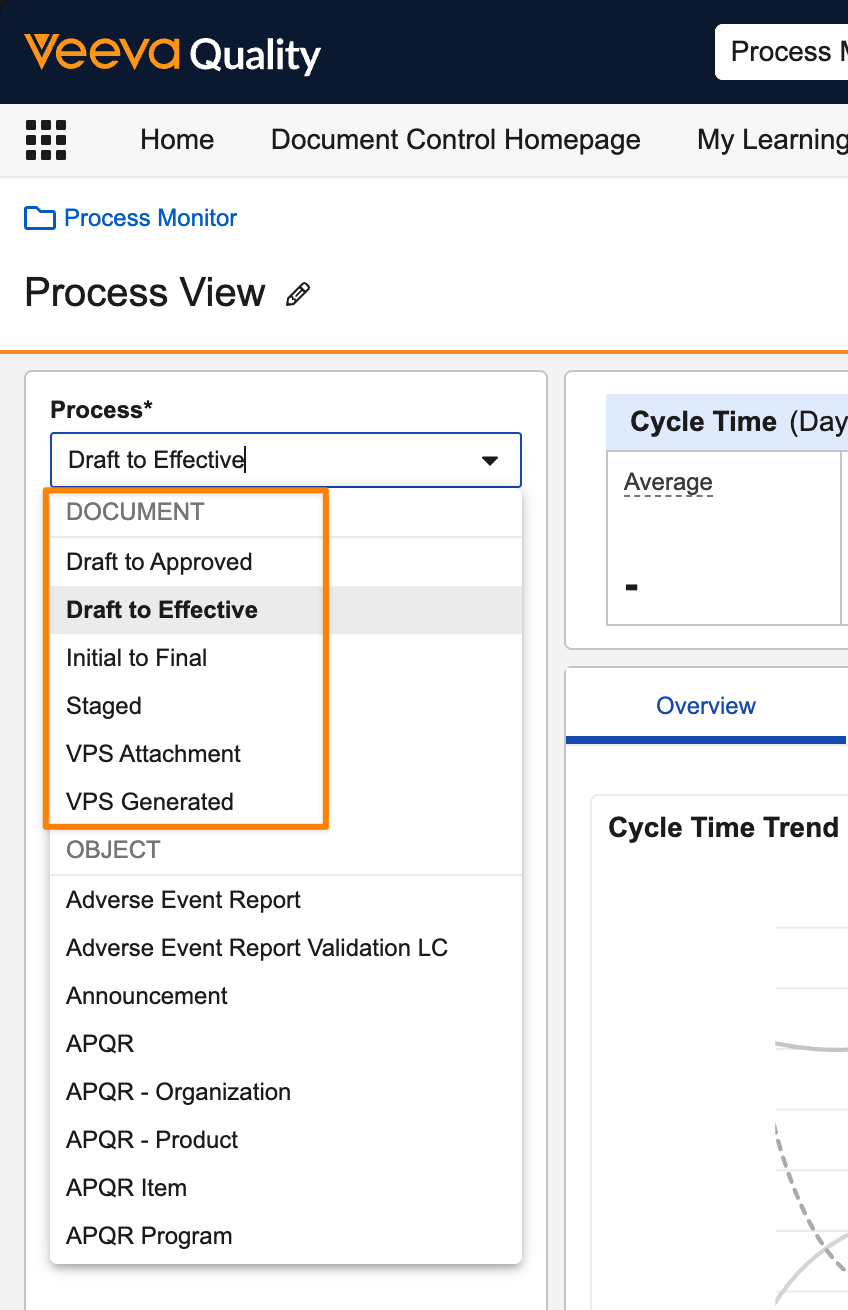
You can select specific document types as subprocesses:
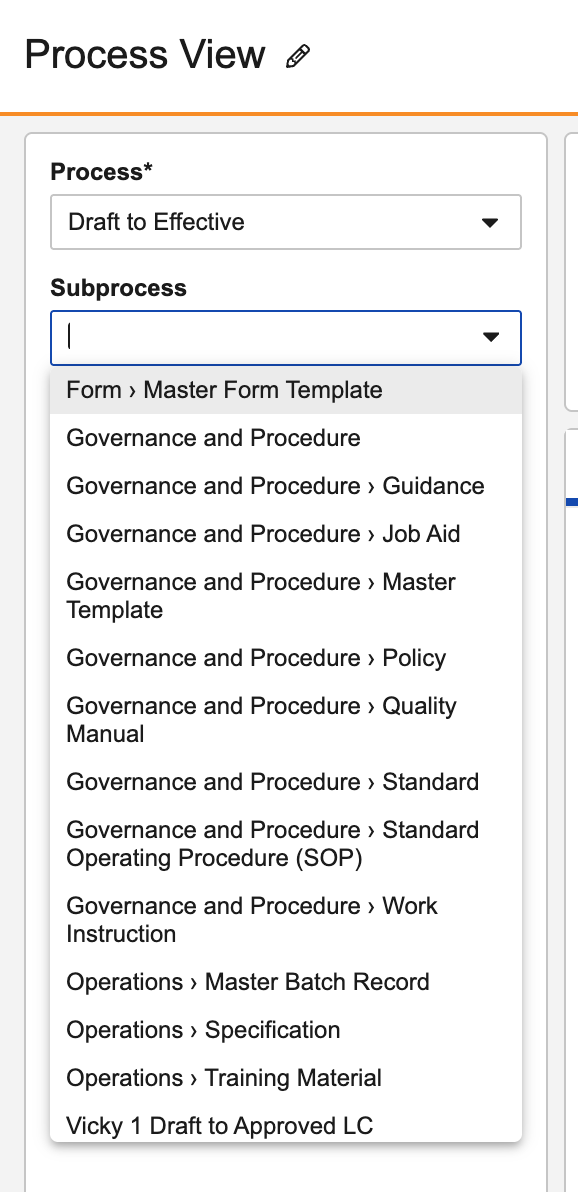
Document metrics are calculated for each steady state version. A steady state version’s cycle encompasses all preceding versions created after the previous steady state.
Learn more about Process Monitor.
Process Monitor: Export RecordsAuto-on25R3.4
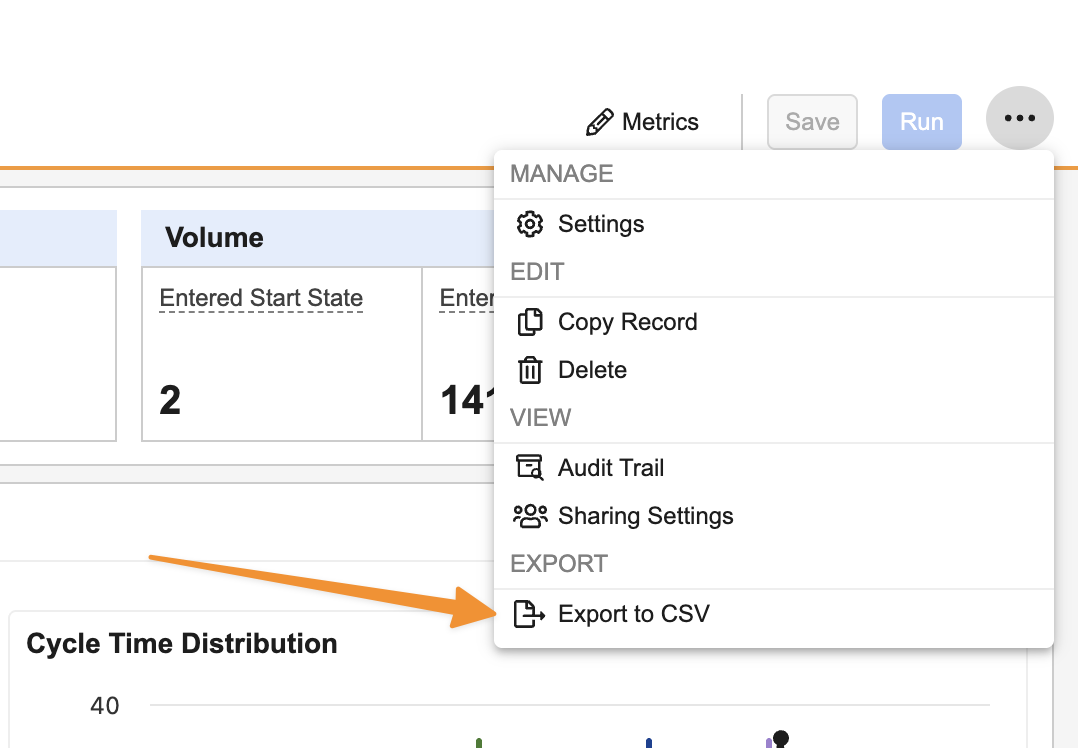
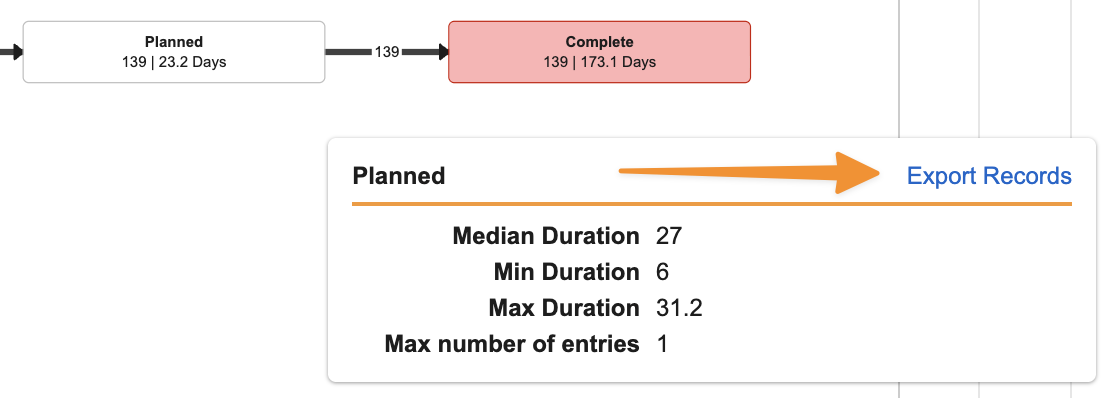
You can now export records from Process Monitor to dig deeper into trends and understand specific examples. Users can either export all records for a Process View using All Actions > Export to CSV, or using Export Records from specific areas of the Process Graph:
By default, exports contain columns for fields that are part of default views for objects or documents. When using the Export to CSV option on the Process View, users can adjust columns as needed, including adding Process Metric data:
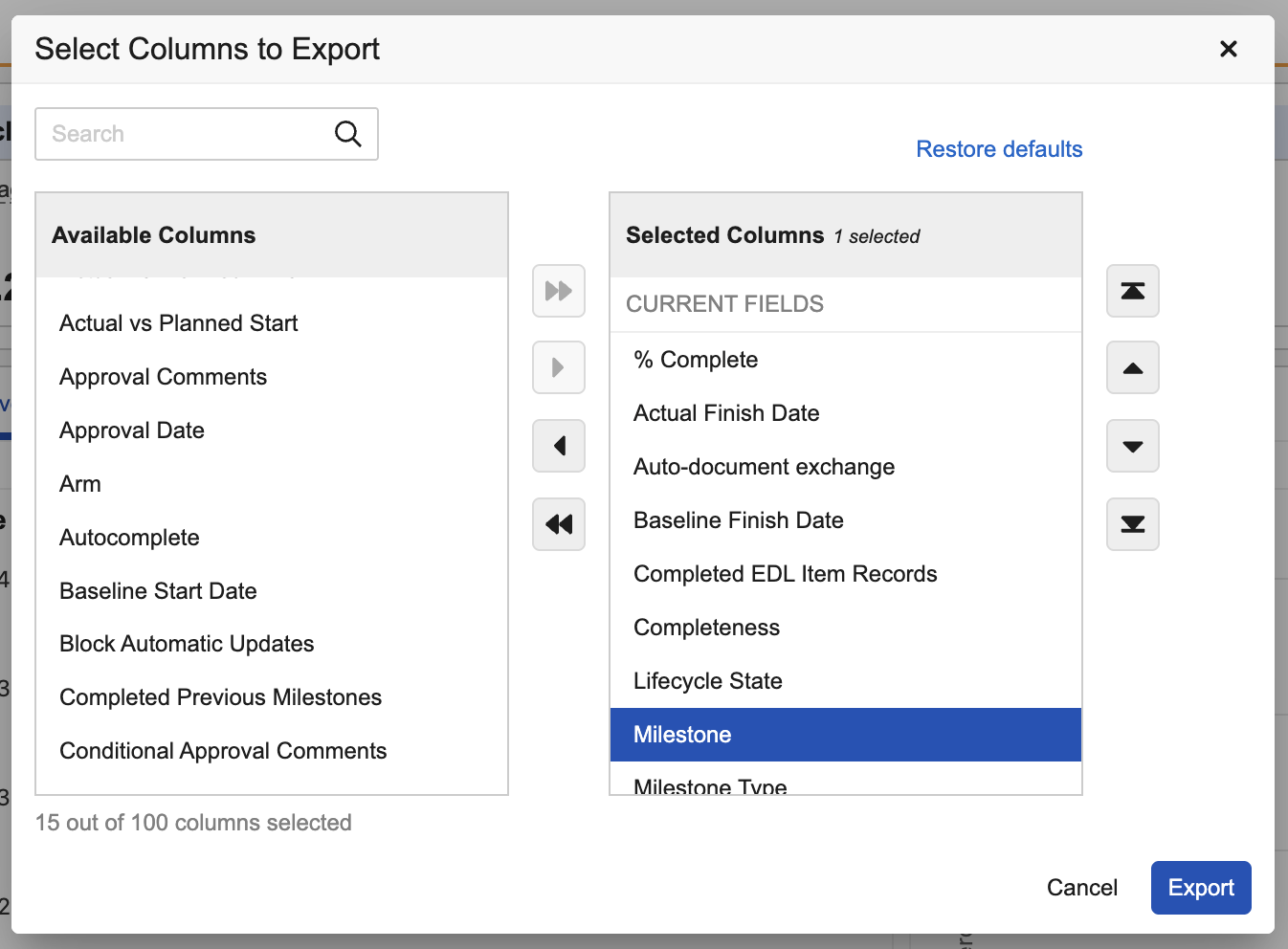
Learn more about Exporting Process View Records or Documents.
Process Monitor: New Metrics & Chart OptionsAuto-on25R3.2
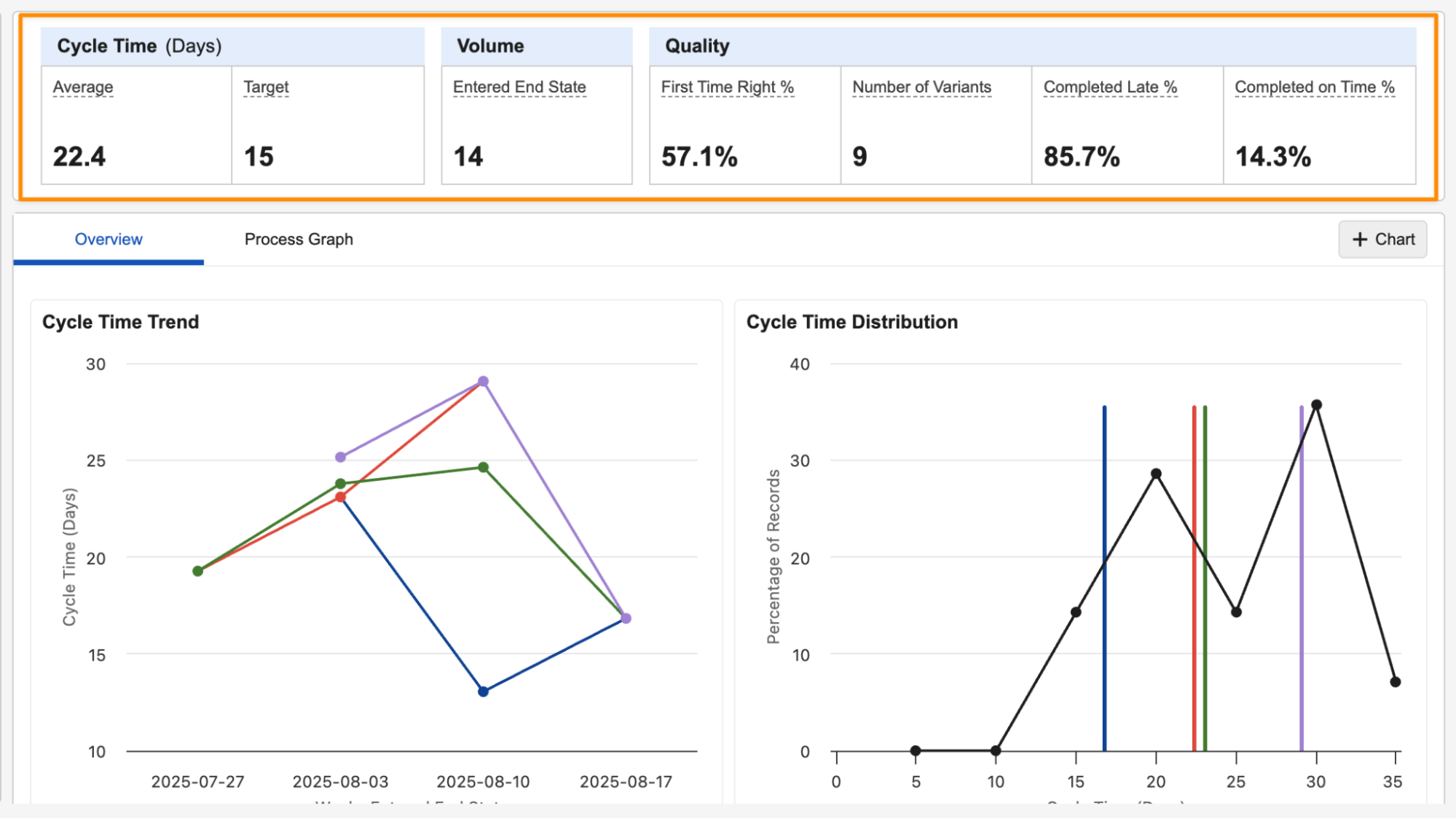
Process Monitor now includes additional metrics that can be displayed along the top of a Process View, and can be used for additional charts. The following new metrics are available:
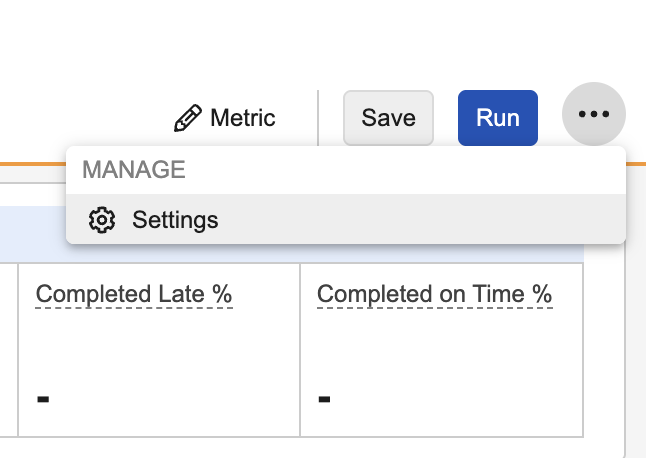
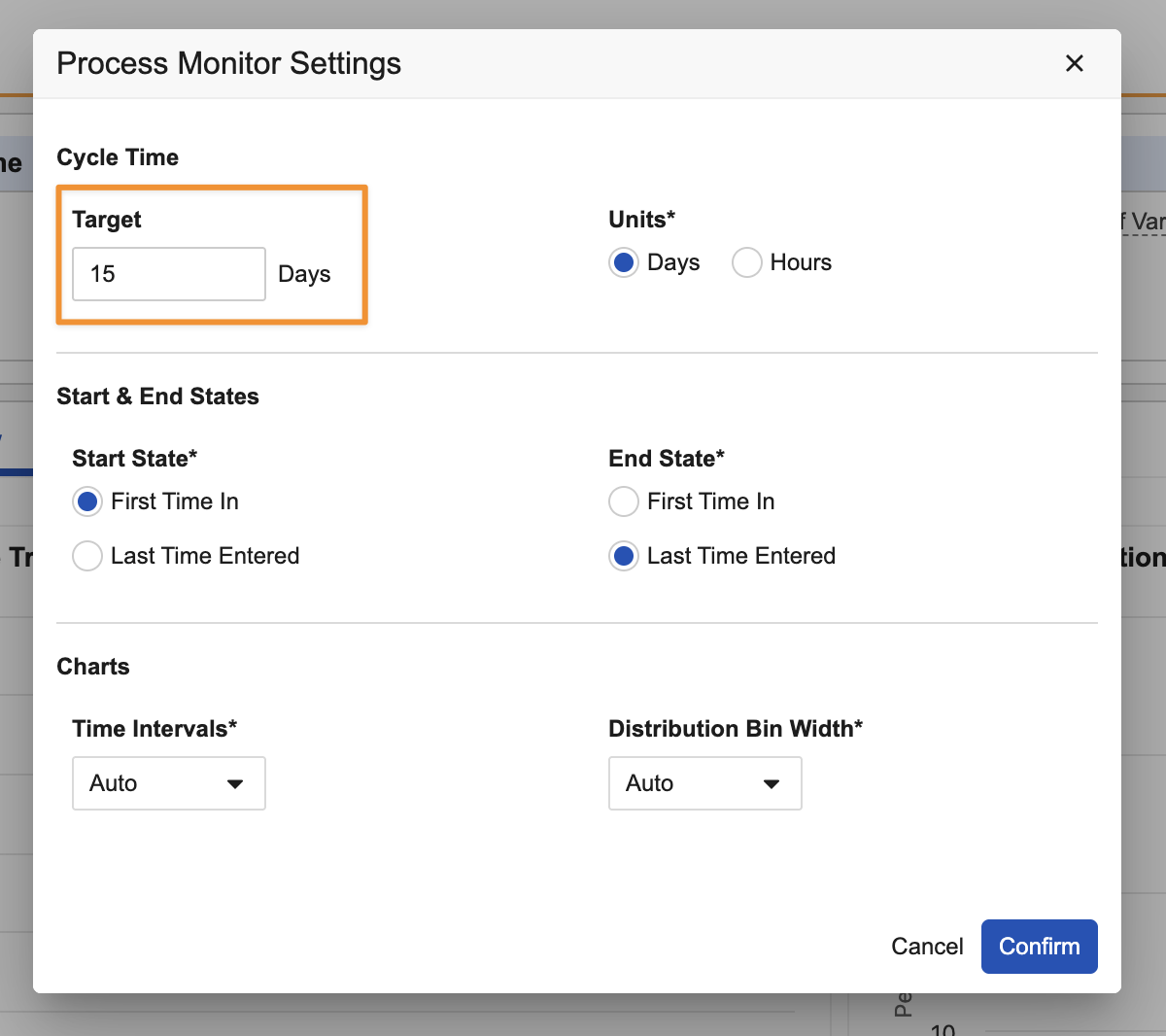
- Cycle Time: Target
- Volume: Created
- Volume: Entered Start State (day, week, or month)
- Volume: Entered End State (day, week, or month)
- Quality: Completed on Time (count or percentage)
- Quality: Completed Late (count or percentage)
- Quality: Number of Variants
The new Number of Variants metric is now available in all new Process Views by default. Existing Process Views created prior to 26R1 will not have this metric automatically added.
You can add these new metrics using the Metrics button:
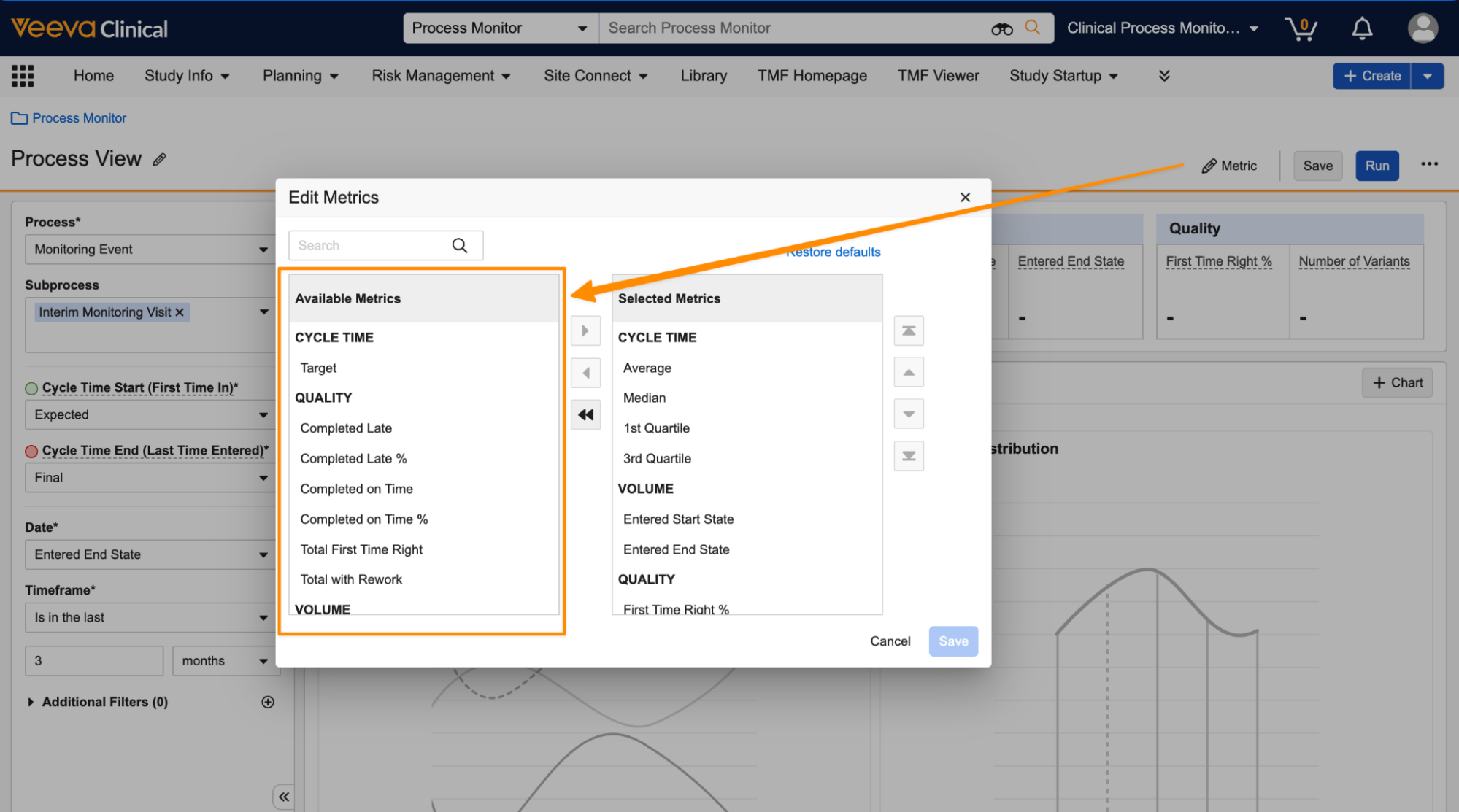
You can set the Target value using All Actions > Settings:
Each Process View supports up to ten metrics.
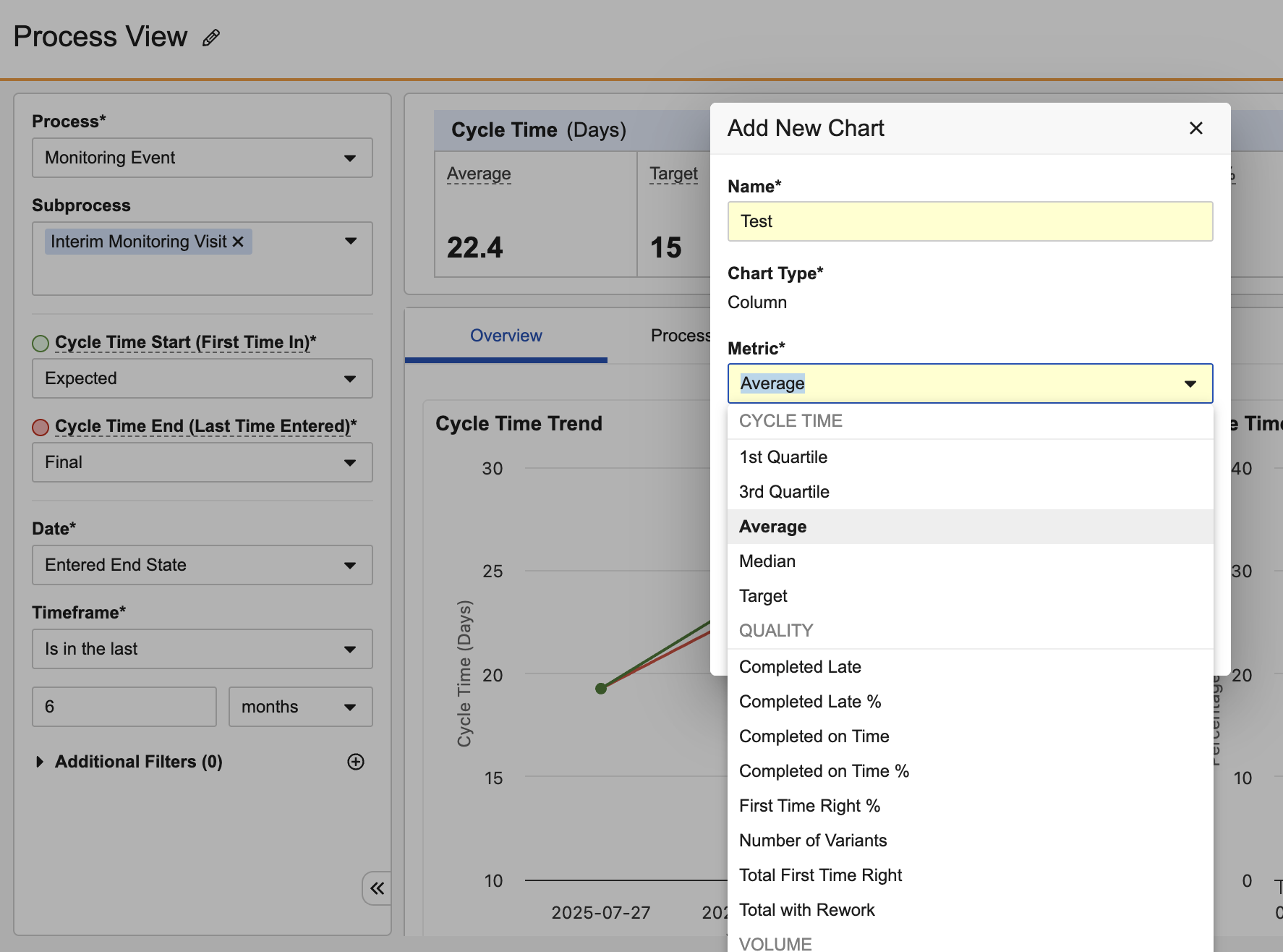
You can now also use any available metrics in additional custom charts:
Learn more about Process Monitor.
Excel Copy/PasteAuto-on25R3.4
Users can now paste multiple values directly from spreadsheet applications, such as Microsoft Excel and Google Sheets, into fields that support multiple values.
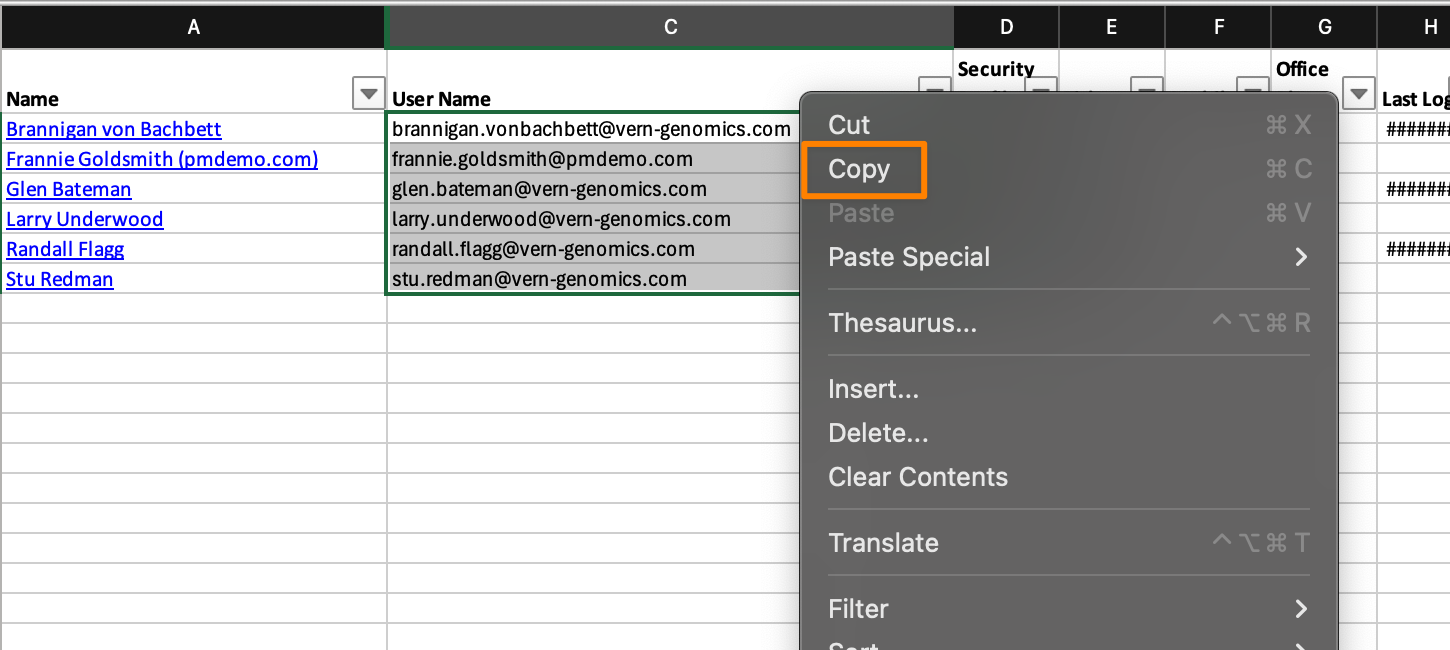
For instance, when starting a workflow and adding participants, a user could copy a list of usernames from Excel:
And paste that list into the Start Workflow dialog:
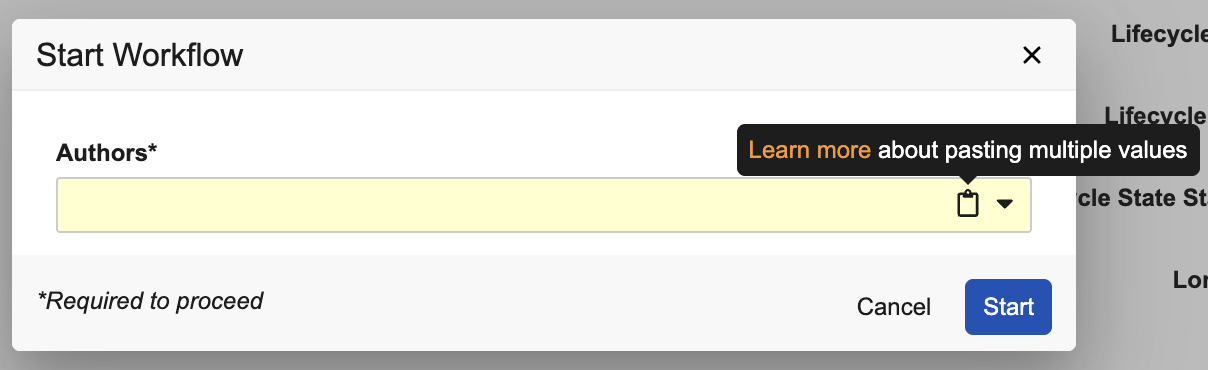
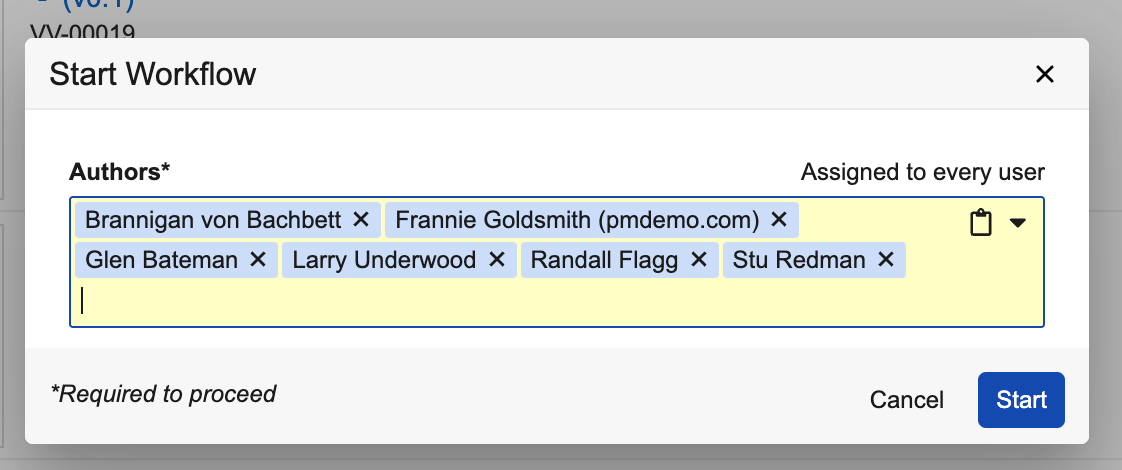
You can also paste values using standard keyboard shortcuts: Ctrl + V on Windows and Cmd + V on Mac.
When values are pasted, Vault converts them into the appropriate options. If Vault is unable to convert them, a Paste Summary dialog displays providing a summary and an option to download results:
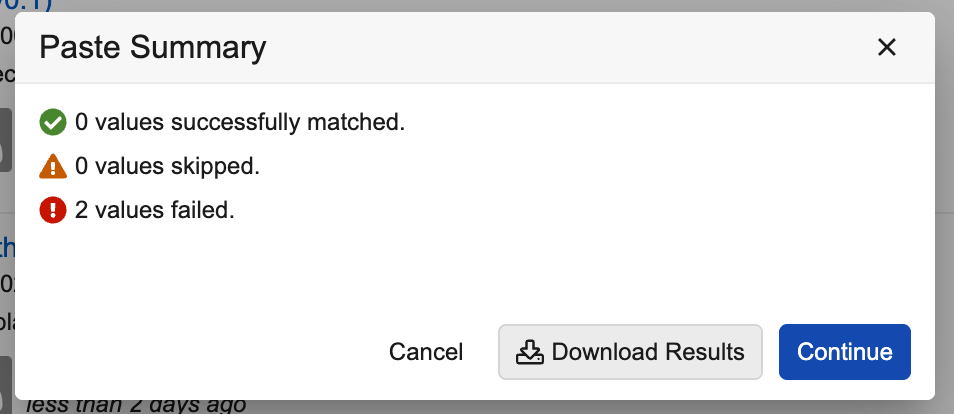
Vault also skips values if they are already in the field.
Vault supports pasting the following values:
- Users: ID, username, full name or email address
- Groups: name or label
- Object Records: ID or name
- Picklists: name or label
Fields that support this functionality will show the paste icon in the input, such as entering data and filtering on:
- Multi-select object reference fields
- Multi-select picklists
- Send as Link
- Workflow dialogs pointing to a user (such as Workflow Start dialogs and Email Participants)
Learn more about Pasting Data in Multi-Value Fields.
Note: Workflow field prompts do not support this feature.
Custom Sharing Rules on ReportsConfiguration25R3.4
Access to individual reports in Vault can now be automatically managed via configured Custom Sharing Rules, significantly reducing the need for report creators and editors to manually manage sharing settings.
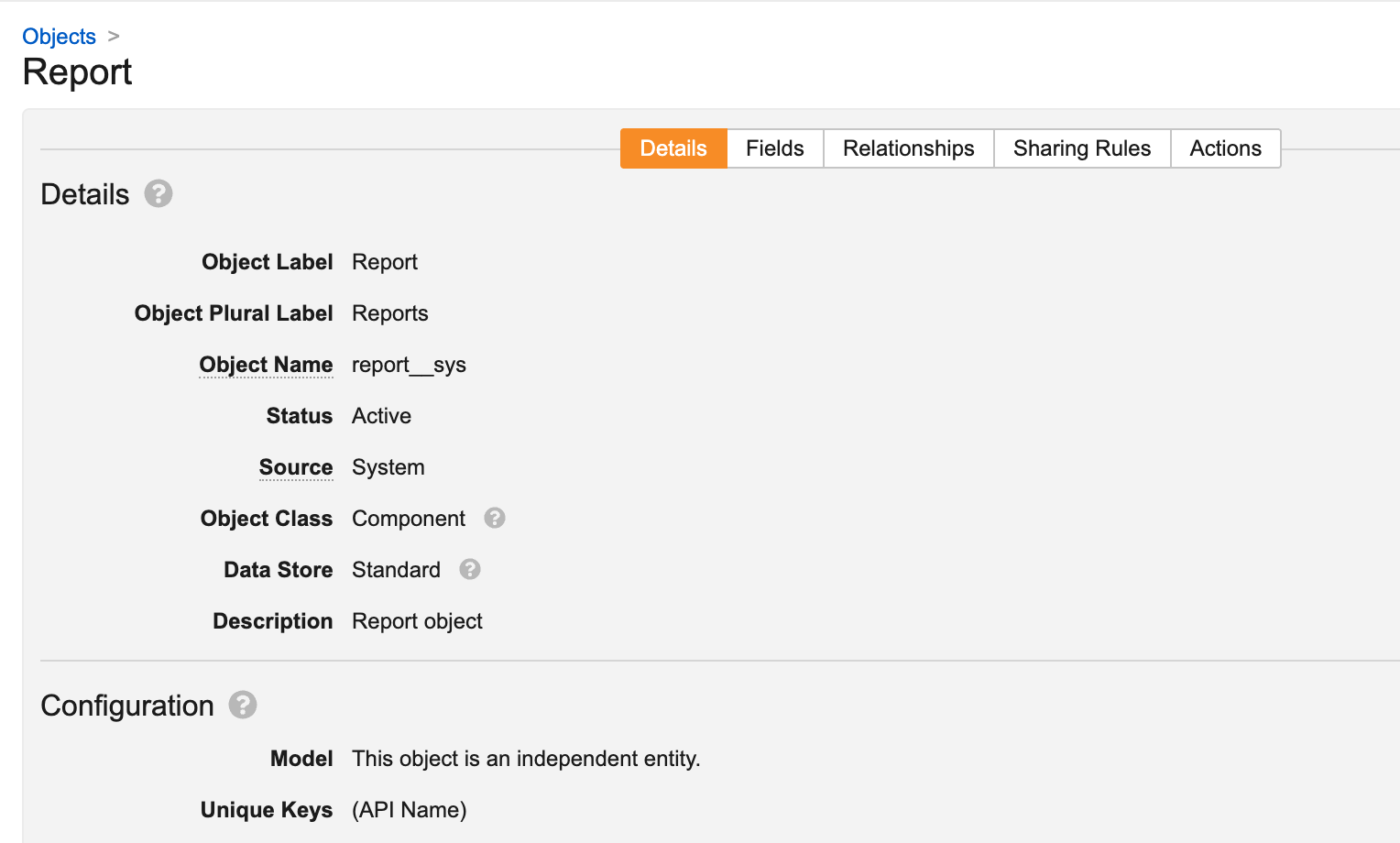
This change exposes Report (report_sys) as an object in Admin > Configuration > Objects:
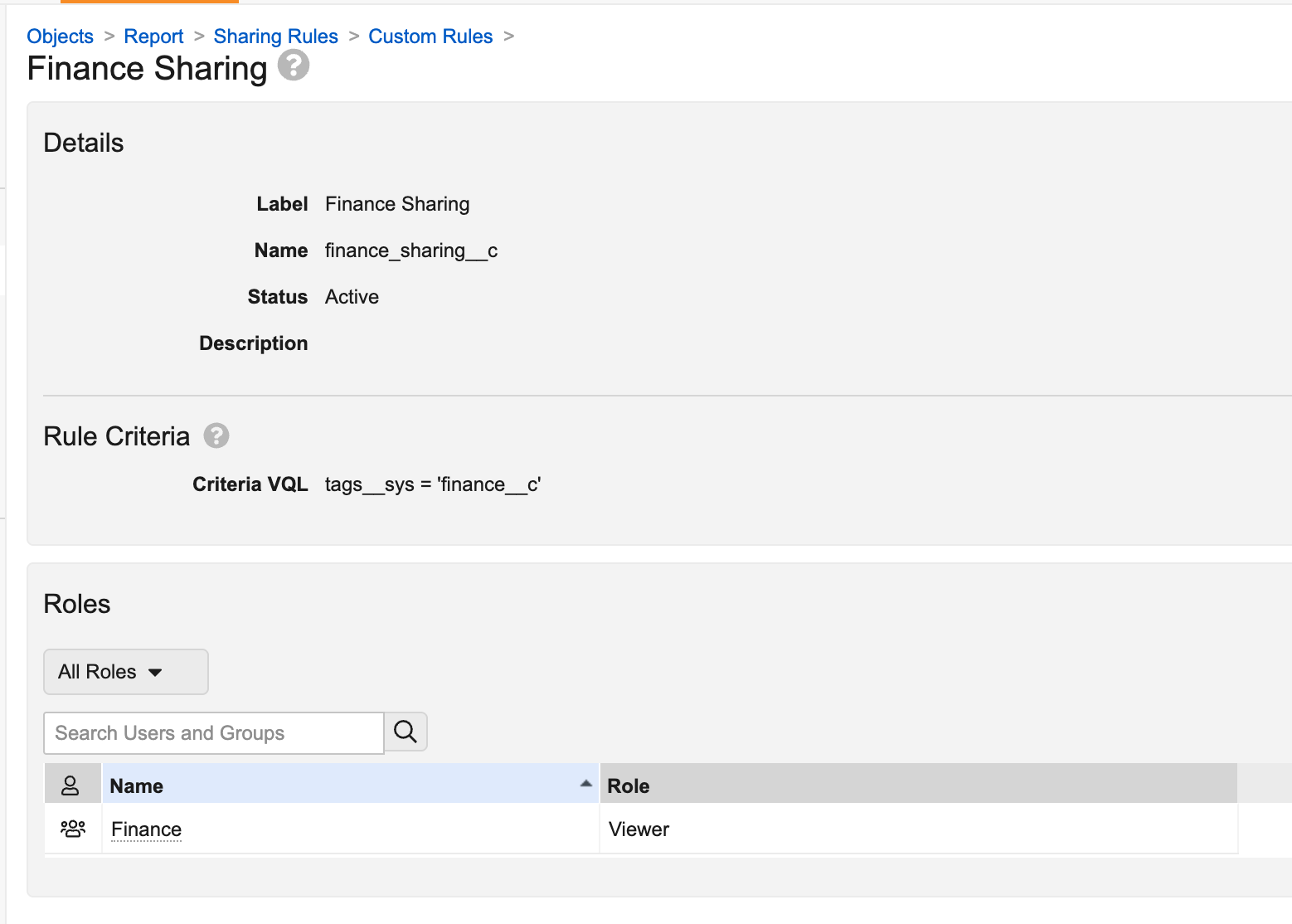
Admins can then configure Custom Sharing Rules. In the example below, a rule has been configured that will automatically add members of the Finance group to the Viewer role for reports that have the Finance report tag:
By default, the Sharing Rules tab now has an Administer sharing rule, which is existing behavior that automatically adds the Report Administrators and Report Owners groups to the sharing settings.
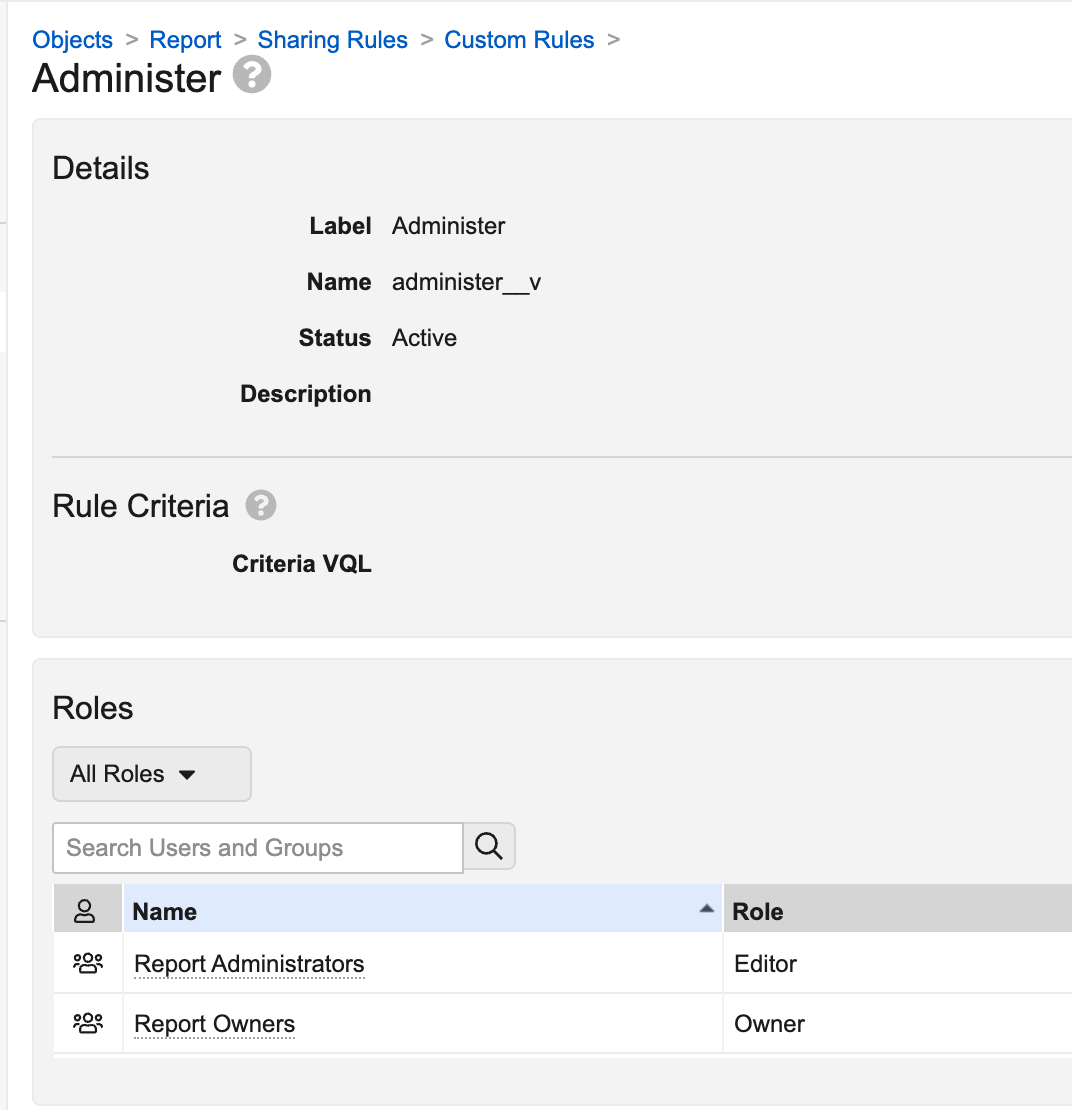
Note: You can only create and edit Custom Sharing Rules on the Report object. Other configuration changes to the Report object are not supported.
Learn more about Configuring Custom Sharing Rules for Objects.
View All Workflow ParticipantsAuto-on25R3.4
This feature allows workflow owners and participants to view all participants in the workflow with downstream tasks, not just the participants with currently assigned tasks. This information can help confirm if a user is part of a workflow or not even if their tasks have not yet been assigned, which can help drive appropriate actions to make sure the workflow is successful.
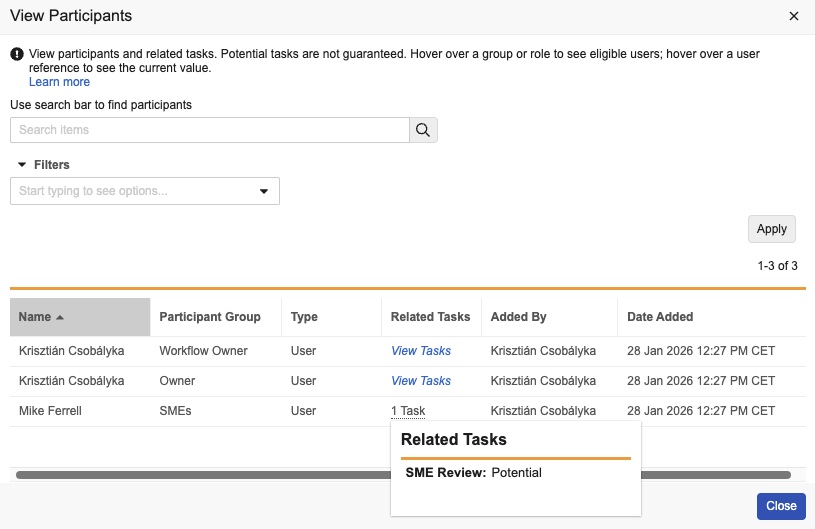
Learn more about Using Object Workflows and Using Document Workflows.
Managing Documents
New CrossLink Source TypeAuto-on25R3.2
CrossLinks can now sync the source document’s source file in addition to the viewable rendition when configured for that document type. In the target Vault, a new document type setting, CrossLink Source Type, determines if CrossLinks created under that type will use the source document’s source file and viewable rendition, or just the viewable rendition.
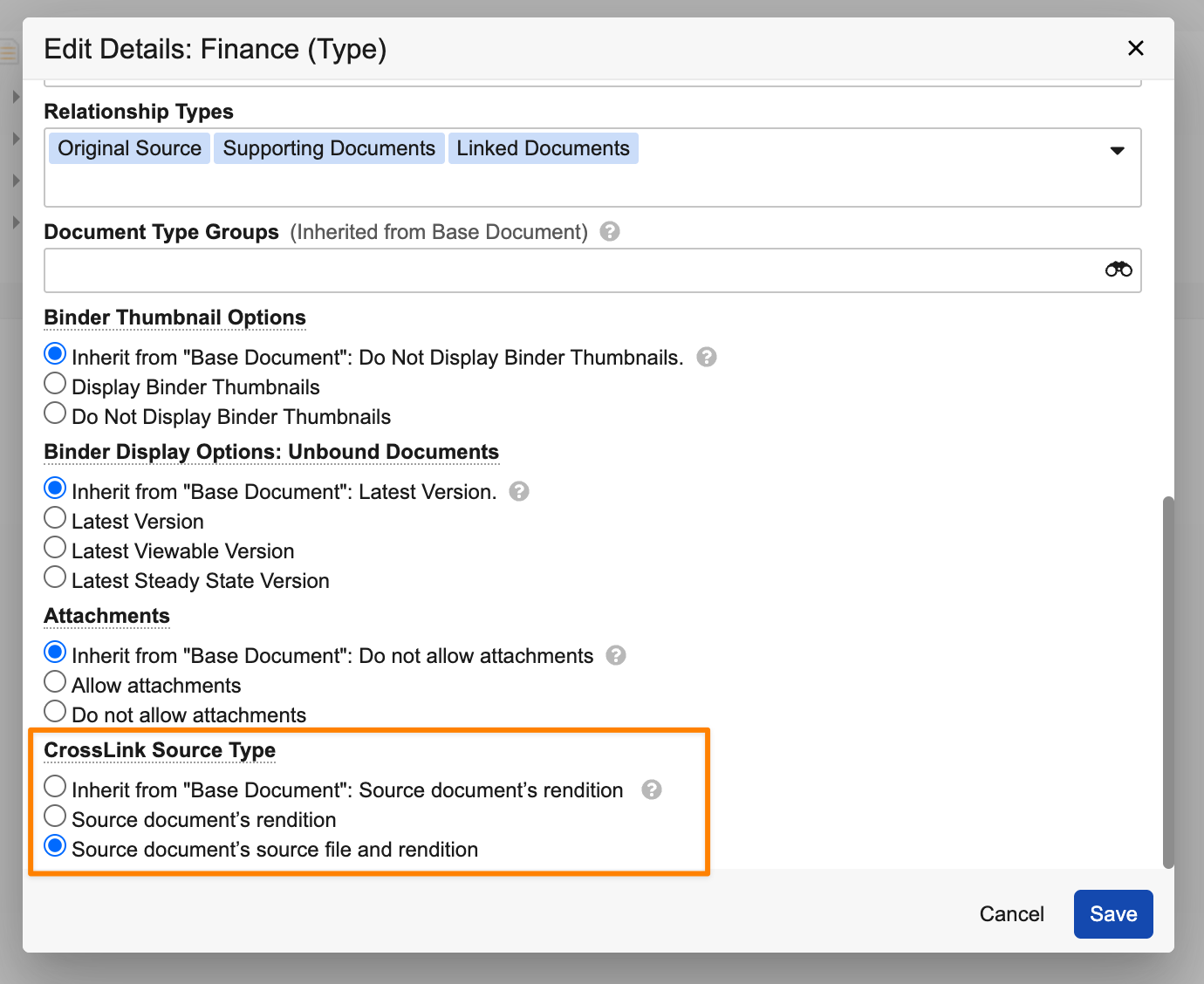
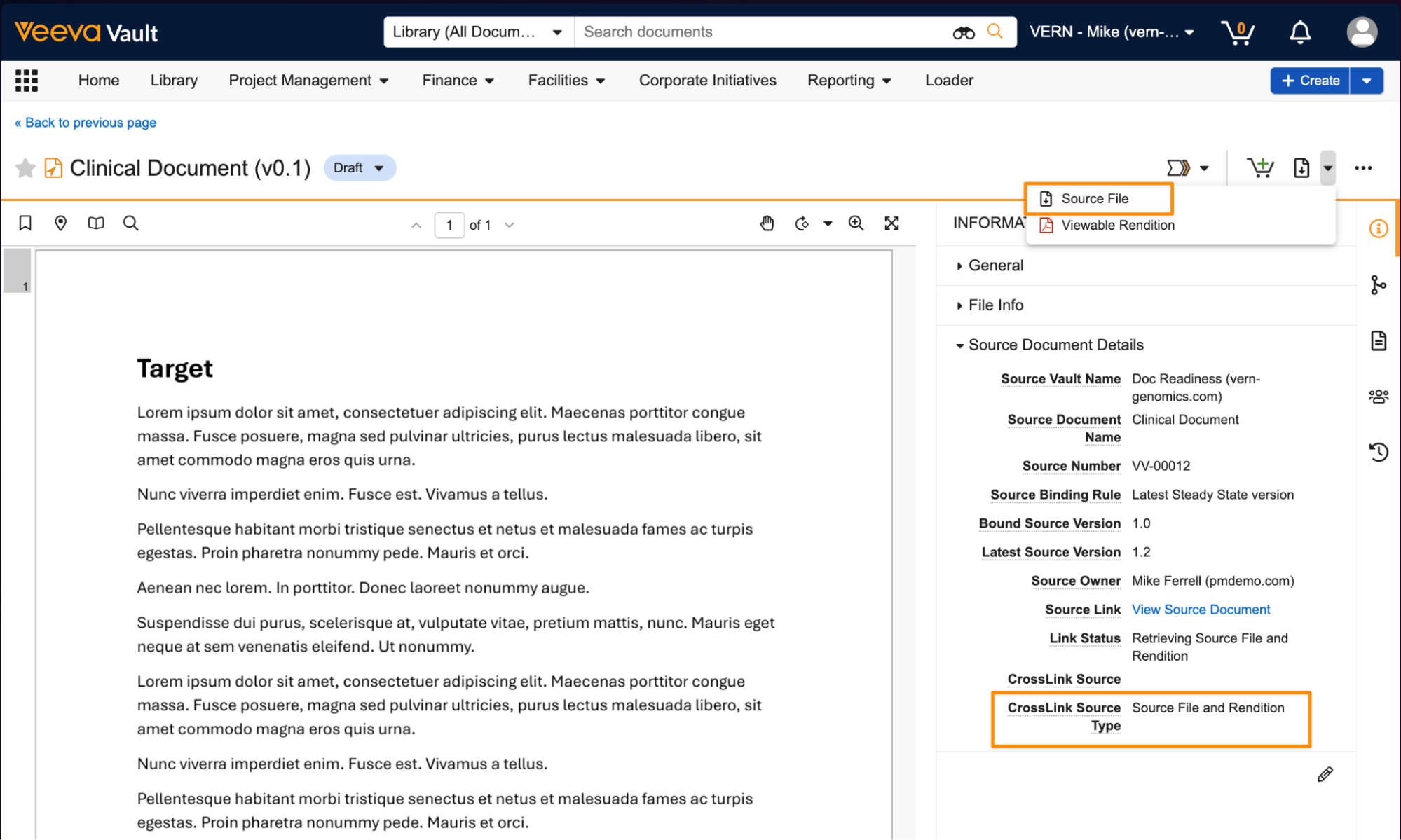
This enhancement is intended to improve sharing more interactive file types across Vaults, such as CLM presentations or SCORM files. In these cases, only having the PDF viewable rendition is not sufficient for the files to be appropriately used in target Vaults.
If CrossLink Source Type is set to Source document’s source file and rendition, both the source file and rendition are synced based on the Source Binding Rule set on the document. By default, the CrossLink Source Type setting on the Base Document (base_document__v) document type is set to Source document’s rendition, in line with existing CrossLink behavior.
Learn more about CrossLinks.
Allow Custom Renditions on CrossLink DocumentsAuto-on25R3.2
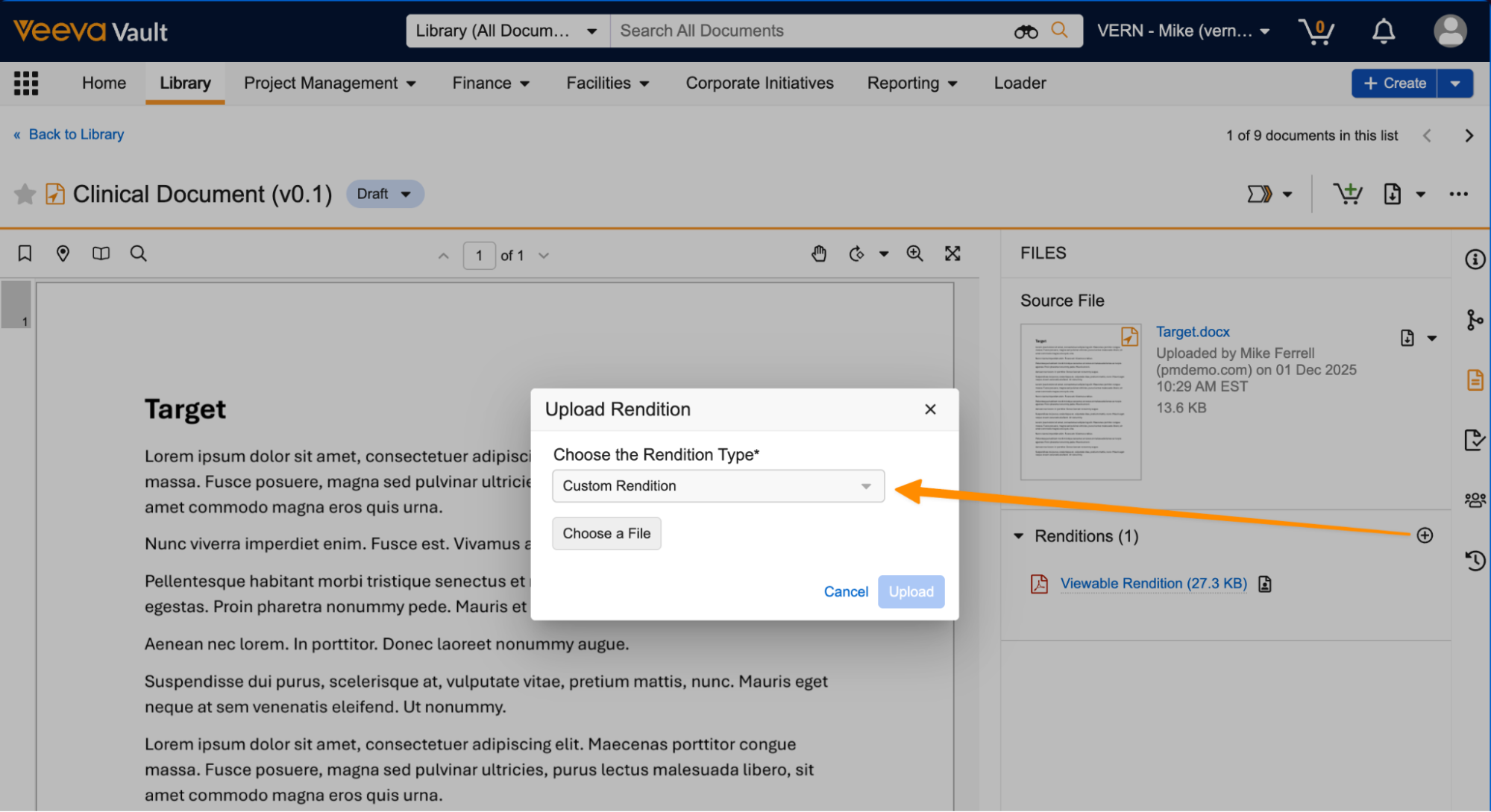
Users can now manually add renditions to CrossLink documents just like they can for any other regular document. Renditions are not pulled or synced from the source Vault document. The standard viewable rendition remains read-only for CrossLinks, but other rendition types can be added if configured on the document type.
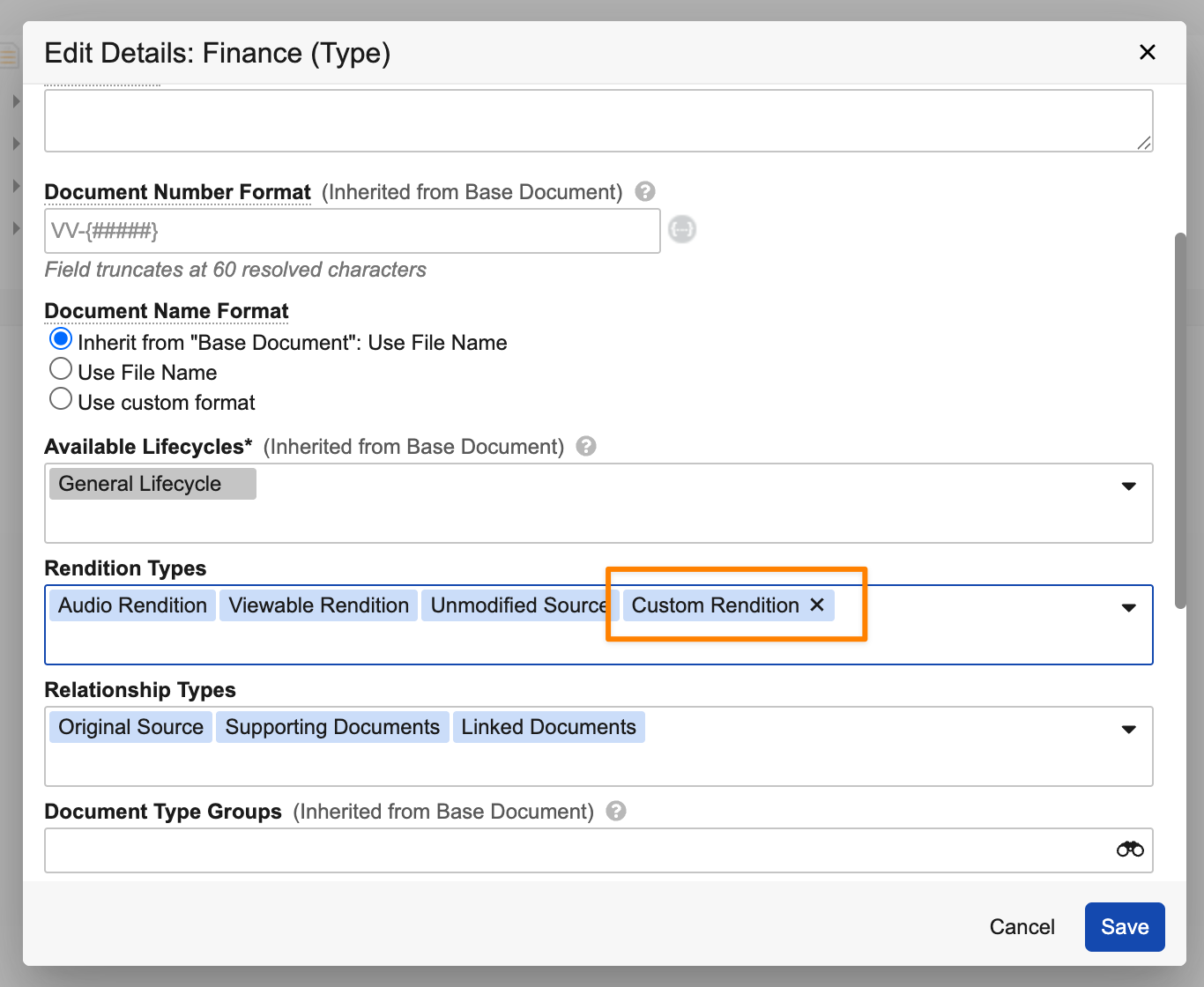
In the following example, a custom rendition is assigned to the Finance document type:
Users now have the option to use that rendition type to manually add a custom rendition to a CrossLink for that document type:
Any manually added renditions are not affected when CrossLinks are updated based on changes to the source document. Manually added renditions on the source document are not pulled forward to the CrossLink.
Learn more about CrossLinks and Managing Rendition Types.
Enhanced Field Update Behavior for Document Creation Event ActionsAuto-on25R3.2
Update field actions for Create Document and Create Copy event actions are now applied before a document is created. This allows documents to be created with empty required fields if an event action populates the required fields.
Document creation in Vault is currently blocked if an empty required field is intended to be populated by an event action. With this feature, documents can still be created, because their value will be set by the event action during creation. Event action behavior for Create Draft event actions remains as it is today, so any fields set by an Update field action in a Create Draft event action will be set after version creation, not before.
Learn more about Event Actions.
Remove Limit on Product & Country Document FieldsAuto-on25R3.4
For Product and Country object reference fields on documents, the maximum number of values allowed has been raised from 50 to 250, bringing these fields into alignment with other object reference fields on documents.
Migration Rendition Reuse for PDFsAuto-on25R3.4
This feature streamlines document migrations by extending and improving reuse of previously rendered content across different Vaults. Migration reuse now supports additional file formats including PDF, adding to existing support for Microsoft Office and PDF-A file formats, and supports additional rendering processes. These enhancements are intended to improve the speed and efficiency of migrations in all environments following the initial document load.
OCR Limit IncreasesAuto-on25R3.4
Vault OCR limits have been updated to 100 MB for image files, and 500 MB and 1,500 pages for PDF and TIFF files.
Vault File Manager: Exclude Parent Folders When Downloading FoldersAuto-on25R3.4
To help prevent errors caused by long file paths, such as those that exceed the Windows 256-character limit, Vault File Manager now excludes parent directories when downloading folders from File Staging. When a user downloads a folder, the local file path now starts from the selected folder rather than including the full folder hierarchy. For example, downloading the /Ontario folder from /North America/Canada/Ontario/Toronto now only includes the shorter file path of /Ontario/Toronto. This feature also updates and shortens the naming convention of the starting holding folder that is created when files are exported from Vault File Manager to further minimize long folder directory names.
Vault File Manager: Reduce Frequency of Auto-Refresh API CallsAuto-on25R3.4
Vault has optimized how Vault File Manager manages data refreshes to minimize the risk of exceeding API transaction limits. Vault File Manager now automatically refreshes data every 10 minutes, instead of every 30 seconds. This change is applied automatically upon updating the VFM client to the latest version. Users who need real-time data between this interval can perform a manual refresh to trigger an immediate sync.
Standardized Word MarkupConfiguration25R3.4
Vault rendition profiles now support generating renditions with standardized redline markup for Microsoft Word documents. When enabled on a rendition profile, this option produces PDF renditions with tracked changes (such as insertions, deletions, and moves) shown inline in red. Insertions appear underlined, deletions appear struck through, and comments appear as balloons.
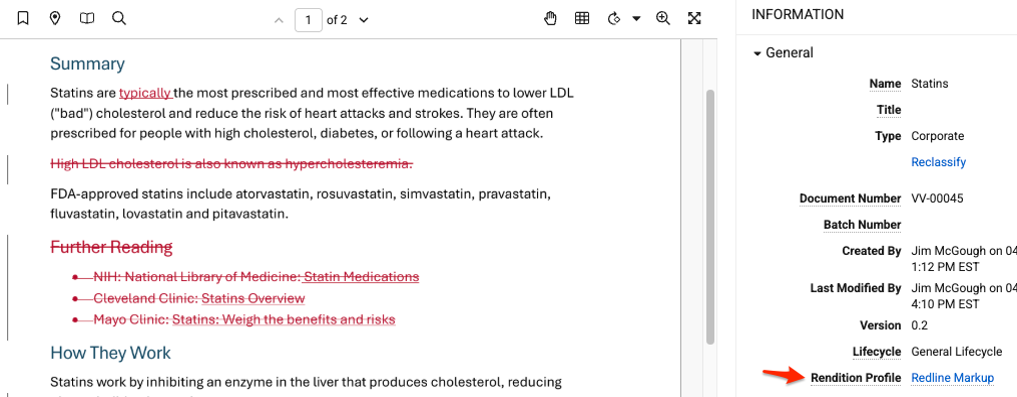
The following limitations apply:
- Formatting changes are not highlighted.
- Customization of markup colors, display mode, or reviewer filtering is not supported.
- Retroactive application to existing renditions is not supported.
Admin Option for Overlays & Signature Pages in Viewable Renditions Download from External ViewerConfiguration25R3.4
This enhancement enables Admins to prevent the inclusion of overlays and signature pages in external viewer rendition downloads. A new Download with Overlays and Signature pages in External Viewer configuration option is available in Admin > Settings > General Settings in the Documents section and is disabled by default. When enabled, this configuration is applied to Public Content Distribution (Commercial Vaults only) and the Approved Viewer available to external users.
Managing Data
Word Formatted Outputs: Display Rich Text Values Using Microsoft Word FontAuto-on25R3.2
When using Rich Text fields in Word Formatted Outputs, the output font will now match the Word font settings by default. Other rich text formatting, such as bulleting, font color and font size, will be respected.
Prior to 26R1, Rich Text fields would be rendered in a Word Formatted Output to match how the field appears in Vault, which could create inconsistent formatting when the Word file’s font differed. This enhancement ensures consistent formatting by default.
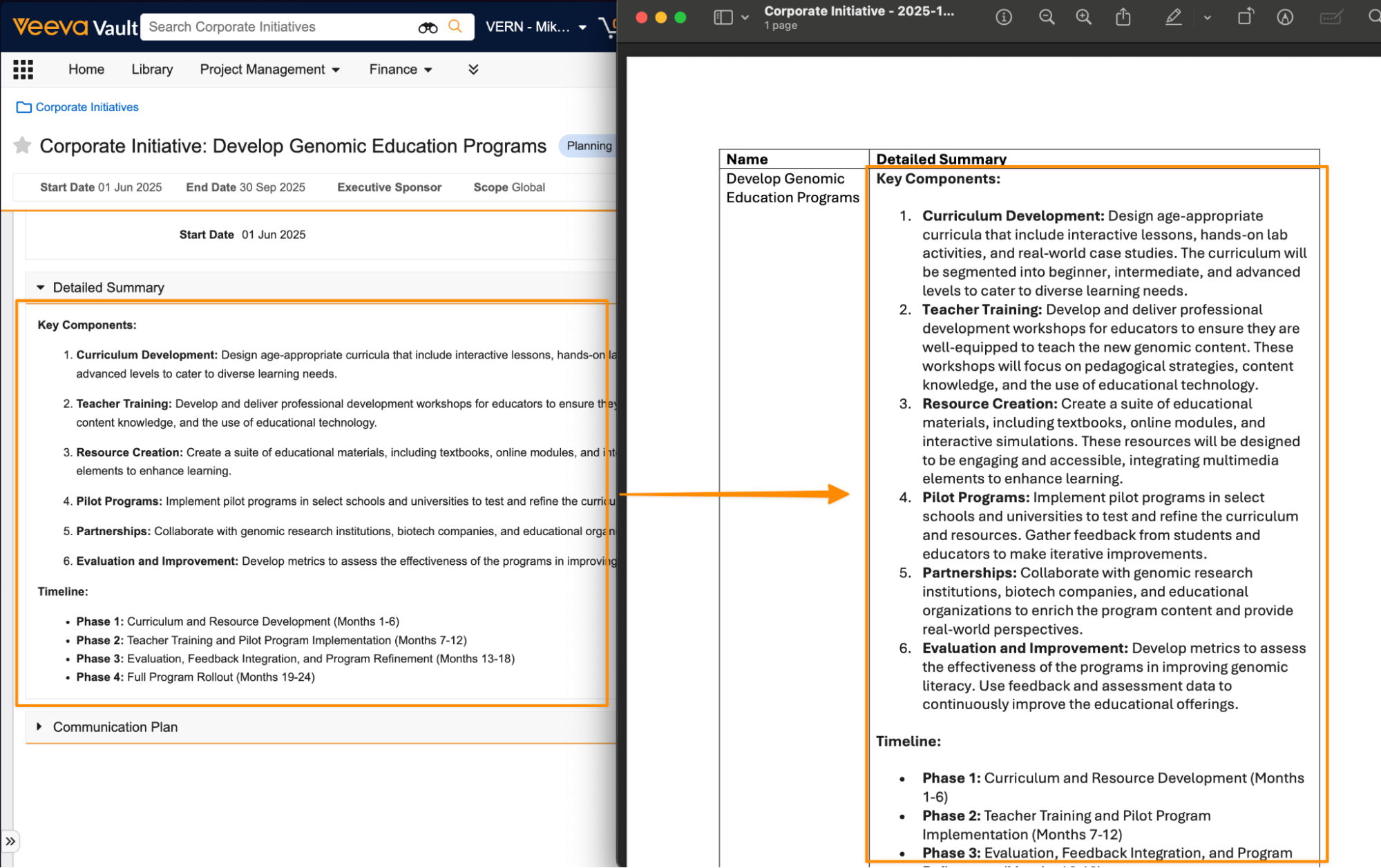
In some cases, it may be preferred to use the font from Vault, and this can still be achieved by appending “vaultfont” to the field token: ${rich_text__c;vaultfont}.
Learn more about Managing Word Formatted Output Templates.
Word Formatted Output: Tokens for Object Label, Object Description, Relationship Label & Field DescriptionConfiguration25R3.2
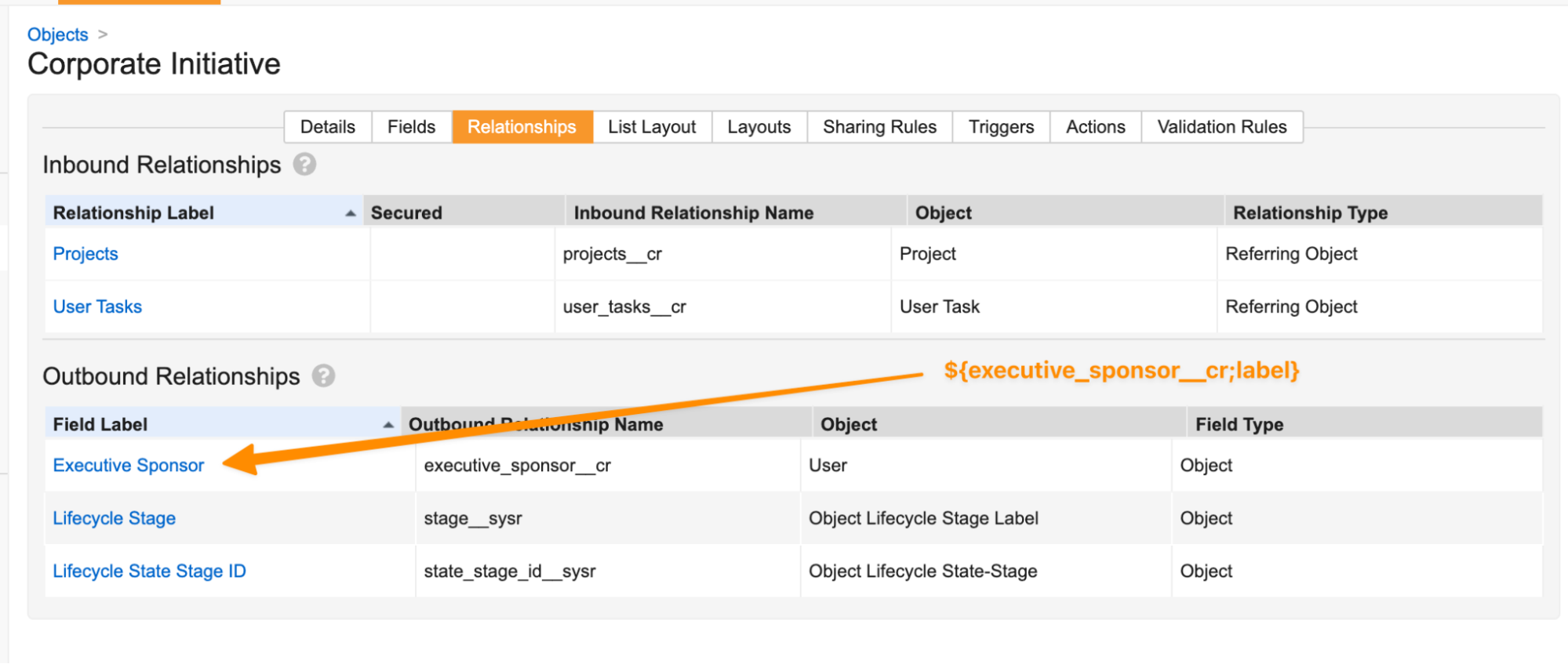
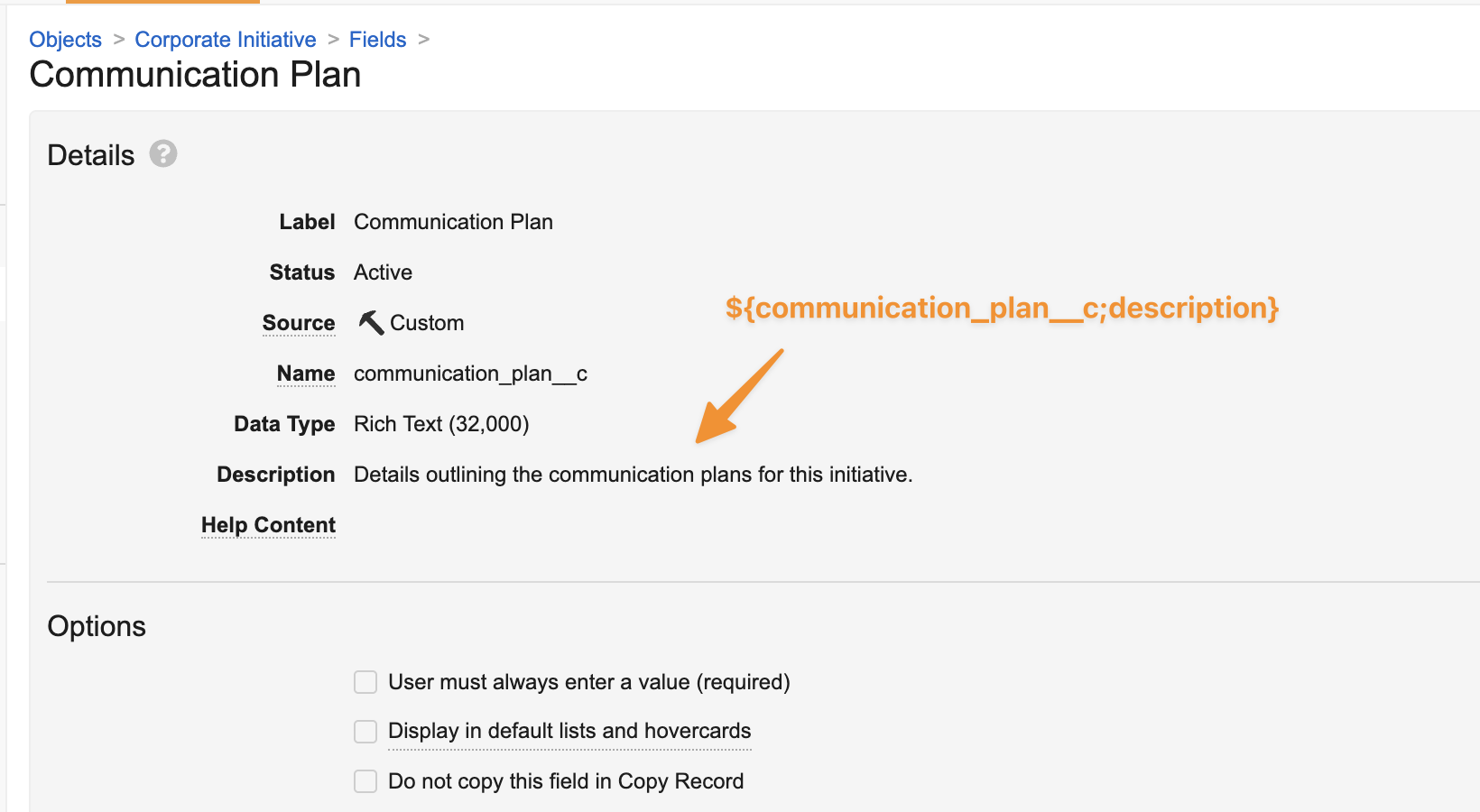
Word Formatted Outputs now support tokens for object label, object description, relationship labels, and field descriptions. This enhancement allows templates to reference object and relationship information dynamically.
For instance, if a template references an object label directly, such as Corporate Initiative, and the object label is updated in the future, the Word template would require manual updating as well.
Going forward, this can be referenced through a token in the template, and if the label changes, no template updates are required. Additional supported tokens include:
${object;label}${object;description}${object;plurallabel}
For these tokens, the object label or description that is pulled will be based on the context. For instance, if the ${Rowset()} for a given table is ${Rowset(projects__cr)}, then these tokens would return the label and description for the Project object. If used outside of a ${Rowset()}, these tokens would return the label and description of the root object.
Additional tokens are also available supporting outbound relationship labels and field descriptions:
${relationship_name__v;label}- For outbound relationships, this token resolves to the field label that defines the relationship
${field_name__v;description}- Please note that field labels are already supported prior to 26R1
Learn more about Managing Word Formatted Output Templates.
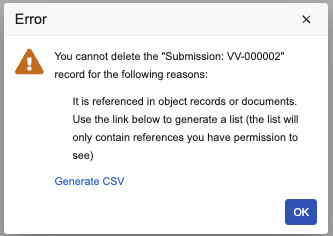
Identify Blocking References for Object Record DeletionAuto-on25R3.5
With this release, Vault now provides a downloadable CSV file containing all blocking references that a user can access when an object record is deleted. Users can use this file to identify which records or documents currently reference the object record intended for deletion, making it easier to resolve blocking conflicts.
Word Formatted Output: Increased Rowset LimitAuto-on25R3.4
This feature increases the overall Rowset() limit in Word Formatted Output templates from 50 to 100. With this feature, Word Formatted Output templates can contain up to 40 unique object relationships (which was increased from 30 in 25R3) and 100 Rowset() references total.
For instance, using ${Rowset(relationship__cr)} twice in a template counts once toward the unique object relationship limit of 40, and counts twice towards the overall Rowset() limit of 100.
Learn more about Managing Word Formatted Output Templates.
Copy & Paste Table as Plain Text for Rich Text FieldsAuto-on25R3.4
This feature allows users to copy and paste tables as plain text into Rich Text fields in Vault. The converted text uses spaces and newlines to maintain a readable layout, while stripping out table formatting and font styles. All text content and links are preserved.
Object Actions: Available in All Lifecycle States ConfigurabilityAuto-on25R3.4
Admins can now change the Available in All Lifecycle States setting on existing object actions. If this setting is enabled, the object action becomes available in all lifecycle states according to your Atomic Security settings. If this setting is disabled, you must configure the object action as a lifecycle state user action in order for users to use it.
Previously, an object action’s availability was configured once at creation without the ability to change it.
Process Optimization
Workflow Activity LogAuto-on25R3.4
The Workflow Activity Log offers Vault Admins a clear and complete view of how workflows run and make decisions. This new activity log provides a step-by-step record of every action and condition check in a workflow.
The activity log allows Admins to troubleshoot workflows and determine why a certain outcome occurred.
The feature is on by default and one activity log file is generated every day for each Vault. Workflow Activity Log files are deleted after 90 days.
Learn more about Viewing Admin Logs.
Checklist: Allow Other Participants in Checklist WorkflowsAdmin Checkbox25R3.2
Admins can now enable the Participants control in the Start step of Accepted and Pending Acceptance checklist workflows to apply the following additional configuration options when using the Start Checklist user action:
- Use roles as participants (already supported in Pending Acceptance workflow; now also supported in Accepted workflow)
- Use custom action to define participants
- Use user reference field as participant
- Use Vault user groups as participant
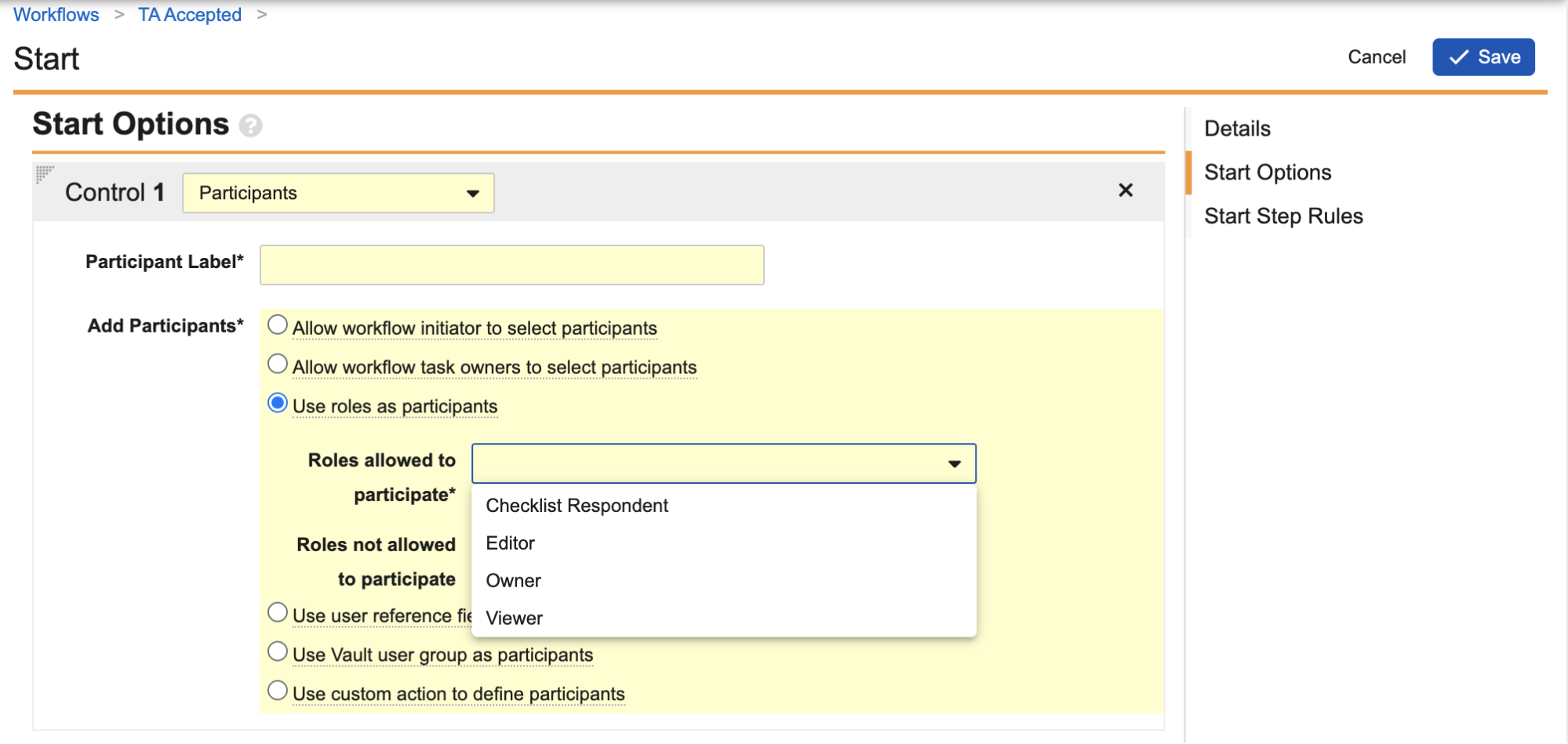
This functionality is controlled by the Allow Other Participants in Checklist Workflows setting under Admin > Settings > General Settings > Checklist. This setting is unselected by default and is available when Enable Checklists is selected.
Other Start step configuration options, such as the Instructions and Date controls, are not supported. In addition, the following configurations remain unsupported:
- Allow workflow initiator to select participants
- Allow workflow task owner to select participants
Prior to 26R1, the Accepted workflow only supported Owner (the workflow initiator), and the Pending Acceptance workflow only supported Checklist Respondent through Use roles as participants. This enhancement provides more flexibility to allow additional participant groups to be part of checklist workflows.
Learn more about Configuring Checklist Workflows.
Adjustment to Action Trigger Behavior on User RecordsAuto-on25R3.4
This feature adjusts the behavior of Action Triggers on the User (user__sys) object to prevent them from executing during internal, system-driven operations. This change standardizes Action Trigger execution with Vault Java SDK user triggers.
Action Triggers on the user__sys object are not invoked in the following scenarios:
- Synchronizing user attributes across multiple domains. For example, updates to domain user attributes such as First Name, Last Name, or Email only execute Vault Java SDK user triggers in the Vault where the change originated. This scenario also applies to cross-domain users.
- Updating the domain user Status field to Inactive
- Creating or updating system-managed users
User Experience
Streamlined Multi-Vault NavigationAuto-on25R3.2
Users with access to multiple Vaults can now more easily open a different Vault in a new tab from the Vault Selector or the My Vaults page. Users also no longer receive a session expired error when one tab switches to a Vault that was already open.
Vault names are now hyperlinks that users can right-click to leverage the browser’s available options for opening in a new tab or window. This helps improve the user experience when working across multiple Vault environments.
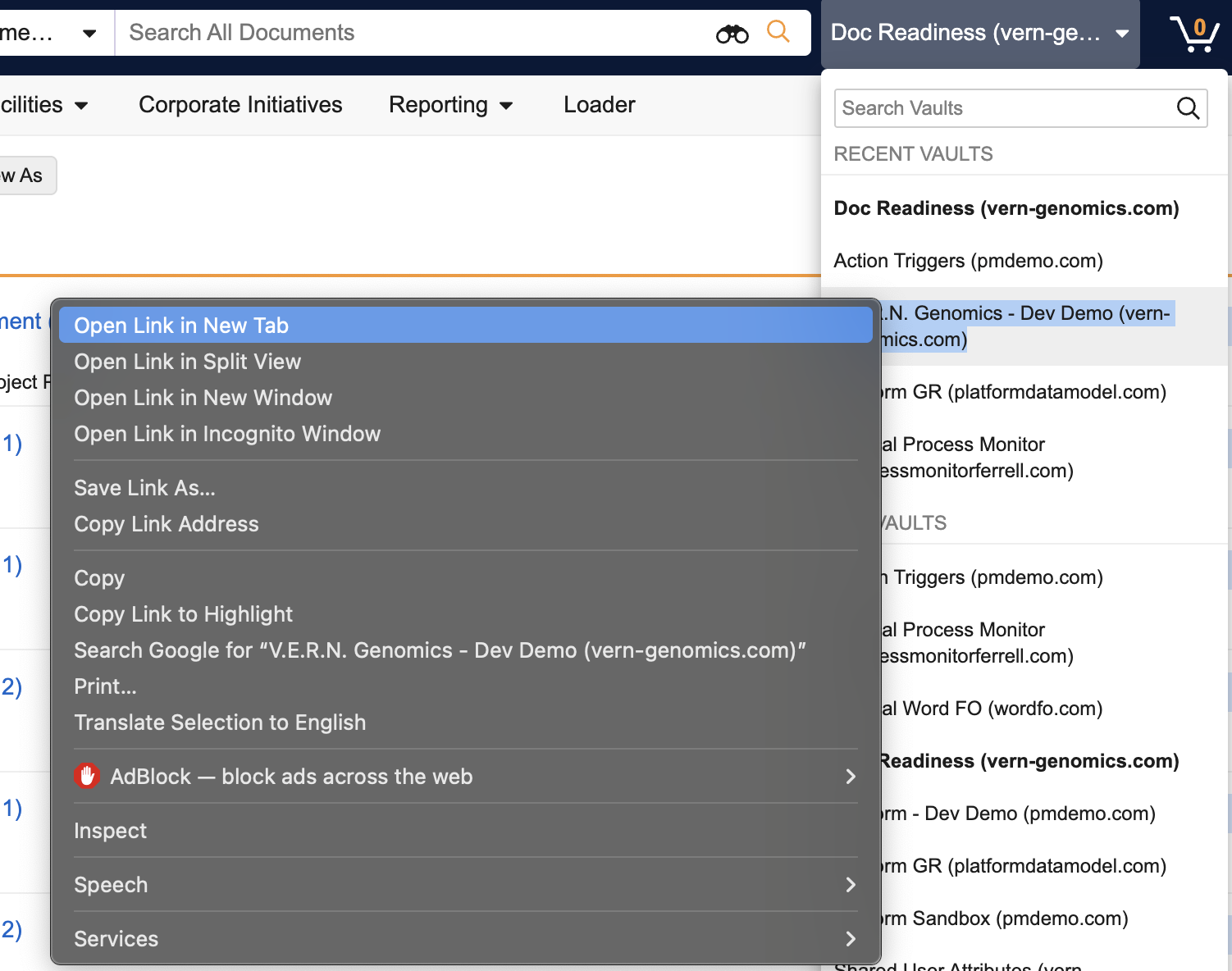
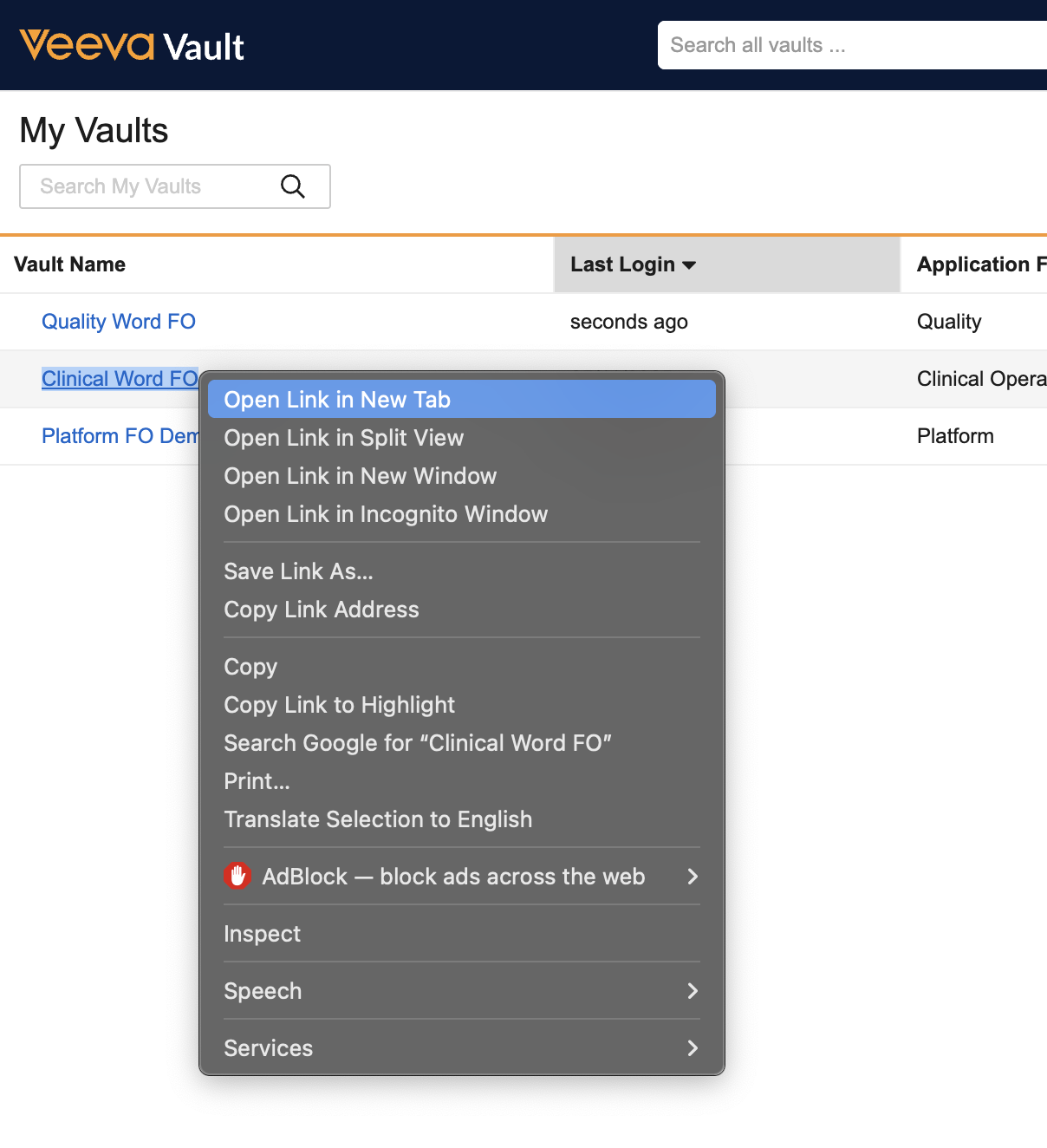
Additionally, when opening the Vault Selector, a user’s cursor will now immediately display in the Search bar, and once a search is performed, the user can use the down arrow to immediately select the desired Vault. This enhancement streamlines Vault switching for more keyboard-focused users.
Learn more about Using My Vaults.
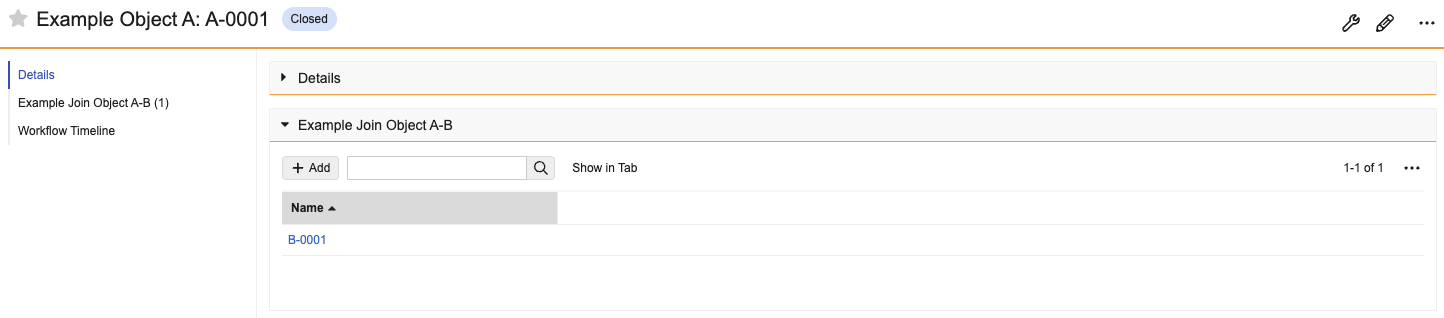
Display as Simple for Complex RelationshipsConfiguration25R3.4
Admins can configure complex join related object sections to display as a simple join instead. This allows users to more intuitively navigate to the related record and add and remove records in bulk. This new setting is available for all related object sections based on a complex join object.
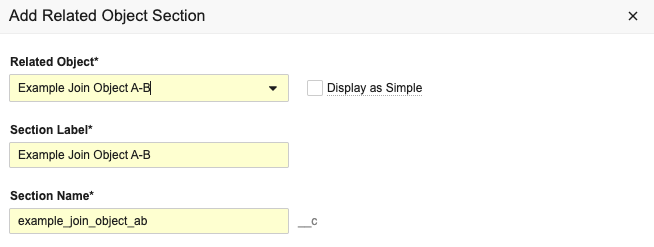
Before Enabled
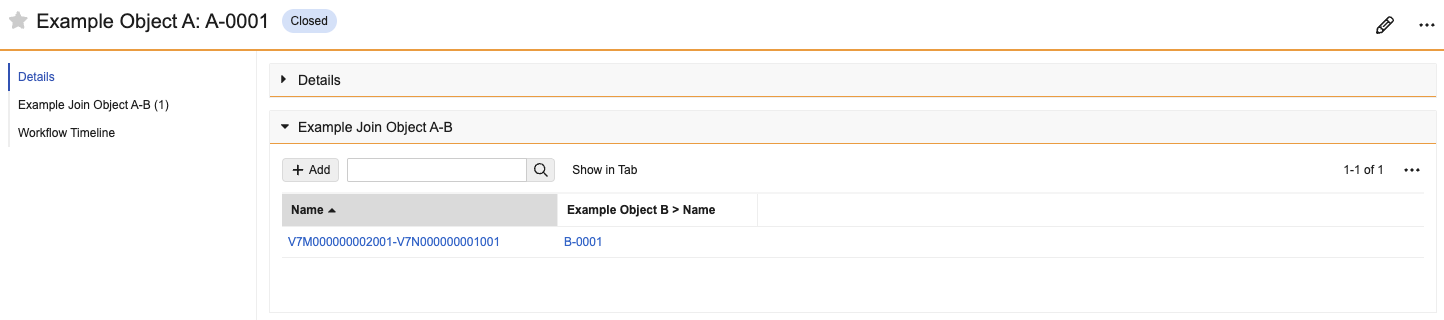
After Enabled
Learn more about Managing Object Records.
Optimized Record Detail DisplayAuto-on25R3.2
Optimized Record Detail Display optimizes the record detail page experience by prioritizing the most useful expanded section first, then asynchronously rendering the remaining content after the page becomes visible and interactable for users, improving the user’s perceived performance.
Although Admins cannot configure multiple sections to expand by default on initial load, Vault remembers which sections were previously expanded by the user on subsequent loads. By prioritizing the most important section to render first, then rendering the rest of the expanded sections later in an asynchronous manner, we can make the performance better for general users.
Learn more about Viewing Object Records.
Phone Number Field SearchAuto-on25R3.2
When a Text object field is configured as a phone number, users can now search for phone numbers with or without country, area, or zone codes, and with or without spaces, dashes, or parentheses. For example, if a record contains a phone number of 1 (234) 567-8901, users can find this record by searching with a greater variety of values, including:
- 1 (234) 567-8901
- 1 234 567 8901
- 1-234-567-8901
- 12345678901
- 234 567 8901
- 567 8901
- 8901
Enhanced Multilingual Record SearchAuto-on25R3.4
With this release, Vault introduces improved language analysis for Vaults with CJK Optimized Object Search enabled. This enhancement provides a more effective search experience for all supported languages in Vaults where non-English text is commonly used in records. For languages that don’t use spaces to distinguish word boundaries, such as Japanese and Thai, matching will be more understandable to the user because Vault splits words in those languages more accurately.
With this change, the Admin setting label and help text are updated:
- Current label: Enable CJK Optimized Object Search
- New label: Enable Multilingual Object Search
- New help text: “This improves matching when searching object record text that is not in the Vault language. Languages that do not typically use white space for word boundaries like Chinese, Japanese and Thai will split phrases into words for more flexible matching.”
Analytics
Aggregate Functions in Report FormulasAuto-on25R3.4
Report formula fields now support performing calculations on aggregated data across rows, in addition to performing calculations across columns. This allows for reports to not just aggregate data across rows, but be able to perform calculations based on that aggregated data. The calculated data can also be used in report filters, prompts, conditional fields, and grouping.
Vault now includes the following formula functions to support calculations of aggregated data from rows:
CountRows(field): Counts the rows within a groupSumRows(field): Calculates the total value of a field within a groupAvgRows(field): Calculates the average of rows within a groupMinRows(field): Finds the minimum value of rows within a groupMaxRows(field): Finds the maximum value of rows within a groupPrevGroupVal(aggregate_function_label, field, (optional) number): Retrieves the value of a previous group
Prior to 26R1, performing these calculations was possible, but required more complex multi-pass reports where Report Views were used to aggregate data, and the final report then performed calculations based on that aggregated data.
As an example, reporting on duplicate documents in Vault has historically been done by grouping on the Checksum field:
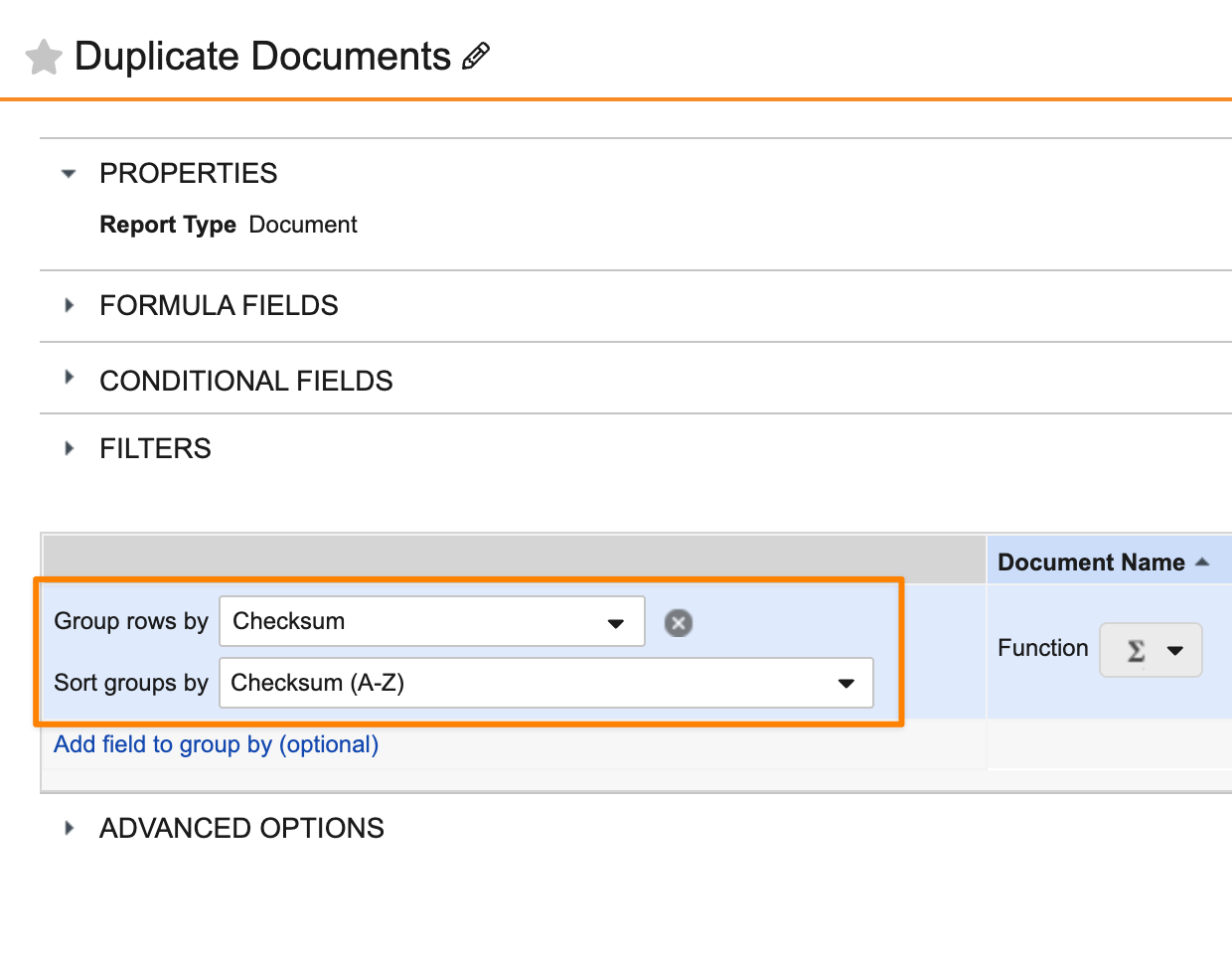
If the results should only include those where more than one document has the same checksum, this was not possible with a standard report prior to 26R1. Instead, you would need to use a multi-pass report to aggregate the number of documents per checksum in a report view, and then you could filter on this sum in the final report.
After 26R1, this can be done more simply by grouping the report by Checksum, using CountRows() to count per Checksum, and then using a filter to only show groups where the count is greater than 1.
Grouping the report by Checksum:
Using CountRows() to count per group (Checksum):
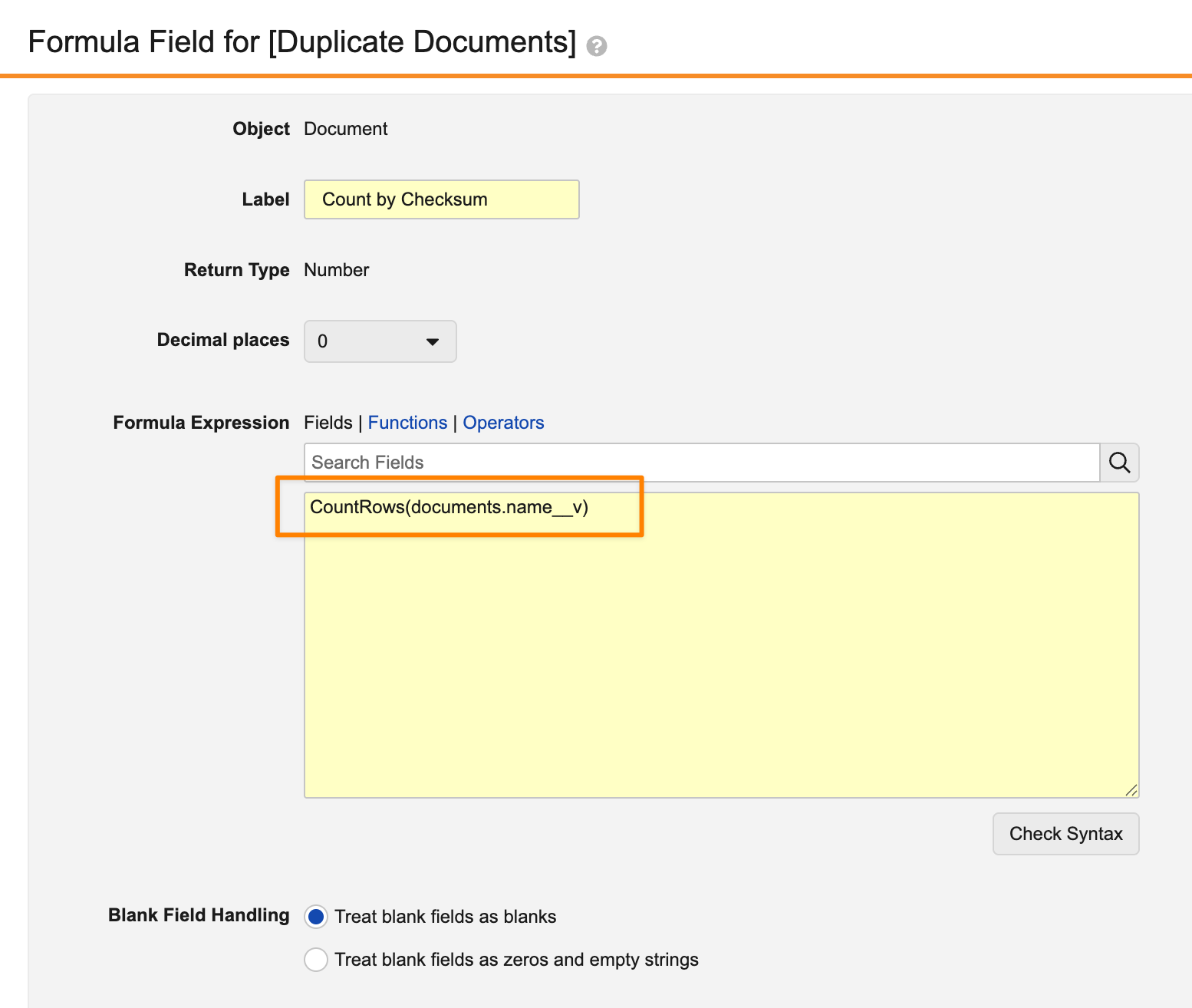
Using a filter to only show groups where the count is greater than 1:

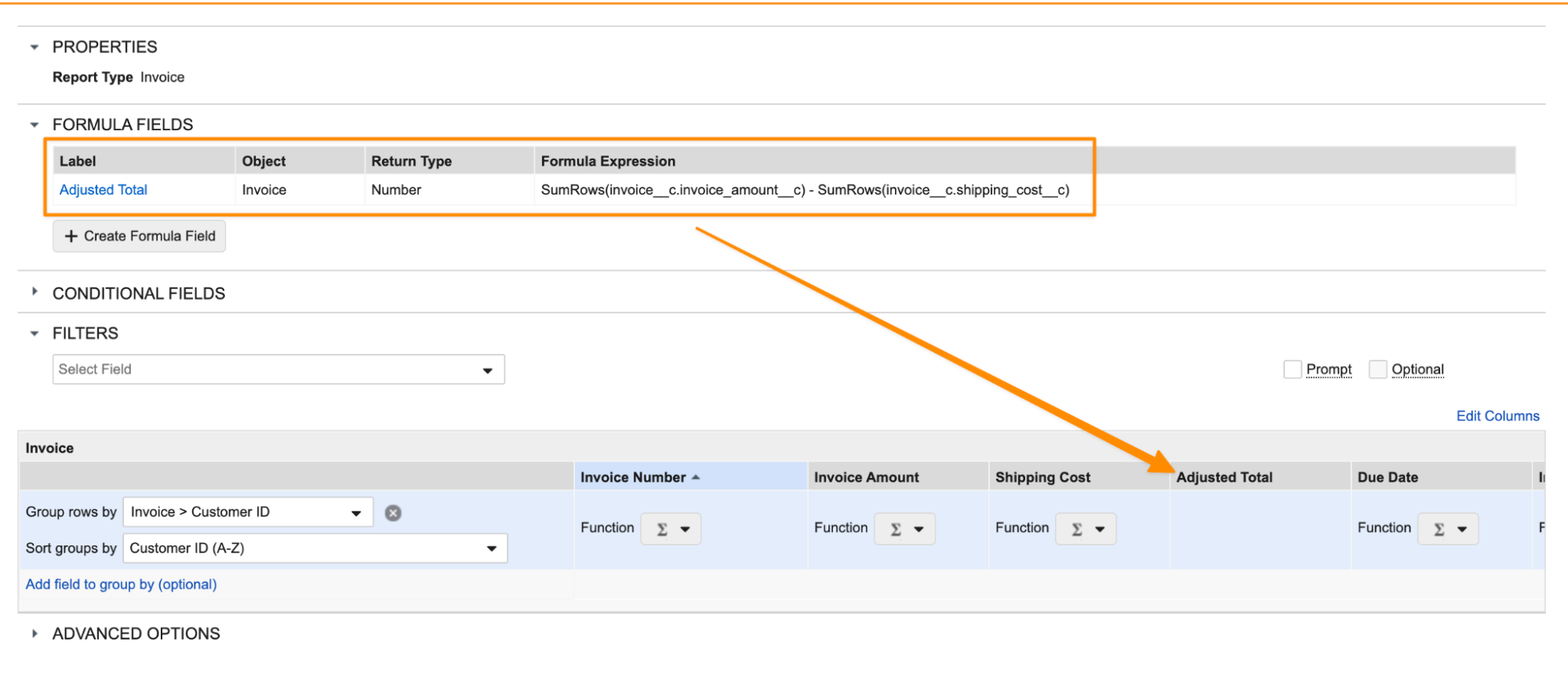
Using these functions multiple times in a formula also provides the ability to perform comparative calculations on aggregates more easily. For example, you can use a formula to calculate an adjusted total per customer:
Learn more about Vault Formula Reference Guide.
Document Version Process ReportingAuto-on25R3.4
In document reports that include previous versions, Vault now supports cycle time functions per steady state version, allowing for more accurate and granular analysis of document processes.
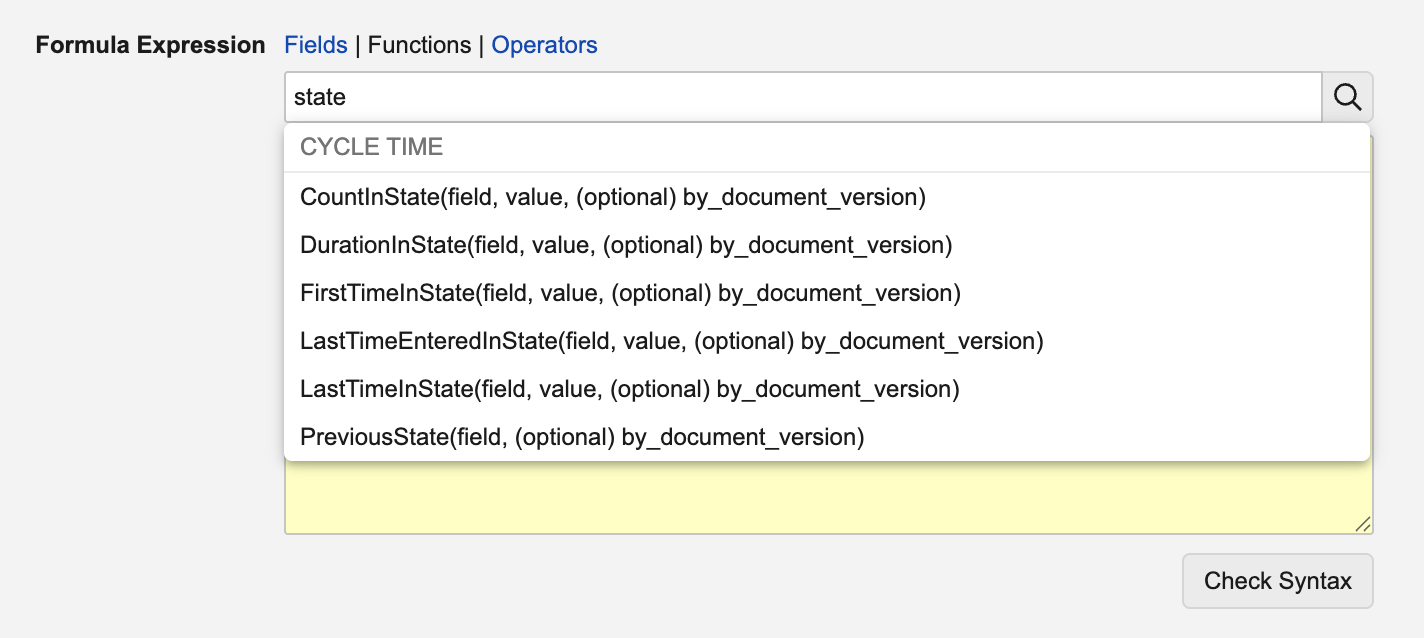
Prior to 26R1, using the standard cycle time functions for documents would calculate information across all versions. For instance, the following function would return a cumulative sum across all versions of the number of days each document spent in the Draft state:
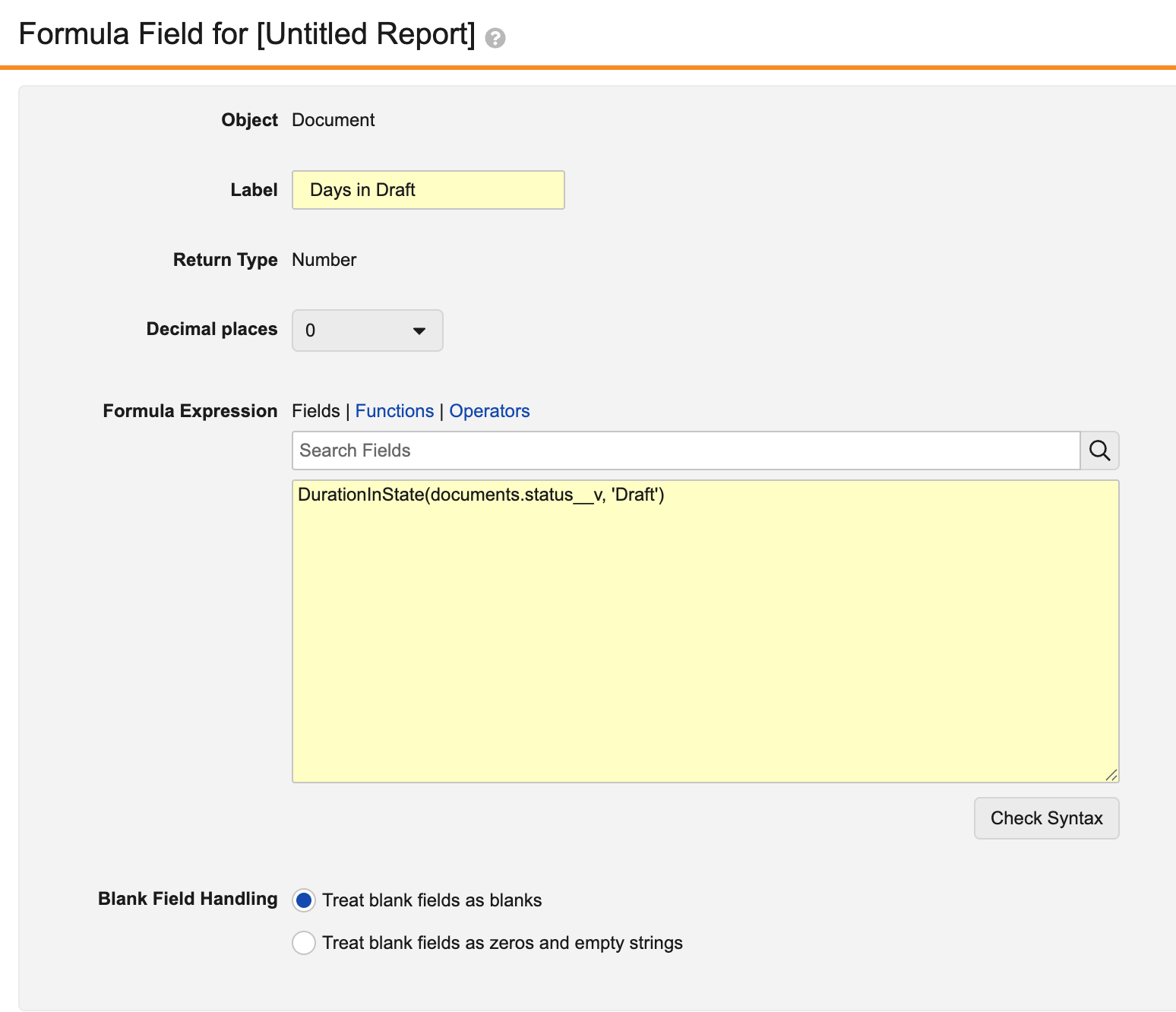

With this enhancement, this formula now supports a new by_document_major_version parameter (TRUE/FALSE) for document reports that include previous versions:
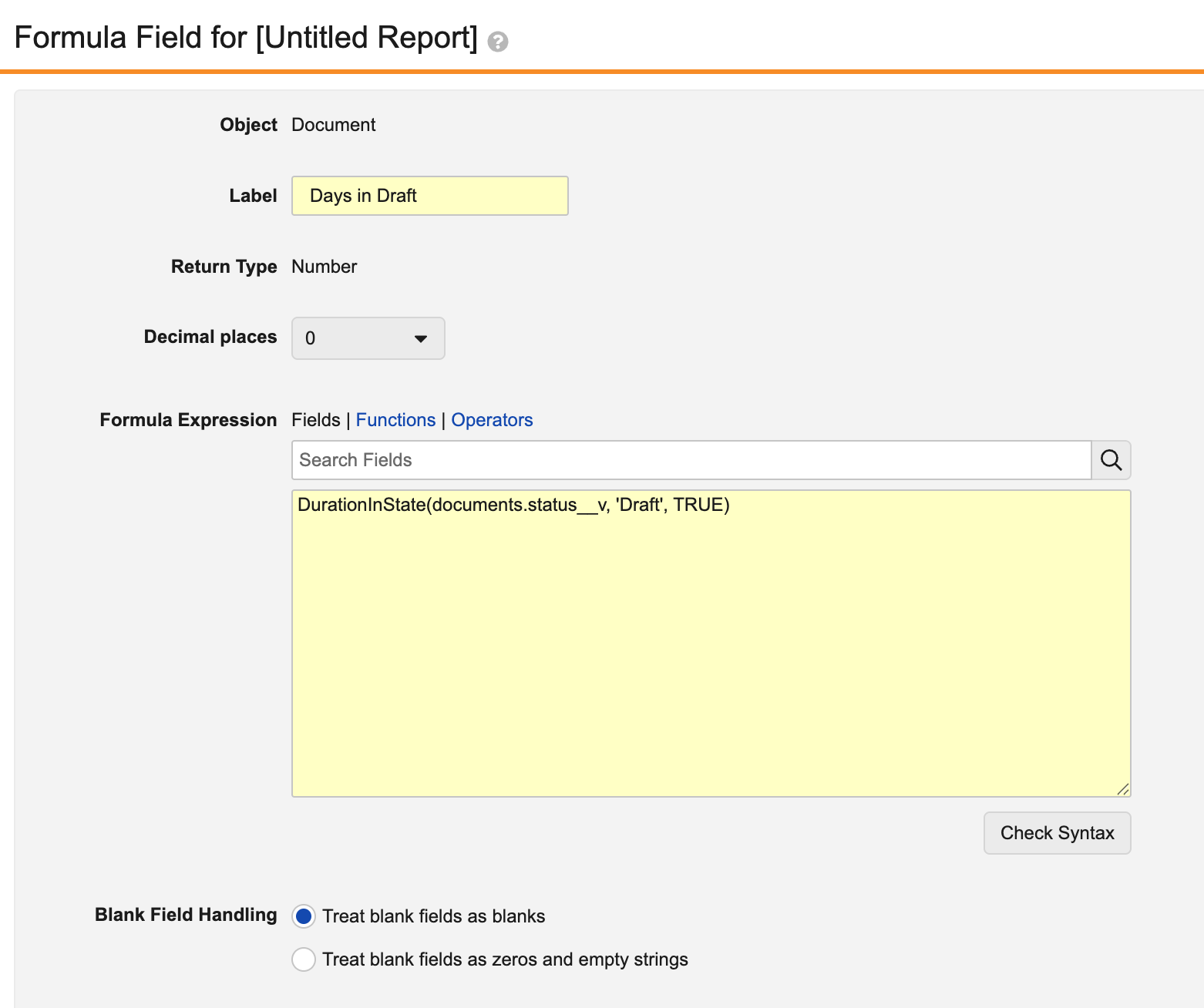
This allows users to identify how long each steady state version spent in the Draft state:

When set to TRUE, calculations are performed for each steady state version. A single steady state version’s cycle encompasses all preceding versions after the last steady state version.
Additionally, process reporting functions now include LastTimeEnteredInState(), allowing users to identify the last date and time a document version or record entered a specific state (whereas LastTimeInState() returns the last time it was in that state).
Learn more about Cycle Time Functions.
Execute Reports with Columns with Field Level SecurityAuto-on25R3.2
Vault now automatically hides columns in reports and dashboard charts that a user doesn’t have access to due to field-level security. Prior to 26R1, if a user didn’t have access to a particular field used as a column, they would not be able to access the report at all. This enhancement ensures that users can see what they are allowed to see without needing to create duplicate reports with different sets of columns.
Users may still encounter access errors if the inaccessible field is used in report or dashboard logic, such as Group By, Formula Fields, Conditional Fields, or dashboard chart criteria.
This enhancement specifically applies to field-level security applied using permission sets for objects or via security overrides for documents. Fields secured using Atomic Security for objects already do not prevent access to the overall report.
Learn more about Field Level Security for Documents and Field Level Security for Objects.
Support Created By & Last Modified By in Workflow & Lifecycle FormulasAuto-on25R3.2
Admins can now add Created By and Last Modified By fields in Lifecycle and Workflow formulas.
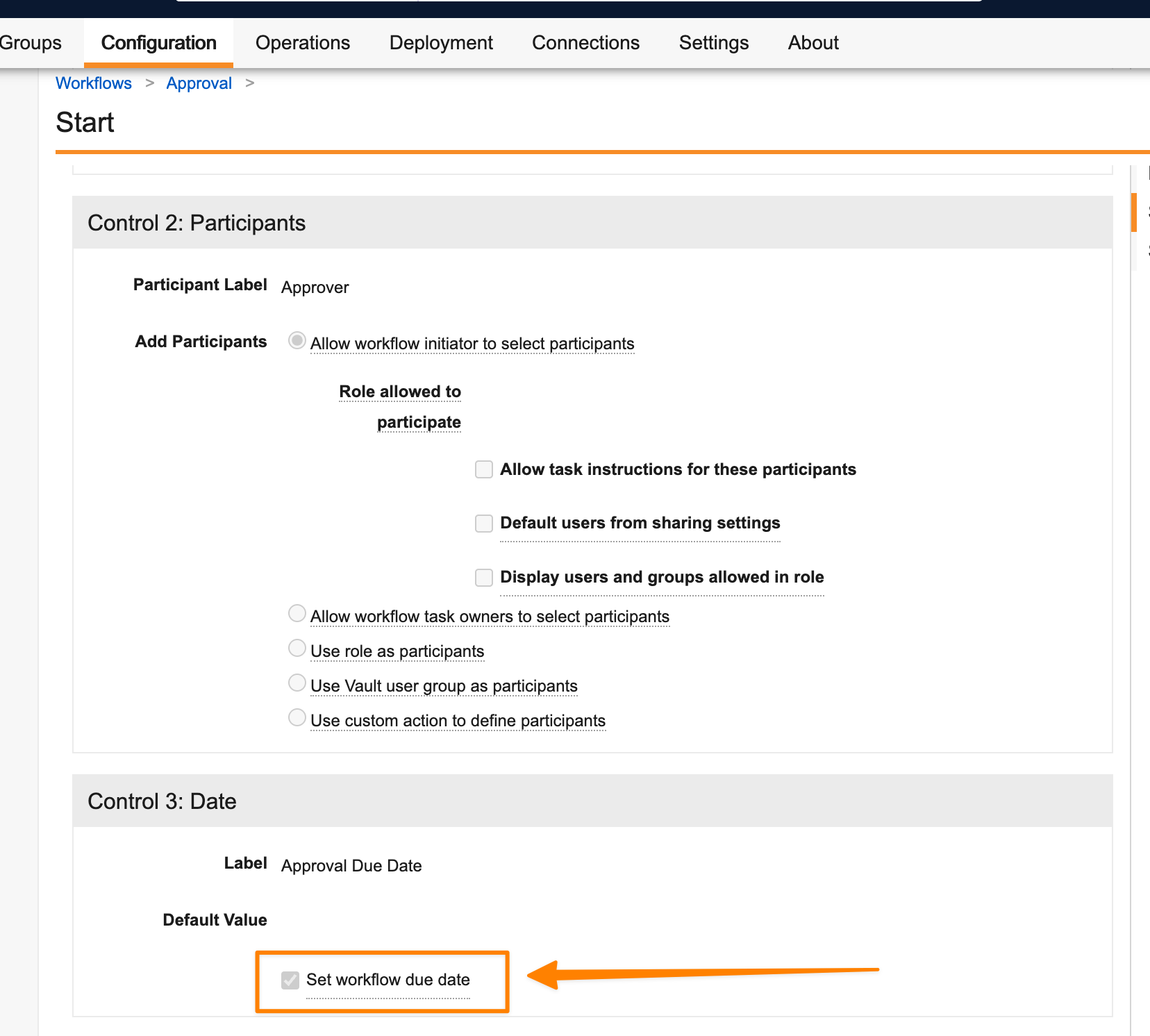
Workflow Due Date for All Workflow ReportsAuto-on25R3.4
Workflow reports now support using the Workflow Due Date in all scenarios, allowing for more accurate and complete workflow reporting. Prior to 26R1, the Workflow Due Date column in Workflow reports was only populated for legacy document workflows. This column is now populated for all workflows where a Workflow Due Date is configured:
Learn more about About Workflow & Task Report Fields.
Admin Experience
Bulk Translation Multi-File ImportAuto-on25R3.4
When using the Bulk Translation tool, Admins can now upload multiple translation files and import them in a single action, allowing translations across languages to execute without separate actions.
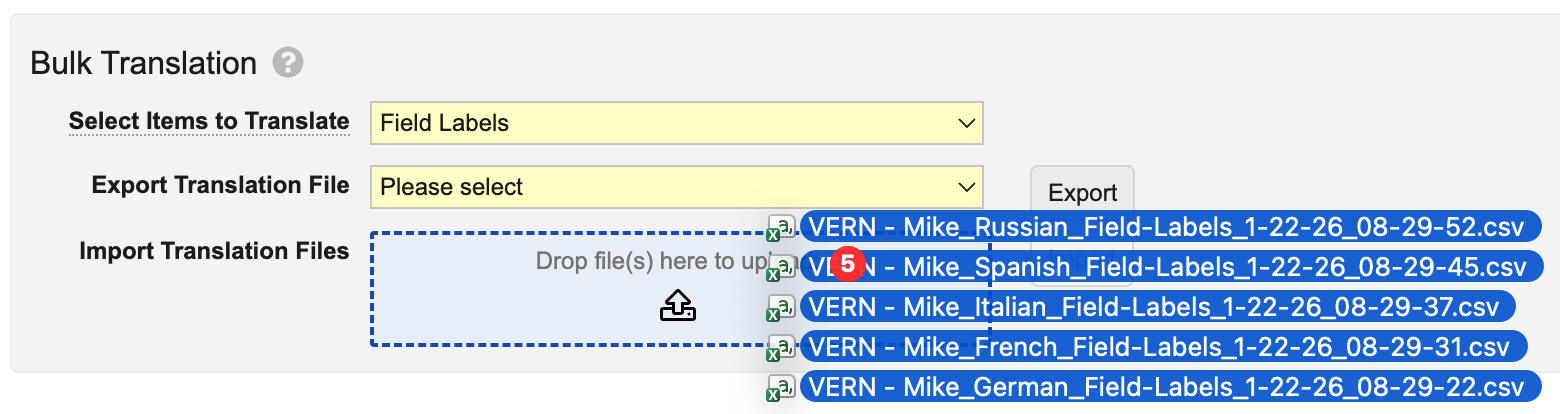
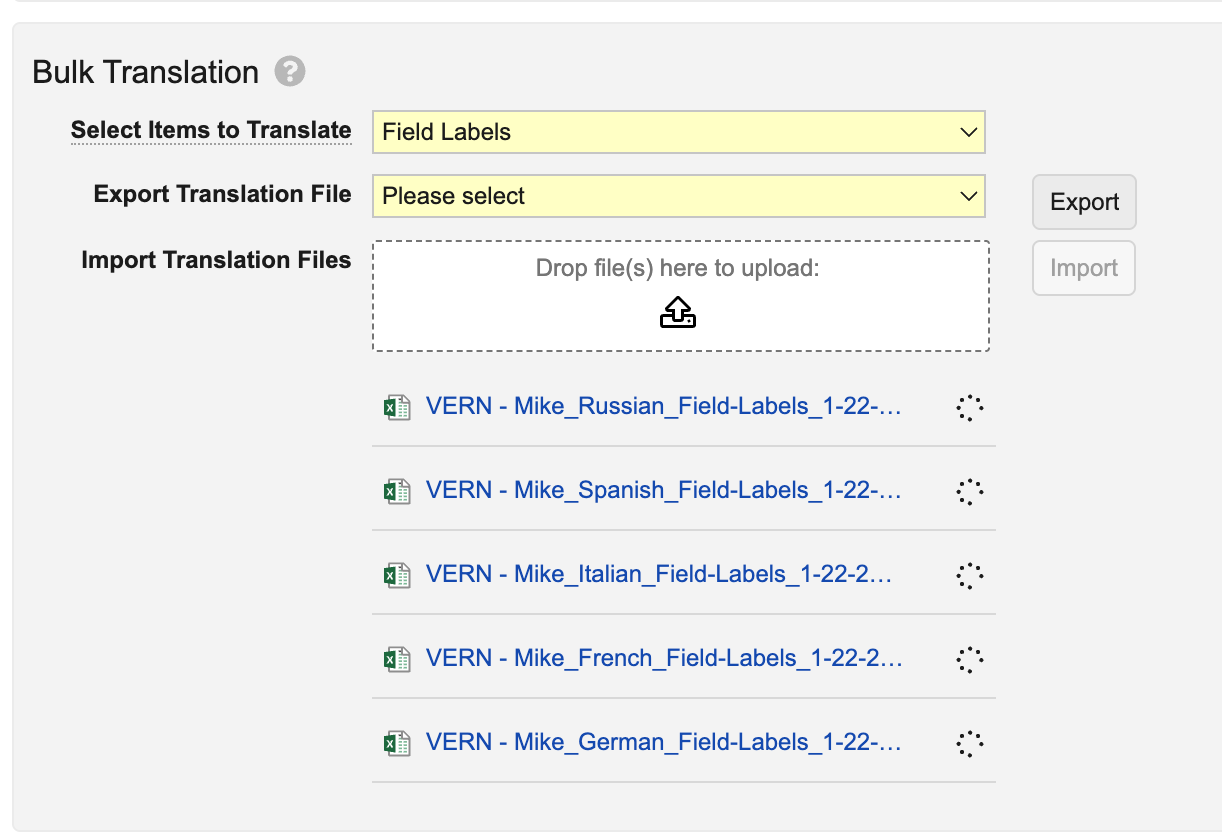
We strongly recommend importing multiple files at once, so Vault can process and reindex changes more efficiently, ensuring changes are reflected in the Vault user interface more quickly.
With this option, Admins can import up to 40 translation files at once. To optimize the experience and performance, this feature also removes the Reindex document metadata option when importing files. Instead, Vault automatically determines where reindexing is needed and performs the reindexing accordingly.
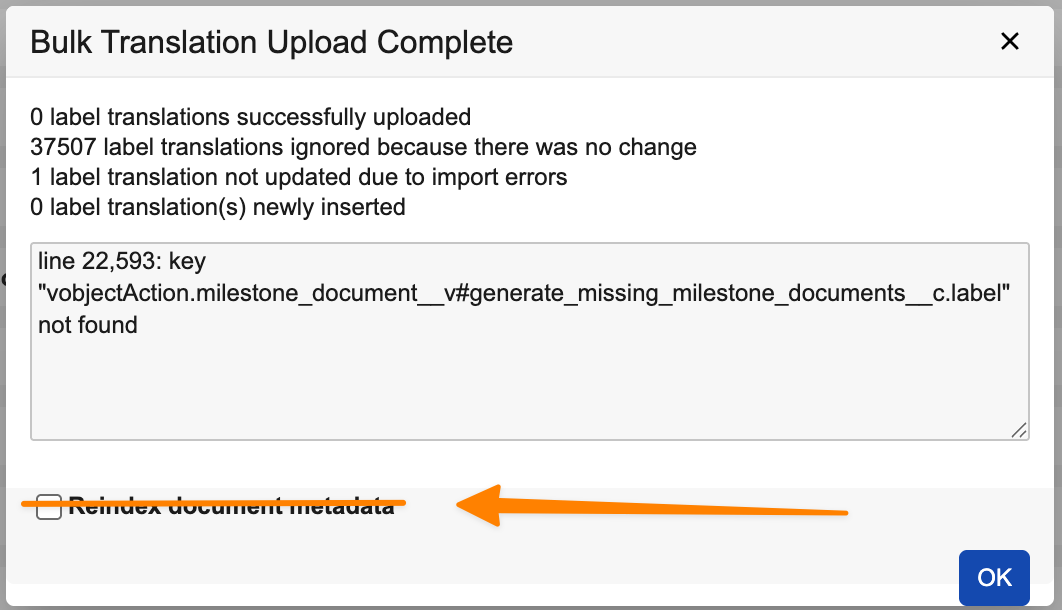
Learn more about How to Use Bulk Translation.
Holiday & Holiday Schedule as Configuration DataAuto-on25R3.4
Holiday Schedule (holiday__sys) and Holiday (holiday_schedule__sys) records are now saved as configuration data, ensuring that these records do not count towards sandbox size limits and that these records are copied when sandboxes are created or refreshed.
Prior to 26R1, these records could impact data allowances, particularly for small sandboxes, and Admins would need to reload records when an environment was refreshed.
Learn more about Holidays and Holiday Schedules.
Searchable Object Fields Admin UI UpdateAuto-on25R3.2
The Searchable Object Fields page in Vault Admin is updated to improve usability. The Name (name__v) field is no longer displayed, since this field is always searchable and cannot be removed. This enhancement makes the list of optional searchable object fields easier to review.
Users can add or remove multiple fields before committing. Two new pending states are introduced: Uncommitted Removal and Uncommitted Add. Once items are modified, the user can select Commit Changes to complete the process and initiate reindexing, or Revert Changes to discard them.

Direct Data API: Publish Files at Vault TimeAuto-on25R3.4
To better align with where the Vault is located and when data is available, Direct Data API Full and Log files will now be published at 01:00 Vault Time instead of 01:00 UTC time. For example, for a Vault configured with a PST time zone, Direct Data publishes all Full and Log files at 01:00 PST (08:00 UTC), excluding adjustments for daylight savings time. Full files for such a Vault with PST time zone will now be generated as 143462-20260120-0800-F.tar.gz.
Data captured in published files is always in UTC. You can find the current timezone for your Vault under Admin > Settings > Language & Region Settings.
Direct Data API: Include Vault Metadata
Direct Data will now include Vault configuration as CSV files in extracts to help customers obtain complete metadata for extracted object fields (object.csv) and document fields (document.csv). Metadata.csv files now include a new column to indicate whether a field is a Formula field. Customers can now build formulas directly in their external system based on the metadata provided in object.csv file. This feature is deferred to a future release.
Vault Loader Support for No Triggers with Document Migration ModeAuto-on25R3.4
Vault Loader will now support the ability to skip triggers with Document Migration Mode enabled from the Vault user interface, API, and Loader Command Line tool.
Learn more about Document Migration Mode.
Create Inactive Users in Migration ModeConfiguration25R3.2
Admins can now create inactive Vault users associated with inactive domain users by leveraging Record Migration Mode. Inactive Vault users do not consume a license until they are activated.
Learn more about Creating & Updating Legacy Users Using Vault Loader and Creating, Updating & Deleting Object Records Using Vault Loader.
Picklist Order TypeAuto-on25R3.2
A new attribute on picklists allows Admins to specify how picklist entries are displayed to users. It allows picklist values to be returned in alphabetic order by the picklist value of the user’s language, instead of using the predefined picklist order. This new attribute can be set on the picklist in Business Admin or using MDL.
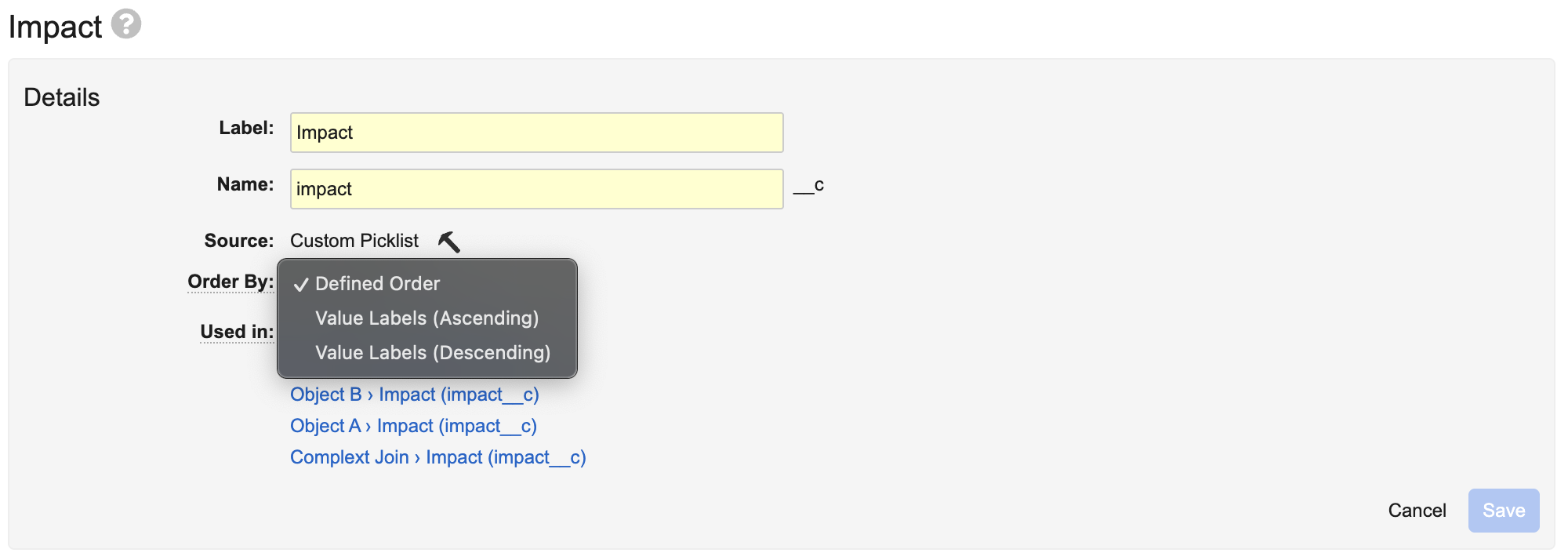
Learn more about Managing Picklists.
Enhanced Reference LookupsAuto-on25R3.4
This enhancement to reference lookups addresses a need for greater flexibility, where lookups can now dynamically determine the Target Key based on a user defined criteria. Existing reference lookups are not modified by this enhancement.
Example Use Case
A customer requires the classification of documents crosslinked from Vault A into Vault B to be determined based on criteria such as Region.
Currently, the mapping table only allows a one-to-one mapping of document types between the source and target vaults.
With the new feature, Administrators can add dynamic Reference Lookups with conditions that determine the Target Key value.

Learn more about Creating & Managing Reference Lookups for Connections.
Enhanced Default Values for Field RulesAuto-on25R3.4
This feature enhances the behavior of field rules to support Target Field Lookups when a Field Default value is provided. Specifically, when both a Target Field Lookup and Field Default are populated in a field rule, Vault now looks up the value using the field specified in the Target Field Lookup (for object type fields), rather than applying the Field Default value directly as a record ID.
Previously, when a Field Default value was provided for a field rule, this value was applied without any transformation if there is no Query Field value in the source Vault, or if the Query Object or Query Field were not populated.
This limitation essentially prevented Field Default values from being used in conjunction with Target Field Lookup in field rules, as Vault always interpreted the Field Default value as a static record ID rather than performing the necessary lookup.
Reference Lookups Availability in Business AdminAuto-on25R3.4
With 26R1, users can no longer manage reference lookups from Business Admin. Vault users typically manage reference lookups from the Admin > Connections page. If any changes have been made to the Reference Lookup object configuration, they will be reset.
Outbound Email Domain: Send Using Root DomainConfiguration25R3.4
Admins can now create outbound email domains using root domains even when those root domains are already registered in CRM’s Approved Email system (or other Mailgun accounts), allowing multiple Vault applications to leverage the same root domain.
When a root domain already exists in another Mailgun account, Vault creates a placeholder domain in the following format: production-vv-out.[domain]. For example, [production-vv-out.vernbio.com].
The placeholder only appears in DNS setup instructions and a Person record’s outbound email addresses can be verified if their domain matches the “trailing domain name” of an active placeholder domain (for example, [vernbio.com]).
While this feature allows for a root domain to be used across Vault applications, the best practice is to use subdomains wherever possible as this provides improved deliverability and troubleshooting.
Learn more about Configuring Outbound Email Addresses.
Compare Report: Allow All Accessible VaultsAuto-on25R3.2
Vault Admins can now run compare reports against any Vault the user has access to. Previously, Admins were limited to related sandboxes.
Permissions & Access
New Permission to Access Root File Staging FolderAuto-on25R3.2
A new permission is now available for configuration in permission sets to grant users the ability to access the root folder on the file staging server. Prior to 26R1, only standard System Administrator and Vault Owner security profiles allowed access to the file staging server root folder. This new permission allows customers to assign the permission more granularly in line with the principle of least privilege.
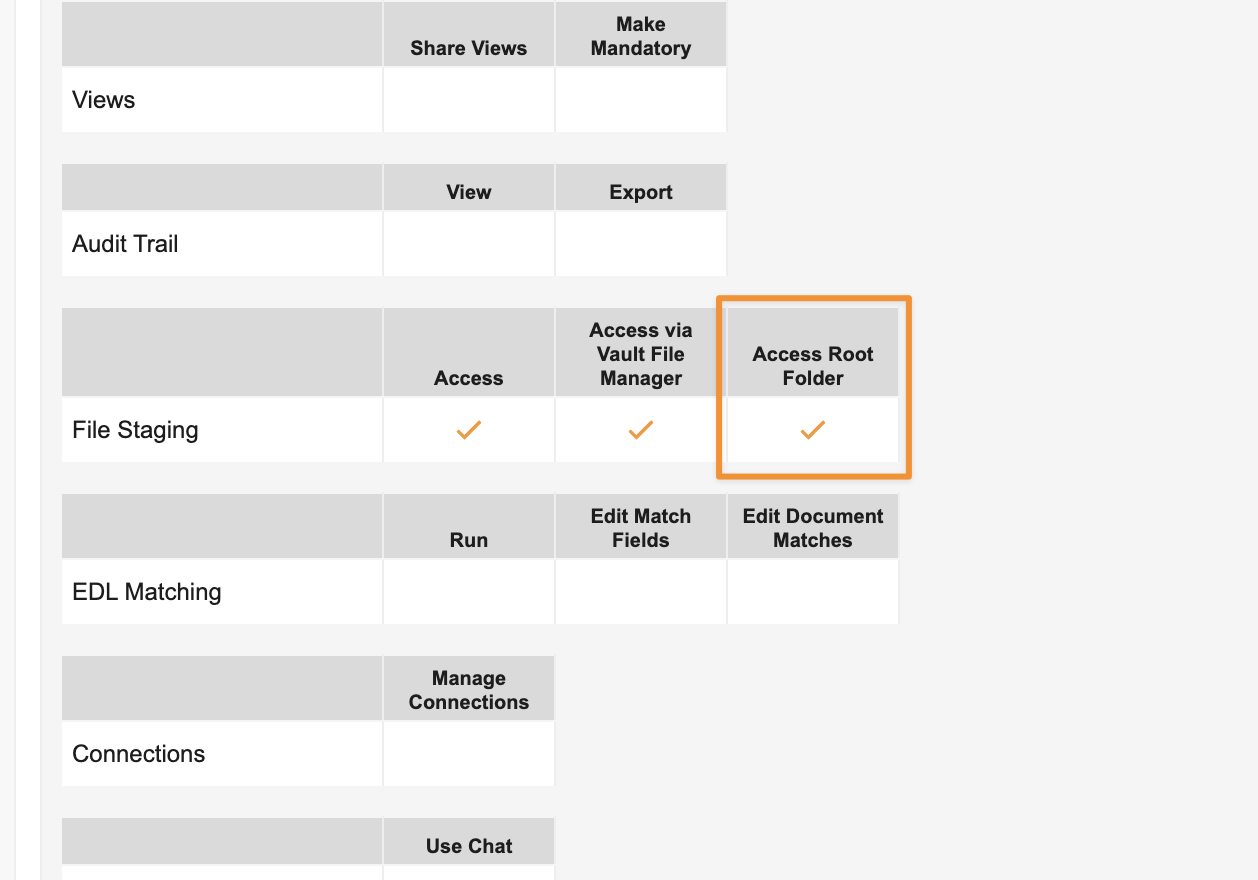
By default, this new permission is enabled in the standard System Administrator and Vault Owner security profiles to maintain current behavior.
Learn more about Accessing Your Vault’s File Staging Server.
Login Audit History: My Vaults PageAuto-on25R3.2
When a user logs into Vault and starts their session on the My Vaults page, this action will no longer update the Last Login time for any specific Vault, and will now be audited more accurately as My Vaults User Login.
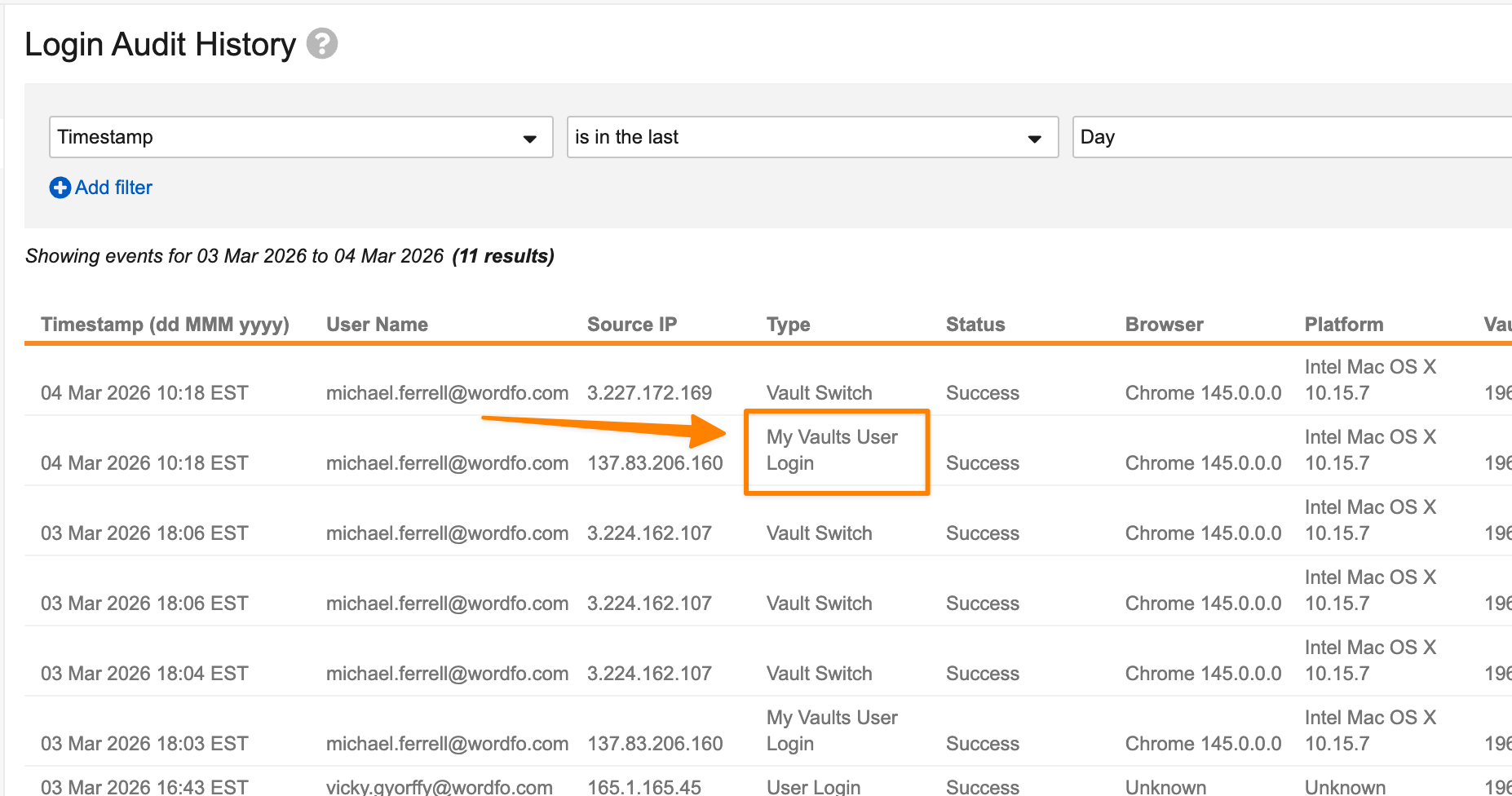
This enhancement improves clarity on the specific location users land on when logging in, allowing differentiation between a user logging in and landing in a particular Vault (logged as User Login) or landing on the My Vaults page (logged as My Vaults User Login).
Previously, when a user started their session on the My Vaults page, this would update the Last Login date and be logged as User Login in the Vault on that domain that they were added to first.
Note: Documentation of this feature is included as part of the 26R1 release, though the change was previously deployed to all Vaults shortly after the 25R3 general release.
Learn more about Login Audit History.
VeevaID Recent ActivityAuto-on25R3.2
VeevaID users will now have access to a Recent Activity section in their My Account page, which will provide details on the last 100 logins on their account. This feature allows users to monitor their activity in the interest of keeping their account secure. This page will also include a link to change their password easily if there are any unfamiliar logins.
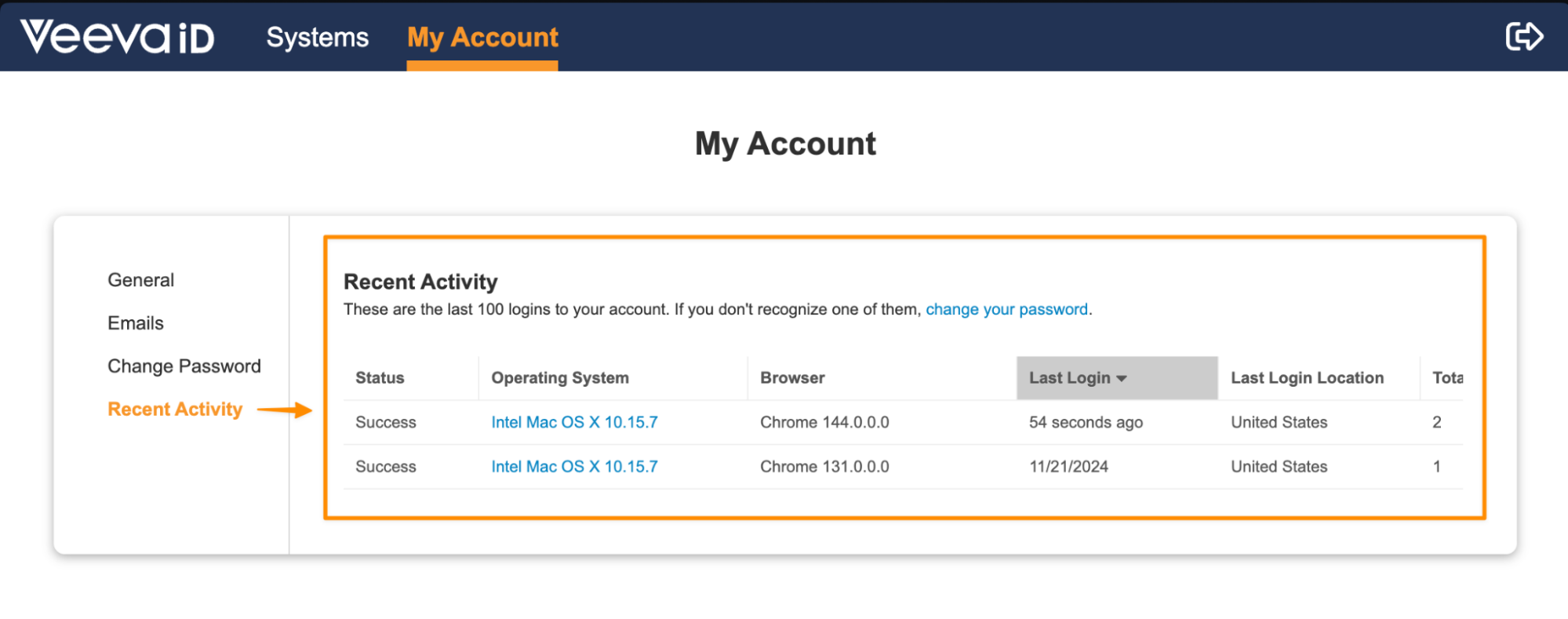
Learn more about VeevaID.
Vault-On-the-Go
Document Scanner Improvements for Android DevicesAuto-on25R3.2
Scanning documents on Vault Mobile on Android devices has been improved to provide better quality scans, automated page detection, and image clean-up. These improvements greatly reduce user effort in adjusting scanned images manually and brings the quality of the Android app scanning on par with the iOS experience.
Learn more about Vault Mobile.
Performance & Availability
Enhanced Audit StorageAuto-on25R3.4
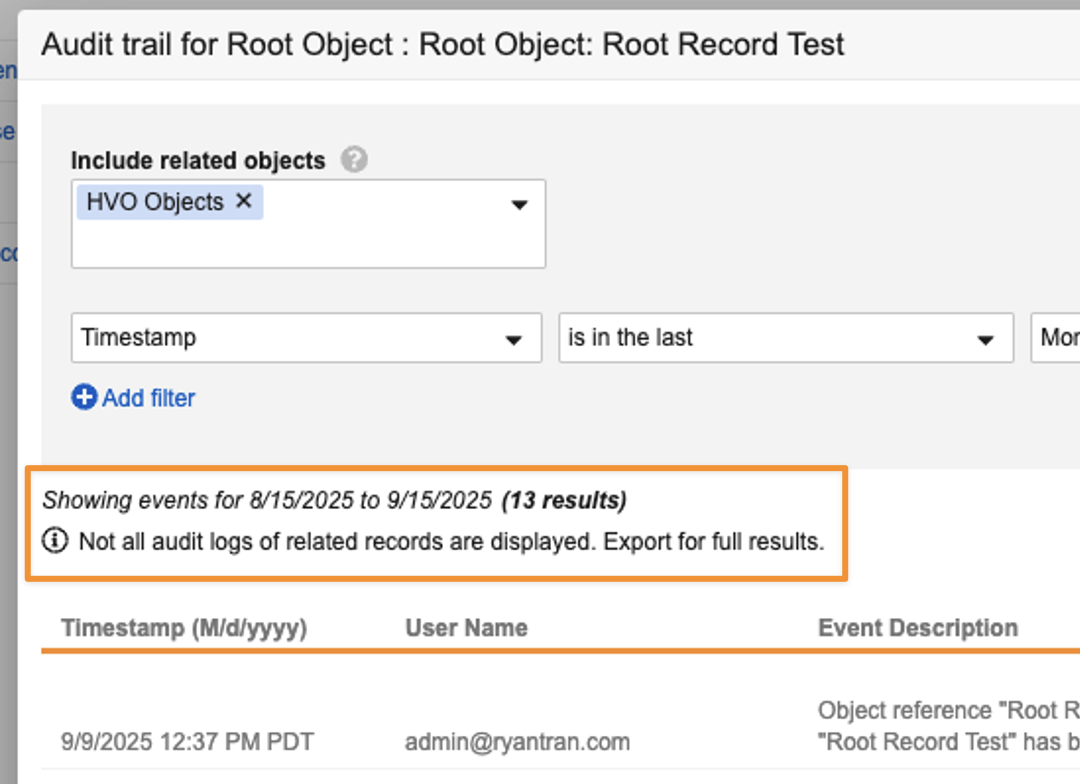
To optimize the audit trail for long-term scalability, large document and object audit logs may now be moved to file storage. Audit logs remain accessible from the user interface and API.
In some scenarios, to maintain user interface speed, results in the UI may be truncated and full datasets for extensive related record or Admin audits can now be accessed via export. A notification is displayed when an export is necessary to view full results:
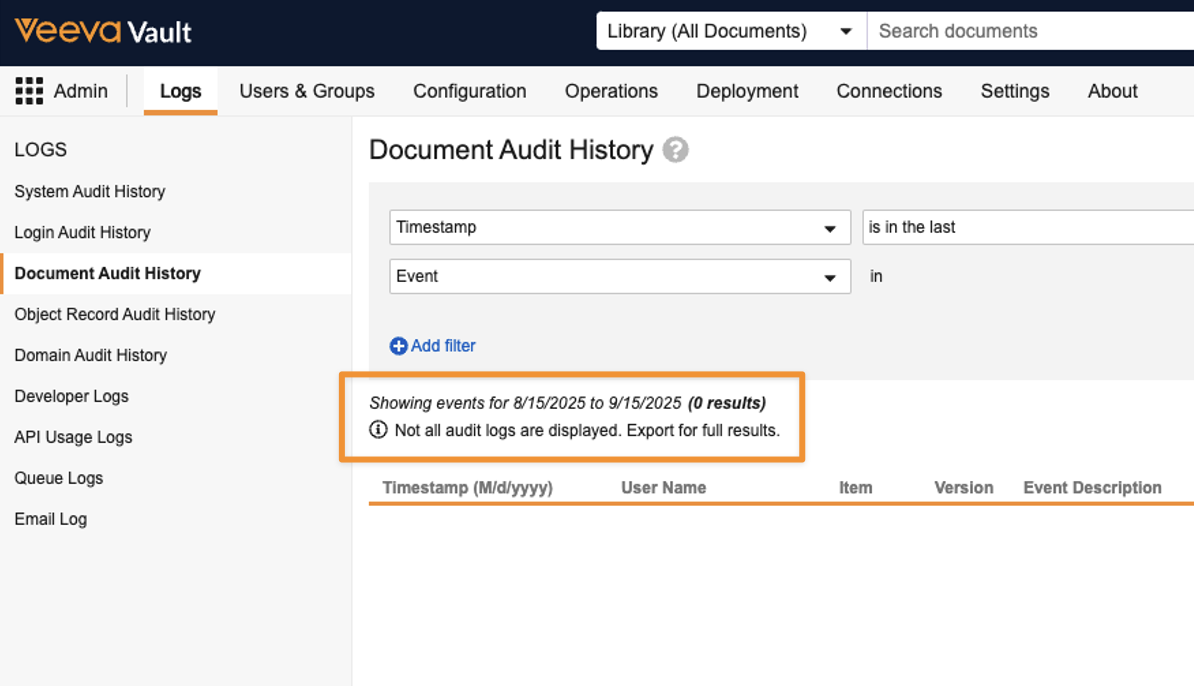
Minor Enhancements
Improved Search for User AdministrationAuto-on25R3.4
When performing searches in Vault Users or Domain Users (Admin > Users & Groups), Vault will now return results based on all available fields on the User object. Prior to 26R1, Vault only returned results based on matches found in visible fields (fields added as columns).
This feature ensures that Admins receive comprehensive search results based on all available user data, and also ensures that searching these pages behaves consistently with searching object or document tabs in Vault.
Support for Report Filter Aliases in Multiple LanguageAuto-on25R3.4
Report filters now support setting aliases in different languages, providing a more streamlined experience for global organizations.
Prior to 26R1, if a user created or edited a filter alias, this changed the alias for all users in all languages. Now, only users with the same language see the updated alias.
For instance, if a French user changes the filter alias from “Goal” to “Objectif”, only other French users see “Objectif” going forward.
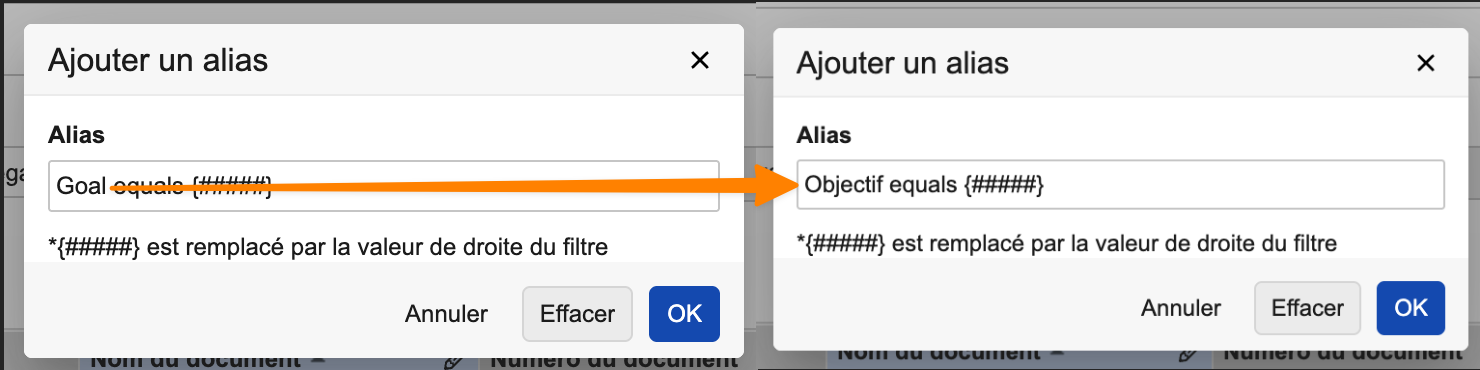
Any alias that has not been edited by a user in a language different from the Vault’s base language is displayed to everyone in the base language.
Learn more about Filter Aliases.
Read & Understand Workflows Excluded from Auto-Started Workflow LimitAuto-on25R3.4
Read & Understand workflows no longer count toward the maximum limit of ten auto-started workflows per document. This change ensures that document reviews can start automatically regardless of how many other Read & Understood workflow tasks are active on the document.
New Language Picklist OptionsAuto-on25R3.4
This enhancement adds Mayan dialects and an indigenous Polynesian language to the document language picklist for Vaults with multilingual document handling enabled. This feature provides more options to users when selecting a document’s language. Be aware that these are unsupported languages. No language-specific analysis is performed on documents where an unsupported language is selected.
Checklists: Show Workflow Banner for Available TasksAuto-on25R3.4
With this enhancement, when an available task exists for a checklist, the ability to accept the task is presented to users on the Checklist respondent page. This allows eligible users to accept and complete the task from within the respondent page.
Pagination, Column & Filter LimitsAuto-on25R3.4
The following search limits have been added to prevent performance issues:
- When on an object tab or the grid layout of the Library, users can add up to 100 columns.
- When adding filters on an object tab or the Library, users can add up to 100 filters.
- When more than 100 pages of results are returned on an object tab or the Library, users cannot navigate past page 100. In this case, we recommend using search, filters and sorting to further refine the results.
This applies to the majority of grid views in Vault, with a few exceptions, which will have these limits applied in the future. The exceptions include grid views that are specific to a particular application or contain special functionality for that application, such as Milestones and Expected Documents in Clinical Vaults.
Improved PDF Text ExtractionAuto-on25R3.4
The PDF text extraction process has been updated for improved term accuracy when searching document content.
Veeva Connections
Clinical Operations-EDC Connection
Clinical Operations-EDC Connection: Visit Review Progress IndicationAuto-on25R3.2
The Clinical Operations-EDC Connection previously provided a limited view of Source Data Verification (SDV) and Data Monitoring Review (DMR) progress as binary state: either Complete or Not Started. This lack of granularity created ambiguity, specifically if a CRA started reviewing a subject visit but could not finish it (for example, due to time constraints or needing clarification). The system did not reflect the partial work. This often led to misrepresentation of data review status, making it impossible for study managers to get an accurate, real-time snapshot of the overall monitoring progress.
To resolve this, the Veeva CTMS data model is extended to in this release include two new dedicated fields for granular review tracking: SDV Status and DMR Status, each supporting the three states (Completed, In Progress, and Not Started) across the relevant subject visit objects.
This feature specifically enhances the Clinical Operations-EDC Connection to populate these new Veeva CTMS fields based on SDV & DMR performed in Veeva EDC.
Note that SDV/DMR Mode, SDV/DMR Completed, and SDV/DMR Complete Date will still be populated by the Clinical Operations-EDC Connection and used by Veeva Payments to ensure continuity of previous functionalities.
This feature enables Veeva CTMS to reflect the Review status without requiring manual entry from CRA in Veeva CTMS, ensuring synchronization with the Veeva EDC source.
Learn more about other new Clinical Operations features below.
Clinical Operations-EDC Connection: Flexible Visit DefinitionsAuto-on25R3.2
This feature streamlines the process of connecting Visit Definitions between Veeva CTMS and EDC by removing the manual linking requirement, making study connection easier and less technical.
When a study is connected, the Clinical Operations-EDC Connection is now enhanced to automatically link existing CTMS Visit Definitions to their corresponding EDC records using the Visit Definition name. This eliminates the need for users to manually link existing records using the EDC Private Key and Study ID.
The updated logic is:
- The Clinical Operations-EDC Connection first checks if there is an existing Study Visit Definition with a matching link. If found, the existing record is updated from the source.
- If no link is found, the system then checks for a Study Visit Definition that matches on Visit Definition name (case sensitive). If a match is found, the system automatically creates a link and updates the existing record from the source.
- If no match is found by link or name, a new Visit Definition record is created and linked.
If the system finds more than one Visit Definition with the same name, the record is not processed and a User Exception Message is created.
Existing Visit Definitions that are already linked are not impacted by this feature.
Learn more about other new Clinical Operations features below.
Clinical Operations-EDC Connection: Identify Programmatic Protocol DeviationsAuto-on25R3.2
When managing Protocol Deviations (PDs) in CTMS, a critical distinction for oversight, workflow, and data integrity is understanding the PD’s origin. Was it created automatically by the system (a programmatic PD) or manually by a user?
Prior to this enhancement, the existing Clinical Operations-EDC Connection would transfer PD records from Veeva EDC/CDB to Veeva CTMS, but it lost the key piece of information indicating if the PD was created via an automated rule (for example, “If participant age < 18,” “If visit date is outside of window”).
This feature enhances the existing Clinical Operations-EDC Connection to automatically identify and label Programmatic Protocol Deviations upon creation in Veeva CTMS. The Protocol Deviation object type pdv__ctms has been extended with a new system-managed field programmatic__v. The connection logic is also updated. For any source PD record in Veeva EDC, if it was automatically created by a rule, the connection will automatically mark the target programmatic__v field in Veeva CTMS as Yes.
This enhancement ensures that PDs created in Veeva EDC through a Rule Definition are now accurately identified as a Programmatic Protocol Deviation when created in Veeva CTMS. This new Programmatic label is then available in Veeva CTMS for downstream usage (e.g. other features, reporting), allowing study managers to easily distinguish system-generated versus manual issues.
Learn more about other new Clinical Operations features below.
Clinical Operations-EDC Connection: Editable Connection DetailsAuto-on25R3.4
This feature enhances the Clinical Operations-EDC Connection by allowing users with administrative access to edit specific connection details directly within Vault. This update is particularly beneficial for organizations, such as CROs, that manage numerous active connections and require better ways to distinguish between them.
Previously, Vault restricted the editing of Clinical Operations-EDC connection instances. This restriction has been partially lifted to allow for direct modification of specific fields to improve clarity and organization.
Key Enhancements
- Custom Naming & Descriptions: Users can now replace default numbered names with descriptive labels, such as “Connection to Sponsor A’s EDC,” and add custom descriptions to identify the purpose of each connection quickly.
- Simplified Management: Administrators can more easily identify specific Vaults or Sponsors when configuring or troubleshooting connections.
- Improved Reporting: Data managers can now use meaningful connection labels when extracting or reporting on connection-related data.
- Duplicate Prevention: To maintain system integrity, Vault has implemented triggers that prevent the use of duplicate connection names.
Learn more about other new Clinical Operations features below.
Quality-RIM Connection
Quality-RIM Connection: Materials Product DataConfiguration25R3.2
This feature enhances the existing Quality-RIM Connection to transfer records to Quality as Material records. Vault syncs data from RIM Active Substances (including Aliases), Inactive Ingredients (including Aliases), Packaging, and Container records. Vault only creates records that do not already exist in the Quality Vault and transfers relationships between new Material records and the existing product hierarchy.
What’s New?
The Quality data model’s Material object now includes new object types:
- Finished Good: Corresponds to a Packaging record in RIM.
- Raw Material: Corresponds to a Container, Active Substance, or Inactive Ingredient in RIM.
The integration syncs the following data points from RIM to Quality:
- Materials Integration: Syncs Packaging, Container, Active Substance, Active Substance Alias, Inactive Ingredient, and Inactive Ingredient Alias records.
- Related Materials: Syncs the Packaging Container object and the Packaging object’s Contained Within relationship field.
- Material Product: Syncs Product Packaging and Product Variant Packaging information.
Key Benefits
- Eliminates Manual Management: Reduces the need for third-party master data management tools or custom integrations to manage product hierarchy data.
- Enhanced Change Control: In the future, this feature will allow QMS users to select materials against Change Controls so related Product details can be sent to RIM as new Change Items.
- Improved Batch Release: Provides a way to link materials to the existing product hierarchy so the Batch Release application can request the status of associated registrations.
Additional Considerations
- External ID Validation: Vault only transfers RIM records when a match is not found between a RIM record’s
link__sysand a QMS record’sglobal_id__sys, or between the RIMexternal_id__vand the QMSexternal_id__v. - Required Vaults: This feature requires any RIM and any Quality Vault.
- Feature Scope: This update does not include registration and manufacturing site details, the ability to create change details, or the extension of Enhanced Change Control to process materials.
Learn more about other new Quality and Regulatory features below.
Quality-RIM Connection: Ensure QMS RCI & RAI Update CorrectlyAuto-on25R3.4
This feature updates the standard Enhanced Change Control integration to ensure records are synced and maintained properly. There are three main focuses of the enhancement:
- Ensure QMS Regulatory Change Item records are updated upon initial RIM Change Item creation to display the RIM record’s Name, ID, and Link
- Ensure QMS Regulatory Change Item records are updated if the corresponding RIM Change Item record has been last modified by the system or an individual user
- Ensure any RIM Activity Change Items that belong to manually created parent Change Items in RIM are not used to create corresponding QMS Regulatory Activity Items
Learn more about other new Quality and Regulatory features below.
Quality-RIM Connection: Material Change Object Type on Regulatory Change ItemConfiguration25R3.4
This feature updates the Regulatory Change Item object to prepare for a future enhancement to the Quality-RIM Connection’s Enhanced Change Control feature. The Regulatory Change Item object is used by a Change Control to track changes to specific Product Families, Products, and Product Variants. This feature will allow changes to be tracked with even greater granularity, down to specific materials. The Regulatory Change Item object will be updated as follows:
- A new Material Change (
material_change__v) object type will be added to the Regulatory Change Item object. The object type will be inactive by default. - A new Material (
quality_material__v) object field will be added to the Regulatory Change Item object’s Material Change (material_change__v) object type. The object field will be inactive by default.
Activating the new object type and field on the Regulatory Change Item object is performed by an Admin, and will typically be performed when the Quality-RIM Connection’s Enhanced Change Control feature configuration is implemented or updated. However, these changes also provide benefits to Veeva customers using the Batch Release application.
Learn more about other new Quality and Regulatory features below.
Quality-Safety Connection
Quality-Safety Connection: User Exception Item EnhancementAuto-on25R3.2
For organizations leveraging the Quality-Safety Connection, the User Exception Item message in Quality Vaults has been enhanced to always include the Case ID from the originating Safety Vault if any of the following errors are encountered:
- There is a failure prior to querying the first integration rule.
- There is a failure in any of the integration rules.
- There is a failure while saving records.
These IDs enable Admins to trace connection configuration challenges back to the originating Cases within the Safety Vault more easily for connected Quality and Safety Vaults.
Learn more about other new Quality features below.
Study Training-Clinical Operations Connection
Study Training-Clinical Operations Connection: SCORM File TransferAuto-on25R3.4
We’ve enhanced the Study Training-Clinical Operations Connection to transfer SCORM E-Learning files. Previously, SCORM documents in Clinical Operations could not be transferred as functioning SCORM files. With this update, SCORM content filed in the eTMF is ingested as a full functional SCORM file, ensuring that the E-Learning content is automatically available for assignment.
Benefits:
- Eliminates the need to manually upload and maintain duplicate copies of SCORM content across Vaults.
- Functional SCORM documents can now be used in automated training assignment flows, such as Cross-Study Substitutes.
- Updates to the source SCORM file in Clinical Operations automatically update the content in Study Training, maintaining standard CrossLink behavior.
Learn more about other new Clinical Operations: Study Training features below.
RIM-Clinical Operations Connection
RIM-Clinical Operations Connection: Update to CrossLink Trigger LogicAuto-on25R3.4
The RIM-Clinical Operations Connection now includes updated trigger logic to ensure CrossLink documents remain synchronized when you update source documents in RIM. This enhancement addresses scenarios where a Steady state document initially falls out of scope for the connection but later becomes eligible due to a metadata update.
This update applies exclusively to the outbound flow of documents from RIM to Clinical Operations. It does not impact documents being CrossLinked from Clinical Operations to RIM.
Background
Previously, the connection only triggered when a document first entered a Steady state. If a document was excluded from transfer at that time—for example, if a Transfer to eTMF field was set to False—a later update to that field would not automatically trigger the connection. This update removes that limitation, ensuring documents transfer as soon as they meet the connection criteria.
The RIM-Clinical Operations Outbound Job now triggers whenever you update a Steady state document that belongs to the RIM to Clinical Connection document type group.
General Behaviour
If a CrossLink already exists for the specific document version in the target environment, Vault automatically updates the CrossLink metadata to match the source document.
Creation Behavior by Configuration
The creation of new CrossLinks or versions depends on the Transfer steady & superseded state document versions feature flag in the target Vault:
- Flag Disabled: Vault creates or versions a CrossLink only if the update occurs on the latest Steady state version of the source document.
- Flag Enabled: Vault creates a CrossLink for the updated version and any missing superseded versions, provided a higher version does not already exist in the target Vault.
This trigger is in addition to the existing triggers that initiate the outbound job today.
This feature is automatically enabled. It only impacts records and documents processed after the Last Successful Run time of the integration following the 26R1 release.
Learn more about other new Regulatory and Clinical Operations features below.
RIM-Clinical Operations Connection: Enhanced Query Object Rules for CrossLinksConfiguration25R3.4
We have upgraded the RIM-Clinical Operations Connection to utilize the Platform’s Query Builder and Integration Rule Service. This allows Admins to define complex filtering logic for the Document Inbound Integration Rule without writing manual VQL.
| Feature | Legacy Experience | New Enhanced Experience |
|---|---|---|
| Filtering Scope | Limited to the document object only. | Non-Primary Objects: Filter based on related Study, Site, or Product data. |
| Configuration | Required manual, complex VQL relationship strings. | Auto-Mapping: Vault automatically builds relationship paths and subqueries. |
| Sync Triggers | Triggered primarily by content or version changes. | Metadata Updates: Changes to documents in a Steady State now trigger a sync. |
Use Case: Eliminating Study Clutter
- The Challenge: Syncing documents linked to multiple studies often pulls archived or irrelevant study data into RIM.
- The Solution: Add a custom checkbox field,
connection_scope__c(Include in RIM Sync), to the Study object in Clinical. In the RIM Connection settings, apply a filter to thedocument_study__vrobject:connection_scope__c = true. - The Result: Only relevant study records are crosslinked in RIM, keeping the regulatory environment clean and focused.
Impacted Integration Rules
This enhancement updates the following inbound integration rules to support the Query Builder:
rim_document__v(Document Inbound)rim_clinical_study__v(Clinical Study Inbound)rim_clinical_site__v(Clinical Site Inbound)rim_product_clinical_study__v(Product Clinical Study Inbound)
Enablement
This feature is Auto-on and available in all RIM Vaults. This feature is supported regardless of whether the RIM-Clinical Operations Connection: Transfer steady and superseded state document versions feature flag is enabled or disabled.
Learn more about other new Regulatory and Clinical Operations features below.
RIM-PromoMats Connection
RIM-PromoMats Connection: AdPromo Submission Performance ImprovementsAuto-on25R3.4
What’s New?
This release refactors the CrossLink Post-Processing job to improve end-to-end processing time and traceability for AdPromo submissions. Vault now breaks down the complex parent job into smaller, discrete jobs managed through dedicated inbound integration points on the existing Submission Management of Compliance Package integration.
Once Content Plan creation is complete, the Content Plan Management Control job triggers these subsequent job tasks synchronously:
- CrossLink Creation & Matching Job: Handles document-related tasks, including creating CrossLinks and triggering content plan matching.
- Content Plan Activation & Splitting Job: Activates and splits Content Plan items where applicable.
- Baseline Content Plan Job: Moves the Submission Content Plan to the Baselined state and locks the document version.
- Enable Continuous Publishing Job: Enables continuous publishing for the submission (only for Vaults with RIM Publishing).
The connection triggers each subsequent job immediately upon the successful completion of the previous task.
Key Benefits
- Enhanced Traceability: If a job encounters an error, the process stops and generates a specific User Exception Message (UEM) for that exact integration point.
- Improved Performance: Removing automatic 10-minute retries reduces potential delays in the submission creation process.
- Simplified Recovery: After resolving an issue, Admins can select Rerun Integration from the UEM. Vault resumes the process from the failed job rather than restarting from the beginning.
Additional Considerations
- UEM Resolution: On release night, Vault automatically inactivates all active UEMs. You should resolve existing UEMs or resend compliance packages before the update to ensure new messages use the improved connection method.
Learn more about other new Regulatory and Commercial features below.
RIM-Medical Connection
RIM-Medical Connection: Product Data TransferConfiguration25R3.4
What’s New?
The new RIM-Medical Connection supports the automatic transfer and alignment of product data between the RIM and Medical application families. This new feature allows the transfer of product, indications, and local product data between Vaults to facilitate common terminology across teams.
RIM is established as the single source of truth for all product hierarchy data needed within Medical, such as Product Family, Product Form, Product Variant, and Packaging. It also provides the single source of truth for Therapeutic Indication, Local Product (Trade Name in RIM), and Local Product Country, derived from all related registered countries.
The Medical data model changes include adding three new objects: Product Component, Packaging, and Packaging Product Variant. The RIM data model has not changed.
Key Benefits
The automatic transfer of product data eliminates potential user errors of manually creating these records in Medical. It also provides a common set of product data in Medical against which to associate medical materials.
Medical users can now use the product hierarchy defined in RIM for medical materials.
The following RIM objects are automatically transferred to Medical:
- Product Family
- Product
- Product Family Product Form (Product Family Product in RIM)
- Product Variant
- Product Component
- Packaging
- Indication
- Local Product (Trade Name in RIM)
- Product Family Local Product
- Local Product Country
Integration Highlights
- Product Integration: As product hierarchy data is created in RIM, it syncs to Medical, including Product Family, Product (Form), Product Variant, Product Component, Packaging, and Packaging Product Variant. Local Product records in Medical are synced from Regulatory Text records created in RIM.
- Indication Integration: Therapeutic Indication data created in RIM syncs to Medical.
Additional Considerations
- Product Family Local Product Duplication: Because Regulatory Text is modeled by Product in RIM, when creating the corresponding Product Family Local Product records in Medical (which are modeled by Product Family), there may be Product Family Local Product records with duplicate values. This is expected and is not anticipated to impact Medical functionality.
- External ID Check: When creating records like Product Family, Product, Product Variant, Packaging, and Local Product in Medical, Vault checks whether a record already exists. The connection uses the RIM External ID (
external_id__v) to match against the Medical record’s External ID (external_id__v). If a match exists, the records are linked instead of creating a new duplicate. This logic addresses cases where customers may have already populated records into Medical from an external system. - RIM Registrations Requirement: When the user doesn’t have RIM Registrations, the connection does not populate Local Product Country, meaning it must be populated manually.
Learn more about other new Regulatory and Medical features below.
RIM-Medical Connection: Document ExchangeConfiguration25R3.4
The new RIM-Medical Connection supports a one-way transfer of steady-state documents from RIM to Medical. This integration automates the creation and synchronization of CrossLinks, eliminating the need for manual document transfers between these Vaults. For RIM-Medical use cases, this connection can be used to transfer label and off-label documents to Medical for claims linking.
What’s New?
This feature introduces a new Veeva Connection integration to streamline regulatory and medical workflows. Key functional components include:
- Document Synchronization: Vault automatically creates or updates a CrossLink in the Medical Vault when a document of a specified document type in the RIM Vault reaches a steady state.
- State & Metadata Updates: The connection synchronizes subsequent updates. If a source document in RIM is superseded or obsoleted, Vault automatically updates the corresponding CrossLink in Medical to the same state.
- Performance Optimization: RIM leverages the Connection Document Source Event (CDSE) object to track document updates and optimize transfer performance.
- Link Annotations: Medical users can add Vault link annotations, such as anchors, to these CrossLinks. Users can then transfer these annotated documents to PromoMats for inclusion in compliance packages.
- Unique Identification: Vault populates the
link__sysfield on the CrossLink with theglobal_id__sysof the source document to ensure subsequent updates target the correct record.
Key Benefits
- Efficiency: Eliminates manual document transfer workflows by automating CrossLink creation upon approval.
- Process Optimization: Reduces clicks and potential human error by synchronizing metadata and state changes automatically.
- Compliance & Risk Mitigation: Maintains a reliable audit trail through CDSE tracking and systematic version control.
- Data Quality: Ensures consistency across Vaults through defined integration rules and field mapping.
Additional Considerations
- Admin Configuration: Admins must assign the new RIM to Medical Connection Document Type Group to document types in scope for transfer.
- Target Vault Setup: In the Medical Vault, reference lookup records for the
document_type__sysobject are required to classify incoming CrossLinks. - Scope Limitations:
- This connection does not transfer previous (superseded) versions of a document.
- RIM’s Clean Label Management feature is not supported for CrossLinks of CrossLinks. For example, if a label document were to go from RIM to Medical to PromoMats and back to RIM via the Compliance Package connection, RIM would not be able to identify the label document, because its Source Document Details would be referencing Medical, not RIM. For this reason, RIM cannot match the source document or create a reference leaf.
Learn more about other new Regulatory and Medical features below.
Safety Connections
Veeva Safety: Integration Stats for Safety ConnectionsAuto-on25R3.4
To improve oversight of complex data exchanges, Veeva Safety now tracks key performance indicators for all major Vault-to-Vault connections. Previously, monitoring the health and volume of data flowing between Safety and other functional areas; such as Clinical Operations, RIM, and EDC, required manual reporting or log analysis, making it difficult for Admins to quickly assess connection utility or identify throughput bottlenecks.
With this release, Safety leverages a new platform framework to surface Integration Statistics directly within Vault. This feature provides high-level visibility into record creation and processing volumes across the following connection types:
- Clinical Operations Connection: Tracks Safety Letters sent to the eTMF Vault, as well as the number of Studies and Study Registrations received from eTMF.
- EDC Connection: Tracks the number of Inbox Items received, Cases promoted from those items, and Cases updated via supplemental subject information from running the Add Relevant Subject Information action.
- Medical Connection: Tracks Inbox Items created from Medical Events and the number of resulting Cases promoted.
- Quality Connection: Monitors Inbox Items received, including those with potential Product Quality Complaints (PQCs), and investigation report outcomes received from Quality.
- RIM Connection: Records the volume of Products, Registrations, and Product Registrations created or updated via the connection.
For connections that utilize multiple individual records (such as Safety-EDC), Vault provides an aggregated view to show the total volume across all connections in the Vault.
Learn more about other new Safety features below.
Safety-EDC Connection
Safety-EDC Connection: Send Additional SAE Reporter Details to SafetyAuto-on25R3.2
This feature enhances the Safety-EDC Connection: Send SAE Reporter Details to Safety feature by sending additional reporter details. The Safety-EDC Connection now transfers reporter email address and telephone values, reducing the overall time required for initial Serious Adverse Event (SAE) triaging and follow-up processing.
Learn more about other new Safety features below.
Safety-EDC Connection: Support Case Product Type ChangesAuto-on25R3.2
The Safety-EDC Connection introduces flexibility in record matching specifically for Inbox Items and Cases originating from EDC. The connection now allows matching and merging for records with different types of Case Products. Previously, the Inbox Item to Case Compage page prevented users from merging when the existing record and the incoming EDC record had different Case Product object type values, even when all other criteria matched. This prevented potential data loss from fields that might exist for one object type but not the other. For records sourced from EDC, Vault now proceeds with the merge despite object type mismatches. Any field values on the source record that do not exist on the destination record will not merge to the destination record during the merge process.
This enhancement ensures that users can merge Cases generated by the Safety EDC connection with matching Link values and differing Case Product types to existing records. This significantly improves the success rate of automated matching and merging for EDC data, reducing the need for manual intervention and accelerating case processing workflows.
Learn more about other new Safety features below.
Safety-EDC Connection: Handling Child Details in Pregnancy CasesConfiguration25R3.4
Accurate tracking of pregnancy outcomes requires a seamless data transition from clinical sites to safety databases. Previously, the Safety-EDC Connection captured maternal events, but users had to manually link neonatal details. This release completes the end-to-end workflow by automating the integration of child and test data directly into the maternal pregnancy Case.
To support this, the CDMS Subject Information data model now includes child and child test sub-records under the CDMS Subject Adverse Event. This ensures that Vault only creates the applicable child and child test records when specific data is received from EDC, rather than using placeholders. The feature supports complex outcomes, including multiple births (such as twins and triplets) and up to five standard test results per child.
When child information is updated in EDC, Vault generates a follow-up Inbox Item. To maintain data integrity, these updates utilize standard merging functionality similar to Medical or Drug History, ensuring that existing records are not overwritten. Although child-specific fields do not currently display in the Inbox Item to Case Compare page in Veeva Safety, a new specialized notification informs users when undisplayed source child information exists. This ensures that users are aware of incoming neonatal data which will be mapped to the Case upon promotion or merge, with full details available in the log file for verification.
Learn more about other new Safety features below.
Safety-EDC Connection: Improvements & Additional Mapping SupportConfiguration25R3.4
With this release, Veeva Safety introduces several improvements to the Safety-EDC Connection, including:
- Dechallenge Automation: Dechallenge data from EDC now updates the Dechallenge Override field on Case Assessments. To ensure these values are not overwritten, the Reset Dechallenge Override on Dechallenge recalculation setting must be unselected.
- Expanded ConMed & Study Drug Mapping: The connection now sends ConMed and study drug details from EDC. If assessment data exists in the data received from EDC, Vault automatically creates the corresponding Case Assessment and Case Assessment Result records.
- Enhanced Pregnancy Mapping: Key pregnancy data including Fetal/Infant Status and Cesarean Type from EDC now maps to the Inbox Item and Case.
Automated Follow-up Management: To clarify versioning, Vault marks any unpromoted Inbox Items for the same event as Superseded upon receipt of a new follow-up Inbox Item.Improved Troubleshooting & UEIs: User Error Interface (UEI) messages now include the Study Number for easier tracking. Additionally, new UEIs notify users about any values truncated due to character limits.Permission Error Handling: Users now see an error message if they attempt to add records without the required Create or Edit permissions, prompting them to contact an Admin.
Learn more about other new Safety features below.
Safety-EDC Connection: Automated Follow-up ManagementAuto-on25R3.4
When a Safety Vault receives a follow-up Inbox Item from EDC, Vault updates the previous Inbox Item to Superseded state. This allows intake and triage personnel to identify the current Inbox Item. In previous releases, if an Inbox Item generated by the Safety-EDC Connection was never promoted and the Safety Vault received a follow-up Inbox Item from EDC for the same Case, Vault updated both Inbox Items to the New state. This caused confusion, implying that both Inbox Items are different Cases. Additionally, to ensure accurate due date calculation, Vault copies the New Information Date forward to new Inbox Items from the older Inbox Item in Superseded state.
Learn more about other new Safety features below.
Safety-EDC Connection: Improved User Error MessagesAuto-on25R3.4
To improve troubleshooting User Exception Items (UEIs), as a part of User Exception Messages (UEMs) related to the Safety-EDC Connection, now include the Study Number. With the Study Number, Admins can now better understand the context of an error and devise ideal solutions. Additionally, new UEIs notify users about any values truncated due to character limits.
Learn more about other new Safety features below.
Safety-EDC Connection: User-Friendly Error MessagesAuto-on25R3.4
To ensure only users with the right Case permissions can add records from the Add Relevant Subject Information dialog, Vault displays a user-friendly error message describing which Case object for which they require permission. The message directs the user to contact their Vault Admin to update the security configuration.
Learn more about other new Safety features below.
Safety-EDC Connection: Handling Product IndicationConfiguration25R3.5
This feature enhances the Safety-EDC Connection to streamline and automate the transfer of study product indication and concomitant product indication details. The connection now recognizes indications for both study drugs and concomitant medications, automatically mapping reported names and MedDRA codes from EDC directly into the Safety Case. To ensure data accuracy, when users add or remove a product in the Add Relevant Subject Information dialog, Vault automatically updates its associated indications, much like Case Product Dosage records. Furthermore, Vault intelligently tracks record lifecycles; if a user removes an indication in EDC, Vault flags it as Deleted in CDMS and excludes it from case promotion, ensuring that safety decisions and follow-up remain perfectly aligned with the clinical data.
Learn more about other new Safety features below.
Safety-Clinical Operations Connection
Safety-Clinical Operations Connection: Inactivate Integration RecordAuto-on25R3.4
To maintain a streamlined and secure integration environment, Veeva Safety periodically retires legacy connection points that have been replaced by modern, high-performance frameworks. Previously, the Study Registration Integration Point facilitated data exchange between Veeva Safety and Clinical Operations. With the availability of a more advanced integration point in a previous release, this specific record is now obsolete.
With this release, Veeva Safety officially inactivates the legacy Study Registration Integration record and removes all associated code references to ensure system stability. Key details regarding this administrative cleanup include:
- Deactivation of Obsolete Records: The legacy Study Registration Integration record is now Inactive, preventing its accidental use in new configurations.
- Codebase Optimization: All underlying references to the deprecated integration are removed to eliminate technical debt and potential conflicts with active connections.
- Minimized User Impact: This change is purely administrative; the only visible change in your Vault is the updated status of the old record.
- Adoption of Modern Frameworks: This deprecation follows the successful transition to a newer, more robust integration point that handles the Safety-to-Clinical connection more efficiently.
Learn more about other new Safety and Clinical Operations features below.
Safety-RIM Connection
Safety-RIM Connection: Create Product SubstancesAuto-on25R3.2
This feature enhances the Safety-RIM Product Connection to streamline and automate how Safety Vaults manage substance information by generating product-level substance data, significantly reducing manual data entry. Vault updates all Products in a Product Family with the Product Family Substance details received from RIM. Previously, Vault only transferred Product Family-level substance details and Safety users had to manually add those details to each applicable Product.
This enhancement ensures that Safety Vaults have the necessary Product-level Substance data for critical downstream functions, most notably substance-based cross reporting of adverse events. It provides constant alignment of Product Substances based on Product Family Substances as users add, edit, and remove data from a Product Family in RIM Vaults. For example, when a RIM user associates a Product to a Product Family or modifies a Substance associated with a Product Family, Vault automatically updates the associated records in Safety to synchronize the data in both Vaults.
In addition, Safety users can run the Sync Substances action on Product Families to manually trigger the substance alignment logic for a Product Family and all its related Products.
Learn more about other new Safety and Regulatory features below.
Safety-RIM Connection: Updated Product Dose Form SyncingAuto-on25R3.2
This feature updates how Safety Vaults manage Product dosage forms to align with the Veeva RIM data model, which now supports multiple dosage forms per Product to meet evolving IDMP requirements. The new data model ensures regulatory compliance in RIM Vaults by allowing users to accurately tag a single Product’s dosage forms as either the global preferred term or a country-specific exception, covering terminology variations across markets for the same product. This data model alignment ensures accurate Product information in Safety Vaults.
This feature introduces the Product Manufactured Dosage Form object to Safety Vaults, allowing users to track multiple dosage forms (including the preferred and any exception terms) for a single Product. This object stores all associated dosage forms transferred from RIM. While a Product can now have multiple dosage forms, Vault selects the most appropriate single dose form (based primarily on preferred term status) to populate the Dose Form field on related Product Registrations. This single-value continuity ensures existing downstream logic and reports continue to function smoothly.
Learn more about other new Safety and Regulatory features below.
Safety-RIM Connection: Co-Packaged Product ConstituentsAuto-on25R3.4
The Safety-RIM Product Connection now supports the automatic transfer and alignment of co-packaged products. This enhancement ensures that products linked via the Packaging object in RIM are correctly represented as Combination Products in Veeva Safety.
This update is ideal for customers who use Packaging hierarchies rather than Complex Product types to relate product components, such as administration devices and integral drug-device combinations.
Expanded Mapping Logic
Vault now creates Safety Combination Products from the RIM Packaging object. To maintain data integrity and prevent duplicates, the integration only queries Packaging data if:
- No corresponding Complex Product record exists.
- The Packaging includes more than one Product Variant
Data Alignment & Syncing
The connection provides deep data alignment across the following RIM objects:
- Packaging Product Variant & Active Substance in RIM: Maps to Product Constituent and Product Substance in Safety.
- Registered Packaging in RIM: Transfers as a Product Registration in Safety.
Vault synchronizes these records whenever you create, update, or delete Packaging data in RIM.
Learn more about other new Safety and Regulatory features below.
eCOA-Clinical Operations Connection
eCOA-Clinical Operations Connection: Study Design SpecificationConfiguration25R3.4
The Study Design Specification (SDS) is a critical document generated in Veeva eCOA whenever a study collection is approved. It serves as a comprehensive representation of the study build. In previous versions, customers using both Veeva eCOA and Veeva Clinical Operations had to manually download this specification from eCOA and upload it into the eTMF to ensure the study file remained compliant and up-to-date. This manual filing was not only administrative overhead but also carried the risk that the eTMF might house an outdated version of the study design if a new collection was approved but the document wasn’t manually replaced.
This feature enhances the Clinical Operations - eCOA Connection to automatically file the Study Design Specification into the eTMF. By automating this transfer, the system ensures that the eTMF always contains the most recent representation of the study build.
The automation is triggered the moment a study collection is approved in Veeva eCOA. A new system trigger notifies the Clinical Operations Vault that a new or up-versioned Study Design Specification document exists for a connected Study. The connection then automatically pulls the document into the eTMF, filing it appropriately against the corresponding Study. This process repeats automatically each time a new collection is approved, ensuring the document is up-versioned in the eTMF without any manual effort.
This seamless integration guarantees that the eTMF reflects the current state of the eCOA study build, maintaining inspection readiness and reducing the administrative burden on study teams.
Learn more about other new Clinical Operations features below.
Medical-CRM Connection
Medical-CRM Connection: Country IntegrationConfiguration25R3.4
The new CRM Country Integration optimizes the standard Vault-to-Vault connection between Vault CRM (regional) and Medical (global) Vaults. By making Medical Vaults “country-aware”, this integration ensures that document updates only trigger notifications to the specific CRM Vaults associated with those countries. This significantly reduces system noise and ensures data relevancy across your Vault environment.
Learn more about other new Medical features below.
Medical-CRM Connection: CLM IntegrationConfiguration25R3.4
The new CLM Integration streamlines the management and distribution of digital content by synchronizing Medical Vault documents directly with Vault CRM over the Vault-to-Vault connection. This integration automates the creation and updating of Multichannel Presentations and metadata, ensuring that field representatives always have access to the latest approved materials. By leveraging lifecycle entry actions, Medical Vaults now automatically publish content upon approval and withdraws it when expired in near real-time, reducing manual administrative overhead and ensuring regulatory compliance.
Learn more about other new Medical features below.
PromoMats-CRM Connection
PromoMats-CRM Connection: Country IntegrationConfiguration25R3.4
The new CRM Country Integration optimizes the standard Vault-to-Vault connection between Vault CRM (regional) and PromoMats (global) Vaults. By making PromoMats Vaults “country-aware”, this integration ensures that document updates only trigger notifications to the specific CRM Vaults associated with those countries. This significantly reduces system noise and ensures data relevancy across your Vault environment.
Learn more about other new Commercial features below.
PromoMats-CRM Connection: CLM IntegrationConfiguration25R3.4
The new CLM Integration streamlines the management and distribution of digital content by synchronizing PromoMats documents directly with Vault CRM over the Vault-to-Vault connection. This integration automates the creation and updating of Multichannel Presentations and metadata, ensuring that field representatives always have access to the latest approved materials. By leveraging lifecycle entry actions, PromoMats Vaults now automatically publish content upon approval and withdraws it when expired in near real-time, reducing manual administrative overhead and ensuring regulatory compliance.
Learn more about other new Commercial features below.
Clinical Operations
Features in the Veeva Connections section also affect the Clinical Operations application family.
All Clinical Operations Applications
Autofill Site Timezones from Global DirectoryAuto-on25R3.2
Accurate timezone data on Study Site records ensure that system notification and reports align with a site’s local reality. It also guarantees that Site communication occurs during appropriate local business hours. Without this data, organizations face scheduling confusion, inappropriate contact times, and downstream reporting errors.
Historically, providing this information was a manual requirement for study teams that was easily overlooked during site setup. In connected environments, this missing data was more than just an operational gap; it often caused data transfer errors or delays in Veeva EDC simply because the required timezone value was missing on the Clinical Operations record.This new feature addresses the data completeness and EDC integration challenges by introducing automated logic to populate the Study Site Timezone.
The Global Directory Organization object now includes a Timezone (timezone__v) field. When creating or updating a Study Site record, Vault automatically populates the Study Site Timezone according to the following rules:
- Auto-population will occur if the Study Site’s Timezone field is empty, using the Timezone of the linked Global Directory Organization record, or when the Organization is updated on an existing Site record.
- User control is maintained, as the system will not overwrite an existing or manually entered Timezone. Users are also allowed to change an auto-populated Timezone on Site records.
This feature minimizes the risk of Study Sites being created without a Timezone, thereby preventing connection errors caused by missing Site Profiles and streamlining the site setup process in Veeva EDC.
CTMS
Activity EnhancementsAuto-on25R3.2
Activity tracking in CTMS has been broadly adopted as a tool for logging interactions, meetings, and communications related to trial sites. We have enhanced the Activity tracking to provide a more comprehensive record of site-level interactions:
- New Fields for Context: Added the Topic field to the new child Discussion (a multi-select picklist for logging multiple conversation subjects) and the Sentiment field (a picklist rating for indicating the interaction’s tone).
- Proactive Planning: The Person field is now optional, allowing users to plan Activities even when the specific attendee is yet to be confirmed.
- Multiple Attendees: A new Attendee child object allows users to associate multiple people with a single Activity, including individuals not currently listed in the Global Directory.
- Multiple Discussions: A new Discussion child object allows users to link multiple Studies or topics to one Activity. This makes it easy to log a single meeting while distinguishing specific details relevant to different studies.
These enhancements provide CRAs and clinical operations teams with the necessary flexibility to accurately capture site interactions within Veeva CTMS.
UI Enhancements for the Study Enrollment Status GraphAuto-on25R3.2
This feature enhances the Study Enrollment Status Graph on the CRA and Study Management Homepages, providing better filtering, forecasting, and user interface elements.
Key Enhancements
- Subject Group Filtering: Users can now filter the graph to view Enrollment Metrics specific to a Subject Group. This filter is dynamically available only if the Study contains Subject Groups where Enrollment Metrics are tracked, and the user has the necessary view access to the records. Selecting a Subject Group dynamically updates the graph to display only the relevant metrics.
- Improved Enrollment Forecasting: The graph now displays Forecasted Enrollment lines in addition to Planned and Actual values. This enables users to perform a more complete and forward-looking comparison of study performance against overall enrollment goals.
These updates deliver a more flexible and informative Enrollment Status Graph for monitoring ongoing study performance.
Bulk Copy Issue to Multiple SubjectsConfiguration25R3.2
During a clinical trial, it is common for a single protocol deviation (PD) or site issue to impact multiple subjects. For effective oversight and also accurate data quality management, one issue record (such as Protocol Deviations) should correspond to exactly one subject impacted.
Prior to this feature, if a user needed to log the same issue against ten different subjects, they had to manually create and link ten separate Issue records. This repetitive, time-consuming process was inefficient and prone to manual error. Furthermore, this lack of a streamlined solution carried the significant risk of failing to document one Issue record per Subject necessary to achieve the required granular oversight.
This new feature introduces the Bulk Copy Issue object action, which facilitates the creation of identical Issue records for multiple affected Subjects at a single Site. This user-driven action works as follows:
- The user (such as a CRA or Study Manager) selects an existing Issue record and executes the Bulk Copy Issue action.
- A multi-select dialog then appears, displaying only the active Subjects at that Site, allowing for precise targeting.
- Upon confirmation, the system automatically generates a new Issue record for each selected Subject. The system ensures that the field values from the original Issue record are copied and simultaneously updates the subject-specific reference fields, Subject and Subject Group, with the data of the newly selected Subject.
This enhancement removes the inefficiency of manual copying and guarantees the necessary granularity for accurate data quality management and oversight.
Updated Seeding Logic for Closed Issues in MonitoringAuto-on25R3.2
This feature updates the logic for the Seed Issues action for Monitoring Events. The system now considers the Issue record’s Date Identified value instead of the Created Date when seeding Closed Issues into Monitoring Events.
If an Issue record’s Date Identified value is before the current Monitoring Event’s Actual Visit Start Date and the Issue record is closed, Vault seeds the Issue record as a Closed Issue when users run the Seed Issues action, considering Resolved Date values up to today’s date.
If an Issue record’s Date Identified value is after the current Monitoring Event’s Actual Visit Start Date and the Issue record is closed, Vault seeds the Issue record as a Closed Issue when users run the Seed Issues action, considering Resolved Date values up to the current Monitoring Event’s Actual Visit End Date.
SDV Status Support for Subject VisitsAuto-on25R3.2
For Clinical Research Associates (CRAs), a primary task is Source Data Verification (SDV) performed during monitoring visits. Previously, Veeva CTMS only tracked SDV as a binary state: Complete or Not Started. This lack of granularity created ambiguity. When a CRA had to interrupt their reviews (such as pausing work on a Subject’s records to travel or address an urgent issue) they had no means to accurately record the effort already initiated.
To resolve this issue and provide CRAs with precise documentation capabilities, the Subject Visit and Unblinded Subject Visit objects have been updated to include new fields: SDV Status and DMR Status. These fields use a new Review Status picklist with the following options: Complete, In Progress, and Not Started. This change allows CRAs to move beyond the binary status and accurately document partial or in-progress SDV/DMR efforts directly on the visit records. This ensures that their Trip Reports accurately reflect the time and work spent, dramatically improving the visibility and accountability of the monitoring process.
This new functionality also aligns with our Clinical Operations-EDC Connection, enabling the seamless and granular transfer of SDV status from Veeva EDC to Veeva CTMS.
Subject Group & SDV Status in Monitored Subject DataAuto-on25R3.2
The Seed Monitored Enrollment actions automatically populates the Monitored Subjects and Monitored Subject Visit objects by copying relevant Subject and Subject Visit data for a Site, significantly reducing manual data entry for the CRA during a monitoring event.
This new feature enhances the core value of the Monitored Data concept by ensuring accurate, automatic data alignment during the seeding process. We have upgraded the Proactively Seed Monitored Enrollment and Seed Monitored Enrollment actions to automatically transfer two key pieces of information to the appropriate monitoring records:
- SDV Status from the Subject Visit to the Monitored Subject Visit record
- Subject Group details to both the Monitored Subject and Monitored Subject Visit records
Merge Persons ActionConfiguration25R3.4
Maintaining a duplicate-free Global Directory is critical for data quality, reporting accuracy, and efficient clinical operations. Previously, resolving duplicate Person records was a highly manual and technical process. While a Merge API was available, it required users to have technical knowledge of Vault APIs. This user-friendly interface created a barrier for Business Admins and Data Stewards who manage the Global Directory. These Stakeholders required a way to perform these essential cleanups directly within the Vault application without relying on external tools.
This feature introduces a standard Merge Person action, allowing authorized users to initiate merges directly from the Vault UI and bringing the power of the Merge API into a simple user interface. The user initiates the process by selecting the record they wish to keep, which the system designates as the Main. After the Merge Person action has been started, a search dialog then allows the user to identify the Duplicate record(s) using key details like Name, Email, and Organization to ensure an accurate match. Once the merge is confirmed, the Main record’s profile data is preserved while all related records of the duplicate are automatically associated from the duplicate to the Main. Finally, the system automatically deletes the Duplicate records to ensure it no longer appears in active views.
This enhancement empowers Business Admins and data stewards to easily maintain high-quality Global Directory data directly within the UI, leading to better reporting and more streamlined site management processes without requiring technical expertise.
Efficiencies for SDR Item Creation & ManagementAuto-on25R3.4
Following the introduction of the Source Data Review (SDR) Tracking feature, which allowed organizations to shift to a more holistic review of source documents as recommended by ICH E6 guidelines, we identified opportunities to further reduce the administrative effort for study teams. Previously, if a Subject Visit was initially marked as SDR Not Required but later changed to Required, users needed to manually create a corresponding SDR Item. This repetitive data entry was time-consuming and prone to error.
Additionally, monitoring SDR progress at the visit level was difficult for Study Managers because there was no automated way to roll up the completion status from the individual SDR Item back to the Subject Visit record. Consequently, identifying which visits had completed reviews often required complex, multi-pass reporting
This feature simplifies the creation and status tracking of SDR activities, ensuring Veeva CTMS accurately reflects SDR progress with minimal manual input:
- Vault now automatically generates an SDR Item for a Subject Visit whenever the visit’s SDR Requiredness is changed to Required. This ensures that even if a visit was originally excluded from review, it is instantly brought into the monitoring workflow as study requirements evolve.
- Vault synchronizes completion data between records. When an SDR Item marked as Required is updated to a status of Yes for the SDR Complete field, the system automatically updates the SDR Complete field on the related Subject Visit record to Yes. This roll-up enables CRAs and Study Managers to see visit-level completion at a glance without running complex reports.
By automating these record associations and status updates, this feature eliminates redundant data entry and provides study teams with real-time, visit-level oversight of their SDR progress.
Site Automated Enrollment Milestone LockingConfiguration25R3.4
This feature introduces an Application setting that locks the Actual Finish Date on site-level Automated Enrollment Milestones, such as First Subject In and Last Subject In. When enabled, this prevents manual edits to Milestone Dates that are automatically updated by the system based on Subject data, ensuring that Milestone Dates remain synchronized with the EDC source data and eliminating accidental user updates.
Key Elements
- Requires the new Prevent User Updates to Site Enrollment Milestones Actual Finish Date to be enabled in Application Settings
- Applies only to Studies using Date-Based metric calculation
- Applies strictly to site-level Automated Enrollment Milestones
System Behavior
- The Actual Finish Date field is locked
- Users attempting to edit a locked Milestone Date receive a system error message
- To modify a locked Milestone Date, the user must update the date on the corresponding Subject record. The system will then automatically update the Milestone Date.
Recruitment Planning: Additional Metrics Over Time Configuration25R3.4
We have enhanced Subject Recruitment Planning to support a more granular view of your recruitment activities. In addition to Screened, Enrolled, and Randomized, you can now plan and track Consented and Started Treatment on a monthly or weekly basis. This allows study teams to identify specific bottlenecks and areas where recruitment is not meeting targets, such as issues with informed consent or delays in treatment initiation, much earlier in the study’s lifecycle.
The system generates Metrics Over Time records by distributing your Planned metric values across the duration defined in your Milestone Date Range. For Date-Based Studies, the system will also calculate the Actual number based on Subject dates.
| Metric Type | Milestone Date Range | Planned Metric Value | Actuals Calculation |
|---|---|---|---|
| Total Consented | Planned (or Baseline) First & Last Subject Consented | Planned Total Consented | Count of Subjects with an Initial Consent Date |
| Total Started Treatment | Planned (or Baseline) First & Last Subject Started Treatment | Planned Total Started Treatment | Count of Subjects with a Started Treatment Date |
Key Features
- Consented and Started Treatment options are added to the Recruitment Planning Metrics picklist field
- The Status Enrollment Graph on the Study Management and CRA Homepage has been updated to include these new metrics, providing a comprehensive visual of your recruitment activities.
Enhance No Subjects Enrolled Trigger Logic to Include Deleted in CDMS StatusAuto-on25R3.4
This feature updates the trigger logic for the No Subjects Enrolled field to account for Subjects with a status of Deleted in CDMS. This enhancement ensures that if a Subject record is deleted in the source EDC system, the study site’s enrollment reflects that change.
Refine Auto-Populate Last Subject Treated, Started Follow-Up, & Out Milestone LogicAuto-on25R3.4
This feature updates the Automated Enrollment Milestones population logic for the Last Subject Treated, Last Subject Started Follow Up, and Last Subject Out Milestones. The updated logic is displayed below in bold.
| Milestone Type | Auto-Populated Value |
|---|---|
| Last Subject Treated | The latest End of Treatment Date or Withdrawn Date* of the Subject if all Subjects for the Study Site have either: - A Subject Status value of Screen Failure, Withdrawn, End of Treatment, Started Follow Up, Lost to Follow Up, Complete, or Deleted in CDMS - A value in the Screen Failed Date, Withdrawn Date, End of Treatment Date, Started Follow Up Date, Lost to Follow Up Date, or End of Study Date fields And at least one Subject for the Study Site has a value in the Enrolled Date field * Withdrawn Date is used if no Subjects have a value in the End of Treatment Date field |
| Last Subject Started Follow Up | The latest Started Follow Up Date or Withdrawn Date* of the Subject if all Subjects for the Study Site have either: - A Subject Status value of Screen Failure, Withdrawn, Started Follow Up, Lost to Follow Up, Complete, or Deleted in CDMS - A value in the Screen Failed Date, Withdrawn Date, Started Follow Up Date, Lost to Follow Up Date, or End of Study Date fields * Withdrawn Date is used if no Subjects have a value in the Started Follow Up Date field |
| Last Subject Out | The latest End of Study Date, Withdrawn Date, or Lost to Follow Up date for the Subject if all Subjects for the Study Site have either: - A Subject Status value of Screen Failure, Withdrawn, Lost to Follow Up, Complete, or Deleted in CDMS - A value in the Screen Failed Date, Withdrawn Date, Lost to Follow Up, or End of Study Date fields And at least one Subject for the Study Site has a value in the Enrolled Date field |
New Generate Risk Mitigation Actions Per Study JobAuto-on25R3.4
A new Generate Risk Mitigation Actions Per Study job has been released to support the generation of Risk Mitigation Actions on a per-study basis. Previously, a single global job, Generate Risk Mitigation Actions, processed all Risk Mitigation Actions sequentially for the entire Vault.
CTMS, Study Startup
Auto-Populate Last PSV Date on LocationAuto-on25R3.2
This feature automates the population of the Last PSV Date (last_psv_date__v) field on the Location object for a Study Site’s primary location. The field is updated with the Actual Finish Date of the latest completed Monitoring Event milestone where the Milestone Type is Pre-Study Monitoring Visit (pre_study_monitoring_visit__ctms), ensuring the date always reflects the most recent PSV completion.
Disclosures
Move CTN Setting to New Disclosures SettingsAuto-on25R3.2
The Enable Japanese CTN Feature flags in Admin Settings have been moved from CTMS Settings into a new Disclosure Settings section, to reflect that Japanese CTN Functionality is included with Disclosures.
Reviewer Comments on DisclosuresAuto-on25R3.4
Disclosures now allows users to add comments directly within the Disclosure content. Users with View Disclosure permission can add a comment and see all comments when moving through the sections of the Disclosure. Users with Edit Disclosure permission can Resolve and Re-open comments. Comments can be logged against the entire section, or against individual subsections.
Admin can configure the new RequireCommentsValidation entry action on the Disclosure workflow to require that all comments be Resolved before progressing the Disclosure to an Approved state.
Disclosures: EU Initial CTA Form with PrepopulationAuto-on25R3.4
Disclosures now includes Form support for EU Clinical Trial Applications, for the Initial Application. The EU Application Form includes Part I and Part II information. The Part I sections include Trial and Sponsor Info, and include pre-populating data from Study and Protocol objects. The Part II Site List sections prepopulate Country and Site data from Study Country and Study Site objects. The Disclosures Form includes all required and optional data for these sections, and validates that all required fields are present.
The Part I - Product Information section is not included in this release.
Disclosures: EU Notification Forms with PrepopulationAuto-on25R3.4
Disclosures now includes Form support for EU Notifications. The Disclosures Form includes all required and optional data for these sections, and validates that all required fields are present. Users can also attach related documents to the EU Notification. The EU Notification types include:
- Recruitment and End of Trial Notifications
- Start of Trial
- End of Trial
- Restart of Trial
- Temporary Halt
- Start Recruitment
- End Recruitment
- Restart Recruitment
- Global End of Trial
- Unexpected Event Notification
- Serious Breach Notification
- Urgent Safety Measure Notification
- Third Country Inspection Notification
Disclosures: Enhancements to Custom XML GenerationConfiguration25R3.4
Updates have been made to the Company Website Custom XML Generation for posting to third party websites.
- A new type of Disclosure called Company Website allows for generating Custom XML files without needing the ClinicalTrials.gov form data.
- A new Include Language setting on Custom XML Disclosure Doctype Mappings allows posting the same document in multiple languages, and will include the language of the document in the Custom XML.
- Documents in Custom XML now include the Viewable Rendition URL instead of the Source URL
Disclosures: Flexible Start Timing on Disclosure Rules & Re-order ArmsAuto-on25R3.4
This feature introduces the Start Date Shift parameter on Disclosure Rules to allow Admin to control how early a Disclosure should be automatically created for Scheduled type Disclosure Rules.
Additionally, this feature introduces the ability to reorder Arms in the US Results Disclosure.
Other Updates:
- Ensured Submission XML can be generated without a Site List for Observational Trials
- Updated Study Import from ClinicalTrials.gov to now include Terminated Studies
- EUCT Number on Study updated to prepopulate as CTIS number on US Disclosures
- All existing global registries are now available as inactive in the Authority list
- The Reason for Disclosure picklist is now user-editable
- Made minor aesthetic fixes to US Registration form
CTMS, Disclosures
New Study Field for Pediatric StudiesConfiguration25R3.4
This feature adds the new Pediatric Trial field to the Study object. The Pediatric Trial field is enabled as Inactive by default, however, Admin can update the field to Active if desired.
eTMF
Delete CrossLink Document After Archival SnapshotAuto-on25R3.2
To prevent orphaned documents after taking snapshots, CrossLinked documents are now deleted from the Library following Study Archival if only a single Study is tagged across all versions of the document. The document deletion is delayed approximately 5-15 minutes after archival, once the snapshot is successfully saved to the Archive. If the CrossLinked document is tagged to more than one Study across its versions, it will remain, and only the connection to the archived Study will be removed.
Add Signature Page to Document SnapshotsAuto-on25R3.2
Exported or Archived documents will now consistently include the associated Signature Page in the Snapshot and exported file. This ensures the necessary Signature Page is available for review, even when the original document is associated with multiple studies.
Archive Readiness DashboardConfiguration25R3.4
The new Archive Readiness dashboard enhances the Veeva Vault Study archival process by providing users with a real-time, high-level view of incomplete items that may need to be addressed prior to archiving the Study record. Identifying these items has typically been a difficult and manual task. Integrated as a custom layout section on the Study object, the Archive Readiness acts as a diagnostic hug for study managers or archivists to clear the path for a successful archive by providing counts of primary items associated with the Study. This allows users to determine if any action is required before archival. The dashboard centralizes all potential blockers into one view, organized to streamline the close-out workflow:
- Archival Planning: Provides logistical insights such as the Total Document Count and the Number of Studies in the Archive Queue
- Pending Items: Displays real-time counts of items that may require action prior to archival, including Documents Unclassified, Documents Checked Out, Active Workflows, Incomplete Milestones, Open Quality Issues, Open Sites, and/or Open Countries. It also flags open clinical user tasks and issues. To ensure a fast resolution, several metrics in the Pending Items section have a direct link. Users can click any count to drill down into an itemized list of the specific records requiring attention. This allows study teams to resolve blockers directly from the dashboard.
The Archive Readiness dashboard minimizes the risk of failed archival attempts and provides a clear, actionable path to successful study completion.
TMF Transfer: Multi-Study DocumentsAuto-on25R3.4
This feature enhances TMF Transfer to account for the scenario where the source Vault uses Document Re-Use or manually creates Multi-Study Documents. Now, when a Multi-Study Document is in scope for transfer, TMF Transfer will always create that document as related to a single Study in the target Vault.
Always creating and updating documents within the context of the Study for which the TMF Transfer Agreement is for allows target Vaults to have confidence that new TMF Transfers will never incorrectly impact a past Study TMF by unarchiving documents or removing Studies, Study Countries, and Study Sites.
Additionally, TMF Transfer will no longer fail to run in the complex scenario where a source Vault transfers a Multi-Study Document and the target Vault archives a Study, creating Snapshots of transferred documents.
Addition of Never Require QC Option for Risk-Based QCAuto-on25R3.4
The Risk-Based Document QC functionality has been enhanced to allow for a new document type risk-level mapping of Never Require QC. When a document goes through the risk assessment action on a QC workflow, and the associated document type is mapped to this value, the document is now always marked as not requiring QC.
CTMS, eTMF, Study Startup
EDL Override UpdateAuto-on25R3.2
We have enhanced the EDL Override behavior such that values from Override Templates (including Requiredness, # Expected, Department, and custom picklists) will now be applied regardless of the Milestone Types listed. This change ensures Override consistency and removes the dependency on duplicating the generic Milestone Types onto Override Templates.
Milestone Document PanelAuto-on25R3.4
This feature introduces a new Milestones document panel on the Doc Info page, which will provide users with a comprehensive view of all Milestones related to a document version. The panel uses Milestone Document records to display a data grid of Milestones, enabling users to search, sort, and open a full page view to filter the related records. It is a more accessible and scalable replacement to the Milestone (milestone__v) document field, which cannot accommodate a large number of Milestones and is considered deprecated as of 26R1. Please refer to the Upcoming Discontinuation of Milestone Field Auto-Population announcement for details about the retirement of this legacy field.
Permissions for the new panel will be automatically granted to any users who currently have read access to Milestones so that the panel is auto-on for the appropriate users. Users with read access to the Milestone object will receive Read permission to the Milestone Document object and View permission to the Milestone Documents page.
Additionally, the Seed Package Documents action and the Unapproved Document Widget on the TMF Homepage will now use Milestone Document records instead of the Milestone field on documents. Overall functionality for these two features will not change, except they will no longer be subjected to the 1,000 record limit enforced by the Milestone document field.
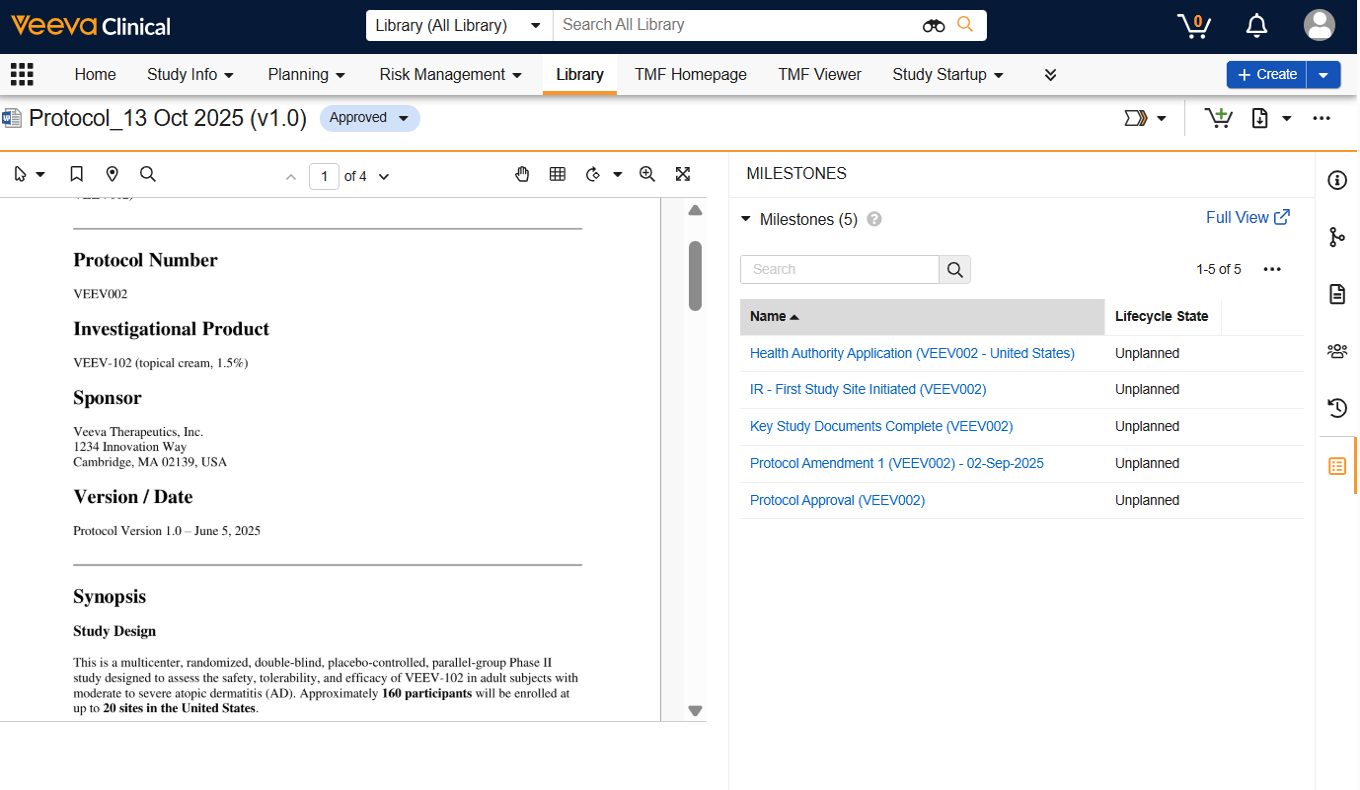
Save Removal Preference for Expected DocumentsAuto-on25R3.4
Vault will now respect manual deletions of Expected Documents from Milestones. Previously, if a user removed an unnecessary Expected Document through deletion of the associated Milestone Item, the system would recreate it if that Expected Document is re-evaluated with the release of a different milestone.
With this feature, Vault tracks the manual removals. Once a user deletes a Milestone Item, the system will no longer recreate the record unless the Expected Document is manually re-added to the Milestone. This ensures that milestone-specific tailoring is preserved and reduces manual cleanup. This feature is enabled through the new Save Expected Document Removal Preferences Application Setting, which will be set to True in all Clinical Operations Vaults on the night of the release.
Apply Template EDL UpdatesConfiguration25R3.4
To streamline updates for ongoing studies, this release introduces the Apply Template EDL Updates (Bulk) action on the Study object. This feature allows users to update in-flight studies with the latest Template EDL without the need to manually create data.
When triggered, the action automatically creates missing EDLs, Expected Documents, and Milestone Items for all active, incomplete Milestones. This functionality is ideal for implementing mid-study template changes, ensuring all studies remain compliant with current organizational standards with minimal manual effort.
Milestone Dependency EnhancementsAuto-on25R3.4
To ensure study timelines remain accurate, Milestone Dependencies now include expanded automation. These updates reduce manual data entry and help ensure downstream (next) milestones always reflect the most current upstream (previous) data.
Previously, if an upstream (Previous) Milestone was already planned, creating a new Finish to Finish dependency would not back-fill the downstream (Next) Milestone dates. The system now automatically populates the downstream Baseline and Planned Dates using the defined Date Offset when a Finish to Finish dependency is created.
Additionally, the Update Dependencies workflow will now respond to system-generated date changes. If an upstream (previous) date is populated via a Rollup, Lifecycle Entry Action, or Autocompletion, the system automatically recalculates and updates any related downstream (Next) Milestone dates where a Finish to Finish dependency exists.
This feature works in tandem with Actual Date Offsets and Weekday Adjusted Offsets to provide a seamless, automated planning experience.
Actual Date OffsetsAuto-on25R3.4
With this feature, downstream (Next) Milestone Baseline and Planned Dates now automatically update when an Actual Start Date or Actual Finish Date is applied to an upstream (Previous) Milestone and a finish-to-finish dependency with a Date Offset exists between the milestones. This enhancement ensures trial timelines remain accurate by using actual trial progress to drive more realistic downstream scheduling. The system preserves existing Baseline Start and Finish Dates for downstream (Next) Milestones while adjusting its Planned Dates to reflect the upstream (Previous) Milestone’s Actual Date plus the specified offset.
The feature also includes token updates to the standard dependent_milestone_date_complete__v notification template. The following tokens replace existing tokens, but reference the same component:
{objectRecordName}is replaced with{Custom.objectRecordName}{fileLink}is replaced with{Custom.fileLink}
If modifications have been made to this standard template, manual updates are required to the above tokens.
Hide Pre-EDL Refactor ActionsAuto-on25R3.4
Within Application Settings, the new Hide Pre-EDL Refactor Actions setting is available to control the visibility of legacy EDL and Milestone actions which are not relevant after implementation of EDL Template Refactor. When enabled, this setting hides the following actions:
- Create Milestones from Template action on Study, Study Country, and Study Site
- Create Expected Document Lists action on Study
- Add Expected Documents action on Milestone
- Create Expected Document List from Template action from EDL list views
This setting will be automatically enabled upon release for all Vaults with EDL Template Refactor enabled to ensure a modernized user experience.
Remove EDL Automation SettingAuto-on25R3.4
The Enable EDL Automation setting will be removed from the Application Settings. This change streamlines the Settings page as EDL Automation is automatically enabled via the existing EDL Template Refactor setting. The removal will not impact existing EDL Automation functionality.
EDL Automation Respects Excluded Lifecycle StatesAuto-on25R3.2
EDL Automation actions have been updated to prevent the creation of Expected Documents for Study Persons, Study Products, and Study Organizations when the associated Study, Study Country, or Study Site is in an Excluded lifecycle state. This ensures that the Create Expected Documents, Re-trigger Expected Documents, Re-trigger Expected Documents Bulk, and Create Site Person EDLs actions respect the Excluded lifecycle state setting defined in the Application Settings. This feature is auto-on for customers who have both EDL Automation and the Excluded Lifecycle State Setting enabled.
OpenData Clinical
Create Excluded Record from Resolved Data Change RequestAuto-on25R3.2
This feature extends the existing Create Missing Record action to be used on resolved Data Change Request (DCR) records that were rejected due to the requested record’s exclusion from OpenData Clinical. This action enables users to create the excluded Investigator or Institution record directly from the resolved DCR and have full control over the record as it is not linked to OpenData Clinical.
OpenData Clinical Prior Values TrackingAuto-on25R3.4
OpenData Clinical controls specific field values on the Person, Contact Information, Organization, and Location objects and performs daily updates to ensure Global Directory data remains clean.
To aid with transparency and allow study teams to assess the impact of updates on study data, this feature introduces new Prior Organization, Prior Location, and Prior Contact Information objects to capture previous record values when an OpenData Clinical update occurs. Additionally, this feature extends the existing Prior Person (prior_person__sys) object, which originally tracked the user-to-person sync process, to now also capture Investigator field values managed by OpenData Clinical.
When OpenData Clinical updates a record, the system automatically creates or updates a read-only Prior record which is linked directly to the modified record. Customers can utilize Vault reporting and flash reports for these objects to monitor updates to investigator and site data and determine if action is required.
Add Missing Parent from OpenData Clinical SiteAuto-on25R3.4
When an Institution record is linked to OpenData Clinical, but its Parent Organization does not yet have an Institution record in your Vault, the system now displays the parent’s name in the OpenData Clinical Details section alongside a new Add to Vault hyperlink. Clicking this link launches a record creation dialog that automatically populates the Parent Organization’s OpenData ID and corresponding mastered details from the OpenData Clinical database. This allows users to quickly and easily create the parent record for a child Institution.
Site Timezone in OpenData ClinicalAuto-on25R3.4
This feature delivers the Timezone field for sites as part of the OpenData Clinical data set and updates the Timezone field on existing Institution records based on the address of the site. This enhancement, coupled with the Autofill Site Timezones from Global Directory feature, automatically populates the Site Timezone field on a Study Site when a mapped OpenData Clinical site is selected as the Organization during Study Site creation. For Vaults with OpenData Clinical enabled, this feature streamlines the process for a Study Site’s Site Timezone field to be populated, which is required for the Clinical Operations-EDC Connection.
Allow User Entry for Unavailable OpenData Clinical EmailAuto-on25R3.4
This feature enhances OpenData Clinical Investigator-type Person records by allowing users to provide an email address when OpenData Clinical does not have a primary email available. If OpenData Clinical later provides an email, it overwrites the user entry. If the Investigator record is linked to a Veeva ID User, the email field is entirely controlled by Veeva ID for data integrity and is not controlled by OpenData Clinical.
Filter OpenData Clinical Investigators & Sites by OpenData ID Auto-on25R3.4
If an Investigator or a Site’s OpenData ID is known, users can filter on the OpenData ID when searching OpenData Clinical in Vault. This streamlines creation of new OpenData Clinical Investigators or Sites in Vault when a record is found while browsing the dataset in the OpenData Clinical web viewer.
Create Missing Record Action Usability ImprovementsAuto-on25R3.2
When the Create Missing Record action is taken from a resolved Data Change Request (DCR) that resulted in a new record added to OpenData Clinical, the OpenData ID of the new record is displayed and the Save + Create option is not available.
Payments
Automated Adjustment: Amount OverrideAuto-on25R3.2
This feature introduces the ability to exclude Amount and Currency fields from the Automated Adjustments evaluation process. A new picklist value, Amount Manually Adjusted, has been added to the Adjustment Override field on the Payable Item object. When a Payable Item has this override set, the system ignores the Amount, Tax Amount, Total Amount Including Tax, and Local Currency fields during the adjustment evaluation process. Changes to other fee matching criteria (such as Visit Status or Visit Date) remain valid and continue to trigger Automated Adjustments. If adjustments are required for items in a Payment Request, the new Adjustment Payable Item reflects the manually entered amount and currency of the original Payable Item, rather than the original Fee.
With this change, customers can now support scenarios like post-contract currency updates and payment for partial subject visits.
This feature is auto-on for customers with Automated Adjustments enabled.
Fees Support Multiple Subject Groups of the Same TypeConfiguration25R3.2
This feature introduces enhanced flexibility in defining fees by allowing a single Fee or Fee Template record to be associated with multiple Subject Groups (such as arms and cohorts). This change eliminates the need to create several identical fees for groups that share the same payment terms.
The new Fee Subject Group and Fee Template Subject Group join objects are available to link multiple Subject Groups to a single Fee or Fee Template, respectively. During Payable Item generation, the system evaluates both the existing single Subject Group field values on the Fee and the values defined in the new join object records based on the following:
- Subject Group fields: The Subject Visit or Procedure must match the value specified in these fields (if defined).
- Fee Subject Groups: The Subject Visit or Procedure must match at least one of the related join object records.
For example, a Subject Visit in Study Arm A and Cohort 1 will successfully match a Fee where the main Study Arm field is set to Arm A and the related join records include Cohort 1.
Fee Template Subject Group and Fee Subject Group records are copied when executing the Copy Record with Related Fees action, ensuring this information is maintained when duplicating schedules.
This enhancement significantly streamlines fee schedule management for complex trials.
Payments: Tax TrackingAuto-on25R3.4
Clinical trial expenses often include Taxes, such as Value-Added Tax (VAT), as part of the services provided in a clinical study. Tracking these costs is essential for a comprehensive understanding of total trial expenses. To address this need, we added the ability to calculate and track tax amounts and the total cost including tax across Fees, Payable Items, and Payment Requests.
Key capabilities include:
- New Tax Rate Definition: A new ‘Tax Rate’ object allows customers to define Tax Rates linked to specific countries. These rates can be used to automatically calculate tax amounts.
- New Includes Tax Field: This new field (on Fee Template, Fee, and Payable Item) is used to indicate when Tax should be tracked.
- Tax Rate Defaults: Tax Rates can be set on Fee Templates and Fees. Tax Rates default from Fees to Payable Items.
- System-Managed Tax Calculations: The ‘Total Amount with Tax’ field is system-managed and automatically calculated based on the ‘Total Amount’ and ‘Tax Amount’ fields. The ‘Tax Amount’ field is also system-managed when using a Tax Rate reference.
- Flexibility for External Tracking: Customers can manually populate tax fields directly on Payable Items and Payment Requests, for example if integrating with an external system.
- Automated Adjustments: Payment adjustments are designed to match tax fields, where included.
With this update, Veeva Payments now provides a structured, flexible way to ensure that tax is correctly applied and tracked, offering teams a complete picture of overall trial expenditures.
Standard of Care TrackingAuto-on25R3.4
This feature introduces the ability to track and manage fees for Standard of Care procedures (services that are part of standard medical practice and typically not reimbursable). Customers can now distinguish between reimbursable procedures and those considered standard of care, providing improved visibility into procedure tracking without impacting payment totals.
When a Procedure Fee is designated as a Standard of Care item, Vault automatically generates a corresponding Payable Item with the Amount field set to 0.00 and the Cost Included in Standard of Care field set to Yes upon a matching Payable Event. This logic extends to manual updates; if a user switches a Payable Item’s status from Standard of Care to No, Vault automatically restores the Amount and applicable Tax Amount from the source Fee, while switching it to Yes reverts the Amount to 0.00.
Automated Adjustment behavior has also been updated to consider Standard of Care items, ensuring that the system does not incorrectly adjust amounts when a status mismatch exists between a Fee and its corresponding Payable Item. This enhancement also streamlines fee schedule setup by ensuring the Cost Included in Standard of Care field value is preserved when copying a record with related fees, creating fees from a template, or copying individual fees. To support this feature, the data model has been updated with a new Cost Included in Standard of Care field on the Fee, Fee Template, and Payable Item objects, and standard layouts have been updated to include these fields.
Site Connect
Delete Expired PALAuto-on25R3.2
Public Access Link (PAL) records are created by the system for external users to access the appropriate Site Connect documents and data.
The system managed objects included are:
- PAL Site Connect Document Viewer (
pal_site_connect_doc_viewer__v) - PAL Site Connect Bulk Document Download (
pal_sc_bulk_doc_download__v) - PAL Site Connect Login (
pal_site_connect_login__v)
These PAL records expire after one year and to reduce unnecessary buildup, a new daily job will run to automatically delete expired Public Access Link records.
Automatic Safety DistributionsConfiguration25R3.2
This feature introduces an automated Safety Distribution process streamlining the process of sending safety documents. Safety Distribution records can now be automatically created when documents are created or modified and the new Automatic Safety Distribution document field is set to true.
This is possible through configuration of the new Generate Safety Distribution action as an Event Action or Entry Action on the document lifecycle. When the action is triggered, a new Safety Distribution record is created based on predefined mappings of the new Safety Distribution Default Mapping object that match document fields such as Classification, Safety Distribution Type and any custom fields.
Finally, a separate Distribute Safety Letters record action will be available for configuration within Safety Distribution workflows, which automatically sends the safety document to all applicable Study Sites based on the Safety Distribution Defaults configured.
Distributed Sites AttachmentAuto-on25R3.2
When a Safety Distribution is triggered manually or automatically, the system will now generate and attach a CSV file to the Safety Distribution record, detailing the list of Sites included in that distribution for improved tracking and auditing.
Generate FDA 1572Auto-on25R3.4
This feature introduces the ability to generate a FDA 1572 form within Site Connect. By leveraging existing CTMS data—specifically information captured within the Site Profile such as Site Staff and Site Addresses—the system pre-populates the form.
Site Connect users can manage the form via a new Forms tab located on the Document Exchange page. The interface is organized by sections that mirror the physical FDA 1572 layout and provides dynamic editing capabilities. Users can manually add missing information, such as adding new Site Addresses, or remove pre-populated addresses that are not applicable. The document can also be e-signed within the Site Connect UI. Alternatively, site users can download the form to edit and sign manually if a wet ink signature is required, then re-upload the completed document.
If the Site is connected to SiteVault, the 1572 can be automatically filed in the ISF.
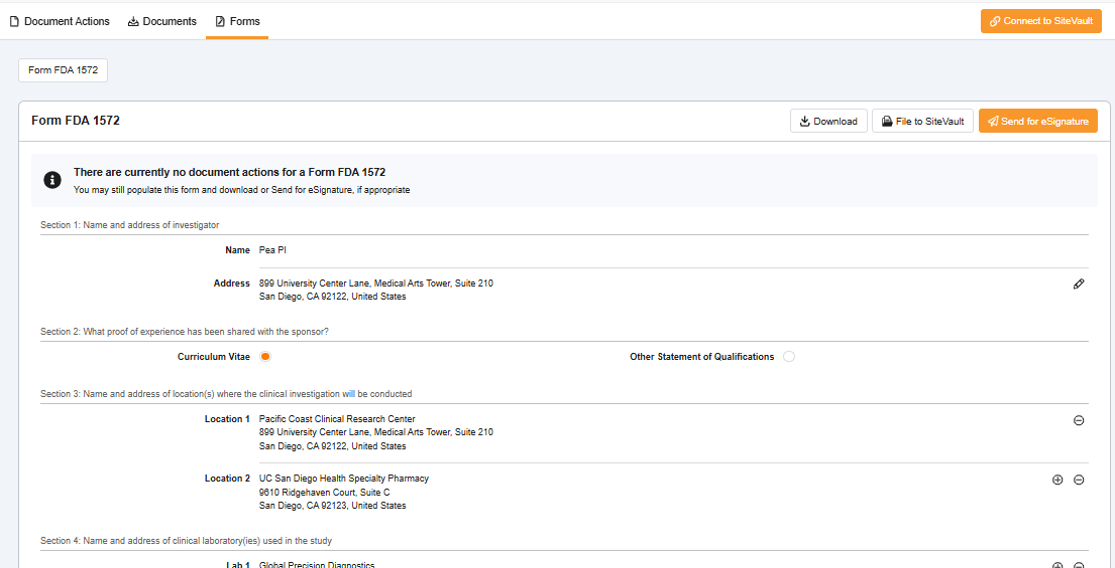
System Link RTSM Domain & Link NamingAuto-on25R3.4
The auto-created RTSM system links now default to the new domain for RTSM. This update applies only to newly generated system links. Existing links continue to point to the previous domain.
Additionally, all system-created System Links are now named “Veeva” followed by the application name, moving forward.
Study Site Plan (Data Model Only)Auto-on25R3.4
The Data Model for the Study Site Plan feature, targeted for 26R2, will be released in 26R1. This feature can be enabled in sandbox via a product support ticket.
This feature enables a new application section in the Site Connect UI that allows Sponsors/CROs and sites to create, agree on, and measure against a plan for a Study. The plan consists of standardized Metrics and Milestones, such as site activation dates, patient enrollment progress, and query resolution times.
Roles & Responsibilities Usability ImprovementsAuto-on25R3.4
This feature will introduce several enhancements to the Roles & Responsibilities functionality. This includes:
- The removal of the Create Study Person option when linking a Study Person to a Site Staff Change Request record if the reviewer does not have Create permission to the Study Person object.
- If Automate Site Staff Creation is enabled, and the email address on the Site Staff Change Request Record is associated with two different person records, the person record that’s most used will be selected for the Study Person record. This is based on the count of Study Personnel records.
- The Grant Access action on the Site Home Access record will now display an error message if there is not an associated Study Person or if there is already a Site Home Access record for the same Email Address and Site.
Enhanced Error Handling on Expected Documents ActionAuto-on25R3.4
With this feature, the Send Document/Request to Sites action will only be available on Expected Documents of a classification that is mapped to a sendable VCD artifact.
This feature will also prevent setting the Auto-request from Site field to True on Expected Documents of a classification that is not mapped to a sendable VCD Artifact. If a user attempts to set this field to True, the system will display an error message informing the user that the Expected Document is not mapped.
Clinical User Ability to Reject Document Action in Site Home RemovedAuto-on25R3.4
This feature restricts Sponsor/CRO users from rejecting open Site Tasks within the Site Home View. If a Sponsor/CRO user selects the Reject this Document Action icon, a message will appear stating “You must be a site user to perform this action.”
If an open Site Task is no longer required, Sponsor/CRO users can navigate to the Document Exchange tab and select the Cancel Open Task icon. This change ensures that Rejections reflect Site-driven decisions.
Site Home & Document Exchange NavigationAuto-on25R3.4
With this feature, a new Open Site Home button is made available in three locations:
- The Document Exchange section on Study Sites
- The Milestone Document Exchange Grid section on the site-level Milestones.
- The Document Exchange tab: Available once a Study, Study Country, and Study Site have been populated.
When clicked, the button opens the Site Home view of Document Exchange, allowing for easy navigation for Sponsor and CRO users.
Improved Site Home Access for Study Persons with Future Start DateAuto-on25R3.4
This feature introduces a new Scheduled state to the Site Home Access lifecycle. This ensures that the state of Site Home Access records for Site Connect users with future Start Dates is accurately reflected within the system after Sponsor/CRO approval of the Site Staff Change Requests.
Previously, the related Site Home Access record would remain in the Access Requested state even after Sponsor/CRO approval of the new Site Staff Change Request, if the Site Person had a future Start Date.
With this update, Site Home Access records will now transition into the Scheduled state upon approval of the new Site Staff Change Request, if the Start Date is in the future. This will clearly indicate that access is Approved, but an invite has not yet been sent to that user due to a future start date.
Removed Site Connect Document View for Obsolete & Deleted State TypesAuto-on25R3.4
This feature prevents Site Users from accessing the content of Exchanged Documents that have reached a lifecycle state that’s associated with the Obsolete or Deleted state types.
Within the Site Connect UI, the document row will remain visible in the Document Exchange section, but the content itself is restricted. If a user selects the name link, the document viewer will state that the document is no longer available.
The same behavior will apply when selecting document links within document exchange email notifications.
Inactive Classification Filtering for Site PackagesAuto-on25R3.4
When sending Site Packages, Inactive Document Classifications will no longer appear in the Document Type drop down when adding Document Requests.
Milestone Document Exchange Grid EnhancementsAuto-on25R3.4
The Milestone Document Exchange grid now includes Study Country and Study Site columns. This is helpful when viewing Study or Country-level Milestones where sent documents or requests may need to be distinguished by Site.

Clinical Operations Text Updates for Site ConnectAuto-on25R3.4
This feature updates the UI hover text for the connection icon on the Study Site object. If a Study Site is connected to SiteVault the text will now read “This Study Site is connected to SiteVault”, when hovering over the icon.
This feature will also standardize the user experience when recalling exchanged documents. The terms rescind/rescinded will be replaced with recall/recalled.
Site Home User Interface ImprovementsAuto-on25R3.4
This feature adds several user interface enhancements to the Site Home Page.
- The column order within the Study Contacts grid has been updated to provide a more intuitive view of Contact Information. The Email Address column now appears immediately following the Contact For field, and the Office Phone header has been relabeled to Office.
- When hovering over a recalled document in the Document Exchange grid, the hover text will now dynamically display the specific Reason for Recall entered by the Sponsor or CRO. Previously, a generic message displayed stating that the document was no longer accessible.
- The error messages have been standardized when a download fails from either the PAL document viewer or Authenticated Document Links.
Prevent Document Reconciliation on Non-Connected SitesAuto-on25R3.4
This feature will prevent users from initiating a Site Document Check if the following conditions are not met:
- The Study related to the Study Site has a Connected Study Type that includes Document Exchange.
- The Study Site is connected to SiteVault.
If a user attempts to perform a document check for a site that does not meet the listed criteria, the system will display an applicable error message.
Safety Distribution & Job Logging ImprovementsAuto-on25R3.4
This feature introduces minor enhancements to Safety Distribution and applicable job logs.
- The error messaging has been improved in the job log when a Safety Distribution fails due to a supporting document having no match to a Country on any of the applicable Study Sites for that Distribution.
- The Resend to new Study Personnel action now ensures that a Distribution Task remains in the Failed state until a recipient with the Assess Safety Notifications (Primary) responsibility is designated for the site.
- Gap Pack distributions will now be processed in multiple transactions to ensure all Distribution Tasks transition to the Failed state if no primary recipient is designated.
Failed Safety Distributions Visible in Site HomeAuto-on25R3.4
Safety Distributions in the Failed state are now visible in the UI across Site Connect, within both the Safety Distribution and the Document Exchange grids. The documents can be marked as Read by recipients, completing the Distribution Tasks. This will allow for better visibility and management of exchanged Safety Documents.
Study Startup
Outreach Target ParityConfiguration25R3.4
This release enhances Outreach Surveys by introducing the ability to use Veeva and Custom Standard Questions within study agnostic (Outreach) surveys to reduce repetitive feasibility questioning and ultimately improve efficiency. Additionally, with the addition of a new Outreach Survey Person object, this update adds support for Outreach-specific Survey Respondents as well as Custom Email Senders across Outreach Survey actions in alignment with Site Survey functionality, ensuring a professional and consistent survey experience for sites.
Milestone Planning ViewConfiguration25R3.4
This feature provides a new interactive interface to streamline startup and trial timeline management in Vaults with Study Startup enabled. This feature combines a traditional table view for inline editing of Planned and Actual Finish Dates with a dynamic Gantt chart that visualizes milestone dependencies and timeline impacts in real-time. By centralizing milestone maintenance into a single, filtered view, study teams can accurately project timelines and reduce the manual effort of tracking schedules across external project management tools.
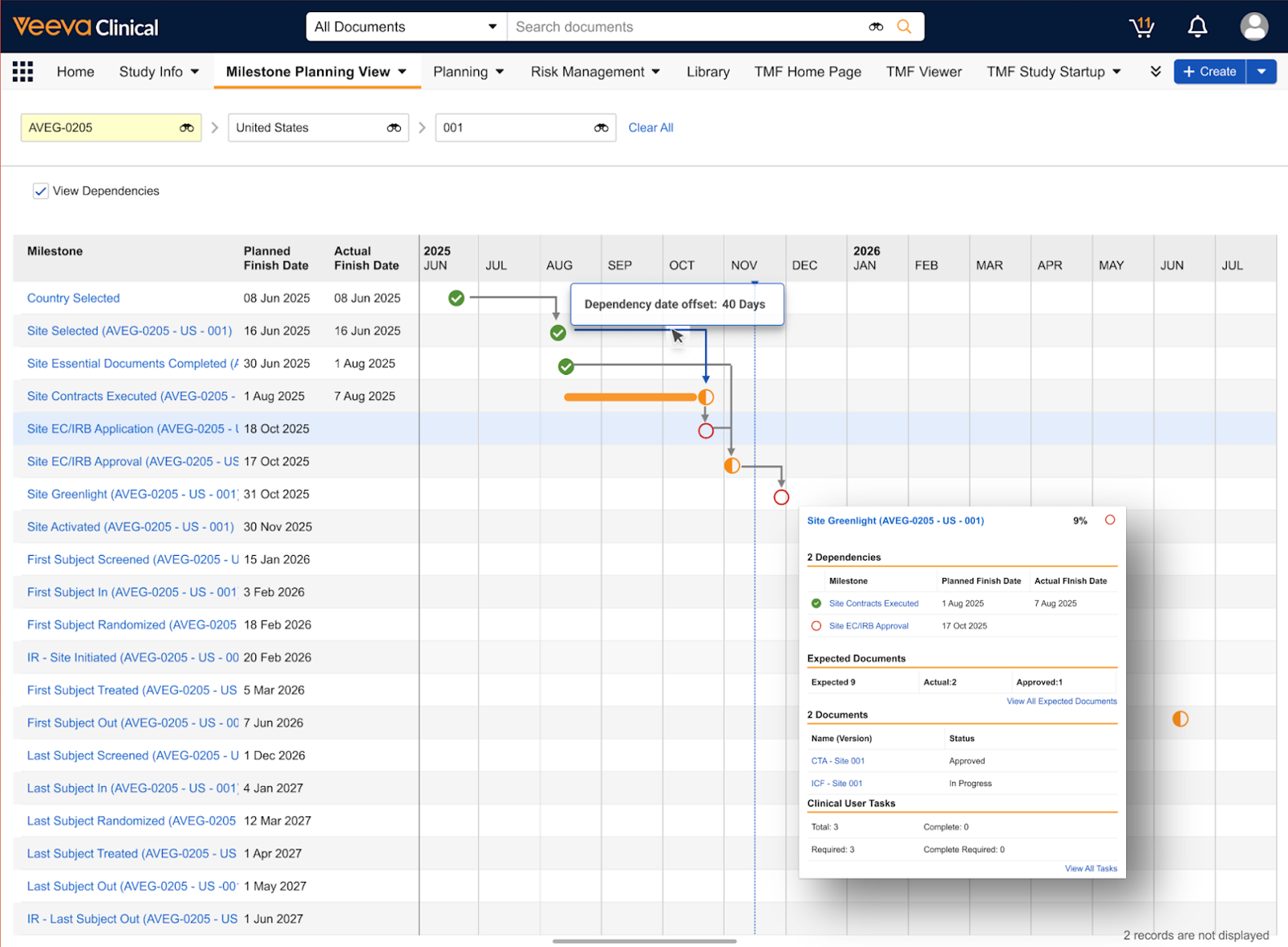
Custom Email Senders for Completed Survey Notification & Generate New LinkAuto-on25R3.4
The existing Custom Email Senders Custom Email Senders functionality allows for the customization of the sender email giving sites a more personalized experience while also allowing the recipient to reach out to the sender in case they have any questions or follow-ups. This feature brings the same functionality to Completed Survey Notifications and Generate New Link emails so that survey respondents will also receive these emails from the customized sender address.
Standard Formatted Output updates for Site & Outreach Target SurveysAuto-on25R3.4
To ensure rich text formatting is captured in Survey documents, the standard Formatted Outputs for Site Survey Response and Outreach Target Survey Response have been updated to reference the Comment (Rich Text) (comment_rich_text__sys) field. The filename is also updated to append the release where the most recent changes occurred, survey_response_template_26R1.docx.
Study Training
In addition to the features described below, the Study Training application also received enhancements from the following features described in the Quality: Training and Veeva Connections sections:
- Deep Linking to Training Requirements for Self Enrollment
- Generate TRIA on Adding or Removing Document
- Quiz: Support Multiple Choice Drop-Down Questions
- Quiz Scoring Updates
- Training Focus Time
- Wave-Based Curriculum Prerequisites
- Study Training-Clinical Operations Connection: SCORM File Transfer
Study Training Matrix Builder: Remove SectionsAuto-on25R3.2
With this feature, users can now delete sections in the Study Training Matrix Builder. When the Highlight Proposed Changes button is toggled, the builder additionally highlights these removed sections.
Sections can only be deleted when Training Requirements are not checked for assignment within that section, even in draft. When Training Requirements are checked, the delete option is inactive and a tooltip explains the reason.
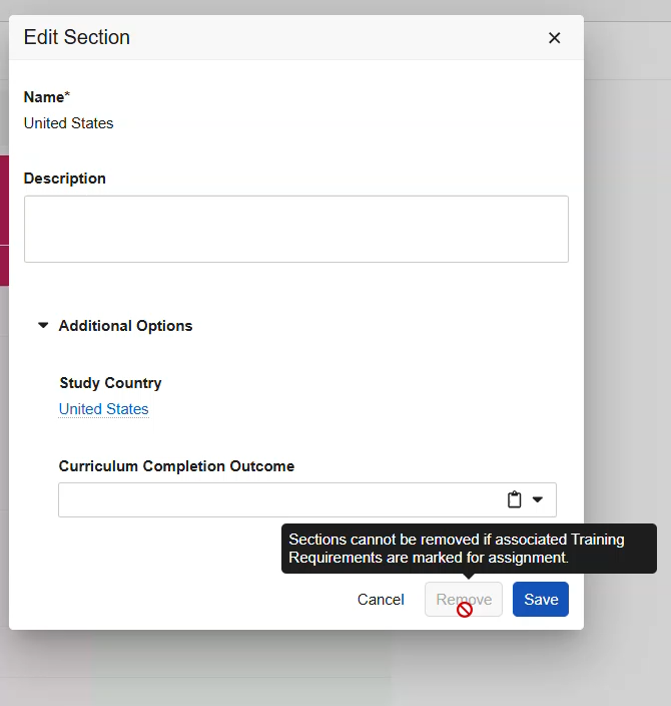
Prior to deletion, the builder displays a warning message.
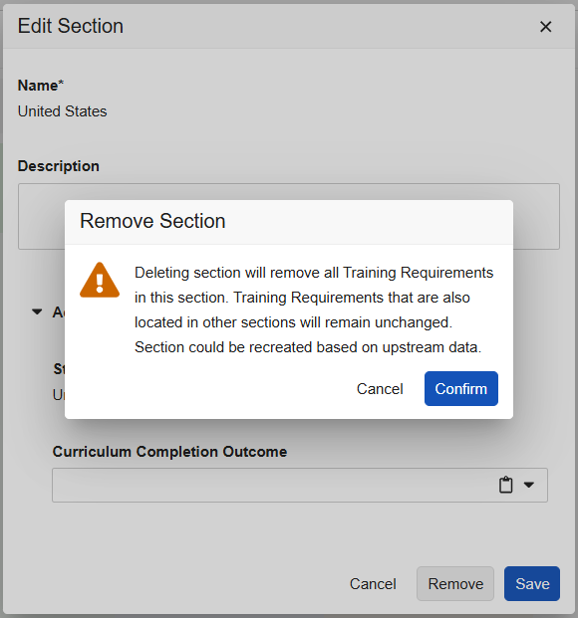
Study Training EnhancementsAuto-on25R3.4
- Study Site status transfers to Study Training: Previously, when a Study Site transitioned to Inactive in Veeva Clinical Operations, the connection did not update the corresponding Study Training record. Now, the connection will transfer this status. As part of this change, any inactive Studies, Study Countries, and Study Sites may now transfer to Study Training. This does not impact license count.
- Internal users no longer appear on the My Study Team Page: Previously, internal employees with a site-level role could appear on the My Study Team Page, for example, a CRA associated with a site. Now, only Site Users appear.
- Create Matrix Update icon change: Previously, this Study Training Matrix builder button showed a pencil + icon. Now, it’s the standard pencil icon ().
- Allow Learners to view Classroom Training Assignments they are not registered for: Previously, Training Assignment (TA) cards on the Learner Homepage were disabled for Classroom TAs when the TA was not part of a class and self-registration was not available. This prevented Vault from performing certain substitute calculations. Now, Learners can access TA cards in these scenarios.
- Remove warning messages that apply to draft, not Publish. Previously, when updating a draft Study Training Matrix, users received a warning about the effects of changes. However, this impact does not apply until and unless the change is published, which can be misleading. Now, the Matrix Builder only shows generic warnings on publish.
Training Completions Grant Clinical AccessAuto-on25R3.4
This feature introduces a new automated way to manage Clinical Operations user access to study-specific records by leveraging role-based training completion in Study Training. Currently, ensuring that users are trained on customer-specific procedures before they can work on a study is a manual and decentralized process involving time-consuming, multi-step workflows prone to human error. By automating this process, this feature eliminates these manual hurdles, allowing system access to be granted immediately and reliably once a Learner completes their assigned training.
This feature provides Sponsors and CROs, particularly those who externalize their clinical operations, with an automated way to enforce training compliance before granting access to a study. This ensures that only qualified, trained personnel gain access to clinical study records, streamlining operations while improving study oversight and compliance.
How It Works
The automated granting of access follows a coordinated workflow between Clinical Operations and Study Training Vaults:
-
Role Configuration: The Study Team Role in Clinical Operations captures whether the specific role requires training completion to grant study access.
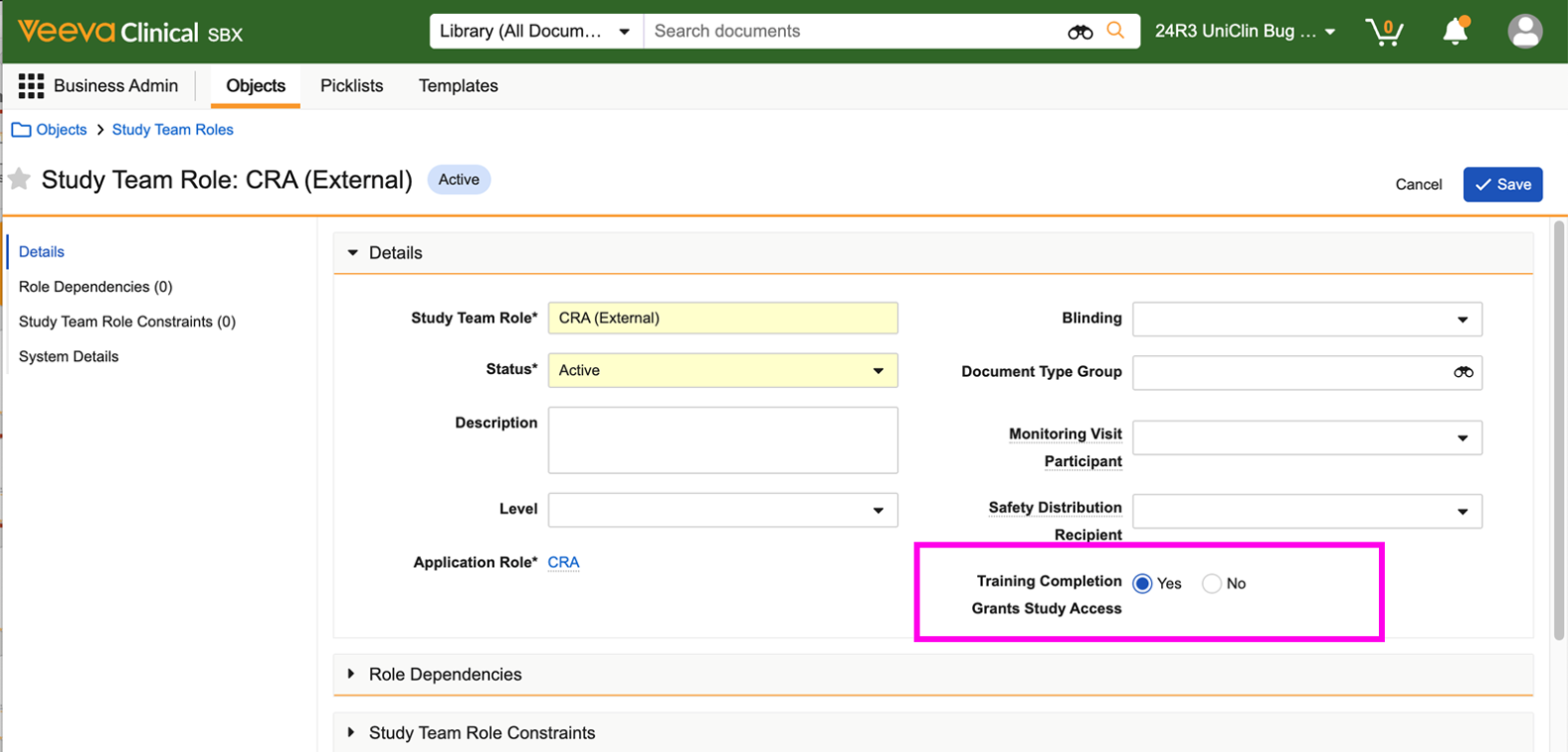
-
Curriculum Setup: The Clinical Access Training Curriculum and its associated training requirements are configured in the Study Training Vault.
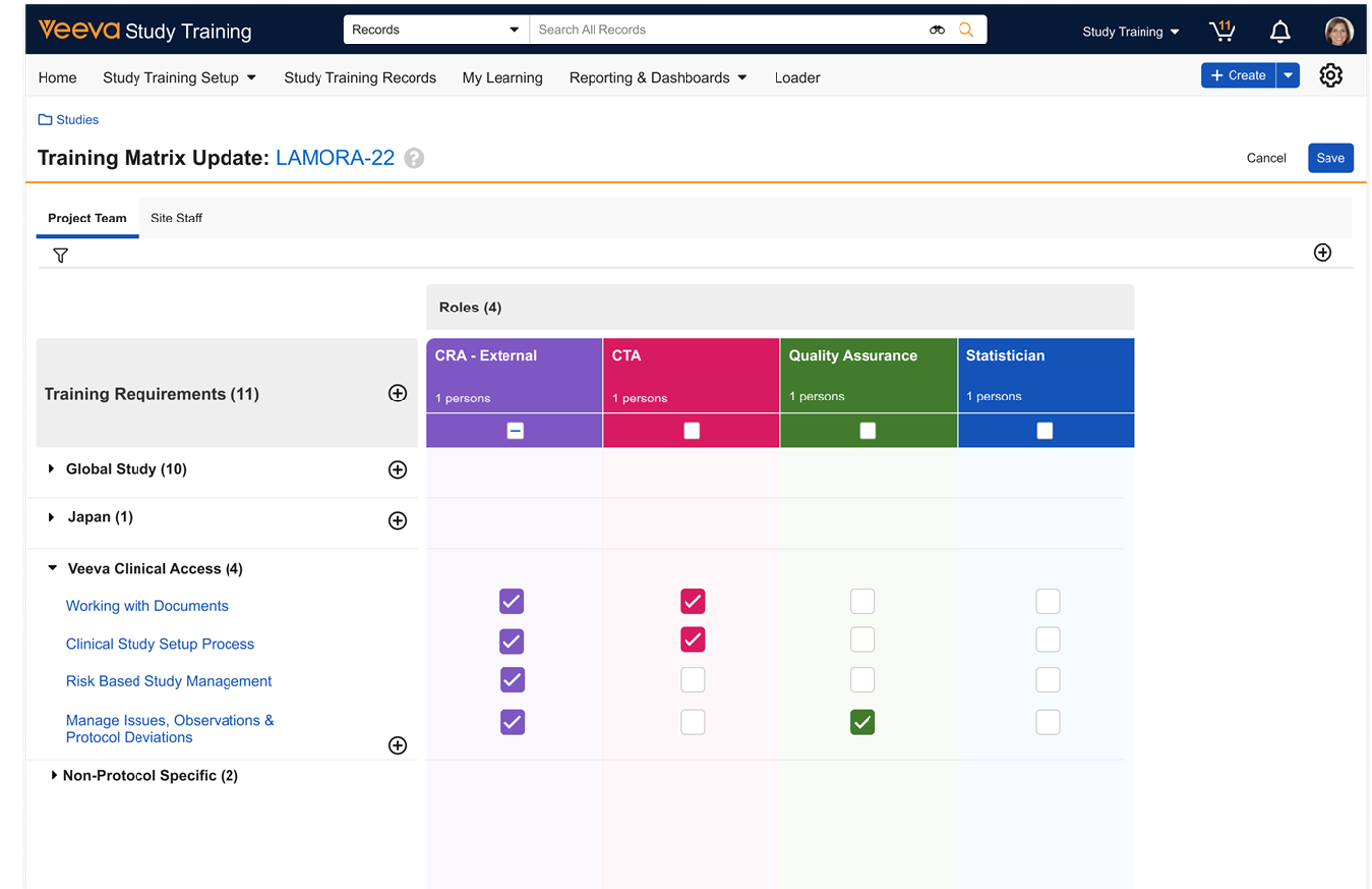
- Assignment: When a Study Person is assigned a Study Team Role that requires access training, they are automatically assigned the relevant curriculum in the Study Training Vault.
-
Completion: Once the Learner completes the Study Training task, Vault records the date and time, which is then sent back to the Clinical Operations Vault via the Study Training-Clinical Operations Connection.

-
Access Activation: A Clinical Operations job updates the Study Person record, setting the Grant Access to Related Records field to “Yes”.
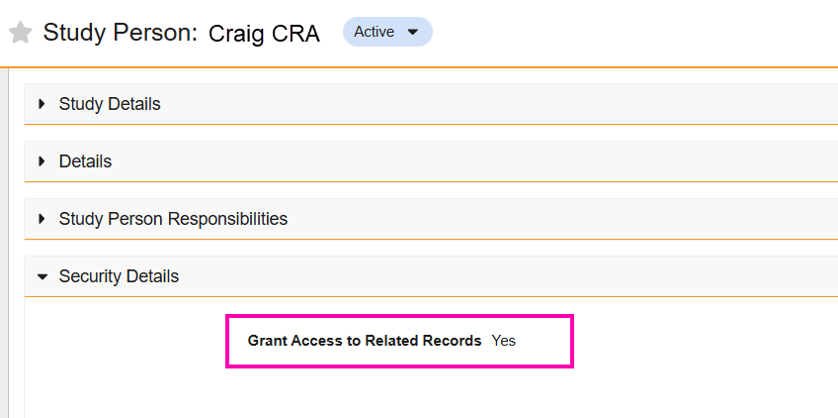
- Record Creation: Following this update, the Clinical Operations Vault automatically creates User Role Setup (URS) records based on Study Team Role.
eCOA
Studio
Sponsor-Controlled DeploymentAuto-On25R3.4
Sponsors and CROs can now manage the distribution of approved study versions to specific countries or sites using the newly added Deployments tab. The system places approved collections in a holding state instead of automatically releasing them. You can configure supported languages, perform bulk deployments, and choose whether to automatically activate the version for Site Staff.
Learn more about deploying collections to sites.
Automated Study Design Specification GenerationAuto-On25R3.4
Study Builders can now automatically generate a Study Design Specification (SDS) PDF. This document captures the full study collection configuration, including study settings, surveys, events, schedules, and rules. This provides an accurate reference for study build review without manual effort. The system automatically creates a final state SDS for a collection version when you approve the version. The eCOA-Clinical Operations Connection can automatically create the SDS as a CrossLink in Clinical Operations Vault to streamline document management.
Learn more about the generated study design specification.
See related feature: eCOA Clinical Operations Connection: Study Design Specification
Cross-Question ValidationsAvailable for Use25R3.2
Study Builders can configure validations that evaluate responses across multiple questions to ensure data quality. You can define logic, such as mathematical sums or answer comparisons, using standard syntax. The system displays a custom error message to the respondent if the criteria are not met.
Learn more about cross-question validations.
Multi-Part SurveysAvailable for Use25R3.4
Study Builders can now configure multi-part surveys for a single respondent. This supports complex assessments, such as bleed diaries, by allowing independent submission of related data sets. Responses to previously submitted parts remain visible to the respondent. Scores and rules are supported for multi-part surveys.
Learn more about multi-part surveys.
Composite SurveysAvailable for Use25R3.4
Study Builders can now configure composite surveys where different respondents, such as a caregiver and a clinician, complete different parts. This functionality supports complex assessments like composite scores. Scores and rules are supported for composite surveys.
Learn more about composite surveys.
UAT Time TravelAuto-On25R3.4
Study Builders can accelerate User Acceptance Testing (UAT) by changing the virtual timeline of a participant in a sandbox environment. You can fast-forward to future dates or jump to events to trigger scheduled surveys and notifications. The system restricts survey testing to the web application while virtual time is active. While using time travel for UAT, audit trails may include virtual time or real time, depending on the activity. Reports reflect the selected virtual time.
Learn more about UAT time travel.
Enhanced Survey-Based Notification TokensAvailable for Use25R3.4
Study Builders can now use six new dynamic tokens in survey-based notifications to fill in the following specific information from the related survey:
- Survey label
- Linked survey label
- Survey schedule
- Linked participant ID
- Site ID
- Site name
The linked tokens automatically appear as hyperlinks in the message body. Also, the study ID token cannot be added to new notifications, but is supported for existing rules.
Learn more about dynamic tokens.
UI/UX Enhancement: Group Deactivation Failure TooltipAuto-On25R3.4
When a group cannot be deleted or inactivated, the tooltip displays specific reasons.
26R1 Feature Event AuditsAuto-On25R3.4
The system now adds audit events to the MyVeeva audit trail for relevant user actions related to 26R1 features.
Support for Attachment Uploads in eClinRO SurveysAvailable for Use25R3.4
Study Builders can configure a new attachment block type (siteMedia) in eClinRO surveys. Site Staff can upload files, such as cognitive assessments, directly to the survey. Supported formats include PNG, JPEG, and PDF. The system validates file size and format and ensures that the content is referenced in reports and End of Study Media.
Learn more about attachment-upload-blocks.
eCOA API
Rule-Triggered Data Transfer to Veeva EDCAvailable for Use25R3.4
Study Builders can configure rules to transfer eCOA data directly to Veeva EDC forms using outbound API calls. They can use a preconfigured template to populate Veeva EDC fields when a survey is submitted or a criteria check runs. They can also configure API credentials and define field mappings between the systems.
Learn more about working with outbound APIs, configuring outbound API field mapping, and the Send Survey Data rule template.
Data Transfer Credential Locking PreventionAuto-On25R3.4
The system now automatically disables stored credentials after one authentication failure. This safeguards CDB export jobs and outbound API calls by preventing the associated Vault user account from being locked from multiple authentication failures.
Library Manager
Survey Library Image Management EnhancementsAuto-On25R3.4
Library Managers can now manage survey image libraries for both draft and published survey versions. They can add image translations to approved surveys without creating a new source version. They can also remove images that are not referenced by the survey.
Learn more about managing images in Library Manager.
Study Home
Targeted Data ChangesAuto-On25R3.4
Sponsors and CROs can now configure site data change and transcription permission on a per-survey basis. Data Managers can review, approve, or reject data change requests submitted by site staff on a dedicated dashboard. This provides greater control over data integrity when standard data modification is disabled or the timeframe has passed.
Learn more about reviewing data change requests and managing data change permissions.
Site Investigator Data Review and SignatureAvailable for Use25R3.4
Sponsors and CROs can require investigator review and signature on specific data types, such as transcriptions or eClinROs, to meet regulatory guidelines. In Study Home, Sponsors and CROs can view signature completeness metrics to track progress. Sites cannot be locked until all required signatures are complete.
Learn more about configuring investigator review requirements.
General Usability Enhancement: Custom Export Column SelectionAuto-On25R3.4
You can now select all columns at once for custom exports.
eCOA (Sites)
Site Timezone for Site ActivitiesAuto-On25R3.4
All site activities now use the configured Site Timezone instead of the specific Site User Timezone. The system records survey completion times, event datetimes, and validations based on the site’s location. This ensures data integrity for entries like eClinROs and In-Person survey completions.
Targeted Data ChangesAuto-On25R3.4
Site Staff can submit data change requests in the application for any survey when standard data modification is disabled or the changes allowed timeframe has passed. These requests are sent to Data Managers for review, approval, or rejection.
Moving Completed SurveysAuto-On25R3.4
Site Staff can now move a completed survey to a different event to correct data entry errors. The system cancels overlapping available or missed surveys at the destination event and creates a complete audit trail. This eliminates the need for data change requests for misplaced surveys.
Site Investigator Data Review and SignatureAvailable for Use25R3.4
When a sponsor or CRO requires Investigator review and signature on specific data types, Investigators can electronically sign using their VeevaID credentials to certify data accuracy.
Notification Digests for SitesAuto-On25R3.4
The system can now combine eligible email notifications into summary digests to reduce email volume. Site Staff receive a daily digest by default. Users can customize the frequency and delivery timing in their profile settings.
Site Notification Emails Language ChangesAuto-On25R3.4
Email notifications are now sent only in supported site languages based on the study site’s country. Supported languages are Italian (Italy), Japanese (Japan), Chinese (Simplified, China), and English (all other countries).
General Usability and UI/UX EnhancementsAuto-On25R3.4
This release includes updates for improved usability:
- Email notifications use supported site languages only.
- The survey display filter defaults to All when you view the Events list.
MyVeeva for Patients
MyVeeva for Patients
Notification Digests for ParticipantsAvailable for Use25R3.4
The system now combines standard email notifications, such as reminders and new survey alerts, into a single summary email to reduce clutter for MyVeeva Users. Instead of sending these emails immediately, the system briefly holds them to deliver them in a batch. Urgent notifications are not included in the digest and are still sent immediately to ensure timely delivery.
Commercial
Features in the Veeva Connections section also affect the Commercial application family.
PromoMats
eCTD: Enhanced Support for Video/Audio FilesAuto-on25R3.2
Veeva PromoMats now supports the regeneration of eCTD Compliance Packages when a video/audio file has been added to the Compliance Package as the main promotional material. Previously, regeneration was not supported when these types of files were added as the main material.
Claims: Hierarchical CopyConfiguration25R3.2
When you make a copy of a Claim, Veeva PromoMats will now provide you with the option to copy additional related records. Previously, when copying a Claim, you would only be able to copy related Match Text Variations and the Link Targets (References) for the Claim. With this release, we have extended this capability to allow you to copy the additional related Country, Product, and Indication values. This will allow you to make full copies of Claims more easily and efficiently. Learn more about Copying Object Records.
Claims: Indication Available for MetadataConfiguration25R3.4
With this release, indication is now available as a standard field for Text Assets via the primary Indication / Disease field and a new multi-indication join object, Text Asset Indication. This provides improved visibility and traceability for indication-specific Claims usage, particularly valuable for multi-indication products. Additionally, Indication / Disease is available as a standard document field, and the Harvest Claims feature has been extended to automatically include indication metadata when extracting Claims from documents.
Claims: New Audience FieldConfiguration25R3.4
With this release, we have added a standard Audience (audience__v) field to the Text Asset object, which uses the same picklist as the existing Audience document field to ensure metadata consistency. While this field helps to specify the intended audience for each Text Asset record, its introduction also serves as preparation for future Claims-related enhancements.We recommend that customers currently using a custom version of this field migrate to this standard version to ensure compatibility with upcoming features.
Claims: Text Asset Auto-Linking SettingsAuto-on25R3.4
Admins can now configure the specific document lifecycle states in which Auto-Linking runs after a document upload, which simplifies the user experience by running the Auto-Linking process automatically upon the upload of new Document Versions in controlled states. These new settings replace the existing Auto-Link on Initial Upload Admin checkbox.
Note: With this release, the new settings override the existing checkbox, Auto-Link on Initial Upload, which will be removed in 26R2. We recommend that customers adopt these new settings now to ensure a seamless transition.
Claims: Text Asset Auto-Linking by Object TypeAuto-on25R3.4
Admins can now configure which Text Asset object types to include in the Auto-Linking process. This ensures that Auto-Linking only runs on relevant types that require substantiation and excludes those where Auto-Linking is unnecessary. Note that only active object types can be selected.
Brand Team Group ManagementConfiguration25R3.2
You can now manage memberships of user-managed groups from the Team object. Adding a Team Assignment Group record to a Team Assignment provides the security for that assignment. Users added as Team Members with that assignment will automatically be added to the specified user-managed group.
Modular Content: Additional Document Info Panel EnhancementsAuto-on25R3.2
With this release, you can now add Content Module Combinations to the Modular Content section of the Doc Info Panel, making it easier to indicate if a Material was constructed using a specific combination of assets from a Content Module. This release also includes improved keyboard navigation for accessing all assets within each Content Module.
Updated Brand & Country Page LayoutsConfiguration25R3.2
This feature updates the Brand and Country page layouts to use the newer Layout Profile Detail view in PromoMats and Medical Vaults to provide consistency with the look and feel of the rest of Vault.
Portal SubscriptionsAuto-on25R3.4
This feature allows users to subscribe to specific Portals in PromoMats and receive weekly email digests. These digests highlight documents that have been added to the Portal within the last seven days, as well as announcements if the Publish Date is within the last week. Users will receive one digest per subscribed Portal which will show up to five announcements and ten documents; a count is displayed if there are more items than the display limits for either announcements or documents. If users are subscribed to two or more Portals that have added documents or announcements within the last week, users will receive separate digests for each Portal that had updates. Permissions are enforced upon clicking any link, and users can easily opt-out by unsubscribing from the Portal.
Provision Standard Component Document Relationship TypeAdmin Checkbox25R3.4
We have added a new standard Component document relationship type, which allows us to provide additional options for business logic, operations, and reporting. This new relationship type is intended to replace the custom Component relationship that is used as part of the Digital Asset Management functionality. This relationship is inactive by default as to not directly impact existing customer Vaults; adoption of this new relationship type is optional but recommended.
Error Message Update for Team Assignment URS RecordsAuto-on25R3.4
This feature introduces a more helpful error message for when users attempt to save a Team Assignment URS record without populating any custom fields.
Claims and Modular Commenting EnhancementsConfiguration25R3.4
Various usability enhancements are available for both Claims and Modular Content commenting. To provide a consistent experience across both areas, Admins can now configure a Delete All Comments entry action and an All Comments are Resolved entry criteria on the Content Module lifecycle. Additionally, the limit for user mention results (using the @ symbol) has been increased from 10 to 50 to help users more easily locate users when creating a comment. User-friendly error messages also are now available when users attempt to comment on an inactive Text Asset or Content Module.
Veeva AI for PromoMats
General Enhancements for Quick Check Agent & Content AgentAuto-on25R3.4
This release introduces significant usability and architectural improvements to Veeva AI. The Quick Check Agent’s new language protocol preserves the source document for evidence while presenting reasoning in the user’s preferred dialect, ensuring compliance fixes remain copy-paste ready. Enhanced safety logic prevents guessing on unclear data, and users can now use the Annotate action for all Quick Check issues across all categories. The Content Agent now automatically reviews all document fields for expanded context, without the need for Admin configuration. Finally, the Chat UI has been streamlined; the Ask Questions and Analyze Images actions now operate in the background, allowing users to simply ask their questions. As a reminder, the Super Agent automatically selects the best action to respond with based on the user’s message.
Custom Terminology & Learning for Quick Check AgentConfiguration25R3.4
Veeva AI can now be personalized over time to your organization’s specific business rules via the new Learn Term capability. Users can teach the Quick Check Agent to recognize organization-specific vocabulary by defining Allowed Terms (phrases to ignore) and Prohibited Terms (phrases to always flag). These terms can be scoped for specific Products, Countries, and Languages to ensure that they are applied only to relevant documents. Furthermore, the agent now integrates directly with your Claims Library, automatically treating Eligible Claims as Allowed to prevent false positives during Phrase Assessment.
The UI for reviewing issues has been enhanced for speed and usability. A new Issue menu allows users to quickly Copy Suggestion, Annotate, or Learn Term directly from the finding. To support power users, keyboard shortcuts (C for Copy Suggestion, A for Annotate, L for Learn Term) have been introduced to execute these actions instantly.
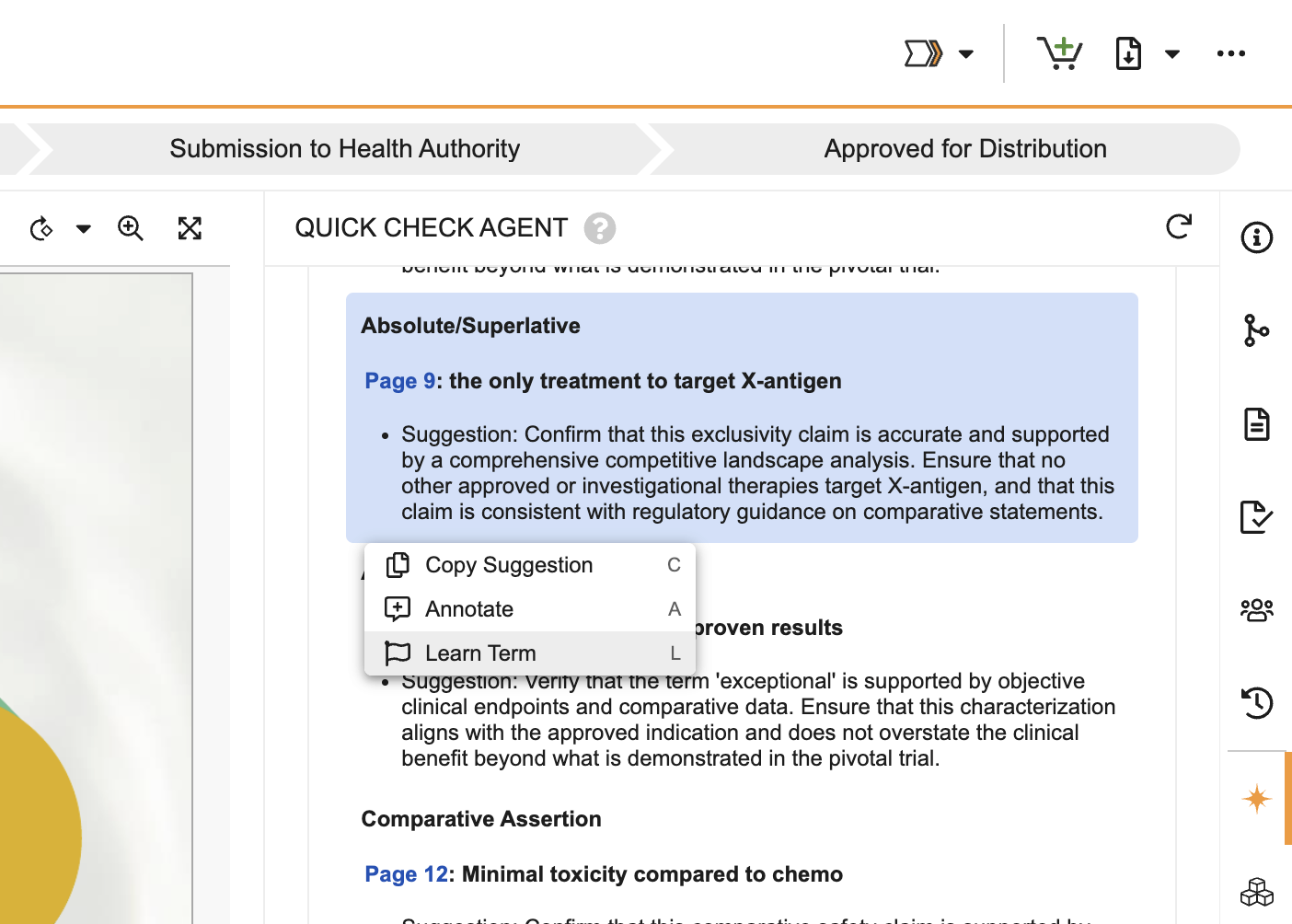
Premarket Boxed Warning Detection for Quick Check AgentAuto-on25R3.2
Admins can now configure a field on the Product object to mark it as a Boxed Warning product, even if it does not yet appear in the FDA’s official database. This allows Quick Check Agent to identify and assess the presence and correctness of Boxed Warnings on documents related to the indicated Brand.
Smart Page Detection for Boxed Warning Check in Quick Check AgentAuto-on25R3.4
The Quick Check Agent Boxed Warning check can now operate on documents over 20 pages long, by first detecting the pages that have a Boxed Warning, and then only passing in those pages for visual inspection. The check has also been enhanced to be better aware of which kinds of materials require a Boxed Warning to be physically present. Lastly, the check will no longer show in the Quick Check Agent UI if the document is not for the United States.
Advanced ISI Extraction & Evaluation for Quick Check AgentAuto-on25R3.4
The Quick Check Agent ISI (Important Safety Information) check has been rebuilt into two distinct, focused actions to improve accuracy and efficiency. Firstly, a specialized ISI identification action extracts all ISI statements from the Related ISI document, and then a second, dedicated ISI analysis action determines if those statements are present, missing, or reworded in the document that is being reviewed. Lastly, the check will no longer show in the Quick Check Agent UI if the document is not for the United States.
Precision Enhancements for the Accessibility Check in Quick Check AgentAuto-on25R3.4
This Quick Check Agent Accessibility check has been divided into specialized modules for improved control and performance. Admins can decide to disable individual modules (Alt Text Analysis, Color Contrast Issues, Textual Analysis) to focus the check on what users care about the most. Additional work has been done to ensure that blocks of text (rather than individual lines) are reported as one issue in the Color Contrast module.
Content Agent Is Now More Veeva-AwareAuto-on25R3.4
The Content Agent has been updated with a Veeva-aware persona, giving it deeper structural knowledge of the Vault platform and our ways of working. The agent now better distinguishes between a document’s content and its document fields, allowing it to provide more accurate responses to user messages. The Content Agent has been implemented to act as a humble subject matter expert, adopting a peer-to-peer professional tone. It is also now strictly prohibited from estimating ambiguous or unclear data in charts or images; if a value is unclear, it will report it as such rather than guessing, sticking to objective analysis.
In addition, the agent is now designed to ask fewer follow-up questions, be aware of regional interaction customs, and focus on providing speedy, precise, and accurate answers grounded in the document content or its own internal knowledge.
Enhanced Reviewer Summary & Metadata Check for Content AgentAuto-on25R3.4
This release extends the capability of the Reviewer Summary to include automated discrepancy detection for cross-referencing document text with metadata, a new Complexity Assessment section to calculate a review difficulty, and an upgraded Key Fields section offering a side-by-side view of system metadata versus AI-analyzed content with status indicators. Admins can choose which fields (if any) to include in the Key Fields section by configuring the new Document Metadata Fields context item.
Multichannel
PromoMats: Layout Profile Detail View for CRM Rendition SettingsAuto-on25R3.2
This feature introduces a new Layout Profile Detail view for CRM Rendition Settings. This provides a consistent look and feel for configuration screens, offering a smoother and more unified experience within the PromoMats Vault.
PromoMats: Secure Message via Approved EmailAuto-on25R3.4
Users can create Secure Message Notification Email Templates, a new email template type. These templates can be related to other Email Templates through a new document relationship type. The Secure Message Email Templates are then transferred to Vault CRM and distributed through Vault CRM’s Secure Message via Approved Email feature, which requires the recipient of the approved email to log in to a My Engage Portal site to view the secure content. The CRM feature for sending Secure Messages will be available in a future release.
Medical
Features in the Veeva Connections section also affect the Medical application family.
MedComms
Scientific Statements: Hierarchical CopyConfiguration25R3.2
When you make a copy of a Scientific Statement record, Veeva MedComms will now provide you with the option to copy additional related records. Previously, when copying a statement, you would only be able to copy related Match Text Variations and the Link Targets (References) for the Scientific Statement. With this release, we have extended this capability to allow you to copy the related Statement Assets (such as Images) and the additional related Country and Product values. This will allow you to make full copies of Scientific Statements more easily and efficiently. Learn more about Copying Object Records.
Scientific Statements: Indication Available for MetadataConfiguration25R3.4
With this release, indication is now available as a standard field for Scientific Statements via the primary Indication / Disease field and a new multi-indication join object, Scientific Statement Indication. This provides improved visibility and traceability for indication-specific Statements usage, particularly valuable for multi-indication products.
Additionally, with the existing Indication / Disease standard document field, the Harvest Statements feature has been extended to automatically include indication metadata when extracting Statements from documents.
Scientific Statements: Auto-Linking SettingsAuto-on25R3.4
Admins can now configure the specific document lifecycle states in which Auto-Linking runs after a document upload, which simplifies the user experience by running the Statement Auto-Linking process automatically upon the upload of new Document Versions in controlled states.
Scientific Statements: Auto-Linking by Object TypeAuto-on25R3.4
Admins can now configure which Scientific Statement object types to include in the Auto-Linking process. This ensures that Auto-Linking only runs on relevant types that require substantiation and excludes those where Auto-Linking is unnecessary. Note that only active object types can be selected.
Scientific Communication Platform: User Interface Task BarAuto-on25R3.4
The Scientific Communication Platform (SCP) now displays workflow tasks directly in the SCP UI. This improves the user experience for reviewers by providing the task bar for the Communication Platform record alongside the content that is under review.
Integration to PubMedConfiguration25R3.4
Reference data from PubMed can now be imported directly within MedComms, using the new standard PubMed integration that enables users to search, select, and import scientific literature metadata. Once the relevant literature is selected, Reference records and document placeholders are automatically created to reduce the amount of manual data input required.
Medical Portal: SubscriptionsAuto-on25R3.4
This feature allows users to subscribe to specific Portals in MedComms and receive weekly email digests. These digests highlight documents that have been added to the Portal within the last seven days, as well as announcements if the Publish Date is within the last week. Users will receive one digest per subscribed Portal that will show up to five announcements and ten documents; a count is displayed if there are more items than the display limits for either announcements or documents. If users are subscribed to two or more Portals that have added documents or announcements within the last week, users will receive separate digests for each Portal that had updates.
Permissions are enforced upon clicking any link, and users can easily opt-out by unsubscribing from the Portal.
Medical: Provision Standard Component Document Relationship TypeAdmin Checkbox25R3.4
We have added a new standard Component document relationship type, which will allow us to provide additional options for business logic, operations, and reporting. This relationship is inactive by default as to not directly impact existing customer Vaults; adoption of this new relationship type is optional but recommended.
MedInquiry
Inbound Email Mapping for Case & Case RequestConfiguration25R3.4
Admins can now configure mappings to automatically populate specific Case and Case Request fields based on the inbound email address used by the sender. When a sender submits an inquiry to a designated email address, Vault creates the Case or Case Request and automatically fills mapped fields, such as Country, Language, or Organization. This automation minimizes manual data entry for intake teams and ensures that Cases immediately contain the data required for accurate routing and reporting.
Standardization of User Access and Time Metrics on CasesConfiguration25R3.4
We have streamlined the setup process for global teams by provisioning the Medical Inquiry User Role Setup object and several standard fields out-of-the-box. This update introduces a new object to simplify global configurations, adds Datetime fields to the Case object to better support users located in different time zones, and adds a new Country field on the Case Request and Event objects.
Phone Number Field ControlConfiguration25R3.4
With this feature, Phone and Fax Number fields will have a field control applied to them, ensuring that entered numbers adhere to international phone and fax number standard formats, such as +1 234 5678900.
Applicable Phone and Fax field controls are provisioned for the Personal Information and Organization Information objects.
FAQ Quick SearchConfiguration25R3.4
With this feature, users can manually search the FAQ library while talking to an HCP, without having to capture the question that they have asked. When the relevant FAQ is found, users can provide the associated Standard Response to the HCP. The feature then logs the Case Request and Response, based on the FAQ and Standard Response from the library.
Expandable Contact Search ResultsAdmin Checkbox25R3.5
When the enhanced Search: Case Contact dialog is configured, you can search for Case Contacts using HCO affiliations and address information and click on a Case Contact to expand a search results row to display additional information, such as HCO affiliations, nonprimary phone numbers, email addresses, addresses, and fax numbers. You can select an HCO from the affiliations to add it to a Case. This feature is currently available only to Early Adopters and must be requested via Veeva Product Support.
Contact Search Dialog SortingAdmin Checkbox25R3.5
When the enhanced Search: Case Contact dialog is configured, you can sort the search results based on relevance, full name, alternate name, and last name, and sort the results in ascending or descending order. Vault will save your preferences if you change the Sort by order. This feature is currently available only to Early Adopters and must be requested via Veeva Product Support.
Multichannel
Medical: Layout Profile Detail View for CRM Rendition SettingsAuto-on25R3.2
This feature introduces a new Layout Profile Detail view for CRM Rendition Settings. This provides a consistent look and feel for configuration screens, offering a smoother and more unified experience within the Medical Vault.
Medical: Secure Message via Approved EmailAuto-on25R3.4
Users can create Secure Message Notification Email Templates, a new email template type. These templates can be related to other Email Templates through a new document relationship type. The Secure Message Email Templates are then transferred to Vault CRM and distributed through Vault CRM’s Secure Message via Approved Email feature, which requires the recipient of the approved email to log in to a My Engage Portal site to view the secure content.
Quality
Features in the Veeva Connections section also affect the Quality application family.
QMS
Quality Automated Language TranslationsConfiguration25R3.2
Organizations typically capture product quality complaint data in the reporter’s local language, and translate the information into English for complaint triage. This feature helps expedite the complaint capture and triage process by automating translation of complaint information from a reporter’s local language into English. The original and translated information is saved in separate text fields on Complaint Intake, Complaint, and Quality Event Complaint records. Quality users can search, report, and perform Record Checks for duplicates or recurrences based on the original and translated text field values.
Translation happens instantly whenever the new Translate Record action runs. New standard Title (Translated) and Description (Translated) fields on the Complaint, Complaint Intake, and Quality Event Complaint objects store the translated values of the Title and Description fields.
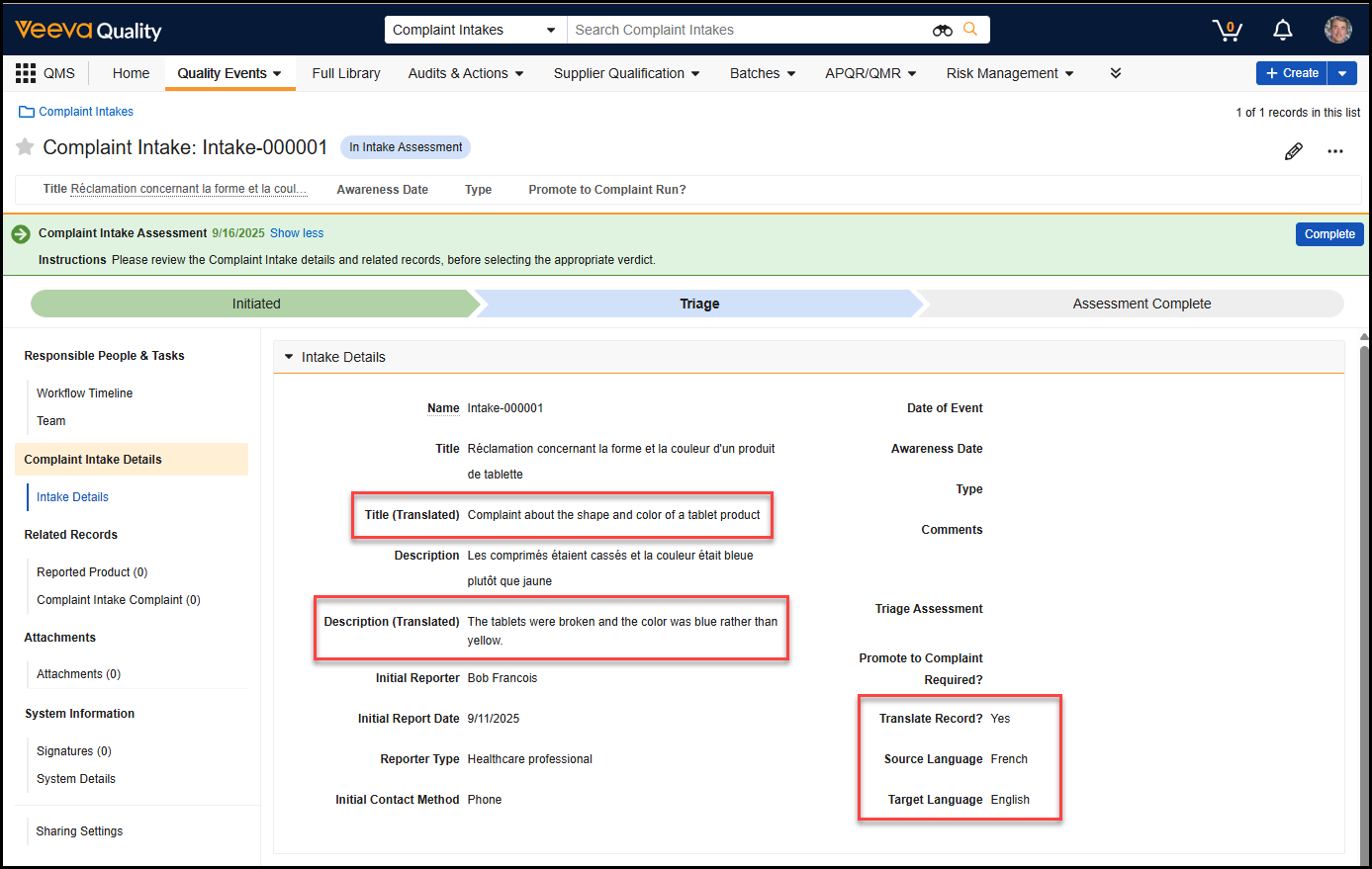
Admins can configure the Translate Record action as a user action or entry action. The Translate Record entry action translates a record when it reaches a certain lifecycle state. The Translate Record user action allows a Quality user to initiate the translation process by selecting a menu option like the one shown below for a French user.
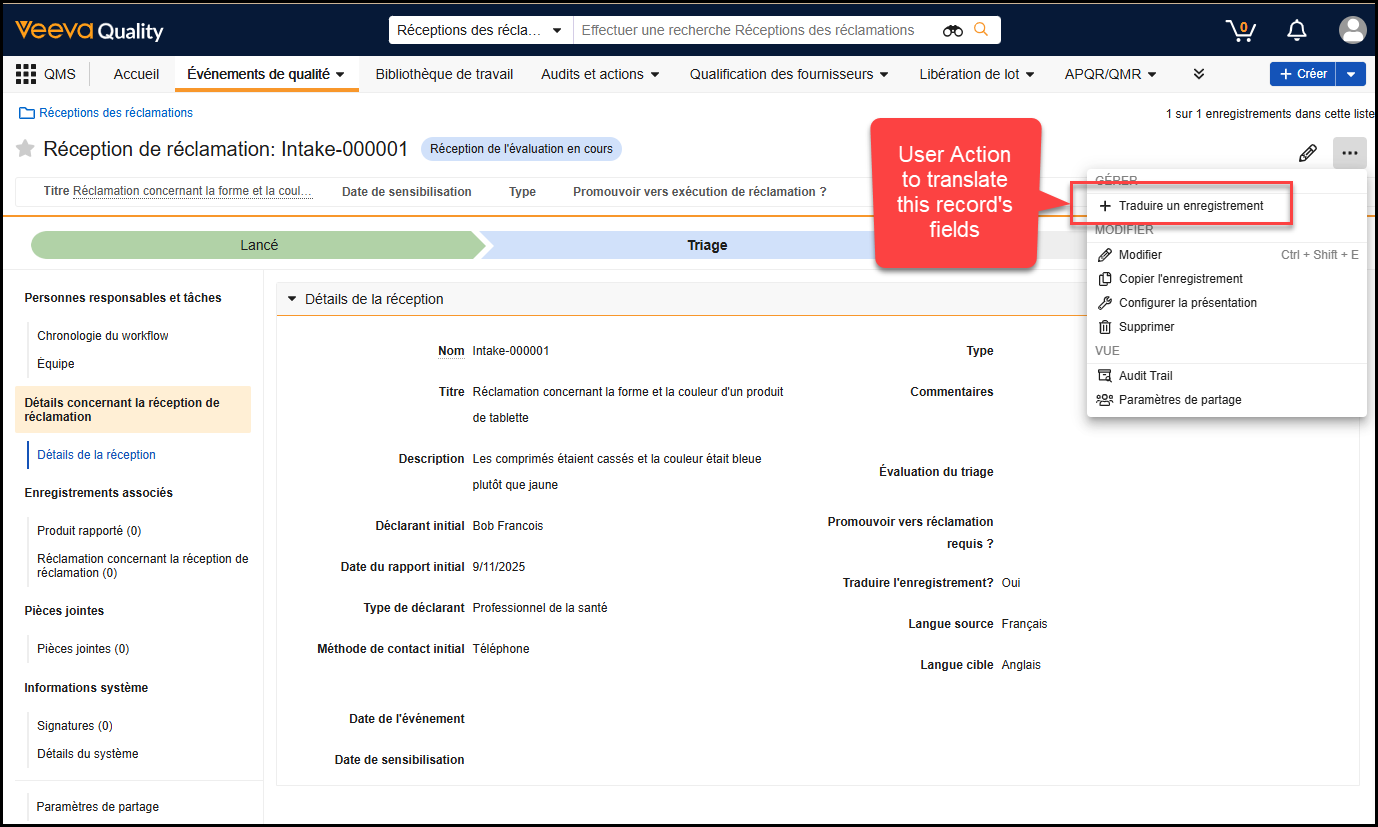
Admins can specify the source fields to be translated and the target fields that store the translations on a Quality Language Translation configuration. Up to five source and target field combinations can be configured. Source and target fields must be Text, Long Text, or Rich Text fields, and can be standard or custom.
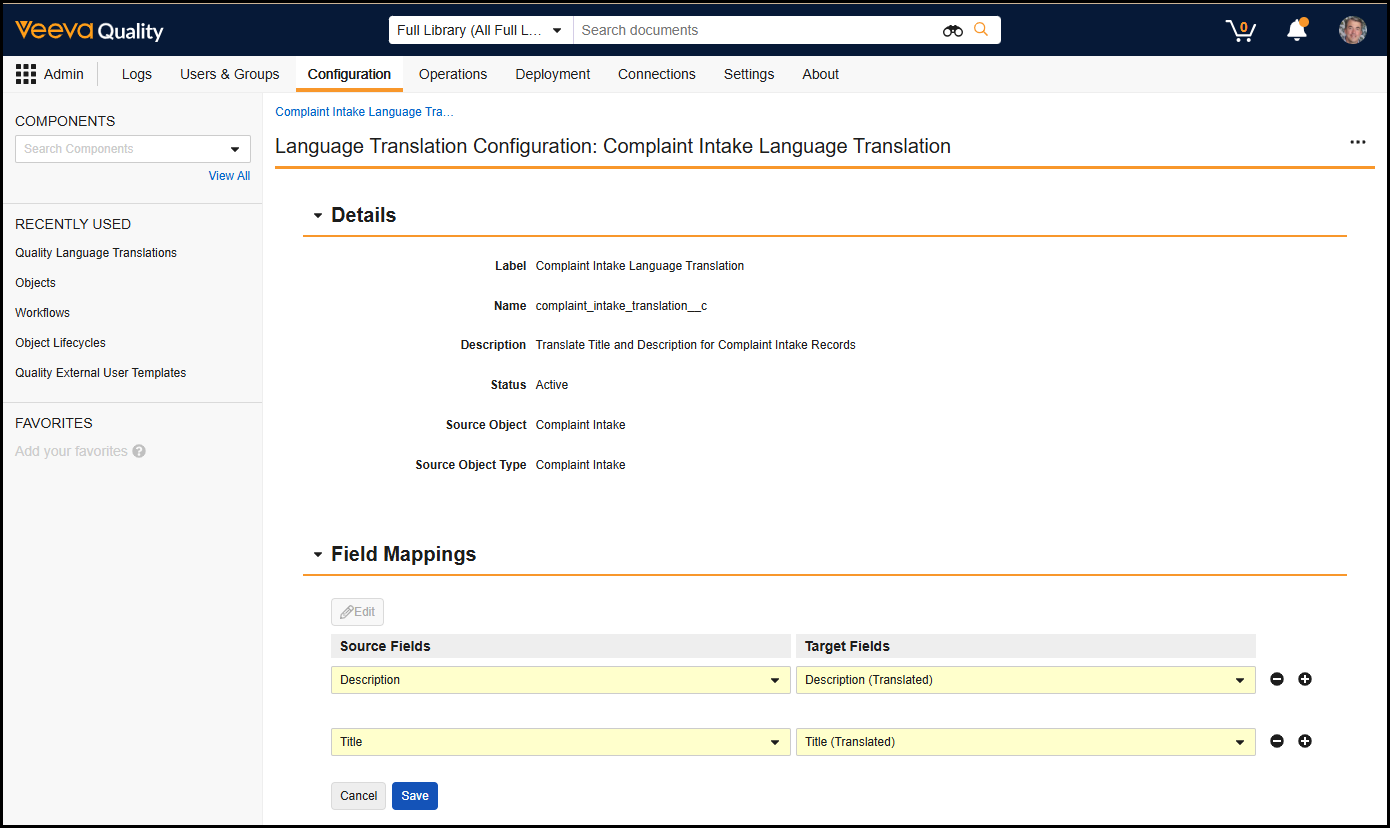
Note: This feature leverages a language translation provider that does not save or use customer data to enhance its translation service, track usage, or resolve issues.
This feature requires configuration by an Admin.
Learn more about using and configuring Quality Automated Language Translations.
Supplier Questionnaires: Follow-Up & Invite RespondentsConfiguration25R3.2
A Supplier Questionnaire is often used by life sciences organizations to gather information about a supplier’s business, capabilities, compliance, and risk profile. Companies utilize questionnaires in a variety of situations, including supplier onboarding and qualification, supplier risk assessment, compliance with regulatory statutes and guidance, sustainability programs, and periodic supplier re-qualification and audits.
This release introduces several key enhancements to the External Collaboration for Checklists feature to support a review and follow-up process, including the ability to send a questionnaire to additional external Supplier Respondents.
Invite Respondents
When a Quality user in your organization initiates a Supplier Questionnaire checklist on a supplier’s External Organization record, Vault grants access to the checklist and sends it to the Supplier External Collaborator.
However, in many cases, the Supplier External Collaborator needs support from Subject Matter Expert (SME) colleagues to respond. Previously, the Supplier External Collaborator had to collect responses from SMEs outside of Vault, then transcribe their responses into the questionnaire. This feature eliminates the need for offline responses by allowing the Supplier External Collaborator to invite SME colleagues to enter their responses by clicking the Invite Respondents button.
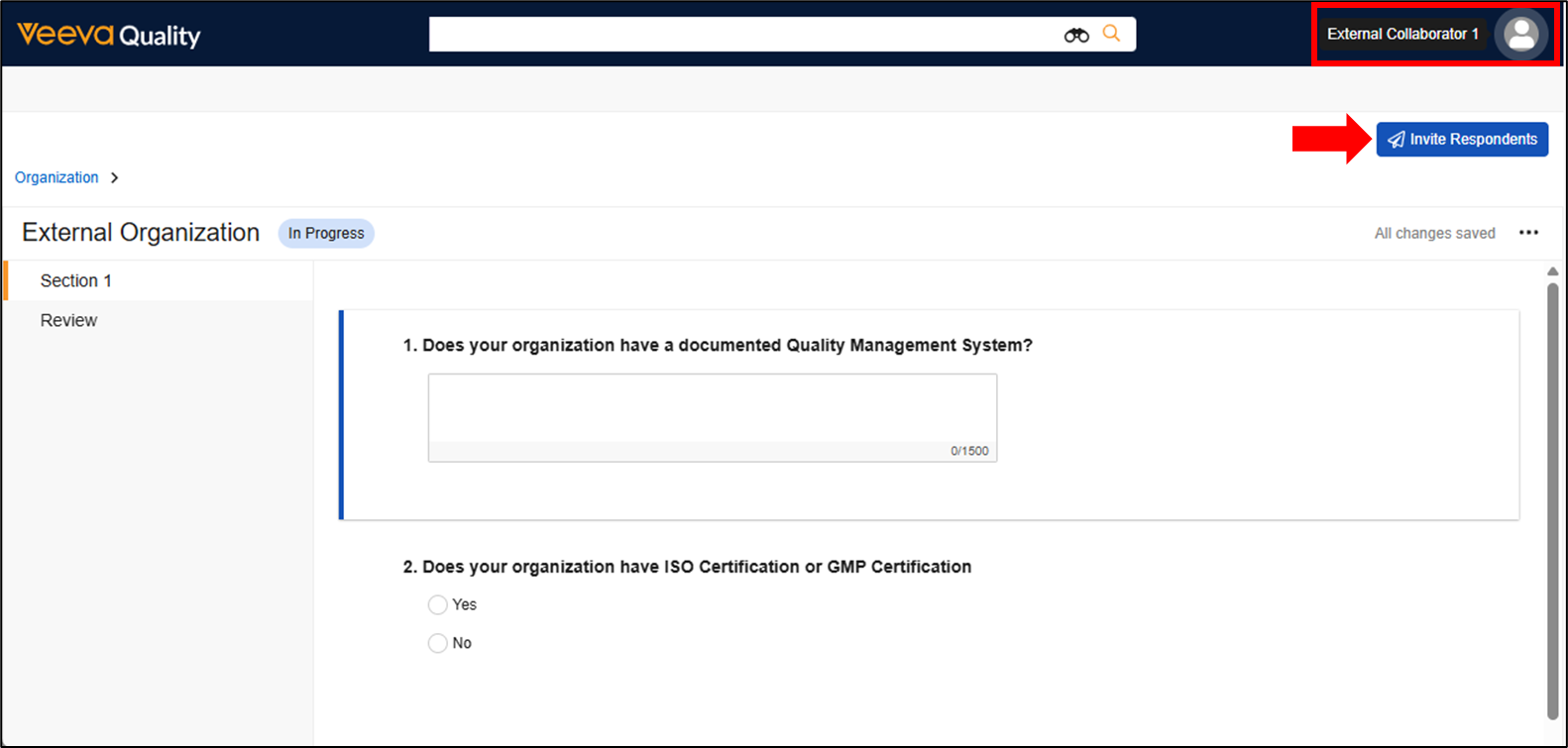
When the Supplier External Collaborator clicks the Invite Respondents button, a dialog displays containing a default message that the Supplier External Collaborator copies and pastes into an email sent to SME colleagues, modifying the message as needed.
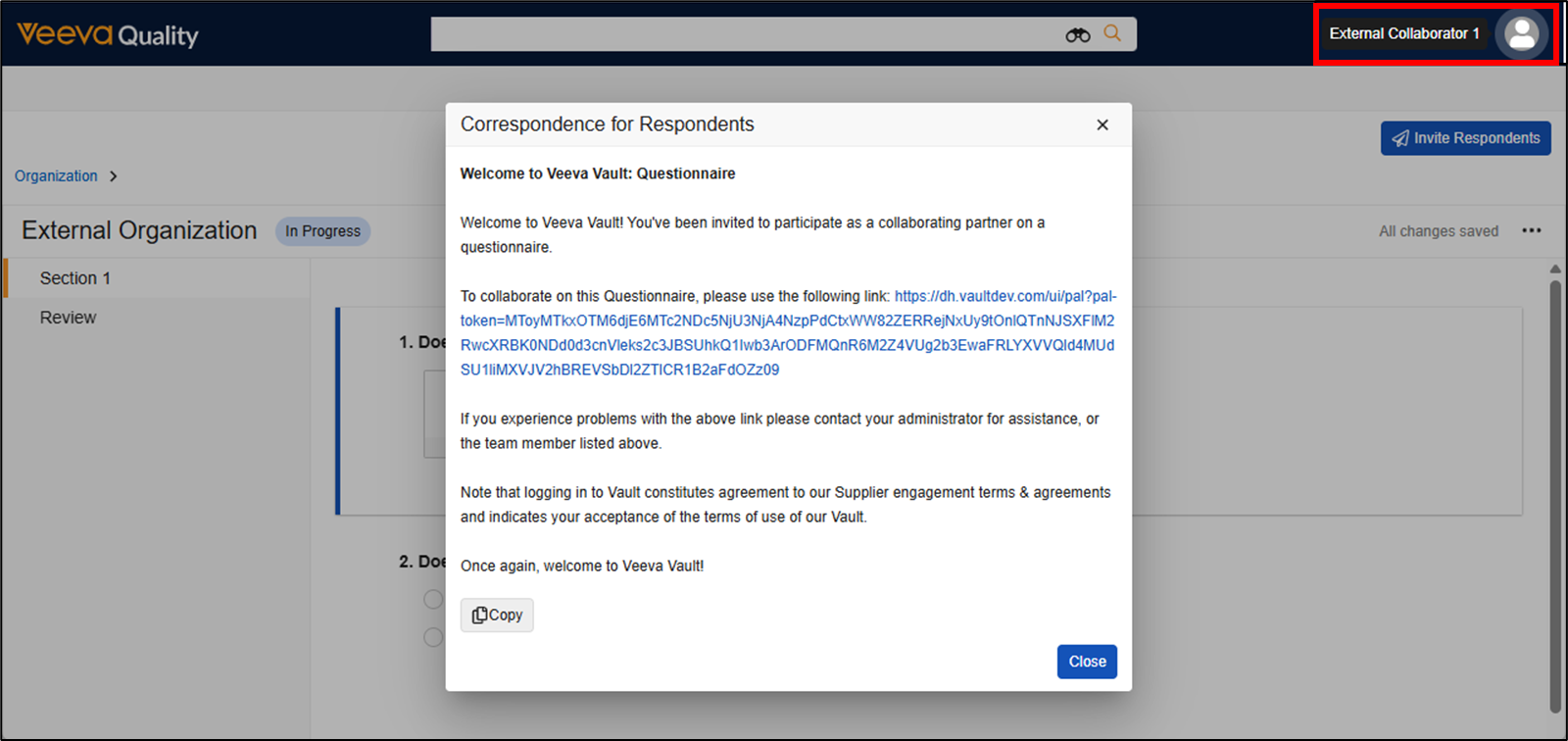
The link included in the message only provides access to the Supplier Questionnaire and nothing else inside your Vault. SME respondents do not need to authenticate with a username and password to access the questionnaire. The link remains active until the questionnaire is complete.
The screenshot below shows how a Supplier Questionnaire appears to an SME respondent.
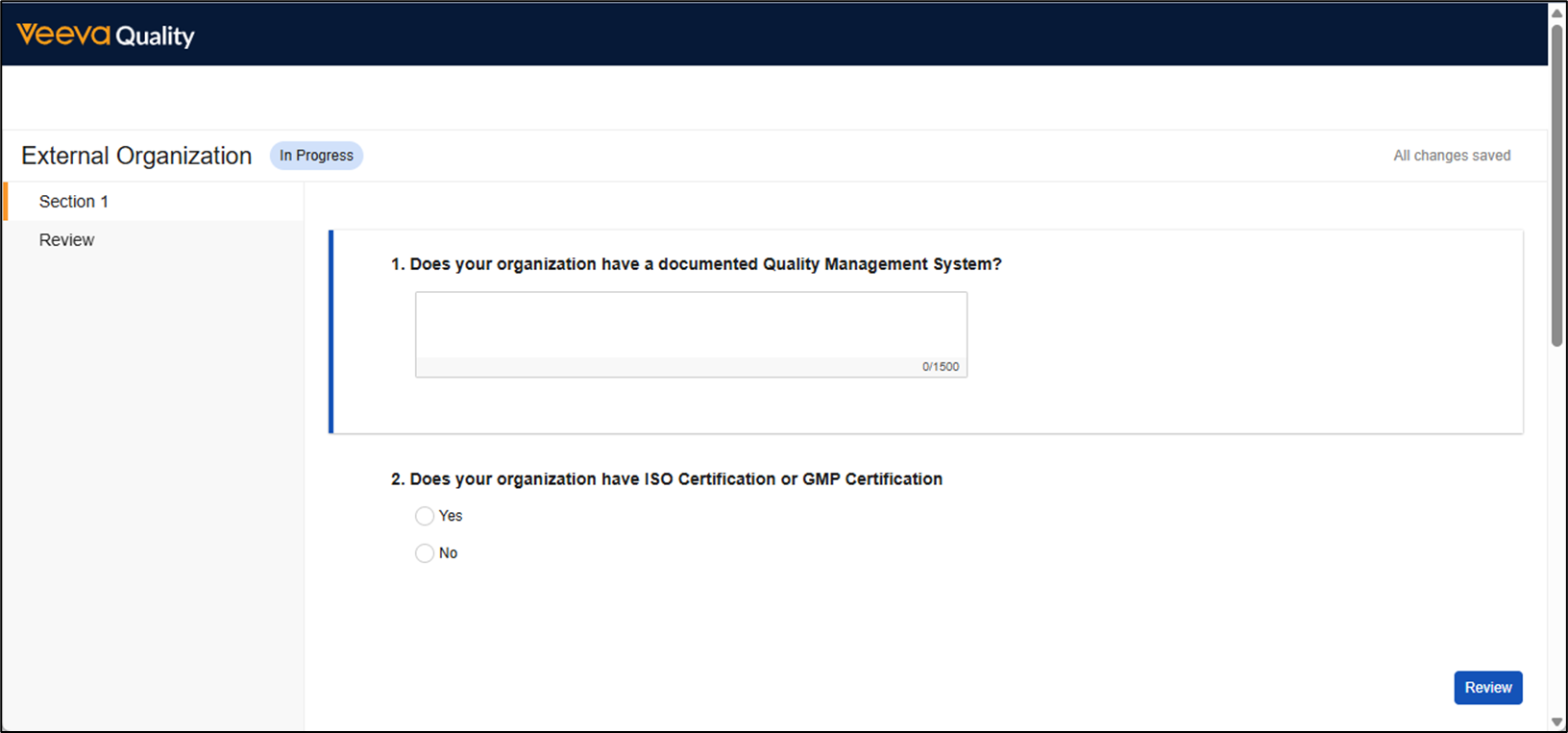
Follow-Up
After providing all responses, the Supplier External Collaborator sends the checklist back to your organization. A reviewer designated by your organization receives the questionnaire and can initiate a process to review all of the responses.
Prior to this feature, if a response from a supplier was insufficient, it was not possible to send the Supplier Questionnaire back to the supplier to provide additional information. This feature enables a reviewer at your organization to request more information for any question by clicking the Follow-up button and leaving a question.
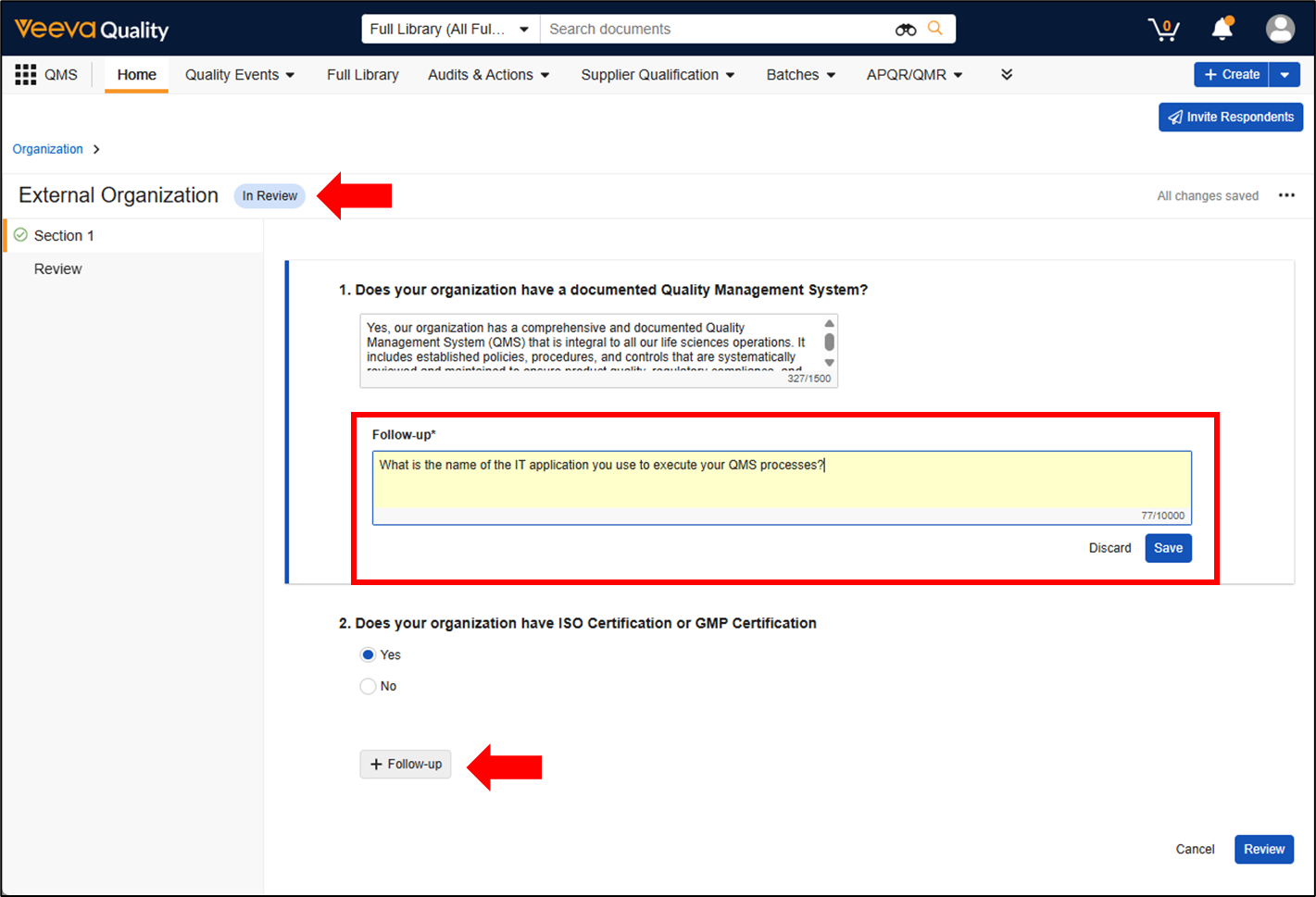
When all follow-ups have been added, the Supplier Questionnaire is sent back to the Supplier External Collaborator. The Supplier External Collaborator can provide responses to follow-ups and invite colleagues to address follow-ups via the Invite Respondents button. When all follow-ups have been addressed, the Supplier External Collaborator sends the checklist back to your organization for re-review.
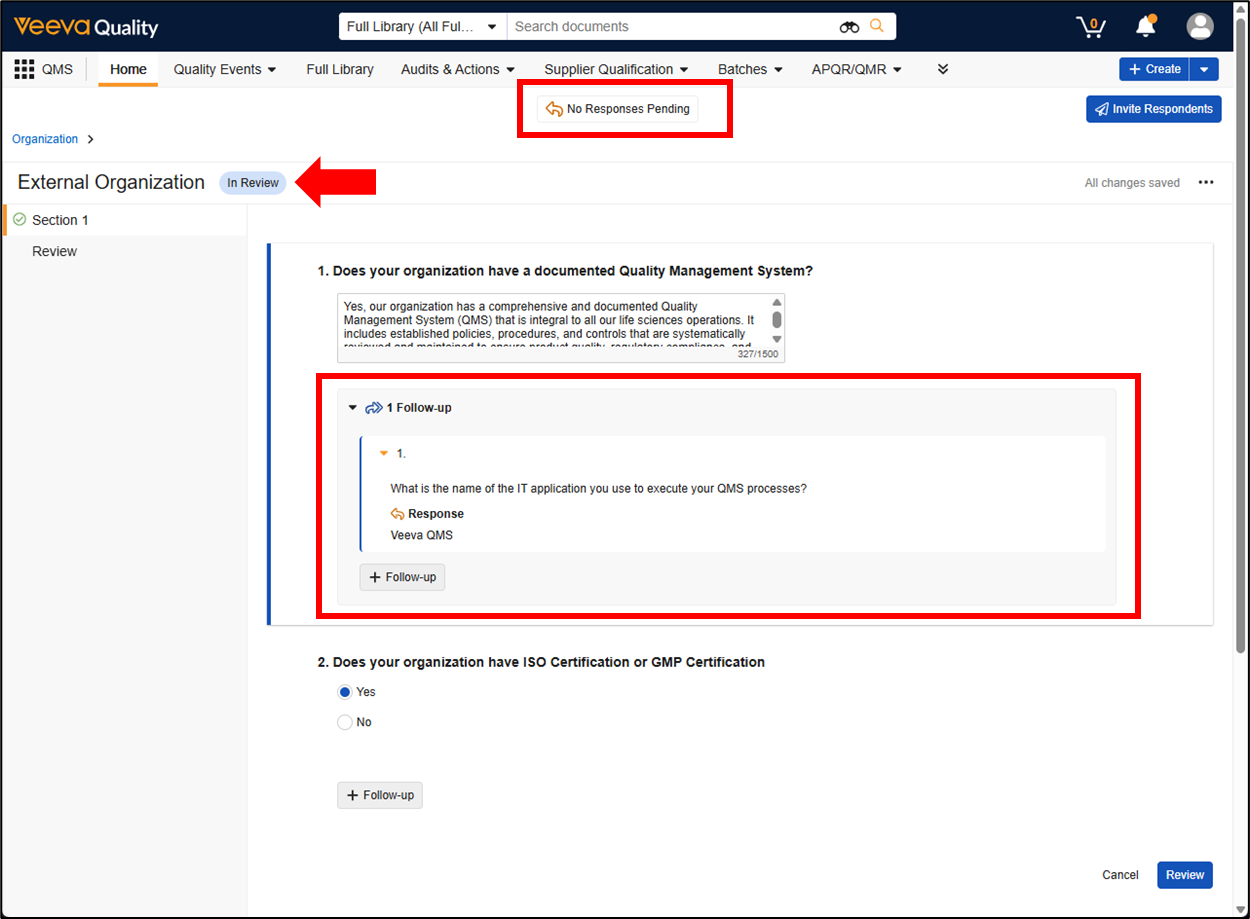
This back-and-forth collaboration of follow-up requests continues as needed, until the reviewer indicates the questionnaire is complete.
This feature requires configuration by an Admin.
Learn more about working with External Collaboration Checklists and configuring follow-up and additional respondents on External Collaboration Checklists.
QMS Change Related Object Lifecycle State Action: Allow Download of Failed RecordsAuto-on25R3.2
Organizations relying on the QMS Change Related Object Lifecycle State entry action now have additional actionable information should the action fail to update a record’s lifecycle state. Prior to this release, such a failure would require a user to manually review which records did not update appropriately, or to contact an Admin to review administrative logs for this information. Now, however, Admins can utilize the new QMS Change Related Object State Failed message to send the user who initiated the action a list of all records that failed to update, complete with the reasons for that failure, so that the business team is empowered to take corrective actions. This functionality is automatically enabled.
Standalone CAPAConfiguration25R3.2
This release introduces the ability to initiate Root Cause Analyses and Investigations directly from Continuous Improvement (continuous_improvement__v) records.
Introducing Standalone CAPA to Veeva QMS
This feature introduces support for a more robust Standalone CAPA process in Veeva QMS. It provides clear configuration and operational clarity for organizations utilizing both proactive activities (Continuous Improvements) and event-driven activities utilized when existing CAPAs for a closed quality event are ineffective or incomplete (standalone CAPAs).
Prior to this release, Continuous Improvement records were intended to support scenarios which were proactive changes that did not require an Investigation or Root Cause Analysis. As such, the Continuous Improvement object did not support a standardized approach for tracking these operations on Continuous Improvement records. This created a challenge for organizations needing to follow up on closed events which had CAPAs that were ineffective in resolving the core business issue represented by the event. In these follow-up cases, one must:
- Preserve the original CAPA or event data, which is now closed and locked.
- Perform additional Investigations and Root Cause Analyses to determine the remaining issues to be resolved.
To these ends, organizations can now leverage the existing Source picklist field on the Continuous Improvement object to distinguish if a given Continuous Improvement is either proactive, or in response to ineffective CAPAs on an existing event. The new Standalone CAPA fields on the Root Cause Analysis and Investigation objects directly reference Continuous Improvement records. Using these fields together, organizations can now configure Vault to use the single Continuous Improvement object to either capture truly proactive actions, or, if the Source field is so populated, to guide users to create and execute Investigations and Root Cause Analysis for the event-driven follow-up actions of standalone CAPAs.
This feature does not introduce any changes to the existing Continuous Improvement object’s label or object types. To adopt the standalone CAPA approach, organizations can activate the new Standalone CAPA fields available on the Root Cause Analysis and Investigation related objects, and leverage the Source field and layout configurations to show or hide Investigations and Root Cause Analysis sections on Continuous Improvement records.
Learn more about working with Continuous Improvements.
Reason for Change EnhancementsAuto-on25R3.2
This release expands support for the Reason for Change feature to Recurrence Check Insights and Action Paths. It also introduces a new constraint on Reason for Change configurations.
Pre-Release Testing Consideration: Users may encounter an error when attempting to update a record’s field if the field is subject to a Reason for Change configuration. This is a result of the new Reason for Change configuration constraint described in the Reason for Change Capture Field section. Customers using the Reason for Change feature should evaluate whether their Reason for Change configuration is impacted, and make plans to update their configuration after the release.
Recurrence Check Insights
When Reason for Change is enabled for a field, and a user accepts a field suggestion using Recurrence Check Insights, Vault will now prompt the user to provide a reason for change.
The following screenshots illustrate the user experience when a user accepts one field suggestion, and that field is governed by Reason for Change configuration.
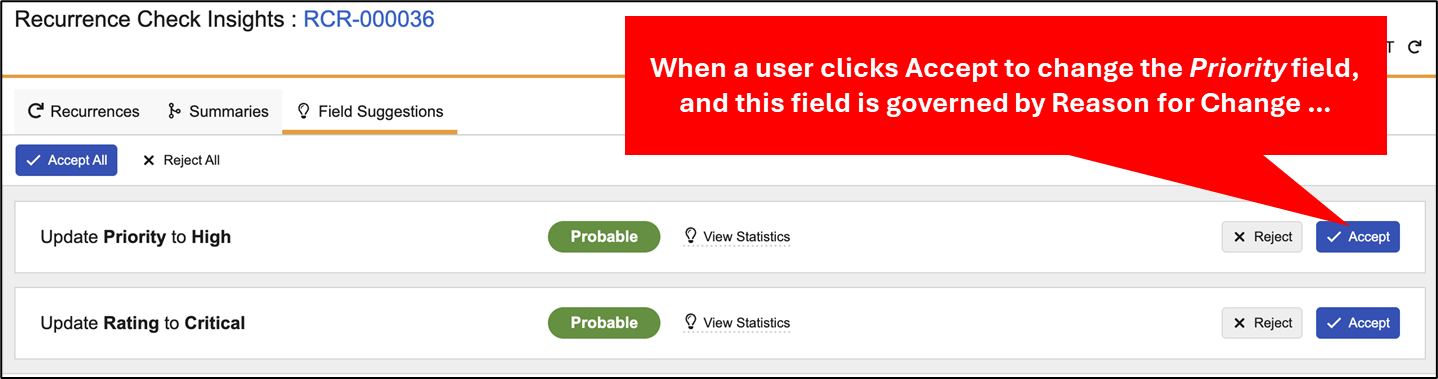
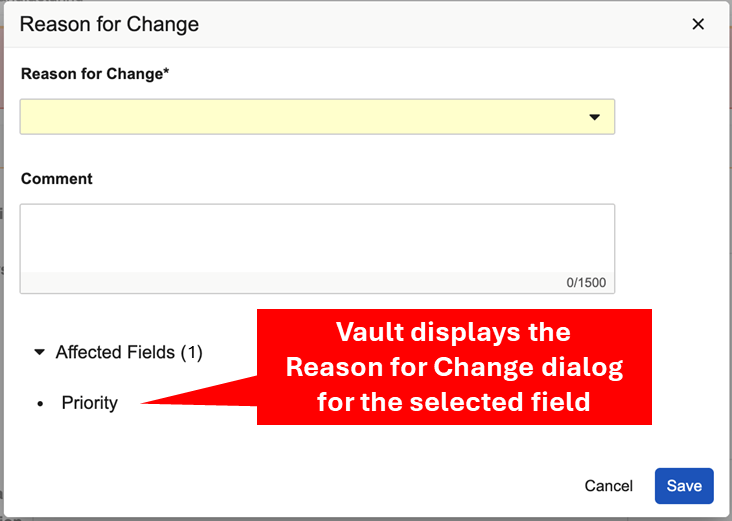
The screenshots below show the user experience when a user accepts all of the suggested field changes and there are multiple fields governed by a Reason for Change configuration.
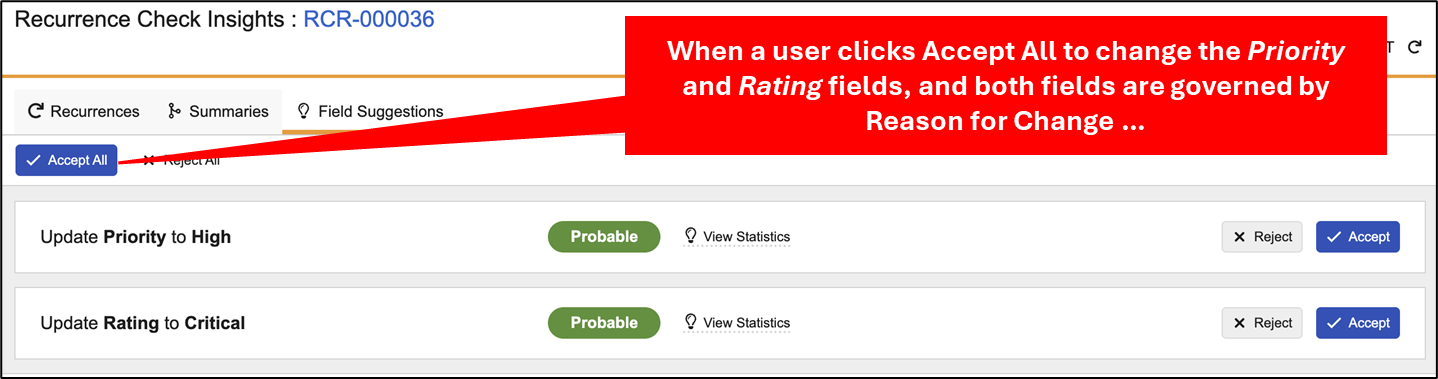
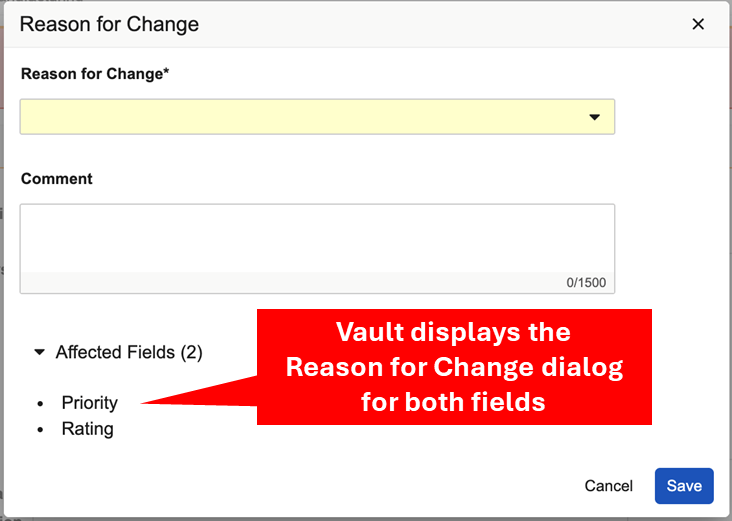
This feature is automatically enabled in Vaults with the Reason for Change and Recurrence Check Insights features configured.
Action Paths
When Reason for Change is enabled for a Change Action field, and a user edits a Change Action field from an Action Step, Vault will now prompt the user to provide a reason for change.
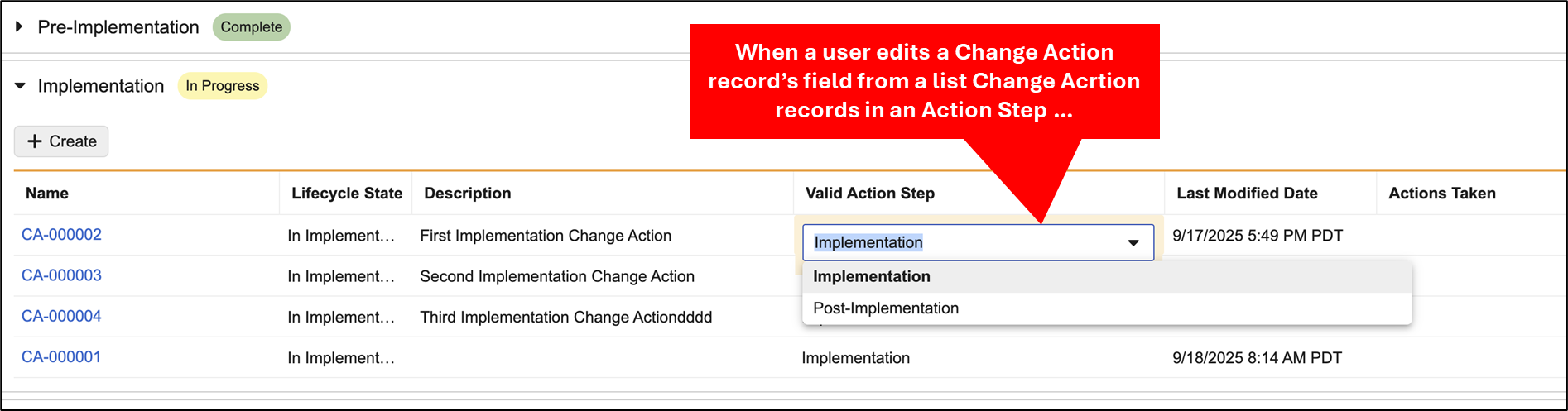
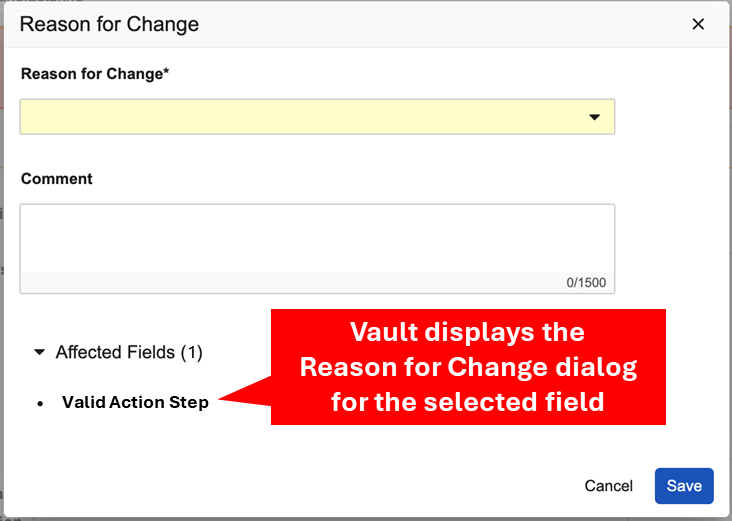
This feature is automatically enabled in Vaults with the Reason for Change and Action Paths features configured.
Reason for Change Capture Field
This release includes a new constraint that ensures Admins do not make the Reason for Change Capture field required. This field is used by the Reason for Change feature, but it is not displayed to users and therefore cannot be required.
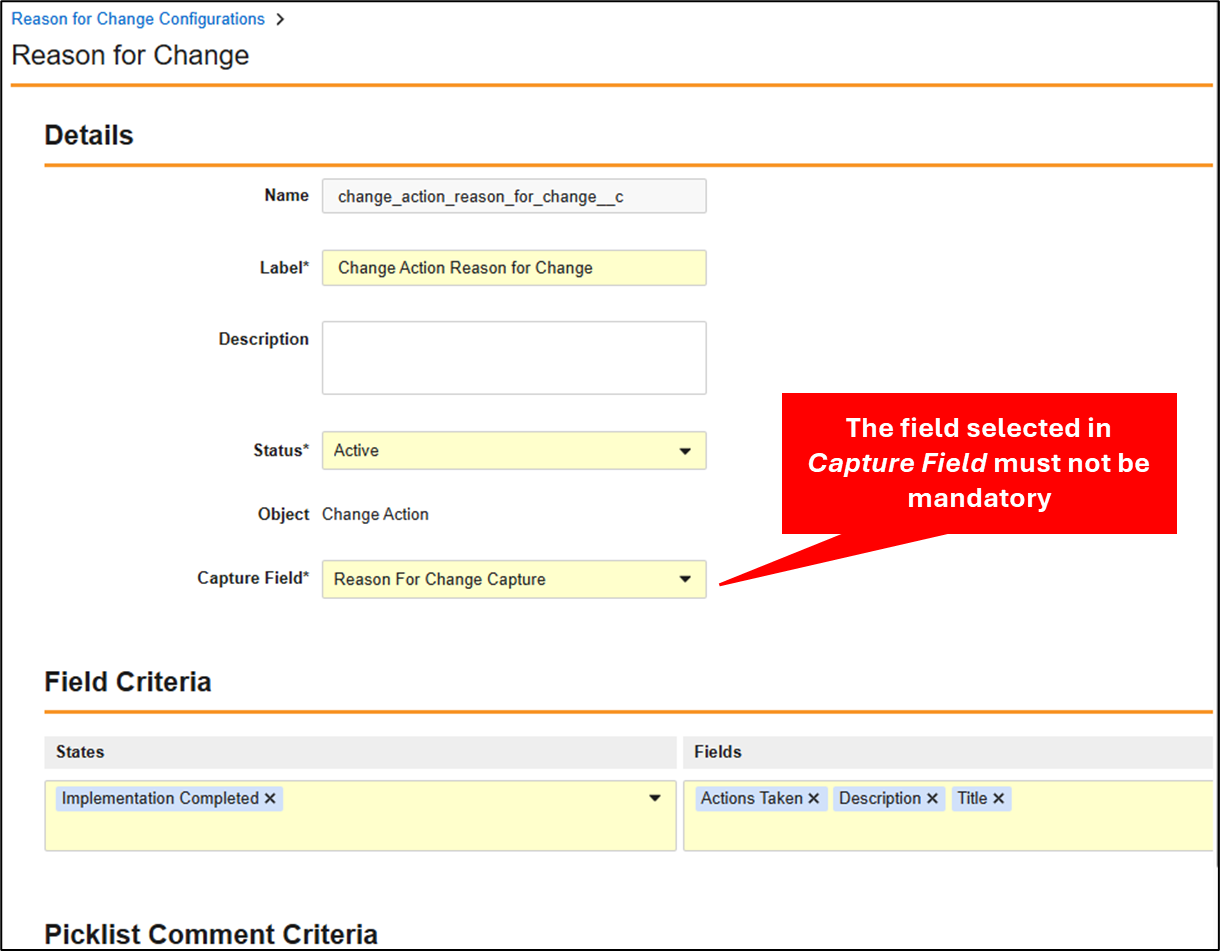
If an Admin attempts to save a Reason for Change configuration, and the selected Reason for Change Capture field is mandatory, Vault displays an error message.
If an Admin already configured the Reason for Change Capture field to be required, Vault will display an error message to the user indicating there is an invalid configuration, when the user attempts to save changes to a record governed by the Reason for Change configuration. As a result, customers should confirm their Reason for Change Capture fields are not required.
This feature is automatically enabled in Vaults with the Reason for Change feature configured.
Learn more about providing a reason for change and configuring the Reason for Change feature.
Reason for Change: Support for Word Formatted OutputsConfiguration25R3.2
This feature introduces the ability to include Reason for Change information about a record in the record’s formatted output file. For example, the following Deviation has two Reason for Change records.
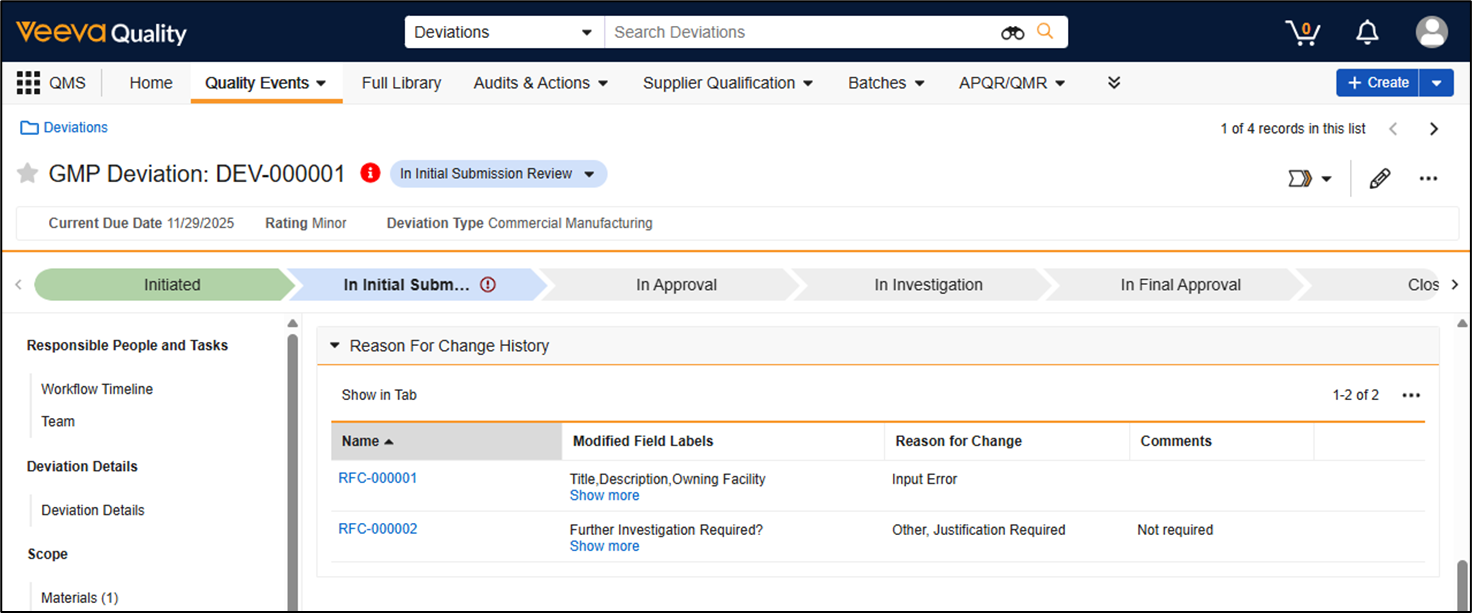
The corresponding section of the Deviation record’s formatted output file displays the details of the two Reason for Change records.
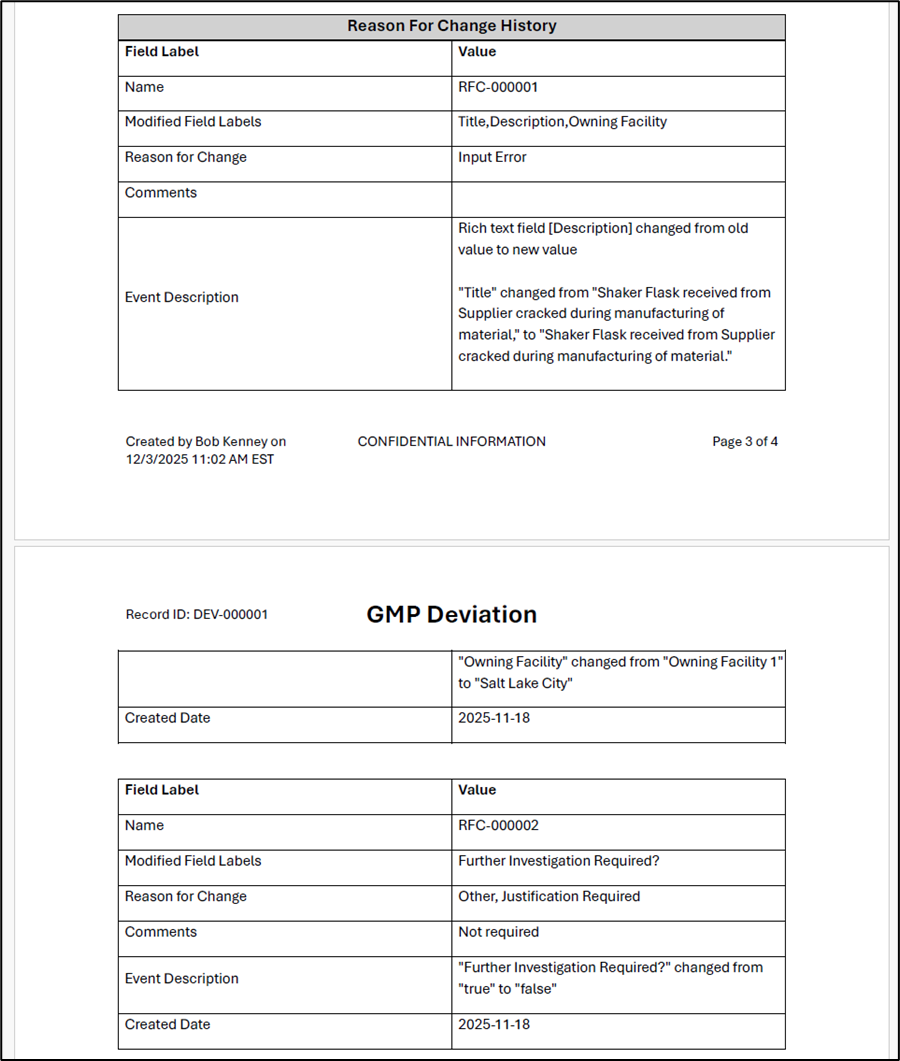
Including Reason for Change details in a record’s formatted output requires configuration of a Word Formatted Output template. The screenshot below shows the syntax of the command that must be added to a Word Formatted Output template to include Reason for Change details.
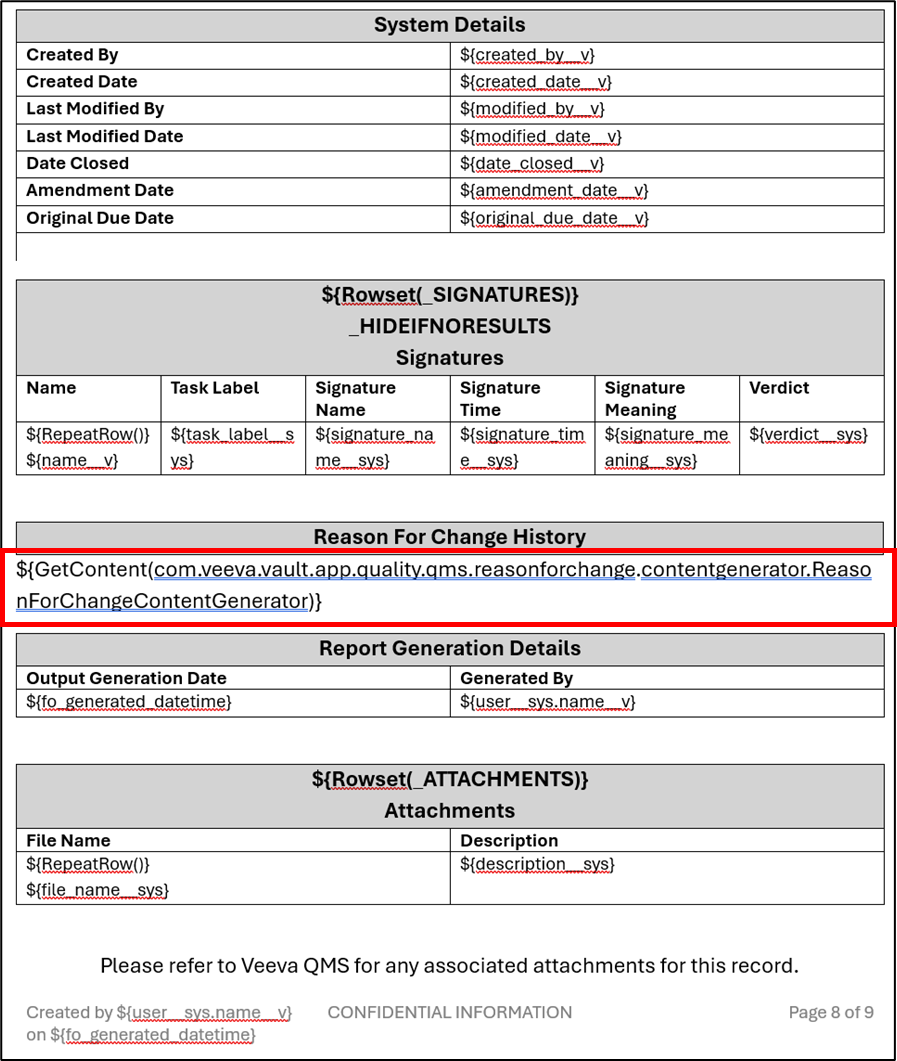
The statement shown in the screenshot above is provided below to make it easy to copy and paste into your own Word Formatted Output templates.
${GetContent(com.veeva.vault.app.quality.qms.reasonforchange.contentgenerator.ReasonForChangeContentGenerator)}
This feature is enabled through configuration. It only applies to Vaults with the Reason for Change feature configured.
Learn more about providing a reason for change and Quality Document Generation.
Download as PDF: Export Audit Trail Entries Associated to Reason for Change RecordsAuto-on25R3.2
The Download as PDF (print record) experience for Reason for Change records has been enhanced to include Audit Trail information for those changes. In addition to the object metadata captured directly on Reason for Change object records, the generated PDF will now include a table displaying the key information that was changed on the quality process record in a new Audit Trail section.
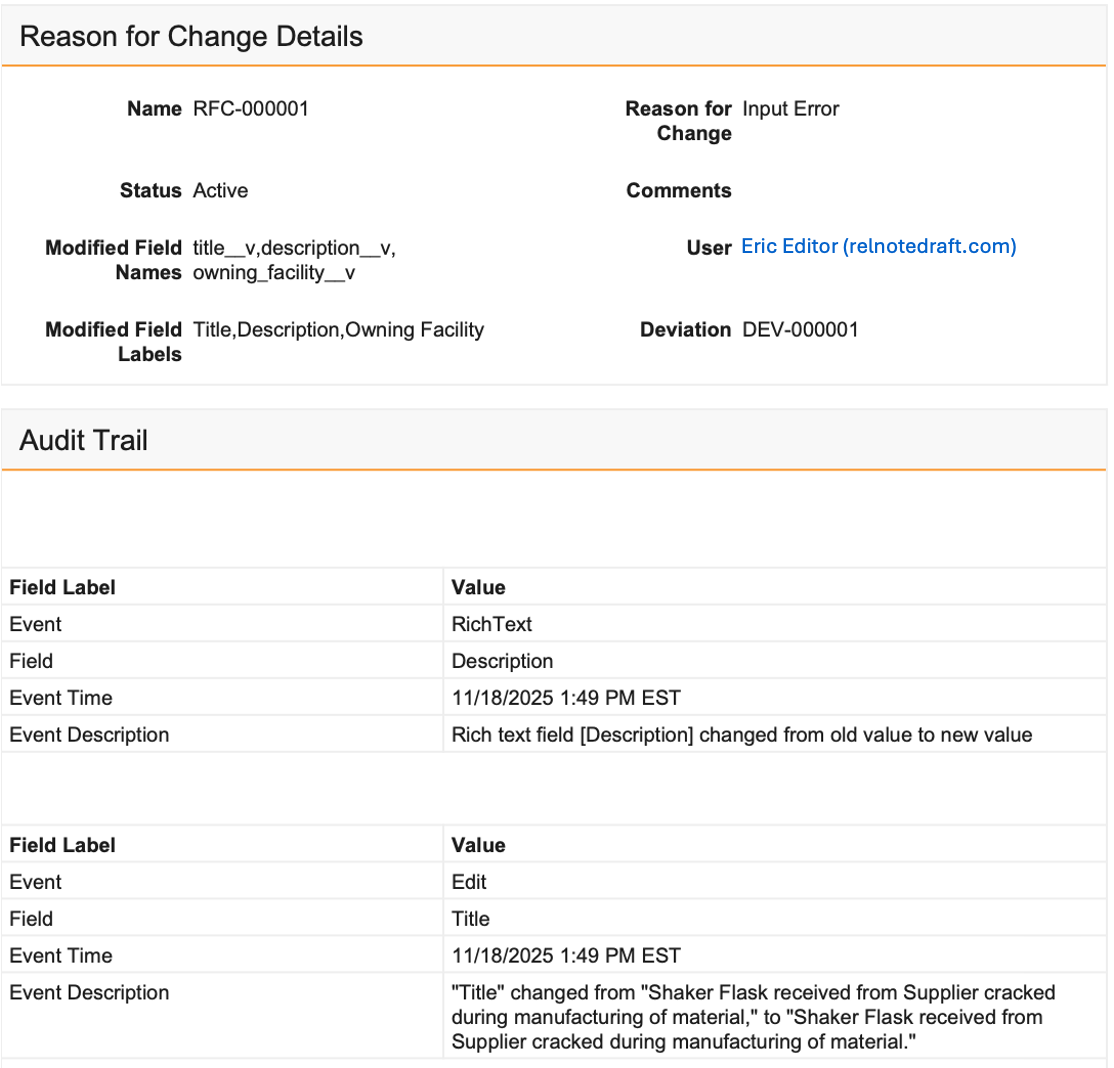
This feature is automatically enabled for all Vaults, and the new section will be present when a Reason for Change record is next downloaded.
Proposed APQR-to-APQR Field InheritanceAuto-on25R3.2
In 25R2, the APQR Programs feature was introduced. As part of the 25R2 release, Proposed APQRs leveraged the Management Review Template to populate field-level data into APQR records. With this enhancement, when using APQR Programs and Proposed APQRs, Vault now evaluates additional field-level data during APQR record generation. Specifically, when an APQR is created from a Proposed APQR, Vault copies the field values for Description, Product, Owning Facility, and Country from the Proposed APQR and populates them on the APQR record if the corresponding fields in the Management Review Template are blank. This ensures that APQR records are consistently populated with the most complete and relevant information available.
Learn more about APQR Programs.
5 Whys User Interface EnhancementsAuto-on25R3.2
With this release, the 5 Whys user interface has been enhanced to more clearly indicate that Completed root cause analysis flows are in a steady state and locked. Prior to this release, in some scenarios a user may have seen a + Why or Edit gesture on a completed Root Cause Analysis Item even though these gestures did not allow users to change root cause analysis information in the Completed state. Additionally, these gestures will no longer display to users if security configurations indicate that Root Cause Analysis records should not be created, deleted or edited. This change is automatically enabled in Vaults leveraging 5 Whys.
Related Event Section: Display Gestures Based on User PermissionsAuto-on25R3.2
With this release, the Related Events application section now more clearly reflects user permissions. Prior to this release, the Create, Delete and Edit gestures on a record’s Related Events section were displayed to users who did not actually have the permissions to execute them. With this release, these actions will be context aware, displaying only to users who have the appropriate permissions to execute those actions. This change is automatically enabled for all Vaults leveraging the Related Events application section.
Learn more about the required permissions for the Related Events section.
Quality Team Section: Display Minimum & Maximum User RequirementsAuto-on25R3.2
This release makes it easier to know the requirements when assigning users to a Quality Team from the Quality Team section on a record. Each role now displays the minimum and maximum number of users that must be assigned to that role clearly in the Vault UI.
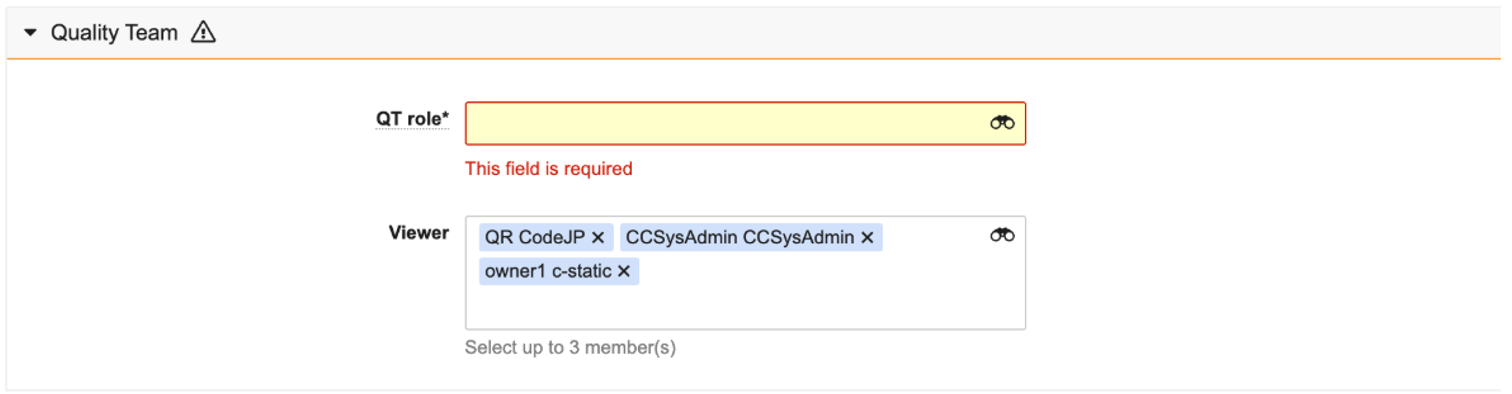
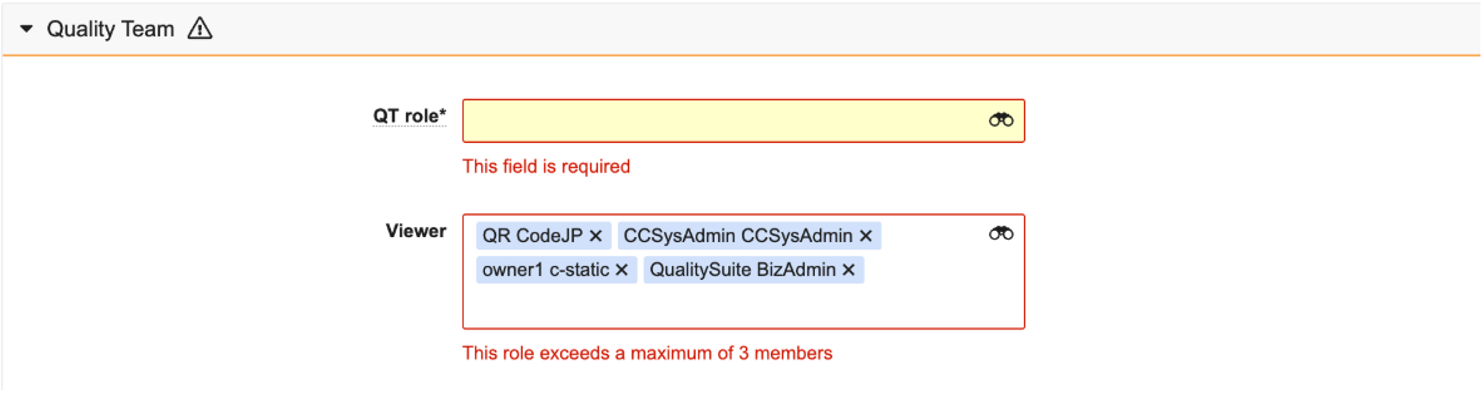
This feature is automatically enabled.
Learn more about working with Quality Teams.
Email Body Section: Display Warning Message When Content Exceeds Character LimitAuto-on25R3.2
Organizations can send emails to the QMS application to automate the creation of Supplier Change Notification, Complaint, and Complaint Intake records. Admins can configure these objects to display the content of the email within a record’s details page. Previously, when an incoming email exceeded the display limit of 32,000 characters, the email content on the record’s details page was silently truncated, potentially causing users to miss important information.
In order to ensure users never miss critical information, when the email exceeds 32,000 characters, Vault now displays a warning message on the details page instead of truncating the email content.
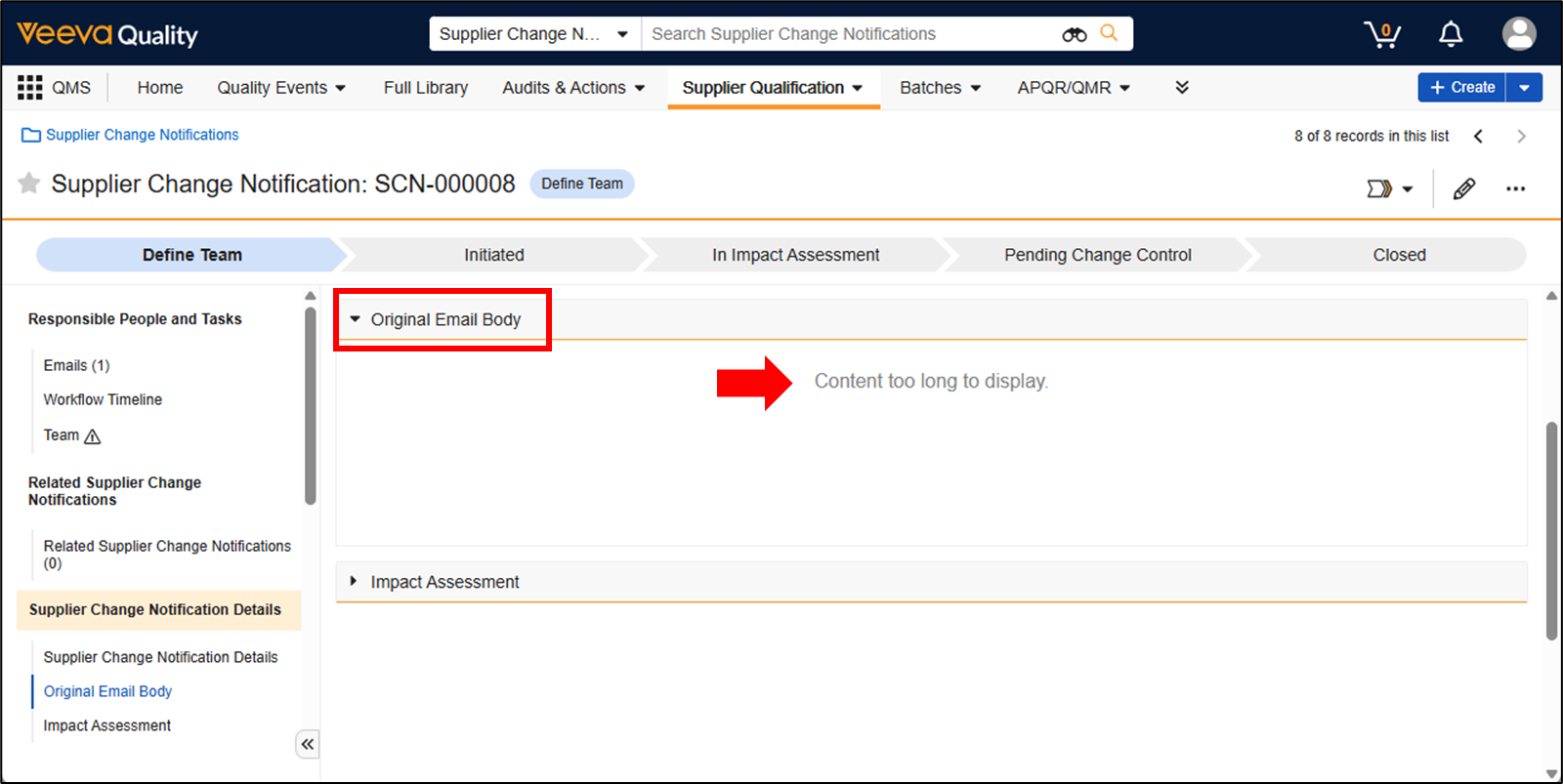
When this warning is displayed, the full email is available to view within the record’s Attachments section.
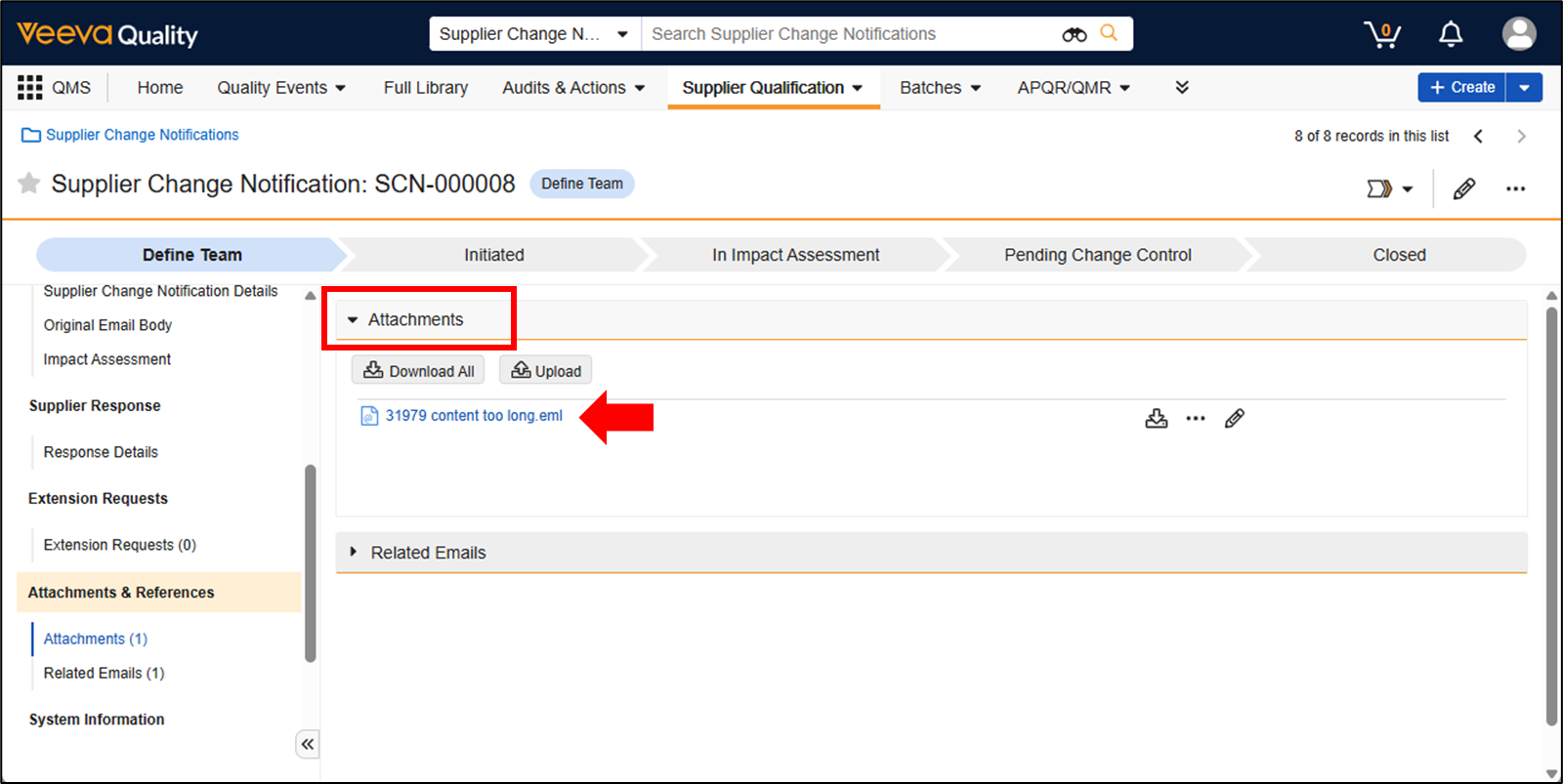
This feature also extends to downloaded PDF copies of a record generated using the Download as PDF menu option, as shown below.
Vault will now display a warning message inside the downloaded PDF instead of truncating the email content.
This feature is automatically enabled in Vaults that are configured to create records from emails.
Prevent Creation of Select Quality Configurations for Inapplicable ComponentsAuto-on25R3.4
This release streamlines component configuration for Admins by prohibiting configurations which would leverage components that are not enabled within a Vault. Prior to this release, when configuring advanced Quality Vault components such as Quality Relationship Automation or Quality Record Check configurations, some objects could be available for selection which were part of Quality applications that were not enabled in that Vault. For example, prior to this release, an Admin configuring a Vault with only the QMS application enabled could attempt to configure a Quality Record Check which references the Validation Entity object, which is specific to Vaults with Validation Management enabled. Additionally, when creating Related Record Configurations, inactive object types are no longer available to select. While these configurations were harmless and nonfunctional, Vault now no longer displays these locked objects and inactive object types to Admins when configuring such componentry in Vault.
Complaint Intake for MedTechConfiguration25R3.4
This release introduces focused expansions to the MedTech Complaint Intake process. Veeva QMS now supports surfacing and passing more rich data automatically between MedTech Complaint Intake and the rest of the MedTech Complaint processes. In support of this, we are introducing the MedTech Complaint Intake object type to the Complaint Intake object, as well as many new standard fields across both the Complaint Intake and Reported Product objects, providing a more harmonized data model across the first steps of MedTech Complaint management.
When utilizing Promote to Complaint functionality on the newly introduced MedTech Complaint Intake object type, all standard fields available on both the Complaint Intake and Reported Product records will be carried forward to the corresponding MedTech Complaint records automatically.
Generate Document from Record: Workflow Job StepConfiguration25R3.4
This release introduces the next evolution of record-based Veeva QMS document generation by allowing documents to be generated on a workflow step. Modeled after the existing Generate Document from Record actions, this feature combines the benefits of asynchronous and synchronous document generation, resulting in several key functionalities that address challenges for organizations looking to reap the benefits of Word formatted outputs while also proceduralizing document generation:
- Document generation from Word formatted outputs can now be a required part of the process, preventing record state changes from occurring until after the document has been successfully generated, and alerting key users to errors so they can resolve them before the record’s state progresses.
- Documents generated with this feature can now automatically move into the steady state of their lifecycle before the record moves to its destination state.
- Documents can be generated from either Word formatted output templates, or directly from record layouts.
Admins now create a job definition for each template, object, and object type combination, specifying which template type and template to use, what fields to populate, who should retain access to the generated document, who should be alerted upon success or failure, and whether or not the document should be moved into its steady state automatically once created:
This job definition is then invoked within a workflow step at the appropriate point in a process, with flexibility to specify different templates for different object types, as in the following example for Audits with a bespoke template for closed Inspections, Internal Audits, and External Audits:
With this configuration, Audit records are guaranteed not to enter the Closed state until after their printed document version is created, saved to the Vault and optionally moved to its lifecycle’s steady state.
Leveraging a Job step to generate a document as part of a workflow started by an entry action, Admins can create configurations to trigger document generation, put the process on hold until it completes, and then seamlessly move to the next step (for example, giving a task to the next key reviewer, approver, or process participant which includes a reference to the generated document), with the certainty that the generated document is available for the new participant in the appropriate lifecycle state. This configuration also works seamlessly with processes leveraging external notifications, where a generated document is material to the notification itself.
This feature simplifies the most complex part of configuration by providing the ability to reuse a single job definition across several locations in a given lifecycle. This eliminates the need to configure entry actions on multiple lifecycle states with the same detailed information.
The Generate Document from Record: Workflow Job Step feature’s workflow step and job definition require configuration before use.
Learn more about configuring document generation on a workflow step.
Proposed APQR-to-APQR Date Field InheritanceAuto-on25R3.4
This release introduces standard functionality to pass key standard dates from Proposed APQR records to their created APQR records whenever the APQR Program: Create APQR Records job runs. Specifically intended to remove the need for Action Triggers or custom java SDK code to set these key fields, this release extends upon prior updates in similar areas, and targets support for the Data Start Date (data_start_date__v), Data End Date (data_end_date__v), and APQR Due Date (apqr_due_date__v) fields. Should a value for any of these fields be present on the Proposed APQR when an APQR is generated from it, those values will be copied to the newly created record’s fields of the same name.
Learn more about APQR Programs.
Record Check & Record Suggestions: All Search TermsAdmin Checkbox25R3.4
Building on our Recurrence Check, Duplicate Check, and Record Suggestion functional suite, this release introduces the ability to specify terms that records must contain in order for them to be considered a match. This supplements the existing ability to match on records containing one or more of the terms specified in the Match on Any of these Terms section. This feature provides more granular control and higher quality results when running record checks and generating suggestions.
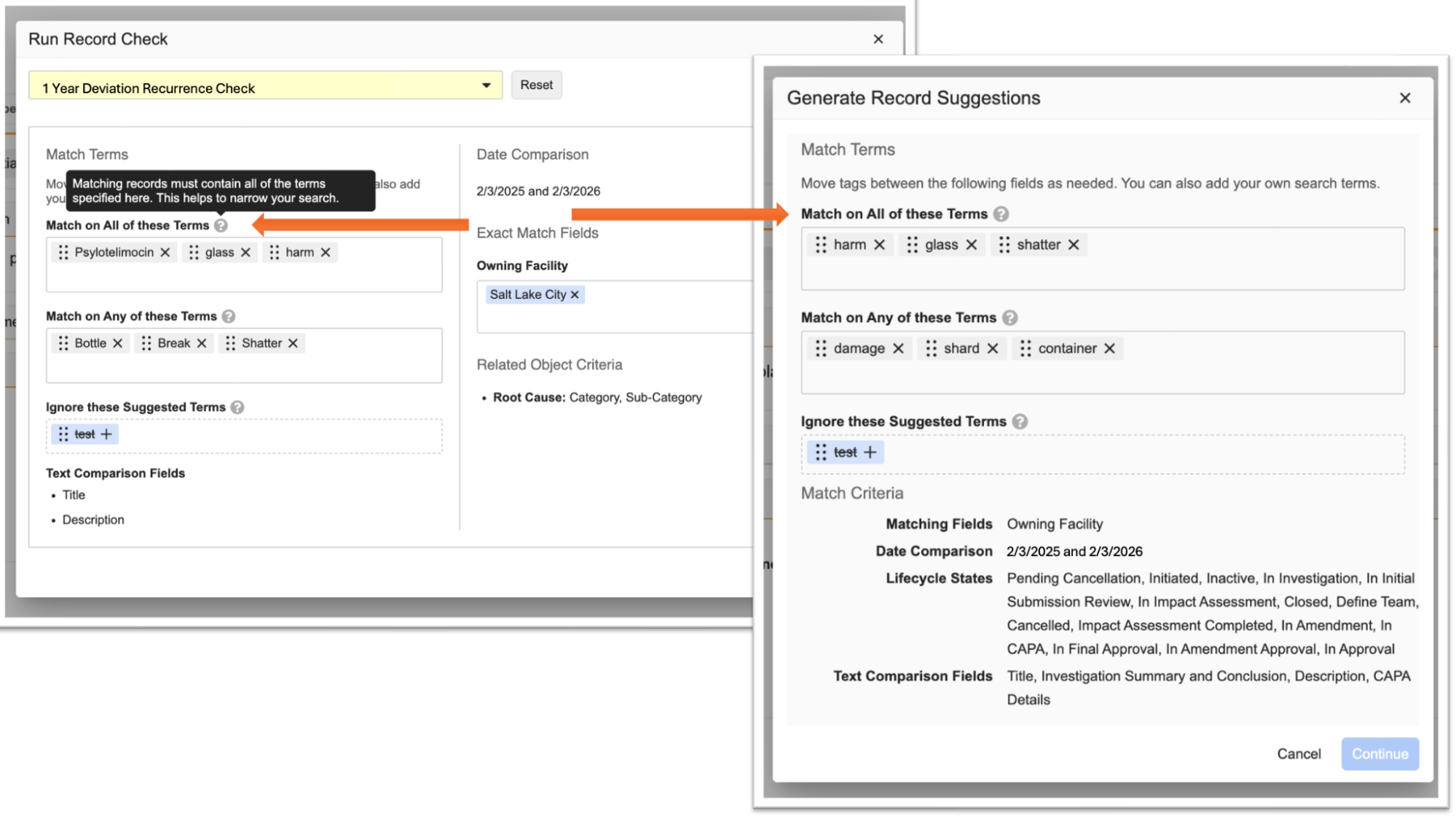
Admins can enable this functionality through a one-way setting within Admin > Settings > Application Settings. Once toggled, any existing and new Record Checks and Suggestions operations which allow users to override terms will now display the Match on All of these Terms section, in addition to the preexisting options, when executing Record Checks and generating Suggestions.
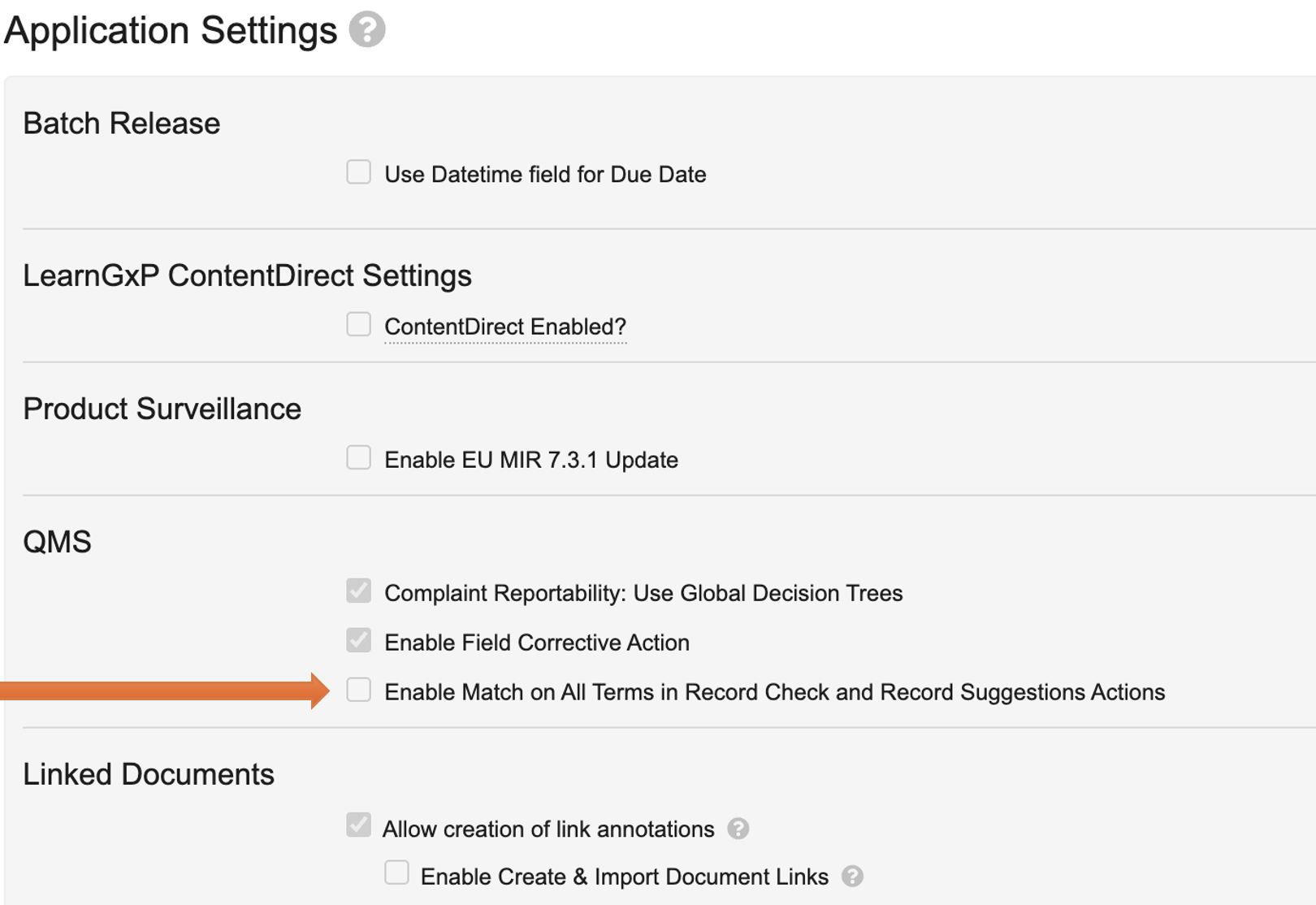
Learn more about enabling the new application setting.
Record History ExpansionConfiguration25R3.4
With this release, we’ve expanded upon the Organization & Qualification History feature set to make these functions more broadly available, more configurable, and more intuitive.
With these changes, all standard application objects within Vault QMS and Vault Product Surveillance now support the ability to capture a version of the record’s major changes via the Generate Document from Formatted Output action, and the ability for users to view such historical captures from an individual record’s detail page.
Admins can add the Record History and History Details application sections to supported object layouts. These sections provide users with a list of captured historical versions of the record they’re viewing, and an in-record view of a rendition of the most recently captured version, respectively.
Additionally, the Record History section now allows Admins to optionally define data from previous versions of the record to display in the list of historical versions. This option is available both for new objects, and for existing configurations leveraging the original Organization & Qualification History feature set.
The History Details section displays the most recent version of the record when the record is in a closed state. Admins can configure a layout to hide all other sections and only display the History Details section, ensuring that viewers see only the most relevant rendition.
Taking advantage of the Record History feature set for new objects requires configuration of lifecycle actions, document types, and layouts. If your organization had previously implemented the Organization & Qualification History feature set, no change is needed for your Vault to continue functioning as configured.
Learn more about configuring Record History.
Organization Scalability EnhancementsConfiguration25R3.4
With this release, organizations collaborating externally and using the scalable organization model introduced in 25R2 now have the option to use the Reason for Change feature for the new organization objects. These enhancements also introduce data model changes to allow users to reference these new objects on Person and User records. The newly supported objects are:
- Health Authority (
health_authority__v) - Hospital (
hospital__v) - Hospital Location (
hospital_location__v) - Organization Business Function (
business_function__v) - Organization Location (
organization_location__v) - Third Party (
third_party__v)
Additionally, new object fields have been introduced that allow users to link Audits, Proposed Audits, Findings, and Qualifications to Health Authorities and Third Parties.
Learn more about managing organizations.
Supplier Risk Assessment: Multiply Scoring MethodAuto-on25R3.4
This release enhances Supplier Risk Assessments by introducing a new option for calculating the Assessment Score for a Risk Factor Assessment: The ability to multiply the values of Risk Factor Scores together. This joins the existing Sum and Average scoring methods to create a robust set of options with which an organization can assess Supplier Risks within Vault.
To use the new scoring method, users can select Multiply from the Scoring Method field within an individual Risk Factor Template. This feature requires configuration to activate the Multiply scoring method within the Scoring Method picklist.
Learn more about configuring and working with Supplier Risk Assessments.
QRM: Risk Builder Usability EnhancementsAuto-on25R3.4
This release improves the overall experience of users working with QRM’s Risk Builder feature. Risk Builder has received several UI updates, including a Total Records count, updated visual treatments for better clarity regarding Save and Exit, as well as several larger, interaction-based updates.
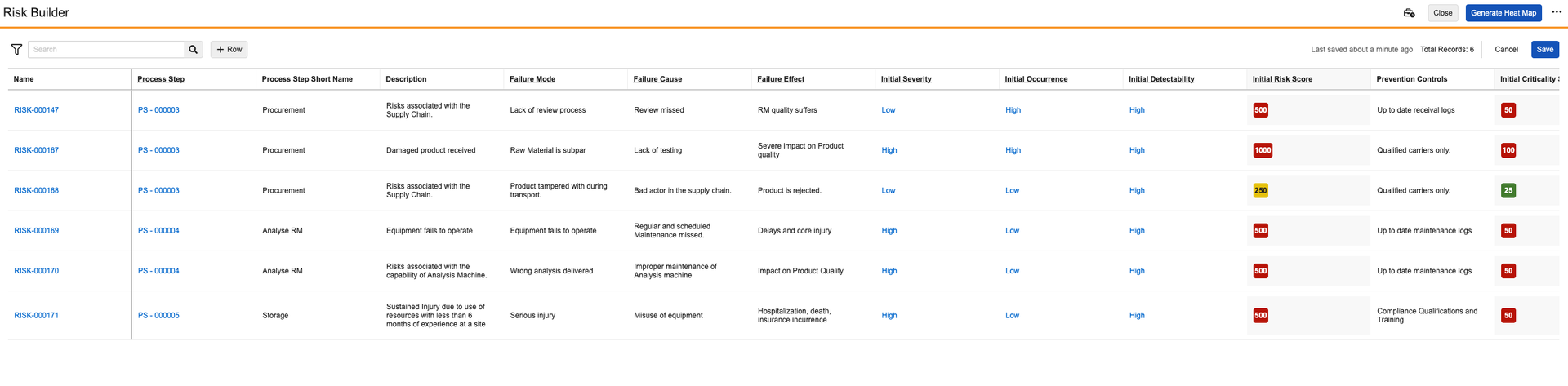
Tab Navigation
Tapping Tab or Shift + Tab while editing risks navigates users between editable cells within the Risk builder, allowing for faster, more natural navigation, especially in high-volume workspaces.
More Intuitive Row Additions
Adding new rows via the +Row button, or by selecting Clone, Copy, or Add Row from the Actions menu of a risk, now always navigates the user to the first editable cell of the new row. This means users who are working with large or changing data sets need fewer clicks to keep focused. Additionally, when a user is actively editing a cell, the gestures that are displayed now reflect that row addition is prohibited, and specify the reason.
Smarter Saving & Loading
To improve visibility into operations that Vault performs while users are editing within the Risk Builder, the Risk Builder now visually locks to indicate that operations such as loading, saving data, and adding or removing rows, are in progress. The gestures to edit cells or rows also lock while Vault is updating Risk Builder data.
External Response Collaboration: External Collaborator ControlConfiguration25R3.4
With this release, organizations collaborating with external partners that use the scalable organization model introduced in 25R2 on object records now have a tool to help guide users to select the most appropriate Contact to collaborate with, even if their business process record supports references to one or more objects which may have Contacts associated to them.
The new External Collaborator Object Control empowers Admins to provide Help context, specify from which relationships to show potential collaborators for selection, and define any constraints for the type of Person record to surface from those relationships. This empowers organizations who have moved to the new organization model with a seamless, guided flow when selecting external collaborators in scenarios where the collaborator may be associated with a Supplier, Supplier Location, Hospital, Third Party, and more.
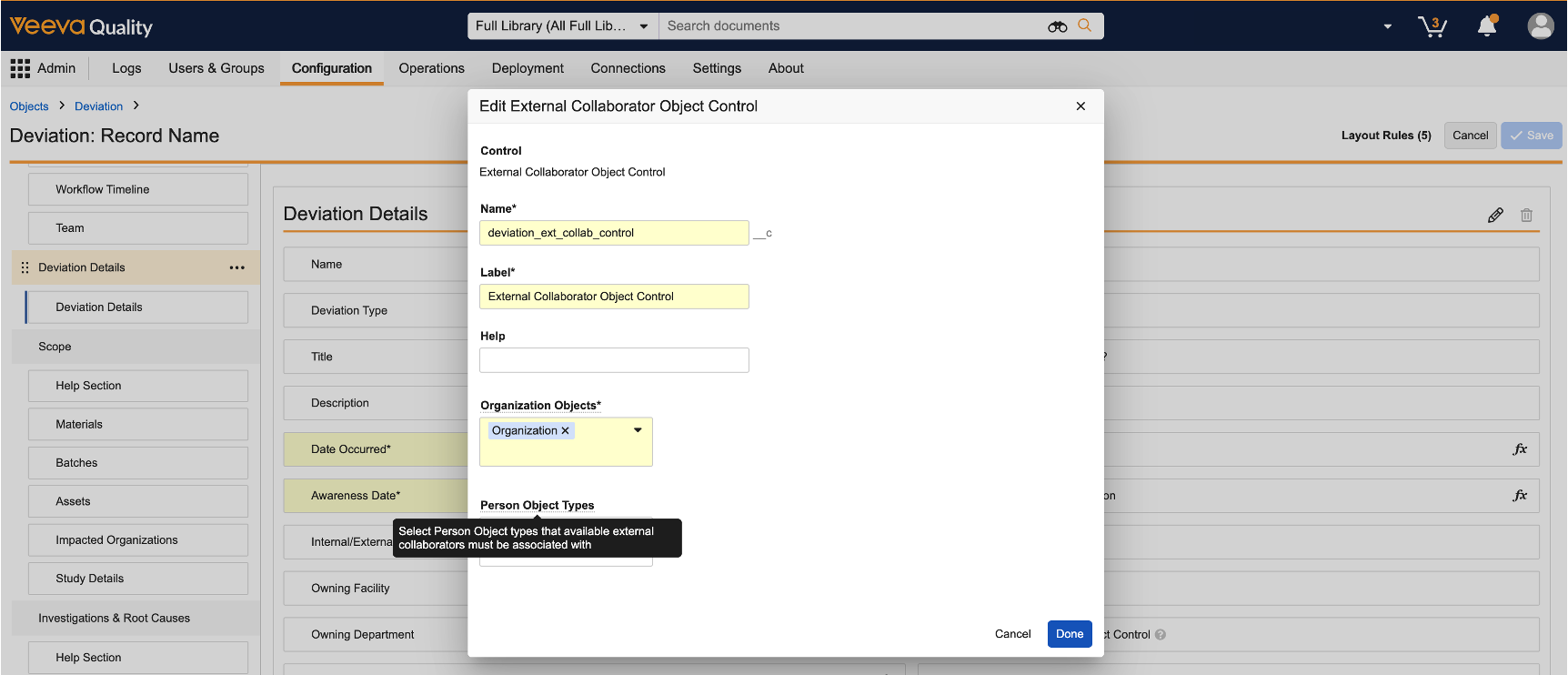
To a user selecting their collaborators, the new control looks, feels, and acts like a Vault Person field, supporting type-ahead and advanced search.
When populated by a user, the new control saves the selected person into the External Collaborator field, respecting any configured Criteria VQL for additional optional layers of filtering.
Additionally, the Reassign External Collaborator user action can now be configured similarly to the control, so that users’ experiences are consistent regardless of if they’re performing initial assignment or re-assignment of external collaborators.
The new control is available for all Veeva QMS processes which support External Response Collaboration. Moving forward, use of the new control is advised in the place of having users directly edit the External Collaborator field when collaborating externally in Veeva QMS. Both the new control and updated Reassign External Collaborator action require configuration.
Learn more about using External Response Collaboration and configuring the External Collaborator Object Control.
Add Collaborate Externally Field to Impact Assessment & Change Action ObjectsAuto-on25R3.4
This release introduces the standard Collaborate Externally? Yes/No field to the Impact Assessment and Change Action objects. Organizations that collaborate with external parties on Change Actions or Impact Assessments can now leverage this field to indicate that intent, driving Layout rules on those records to guide users to select and interact with those external parties at various lifecycle states. The functionality of the Collaborate Externally? field is standard across the other external collaboration-enabled processes, and is designed to feel familiar and intuitive to users collaborating on these more recently supported processes.
Learn more about using External Response Collaboration.
Change Plan: Required Attribute for Current Due Date Field Is Now EditableAuto-on25R3.4
In support of organizations for whom the due date of a Change Plan may not be known at the time that a Change Plan is instantiated, Admins can now toggle the requiredness of the Due Date (due_date__v) field of the Change Plan (change_plan__v) object as needed. Prior to this release, this attribute was not editable, which enforced best practices at the cost of flexibility.
Provision Standard Field on APQRAuto-on25R3.5
Veeva QMS’s Annual Product Quality Review (APQR) process now provides a standardized mechanism to trace which Proposed APQR an APQR has been instantiated from. The new standard Proposed APQR (proposed_apqr__qdm) field on the APQR (apqr__v) object creates a clear, clickable history within the Vault UI from an APQR to the plans that led to it. Prior to this release, Admins had to create a custom field for this purpose, as it was not a part of every APQR configuration by default. Adding this field to your APQR process requires configuration.
Learn more about configuring Annual Product Quality Reviews and using the related Quality Management Review features.
Veeva AI for Quality
Complaint Agent & Deviation Agent: Generate Narrative Summary & Ask QuestionsConfiguration25R3.4
We are introducing our first AI agents for Veeva QMS, capable of interpreting complex processes and data within Complaints and Deviations. With these Agents, Vault can now provide on demand, narrative-style summarizations of the Investigations and CAPA Actions related to Complaints and Deviations, providing the user with an opportunity to review, modify, and save the summarized content to the record. Beyond summarization, Agents can now also answer questions about a Complaint or Deviation via the Veeva AI Chat interface.
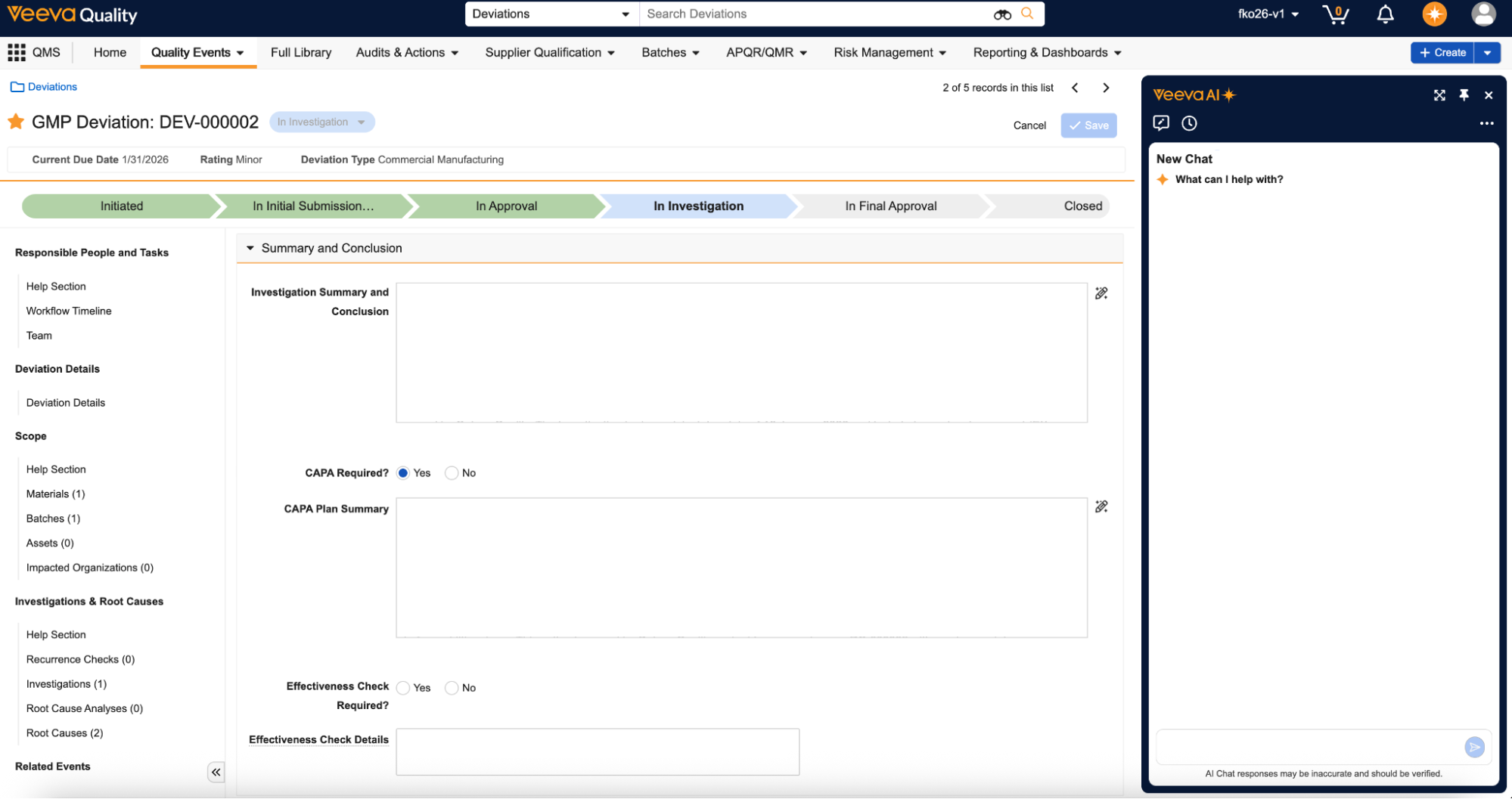
To generate summaries for records of the supported types of Complaint and Deviation, authorized users now see a new icon next to the field that will store the generated summary. Users can click the icon while the record is in edit mode to generate an Investigation or CAPA Action summary within the respective field that includes data on the Complaint or Deviation, their related CAPA Actions and Investigations, as well as data from key related records. After generating a summary, users can review the generated content quickly and easily and save the record to commit the summary to Vault.
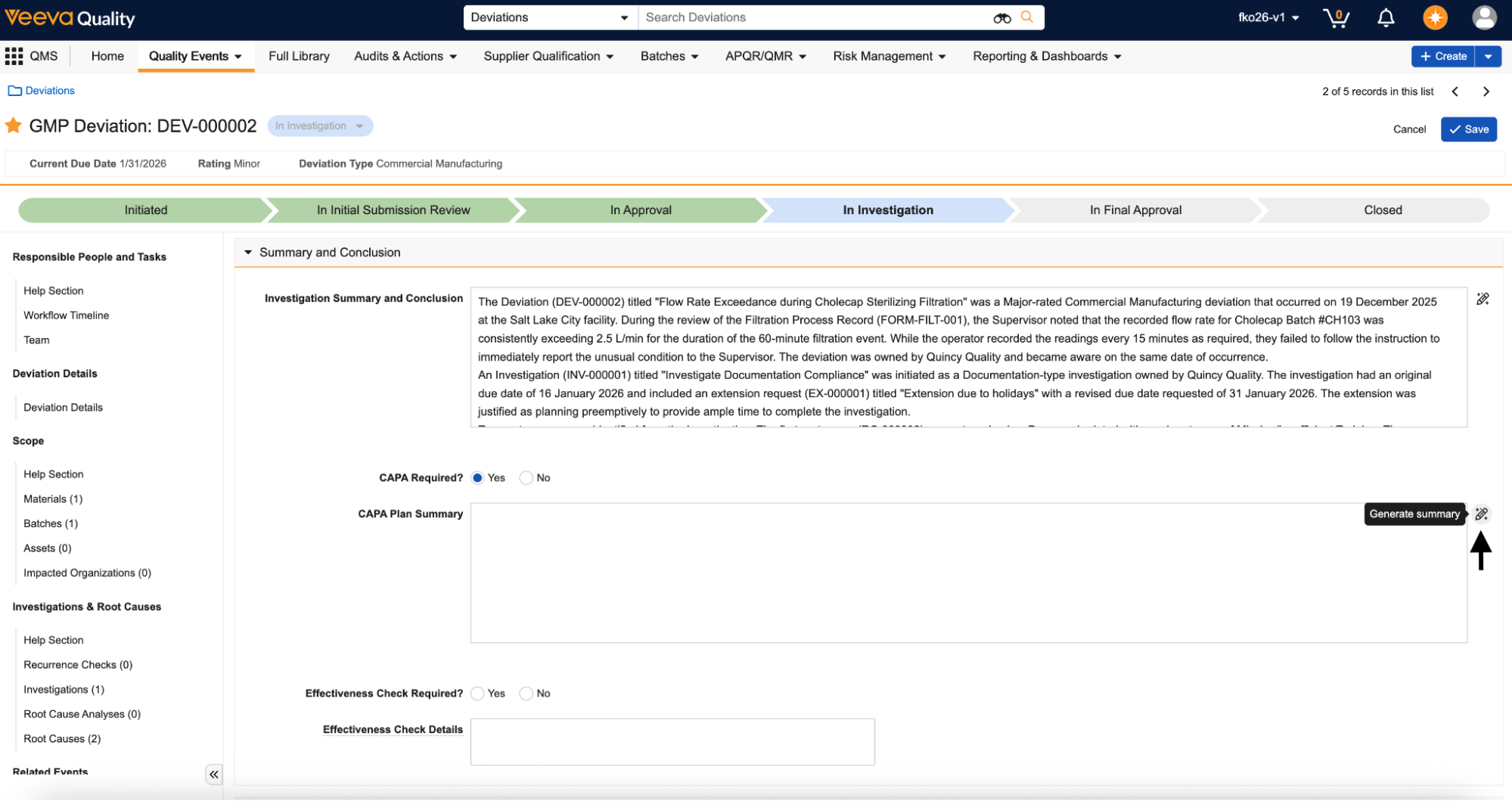
Asking questions can be done by users authorized to interact with Veeva AI Chat by invoking the Veeva AI icon ( ) in the upper right of the Vault interface from any Deviation or Complaint record of the supported types. Users can interact with the Veeva AI Chat, where the Complaint and Deviation Agents respond to the user’s questions and requests regarding the records’ content. Responses are governed by the Agent’s configuration, and are limited in context to information within the Vault.
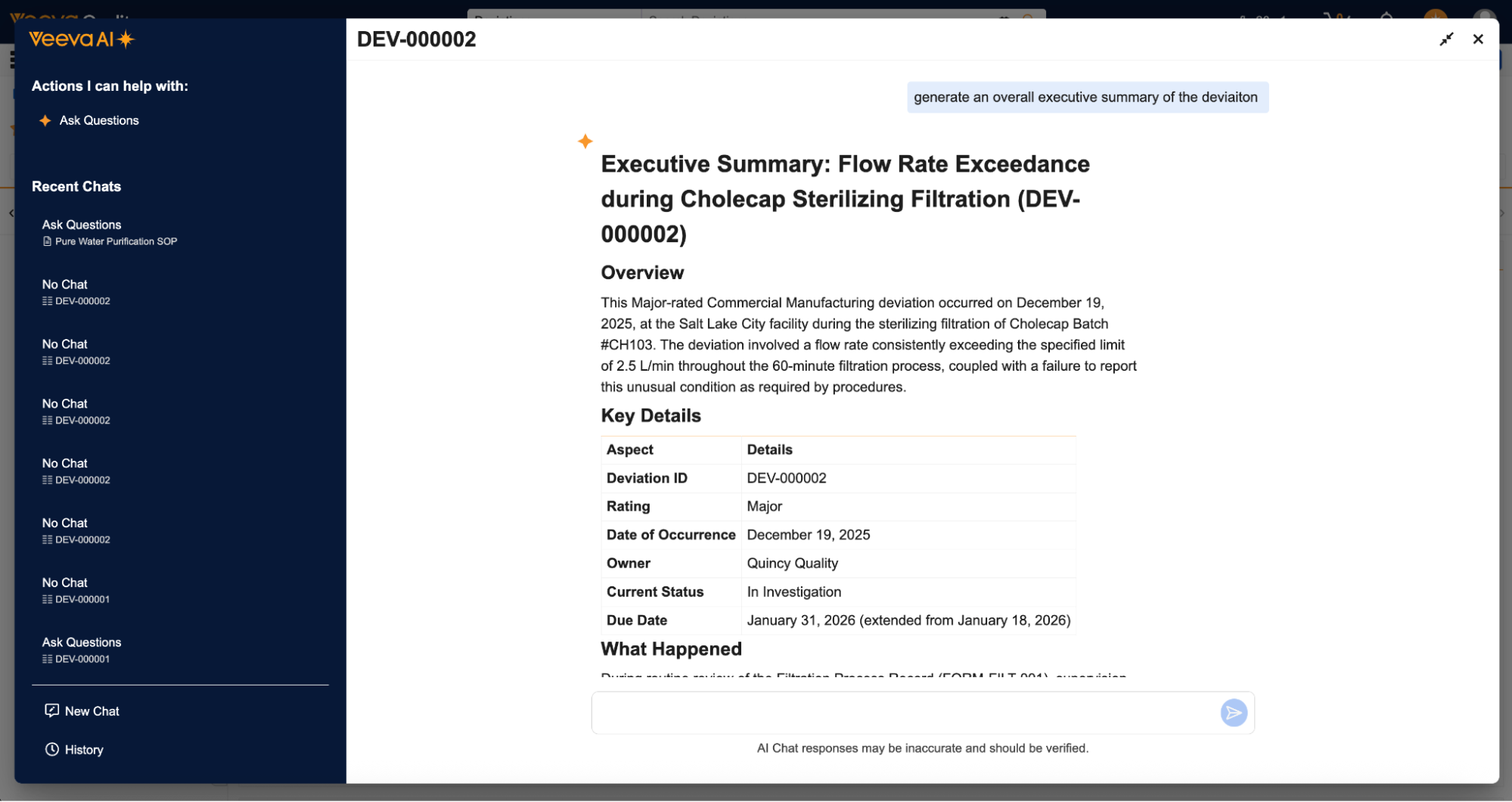
The Complaint and Deviation Agents in Quality Vaults are built on Vault’s Agentic AI platform and provide configuration points to extend their capabilities to suit your organization’s needs, including adding new Agent Actions or Contexts in addition to the standard ones.
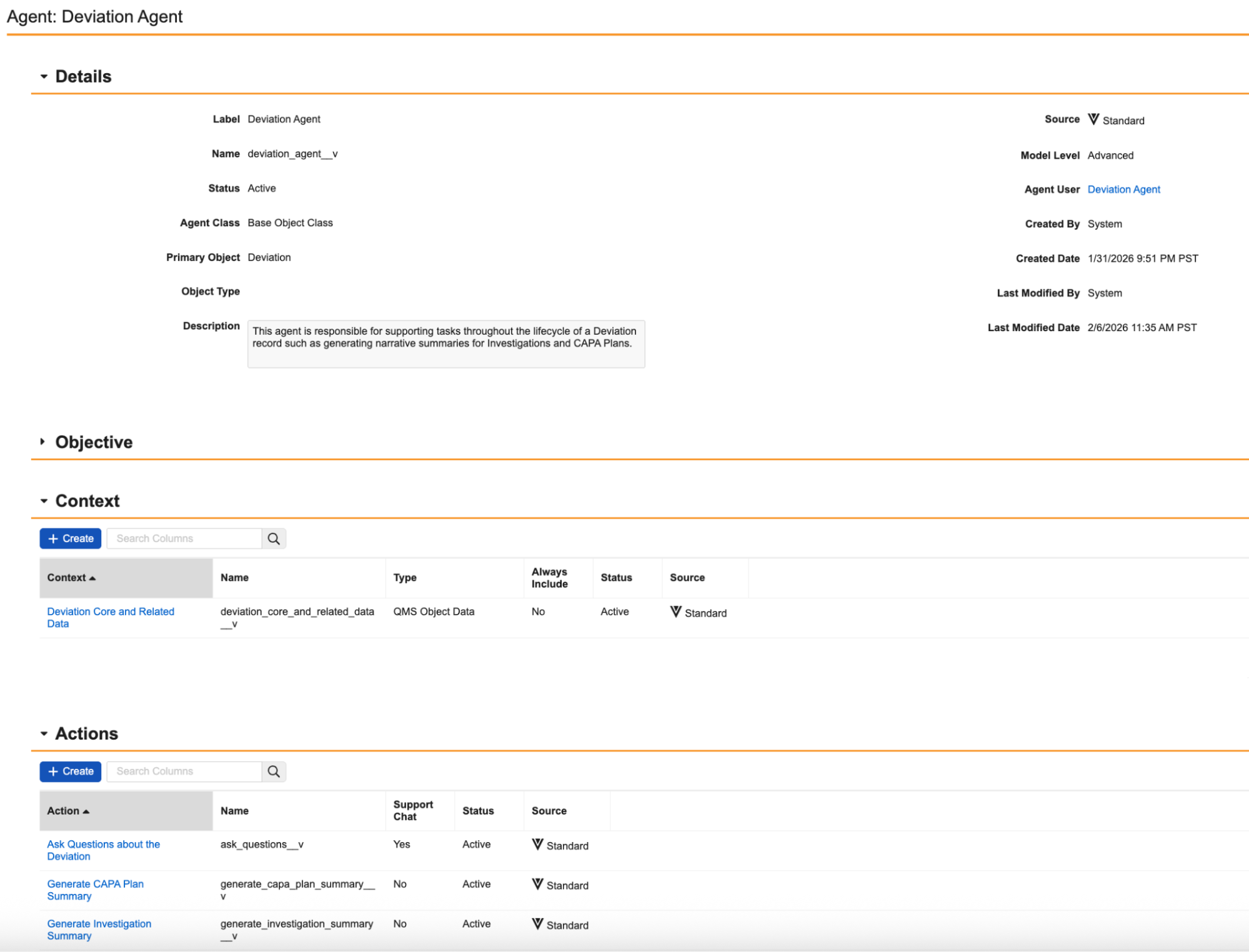
This is the introduction of Agents into Veeva QMS. Stay tuned for more exciting enhancements in this area with coming releases.
Learn more about using the Complaint Agent and Deviation Agent.
Batch Release, QMS
Prevent Actions from Copying Roll-Up FieldsAuto-on25R3.2
This release introduces some data safety controls into various QMS and Batch Release application functions that copy records, such that records created from existing records (for instance, when users copy an APQR) will not propagate erroneous roll-up field data into non-roll-up fields on the newly created target record.
Prior to this release, with certain configurations, roll-up field data was copied from a roll-up field on the source record, into an appropriate data-type field with the same name as that source roll-up field on the target record when users ran certain QMS and Legacy Batch or Lot Disposition actions. That will no longer occur as of this release. The impacted actions are:
- APQR Program: Create APQR Records (QMS)
- Create Record from Template: APQR, Audit Program, Change Action Templates, Impact Assessment Templates (QMS)
- Capture Assessment History (QMS)
- Create Batch/Lot Disposition from Record (Batch Release)
- Review Plan (Batch Release)
Batch Release
Closing Items with Action TriggersAuto-on25R3.2
With this release, Action Triggers are replacing Application Triggers so Admins can configure when to close Batch Disposition Items based on related record criteria.
Share DispositionConfiguration25R3.2
This feature allows users to share documents related to a Disposition with any users, including VeevaID users with the Batch Release: Batch Disposition Share permission set. When a Disposition is shared, the recipient can view and download selected documents from the Batch Disposition Share App Page.
Material Qualification CheckConfiguration25R3.4
This feature introduces the Qualification check, which ensures that only qualified suppliers and manufacturers are used to make a batch. It does this by surfacing Qualification records at any specified lifecycle state or when they are not found.
Regulatory Check for Change ControlsConfiguration25R3.4
This feature introduces the Regulatory check, which ensures that health authorities approve changes affecting a finished product batch. It does this by monitoring approvals associated with any material used to make a batch that are managed on Change Control Regulatory Change Items or Regulatory Activity Items. This feature utilizes the Quality-RIM Connection by first implementing the Enhanced Change Control Connector and relating Materials to RIM records using the Material-Product join.
Making Market Ship DecisionAuto-on25R3.4
This feature allows users to select a subset of available markets per disposition plan that they want to qualify a batch for when making a market-ship decision. Markets (Country object records) can be selected when the Disposition is created or after creation, and will appear in a Market-ship section on the Batch Disposition Execution Page. Disposition and Regulatory checks are created for each market selected. If a Market-ship decision is auto-generated, then all markets selected in the plan are selected.
Surveillance
VPS: eMDR Follow-Up Reporting EnhancementAuto-on25R3.2
Vault Product Surveillance’s submissions of Follow-up Report data are now more intelligent, highlighting changed information when preparing Follow-up Reports, and sending only information required and changed since the last successful XML generation and submission. Helpful icons will appear next to both sections and fields which have had data changes since the latest submission of the AER.
Previously, it was challenging for organizations to keep track of which metadata has changed in a follow-up report scenario, so each submission of an AER to a health authority was a full submission with all metadata included - both information that has changed since the last submission of that report, as well as information that has not.
Now, when generating the XML for a submittable AER, Vault will populate the Previous Report field on AER to track data changes over time. In instances where a Follow-up Report XML is generated, Vault will automatically highlight those changed fields, providing key UI indicators on fields with values that have changed since the last submission. This support covers both field values on the AER directly, and field value changes on the underlying related records of the AER. To illustrate, in the screen below, eight fields were changed on the underlying Manufacturer’s Site Contact Information record, and you can view those changes quickly from the AER pages.
Change information is also presented in hovercards, and when dates or times are included in the changed content, they will be displayed rendered in the user’s local timezone for easy interpretation. Lastly, subsequent follow-up submissions will include only the changed information as well as any key metadata required for the Health Authority to consider the submission complete.
After enablement, this feature will apply field value delta tracking to all AERs once they next have the Generate XML action run upon them. Data at rest will be unaffected by enablement of the feature.
In addition to the previous version awareness support, eMDR AERs have had section H10’s UI updated for better clarity & interaction when populating and reviewing the data, with more clear controls for adding relationships and inline editing.
This feature is available for use with this release, and requires some configuration. Learn more about working with Adverse Events.
VPS: EU MIR EnhancementsAuto-on25R3.2
In accordance with the change to EU MIR format 7.3.1, Vault Product Surveillance can now generate 7.3.1 complaint AERs for submission. The changes are only to the generated XML & AERs, and fully restructure the generated AERs to be compliant with the new format. We have also updated the Vault EU MIR Adverse Event Report UI to reflect the new format.
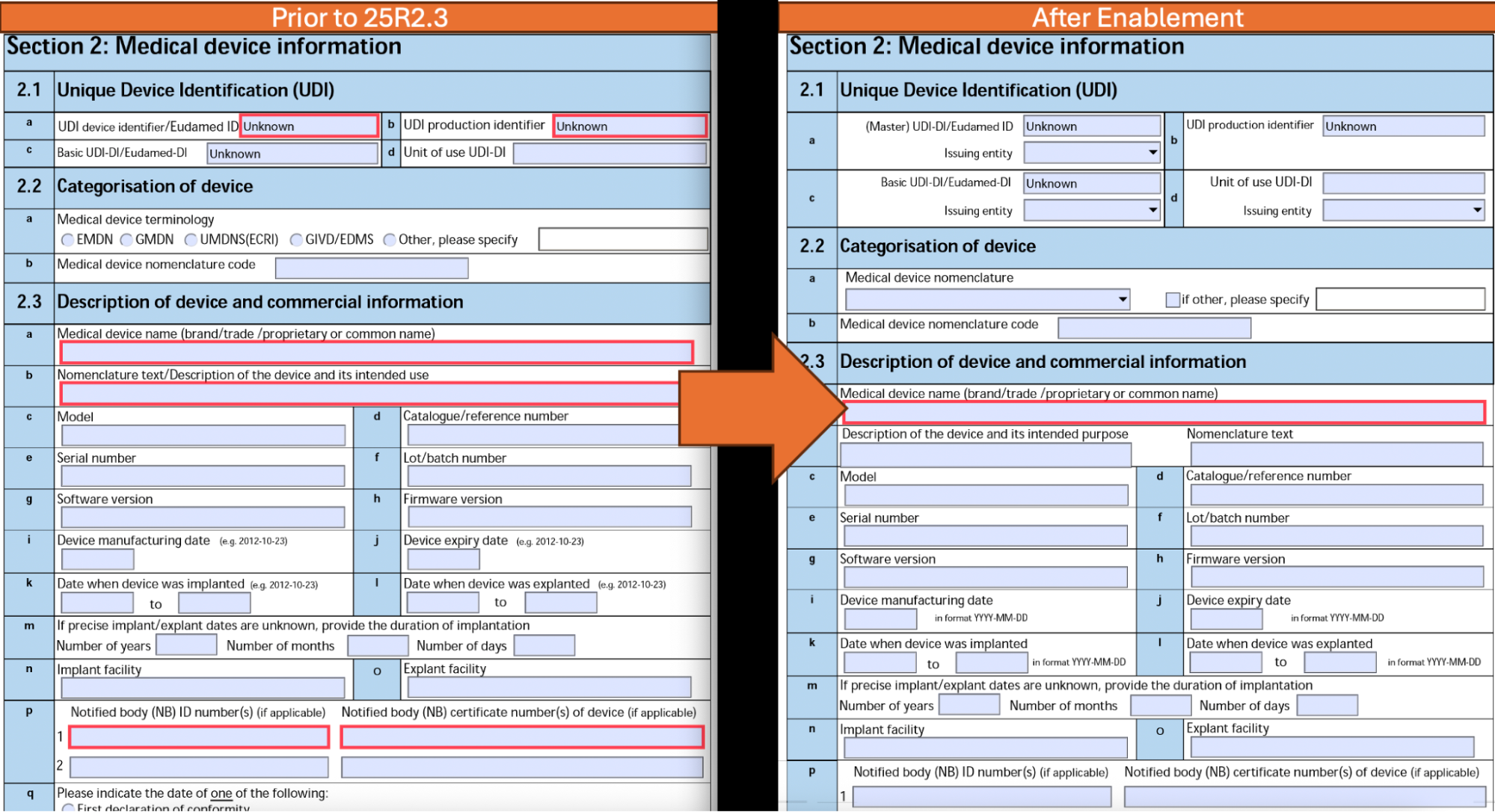
To give organizations more control over adopting the new format in advance of the EU MIR recommendations, existing Product Surveillance configurations are not automatically updated to the new formats with this release. Some minor configuration updates are required to change over to this format version. VPS customers are strongly encouraged to make the change during the 25R3 timeframe, as Veeva will be mandating the use of this format across all VPS customers in 26R1.
In addition to the EU MIR 7.3.1 enhancements, Product Marketed Countries in section 2.5, XML & PDF generation shall no longer include INVALID_COUNTRY as an entry for non-accepted country values. These invalid values, should they be present in the AER, will be omitted from the generated XML & PDF entirely. This also applies to section 3.4, and all similar Country captured data in the AER.
VPS: Reportability Assessment EnhancementAuto-on25R3.4
This release removes a manual action from the completion Reportability Assessment process by automatically moving Reportability Assessments (RAs) to the Closed state of the lifecycle, should all Reportability Assessment Effects be processed. We anticipate this change to remove scenarios of blocked or stuck RAs where the pending action is a simple closure, increasing process oversight clarity and metric clarity. This function is automatically enabled, and does not require any configuration to accommodate.
VPS: Generate PDF & XML with a Single ActionConfiguration25R3.4
Prior to this release, organizations leveraging Adverse Event Report (AER) XML & PDF generation were required to use a two step process, where one step in the process was generation of the XML and the subsequent step was the generation of the PDF via individual actions. With this release, these actions have been merged into a single, new operation: VPS: Generate Submission Document(s).
This new action, available for the AER object, generates both the requisite submittable XML and PDF in one step. This both streamlines business processes with fewer steps and fewer potential waiting periods, and eliminates the risk of data changing between the two operations occurring. In support of this action, we have added new fields to the AER object to store the resulting artifacts: PDF Document for Submission and XML Document for Submission. The standard AER layouts for each supported type of report have also been updated to support these fields.
The action supports the configuration of destination lifecycle states for both successful execution, and to a specific lifecycle state should any errors occur during generation. Combined with configurable notification audiences, this enables Admins to configure a clear, streamlined, one-step, hardened process where errors are caught and surfaced to the appropriate individuals automatically.
VPS: EU MIR 7.3.1 UpdatesConfiguration25R3.4
With this release, Admins can elect to upgrade to the EU MIR 7.3.1 report structure via a new setting. This upgrade is one-way, and may be made in advance of global enablement at the discretion of the Admin.
EU MIR 7.3.1 brings with it several smaller user experience changes to account for the new structure, with changes to various labels (such as Country of incident becoming Country of serious incident), and region label values (such as EEA + CH + TR becoming EEA + TR + XI when working with Similar Incidents). Section 2 has also received updates, with the generated PDF adhering to the new structures dictated by the health authority.
Additionally, Vault eSignatures can now be rendered inline within generated AER PDFs. The most current, unique signature for each signee/verdict/capacity will be selected to be rendered in the PDF. The signature box will render the Signature Name field from the eSignature record within Vault.
Use of the EU MIR 7.3.1 model in 26R1 requires configuration.
VPS: UK Adverse Event ReportingConfiguration25R3.4
Vault Product Surveillance now supports reporting to UK Health Authorities via the Medicines and Healthcare products Regulatory Agency (MHRA) submission. This feature adds a new type of Adverse Event Report to Vault, complete with the data model and AER UI support to ensure a clean, clear, guided experience for users filing AERs.
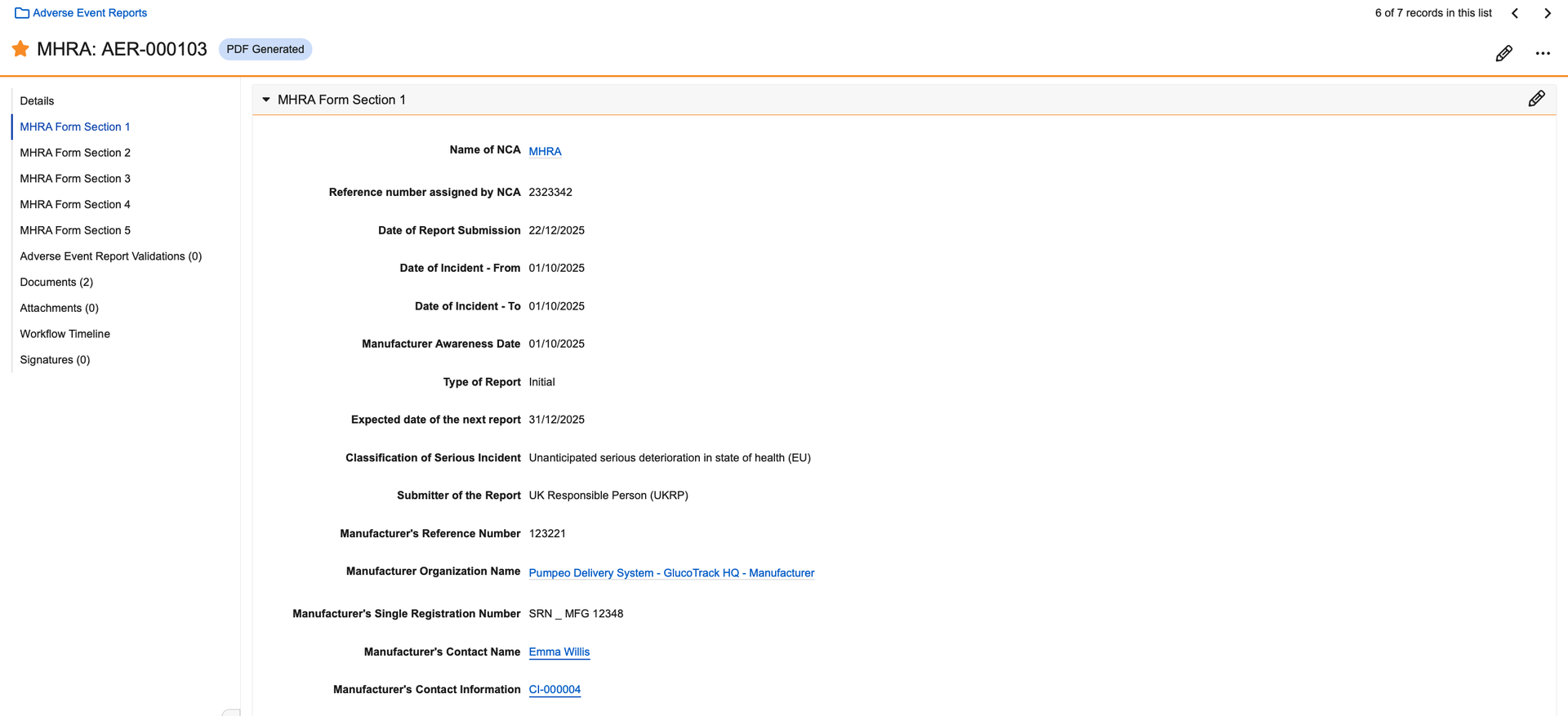
Similar to EU MIR AER support, data validations, required Health Authority truncations, and submittable XML and PDF Report generation are all supported for MHRA AERs. With the 26R1 release, organizations may make submissions to the MHRA via the MORE portal via manual upload of the generated materials. Additionally, for MHRA AERs, Admins can configure whether or not bi-directional data exchange is supported, and whether or not such reports should leverage Regional Product Attributes via new configurations available in Vault Administration. Lastly, new standard layouts and layout rules are provided to give Admins quick guidance on how to begin using MHRA AERs.
Utilizing MHRA AERs within Veeva Product Surveillance requires configuration.
VPS Data Mapping EnhancementsConfiguration25R3.4
In support of more flexible process-based data capture, there is now new mapping capability to inform VPS’ Adverse Event tooling as to where in your Vault to source specific metadata from. The eMDR flow now supports mapping for Manufacturing Site Name, Outcomes Attributed to Adverse Event, and Type of Reportable Event. Within EUMIR & UK, VPS now supports mapping for Classifications of Incidents, and within PMDA there is now support for mapping Outcomes.
HACCP
New Application: Veeva HACCPConfiguration25R3.4
This release introduces the Veeva HACCP application as part of the Quality Suite. Veeva HACCP enables food and beverage organizations to create and manage plans aligned to HACCP and HARPC methodology within Vault. Users can build manufacturing process flows and perform structured hazard analysis directly using an integrated flow diagram, and copy, adapt, and translate finalized plans for different regions and manufacturing sites. By centralizing HACCP planning, process visualization, and risk assessment in one platform, Veeva HACCP helps improve consistency, visibility, and efficiency across food safety programs.
To discuss if Veeva HACCP is right for your business needs, contact your Veeva Representative.
Learn more about Veeva HACCP.
QualityDocs
Support Up to 5 External Collaborators for Document External CollaborationAuto-on25R3.2
This feature increases the number of External Collaborators who can participate in a single External Collaboration Review or Approval workflow from three to five. Vault will display an error if a user attempts to create or save a document with more than five persons selected in the External Collaborator(s) document field.
External Collaboration: Send Steady State Document to External Collaborator on Workflow CompletionConfiguration25R3.4
This feature provides a secure way for external parties to view and download final, steady-state documents they collaborated on. This feature replaces manual email processes with secure, trackable links. Key capabilities include:
- Automatic Delivery: Upon workflow completion, Vault sends an email to external collaborators containing a unique Public Access Link (PAL).
- Secure Viewer: Clicking the link opens a restricted document viewer in Vault where the collaborator can view and download the steady state version.
- Link Expiration: For security, all links automatically expire after 30 days.
- Access Control: External collaborators remain restricted from accessing other Vault documents, objects, or features.
- Manual Inactivation: If necessary, internal users can manually inactivate all existing links for a document version using the Inactivate External Collaborator Links action.
- Internal users can track the status of these links, including when they were last accessed and their expiration dates, via the QDocs External Collaborator PAL Context object.
External Collaboration: Reassign TasksConfiguration25R3.4
Managing external reviews is now more flexible with the ability to reassign tasks mid-workflow. This feature allows you to quickly swap external collaborators if an original reviewer becomes unavailable or their organizational affiliation changes, ensuring your Quality Agreements stay on track. You can assign up to five new or existing collaborators in a single action. Key capabilities include:
- Seamless Reassignment: Use the new Reassign External Collaborator(s) action to open a dialog and update the assigned team.
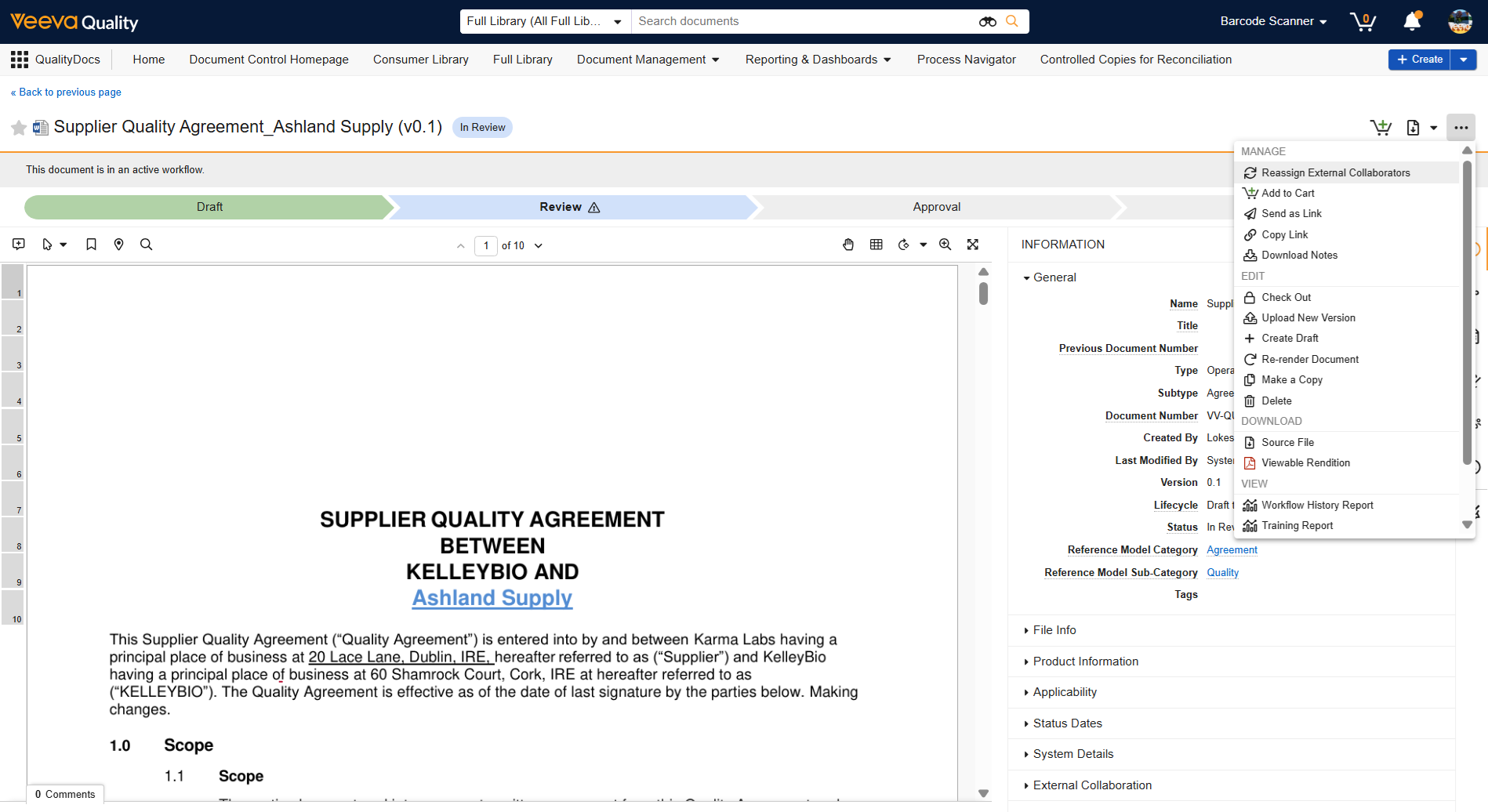
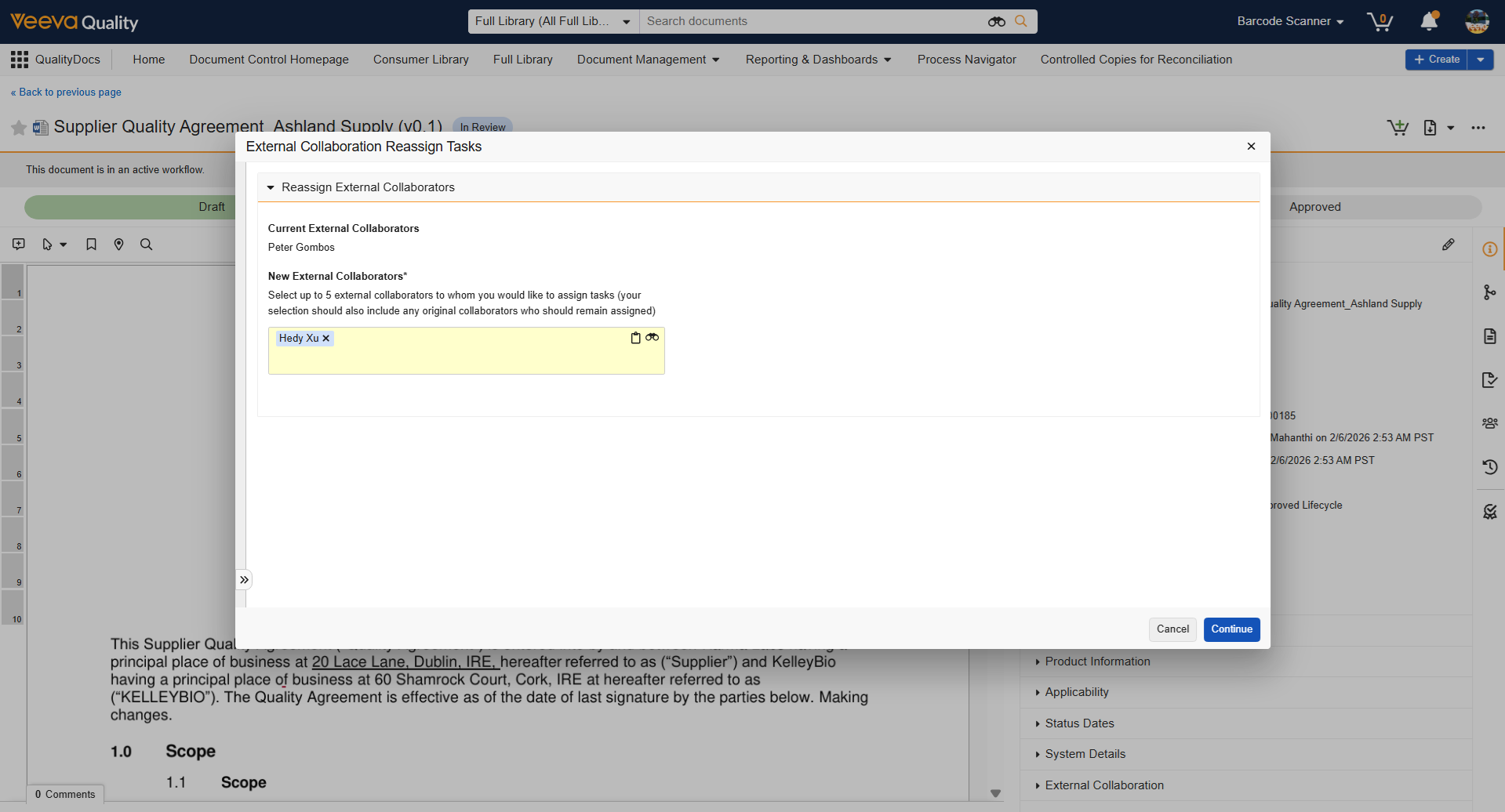
- Automated Task Management: When you add new collaborators, Vault automatically creates their tasks and sends necessary welcome or task emails.
- Clean Transitions: Tasks for removed collaborators are automatically cancelled to prevent unauthorized access, while remaining collaborators’ tasks stay unchanged.
Regulatory Reference Management Configurations Admin ComponentConfiguration25R3.4
This feature lays the groundwork for Regulatory Reference Management capabilities that will enable users to map Health Authority and other industry regulations to documents in QualityDocs, facilitating document impact assessments when changes or updates occur to the mapped regulations.
26R1 introduces a new component that enables Admins to select the object containing regulatory requirement data in the Vault and the document field used to associate the regulatory requirements to documents. The object and field are custom to each Vault and must be created by Admins prior to relating them via the new component.
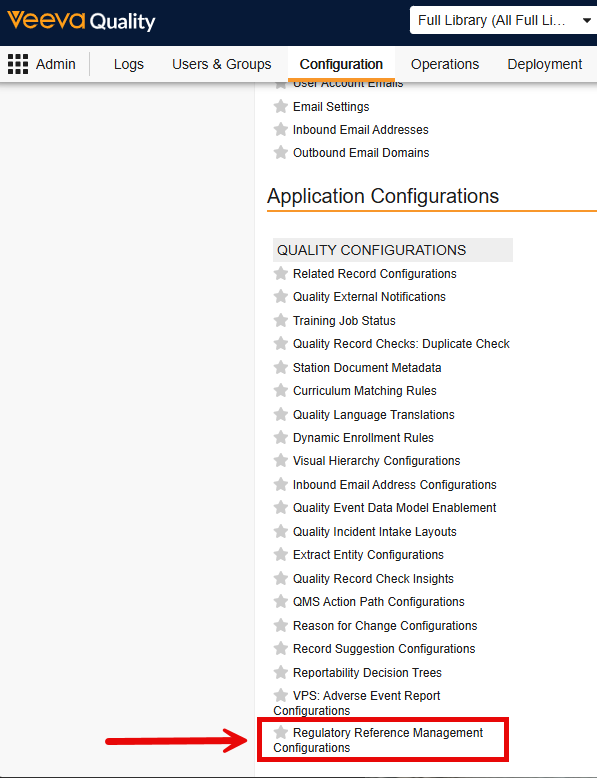
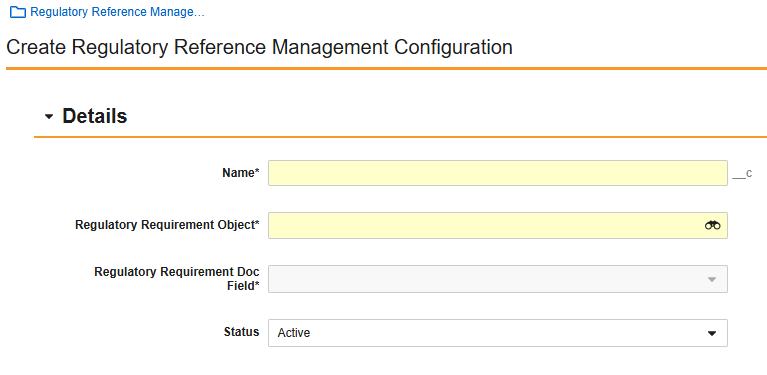
This setting provides organizations with flexibility around the source of their regulatory content and will accommodate the future introduction of standard functionality to support the mapping of this content to documents.
Learn more about Regulatory Reference Management.
Quality Relationships Panel: Document Change Request EnhancementAuto-on25R3.4
When a user hovers over a Document Change Request (DCR) in a document’s Quality Relationship Panel, the information about the DCR is now displayed in the following order:
- Description
- Reason
- Requested Implementation Date
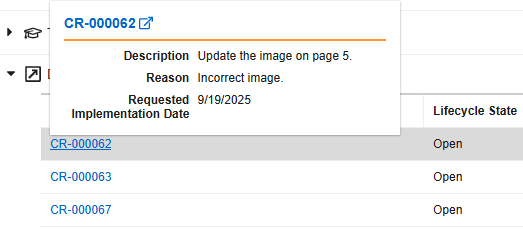
Quality Relationships Panel: Bi-Directional Document Relationships EnhancementAuto-on25R3.4
With this release, document numbers and document statuses now appear below the related document link in the Document Relationships section of the Quality Relationships Panel. Users no longer have to use the hovercard or open the document to view this information.
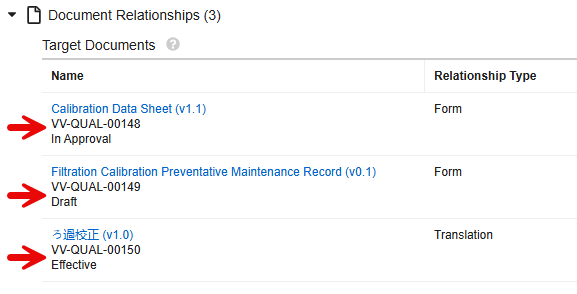
Document Change Control: Display Count of Unique Associated DocumentsAuto-on25R3.4
The Add Documents dialog in the Change Authorization, Docs to be Made Effective with Workflows, and Docs to be Made Obsolete with Workflows sections of the Document Change Control displays the number of unique, associated documents. This provides awareness for the user and indicates whether they may be approaching the maximum of 100 documents that can be added to a Document Change Control. The checkbox in the dialog remains green when 75 or fewer documents have been added but becomes orange when there are 76 or more documents. This feature is not compatible with the Documents to be Made Effective and Documents to be Made Obsolete sections that do not include workflows.
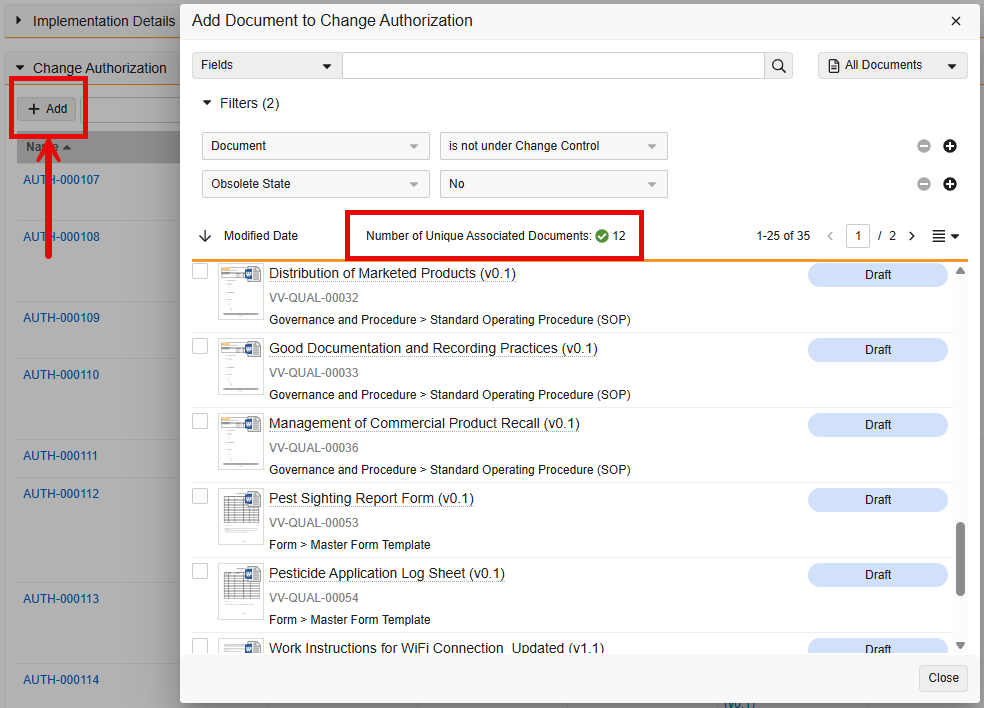
Entry Action Enhancement: Check & Close Multi-Document Change ControlAuto-on25R3.4
This feature improves the way that the Check and Close MDCC entry action executes to close Document Change Control records when all associated documents transition to their final states. Prior to this enhancement, conflicts could arise when the Auto-Effectivity and Auto-Obsolescence jobs were run at the same time, causing the Document Change Control to not close as expected.
Training
Some Training features additionally apply to Study Training. See Clinical Operations: Study Training.
Wave-Based Curriculum PrerequisitesAuto-on25R3.2
This feature extends the existing Curriculum Prerequisites feature by allowing Training Admins to configure rules where Vault unlocks a Curriculum after a specific duration of time, rather than only after completion of another curriculum. This enables staggered, time-phased training delivery so organizations can pace a Learner’s onboarding or certification journey.
This feature’s key capabilities include:
- A new prerequisite rule type, Time-Based Prerequisite.
- Unlocking a curriculum based on the number of days or months after the default Learner Initial Activation Date.
- UI Indicators on the Learner Homepage showing locked curricula and assignments as per wave-based prerequisite.
Quiz: Support Multiple Choice Drop-Down QuestionsConfiguration25R3.2
This feature adds a new drop-down-style answer format for multiple-choice quiz questions. This reduces visual clutter for Training Admins creating quizzes and provides Learners with a cleaner, more space-efficient interaction model. Learners can select answers via drop-down and see correct answers after completing the quiz.
Training Change Request: Create Matrix RecordsAuto-on25R3.2
Initially released in 25R3, Training Change Request now supports creating new Training Requirements, Curricula, and Learner Roles. In addition, the feature now also supports the use of the Base Learner Role (base__v) and Base Learner Role-Person (base__v) object types.
Previously, Training Change Request supported only the addition, removal, or retirement of existing matrix records. Now, new records can be created as well. As with the initial release, Vault automatically creates requested records on the Training Change Implementation Date.
Below describes how to process requests from a user with fewer permissions or a user with elevated permissions. A user with minimal permissions (a non-Training Admin) can request creation of a new record by entering a text description and some minimal metadata. This means an organization does not have to grant additional permissions for any user to make a change request, as Training Admins have the opportunity to fill in any required data as a part of their review.
- When creating a change item to create a new record, a user with elevated permissions is prompted to populate metadata and additional details for the object, and upon saving, the Matrix Change Item is marked Ready to Implement.
- If the user making the request does not have elevated permissions, they are prompted to provide a description of the change in a plain text description. Then, upon saving, the Matrix Change Item is marked Incomplete. From here, the Training Admin completes the process based on the text description provided by the requestor.
Training Focus TimeAdmin Checkbox25R3.2
This feature tracks how long a Learner spends on a given Vault Document Training Assignment. While it is not an indicator of how long it takes to complete a training (as indicated by a requirement’s Estimated Time to Complete (Minutes) field), it tracks how long the Learner was focused on the assignment page. Each time the Learner is focused, Vault adds the number of seconds to the assignment’s Task Page Focus Seconds field.
Customers can now use tracking data to draw their own conclusions related to training effectiveness or efficiency.
- The “timer” starts when the Learner opens the document’s assignment task page.
- When the browser identifies that the Learner has “clicked away,” the timer stops. When focus is back on the page, the timer starts again where it left off.
- For multiple browser tabs, each has its own timer.
- When the Learner closes the browser without completing the Training Assignment, Vault adds the time (in seconds) to the focus time. When the Learner opens the assignment again and completes it, Vault adds these seconds to the Focus Time.
- Admins can view focus time via the Task Page Focus Seconds field on the Training Assignment record, or via a custom report.
Training EnhancementsAuto-on25R3.4
Document Info Panel for Training Requirements is no longer version specific
When presenting a document’s related Training Requirements, the Quality Relationships panel previously only displayed related requirements on the major version (X.0). Now, Vault displays the panel for both major and minor (X.X) versions.
Instructor (External) field now visible on Class Overview
Previously, the Class Overview dialog did not display the Instructor (External) field, even when the field is active. This is now resolved.
Add support for training category support when exporting from the open tab
Exporting from the Learner Homepage’s Open tab now reflects the training category drop-down filter selection. The scope of the resulting export includes what is displayed on the page according to the drop-down.
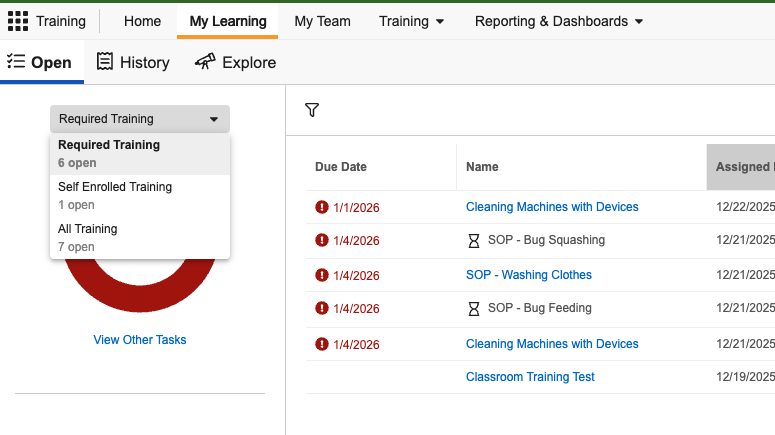
“Is First Assignment” takes into account Imported Training Assignments
The Training Assignments Assigned? TRIA record field now accounts for imported Training Assignments, according to their Creation Source. Previously, this field only accounted for system assignments, and therefore the “Is First Assignment” step within the TRIA: Assess Impact workflow did not properly consider in-scope assignments.
Allow Learners to view Classroom Training Assignments they are not registered for
Previously, Training Assignment (TA) cards on the Learner Homepage were disabled for Classroom TAs when the TA was not part of a class and self-registration was not available. This prevented Vault from performing certain substitute calculations. Now, Learners can access TA cards in these scenarios.
Generate TRIA on Adding or Removing DocumentAuto-on25R3.4
Vault will now automatically generate a Training Requirement Impact Assessment (TRIA) record when a document is added or removed from the Training Materials section of a Training Requirement. This feature ensures that any manual changes to training content are properly assessed for their impact on existing and future Training Assignments.
Previously, manual document changes may have required separate, manual steps to assess impact or re-issue training. By automating TRIA creation during the addition and removal process, Vault ensures that training remains accurate and up-to-date with the latest materials without requiring Training Admins to navigate away from the requirement.
- Automated TRIA Creation: Adding or removing a document automatically creates a TRIA record and a new Training Content Set.
- Admin Alerts: Vault displays an alert to confirm the action and notifies you when an active TRIA record already exists for that requirement.
- Intelligent Defaults: New TRIAs are automatically populated with re-issuance and cancellation settings based on the Training Requirement’s existing configuration.
- Seamless Transitions: Vault automatically moves the generated TRIA to the Pending System Updates to Training Req. or Complete state, as applicable, to streamline the training update process.
- Business Value: This automation reduces administrative overhead and ensures all Training Material updates are assessed, so that training compliance is maintained with minimal manual intervention.
Quiz Scoring UpdatesAuto-on25R3.4
This feature enhances quiz grading flexibility by introducing new grading methods that go beyond the current “sum of correct answer points” model. It allows Training Admins to better reflect question weighting, enable partial credit, and penalize incorrect answers while remaining backward-compatible with existing quizzes.
1. Multiple Question Scoring Methods
Admins can configure how quiz questions are scored using one of three methods:
- Sum of Answer Scores: With this default existing behavior, Vault derives question points from the sum of correct answer scores.
- Individual Question Point: Each question has an explicit point value, independent of answer scores.
- Same Question Points: All questions in the quiz are worth the same number of points, defined once at the checklist level.
2. Partial Credit for Multi-Answer Questions
For checkbox (multi-answer) questions, Admins can enable partial credit, allowing Learners to earn proportional points when they select some (but not all) correct answers.
- Partial credit can be combined with any scoring method
- Incorrect answers can reduce earned points
3. Negative Scoring for Incorrect Answers
Admins can assign negative scores to incorrect answers to penalize guessing.
4. Enhanced Quiz Designer UI
A custom UI control is added to the Visual Checklist Designer that:
- Displays total points per question
- Explains how partial credit will be calculated
- Allows editing question-level points, when applicable
Deep Linking to Training Requirements for Self EnrollmentAuto-on25R3.4
With this release, Learners can now share Self-Enrollment training courses with other Learners via a URL or a downloadable QR code. When a Learner clicks the link or scans the code, Vault automatically directs them to the course within their Learner Homepage so they can enroll.
- Managers and Leads can distribute specific training links to direct reports or team members through chat, email, or internal documents.
- Administrators can include these links or QR codes in organizational newsletters or announcements to drive adoption of optional learning materials.
- Learners can discover and enroll in relevant training shared by their peers or managers without having to manually search the entire catalog.
Previously, finding a specific self-enrollment course required Learners to navigate to the Explore page and manually search for the title. This update simplifies the process so that users can access the right training with a single click, reducing the time spent searching and increasing the likelihood that they will complete optional professional development.
- Flexible Sharing Options: Generate a direct URL or download a QR code to share training through any communication channel.
- Direct Redirection: Links automatically guide the Learner to the specific training on their Explore page, pre-filtering the view to that course so they can enroll instantly.
- Automated Enrollment Logic: When a user is already assigned the training, Vault intelligently redirects them straight to their open assignment instead of creating a duplicate.
- Mobile Compatibility: Links are designed to work across devices, ensuring that mobile users are correctly redirected to the enrollment page rather than a task list.
- Security and Permissions: Vault respects all security settings, and Learners will only be able to enroll if they have the appropriate permissions to access that specific requirement.
Curriculum Outcomes: Add Learner Role to PersonAuto-on25R3.4
The purpose of this feature is to automatically add one or more Learner Roles to a Person once they complete a specific Curriculum. This enables dynamic learning paths, where completing one Curriculum automatically grants them a new Learner Role necessary to unlock the next stage of training.
This can be used as another method for “wave-based training”. However, the Learner does not see anything new until they complete the outcome-configured Curriculum and are assigned to the new Learner Role. This is different from Curriculum Sequencing and Prerequisites, as in those cases the Learner can see what will be available to them next, even if it is locked.
The feature presents a method for customers to make training available and visible in smaller chunks at a time, to avoid overloading the Learner with training they are not yet ready to complete.
- New Action Type: When adding a Curriculum Outcome, Training Admins can now select a Learner Role from the Action Type drop-down menu.
- Multi-Role Support: Admins can select up to ten Learner Roles to be assigned within a single Curriculum Training Rule Set.
Curriculum Outcomes: Add or Remove User From GroupsAuto-on25R3.4
This feature introduces new automation rules that allow Training Admins to dynamically manage group membership, based on Curriculum completion. This update reduces manual administrative overhead by automatically adding or removing users from specific groups once they finish their required training.
Outcome rules offer multi-group management, where Training Admins can select up to ten groups per Curriculum Training Rule Set to be impacted by a single completion event, defined as:
- Add to Group upon Completion
- Automatically assigns users to Groups upon successful curriculum completion.
- Remove from Group upon Completion
- Automatically offboard users from specific groups (for example, removing them from a “Basic” group) once they move on to another curriculum level.
- This option does not automatically remove a User from a Group when the associated Curriculum becomes incomplete.
To prevent accidental privilege escalation, Training Admins can only select Groups which do not have any associated Security Profiles. See the related feature Curriculum Outcomes: Add Application Role Without Permission Set for additional details on how Training Admins can use Application Roles for similar purposes.
Curriculum Outcomes: Add Application Role Without Permission SetAuto-on25R3.4
This feature allows Training Admins to configure Curriculum Outcome Rules to assign Learners to Application Roles which are not associated with a Permission Set. This update ensures that your training automation processes focus on functional roles without inadvertently granting elevated system permissions.
It empowers Training Admins to manage Learner access via Application Roles while ensuring they cannot accidentally assign unique or elevated security permissions that fall outside of your organization’s standard security practices.
Prior to this release, it was possible for a Training Admin to select an Application Role that included a Permission Set, potentially bypassing the strict oversight of IT or Security teams. By limiting training outcomes to roles without Security Profiles, a clear boundary is created between training-based access and system-level security so that your environment remains secure and compliant with internal audit standards.
- Restricted Role Assignment: Training Admins can now only select Application Roles that are not associated with a Permission Set when configuring Curriculum Training Rules.
- Separation of Duties: This change prevents Training Admins from inadvertently granting elevated system permissions, keeping security control firmly in the hands of Vault Owners.
My Team: Learner Compare & Initiate ChangesAuto-on25R3.4
With this release, we’ve made it easier for Managers to take an active role in their team’s professional development by allowing them to initiate Training Change Requests directly from the My Team page.
In regulated environments, managers are often responsible for ensuring their direct reports are qualified for their specific tasks. Previously, making changes to a Learner’s Training Matrix might have required manual forms, offline conversations, or help from a Training Admin because the manager lacked a clear view of the complex training matrix. This feature provides a “Compare and Copy” experience, giving you the visibility and tools to update a team’s Learner Role assignments accurately and efficiently.
- Direct Matrix Comparison: Select up to 20 direct reports and view their assigned Learner Roles side-by-side in a matrix-style grid, allowing you to quickly identify training gaps or inconsistencies.
- Compare and Copy: Streamline the request process by cloning one Learner’s Training Matrix to another, ideal for onboarding new team members or transitioning staff into similar roles.
- Bulk Assignment Tools: Use the Apply all Across or Remove all Across options to update specific Learner Roles for every person in the current grid view simultaneously, saving time on repetitive data entry.
- Real-Time Change Tracking: As you modify the grid, Vault automatically generates a list of Matrix Change Items so you can review exactly which roles are being added or removed before submitting the request.
- Seamless Workflow Integration: Once submitted, Vault automatically initiates a standard workflow to route the request for review and approval, ensuring all changes remain compliant and documented.
A new button on the My Team page takes you to the Training Change Request page:
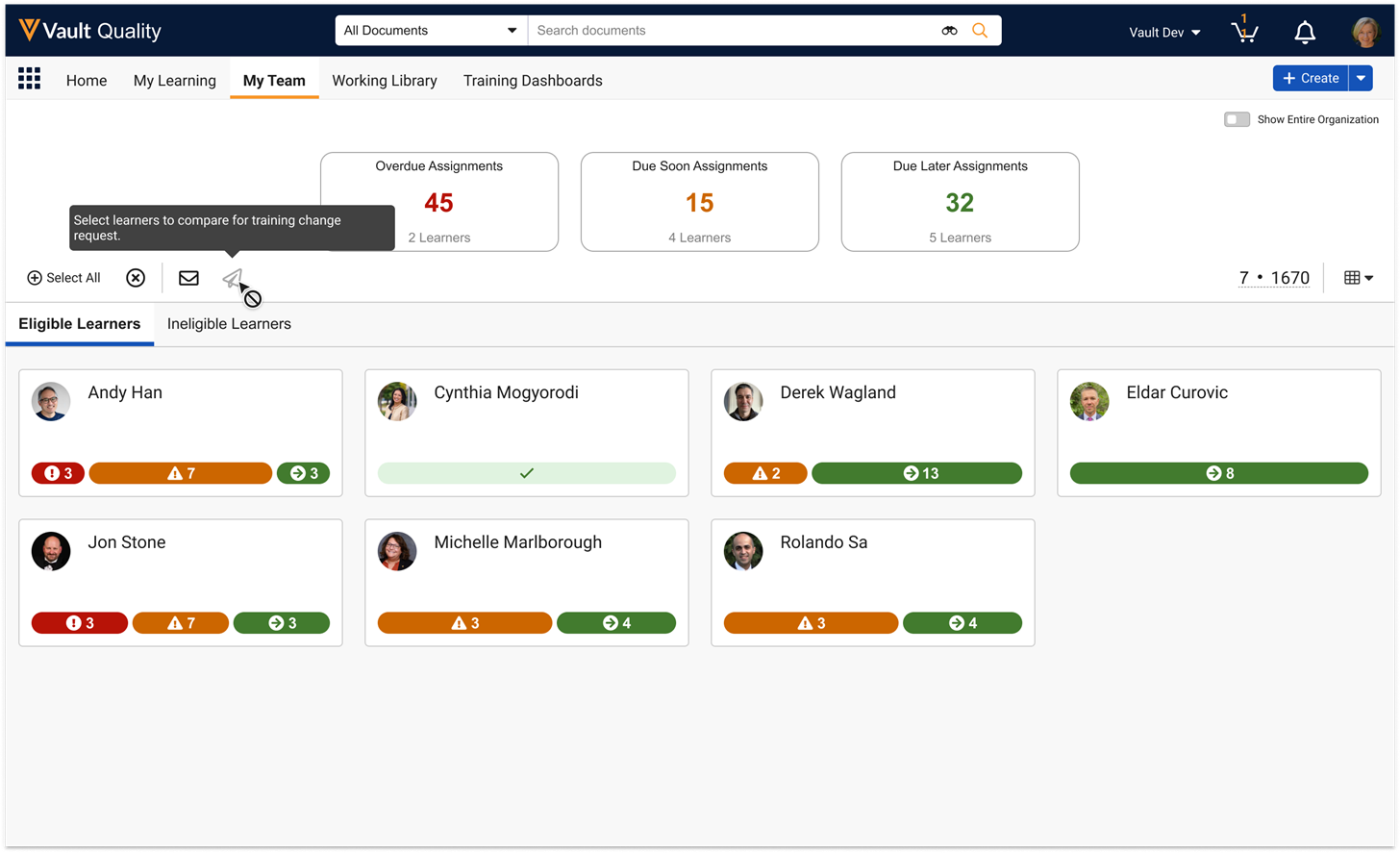
Here, you can compare Learners and request changes to the Training Matrix:
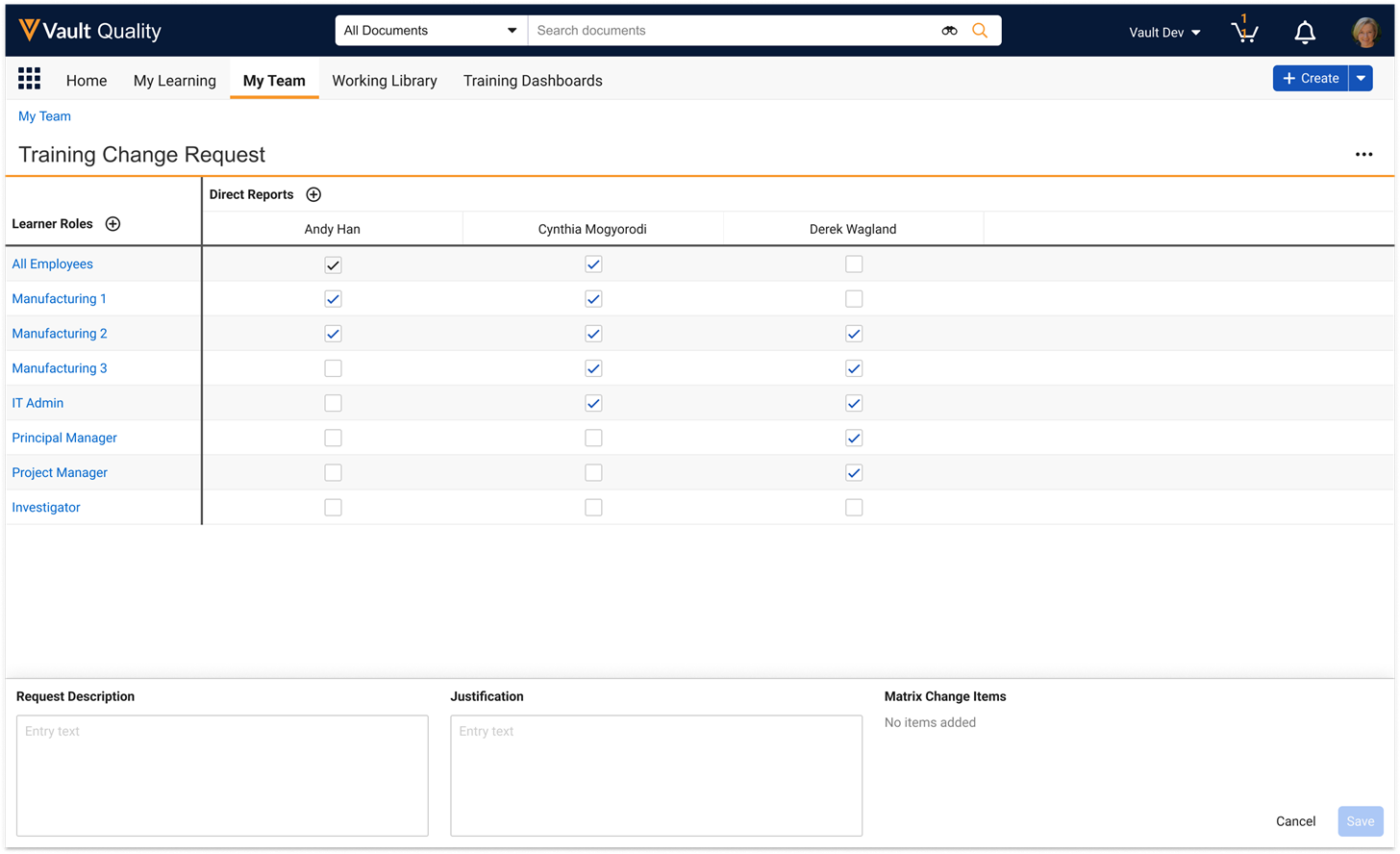
Enable TRIA for All in Quality VaultsAuto-on25R3.4
In 26R1, Vault will initiate the Training Requirement Impact Assessments (TRIA) process for all Training Requirements in all Quality Vaults by default. This update enables the previously-optional Enable TRIA for All Training Requirements Application Setting and removes it from Admin UI. This makes TRIA mandatory and non-optional, even in Vaults where TRIA was not previously configured.
More specifically, when Vault runs the Issue Training Assignments document lifecycle entry action:
- Vault automatically creates a TRIA record when a document has a Training Requirement and no open TRIA records.
- Current behavior remains unchanged if an open TRIA record already exists.
The intent of this feature is to require TRIAs for all scenarios. Note that certain configurations which attempt to “skip” the TRIA process can cause Vault to error. For example, if the Issue Training Assignments action is configured on the Issued state and a user attempts to skip this state and transition a document directly from Draft to Effective, Vault displays an error and does not transition the document.
You may find more details in the below announcements and Veeva Connect posts:
- 25R2 Release Announcements
- July 2025 Veeva Training Office Hour
- Nov 2025 Veeva Connect Post on TRIA for All
- Nov 2025 Veeva Connect Post on TRIA auto-closure configuration guide
Station Manager
Station Manager Account Password Expiration ImprovementsAuto-on25R3.4
This feature improves the experience for organizations that require periodic expiration of their Station Manager User Account passwords. Station Manager users are proactively notified of an upcoming password expiration so that they may take timely action. In the event of an expired password, the system does not automatically log the user out and the user is able to leverage the offline capabilities of Station Manager to continue with their work during an Admin-defined grace period. Users are able to successfully log out of the Station Manager application in order to log back in with the new password anytime after the password has been changed.
Station Manager Support for iOS 26Auto-on25R3.4
The Station Manager application now supports iOS 26. Veeva Station Manager for iPadOS supports Apple iPad devices running the current iPadOS, and one previous major iPadOS version (iOS 18), as documented in the Client Application Release Schedule & Support Model.
Update Minimum Supported Android Operating System Version for Station Manager to Android 14Auto-on25R3.4
Veeva Station Manager for Android supports the latest Android version (16) through two previous major versions as documented in the Client Application Release Schedule & Support Model. As of the 26R1 release, Android 14 is the minimum supported version of Android for Station Manager. IT Admins should upgrade all Station Manager devices to Android version 14 or later prior to the 26R1 release. Following the 26R1 release, operators attempting to login to devices running Android versions 13.0 and earlier will be unable to do so.
Station Manager Activity Object EnhancementsAuto-on25R3.4
Station Manager Activity records are automatically created as the system to track Station Manager usage and reflected in the audit trail as System on Behalf of. Station Manager Admins are no longer required to provide Create permissions to the Station Manager user accounts.
LIMS
Trend ChartsConfiguration25R3.2
This feature introduces embedded statistical process control charts in Veeva LIMS. From a Spec Execution detail page, users can now use control charts to compare the batch’s results against previous batch results. The charts identify and highlight the results that are out-of-control (OOC) and out-of-trend (OOT) using Nelson and Westgard Rules.
This feature supports the following chart types: X-bar, R Chart, S Chart, I and MR Chart.
Design Data Administrators can pre-define the type of analysis and chart to use for each test result type. The definition also supports version control and change analysis, and considers dependencies on their related Product Test and Spec Data definitions.
Test Definition Builder: Allow Documents to Be Selected for Sample Result Entry Test DefinitionsAuto-on25R3.2
For Sample Results Entry (SRE) Test Definitions, users can select and display documents during Test Definition build. This allows Admins to reference procedures while building and updating an SRE Test Definition.
Design Data Builder: Save Last Page User Was OnAuto-on25R3.2
With this update, when a user exits and then reenters Design Data Builder, Vault automatically returns them to their last accessed spot.
Changes to Material ObjectAdmin Checkbox25R3.4
This feature adds the ability to track additional attributes for the Material object, including finished good market, raw material subtype (API, Catalyst, Excipient, Filler), description, and shelf life.
Criteria Formula Field is Not RequiredAuto-on25R3.4
On Spec Data Criteria and Lab Test Definition Criteria, the Criteria Formula UI field is no longer required. Users can leave it blank, opting for entering the new simple mode criteria fields made available in the Simplified Criteria Definition feature.
Design Data Builder: View Version HistoryAuto-on25R3.2
With this update, from Test Definition or Spec Data Builder, an Admin can view all versions of that design data record.
Test Definition Builder: IconsAuto-on25R3.2
With this release, the following field types now have icons next to them:
- Picklists:
- (Result) Data Entry Method
- (Criteria) Indication
- (Result) Precision and Precision Type
- Object Reference:
- (Inputs) Expected Amount + Units
- Mode of Entry
- Other
- (Result) Object Types
Test Definition Builder: Mode of Entry Can Be UpdatedAuto-on25R3.2
With this feature, users can now change a Test Definition’s Mode of Entry. If the Mode of Entry is Sample Result Entry, it can always be changed to Guided Test Execution. If the Mode of Entry is Guided Test Execution, it can be changed to Sample Result Entry if it meets all of the following conditions:
- No attached documents
- No Inputs
- No Operational Results
- Only one Step
- Check integrations, SLRs, Cross Test, Aggregate
- No Variations with Mode of Entry of Guided Test Execution
Test Definition Builder: Auto-Scroll to New Result or Input RecordAuto-on25R3.2
When there is a long list of Inputs or Results, when a user creates a new record, Vault automatically scrolls to the record and focuses on the Name field.
Test Definition Builder: Operational Results Renamed to Method ParametersAuto-on25R3.2
With this update, we have renamed Operational Results to Method Parameters in the Test Definition Builder.
Test Definition Builder: General UI UpdatesAuto-on25R3.2
With this update, we have made the following changes to the Test Definition Builder UI:
- Placeholder text is now displayed for field entries
- Tooltips appear when hovering over fields
- Not Applicable is hidden for locked Test Definitions
Test Definition Builder: Updates to Calculated Method Parameter ResultsAuto-on25R3.2
With this feature, we’ve made the following changes to Calculated Method Parameter Results:
- For Operational Results, for Calculated Result, for Basic Variables, the Target Result now filters out
- For Operational Results, for Calculated Result, the Cross Test Variable variable type is not shown
- For Operational Results, for Calculated Result, the Aggregate Variable variable type is not shown
- For Operational Results, for Calculated Result, Material constant types for Constant Variable type are not shown
Test Definition Builder: Inline Field ValidationAuto-on25R3.2
Before saving, Veeva LIMS now shows inline errors if a required field is left blank or (for text and number field types) if the field value does not meet minimum or maximum requirements.
Test Definition Builder: Test Method FieldAuto-on25R3.2
With this release, the Test Method text field is available in the Test Definition Builder.
Test Definition Builder: Respect Default ValuesAuto-on25R3.2
The Test Definition Builder now respects default value configuration at the field level or object type field level.
Test Definition Builder: Keyboard Shortcuts & NavigationAuto-on25R3.2
Keyboard shortcuts can be used to perform certain actions (create, edit, save, delete) on Test Definition Builder. In addition, keyboard navigation (TAB) can be used to navigate across the screen.
Design Data Builder: Search CapabilityAuto-on25R3.2
Users are now able to search within the Test Definition and Spec Data Builders.
Spec Data Builder: Edit Spec Data CriteriaAuto-on25R3.2
Users can edit Spec Data Criteria without having to go through the Assign Tests dialog.
Spec Data Builder: Respect Default ValuesAuto-on25R3.2
The Spec Data Builder now respects default value configuration at the field level or object type field level.
Spec Data Builder: Sample Plan Can Be Edited If BlankAuto-on25R3.2
With this update, users can edit blank Sample Plans within the Spec Data Builder.
Spec Data Builder: Spec Data Defaulted for Criteria SetAuto-on25R3.2
In the Spec Data Builder, when creating a new Spec Data Criteria Set, the Spec Data field is now populated and read-only.
Spec Data Builder: General UI UpdatesAuto-on25R3.2
With this update, we have made the following changes to the Spec Data Builder UI:
- The Lab Samples Collected terminology has been updated to Lab Samples Defined.
- Text underneath circles has been updated to Click a sample or group of samples to define actions.
- The Order tab for Assign Test does not display if only one SRE Test Definition is selected.
Spec Data Builder: Export List of Unsupported SetupAuto-on25R3.2
When opening the Spec Data Builder, if the configuration is unsupported, users can export the configuration list to XLSX format.
Spec Data & Test Definition Builder: Keyboard Navigation & Shortcut SupportAuto-on25R3.2
The Spec Data and Test Definition Builders now support keyboard navigation and shortcuts.
Test Definition Compare: Hide Fields Not Applicable to Object TypeAuto-on25R3.2
This feature enhances Test Definition Compare by hiding fields that are not applicable to the Object Type being viewed.
Stability Summary Report: Grouping Logic for Multiple Test Definition VersionsAuto-on25R3.2
This feature updates the Stability Summary Report to group results from Test Definitions with the same Trace ID into a single row, splitting rows only when the Criteria Description differs. For multiple versions, it uses the most recent version’s Test Definition name, Result Definition name, and Criteria Description.
Spec Data Builder: Not Applicable Behavior UpdateAuto-on25R3.2
Checking the Not Applicable box now decrements the denominator for Lab Samples Defined.
Spec Data & Test Definition Builder: Enter Key SupportAuto-on25R3.2
All dialogs on the Spec Data builder perform the primary action on enter. This includes the following dialogs:
- Delete confirmation dialogs for all Sample Action cards, Not Applicable, and Clear buttons
- Dirty warning dialogs when canceling create/edit of Sample Action cards, clicking Next/Back buttons, or clicking Sample Definitions on the sidebar
Test Definition Builder: Default Basic Variable NameAuto-on25R3.2
When a Variable is created, LIMS defaults the Variable Name to the Result Name. Users may further edit Variable Name.
Test Definition Builder: For Sample Result Entry Variations, Only Allow Valid SetupAuto-on25R3.2
With this update, the following cannot be configured on a Test Definition Variation of Variation type Sample Results Entry:
- Integration Results
- Inputs
- Any results on > 1 unique step
- Any cross test or aggregate variables
Test Definition Builder: Including Results for Sample Result Entry VariationsAuto-on25R3.2
For Sample Results Entry Test Definition Variations, Admins cannot select results that are not allowed to be included.
Test Definition Builder: For Variation Result Inclusion, Auto-Select Dependent ResultsAuto-on25R3.2
When a result is selected for inclusion in a Test Definition Variation, dependent results will now be automatically selected. For example, if a calculated result is selected for inclusion in the Variation, the results that feed into the calculated result are now automatically selected.
Sample Result Entry Display Sample NameAuto-on25R3.2
This feature adds the display of the Sample Name when selecting samples, and when entering results for samples, making it easier to identify the samples when selecting and entering results.
Stability Study CSV ExportAuto-on25R3.2
This feature updates the Stability Study CSV export to output result values and units in separate columns, making it easier for downstream tools to sort, filter, and analyze data without manually separating units from values.
Set Lab Study Owner on Creation from Lab Study DesignAuto-on25R3.2
This feature sets the Owner of the Lab Study to the user who generates it from a study design.
Multi-Stage Testing for Dissolution & Content Uniformity TestsConfiguration25R3.4
This feature supports USP methods that require multiple stages or levels of testing, such as Dissolution or Content Uniformity. Stage-based rules (for example, S1-S3, L1-L3), sample size progression, stage-level acceptance criteria, and conditional pass/fail logic can now be configured in the Test Definition.
New Calculation Scope: All Tests with Same Root ParentConfiguration25R3.4
This feature expands aggregate and cross-test variable scopes to support all tests with the same root parent. This scope will aggregate all test results where there is a common root parent sample based on each sample’s lineage. Additionally, all sample lineage records will have the root parent sample defined.
Result Replicates & Impurity TestingConfiguration25R3.4
This feature introduces Result Replicates, a new concept to Lab Test Results that expands the capabilities around defining and executing test repetitions. Admins can now configure up to 20 replicates of a test result within a single Lab Test Definition Result record. After specifying the number of replicates, LIMS automatically creates a matching set during Test Execution.
Admins can also grant QC analysts the ability to add additional replicates as Ad Hoc, during Test Execution within the Test Definition Result. Users with proper permissions can add Ad Hoc Replicates in addition to planned replicates defined in the Test Definition or without any planned replicates (for example, for unknown impurity detection). They can also cancel and remove replicates added in error.
Deterministic Aliquot ActionsAuto-on25R3.4
This feature enhances the LIMS data model to ensure that the correct Lab Sample is used during the aliquoting process at runtime. Aliquot Actions now have a direct link to a Select Action. This links instance-to-instance rather than definition-to-definition.
LIMS now supports aliquoting of aliquots via the Spec Data Builder UI. Additionally, Lab Tests (for example, Appearance) can now be performed on specific samples prior to aliquoting.
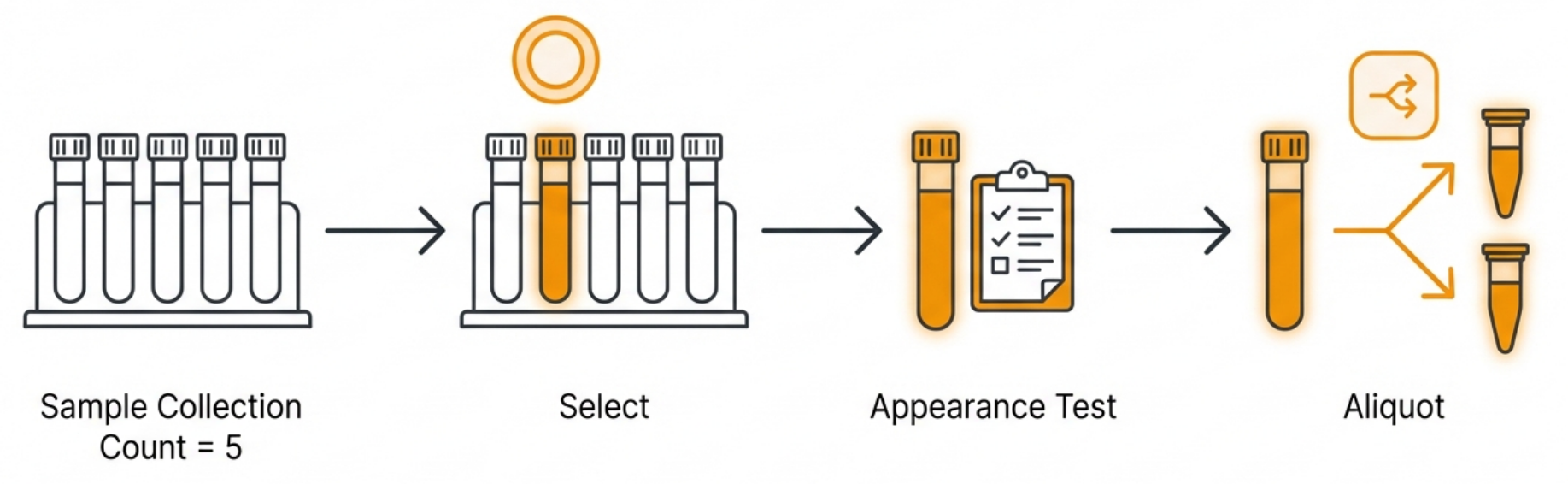
Deterministic Aliquot Actions: Create New Version EnhancementAuto-on25R3.4
When performing the Create New Version action from a Spec Data record, this feature will create and/or reference Select Actions, where possible, to make Aliquot Actions deterministic.
For example, a Spec Data may have previously defined an Aliquot Action on a Sample Definition with a Sample Collection Count of one, but lacked a Select Action for that same Sample Definition. When creating a new version of that Spec Data, Vault will create a Select Action for that Sample Definition and update the Aliquot Action to reference the new Select Action.
Material Is a Required Field on BatchAuto-on25R3.4
Moving forward, Batch records must have a Material defined.
Trend Charts: Regression Support for StabilityConfiguration25R3.4
This feature enables lab managers and test reviewers to analyze stability trending in order to identify regression results that are trending towards an earlier than expected expiration, to proactively prevent product/process failures and recalls before they become specification failures.
Stability Study Data MigrationAdmin Checkbox25R3.4
This feature provides a way to easily migrate data for historical stability timepoints into Veeva LIMS such that they are compatible with core stability functionality. To utilize this feature, please contact Veeva Professional Services.
Simplified Criteria DefinitionAuto-on25R3.4
Admins are now able to define a simple version of a criteria for the result value type. For example, for a numeric result, Admins can select a minimum and maximum value for the criteria rather than need to define it in the format of the advanced criteria formula.
Test Execution Limit Update to 50 TestsAuto-on25R3.4
Moving forward, the Test Execution page is limited to a maximum of 50 tests.
AVGIF & MAXIF FunctionsConfiguration25R3.2
This feature enhances LIMS calculations by introducing the Lambda and Filter functions. When used together, calculation results and criteria can now define more concise conditional logic to any existing formula, including average and max. The Lambda function defines the IF criteria that should be included in the primary function, while the Filter function excludes result values that do not meet criteria.
Precision Rules for Impurity TestingConfiguration25R3.2
This feature adds a new Precision Rule field to support dynamic precision logic during test execution for Impurity Testing. When users select a Precision Rule, it overrides the static precision value for a result. Precision Rule initially supports precision guidelines from ICHQ3A/B, which controls the level of precision when above or below 1.0% (2 digits when below 1.0% and 1 digit when at or above 1.0%).
Certificate of Analysis Field on Spec ExecutionAdmin Checkbox25R3.4
Users can uncheck the Certificate of Analysis field for the Stability Spec Exec object type on Spec Execution object.
Design Data Builder: Edit Starting Screen Field ValuesAuto-on25R3.4
Test Definition and Spec Data Builder now allow the fields from the starting screen to be edited.
Validation Management
Test Step Change: Full Attachment NamesAuto-on25R3.2
With this release, Vault will capture the full attachment names in the original and new value fields on the Test Step Change records when completing the Test Step Change process on an executed test step’s attachments.
Previously, the attachment names were truncated at 20 characters in the original and new value fields. While the full names of current attachments (as seen on the test step) and removed attachments (captured as attachments on the test step change record) were available, this could lead to confusion if multiple attachments had the same or similar file names.
With this feature, the full file names of the features will now be captured in the original and new fields, removing any uncertainty around what files were added or removed from the test step. This feature will be auto-on.
Application Interface Side Panel ImprovementsAuto-on25R3.2
With this release Validation Management interfaces (Author Test, Review Test, Execute Test, etc) will introduce the ability to collapse and expand the side panel, where step navigation, requirement burndown, and comments are shown. This allows authors, executors, and reviewers to focus specifically on the test steps by increasing the space available for steps. The side panel can be collapsed through the collapse button, and expanded through the expand button or by clicking on an existing tab (such as step navigation). This feature also includes further refinement for the width of the side panel across different browser resolutions. This feature will be auto-on.
Validation Team Warning ControlsConfiguration25R3.2
With this release, customers will be able to decide when Validation Team Assignment (VTA) based user fields (e.g. Author, Executor, Activity Owner, etc.) are verified by object and state.
Previously, whenever a record was updated (directly through editing, or indirectly through a state change or related record state change or update) and the user selected no longer had an active VTA, Vault would provide an error indicating that the user was not valid. This feature will allow administrators to determine when these VTA-related user fields no longer need to be checked through a new Admin configuration under Quality Configurations. For example, an Admin could add a Validation Team Warning Control record which identifies that the Author should not be checked for test scripts which are in states which are used after Pre-Approval (such as In Execution, In Post-Approval, Post-Approved, or Cancelled). This provides more flexibility to support different lifecycle and workflow configurations, while still ensuring that only users with active VTAs are selected in key user fields which are leveraged for roles and workflows.
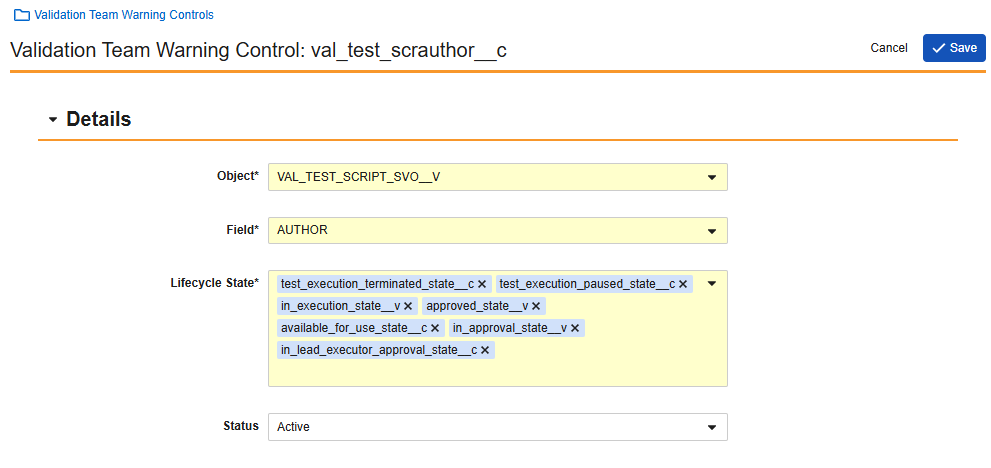
This feature is enabled through configuration. An Admin will need to add Validation Team Warning Control records to identify for which objects and states the existing warnings should be disabled.
Bulk Manage Requirements & SpecificationsConfiguration25R3.4
This release introduces a new tool designed to streamline the creation and update of requirements from third-party documents. By replacing manual data entry with a bulk Excel upload process, this feature significantly reduces administrative burden, minimizes errors, and ensures data consistency across validation projects.
Requirement owners can now download a pre-formatted Excel template directly from Entity, Entity Version, or Activity records through the Requirement sections. Users can download a blank template to create new records or select specific existing requirements to pre-populate the file for bulk updates.
Once populated with requirement content, the completed template can be uploaded back into Veeva Validation Management to bulk create or update records.
Template ActivitiesConfiguration25R3.4
This feature enhances the setup of new validation activities by allowing users to predefine and reuse a consistent set of deliverables. Template Activities serve as reusable blueprints that include commonly required validation documents such as the Validation Plan, Risk Assessments, User Requirement Specifications, Design Specifications, Test Protocols, Test Scripts, and Validation Summary Reports. This enables organizations to accelerate activity creation, promote standardization, and reduce manual effort.
Users can execute the relevant creation action (such as Create Activity from Template) from an Entity or Entity Version. Depending on the configuration, Vault presents a selection of source records, allowing users to choose either a standardized Template Activity (filtered for those currently Available for Use) or an Existing Validation Activity. Vault ensures relevance by filtering options to match the object type of the target entity.
Once users select a source, Vault initiates a background process to generate new records. This automated job performs a deep copy of the source Activity’s structure, efficiently replicating all child Deliverables, Test Protocols, Test Scripts, child Test Steps, and Additional Prompts. While Vault processes this data, users can continue working elsewhere in the application and will receive a notification immediately upon the job’s completion. The resulting activity automatically tracks its origin in the Copied From Activity field, providing clear lineage whether the activity was derived from a standardized template or a previous project.
Constraining Roles for Validation Team AssignmentsConfiguration25R3.4
This feature improves the accuracy and efficiency of user assignments within Validation Teams. Previously, selecting a user for a specific role required searching through the entire list of internal users, creating inefficiency and increasing the risk of selection errors, especially in large organizations where multiple users may share the same name. This enhancement streamlines the process by ensuring only qualified and relevant users are presented for selection.
When assigning a user to a Validation Team Role, Vault now filters the user drop-down list based on specific constraining roles as defined by the Admins. Rather than displaying all internal users, the list is restricted to show only those individuals who meet the criteria for the selected role. This targeted approach reduces manual search time and eliminates confusion, helping organizations ensure that the correct stakeholders are assigned to the right validation activities with minimal effort.
Test Comment Deletion EnhancementsConfiguration25R3.4
This feature introduces a new lifecycle action for Validation Test Script lifecycles. Admins can configure this action as an entry action or user action. When performed, this action deletes any post-approval comments and replies from a Test Script. This enables customers who prefer to remove review comments/feedback when a Test Script is post-approved to have an automated mechanism to remove comments which are no longer needed. As part of this feature, we have also made enhancements to the existing Delete Dry Run Results and Comments action to better manage Replies for Dry Run comments.
Download Step & Discrepancy Attachments For Test ScriptsConfiguration25R3.4
This feature introduces a new lifecycle action for Validation Test Script lifecycles. Admins can configure this action as an entry action or user action. When performed, this action generates and attaches a ZIP file to the Test Script containing the attachments from the Test Script’s Test Steps and/or Discrepancies. In conjunction with printable views or formatted outputs, this makes it easy to hand off test script execution results and evidence to third parties (such as auditors and sponsors) who want to review.
Standard Fields Updates for Validation ManagementConfiguration25R3.4
With this release, Validation Management continues to enhance the standard data model through the introduction of several new fields across multiple objects, such as External IDs, to better support customer migrations to core objects. These new fields are automatically deployed, but must be added to object types and layouts as appropriate. In this release, existing Validation Management document fields (Validation Activity, Validation Deliverable, and Validation Entity) have been updated to shared fields and Admins can now edit the maximum length for several existing standard fields (such as Entity - Asset Number or Discrepancy - Description).
Regulatory
Features in the Veeva Connections section also affect the Regulatory application family.
RIM Active Dossier
Active Dossier: Processing Status & Issues TrackingConfiguration25R3.4
This feature provides visibility into Active Dossier population and calculation processes by introducing real-time status tracking and detailed issue logging. These tools address challenges where automated processing occurred without user-facing indicators or clear failure reasons.
Monitoring Processing Status The Active Dossier Viewer header now includes a Processing Status indicator. A clock icon signifies that processing is in progress, while a checkmark icon indicates no active processes are running. You can hover over this indicator to view a hovercard showing the five most recent processes or select View More to open a tab to see all Active Dossier Processing records for the relevant hierarchy. To support record-specific tracking, Vault also includes these controls on Submission, Regulatory Objective, and Event records. This control will need to be added to page layouts to be visible.
Resolving Processing Issues
When records are not created or updated as expected, the new Processing Issues page surfaces detailed logs of failed, warned, or intentionally skipped records.
- Viewing Processing Issues: access Processing Issues from the Active Dossier Processing object by selecting View More in the hovercard or by going directly from the Active Dossier Viewer through its action menu
- Detailed Logging: Vault tracks each instance of a skipped or failed document or Active Dossier Item Detail (ADID) and provides Issue Details to explain the underlying cause, such as unmapped document types or missing relationships.
- Issue Type: Records are categorized as Error (failed creation/update), Warning (update occurred with limitations or unexpected data), or Skipped (intentionally bypassed based on system logic).
- Efficient Issue Management: You can mark specific issues as Acknowledged to confirm an issue has been reviewed.
- Flexible Filtering: Column filters allow you to narrow down the results based on the Issue Type or Processing Typefields. The system automatically displays records for the relevant Root/hierarchy when you navigate from the Viewer.
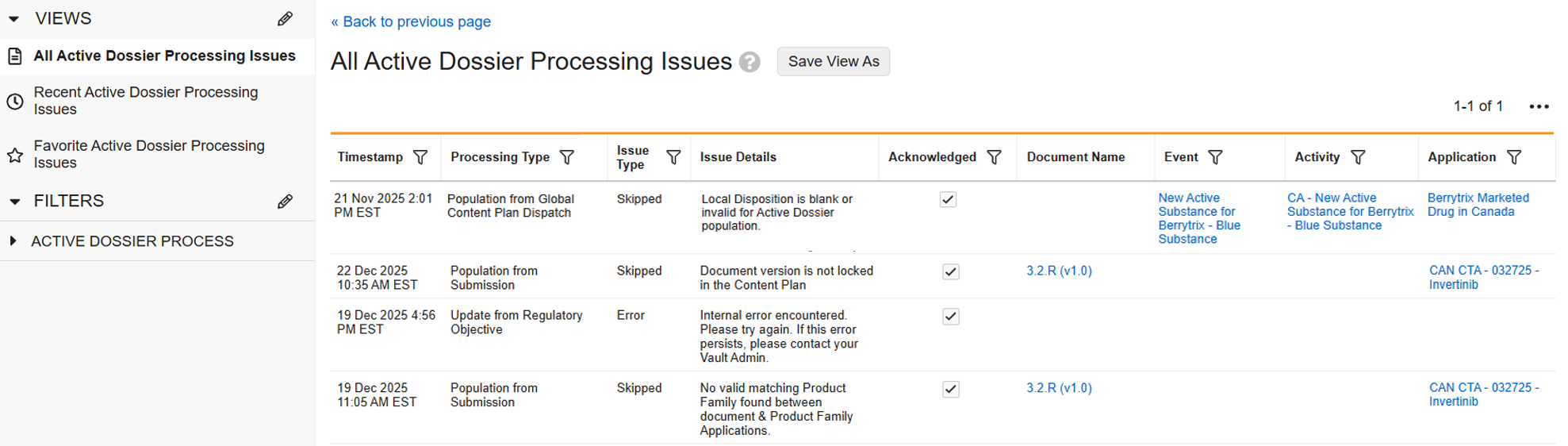
RIM Publishing
South Korea Validation UpdatesConfiguration25R3.2
What’s New?
Veeva Publishing now supports the latest updates to South Korea’s Ministry of Food and Drug Safety (MFDS) Validation Criteria v1.0. The most recent version introduced the implementation of five new rules (1.9, 3.8, 3.9, 3.10) and updates to two existing rules (1.15) as detailed here:
- 4 new rules implemented (1.9, 3.8, 3.9, 3.10):
- 1.9 validates the relative path of the Published Output Location
- 3.8 checks the application submission file
- 3.9 checks if there is one or more applications being submitted
- 3.10 checks the existence and validity of the application file
- Updates to Rule 1.15 which checks the file extensions
Key Benefits
The inclusion of these updates ensures that Submissions Publishing remains fully compliant with the latest regulatory standards for customers working with South Korean submissions.
Configuration of Validation Criteria can be provided to customers via VPK to aid in deployment, provided in the Veeva Product Support Portal.
eCTD 4.0 UpdatesAuto-on25R3.2
What’s New?
Improved Japan Cover Letter Handling
Vault now supports the XML Element Name = unreferenced-files when publishing eCTD 4.0 submissions. The Japan eCTD 4.0 Content Plan will include a new Content Plan Item in Module 1 for the Cover Letter (Published Output Location = m1/jp/cover.pdf). These ‘unreferenced-files’ will not be included in the submissionunit XML upon publishing, but will be included in an unreferenced files section under Module 1 in the Submissions Archive Viewer.
For Example, unreferenced cover letters would have the following:
- CP Name:
${submission__v.xml_submission_id__v}Cover Letter - CP Title (
xml_title__v):${submissionv.xml_submission_id__v}Cover Letter - XML Element Name: unreferenced-files
- CPI Name (as desired)
- Published Output Location (
xml_xlinkhref__v): m1/jp/cover.pdf
Automated Sequence ID Updates
Automated Sequence ID generation for eCTD 4.0 submissions will now look at previous eCTD 3.2 sequences and increment the next sequence by 1 (dropping any leading zeros). For example, the last submission in an application that was submitted with eCTD 3.2 was ‘0045’. When creating the first eCTD 4.0 submission for the same application, the automatically generated Sequence ID will be set to ‘46’ (instead of 0045). In an eCTD 4.0 application, the automatically generated Sequence ID will be set to ‘1’ if there are no previous sequences.
Table of Contents Generation for Japan eCTD 4.0
Publishing now supports the creation of a TOC document with the heading jp_m1.1 for Japan eCTD 4.0. Vault now allows for a Content Plan Item Node Type (node_type__v) value of table_of_contents__v for a Context of Use, and will also generate a Priority Number. Vault will also include a checksum (sha-256) for the TOC on the submissionunit.xml.
Key Benefits
These changes support ongoing regulatory compliance efforts, as well as usability and automation improvements to make eCTD 4.0 publishing more efficient, and to offer additional functionality specific to Japan eCTD 4.0 publishing.
Additional Considerations
These enhancements build upon the previous configuration and adoption of eCTD 4.0 data model updates and configuration changes.
Unified RIM Validation Logic for Submission & RLCP PublishingAuto-on25R3.2
Publishing has combined the implementation of RIM validation rules into a single validation framework. Previously, these rules were maintained separately, implemented repeatedly for each region. With this update, new records for both the Submission Publishing System Validation Rules and RLCP Publishing System Validation Rules criteria versions will be added to now utilize the centralized System Validation Rules.
The following rules will be provisioned under Validation Group Submissions Publishing System Validation Rules:
- RIM101 - checks for multiple documents with the same Published Output Location
- RIM102 - checks for duplicate Published Output Location values with Delete XML Operation
- RIM104 - checks if the matched document is password protected
- RIM105 - checks for multiple Content Plan Items that have the same document with different Published Output Locations
- RIM108 - checks whether a link in a published document targets a PDF
- RIM111 - checks if the matched document has been archived
- RIM114 - checks for a placeholder file
The following rules will be provisioned under the Validation Group RLCP Publishing System Validation Rules:
- RIM101 - checks for multiple documents with the same Published Output Location
- RIM105 - checks for multiple Content Plan Items that have the same document with different Published Output Locations
- RIM108 - checks whether a link in a published document targets a PDF
- RIM111 - checks if the matched document has been archived
- RIM114 - checks for a placeholder file
There will be no impact to the validation behavior. However, if you decide to inactivate the regional RIM Rules, the Submission Publishing System Validation Rules and RLCP Publishing System Validation Rules will be executed.
We unified these rules so that organizations benefit from consistent validation results and reduced maintenance overhead.
Auto-Suppress Weblinks & Mailto Links on Published DocumentsConfiguration25R3.4
What’s New?
Veeva has introduced a new field, Suppress Weblinks, that allows automatic suppression of all weblinks and mailto: links on documents matched to a specific Content Plan Item, when the user selects Yes in the Suppress Weblinks checkbox. The field is also available for selection on the Content Plan Item Template.
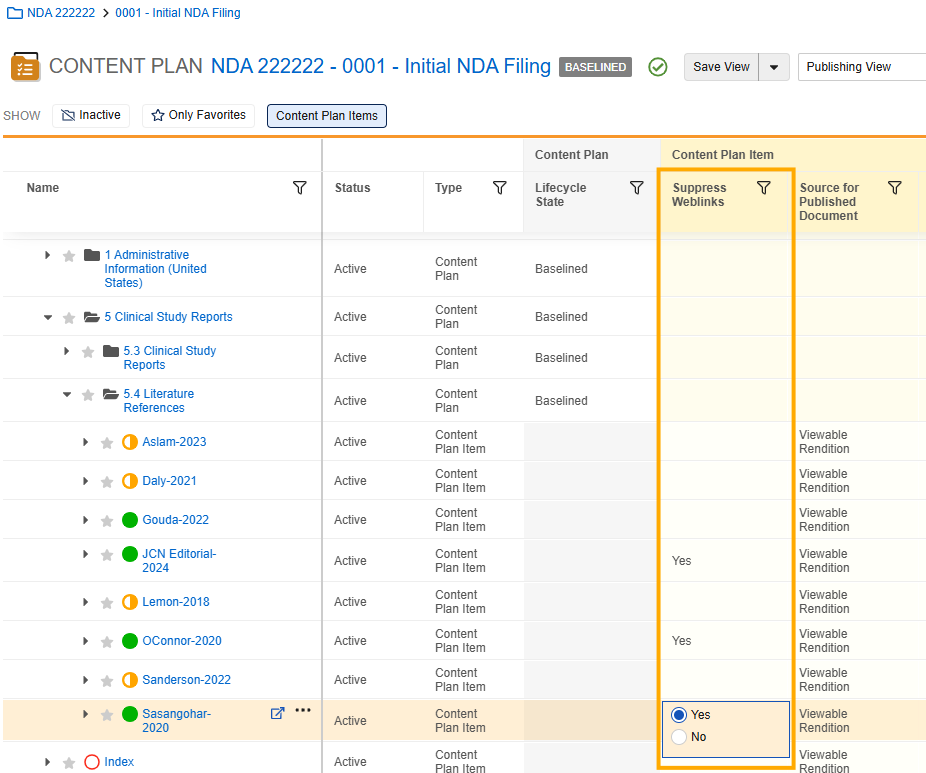
Key Benefits
The Suppress Weblinks field minimizes disruption to the Submissions Publishing flow when publishing documents with weblinks and mailto: links. The feature allows users to control the automatic removal of these links on the specific Content Plan Item, by selecting Yes in the Suppress Weblinks checkbox. This will improve user experience and reduce the need to work externally to remove the links.
Link Evaluator EnhancementsAuto-on25R3.4
This update improves the Link Evaluator user experience to reduce the effort for reviewing and retargeting broken hyperlinks.
What’s New?
- Column Filtering and Sorting: Veeva Publishing users can now filter, sort and customize columns, and the system will remember these user settings upon page refreshing.
- Column Reordering: Arrange columns per individual needs, and the system will remember column order upon page refreshing.
- Bulk Retargeting: Retarget multiple broken hyperlinks to the same target location in a single effort. Bulk retargeting is aided by filtering and sorting, allowing for all broken links intended for the same target to be fixed at once. The Bulk Retargeting action can also be undone in bulk, further reducing clicks and manual effort retargeting is done in error.
- Publishing Progress Indicator: Particularly when retargeting broken links or using Automated Hyperlinking, the Publishing Progress Indicator will allow users to see the progress of Continuous Publishing, without having to return to the Submission record screen.
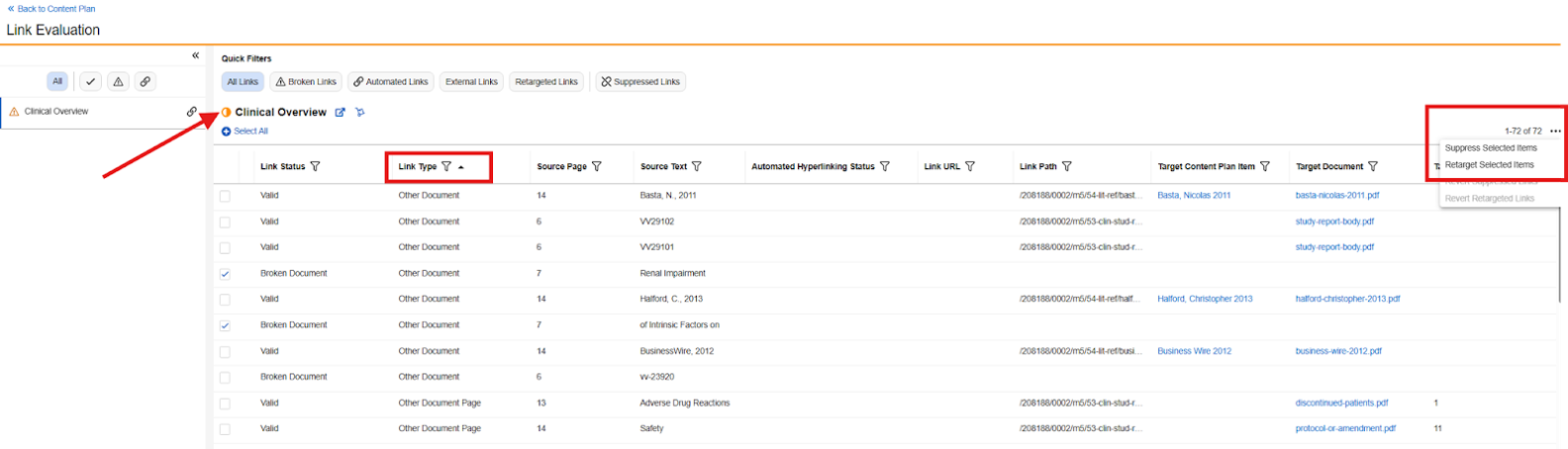
Key Benefits
A more user-friendly experience will allow for Link Evaluator users to complete linking review and retargeting with fewer clicks, and do so without the need to leave the current screen or lose their settings.
Additional Considerations
All Publishing users will automatically see the updates to Link Evaluator. Hyperlinking changes made via Link Evaluator will continue to appear only on the published output and not on the source document. Permissions related to hyperlink retargeting will remain unchanged.
Support CrossLink Source Type & Renditions on CrossLink for Publishing SourceConfiguration25R3.4
What’s New?
Expanding on the new Platform feature to Allow Custom Renditions on CrossLink Documents, Publishing users can now select a custom rendition type or Source File and Rendition as the Source of Published Document field value.
Key Benefits
Publishers have more flexibility when CrossLink documents are matched to a Submission Content Plan, and may select custom renditions that were previously not allowed on the CrossLink document type.
EAEU ValidationConfiguration25R3.4
Veeva Submissions Publishing now supports validation of Eurasian Economic Union (EAEU) submissions generated by Vault.
What’s New?
The validation package will include 68 rules covering common points of validation including validity of the R.022 XML, DTD version 1.1.0 requirements, required metadata is included, attribute formatting, file and folder naming conventions, PDF document standards, document lifecycle validity, and folder structure. Additional standard validation rules will also be run on EAEU submissions, including:
- INFO_101: Total file count
- INFO_102: Total file size
- INFO_103: Total number of bookmarks
- INFO_104: Total number of hyperlinks
- RIM101: Multiple documents with the same POL
- RIM104: Password protected file
- RIM105: Multiple CPIs have the same matched document with different POL
- RIM108: Link targets a non-PDF file
- RIM114: Placeholder file
- VRSP001: Binder matched to CPI
- VRSP017: Merging failure
Key Benefits
Publishing customers can ensure submissions published by Veeva are compliant with the EAEU R.022, v1.1.0 XSD requirements.
Additional Considerations
EAEU has not provided a validation criteria specification. The validation rules included in this feature include the most common electronic validation criteria used globally, as well as the most requested points of validation from EAEU publishing customers to ensure a valid R.022 index.xml. The validation rule records and required Controlled Vocabulary updates are available as a VPK package to aid customers in deployment of the new validation package, which is available on the Veeva Product Support Portal.
US eCTD 4.0 Publishing & Validation v1.8Configuration25R3.4
What’s New?
Veeva Submissions Publishing now supports the publishing and validation of US FDA eCTD 4.0 submissions published using the US v1.8 DTD, ensuring Publishing customers can generate and validate compliant eCTD 4.0 submissions for FDA review.
Key Benefits
This feature expands on Veeva’s regulatory compliance as additional global markets begin accepting eCTD 4.0 submissions, particularly in the US market.
Additional Considerations
US eCTD 4.0 publishing requires adoption of the previously released eCTD 4.0 Data Model and common elements. For US-specific eCTD 4.0 submissions, additional data model updates, data remediation, layouts, and additional configurations are required. To support enablement, a VPK package is available with the required Controlled Vocabularies, Constraints, US m1 v1.8 Content Plan Template records, Validation Criteria records, and additional configuration items.
China eCTD 3.2 (NMPA) Specification 1.1Configuration25R3.5
Veeva RIM now provides comprehensive support for the National Medical Products Administration (NMPA) eCTD v1.1 specification.
What’s New?
This update includes new Controlled Vocabularies for application types as the cv-application-type.xml was updated to reference version 1.1. It enables users to publish a China eCTD submission within Submissions Publishing and validate the submission against the China DTD. This release introduces the ability to import, view, and export dossiers in Submissions Archive formatted to the v1.1 standard.
Key Benefits
- Compliance Continuity: Maintain regulatory alignment by utilizing the updated NMPA v1.1 DTD and folder structures.
Additional Considerations
- This feature is a hotfix for Vault RIM Publishing that we are backporting to 3.0 for a regulatory update for China eCTD 3.2 to version 1.1
- Enablement: These changes are automatically available, however in order to publish 1.1 submissions, some Controlled Vocabularies for application types pointing to 1.0 must be inactivated since the Health Authority Codes (i.e. cnapt1) have not changed and will be considered duplicates. If a 1.0 submission needs to be published, the new Controlled Vocabulary records for Health Authority Version 1.1 should be inactivated, ensuring the 1.0 values are active.
US eCTD 3.2 Validation Criteria 4.5Configuration25R3.2
FDA has released an updated version of the validation criteria (v4.5) for US eCTD 3.2. The new version includes updates to 6 existing rules and the addition of one new rule.
Updates to US eCTD 3.2 rules:
- 1734: Rules should not fail for 4.3 Literature references, 5.2 Tabular listings, 5.4 Literature references and 5.3.6 Postmarketing reports
- 1735: define.xml can be tagged as “data-listing-data-definition”
- 1737: Rules should not fail for 4.3 Literature references, 5.2 Tabular listings, 5.4 Literature references and 5.3.6 Postmarketing reports
- 1738: Rules should not fail for 4.3 Literature references, 5.2 Tabular listings, 5.4 Literature references and 5.3.6 Postmarketing reports
- 2024: No longer requires the submission sub-type to be valid for the submission type.
- 2025: No longer checks submission sub-type to be valid for the submission type when submission id and sequence number match
- 2026 (New Rule): Rule should fail when submission id and sequence number match but the combination of submission type and sub-type is not valid.
Configuration of Validation Criteria can be provided to customers via VPK to aid in deployment, provided in the Veeva Product Support Portal.
RIM Submissions
Content Plan Viewer EnhancementsAuto-on25R3.4
The Content Plan Viewer user interface has been updated to create a more intuitive user experience.
What’s New
Improved Styling
- Coloring and style: Header has been updated to include a distinctive Content Plan Viewer icon, reorganization of the Saved View dropdown menu, and more metadata exposed without the need to scroll.
- Row Height: The default row height has been lowered to reduce white space on the screen, and increase the availability of Content Plan and Content Plan Item records without the need to scroll
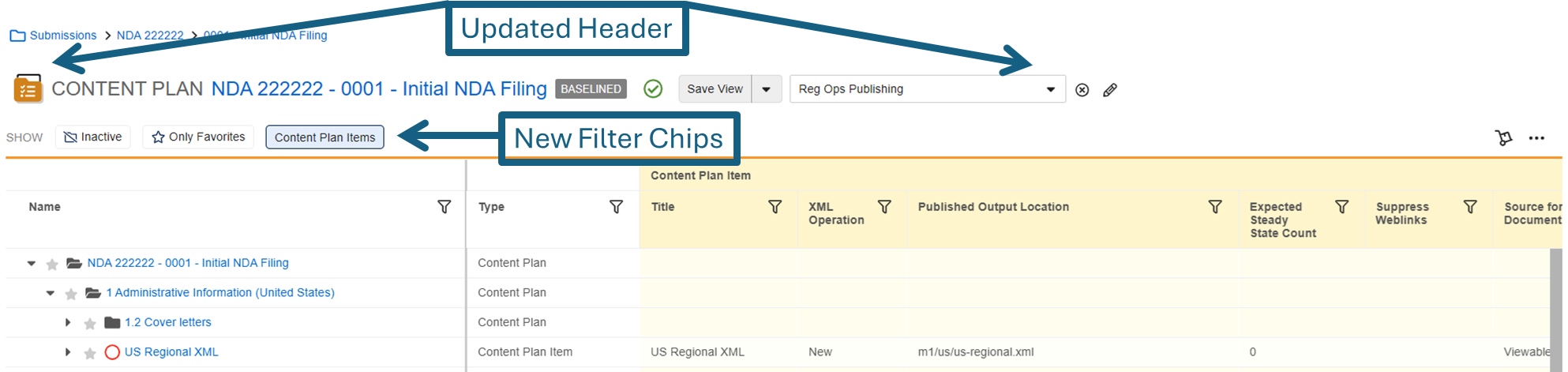
Filtering Options
One-click filter chip buttons have been added and grouped for convenience in the top left of the screen.
- Show Active/Inactive rows has moved from an isolated action on the right side of the screen to a convenient one-click on the left of the screen.
- Show Favorites Only is a new option to narrow down to selected (starred) CP and CPI records within the context of the same Root Content Plan.
- Show/Hide Content Plan Items is a new view option that provides a read-only view of the CP sections and Matched Documents only. This option will support occasional CP users or reviewers who require only to view the content in its presumptive published location, including the Embedded Document Viewer described below. When Content Plan Items are hidden, no actions may be taken on the documents or visible CP records. A popup banner will alert users that no actions may be taken while in this viewing mode.
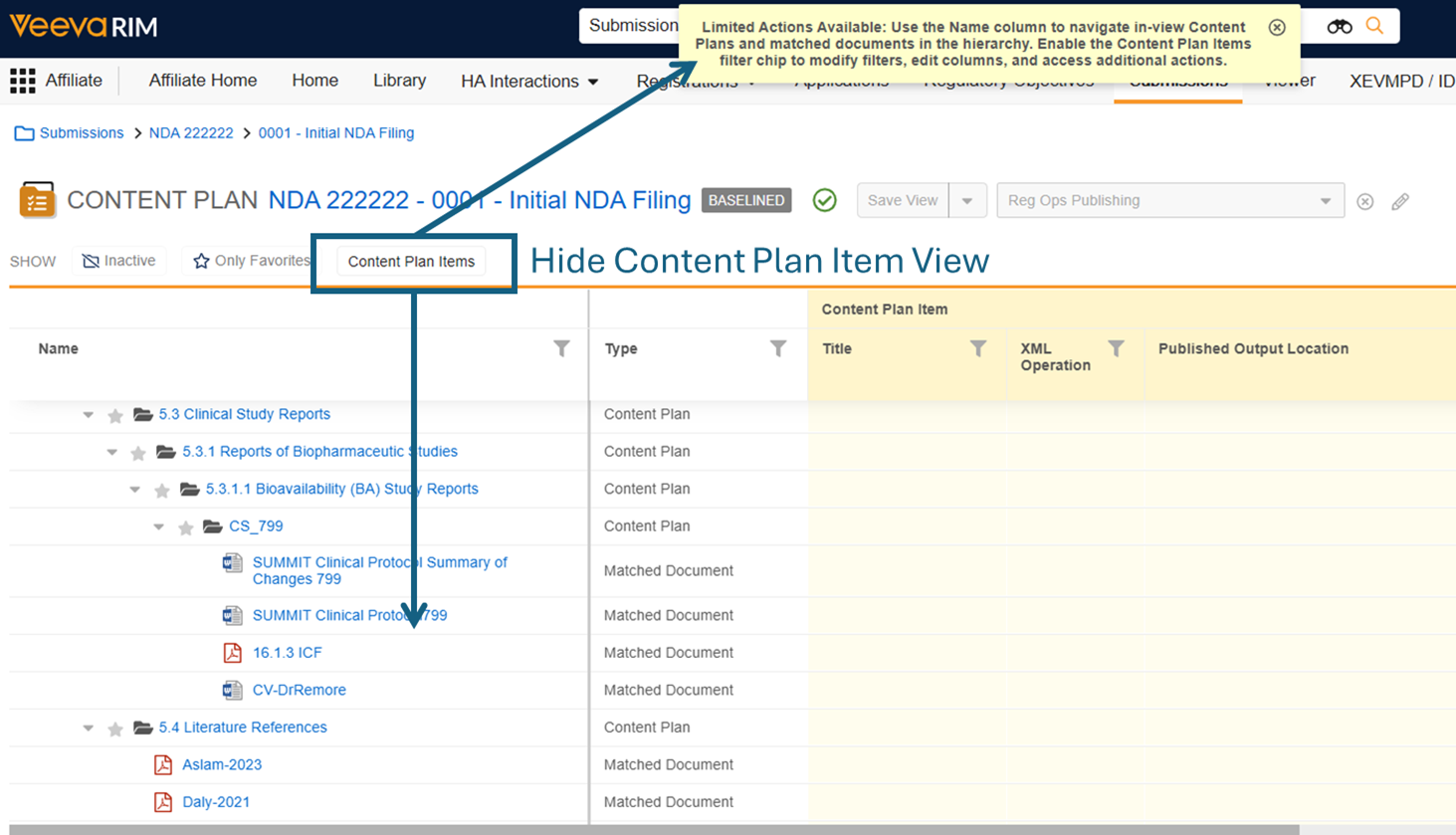
Suggested Actions
Hovering over or selecting records will reveal suggested action one-click icons to guide the user to commonly used actions. The icons change dynamically based on the current status of the record. For example, the Split CPI icon will only appear when overmatching is detected. The following actions will appear upon hovering, in the following scenarios.
- Inactive CP or CPI> Change State to Draft (Activate)
- Matched Documents > Lock/Unlock Version
- Overmatched CPI > Split Content Plan Item
- When the CPI Match Document Mode user action is configured for all lifecycle states (via checkbox), Undermatched CPI > Match Document Mode
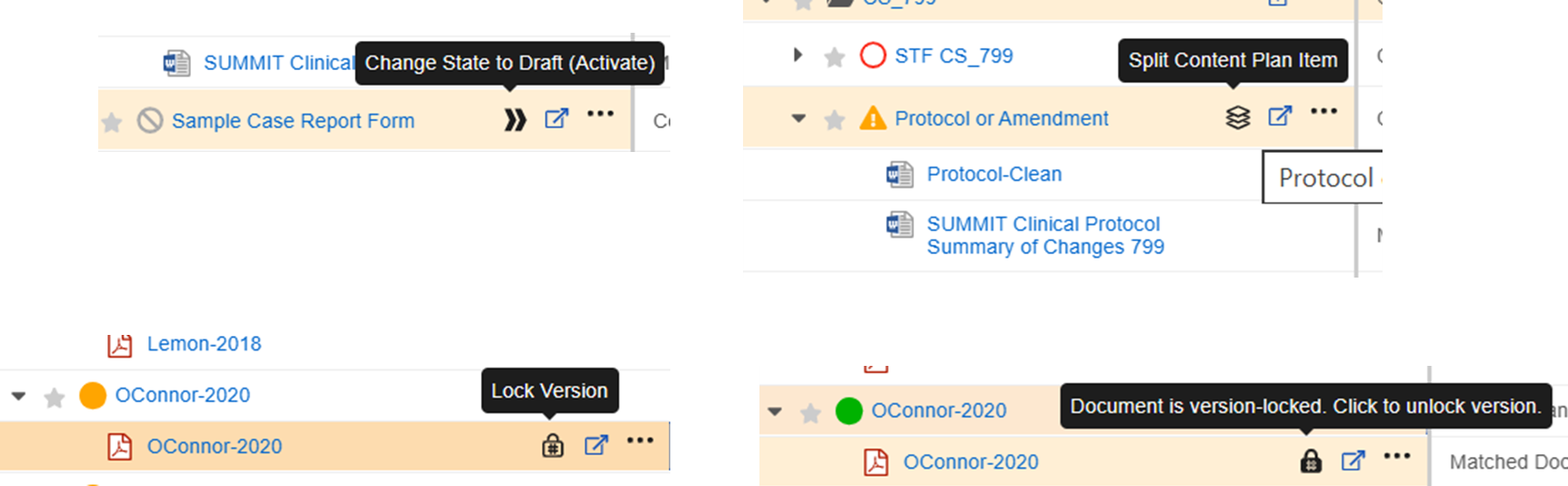
Embedded Document Viewer Clicking on a Matched Document link within the Content Plan Viewer will reveal an embedded document viewer that overlays the grid columns. This embedded document view will allow reviewers to view document content and confirm the correct document has been matched, without having to return to the Library or use the pop-out document viewer. Full document actions, such as authoring, state change/workflows, Annotations, document metadata updates, and Bookmark Editing are not available in the embedded document viewer and must be completed in the Library or pop-out document viewer. Exiting the embedded document viewer will return the user to the previously displayed grid view.
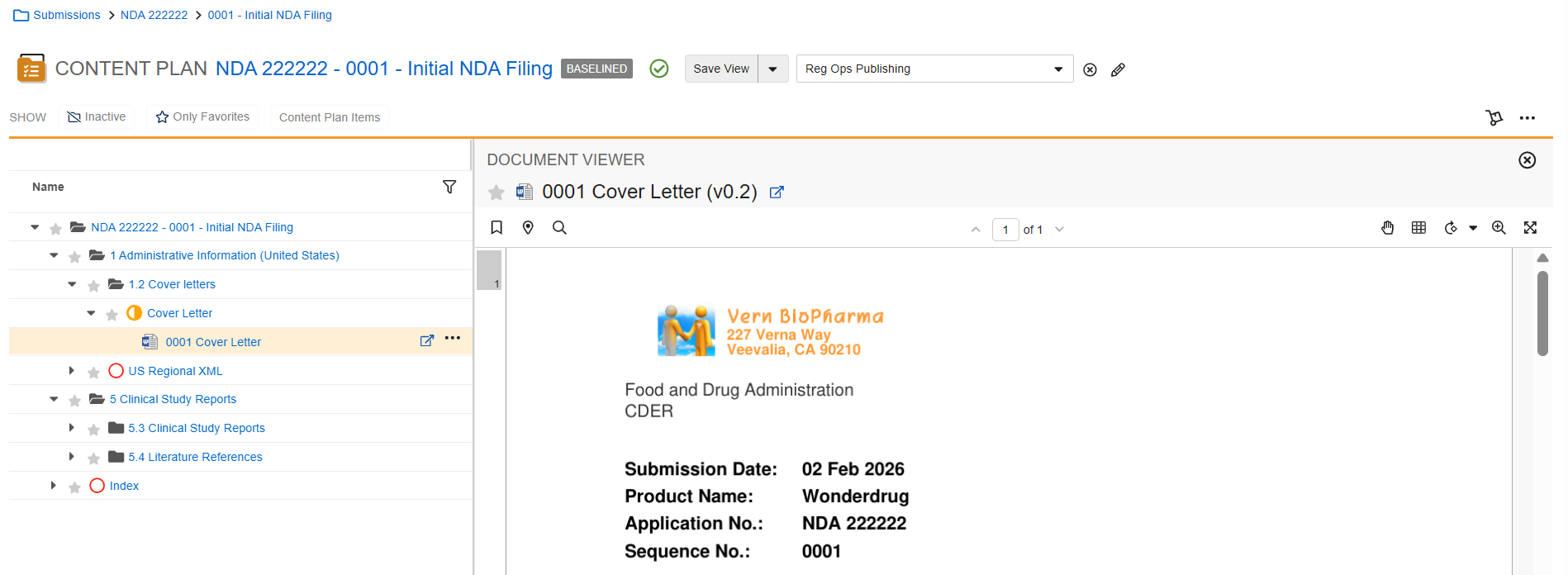
Key Benefits
The new user experience will reduce clicks, increase efficiency, and provide users with a more intuitive experience in the Content Plan Grid.
Additional Considerations
All user interface changes will be automatically applied to new and existing Content Plans of all types (GCP, SCP, RLCP).
GCP Dispatch to Follow-Up SubmissionsAuto-on25R3.4
The GCP Dispatch to Follow-Up Submissions feature allows users to dispatch Global Content Plans (GCP) to follow-up submissions in individual markets. This update supports Requests for Information (RFI) and rolling submissions by allowing a single GCP to manage global documents across multiple submission records for the same market.
What’s New?
Previously, the Dispatch Global Content Plan action only recognized the initial submission for each impacted market. Users had to manage follow-up submissions locally using existing Content Plan Creation and document matching methods.
With this release, the Dispatch Global Content Plan user action dialog includes updated filtering options to distinguish between source GCP content and target submissions:
- GCP Scope Filters: Use the Section and/or Document Set fields to filter source GCP content. When you use Document Sets, Vault only considers target activities or submissions related to that set as valid.
- Target Submission Filters: Select one of three options to identify target submissions:
- Initial Submissions by Country: Dispatches to initial submissions based on selected countries.
- All Initial Submissions: Dispatches to all initial submissions.
- Select Submissions: Allows you to choose from a drop-down list of initial and follow-up submissions related to the activities’ regulatory objectives. Submissions are grouped by application, and the initial submission for each is suffixed with (INITIAL).
Differentiation of Submission Types
Vault differentiates between initial and follow-up submissions based on their relationship to the Regulatory Objective and the Activity record:
- Initial Submissions: The first submission made in a market for a specific change event or regulatory objective. This record is populated in the Related Submission field on the Activity record.
- Follow-up Submissions: Any additional submissions made in a market to obtain approval for the same objective. These include all other submissions related to the Regulatory Objective populated on the Activity record.
Key Benefits
- Centralized Management: Manage global or core response documents in a single GCP even when submitting to multiple markets at different times.
- Efficiency: Use bulk dispatching for RFIs that impact multiple dependent markets, such as the UK, Switzerland, and Australia following an EU response.
- Rolling Submission Support: Facilitates rolling submissions in markets like the US and Canada by allowing iterative dispatching of completed modules (e.g., M1, then M4) to specific submission records.
Additional Considerations
- Enablement: This feature is auto-on for customers using the Dispatch Global Content Plan action.
- Admin Configuration: Admins must configure the Dispatch Content Plan Results (
dispatch_cp_results__v) notification to use newly provisioned tokens.
Match Document Mode Pinned FiltersAuto-on25R3.4
What’s New?
Match Document Mode now supports Pinned Filters to narrow down document lists for suggested matching. Previously, filters refreshed based on each Content Plan Item (CPI) record’s matching criteria when navigating through a Content Plan. With this update, the pinned filter preserves the field, operator, and value when moving to a new CPI.
- If a pinned filter field is not part of the CPI matching criteria, the default filters are applied in addition to the pinned filters on moving to a new CPI.
- If a pinned filter conflicts with a default matching field, the pinned filter selection is prioritised and alerts the user that one/some matching criteria could not be applied.
- If a default filter cannot be applied due to several pinned filters and reaches the limit of 25 filters, the user is notified that one/some matching criteria could not be applied.
Key Benefits
- Increased Efficiency: Users will no longer need to manually re-apply filters for each CPI when assembling submissions.
- Consistent Filtering: Specific criteria is preserved across the entire Content Plan hierarchy to locate the correct documents more efficiently.
Additional Considerations
Pinned filters are only stored for your individual user session in the Content Plan viewer. If the user navigates away and returns to the Content Plan, the pinned filters would need to be manually re-applied.
MedTech: Default Filters for Product & Product VariantsAuto-on25R3.4
What’s New?
MedTech Submissions contains multiple Submission Products, although the Submission Content Plan only has one Product section with blank Submission Product and Product fields. When assembling this section in Match Document Mode, users can now apply the following filter(s) for use across all CPIs within the Product section:
If the Primary Submissions’ Application Product Type field = Medical Device and the CPI’s matching criteria includes Product, a default multi-Product/multi-Product Variant filter will be applied, based on the Submission Product relationships. The filter is constructed as follows
- Field: Products
- Operator: ‘includes’
- Value(s): {All Product records from the Submission’s active Product relationships}
If the Primary Submissions’ Application Product Type field = Medical Device and the CPI’s matching criteria includes Product Variant, a default multi-Product Variant filter will be applied, based on the Submission Product relationships. The filter is constructed as follows
- Field: “Product Variants”
- Operator: ‘includes’
- Value(s): {All Product Variant records from the Submission’s active Product relationships}
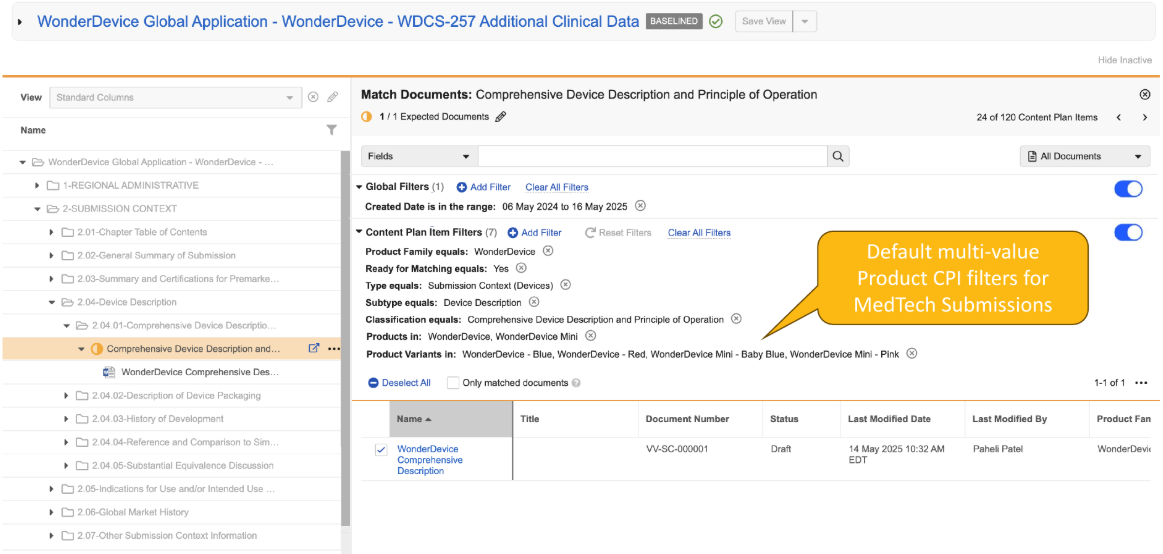
Key Benefits
Users will no longer need to manually re-apply filters for each CPI when assembling complex submissions in MedTech SCPs.
Advanced Start Support for Multi-Record Object Workflows in Content Plan ViewerAuto-on25R3.4
When initiating multi-record object workflows on Content Plan or Content Plan Item records from the Content Plan Viewer’s grid action menu, Advanced Start workflow functionality is now supported.
RIM Submissions Archive
EAEU R.022 Archive & Viewing (v1.1.0)Auto-on25R3.2
What’s New?
Submission Archive now supports the import, viewing, and export of the Eurasian Economic Union (EAEU) submissions using the EAEU R.022 1.1.0 XSD format.
Key Benefits
This update ensures compliance with all currently accepted XSD format versions of EAEU R.022.
eCTD 4.0 Archive & Viewing: Document Reuse Recurrence HandlingAuto-on25R3.4
Vault automatically reconciles eCTD 4.0 Document Titles across all instances of document and file reuse, ensuring data integrity while maintaining title consistency in the viewer. This feature drives eCTD 4.0 document and file reuse by respecting fields entered on the Application record, namely, the Lead Market. For Lead Market: United States specifically, the Health Authority Center field on the Application is used to determine what the Document Title should display for a given submission (as CDER and CBER utilize separate viewing systems).
What’s New?
Previously, if an eCTD 4.0 import resulted in a document reuse issue, the import could proceed without notifying the user of any issues. Now upon recognizing that a Document UUID or Context of Use UUID is not detected in Submissions Archive, Vault automatically notifies the import-initiating user with a warning in the Import Complete with Warnings message that says: “There is one or more items not found in this import, see the Submissions Archive Items Not Found file attachment on the submission record for more information.” Vault accounts for all instances of document and file reuse, including intra-submission, cross-submissions in the same application, and cross-application. A new system-generated CSV, Submissions Archive Items Not Found, is available in the Attachments section on the Submission record. This file notifies the import-initiating user about missing Context of Use UUIDs that could not be found in Submissions Archive, which helps users identify if a previous submission was not imported that the current, imported submission is depending on.
Document and file reuse is facilitated by the Lead Market field, and for United States Applications, the Lead Market field and Health Authority Center field:
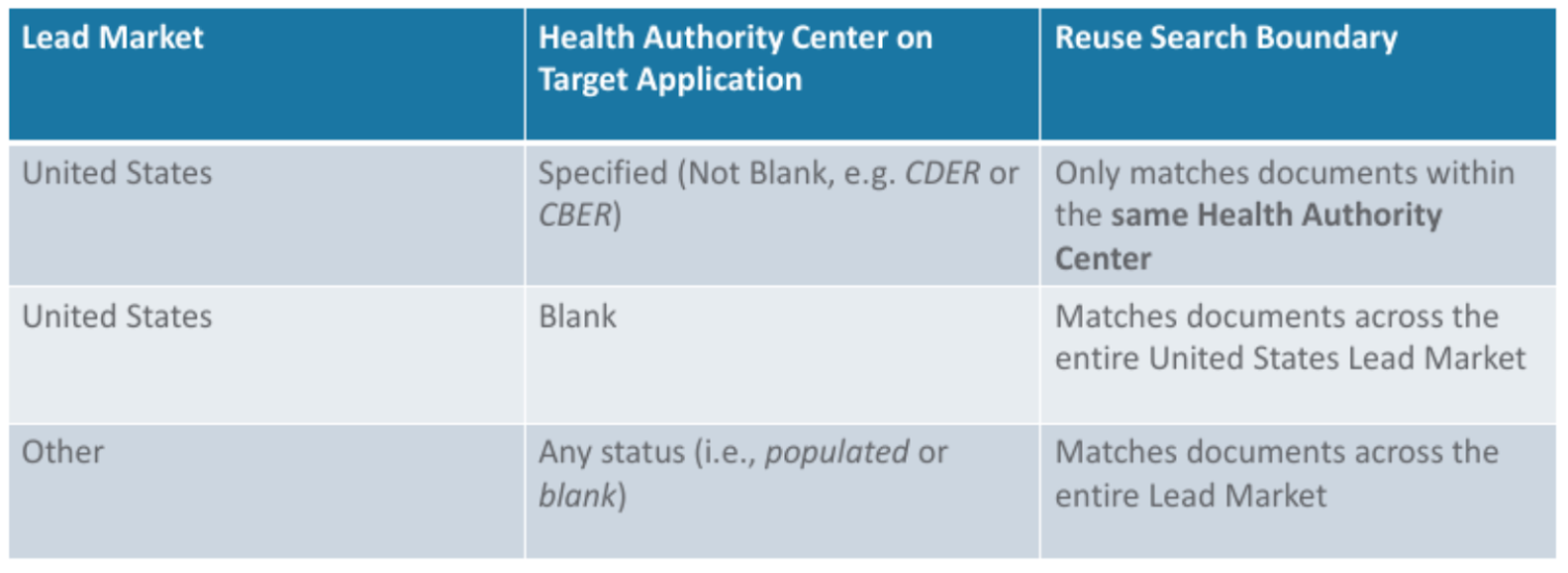
Key Benefits
Automatic notifications allow for real-time troubleshooting of eCTD 4.0 submission imports, with descriptive messaging to alert the end user responsible for imports. The new Submissions Archive Items Not Found CSV file identifies and notifies users of Document UUID and Context of Use UUID issues during import to ensure the import-initiating user is aware that a previous submission may not have been imported to the system. In this scenario, Vault cannot locate a Document UUID or Context of Use UUID, and the Items Not Found CSV informs them of the UUIDs that could not be found.
Additional Considerations
For United States Applications (eCTD 3.2.2 and eCTD 4.0,) ensure the Health Authority Center is defined to ensure document and file reuse respect the FDA Center (CDER vs. CBER).
Submissions Archive Harmonization for eCTD 4.0 Keywords OptimizationAuto-on25R3.4
This feature enhances the existing Submissions Archive Harmonization job process for ICH eCTD 4.0 submissions that contain Suspend operations and are imported out of sequential order.
What’s New?
Previously, importing eCTD 4.0 submissions out of sequential order could lead to an incomplete submission structure in the Viewer. In particular, this feature addresses when imported content that should be suspended remains visible, or incorrectly structured, due to missing Sender-Defined Keyword information for the Suspended content.
The Submissions Archive Harmonization job will now track and ensure that Suspend operations are correctly displayed for impacted Context of Use (CoU) UUIDs. When a prior submission that defines the context is eventually imported, Vault will automatically enrich the system-managed data for suspended content with the correct Keyword Information.
Each time the Harmonization job fixes eCTD 4.0 keywords, it addresses all pending corrections for a maximum of 20 minutes per job run. In the event there are keywords remaining that are not addressed within the 20 minute bout, those keywords will be addressed during the next Submissions Archive Harmonization job run. Vault Admins can review when the system has Keywords pending resolution from Admin > Operations > Job Status > History, by downloading the Job Log from the Job ID column for the Submissions Archive Harmonization. The Job Log text file reads: “Time limit of 20 minutes exceeded. Skipping remaining submissions for this application, these submissions will be processed the next time the Harmonization job runs.”
Additionally, the user who initiated the import will receive a Warning notification in the Submissions Archive import complete with warnings email notification that says “There is one or more items not found in this import, see the Submissions Archive Items Not Found file attachment on the Submission record for more information”. The new system-generated CSV file, Submission Archive Items Not Found,’ will inform the import user when a Suspend operation cannot be immediately displayed due to importing sequences out of order.
Key Benefits
Upon execution of the Submissions Archive Harmonization Job, Submissions Archive Viewer end users will see the complete eCTD structure, as expected, regardless of the order of import of submissions with Suspend operations. The Name column and the applicable Keyword columns will be correctly populated, and the Suspend operation will be correctly applied and displayed in Viewer (i.e., removed from the Application Current View).
Additional Considerations
This feature will not address the Reactivate lifecycle scenario for submissions imported out of sequential order. If a submission containing a Reactivate operation is imported out of order, the operation will display as New. Forward compatibility with eCTD 3.2 submissions, (i.e., suspending eCTD 3.2 content from an eCTD 4.0 submission) is not included in this feature.
United States eCTD 4.0 Archive & Viewing (US 1.7, 1.8)Auto-on25R3.4
This feature extends Veeva’s regulatory submission capabilities to handle the eCTD 4.0 format for US FDA submissions, ensuring compliance with the latest regulatory standards while maintaining backward compatibility with existing 3.2 submissions.
What’s New?
Veeva Submissions Archive now supports the import, export, and viewing of US FDA eCTD 4.0 submissions published using the US v1.7 or v1.8 DTD. Support for US eCTD 4.0 submission viewing will be backwards compatible with US eCTD 3.2 submissions. Viewing of Veeva-published submissions is also supported.
Key Benefits
This feature expands on Veeva’s regulatory compliance as additional global markets begin accepting eCTD 4.0 submissions. End users will experience seamless viewing of eCTD 3.2 and eCTD 4.0 submissions with no changes to the existing Submissions Archive process flow or user interface.
Additional Considerations
Import, export, and viewing of US Grouped Submissions are not supported with this feature.
Submissions Archive Harmonization job does not yet support Harmonization across ICH 3.2 and ICH 4.0. Therefore, it is recommended to batch imports of United States eCTD 3.2-based submissions into Vault first, wait for the system to complete process all eCTD 3.2 (i.e., ensure all imported Submissions have a Dossier Status of Import Successful,) then import all United States eCTD 4.0 in a separate batch. This is particularly important for custom scripted migrations into Submissions Archive of United States eCTD 4.0 submissions that use eCTD 4.0 Forward Compatibility.
China eCTD 3.2 Archive & Viewing (CN v1.1)Auto-on25R3.4
Submission Archive now supports the CN v1.1 specification to support the importing, viewing, and exporting of China submissions.
Key Benefits
This update ensures regulatory compliance with the most recent China implementation guide version.
Additional Considerations
The CN v1.1 format will be required 01 April 2026, and will be deployed to Production Vaults via a Maintenance Release in advance of 26R1.
Taiwan eCTD 3.2 Archive & Viewing (TW v2.1)Auto-on25R3.4
What’s New?
Submission Archive now supports the TFDA eCTD v2.1 specification to support importing, viewing and exporting of Taiwanese submissions.
Key Benefits
The update will allow customers to:
- Import and re-import submissions for archive.
- View submissions in supported formats (eCTD and non-eCTD) for TW eCTD v2.1 in the Submissions Archive Viewer.
- When single submission viewing > Export: Excel Tree with All Descendants
- Export a single TW eCTD v2.1 submission.
- Bulk Export of TW eCTD v2.1 submissions.
- Single removal of a TW eCTD v2.1 submission file from a submission record.
- View lifecycle history for TW eCTD v2.1.
Additional Considerations
The TW eCTD v2.1 format will be required for new Marketing Authorizations from 01 July 2026.
RIM Registrations, RIM Submissions, RIM Submissions Archive
Active Dossier: Update Global Records from Local SubmissionAuto-on25R3.4
This feature provides “Global-First” tracking logic to maintain lifecycle continuity for documents managed at a global level and dispatched from a Global Content Plan (GCP).
What’s New
Historically, local manipulation of the documents dispatched from GCP—such as splitting, merging, or changing metadata—caused a “divorce” between global and local records in the Active Dossier. This occurred because strict metadata matching (such as Manufacturer or Product Variant) between global records and Submission relationships failed. This left global records stuck in Dispatched, Not Submitted status while Vault created redundant local records upon submission.
Vault now prioritizes Document Identity over metadata alignment to ensure global records lifecycle correctly through submission l, regardless of local changes This continuous tracking of global Active Dossier records while ignoring metadata is configurable. To update the existing population logic, an Admin can check the new ‘Enable Active Dossier Global Tracking’ setting in the Populate the Active Dossier system action.
Finally, a new filter has been added to Active Dossier to ‘Display Global Records Only. When this checkbox is selected, only Active Dossier records with an Event populated are displayed.
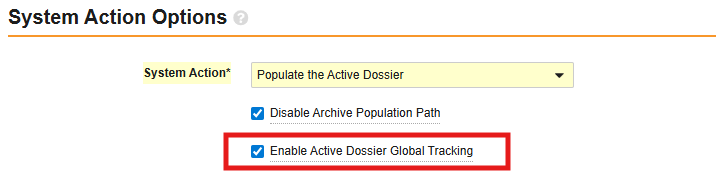
Key Benefits
- Maintaining Lifecycle Continuity: Vault updates global records from Dispatched to Submitted based on Document Identity, then to Pending Current upon approval of the Regulatory Objective, as long as the ADID’s metadata matches one of the relationships on the Regulatory Objective.
- Improving Visibility: Use the new toggle in the Active Dossier Viewer and Editor to focus on the global tracking thread.
Example
In the Global Content Plan (GCP), a document is matched to a Product-level token (e.g., Cholecap). When the Active Dossier record is first created, it is tagged only to the Product.
In the Submission Content Plan (SCP), the local team moves that same document to a more specific Product & Product Variant token (e.g., Cholecap + 50mg).
The Old Result: Because the metadata (Product Variant) no longer matched the original Global AD record, Vault would “divorce” them. The Global record would stay stuck in Dispatched, and a new, redundant Local record would be created for the 50mg submission.
The New Result: With Global Tracking enabled, Vault sees it is the same Document ID. It ignores the metadata discrepancy, identifies the original Global record, and successfully updates its status to Submitted.
Matching Criteria
When you enable the Enable Active Dossier Global Tracking workflow setting, Vault lifecycles global Active Dossier (AD) records based on:
- Matching Document ID & Version
- Matching Application & Submission.
- Matching AD Template.
- Global Marker: The record must have a populated Event field.
Active Dossier: Provide Reason When Editing ADID RelationshipsAuto-on25R3.4
Building on the Active Dossier: Product Information & Registrations Tracking feature released in 25R1, Vault now requires a Reason for Change to ensure all modifications to granular relationships are documented.
The requirement applies to the following fields in the Active Dossier Item Detail (ADID):
- Registration
- Additional Product Variant
- Additional Manufacturer
- Additional Inactive Ingredient
When you edit these relationships, Vault now prompts you to enter a Reason for Change. This ensures manual edits are captured in the audit trail, and aligns this workflow with other standard editing flows within Active Dossier.
Active Dossier: Filter by ADID Relationships Auto-on25R3.4
What’s New?
To better support the Product Information and Registration Tracking feature introduced in 25R1, RIM now includes enhanced filtering capabilities within the Active Dossier. These updates allow you to filter the Active Dossier based on Active Dossier Item Detail (ADID) relationship records, specifically Registration, Product Variant, Manufacturer, and Inactive Ingredient.
In the Item Detail layout, Vault now provides a toggle for these filters that allows you to choose between:
- By field: Filters records based on the specific field (existing logic).
- By relationship: Filters records based on the Active Dossier Item Detail (ADID) relationship records.
Key Benefits
- Improved Accuracy: Filtering by relationship ensures you are viewing the most relevant documents based on established ADID join records.
- Consistent User Experience: Vault remembers your toggle settings within the browser tab and saves them as part of your custom views.
Additional Considerations
- Layout Support: Filtering by ADID relationship is only supported in the Item Detail layout. If you switch to the Country Overview layout while these filters are active, Vault automatically reverts to the standard field-based filter and displays a “Filter Not Supported” notification.
- Permissions: To use the By relationship toggle, your security profile must grant View access to the relevant ADID join objects (ADID-Registration, ADID-PV, ADID-MFC, or ADID-II) and their corresponding fields.
- Registration Filter Requirements: The Registration filter is only available in Vaults where RIM Registrations is licensed and the Active Dossier Registration Tracking flag is enabled. When filtering by registration, you must select at least one Application before selecting Registration values.
Active Dossier Filter Availability by Layout
The following table outlines which filtering options are supported based on your current Active Dossier viewer layout:
| Filter Type | Item Detail Layout | Country Overview Layout |
|---|---|---|
| Product Variant (By Field) | Supported | Supported |
| Product Variant (By Relationship) | Supported | Not Supported |
| Manufacturer (By Field) | Supported | Supported |
| Manufacturer (By Relationship) | Supported | Not Supported |
| Inactive Ingredient (By Field) | Supported | Supported |
| Inactive Ingredient (By Relationship) | Supported | Not Supported |
| Registration (Global Filter) | Supported | Not Supported |
| Inactive Ingredient (Global Filter) | Supported | Supported |
New Fields in Active Dossier ViewerAuto-on25R3.4
What’s New?
RIM now includes six additional fields in the Active Dossier viewer to assist with tracking and filtering records. These fields are available in both the Country Overview and Item Detail layouts:
- Created By (Common)
- Created Date (Common)
- Modified By (Common)
- Modified Date (Common)
- Active Dossier Item (Common)
- Active Dossier Item Detail (Item Detail)
All of these fields are non-editable within the Active Dossier editor. Additionally, the Excel export now supports the Created By, Created Date, Modified By, and Modified Date columns.
To improve navigation, you can now use column filters for these new fields.
Key Benefits
This feature helps you manage large data sets where the maximum row limit is reached in the viewer. For example, you can perform bulk updates on visible records, then filter by Modified Date to identify and update the remaining records that were not initially visible.
Additional Considerations
- Filtering Logic: When you apply a filter to a “Common” column, Vault filters based on the field values on the Active Dossier Item Detail (ADID) records rather than the Active Dossier Item (ADI) records.
- Filter Suggestions: The values displayed in the filter drop-down menus are populated using available field values from ADID records only.
- Modified By Example: If the Modified By field is “User1” on the ADI and “User2” on the corresponding ADID, a filter for “User1” will not return a match because Vault does not check the field value on the ADI record.
Note: These fields are non-editable to ensure data integrity during the review process.
RIM Publishing, RIM Registrations, RIM Submissions, RIM Submissions Archive
Updates to Styling of Initiate Response Guided FlowAuto-on25R3.2
What’s New?
The Initiate Response guided flow styling has been updated to align with the other guided flows and pages that users access in RIM. For more details on the change in styling pattern, see Updates to Styling of Registrations Wizards & Pages.
Key Benefits
Provides a more consistent and streamlined look across the Veeva RIM application, with no impact to the current functionality.
Correspondence Email ProcessorConfiguration25R3.4
The Correspondence Email Processor introduces a dedicated email processor for specialized intake of health authority (HA) correspondence documents. This feature improves the automation and efficiency of processing correspondence documents.
What’s New?
Vault now provides a specialized email processor that automates the initial steps of the correspondence intake process. In addition to creating documents for the email and its attachments, the new processor performs the following:
- Classifies Documents: Automatically classifies documents based on the document type configured for the inbound email address.
- Assigns User Groups: Automatically assigns user groups to roles configured on the Inbox/Unclassified document lifecycle.
- Initiates Workflows: Starts a workflow that can auto-assign tasks based on the defaulted roles for the uploaded documents.
- Creates Relationships: Vault generates a relationship between the original source email document and each document created from the email’s attachments.
Key Benefits
In current Email to RIM functionality, users must manually check the Inbox to classify documents and apply metadata. With the Correspondence Email Processor, Vault automates these steps to ensure documents are immediately actionable. For example:
- If you forward an email to the assigned address, Vault can automatically classify the extracted document as a Request for Information.
- When emails include attachments, Vault creates relationships between the email source and all attachment documents.
- If configured, Vault automatically initiates a multi-document workflow and assigns tasks to specific user groups so they are notified to process documents in the Inbox.
Additional Considerations
- Sender Permissions: Senders must have permissions to create both Unclassified document types and the specific Document Type configured on the RIM Email Processor.
- RIM Bot Integration: Documents ingested by this processor can also be classified via RIM Bot if the Document Type is set to Unclassified in the processor configuration.
RIM Publishing, RIM Submissions Archive
Streamlined Import with Automated eCTD Data PopulationAdmin Checkbox25R3.2
This enhancement improves the Submissions Archive import experience by streamlining the Submission record data entry. For eCTD submissions, the XML will serve as the source of truth for any data discrepancies between data previously entered in Vault and the incoming submission’s XML values. Additionally, the Sequence ID (xml_submission_id__v) field will be protected from editing on imported or finalized published submissions.
What’s New?
Submissions Archive Import User Interface
For all imports via the UI, users will see a new dialog box that includes Dossier Format and Actual Submission Date fields. Users will be prompted to complete these mandatory fields if they are not populated. This prevents downstream viewing errors due to missing data, and prevents users from having to return to the Submission record for manual data entry if these fields were not populated.
eCTD Import Data Consistency
Upon import of eCTD sequences, Vault will automatically read the incoming XML file and populate or overwrite missing or discrepant key Vault record fields. As the XML file represents what was submitted to the Health Authority, its values will be regarded as the source of truth in the event of any discrepancies with data values entered into Vault RIM. In particular, if Vault will check the following values:
- Application > Application UUID
- Submission > Sequence ID
- Submission > Submission UUID
- Submission > Submission Unit UUID
Should a discrepancy be corrected by Vault, the user will be notified of the system action, including the previous and new values. The system action and on-behalf-of User will be included in the audit trail for traceability.
Sequence ID Lock
Upon successful submission imports (e.g., Dossier Status = Import Successful), the Sequence ID field will be locked from edits. This prevents users from intentionally or accidentally changing a Sequence ID that has been used in a finalized submission. The Sequence ID field will also be locked from editing if a submission published with Submissions Publishing reaches its finalized state (e.g., Publishing Inactive, Transmission In Progress). This automatic action protects the archived source file path and ensures the data integrity of dispatched submissions.
Invalid XML Handling
Upon import of an eCTD submission with an invalid, yet Health Authority-accepted XML, users will be prompted to complete the missing XML-related field on the RIM Submission record. This will allow the system to complete the import job and bypass the missing XML element.
Key Benefits
These enhancements reduce the manual effort of Submissions Archive importers by streamlining their data entry steps, and by identifying and auto-correcting data entry errors that do not match those in the submitted XML. These enhancements preserve the data that was submitted to the Health Authority, and ensure the same submitted data is reflected in Vault RIM object records.
For example, a Submission record Sequence ID was entered as “9009” and the imported XML file value equals “0009.” Vault will update the Submission record value to “0009” and notify the import user of the discrepancy. The XML was submitted to the Health Authority and is therefore considered the source of truth. The audit trail will include the system-managed action to change the RIM Submission record value. No changes will be made to the XML file, nor to any files included in the imported dossier.
Additional Considerations
- The new import modal will appear for every Import action, regardless of incoming Dossier Format (e.g., eCTD, NeeS, Paper). The Import-initiating user will require Edit permission to specify the Dossier Format if it is not defined on the Submission record.
- XML auto-population will run for all supported eCTD versions as defined in the Veeva Help documentation.
- The Sequence ID lock will apply to all Submission records (existing and all new imports) with a Dossier Status = “Import Successful”, and to Submission records that only have the Submissions Archive Status field populated with “IMPORT_SUCCEEDED” (Dossier Status = empty)
Active Dossier: Standard Template for Medical DevicesConfiguration25R3.4
What’s New
Vault now provides two standard, out-of-the-box templates for Active Dossier specifically designed for MedTech organizations. These templates support both in-vitro diagnostic (IVD) devices and non-IVD devices, utilizing structures based on the International Medical Device Regulators Forum (IMDRF) Table of Contents.
Key Benefit
By providing these baseline templates, Vault reduces configuration effort and accelerates your ability to adopt Active Dossier for MedTech so that your team can maintain regulatory compliance with less administrative overhead
Additional Considerations
Active Dossier Template records may appear to be out of order. It is recommended that the new templates are reviewed and repositioned in Business Admin if necessary prior to Active Dossier generation.
Select the hierarchy icon in the upper right-hand corner of the Active Dossier Template record to view the template hierarchy.
On the relevant Active Dossier Template record, select the action menu and the Reposition option to reorder the template record.
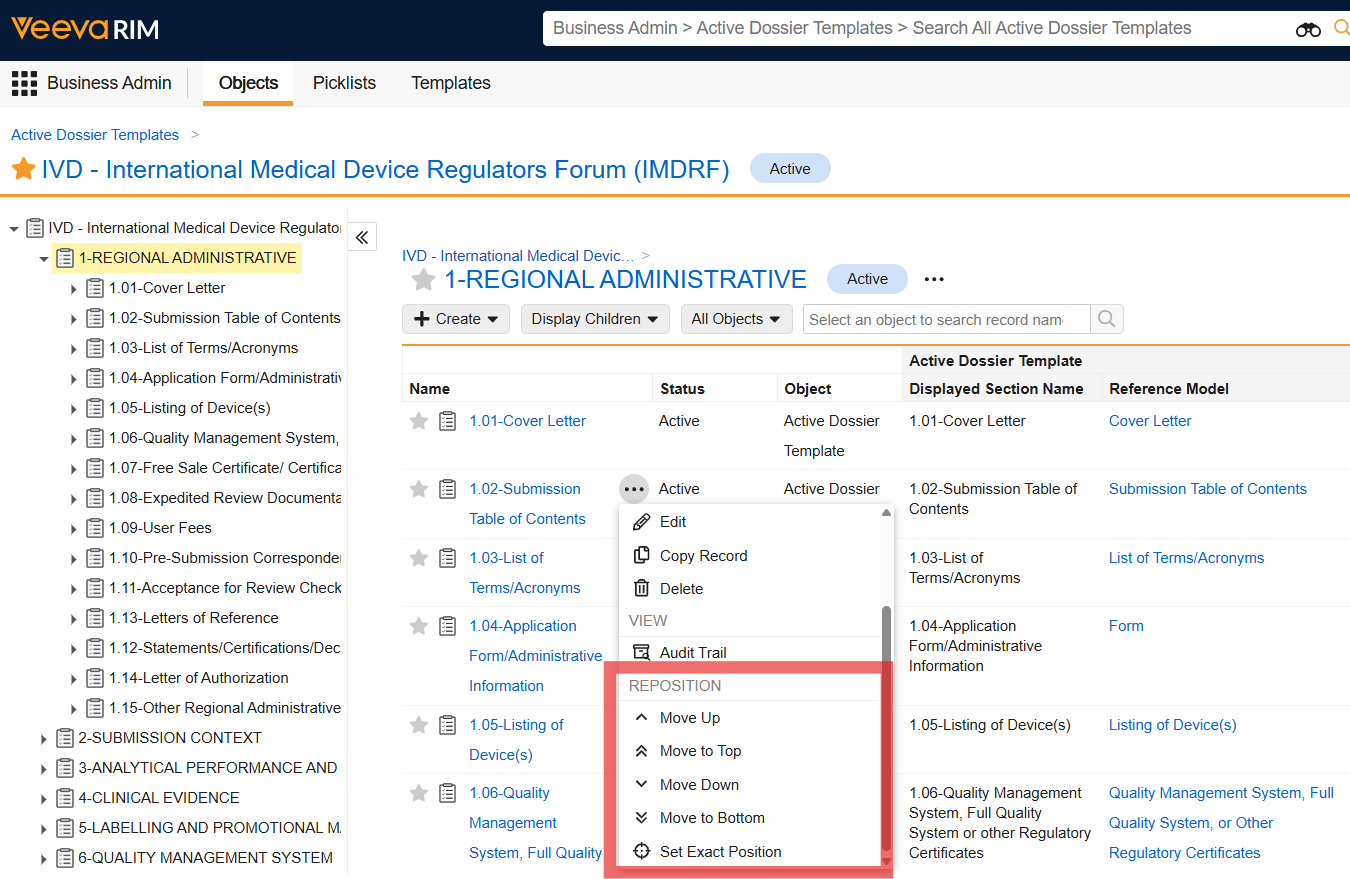
RIM Registrations
Update Local Regulatory Information: Limit to ActivitiesAuto-on25R3.2
What’s New?
The Update Local Regulatory Information action now includes a Define Activities step in its guided flow. This new step appears after the Define Relationships step and allows you to limit the scope of the update to specific Activities.
- You can now choose to scope the update down to select Activities.
- If you choose to limit the scope, you will be prompted to select one or more Activities.
- Once the action is complete, Vault limits the creation or updating of details (joins) to the selected Activities and their related Regulatory Objectives and Submissions.
The core validation logic for determining if an update is necessary remains unchanged.
Key Benefits
This feature helps maintain data integrity by preventing the creation of irrelevant data. By limiting the activities considered, you ensure that creation or updating of regulatory details is only performed for the records you specify.
Additional Considerations
- Today, without this feature, Vault considers all Activities, Submissions, and Regulatory Objectives associated with the Event.
- The validation logic will continue to determine if an update is necessary.
Support for Defaulting Event in Impact Assessment Report PromptAuto-on25R3.2
What’s New?
Impact Assessment Reports configured with an Activity > Event prompt and the “in” operator will now automatically default the Event in the Impact Assessment Report Options dialog.
Key Benefits
Allows users to skip entering the Activity > Event prompt, limiting overall clicks to get to the results.
Additional Considerations
Only the “in” filter prompt will prepopulate for Event. Vault does not prepopulate for the “equals” or “is not equal to” operators.
Create Event Details Support for Event Product & Event Indication FieldsAuto-on25R3.2
What’s New?
The Create & Manage Event Details (CMED) wizard has been updated to improve the handling of related Event fields: Event Product (on Event Inactive Ingredient) and Event Indication (on Event Clinical Study). These fields are now appropriately populated based on whether the detail is used for Registrations or Content Planning.
Event Inactive Ingredient Records
When CMED creates or generates Event Inactive Ingredient records:
- If Use for Content Planning = No, the Event Product field on the created Event Inactive Ingredient record will not be populated.
- If Use for Content Planning = Yes, the Event Product field on the created Event Inactive Ingredient record is populated with the first Event Product where Use for Content Planning = Yes, and one of the following is true:
- The Inactive Ingredient is related to the Product Variant on the Event Product via a Product Variant-Inactive Ingredient join.
- The Inactive Ingredient is related to the Complex Product on the Event Product via a Product Variant-Inactive Ingredient join between the Inactive Ingredient and one of the Complex Product’s components.
- The Product on the Event Product is not complex, and Product Variant is left blank.
Event Clinical Study Records
When CMED creates or generates Event Clinical Study records:
- If Use for Content Planning = No, the Event Indication field is not populated on the created Event Clinical Study record.
- If Use for Content Planning = Yes, the Event Indication field is populated on the created Event Clinical Study record with the first Event Indication record created by that change where Use for Content Planning = Yes.
Key Benefits
This update ensures that Event relationship fields are accurately and automatically populated based on the intended use of the Event details (Registrations or Content Planning).
Update to Select All within Create Related Records WizardAuto-on25R3.2
The Create Related Records wizard has been updated to support the selection and deselection of records across all pages on the detail selection grids in the Define Relationships step.
- The existing checkbox in the grid’s column header is replaced with a new Select All / Unselect All button above the grid.
- When Select All is selected, records across all pages for the object are selected.
- When Unselect All is selected, records across all pages for the object are deselected.
Key Benefits
The previous functionality only allowed the selection or deselection of records within a single page of the detail selection grid. Users can now efficiently select or deselect all records across every page in the detail selection grids, eliminating the need to click across multiple pages.
Updates to Styling of Registrations Wizards & PagesAuto-on25R3.2
What’s New?
The styling has been updated on several Registrations wizards and pages. The update ensures a consistent look and feel across all Registrations wizards and pages by aligning the page header, navigation pane, and wizard/page descriptions.
The following wizards and pages have been updated to use the consistent styling:
- Split Activity
- Update Local Regulatory Information
- Create & Manage Event Details (CMED)
- Preview pages for Create Related Records & CMED
- UDI viewer
- IDMP viewer
- Bulk generate, export, and submit FHIR messages.
Previously, Registrations Wizards and pages used differing styling patterns.
Styling Patterns 1 and 2 are shown below, using Update Local Regulatory Information as an example. All Wizards and Pages will now be updated to follow styling Pattern 2.
Styling Pattern 1:
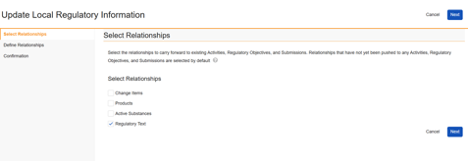
Styling Pattern 2:
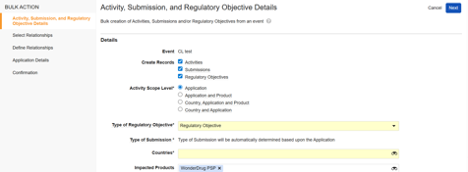
Key Benefits
This update provides a more consistent and streamlined look across the application by ensuring all Registrations wizards and pages use a single styling pattern.
Additional Considerations
This update affects the styling only and does not impact the functionality of the wizards or pages.
Support for Product Management Service (PMS) Data SubmissionConfiguration25R3.4
This release introduces the capability to submit manufacturing data to the EMA’s Product Management Service (PMS). This process will serve as a basis for all PMS data submissions moving forward, including enrichment activities and direct-to-PMS IDMP data submission once XEVMPD is decommissioned.
How It Works: A Three-Step Process
- Baseline PMS Identifiers
Use the new Populate PMS Identifiers action to sync critical IDs (PMS ID, PCID, MPID) from PMS directly into your RIM records. Vault uses the EV Code to accurately map to existing products. - Generate Manufacturing Data & Submit
In addition to the existing functionality for creating full IDMP datasets, you can now generate FHIR messages that specifically contain only the enriched manufacturing data required for PMS.- Aggregate the required manufacturing data for review in the IDMP Viewer.
- Generate compliant FHIR messages containing the data.
- Submit messages individually from a Product Data Submission (PDS) record or in bulk from a Regulatory Objective.
- Track Submission Status
- Vault automatically polls the PMS API and updates the PDS record’s Submission Status field in near real-time, with statuses such as Message Sent, Submission Accepted, and Submission Rejected.
- If a submission fails, users receive a detailed error report. You can easily resubmit after making corrections.
Product Management Service (PMS) Submission for Pack Size DetailsAuto-on25R3.4
This feature extends the IDMP Submission to PMS functionality to include Pack Size as well as manufacturing details, supporting ongoing Product Management System (PMS) enrichment activities.
Sponsors are required to enrich PMS data with pack size details for each medicinal product to support the European Shortages Monitoring Platform (ESMP). For critical medicines, you must baseline this data before June 2026. For non-critical medicines, you must complete the enrichment before the end of 2026.
Vault RIM now allows for the bulk generation and submission of pack size and manufacturing data. Key updates include:
- Expanded Data Generation: When you execute the Generate IDMP Elements action, Vault checks the Operation Type field on the Product Data Submission record. If the value is Manufacturer and Pack Size Enrichment, Vault generates a specific subset of IDMP output records, including pack size details for non-centralized procedures.
- FHIR Message Enhancements: Vault now includes the `PackagedProductDefinition.containedItemQuantity` element in the PMS-generated FHIR message. This includes the Pack Size Value and Unit of Presentation fields.
- IDMP Viewer Updates: You can now view enrichment data related to pack size in the IDMP viewer prior to generating the FHIR message.
Key Benefits
- Regulatory Compliance: Meet EMA requirements for PMS data enrichment before the 2026 deadlines for critical and non-critical medicines.
- Data Accuracy: Use the IDMP viewer to visualize and verify enrichment data before submission.
- Automated Maintenance: Efficiently manage changes to pack size and manufacturing details resulting from post-approval product variations.
- Streamlined Communication: Vault automatically uses the PUT operation to replace existing FHIR message blocks and the POST operation to create new ones.
Additional Considerations
- Centralized Procedures: If the Procedure Type is Centralised, Vault does not populate pack size data even when the Operation Type is Manufacturer and Pack Size Enrichment.
- Connectivity: This feature is dependent on an active PMS connection.
- Error Handling: If Vault cannot find a match for packaging during FHIR message generation, it still creates the message but includes an error in the results CSV.
- Configuration:
- This feature is Auto-on in Vaults where PMS API submission support is already configured.
- For new products, you must populate identifiers manually or via a migration action.
Product Management Service (PMS) Data in IDMP ViewerConfiguration25R3.4
The IDMP Viewer now supports the visualization and comparison of PMS data. This feature extends existing viewer functionality to allow for the comparison of RIM data against external IDMP data sources, including PMS, and FHIR messages generated as part of the eAF process.
What’s New?
Users can now include PMS data when generating the IDMP Data View. When selected, Vault compares PMS data to corresponding RIM data and highlights differences between the two sources.
Visualizing PMS data in the IDMP Viewer is a critical step in the IDMP product data submission process. Users should review submission data against PMS data to determine when data in RIM matches or deviates from data in PMS. This is particularly important for Manufacturer Data Enrichment activities for several reasons:
- Vetting Migrated Data: Any data currently in PMS migrated from SIAMED and Article 57 (XEVMPD) and represents the product of dossier data. Because the migration process is imperfect, users should carefully review this data.
- Data Enrichment: IDMP data sets include elements that do not exist in Article 57 (XEVMPD) or SIAMED data. Users must perform enrichment to fill these gaps.
- Submission Control: The PMS API is currently a minimum viable product (MVP) with limited validation. Because the submission process allows for PMS data to be overwritten, it is important to use RIM-side validation and comparison before submitting.
Key Benefits
- Improved Data Quality: Provides a direct comparison between internal RIM records and external EMA-managed data to ensure accuracy before submission.
- Reduced Risk: Allows users to identify and correct discrepancies, reducing the risk of accidentally overwriting valid PMS data during the submission process.
- Streamlined Enrichment: Facilitates the Manufacturer Data Enrichment process by highlighting exactly where RIM data needs to be modified or supplemented to meet IDMP requirements.
Additional Considerations
- Configuration: To use this feature, Admins must enable the PMS setting, configure a Connection to PMS, and set up FHIR message comparison.
- Scope: This feature does not include the ingestion of data from PMS. Because PMS data is EMA-managed, there is a risk that taking the data as-is may not reflect your organization’s intent.
- Support: Contact your Veeva Representative for assistance with PMS connection configuration.
Manufacturer Data Management EnhancementsAuto-on25R3.4
Overview & Purpose
This update streamlines how manufacturing data is managed for IDMP compliance. Historically, regulatory requirements for IDMP and XEVMPD required users to manually repeat identical manufacturing details, such as authorisation numbers and start/stop dates, across active substances, inactive ingredients, packaging, and finished products.
By introducing a new Site Registration model, users can now link records to pre-existing manufacturing data rather than re-entering the same information multiple times. This enhancement decreases manual data entry, significantly lowering the risk of manual errors.
What’s New?
Site Registration & Role Hierarchy
We have introduced a hierarchical relationship where the Registered Site Role acts as a child of the Site Registration. This means you only need to maintain the physical site’s master data (such as the Authorisation Number) in one place. When you assign a specific role to a product component, Vault pulls the correct details from the parent site record.
Expanded Data Model Support
We have updated the data model across Events, Applications, Submissions, and Regulatory Objectives. You can now associate a specific Site Registration and Registered Site Role to the following relationships in the transactional data:
- Active Substances
- Inactive Ingredients
- Packaging
- Products
Automated Data Population
When you select a Site Registration and a Registered Site Role, Vault automatically pulls in the following details from the parent site, so you don’t have to:
- Manufacturing Authorisation Number
- Authorisation Effective Date
- Manufacturing Operation Start and Stop Date fields
- Health Authority & Confidentiality Indicator
Data Model Changes
- New Fields: The
site_registration__vandregistered_site_role__vfields are added to all RIM join objects. - Layouts: New standard layouts are provisioned for all manufacturing and name details, such as the
event_as_manufacturing_detail_layout__v. - Mapping: Automatic data mapping is now supported for transitions between:
- App > Sub
- App > RO
- Event > App
- Sub > Reg
High-Volume Product Registration SupportAuto-on25R3.4
What’s New?
Vault RIM now includes performance optimizations for the Manage Registered Details and Create Bulk Registrations wizards to support high-volume data processing. These changes increase the maximum payload size from 2MB to 20MB, significantly reducing the likelihood of encountering the limit.
Key Benefits
This feature provides several advantages for users managing extensive registration portfolios, including increased reliability. By optimizing data transfer size, you can process large volumes of Registered Product, Registered Packaging, and Registered Packaged Product records in a single job without encountering technical size constraints.
Enablement consideration
These optimizations are Auto-on and apply to all users with access to these Registrations wizards.
Impact Assessment Report Auto-Split PromptsAuto-on25R3.4
What’s New?
With this release, users can select All for Product Variant, Packaging, and Country prompts when running an Impact Assessment Report. Previously, users were restricted to selecting a maximum of 100 records, which limited the ability to run impact assessments for large datasets.
When executing the report, the All checkbox appears to the right of the Skip checkbox. If the prompt is not optional, the All checkbox appears immediately to the right of the prompt field.
The All option is available for the following report prompts and their alternative names:
- Registered Product: Product Variant, Product, and Packaging
- Registered Packaging: Product, Packaging, and Product Variant
- Registered Product Classification: Product
- Registered Product Characteristic: Product Variant
- Registered Packaging Characteristic: Packaging
- Registered Shelf Life and Storage: Product, Product Variant, and Packaging
- Country
Vault handles the selection based on the total number of records:
- Under 10,000 records: Vault executes the report and returns all results. While the filter displays all records, editing the filter limits availability to the first 100 records.
- Over 10,000 records: Vault automatically splits the values into batches of 100 and creates a separate filter for each batch. Vault then updates the advanced logic to group these prompts using “OR” statements.
Key Benefits
- Increased Scalability: Allows MedTech customers and other users to run impact assessments even when more than 100 records require assessment.
- Automated Logic: Eliminates the manual effort of splitting large reports by automatically generating batched filters and advanced logic.
- Improved Efficiency: Provides a streamlined way to select entire datasets without manually picking individual records.
Additional Considerations
- Selection Logic: You can select up to 100 individual records or select All, but you cannot select a custom amount between 100 and the total record count.
- Mutually Exclusive Options: If you select Skip, the All checkbox is greyed out. Conversely, if you select All, the Skip checkbox is greyed out.
- UI Availability: The All option only displays when the report filter’s condition is set to “IN”.
- Empty Fields: If a defaulted field has no values, the All checkbox is greyed out and cannot be selected.
- Character Limits: Advanced logic is limited to 350 characters. When the generated logic exceeds this limit, Vault displays a banner notification stating, “The number of records selected exceeds the limit”.
EUDAMED Submission SecurityAuto-on25R3.4
What’s New?
Vault RIM now features a dedicated Submit UDI application permission that controls which users can send data to EUDAMED from the UDI Submission Viewer. Previously, submission actions were less restricted; now, users must have this specific permission to initiate the machine-to-machine transfer to the health authority.
Key Benefits
This update enhances regulatory control and data security by ensuring only authorized personnel can finalize and transmit registration data:
- Granular Access Control: Admins can now separate the review and submission processes by granting specific users the ability to review data while restricting their ability to submit to EUDAMED.
- Improved Compliance: Users without submission rights can still fully participate in the review process, including viewing all pages, adding comments, selecting “Requires further review”, or completing the review indicating it’s ready for submission. This ensures comprehensive oversight without risking unauthorized submissions.
- Flexible Review Workflows: Reviewers can still cancel or regenerate submissions if corrections are needed, maintaining efficiency in the preparation phase.
- Automated Provisioning: To minimize disruption, Vault automatically enables this permission for any permission set with the Execute permission enabled for the Review UDI Submission action on the UDI Submission object.
Additional Considerations
- Viewer Behavior: When the Submit UDI permission is missing, the Next Steps page in the viewer dynamically updates to remove the submission option and adjust the wording to confirm if the review is finished.
- Resubmission: The Resubmit UDI Submission action is also governed by this permission.
- Enablement: This feature is Auto-on. Admins can manage the new permission under Permission Set > Application, located between XEVMPD / XEVPRM and User.
EUDAMED Submission Generation: Max Object Limit EnforcementAuto-on25R3.4
What’s New?
Vault now enforces a maximum object limit for EUDAMED UDI submission generation to ensure all XML files comply with EUDAMED Production registration requirements. By default, Vault limits each submission to 40 total objects, including Basic UDI-DI and/or UDI-DI codes based on the UDI Submission type. When a registration exceeds this limit, Vault automatically splits the data into multiple compliant XML submissions.
Key Benefits
This feature helps you maintain compliance with EUDAMED’s technical constraints by preventing the generation of “oversized” submissions that the health authority would otherwise reject. It automates the complex task of organizing overflow data so that your regulatory teams can submit large volumes of device data without manual file manipulation. Additionally, Vault provides clear visibility into these splits by including warnings in the results file whenever an overflow occurs.
Additional Considerations
- Supported Submission Types: This enforcement applies to all EUDAMED submission types, including Basic UDI / EUDAMED DI Updates, UDI-DI / EUDAMED ID Market Information, and UDI-DI Container Packages.
- Enablement: This feature is Auto-On for all RIM Registrations Vaults
Assess Local ActivitiesConfiguration25R3.4
The Assess Local Activities feature provides a streamlined interface to evaluate Activities and Activity Change Items (ACIs) belonging to the same Event. This nested interface allows you to expand top-level rows to reveal sub-layers, to easily apply bulk updates, replacing the manual process of navigating to individual records.
Note: The groupings described below assume the Enable Grouping of Change Items by Product Family setting is enabled.
Grouping by Change Item
This view is best for global assessments across Product Families. It uses a three-level hierarchy:
- Level 1 — Global Change Item: Related to a specific Product Family (e.g., Cholecap).
- Level 2 — ACI Group: Grouping based on market (e.g., Cholecap - United Kingdom).
- Level 3 — ACI Detail: Granular ACI records for specific Product or Packaging changes (for example, Cholecap 10mg Tablets, 28-count Blister Pack). This is the primary level of assessment, and higher levels facilitate bulk updates and data validation.
Grouping by Market
This view is for market-specific assessments and uses a four-level hierarchy:
- Level 1 — Impacted Market: The specific country (for example, United Kingdom).
- Level 2 — Activity: The regulatory Activity assigned to that market.
- Level 3 — ACI Group: The local grouping of change items within the Activity.
- Level 4 — ACI Detail: Granular ACI records.
If Grouping is Disabled: If the Enable Grouping of Change Items by Product Family setting is disabled, the ACI Group level is skipped in both views. In this configuration, granular Activity Change Items are displayed and assessed directly under the Global Change Item or Activity rows.
If an Event contains Activities but no granular ACIs: In the absence of ACIs, Vault flattens the hierarchy and automatically hides ACI-specific columns and filters to maintain a clean, relevant interface.
How to Manage Bulk Assessments
To handle high-volume Events:
- Bulk Update: Set a group checkbox and use the fastfill bar in the Impact or Disposition columns to apply values to all child records.
- Handle Exceptions: Expand a group and use inline editing to update specific rows.
- Resolve Conflicts: Update the parent group cell to match the most stringent child value to clear warnings.
Visual Validation & Success Indicators
Vault uses color coding and roll-up logic to ensure data integrity:
- Yellow: Missing value.
- Grey: Cell has unsaved changes.
- Pink: Invalid value.
- Horizontal Conflict: Local Disposition for a record is less restrictive than an impact area in the same record (for example, CMC Impact).
- Vertical Conflict: In a grouping, a parent row is less restrictive than its child records.
- Needs Attention Filter: Click this chip to instantly filter for records requiring action. It displays a live count of unresolved items (missing values or conflicts) that decreases as you work.
- Column Roll-ups: Group rows display summary counts (for example, Missing (X) or Invalid (Y)) for that specific column. These automatically update to a final value once all child records are aligned and complete.
Note related to the Invalid values: Admins define stringency in the Impact & Disposition Order setting (for example, Prior Approval Required is higher priority than Implement then File).
Collaboration & Data Integrity
The UI supports multi-user collaboration for large-scale Events:
- Simultaneous Access: Multiple users can work on the same Event simultaneously; Vault merges updates to different fields. The last saved value will be recorded as the most current.
- Save Queuing: If you attempt to save while another save is in progress, Vault displays a notification to wait and try again.
- Audit Trail: Vault logs all changes as “System on behalf of [User Name]”.
Permissions & Visibility
Vault uses your security profile and record-level access to automatically hide unauthorized columns or rows and display a Lock icon on read-only fields.
Enablement
Admins must configure the Assess Local Activities action on the Event object. Your security profile must grant the Execute permission and Read access to the Activity and Activity Change Item objects.
EUDAMED XSD Version 3.0.25 SupportAuto-on25R3.5
Veeva RIM now supports EUDAMED XSD version 3.0.25 to ensure continued compliance with the latest European Database on Medical Devices (EUDAMED) Production environment requirements. This update allows you to accurately generate and submit Unique Device Identification (UDI) data while utilizing the newest EUDAMED technical specifications.
What’s New?
This release introduces several enhancements to the EUDAMED UDI submission process:
- General XSD v3.0.25 Compatibility: Updates to the XML generation and technical XSD validation to ensure the system can communicate with EUDAMED’s production environment without version errors.
- Automated “Partially Accepted” Status: When the standard Partially Accepted by HA lifecycle state type is associated with a custom configured Partially Accepted by HA lifecycle state on the UDI Submission lifecycle, Vault now automatically transitions UDI Submissions to Partially Accepted by HA when it contains a mix of succeeded and failed DIs. UDI Submission documents are also transitioned to a new standard Partially Accepted by HA lifecycle state.
- New Submission Warning Messages: Formal warning messages will be triggered when a submission exceeds the 1 UDI-DI per 1 Basic UDI-DI limit for the New Device submission type, informing users to create a separate “Additional UDI-DI” submission for the excluded UDI-DIs
- Enhanced BUDI De-duplication Logic: Updated logic to ensure that even if multiple products reference the same Basic UDI-DI across multiple UDI Submissions, that BUDI is only sent to EUDAMED once.
- Data Model and Validation Support for new Master UDI Annex XVI functionality: New Yes and No values are added to the Non-Medical Purpose picklist to support Annex XVI updates for Master UDI-DI. Business validation rules are updated to ensure that Master UDI-DI is only submitted with a value of Yes or No, and that the Yes and No values should not be used otherwise.
- UDI Submission enforcement: Updated logic to limit EUDAMED UDI submissions to 40 UDIs to align with new rules in the EUDAMED production environment.
Key Benefits
- Maintained Compliance: Automatically aligns your UDI submissions with the latest EUDAMED Production v2.22.0 requirements.
- Improved Visibility: The new Partially Accepted by HA state provides immediate clarity on which parts of a bulk submission were successful, allowing you to focus only on the DIs that require correction.
Additional Considerations
- Enablement: These changes are automatically available, though Admins must configure the new Partially Accepted by HA lifecycle state and associate it with the standard state type to enable automated transitions.
- Notification Updates: A new notification template is available to alert users when a submission is partially accepted, including a summary of accepted and rejected DIs.
RIM Submissions, RIM Submissions Archive
Create GCP from AD: Clinical & Nonclinical Study & Indication SupportAuto-on25R3.2
The initial functionality to create a GCP from Active Dossier only supported relationship matching and document mapping for Product, Active Substance, and Inactive Ingredient repeating section records. Documents in Clinical Study, Nonclinical Study, and Indication repeating sections were previously logged in the warning file. The capability to match relationships and map documents is now extended to support documents in repeating sections for Clinical Study, Nonclinical Study, and Indication records. This enables users to create a new Global Content Plan as a Baseline from a reference Application that includes Module 4 and/or Module 5 documents within these repeating sections.
Active Dossier: Replaced StatusAuto-on25R3.2
A new Replaced status has been introduced for Active Dossier Item Details. This status will now explicitly track document versions that have been superseded before reaching the Current status.
Key Change: These superseded documents were previously represented with a blank or empty Active Dossier Status. They will now clearly display Replaced.
Impact: This change enhances clarity and provides clearer traceability without altering the existing criteria for determining which document versions are superseded.
Scenarios Covered
The Replaced status is applied in scenarios where the status was previously blank/empty:
- Multiple Versions Submitted: When multiple document versions are submitted across different Submissions for the same Regulatory Objective:
- The earlier versions are now moved to Replaced.
- Only the latest version moves to Pending Current (behavior remains unchanged).
- GCP Dispatch: If later document versions are dispatched from a Global Content Plan (GCP) and their related Active Dossier records are created with a status Pending Current those earlier versions that have a status of Pending Current are now moved to Replaced.
- GCP Subsequent Dispatch: When document versions are replaced or removed from the SCP during subsequent dispatches of the GCP, these records are set to Replaced.
Viewer & Editor Support
The new Replaced status is fully supported in the Active Dossier Viewer and Editor:
- Viewing: Available in the AD Viewer (both country overview & item detail layouts).
- Icon: Represented by the far shuffle icon
 .
. - Hover Text: Additional hover text/alt-text has been added to the status bubble for a short description.
- Icon: Represented by the far shuffle icon
- Filtering: The new status is available for filtering in the AD Viewer.
- Editing: The new status is available for editing in the AD Editor.
Safety
For the latest central dictionary updates for your Safety Vault, see Safety Central Dictionary Updates.
Several features listed in the Veeva Connections section also affect the Safety application family.
Safety
Document Follow-Up QuestionnairesConfiguration25R3.2
This feature extends the ease and usability of online follow-up questionnaires rule setup to every follow-up questionnaire document template in your Vault Library. This allows users to review and approve generated questionnaire content prior to offline or email distribution, supporting accuracy and consistency. This enhancement leverages automated email tracking and follow-up attempts, matching what is already available for scheduled email questionnaires for case reporters. Also, Admins can customize email notification contents for email correspondence methods to match the language of the Case Reporter, making communication clearer and more effective, and can incorporate custom tokens, making messages more personalized and dynamic.
Learn More
- Enablement: Enable Follow-Up Questionnaires
- Admin Help: Set Up Follow-Up Questionnaires
- User Help: Send a Follow-Up Questionnaire to Case Contacts
Study AliasesConfiguration25R3.2
To address manual time spent reconciling external study numbers with those in your Study library, Veeva Safety now allows Admins to configure Study Number Aliases for automated Study matching for structured intake sources. This enhancement is particularly useful for customers with co-sponsored studies who commonly receive reports containing the partner’s study number. Previously, such reports resulted in manual effort during intake, as Vault could not automatically reconcile the external study number with the internal one. By allowing Admins to map aliases, Vault can now match incoming reports to the correct study. This feature reduces manual effort, improves intake efficiency, and enables automated Case promotion for structured sources being sent by trusted partners.
Learn More
- Enablement: Enable Study Aliases
- Admin Help: Manage Studies
- User Help: Inbox Item Study and Product Matching
Duplicate Detection Results Log & Usability ImprovementsAuto-on25R3.2
With this release, Veeva Safety introduces more tracking, usability, and navigation to the Potential Matches page for duplicate detection.
Tracking
- Results Log: When duplicate detection returns at least one search result, Vault now creates a CSV log of all potential matches and attaches it to the applicable Inbox Item and Case.
Usability Improvements
- Loading Indicator: During duplicate detection after users run the Promote to Case action from an Inbox Item or the Duplicate Search on Case action from a Case, Vault now displays a page to indicate clearly that potential matches are loading.
- Indication Banner: When users run the Create New Case, Compare Details, or Mark as Duplicate actions on the enhanced Potential Matches page, Vault now displays a banner to indicate clearly that the action is running.
Enhanced Navigation
- Improved Breadcrumb Functionality: When clicking the breadcrumb trail on the Inbox Item to Case Compare page to return to the enhanced Potential Matches page, Vault now returns users to the previously selected matching record. Prior to this release, navigating back via the breadcrumb trail always returned users to the first record in the list, regardless of which record they last viewed.
This feature improves efficiency, usability, and auditing capabilities.
This feature is Auto-on in Vaults configured for the enhanced Potential Matches page. Other Vaults require configuration.
Learn More
- User Help: Inbound Transmission Overview
Duplicate Detection Subject Matching for Clinical Trial CasesAuto-on25R3.2
To accelerate follow up and duplicate evaluation for clinical trial study Cases, the Potential Matches page now includes a Subject Matches section to emphasize and organize Inbox Items and Cases with a Study Type of Clinical Trial. Appearing after ID Matches, Subject Match search ranks and lists matches using the following criteria:
- EDC subject information (for records generated by the Safety-EDC Connection)
- Study number and investigational MRN
- Study number and patient initials
By applying precise subject matching criteria, this enhancement significantly reduces the risk of missing duplicate clinical trial reports, improving data integrity.
This feature is Auto-on in Vaults configured for the enhanced Potential Matches page. Other Vaults require configuration.
Learn More
- User Help: Promote to Case
Follow-up Case Compare: Always Promote Non-Displayed DataAuto-on25R3.2
This feature simplifies follow-up case comparison by resolving a known limitation with Case promotion that promotes data only for fields that appear on the Case Compare Followup page. Now, Admins can hide non-essential fields on the page layout, and Case promotion includes the non-displayed data during merge to an in-flight Case or promotion to a follow-up Case.
Learn More
- Admin Help: Configure the Case Compare Page Layout
- User Help: Perform Inbox Item to Case Compare
Product Family Substances Sync ActionAuto-on25R3.2
This feature simplifies Product library maintenance, moving product substance administration to the Product Family level. This release introduces single-click Substance propagation across all Products in a Product Family, reducing Admin labor in Product library maintenance. A new action maps all Substances on a Product Family to every Product within the family group. By automating the relationship of Substances to Products based on Product Family, this feature eliminates manual effort.
Learn More
- Admin Help: Manage Products
Code Relevant ProductsConfiguration25R3.2
With this release, to ensure search results in the Product Browser are relevant, Veeva Safety now enables you to define the Product Use Type on Products in your Library. Using the Product Use Type field, you can designate Products as Company Use, Study Use, or External Use.
Learn More
- Enablement: Enable Product Use Type for Products
- Admin Help: Manage Products
- User Help: Auto-Code and Browse Products
Company Product Browser Search & FilterAuto-on25R3.2
With this release, Veeva Safety updates the Product Browser, used for fast selection of company products on Inbox Items and Cases, to further streamline and improve efficiency during case processing.
Filtering Improvements
- Dose Strength and Dose Unit fields: The previously combined Dose Strength/Unit field is now two distinct fields: Dose Strength and Dose Unit. Allowing users to filter individually supports more precise product selection.
- Marketing Authorization Start Date: You can now filter based on the Marketing Start Date on Product Registrations.
Usability Improvement
- Expanded Browser View: The Product Browser is now taller and wider. This enhancement reduces the need for scrolling because more rows appear in the browser at once.
- Product Use Type: To return only relevant results, Vault displays only Products with a Product Use Type that is blank or Company Product.
Learn More
- User Help: Auto-Code and Browse Products
Individual Case Routing Criteria Expression RequirementsAuto-on25R3.2
With this release, when saving an Individual Case Routing Criteria record, Veeva Safety now requires the Expression field to be populated and to start with VS_LET. When the Expression is blank or incorrectly configured, Vault displays a clear error message.
Learn More
- Admin Help: Configure Individual Case Routing Criteria
FDA eMDR Automated Site Report NumberingConfiguration25R3.2
With this release, starting January 1, 2026, Veeva Safety generates Site Report Number names using the format {ManufacturerSite.SiteNumber}-{CurrentYear}-{#####}. This feature supports tracking the number of reports per site per year when reporting device cases to the FDA, improving compliance with regulatory requirements when submitting with either the FDA eMDR or FDA MedWatch 3500A form.
Learn More
- Admin Help: Manage Organizations
PMDA: Multiple Marketing Authorization Holder AutomationAuto-on25R3.2
If you have multiple Market Authorization Holders (MAHs) in Japan, this automation saves time for your data entry team. With this release, Veeva Safety automates support for submitting a single safety case to the PMDA under multiple MAHs. This is useful, for example, when a product containing the same substance is marketed under various entities in Japan. This feature is essential for pharmaceutical companies navigating corporate changes such as mergers or product divestitures, which require submitting reports under multiple MAH entities. To streamline this time-consuming and error-prone process, Vault now considers Registration Holder/Applicant values on Product Registrations to generate Case Product Registrations for each MAH, along with the supporting distinct submissions based on the configured reporting rules. This update reduces the need for manual data entry and supports efficient and compliant regulatory reporting.
Although this feature is Auto-on, some components may require additional configuration.
Learn More
- Enablement: Enable PMDA: Multiple Marketing Authorization Holder Automation
- User Help: Complete Intake and Process Cases for the PMDA
PMDA MHLW Paper Form: Export Sender's OrganizationAuto-on25R3.2
With this release, Veeva Safety exports the Organization of the User associated with the Sender (User) to Transmissions using PMDA MHLW Paper Forms. Vault populates this value in data elements C.3.4.1-C.3.4.3 in section [1-28] of forms. If a Transmission does not include a Sender (User), Vault maps the Organization on the Case. This update supports compliance with regulatory reporting requirements.
Learn More
- User Help: PMDA MHLW Paper Form Generation Data Mapping
MHRA MIR (XML)Auto-on25R3.2
With this release, Veeva Safety supports the generation and submission of the MHRA Manufacturer Incident Report (MIR) to the Medicines and Healthcare products Regulatory Agency (MHRA). Vault formats the document as an XML using the schema definitions (XSD) for Great Britain for the Manufacturer’s Online Reporting Environment (MORE) reporting system and conforming to the GB MIR 7.2.1 schema.
Learn More
- User Help: MHRA MIR Generation Data Mapping
Transmission Reason Defaulting for Migrated CasesAdmin Checkbox25R3.2
With this release, Admins can configure their Vault to default the Transmission Reason to Initial when a Submission or Distribution is generated for a Case with no previous Transmissions. This setting applies this behavior even when Vault generates a Transmission for a follow-up to an imported Case with no previous Transmission. This feature streamlines case processing and reduces the risk of error by supporting correct initial reporting for Vaults that migrated previous transmissions into the system.
Learn More
- Enablement: Safety Application Settings & Configuration Options
- User Help:
FDA E2B(R3) Standard Reporting Rule Version 4Configuration25R3.2
With this release Veeva Safety updates the standard FDA ICSR Reporting Rule Set to add Investigational to Investigational reporting scenarios for FDA E2B(R3) cross reporting. This update ensures compliance with regulatory reporting requirements.
Learn More
- Enablement: Enable FDA E2B(R3) Standard Reporting Rule Version 4
- User Help:
Case Approval Due DateConfiguration25R3.2
Cases with regional requirements require additional processing after approval, which can vary greatly by region (for example, Japan, China, Korea) and result in stricter timelines for global case processing teams to reach approval. With this release, Veeva Safety introduces a new Approval Due Date field on Cases. This field represents the internal deadline for Case approval, ensuring that Case Processors are immediately aware of the target date necessary to complete processing ahead of the regulatory submission due date. Admins can configure an Approval Due in Days Safety Rule Parameter in Safety Rules, allowing the Safety Reporting Rules Engine to automatically calculate and populate the Approval Due Date on a Case based on configured regulatory timelines. This automation significantly improves internal compliance and reduces the risk of late regulatory submissions by providing critical visibility into internal processing deadlines.
Learn More
- Enablement: Enable Case Approval Due Date
- User Help:
LATAM E2B(R3) Relabeled to Vigiflow E2B(R3)Auto-on25R3.2
This change communicates that Vault’s E2B(R3) file for submitting through Vigiflow is available for use with all health authorities and partners (for example, TÜFAM Türkiye) that accept submissions through Vigiflow. To clarify this, Veeva Safety is updating the label of the LATAM E2B(R3) document type to Vigiflow E2B(R3). Vault now displays Vigiflow E2B(R3) as the label in both the Document Type and Document Classification fields. This update simply clarifies the report format for users. There are no changes to document export or data mapping.
Learn More
- User Help: E2B Generation: Vigiflow E2B(R3) Mapping
Transmission Document Generation StatusConfiguration25R3.2
With this release, Veeva Safety introduces the Transmission Document Status field on the Transmission object, allowing users to track the generation status of transmission documents. This enhances operational visibility and control over document generation, supporting timely submission preparation.
Learn More
- Enablement: Enable Transmission Document Generation Status
- User Help:
Validation Criteria: Assessments Require Products & Adverse Events (G.k.9.i.1)Auto-on25R3.2
With this release, Veeva Safety introduces additional ICH validation criteria for ICH. G.k.9.i.1 to check for blank Case Product or Case Adverse Event references on Case Assessments. This ensures that the validation of regular Cases and E2B imported Cases remains fully aligned with the latest agency business rules.
Follow-up Case Compare: Alphabetical Sorting for Manual Match SelectorAuto-on25R3.2
To improve user experience and record findability during case compare on the Inbox Item to Case Compare page, the manual match selector picklist is updated to follow a standardized sorting logic. Previously, picklist entries could appear in an inconsistent order, making it difficult for users to quickly locate specific records during manual reconciliation.
With this release, Veeva Safety ensures that all manual match options are organized logically. All picklist entries within the manual match selector now sort in alphabetical order within their respective category sections. This enhancement applies to both initial creation of records and subsequent updates.
This feature was released in 25R3.2 without documentation.
Case Promotion: Reportability CalculationAuto-on25R3.2
Maintaining the regulatory deadlines and reportability status is essential for compliant pharmacovigilance operations. Veeva Safety now ensures that assessment generation is fully completed before Vault calculates reportability and medical deadlines.
Previously, in certain scenarios, asynchronous assessment generation and Due Date calculations could occur out of sequence. This timing conflict often resulted in cases being incorrectly labeled as Not Reportable and assigned arbitrary due dates, creating a risk for delayed processing. By eliminating this race condition, Vault provides immediate and accurate compliance data upon promotion, ensuring that high-priority cases are correctly flagged for action without the need for manual intervention or refreshes.
This feature was released in 25R3.2 without documentation.
Auto-Generate Domestic Localized Parent InformationAuto-on25R3.2
Maintaining consistency between global Cases and domestic Localized Cases can require repetitive manual steps. Previously, when a user manually added or linked Parent Information to a global Case, Vault did not automatically create the corresponding domestic Localized Parent Information. Users had to run the Re-generate Domestic Case action or Admins had to configure custom entry actions to synchronize the records.
With this release, Veeva Safety automatically generates domestic Localized Parent Information whenever parental information is manually added to a related global Case. This automation streamlines domestic case processing and reduces the risk of data discrepancies between global and local records. Key capabilities include:
- Automated Record Creation: Vault generates the domestic Localized Parent Information as soon as the Parent Information field is set on the global Case, provided the Localization Scope is blank.
- Synchronized Updates: When a user updates the Parent Information details on the global Case, Vault maps the changes to the related domestic Localized Parent Information.
- Automated Delinking: If Parent Information is delinked from a global Case, Vault removes the link for the corresponding domestic Localized Parent Information to maintain data integrity.
This feature was released in 25R3.2 without documentation.
Learn More
- User Help: Prepare a Localized Case
E2B Readable Rendition: Adverse Event & Causality OrganizationAuto-on25R3.2
Ensuring the accuracy of E2B(R3) files is critical for successful regulatory submission as well as document quality checks, yet the raw XML format presents a significant barrier to effective review. These files consist of hundreds of lines of unorganized markup and coded values, such as numerical representations for report types, that are virtually indecipherable to human readers. With this release, Veeva Safety enhances the organization of the E2B readable rendition by incorporating the G.k.9.i and adverse event references within each product-specific G.k block, as well as embedding adverse event references directly within their corresponding product sections. By grouping related data and using clear contextual headers, Vault removes the need for manual cross-referencing across separate data blocks. This structured approach makes product-event relationships immediately visible, enabling a more accurate and efficient case review during submissions.
This feature was released in 25R3.2 without documentation.
Learn More
- User Help: Generate E2B Readable Renditions
Improvements to Import to Inbox ItemConfiguration25R3.4
For organizations with complex data (such as E2B and CSV) and input streams (such as API and Gateway), the traditional import process can often struggle with the rigid requirements for data import. Previously, Vault could not set a specific localization for specific CSV files for Tabular Data Format import. With this release, Veeva Safety introduces the Localization based Mapping on Import picklist on the Tabular Data Import object. This field allows Admins to choose exactly how Vault handles incoming data:
- Import to Localized Fields: Maps incoming data directly to regional and local attributes.
- Import to Global Fields: Maintains data in a universal format, bypassing the localization restriction.
By providing the flexibility to use English language files for countries with enabled localization, this feature reduces manual data prep and ensures smoother, more efficient bulk import.
Learn More
- Enablement: Enable Multi-Case Tabular Data Import
- Admin Help: Manage Multi-Case Tabular Data Import
- User Help: Import an Inbox Item
Document Intake Highlighter: Usability UpdatesAuto-on25R3.4
To enhance the user experience during case qualification and review, Veeva Safety has updated the Document Intake Highlighter interface. Previously, standard checkboxes did not visually distinguish between populated and unpopulated mandatory fields at a glance, and users lacked clear indicators for underlying records in Edit mode.
With this release, Veeva Safety introduces visual enhancements to improve data visibility within the Document Intake Highlighter panel across both View and Edit modes:
- Edit Mode Record Indicators: While in Edit mode, Vault now displays a blue dot (
 ) icon on Product and Adverse Event classification tiles to indicate when records are present.
 - View Mode Status Icons: In View mode, mandatory qualification criteria now display a grey empty circle (
 ) icon when unpopulated. Once the data is provided, the icon automatically updates to a green circle with a white checkmark (
 ) icon.
 - Summary View Colors: Sections in the Summary view now include the specific color-coding used for each qualification criteria mapped to content in the source document to ensure clarity for all users.
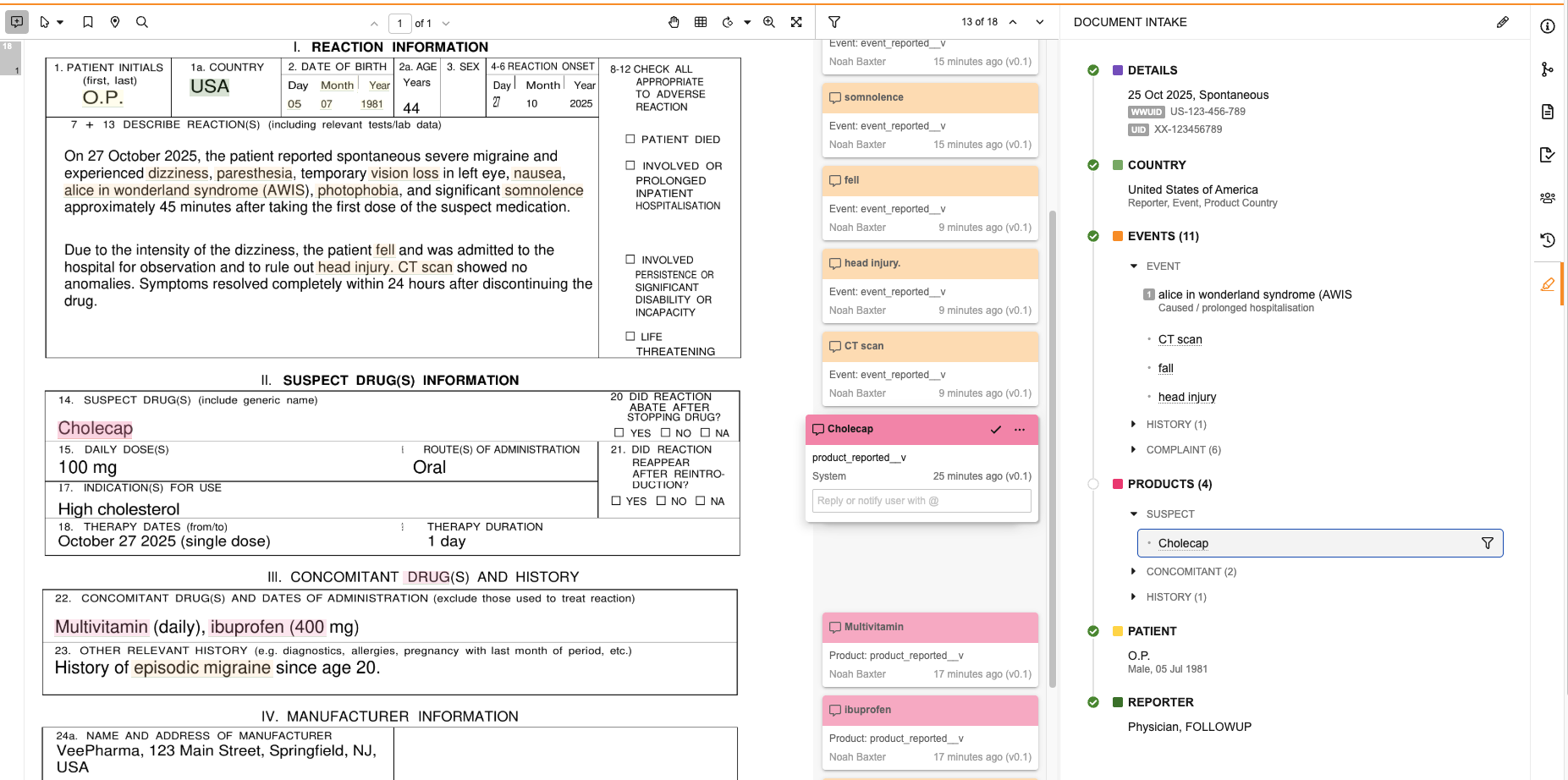
Learn More
- User Help: Document Intake Highlighter
Field Access Updates for Potential Matches PageAuto-on25R3.4
Ensuring data privacy while maintaining enough context for accurate record matching is essential for efficient duplicate management. Previously, Vault masked certain reporter-specific fields based on high-level security settings, which sometimes limited a user’s ability to verify matches effectively. Additionally, masking logic for preventing unauthorized protected health information (PHI) and personally identifiable information (PII) exposure when comparing records was not strictly aligned with Case Access Group (CAG) permissions.
With this release, Veeva Safety introduces refined field masking logic on the Potential Matches page to balance data security with functional visibility. This change ensures that users can see necessary qualifications for verification while strictly enforcing PII protections based on specific record access.
Key updates include:
- Reporter Qualification Transparency: Vault now excludes the Reporter Qualification field from the list of masked reporter fields. While other sensitive reporter details remain masked, making the qualification visible helps users assess the validity of potential matches.
- Permissions-Based PII Masking: In Vaults configured with Case Access Group Security and with PHI and PII masking on the enhanced Potential Matches page, Vault evaluates user Case Access Group permissions for both the source and matched records as follows:
- Unified Access Required: If a user has PHI and PII access for both the source and matched record, Vault does not apply masking.
- Restrictive Default: If a user does not have PHI and PII access to either the source or matched record, Vault masks both.
Learn More
- Admin Help: Manage Case Access Group Security
- User Help: Promote to Case
Case Version Compare: Improved Record MatchingAuto-on25R3.4
To improve the accuracy of follow-up case processing, Veeva Safety has refined the matching logic used during Case version comparisons. Previously, Vault relied exclusively on the Compare ID field as the primary source of truth for record matching. If Compare IDs were populated but mismatched, which is a common occurrence when using the override merge method for follow-ups, Vault treated the records as entirely different.
With this release, Veeva Safety introduces a multi-tier matching fallback to ensure consistent record identification across versions. This enhancement increases the success rate of matches, providing a more accurate baseline for narratives and follow-up statements. Key updates include:
- Intelligent Fallback Logic: If Compare IDs are present on both versions but do not produce an exact match, Vault now automatically falls back to standard record-based matching logic rather than treating them as separate records.
- Optimized Follow-up Summaries: By correctly identifying existing records that have new batch IDs, Vault improves the clarity of Case Follow-up Summaries and Rule-Based Narratives.
- Prioritized Matching Hierarchy: Vault maintains a strict logical hierarchy for comparisons: first using
link_sysfor exact matches, then checking Compare IDs, and finally deploying the regular matching framework as a robust fallback. - Cross-Version Traceability: This update ensures that override merge cases, which generate fresh batches of IDs, remain traceable against previous case versions without manual reconciliation.
Learn More
- User Help: Case Version Compare
Follow-up Case Compare: Narrative SelectionAuto-on25R3.4
Maintaining data consistency and ensuring user control over narrative generation is essential for accurate case management. Previously, the Narrative Preview checkbox on the Inbox Item to Case Compare page was non-functional, meaning that selecting or clearing it did not impact the final narrative update. This often led to confusion, as users expected to be able to manually control whether the inbound narrative or the prior version’s content was promoted.
With this release, Veeva Safety now respects the selection of the Narrative Preview checkbox, providing users with explicit control over the versioning of narrative documents during follow-up for rules based generated narratives. This enhancement ensures that the narrative document content accurately reflects user intent during the comparison process. Key updates include:
- Functional Narrative Preview Control: Vault now triggers different document versioning behaviors based on the state of the Narrative Preview checkbox:
- Cleared: Vault generates narrative document version 0.1 with the inbound content and version 0.2 with a copy of the prior Case version’s narrative.
- Selected: Vault generates narrative document version 0.1 with the prior Case version’s content and version 0.2 with the inbound narrative content.
- Ignore All Integration: When a user selects the Ignore All checkbox, the Narrative Preview checkbox is automatically cleared. However, users retain the flexibility to manually recheck it if they decide a narrative update is required.
- Rule-Based Narrative Guardrails: To prevent configuration errors in Vaults with Rule Based Narratives enabled, when Vault does not find a Narrative Outline during promotion, the Narrative Preview checkbox remains non-functional.
Learn More
- User Help: Perform Inbox Item to Case Compare
Possible Matches Search for Clinical Trial CasesAuto-on25R3.4
To streamline processing clinical trial study Cases, Veeva Safety is limiting duplicate search for this case type, since Subject IDs are unique and the risk of duplication is low. By default, when searching for potential matches for clinical trial study Cases, Vault compares the incoming record against ID Matches, Subject Matches, and Possible Matches. With this release, Admins can configure their Vault to omit the search for Possible Matches for clinical trial Cases should they wish.
To improve data clarity, on the potential matches results log, Vault now identifies Subject Matches with a Subject label in the Match Type column. Furthermore, the CSV file has been standardized to match the application page’s display order (WWUID, ID, Subject, Possible). Finally, in Vaults not running the Possible Matches search on clinical trial study Cases, Vault now saves the CSV immediately after returning the ID and subject match results.
Learn More
- Admin Help: Safety Application Settings & Configuration Options
- User Help:
Medical Assessment: Flexible Rank ColumnsAuto-on25R3.4
To streamline medical review, Veeva Safety now allows users to unfreeze the Product Rank and Event Rank columns within the Medical Assessment section on Case layouts. This enhancement ensures that the Medical Assessment interface, which centralizes all Case Assessments and Expectedness records, optimizes horizontal space to better support the reviewer’s specific needs. Previously, these columns were fixed in position, requiring Medical Reviewers to scroll horizontally to access relevant data, which reduced workflow efficiency.
Download as PDFAuto-on25R3.4
Facilitating the secure exchange of safety information with external partners and stakeholders is essential for pharmacovigilance, especially when sharing data with individuals who lack direct system access or require non-XML formats. Prior to 26R1, in Safety Vaults, the only way to have downloadable PDF versions of object records was to configure Formatted Outputs. This enhancement provides a simple, configuration-free option for users to generate user-friendly PDFs that will be formatted based on the currently selected layout for that record. If multiple layouts are available for that record, users can switch layouts to change how the downloaded PDF will appear. Introduced in 24R2, this feature is now available in Safety Vaults.
Learn More
- User Help: Viewing Object Records
Deferred Domestic Processing: Localized Event Reported in Native LanguageAdmin Checkbox25R3.4
If you process domestic reports in English and defer local processing until the final stage, this enhancement allows E.i.1.1a (Event Reported in Native Language) and E.i.1.1b (Localization Language) values on the local case version to be used in the domestic E2B export, reducing extra data entry steps and manual reconciliation.
This feature is controlled by a new application setting, giving administrators control over the reporting behavior.
Learn More
ICH E2D Additional Study TypesAdmin Checkbox25R3.4
To align with the ICH E2D(R1) guidelines and the latest ICH E2B(R3) reporting specifications, Veeva Safety has expanded the available Study Type values.
Key Enhancements
- New Study Type Values: The following new Study Type values are available to export to E2B(R3) data element C.5.4 (Study Type Where Reaction(s)/Event(s) Were Observed):
- Patient Support Program
- Market Research Program
- Organized Data Collection System
- Configurable Export Settings: A new application setting enables Admins to specify which E2B(R3) formats use the newly available Study Types.
Learn More
- Admin Help: Safety Application Settings & Configuration Options
- User Help: E2B Generation Data Mapping
NMPA: Snapshot Recoded ProductsAuto-on25R3.4
Maintaining data consistency between global Cases and Localized Cases is critical for accurate regulatory reporting. Previously, when a user manually updated or re-coded a Case Product on a global Case, Veeva Safety did not automatically update localized data for NMPA submissions. This required manual reconciliation to ensure that local fields, such as Generic Name or MAH Product, matched the updated global information.
With this release, Veeva Safety re-maps NMPA-specific data whenever a Case Product is replaced or re-coded. This automation applies to changes made directly on the Case or those that result from processing follow-up information. This enhancement ensures that Localized Cases for China remain synchronized with global changes. Key updates include:
- Automated MAH and Product Snapshots: Vault updates the Local MAH, Generic Name, and Trade Name on Localized Cases for China based on new global Case Product information.
- Approval Number Synchronization: Vault re-queries and concatenates all relevant CTA Approval Numbers from associated Study Products, ensuring local registration data is current.
- External Product Handling: For products identified as External Products, Vault now correctly populates No in the MAH Product field on the Localized Case.
Learn More
- User Help: Prepare a Localized Case
Auto-Code Relevant ProductsAuto-on25R3.4
Precise product coding is critical for maintaining data integrity and ensuring regulatory accuracy during the intake process. Previously, product auto-coding matched records to any product in the Library including Study Products and External Products.
Veeva Safety introduces updated product matching logic. When auto-coding a reported product on an Inbox Item or Case and during automated intake, Vault now restricts matches to active Products with a Product Use Type of Company Use or blank. This enhancement ensures that only valid, current company products are associated with new Cases, eliminating manual corrections and strengthening the reliability of automated data entry.
Learn More
- User Help: Auto-Code and Browse Products
Company Product Browser Country Filter ImprovementAuto-on25R3.4
To support organizations with extensive product libraries, Veeva Safety has optimized the Product Browser. These updates make searching and selecting products more intuitive, reducing the time spent navigating large datasets during case processing.
Key Improvements
- New “[is blank]” Country Filter: You can now filter the Country field by “[is blank]”. This provides greater flexibility for:
- Excluding Product Registrations from your view.
- Locating Products where specific metadata such as Dose Strength, Dose Unit, or Country has not been reported.
- Faster Country Selection: The country selection list is now sorted alphabetically, allowing users to find and select the correct region quickly without manual scrolling or searching.
- Optimized Default Search: When you search without entering text, the browser now automatically displays all Products in alphabetical order. To ensure the most relevant results, Product Registrations are now excluded from these search results by default.
Learn More
- User Help: Auto-Code and Browse Products
MedDRA Bulk Recode for Administrative MaintenanceConfiguration25R3.4
Maintaining the MedDRA dictionary references across various objects is critical but often time-consuming. Because dictionary terms undergo changes twice a year, ensuring that terms on Product-Event Combinations, Datasheets, Watchlists, and MedDRA Queries remain current has historically required manual intervention. With this release, Veeva Safety extends the MedDRA Bulk Recode tool, allowing users to identify and replace non-current terms on Product-Event Combinations, Datasheets, Watchlists, and MedDRA Queries.
Learn More
- Enablement: Enable MedDRA Bulk Recode for Administrative Maintenance
- User Help: Bulk Recode MedDRA-Coded Terms
WHODrug External Product Auto-CodingConfiguration25R3.4
Accelerating case processing and ensuring accurate dictionary coding are vital for maintaining high-quality safety data. Previously, coding external reported products against the WHODrug dictionary required manual intervention to search and browse for the correct product. Veeva Safety now automatically codes External Products against the WHODrug dictionary.
Learn More
- Enablement: Enable WHODrug External Product Auto-Coding
- User Help: Code WHODrug Products
WHODrug Global Chinese BrowserConfiguration25R3.4
Ensuring compliance with China NMPA requirements is a critical priority for global organizations, as all regulatory submissions must be localized in Chinese. While previously, users could code External Product names only using English and then manually look up the Chinese translation, Veeva Safety now supports the coding of External Products using WHODrug Global Chinese data. This feature allows users to search and browse products directly in Chinese, streamlining localized case processing.
Learn More
- Enablement: Enable WHODrug Global Chinese Browser
- User Help: Code WHODrug Chinese Products
WHODrug IDMP MPID CodingAuto-on25R3.4
As part of the industry shift toward ISO IDMP standards, WHODrug has begun publishing IDMP MPIDs alongside existing product records to provide higher data granularity. Previously, users could not easily view or capture these specific identifiers during drug coding, creating a compliance gap for emerging regional submission requirements.
With this release, Veeva Safety supports IDMP MPID data within the WHODrug dictionary to handle these global changes seamlessly, ensuring that global case processing teams can capture and submit required product identification data while maintaining high performance during the coding process.
Although this feature is Auto-on, some components may require additional configuration.
Learn More
- Enablement: Enable WHODrug IDMP MPID Coding
- User Help: Code WHODrug Products
Rules Based Narratives: UpdatesConfiguration25R3.4
Building on the Rule-Based Narrative foundation introduced in 25R2, this release provides Admins with deeper logic controls and improved workflow flexibility. These enhancements allow for more flexible narrative generation. Key enhancements in this release include:
- Inbound Transmission References: Admins can now reference inbound transmission data. This is ideal for including partner-specific statements and automatically citing the source name directly from a Transmission record.
- Document Field: Statement Formula conditions and statement formulas now support field references from documents related to the Case (for example, pulling specific metadata from literature citations), allowing for a more integrated data summary.
- Enhanced Logic with ${VS_ExistCheck}: A new optional parameter provides “fallback” text logic:
- If the input’s primary field is empty and has a defined text2 parameter, Vault exports text2.
- If the condition’s primary field is empty and does not have a defined text2 parameter, Vault exports nothing.
- If the condition’s primary field has a value, Vault exports text1 (current behavior).
- Automated Dosage Ordering: To ensure clinical chronological clarity, Case Product Dosage records are now automatically ordered in the output by the First Administration Date (earliest to latest). If dates are identical, Vault uses Creation Date as a secondary sort; blank dates are moved to the end of the list.
- Bypassing Lock Restrictions for Previews: To improve collaboration, the Narrative Preview field updates even if a Case is locked by another user. This ensures that updates to the narrative document are immediately visible to the team without waiting for a record to unlock.
Learn More
- Admin Help: Configure Rules Based Narratives
Product Quality Complaint AssessmentsAuto-on25R3.4
Optimizing case assessment generation is essential for maintaining high throughput while processing product quality complaints (PQCs). Previously, the promotion of a Case triggered the automatic generation of PQC assessments for every possible product-complaint combination, which frequently resulted in a surplus of irrelevant records that users were forced to identify and delete manually.
With this release, Veeva Safety streamlines the intake process by ensuring case assessments are generated for the specific Product Quality Complaint and PQC Product combination. By eliminating redundant assessments, this feature significantly accelerates overall case processing time.
Although this feature is Auto-on, some components may require additional configuration.
Learn More
- Enablement: Enable Generate Assessments Record Action
- User Help: Generate Assessments
External Assessments for Clinical Trial CasesAdmin Checkbox25R3.4
Maintaining compliance with varying global regulations often requires a nuanced approach to product assessment. Previously, the Exclude External Products when Generating Assessments setting suppressed assessments for all External Products across all Case types. This forced users to manually recreate external assessments for clinical trial Cases to meet specific EMA regulatory requirements. That process was often tedious and prone to error.
With this release, Veeva Safety introduces granular control for external product assessments. A new sub-setting allows organizations to continue suppressing assessments for External Products on postmarket Cases while continuing to automatically generate them for clinical trial Cases. This ensures regulatory compliance for study Cases without reintroducing unnecessary assessment noise into postmarket workflows. Key updates include:
- New Conditional Setting: The Continue generating assessments for Clinical Trial cases setting is now available as a sub-setting under the existing external product exclusion toggle.
- Study-Specific Logic: When enabled, Vault identifies cases with a Study Type of Clinical Trial and generates assessments for both Company Products and External Products.
- Postmarket Suppression: For non-study Cases or Studies not classified as clinical trials, Vault continues to exclude External Products from assessment generation based on the Exclude External Products when Generating Assessments setting.
- Workflow Stability: This logic applies during initial Case promotion, as well as when users run the Generate Assessments action, ensuring consistent data handling throughout the case lifecycle.
Learn More
- Admin Help: Safety Application Settings & Configuration Options
- User Help: Generate Assessments
PMDA: Updating Assessments Following Global ApprovalAuto-on25R3.4
Maintaining the most conservative assessment on a global Case is critical for regulatory compliance, even after a Case has reached a terminal state. Previously, Veeva Safety blocked users from editing assessments on a Japan domestic Localized Case if the related global Case was in an Approved, Closed, or Superseded state. This restriction created workflow bottlenecks for localized case processors who needed to finalize evaluations but lacked the permissions to reopen the global Case, often resulting in system errors.
With this release, Veeva Safety allows assessment changes on domestic Cases reportable to the PMDA to roll up to the global Case, regardless of the global Case’s lifecycle state. This update ensures that local processors can complete their work without the manual intervention of reopening global records, while the global Case continues to reflect the most conservative safety data. Key updates include:
- Expanded Lifecycle Support: Users can now edit assessment data on Japan domestic Localized Cases even when the global Case is Approved, Closed, or Superseded.
- Comprehensive Data Rollup: Vault rolls up edits made to Case Assessments, Case Assessment Results, and Case Assessment Expectedness from the local case to the global record.
- Automated Audit Transparency: Vault now records these automated updates in the global Case audit trail, clearly attributing the changes to the localized case processor’s edits.
- Continuous Synchronization: This enhancement supports parallel global and local processing and workflows where local assessment follows global approval, ensuring records remain aligned.
Learn More
PMDA: Unexpected Adverse Event JustificationAuto-on25R3.4
To support regulatory reporting for Japan domestic Cases for some customer configurations, Veeva Safety now snapshots Expectedness Justification to Japanese Localized Case Assessments when a matching Datasheet term is evaluated as Unexpected due to Seriousness Exclusion. Previously, justifications were populated only when a Case Adverse Event was determined to be Expected, requiring case processors to manually check Datasheets.
This feature is Auto-on in Vaults configured for Copy Datasheet Expectedness Justification to Case Assessments. Other Vaults require configuration.
Learn More
- User Help: PMDA Case Field Reference
EU MIR 7.3.1: Export UpdatesAuto-on25R3.4
This release enhances safety data mapping when generating the European Commission’s Manufacturer Incident Report (MIR) in version 7.3.1. To support compliant form generation, Vault now includes and maps the following object fields:
- Case > Manufacturer Reportable Awareness Date
- Case Product > Periodic Summary Report (PSR) ID
- Case Product > Number of Patients Involved
- Case Product > Risk Assessment Results
- Product Registration > EU Market After Application Date
Although this feature is Auto-on, some components may require additional configuration.
Learn More
- Enablement: Enable European Union Manufacturer Incident Report (EU MIR) PDF Generation
- User Help:
NMPA E2B(R3): Export UpdatesAuto-on25R3.4
This release enhances safety data mapping when generating NMPA E2B(R3) files. To support compliant XML generation, Vault now updates data mapping for the following data elements:
- E.i.4 Date of Start of Reaction / Event: If the Onset date of the Case Adverse Event is a partial date, Vault no longer exports the value.
- G.k.CN.4 Approval Number/ Acceptance Number 批准文号/受理号: When the NMPA Center on the related Transmission Profile is CDR, if the Product Registration on the Case Product is for China, Vault now first attempts to populate the related Registration Number. If the Product Registration on the Case Product is blank or not for China, Vault continues to populate the Registration Number of a Product Registration for China for the Product related to the Case Product.
Secure DTD for EMA E2B(R3)Admin Checkbox25R3.4
The European Medicines Agency (EMA) is phasing out insecure Hypertext Transport Protocol (HTTP) access to its online resources to prevent sensitive data from being intercepted or altered. Currently, the XML files for ICSRs and their corresponding acknowledgments reference schemas that are located at insecure HTTP addresses. To align with the EMA’s security transition, Veeva Safety now provides a mechanism to utilize secure HTTPS-based links for regulatory submissions.
With this release, Veeva Safety introduces a Use secure DTD for EMA E2B submissions setting within Application Settings. Enabling this feature allows administrators to:
- Adopt HTTPS Schemas: Vault updates the generated E2B(R3) XML to reference secure HTTPS schema locations for submissions to both the EMA and MHRA.
- Maintain Compliance During Phasing: Organizations can transition their systems ahead of the EMA’s mandatory deadlines, which culminate in a full production requirement for HTTPS on July 15, 2026.
- Ensure Submission Reliability: Supporting secure protocols prevents potential transmission rejections as agencies disable legacy HTTP access to their schemas.
Learn More
FDA E2B(R3): IND Aggregate ReportsAuto-on25R3.4
Ensuring compliance with FDA E2B(R3) regional requirements for aggregate reporting is essential. Previously, users had to enter specific strings like “NA,” “SUMMARY,” or “AGGREGATE” to populate the D.1 (Patient Identification) data element to satisfy various reporting scenarios. This manual process was prone to inconsistency and human error, potentially leading to technical rejection of submissions.
With this release, Veeva Safety introduces the FDA Report Type field, which automatically populates the D.1 and other applicable data elements according to the latest guidance. This automation ensures strict adherence to FDA technical standards and streamlines the preparation of complex aggregate submissions. Key updates include:
- New FDA Report Type Field: Vault adds a picklist field to the Case object, allowing users to select a summary type (e.g., Summary, Aggregate).
- Automated Data Mapping: Based on the selected FDA Report Type, Vault maps the required placeholder strings to the E2B(R3) export file, eliminating the need for manual text entry in the Patient ID field.
By automating these regional requirements, Vault reduces the administrative burden on safety teams and ensures data integrity across multi-case reports.
Although this feature is Auto-on, some components may require additional configuration.
Learn More
- Enablement: Enable FDA E2B(R3): IND Aggregate Reports
- User Help:
FDA E2B(R3): Primary Study Selection for Cross ReportingConfiguration25R3.4
The FDA requires a primary study registration designation for cross-reported studies included in the FDA E2B(R3) data elements FDA.C.5.5a. Previously, Vault exported the oldest active Study Registration based on the creation date. This logic created challenges when older registrations were deprecated, as the next oldest record was not always the actual primary registration.
With this release, Admins can designate the primary study registration for FDA submissions. This supports regulatory compliance by reporting the correct Investigational New Drug (IND) number even as study registrations evolve.
Key updates include:
- New FDA Primary IND Field: Vault adds the FDA Primary IND checkbox to the Study Registration object.
- Prioritized Export Logic: When generating FDA E2B(R3) reports, Vault now prioritizes Study Registrations with the FDA Primary IND setting.
- Automated Fallback: For Studies without designated primary Study Registrations, Vault continues to export the registration number from the earliest created US-based Study Registration associated with the Transmission.
To designate primary Study Registrations, Admins must add the FDA Primary IND field to relevant Study Registration object layouts.
Learn More
- Enablement: Enable FDA E2B(R3) Submissions and Distributions
- Admin Help: Manage Studies
- User Help: E2B Generation: FDA E2B(R3) Mapping
Vigiflow E2B(R3): Date FormattingAuto-on25R3.4
To maintain alignment with the latest WHODrug coding standards and ensure consistent regulatory submissions through Vigiflow, Veeva Safety has updated the export logic for data element G.k.2.3.r.2a Substance / Specified Substance TermID Version Date/Number. Previously, date formats in this field could vary depending on the coding source, potentially leading to inconsistencies in E2B(R3) transmissions.
With this release, Veeva Safety converts date-based TermID Versions into the MMMddyyyy format for Vigiflow E2B(R3) exports. This enhancement ensures that medicinal product dictionary versions are accurately represented and compliant with updated WHODrug formats. Key updates include:
- Standardized Date Conversion: If a numeric date (YYYYMMDD) is provided in the TermID Version field of Case Product Substances, Vault converts it to the MMMddyyyy format (for example, “20240901” becomes “Sep012024”).
- WHODrug GLOBALC3 Support: Vault now recognizes the GLOBALC3Mmmyy format used in newer WHODrug dictionaries and converts it to the required MMMddyyyy format, defaulting the day to “01” (for example, “GLOBALC3Mar25” becomes “Mar012025”).
- Intelligent Validation: To prevent incorrect conversions, Vault applies this logic only when the input meets specific criteria, such as an 8-character numeric string starting with “19” or “20”.
- Seamless Fallback: If the data is not recognized as a valid date or WHODrug string, Vault exports the MPID Version value as-is to ensure no data is lost during the transmission.
Learn More
- User Help: E2B Generation: Vigiflow E2B(R3) Mapping
Device Case Assessments & ICSR TransmissionsConfiguration25R3.4
The current Safety ICSR Reporting Rule Engine is limited to generating a single transmission per destination, creating a significant manual burden for medical device reporting. Previously, users had to manually create individual transmissions for specific devices and manually link them to the correct Case Product, an inefficient process prone to human error.
With this release, Veeva Safety enhances the Rule Engine to evaluate reporting requirements for each device constituent of a combination Case Product and Cases with multiple standalone devices. This automation ensures that ICSR transmissions are generated accurately and without manual intervention reducing the risk of non-compliance.
Learn More
- Enablement: Enable Device Case Assessments & ICSR Transmissions
- Admin Help: Configure Individual Device Transmissions
- User Help: Generate Assessments
Japan Postmarket Device & Regenerative ReportingConfiguration25R3.4
To support regulatory compliance for cases reportable to the PMDA, Veeva Safety now supports the generation and submission of postmarket medical device and regenerative medicine product forms from domestic Cases and Localized Cases for Japan. Forms 8, 10, 13, and 14 are available in both PDF and XML formats. This feature provides a comprehensive solution for capturing and transmitting the specialized regional data required by Japanese regulatory authorities.
Learn More
Automatic Validation Status RecoveryAuto-on25R3.4
Accurately tracking validation status is critical for ensuring regulatory conformance without unnecessary manual review. Previously, if the Evaluate Regulatory Conformance action failed due to a configuration issue (such as an inactive organization or a custom SDK error) the Validation Results record would remain in an Error state even after the issue was resolved and the action was re-run.
With this release, Vault automatically clears the status of Validation Results records if running Evaluate Regulatory Conformance resolves all validation issues. This enhancement ensures that validation statuses accurately reflect the current state of the record, eliminating the need for users to manually edit the Validation Status and streamlining the case review process.
Learn More
- Admin Help: Configure Custom Validation Criteria
Validation Criteria: Inactivate EMA.D.1-2Auto-on25R3.4
To maintain an efficient and up-to-date validation framework, Veeva Safety periodically retires redundant or obsolete validation rules.
With this release, Vault inactivates the EMA.D.1-2 validation criteria. This change streamlines the validation process for EMA submissions by removing a check that has become obsolete due to system-level data handling.
Specifically, because Veeva Safety now ensures that only the industry-standard MSK value is exported for the relevant data elements, this validation rule is no longer required to verify the output.
By removing this redundant check, users can focus on high-priority regulatory requirements without navigating unnecessary validation flags.
Validation Criteria: Qualification Required When Reporter Is PrimaryAuto-on25R3.4
To comply with FDA E2B(R3) regional requirements, reports must include the professional qualification of the primary reporter. Previously, Vault did not strictly enforce this requirement during the validation phase, which could lead to submission rejections if the data was missing.
With this release, Vault enforces a new validation rule, FDA.C.2.r.4 (Qualification). This criteria requires a valid Qualification whenever the reporter is identified as the Primary Reporter (C.2.r.5=1). This enhancement ensures that all mandatory reporter details are captured during case processing, improving the success rate of FDA submissions.
NMPA Validation Criteria UpdatesAuto-on25R3.4
To ensure a smooth submission process, validation rules for NMPA E2B(R3) postmarket cases must align with NMPA guidance to be fully compliant. Previously, certain validation criteria checked inapplicable records or products, leading to unnecessary manual reconciliation.
With this release, Veeva Safety updates validation criteria for NMPA E2B(R3) submissions to support alignment with this agency’s reporting requirements. These updates include:
- NMPA.C.1.CN.1 (Report Source): Vault now evaluates the NMPA Report Source on both the Localized Case and the Localized Case Contact. To reduce unnecessary validation alerts, this check is now limited to the primary reporter-type contact.
- NMPA.G.k.CN.4-2 (Registration Number): Vault now excludes External Products, since registration numbers are not applicable to this product type.
These enhancements improve data quality and user productivity by reducing manual reconciliation of validation errors and ensuring that reported information meets specific NMPA compliance standards.
Registration Number Validation Updates
To ensure regulatory compliance for NMPA E2B(R3) domestic submissions, suspect pharmaceutical products must include a valid Chinese registration number. Previously, validation logic for these registration numbers generated false positives by flagging non-pharmaceutical products, such as devices, or products without domestic reporting requirements
With this release, Vault Safety updates the NMPA.G.k.CN.4 validation criteria to strictly evaluate suspect products in domestic cases submitted to the Center for Drug Reevaluation (CDR). Key enhancements include:
- Targeted Validation Logic: When the NMPA Center is CDR and the Localized Case Classification is Domestic, Vault validates that at least one suspect case product has a non-blank registration number for China.
- Suspect Product Refinement: Vault excludes products with a drug role other than “Suspect” from this specific validation check.
- Excluded Product Types: To improve data quality, Vault ignores products of type External or Device when verifying the presence of a Chinese registration number.
These updates ensure that validation results align precisely with NMPA domestic reporting standards, reducing “false positive” errors for non-drug products.
Refined Patient Nationality Validation
To ensure data consistency in NMPA E2B(R3) reports, the patient’s nationality must be identified using a valid two-character ISO 3166 country code. Previously, the validation for patient nationality (D.CN.4) could trigger even if the nationality field was blank, which generated false positives that did not align with Vault’s export logic.
With this release, Vault only evaluates the NMPA.D.CN.4 validation criteria if a Patient Nationality is explicitly provided on the record. This update ensures the validation logic consistently matches the export logic, requiring a valid country code only when nationality data exists.
Display Non-Current MedDRA-J TermAuto-on25R3.4
Accurately representing MedDRA/J translations is critical for ensuring data clarity and consistency during Japanese case processing. Due to the nature of Japanese medical terminology, a single character string can map to multiple English terms. To manage this, MedDRA/J distinguishes between current (preferred) and non-current (non-preferred) translations, also known as MedDRA/J currency.
With this release, Veeva Safety updates the interface to display the Japanese translated term for all non-current MedDRA/J entries. Previously, when a term was classified as non-current, Vault displayed a dash (-) instead of the Japanese character string, creating ambiguity for users reviewing coded terms. This enhancement provides full visibility into the original medical intent without affecting the recode badge status, ensuring that users have the necessary context for accurate medical coding and review.
This feature was released in 25R3.4 with no documentation.
Learn More
- User Help: Code MedDRA Terms
Always Open Multilingual MedDRA Browser in EnglishAuto-on25R3.4
To support domestic Case Processors who are not fluent in the local language, Veeva Safety now enables defaulting the multilingual MedDRA Browser to English. A new user-specific Language setting on the browser can be configured to Default to English. When selected, the multilingual MedDRA Browser always opens in English, including populating reported terms in the search bar in English.
Safety, Safety Workbench, Safety Signal & SafetyDocs
26R1 Safety Suite StandardizationAuto-on25R3.2
With this release, Veeva Safety adds several standard components to ensure customers can easily adopt best practices for major business processes. Additional Standardization capabilities will be available in upcoming releases. This release also relabels the study_has_arms__v field on the Study object to Single Arm Selection on Inbox.
Veeva AI for Safety
Veeva AI for Safety: Intake AgentConfiguration25R3.4
Efficiently processing unstructured or semi-structured adverse event reports from sources like CIOMS, MedWatch, and email often requires significant manual effort to identify and transcribe clinical data. Previously, while automated solutions handled structured data (E2B XML files) effectively, manual data entry was still required for other document formats.
With this release, Veeva Safety introduces the Intake Agent, designed to extract case information directly from unstructured source documents. This agent automates the initial stages of case intake by transforming unstructured content into structured data, enabling a more efficient triaging process. Key capabilities include:
- Automated Extraction: Vault automatically extracts patient, reporter, product, and event data from received documents to populate Inbox Items.
- Intelligent Anomaly Detection: The agent identifies data inconsistencies, such as conflicting dates or demographic information, and displays them in a new Review tab for review.
- Visual Traceability: To support human-in-the-loop review, Vault automatically generates annotations on the source document, highlighting the specific text used for each extracted field.
Admins must enable the agent and configure it on the relevant inbound Transmission Profiles to allow for automated processing.
Learn More
- Enablement: Enable Intake Agent
- User Help: Intake Agent
Veeva AI for Safety: Narrative AgentConfiguration25R3.4
Generating clear and professional case narratives is a time-consuming but critical part of Pharmacovigilance case processing. Previously, users relied on rules-based narratives that were accurate but often required manual editing to improve sentence structure, grammar, and overall flow.
With this release, Veeva Safety introduces the Narrative Agent, which utilizes generative AI to refine and “smooth” auto-generated narratives. This agent builds upon existing Rules-Based Narratives to improve readability while strictly maintaining the original medical context. Key capabilities include:
- Proofread and Rewrite Actions: Users can trigger the agent on-demand from the narrative document to either perform simple spelling and grammar corrections or completely rework the text to improve professional voice and flow.
- Automatic Execution: Admins can configure the agent to execute automatically as part of the Rules-Based Narrative generation process for specific case types, such as initial cases.
- Admin Control and Configuration: Admins can enable the Narrative Agent on specific Narrative Outline records and select whether it should process initial Cases, follow-up Cases, or both.
While the agent is available for manual use on any document, Admins must configure Narrative Outlines to enable automatic invocation.
Learn More
- Enablement: Enable the Narrative Agent
- User Help: Generate a Case Narrative
Automatic Inbox Item Creation for Adverse Event Report DocumentsAuto-on25R3.4
Manual intake of Adverse Event Reports (AERs) often involves redundant steps to create and link Inbox Items after a source document is uploaded. Previously, users had to manually initiate the intake process or run separate actions to begin case processing for unstructured source documents.
With this release, Veeva Safety automatically creates and links an Inbox Item for each document of type Case > Source > Adverse Event Report uploaded to Vault. This enhancement significantly reduces manual data entry and ensures that every report is immediately tracked within the intake queue. Key capabilities include:
- Format-Specific Ingestion: Vault applies the most efficient intake method based on the file type:
- Structured Data: XML files undergo automatic E2B import, while Vault processes CSV and ZIP files via tabular data format.
- Unstructured Data: In Vaults with the Intake Agent enabled, Vault automatically extracts information from a wide range of file formats, including PDF, Microsoft Word, Outlook emails (MSG), JPEG, and PNG to populate the Inbox Item.
- Intelligent Fallback Logic: To ensure users don’t miss any reports, Vault automatically creates and links a blank Inbox Item if the Intake Agent is disabled or if the uploaded file format is of an unsupported format.
- Administrative Control: Organizations can maintain their existing workflows if desired by enabling Disable Automatic Intake of AER Documents in Safety System Settings.
- Safety Intake UI Enhancements: For AI-processed documents, the Document Intake Highlighter panel includes tabs for Case Qualification and Review, allowing users to verify extracted data alongside the source document.
Learn More
- Enablement: Enable Inbox Items
- User Help: Case Intake Overview
Safety Workbench
Report Filter Operator: Not InAuto-on25R3.2
Veeva Safety Workbench introduces the not in filter operator for reports for Object and Picklist field types. Users can now easily exclude specific Cases, such as those within a Case series, from their ad-hoc reports. This filter operator provides greater flexibility and precision when defining report criteria directly in the UI.
Learn More
- User Help: Use Workbench Report Filters
Calendar Date Report FiltersAuto-on25R3.2
With this release, Veeva Safety Workbench enhances reporting flexibility by adding calendar-based filter operators that are relative to the current date, for example, Current Quarter, Previous Month, and Today, for date fields. This eliminates the need for hardcoded SQL to define dynamic date ranges and streamlines the creation of reports for routine signal analysis and quarterly or monthly case review.
Learn More
- User Help: Use Workbench Report Filters
Workbench Report StatusAuto-on25R3.2
In 25R3, Veeva Safety Workbench introduced canceling a running Workbench Report. With this release, users can now view the running status on Workbench Reports, for example, whether a run is in progress, was canceled, or resulted in an error. Furthermore, reports can no longer be edited while they are running.
Learn More
- User Help: Manage Workbench Reports
Reusable Excel TemplatesAuto-on25R3.2
Veeva Safety Workbench now allows users to reuse the same Excel template across Workbench Reports with different safety views. This is possible due to column tokens now using a generic namespace, enabling portability for reports that share the same columns. This feature streamlines report creation and makes generating new safety views more efficient.
Learn More
- User Help: Use Custom Templates for Workbench Reports
Infinite Scroll on Dashboard DataAuto-on25R3.2
Veeva Safety Workbench introduces the Infinite Scroll option on Workbench Dashboard Components to view large datasets, eliminating the need to repeatedly navigate to the next page. The infinite scroll option loads all data (up to 100,000 cases per component) on a single page, which provides a more fluid and continuous browsing experience. Users can choose to display data using either the existing Pagination option or Infinite Scroll option. This customization allows users to align the dashboard’s behavior with their preferred way of consuming safety data.
Learn More
- User Help: Manage Workbench Dashboards
Workbench PADER Simplified Registration Number FilteringAuto-on25R3.2
To streamline PADER setup and ensure comprehensive data collection, you can now select a single Product Registration in the Aggregate Reporting Group and Veeva Safety automatically includes all matching records associated with the Registration Number to capture all required Cases.
This feature was released in 25R3.2 without documentation.
Learn More
- Admin Help:
- User Help: Create Workbench PADER Aggregate Reports
Combined Excel Export for Report SetsConfiguration25R3.4
To simplify collaboration and data sharing, Veeva Safety Workbench now allows users to export an entire report set into a single, multi-tab Excel file. Users can initiate a record action to generate one Excel file where each report from the set is represented as a separate worksheet. This download is a manual record action and is not currently available for scheduled report sets or automated library uploads.
Learn More
- Enablement: Enable Combined Excel Export for Report Sets
- User Help: Generate & Run Report Sets
Reusable Report SetsConfiguration25R3.4
This feature ensures reporting consistency, streamlines the reporting process, and eliminates the need to manage individual report definitions manually. From a single predefined report set definition, Veeva Safety Workbench now allows users to generate a report set and run multiple related reports simultaneously. For example, users can select a predefined PADER report set definition and provide shared parameters, like product and dates, to generate a PADER report set and run all included reports at once.
Learn More
- Enablement: Enable Reusable Workbench Report Sets
- Admin Help: Configure Workbench Report Sets
- User Help: Generate & Run Report Sets
Instant SQL Preview for ViewsAuto-on25R3.4
This feature reduces manual rework and accelerates reporting configuration by allowing Admins to instantly preview SQL changes without mandatory validation and before finalizing view columns.
Learn More
- Admin Help: Configure Safety Views in Safety Workbench
Import Case SeriesConfiguration25R3.4
This enhancement streamlines cross-system analysis by supporting Case series import from a CSV file into Veeva Safety Workbench. Users can identify a specific subset of cases for Workbench analysis using Excel or another third-party tool. After import, case data can be analyzed using reports and dashboards.
Learn More
- Admin Help: Configure Case Series
- User Help: Manage Workbench Reports
Migrated Follow-Up Cases for Aggregate ReportsConfiguration25R3.4
Veeva Safety Workbench aggregate reports, including PADER, DSUR, and PBRER, now support migrated historical Cases (follow-up Cases imported from legacy PV systems). This feature ensures accurate retrospective reporting by pulling required data from the earliest available Case version.
Learn More
- User Help: Manage Workbench Reports
View Parameter Enhancements for Complex ReportingConfiguration25R3.4
Veeva Safety Workbench streamlines complex reporting by introducing optional parameters and combined date range parameters. New Excel tokens allow creators to embed specific parameter values directly into templates, improving report accuracy and reducing manual data entry.
Learn More
- Admin Help: Configure Safety Views in Safety Workbench
- User Help: Use Custom Templates for Workbench Reports
Default Report Styling TemplateConfiguration25R3.4
Veeva Safety Workbench now supports consistent report branding by allowing Admins to create a global corporate styling template, which can be applied to reports with a single click. This feature reduces manual formatting effort and simplifies maintenance when style guidelines change.
Learn More
- Enablement: Enable Default Report Styling Template
- User Help: Manage Workbench Reports
Safety Workbench, Safety Signal & SafetyDocs
Add Product Families to Aggregate Reporting Groups: Data ModelConfiguration25R3.2
With this release, you can specify Product Families in Aggregate Reporting Groups. These updates lay the foundation for the Signal Calculations for Product Family Combinations feature, which will allow users to select multiple Product Families to be used for combined signal calculations.
Learn More
- Enablement: Enable Ability to Specify Product Families in Aggregate Reporting Groups
- Admin Help: Configure Aggregate Reporting Groups
Safety Signal
Clearer Error Messaging for ConfigurationAuto-on25R3.2
Veeva Safety Signal now provides descriptive error messages for common configuration issues, enabling Admins to identify and resolve calculation and safety view setup errors without technical support.
This feature was released in 25R3.2 without documentation.
Signal Case Series Dashboard RefreshAuto-on25R3.4
When opening a Signal Case Series in a Workbench Dashboard from a Statistical Data record, Veeva Safety Signal now ensures data accuracy by requiring users to apply filters before displaying any dashboard data. Previously, the dashboard displayed results from the prior load. This feature prevents Vault from displaying outdated or misleading results.
Ad Hoc Calculations Results ExpiryAuto-on25R3.4
To ensure data currency, ad hoc calculation results now expire after seven days. Users can download results to a CSV file, but after expiration, they must rerun the calculation to preview and create Statistical Data.
Learn More
- User Help: Run Signal Calculations
Statistical Data Handling Based on Active MedDRA VersionAuto-on25R3.4
This feature enhances MedDRA Term matching when creating new Product-Event Combinations from calculation results by first attempting to match using Vault’s active MedDRA Version.
Learn More
- User Help: Create and Track Product-Event Combinations
Clearer Error Handling for EBGM CalculationsAuto-on25R3.4
When EBGM scores can’t be determined or are unreliable, for example, no convergence, division by zero, or no reported cases were found for the product of interest, the calculation now completes successfully with a descriptive message. Vault displays the message in the Preview section of the Signal Calculation Run and in the related Statistical Data record, if created. This feature improves transparency by distinguishing algorithm errors from null results for more reliable signal analysis.
Although this feature is Auto-on, some components require additional configuration.
Learn More
- User Help:
Calculations & Statistical Data Creation for VAERSConfiguration25R3.4
This feature provides a better understanding of vaccine safety profiles by supporting signal detection using VAERS data. Users can run calculations, for example, Empirical Bayes Geometric Mean (EBGM) and Case counts, and create Statistical Data to store calculation results.
Learn More
- Enablement: Enable Calculations and Statistical Data Creation for VAERS
- User Help:
Information Component Calculation for Signal DetectionAuto-on25R3.4
Veeva Safety Signal introduces the advanced calculation, Information Component (IC) for the Safety database, including IC-Bayes algorithms, IC025 and IC005 credibility intervals, and the ability to specify priors. This method offers higher confidence than Proportional Reporting Ratio (PRR) even with small sample sizes, enhancing accuracy and reliability over simpler methods.
Although this feature is Auto-on, some components require additional configuration.
Learn More
- Enablement: Enable Information Component Calculation for Signal Detection
- Admin Help: Configure Signal Calculation Objects
- User Help:
Subgrouping for Targeted AnalysisConfiguration25R3.4
Veeva Safety Signal can identify safety trends by segmenting Product-Event Combination data into specific subgroups, such as age, indication, or receipt year. This feature streamlines analysis through subgroup-specific calculations, enabling deeper insights into product family performance without manual data manipulation.
Learn More
- Enablement: Enable Subgrouping for Targeted Analysis
- Admin Help: Configure Signal Calculation Objects
- User Help:
Multi-Source Signal Data ConsolidationConfiguration25R3.4
This feature streamlines signal detection and improves review efficiency by consolidating Case counts and disproportionality scores from Safety and external sources, like FAERS and EVDAS, into one Statistical Data record.
Learn More
- Enablement: Enable Multi-Source Signal Data Consolidation
- Admin Help: Configure Signal Calculation Objects
- User Help:
Statistical Data Handling Based on MedDRA VersionAuto-on25R3.5
This feature builds on Statistical Data Handling Based on Active MedDRA Version. When creating new Product-Event Combinations (PECs) from calculation results, if Vault cannot find the term in the active MedDRA version, Vault attempts to match based on the latest loaded MedDRA version in Vault, followed by the MedDRA version the term was last active in. If Vault cannot find a match, an error occurs and the PEC is not created.
Learn More
- User Help: Create and Track Product-Event Combinations
Safety Signal & SafetyDocs
Signal Review Scheduling
With this release, Veeva Safety Signal and SafetyDocs automate the scheduling of routine signal surveillance reviews by introducing automated creation of Signal Reporting Periods based on a predefined schedule for a Signal Product Profile. This feature eliminates the need for manual tracking in external tools like spreadsheets.
Signal Calculations for Product Family CombinationsConfiguration25R3.4
Managing signal detection for complex product portfolios can require analyzing safety signals across entire drug classes or therapeutic areas. With this release, Veeva Safety Signal extends the existing Product Family signal calculation functionality, introducing the ability to perform signal calculations at the Aggregate Reporting Group level. This feature streamlines signal detection by allowing you to group Product Families and generate scheduled or ad-hoc signal calculation scores (e.g., EBGM) and Case counts.
Learn More
- Enablement: Enable Signal Calculations for Product Family Combinations
- Admin Help: Configure Signal Calculations Settings for Aggregate Reporting Groups
- User Help: Create Statistical Data
SafetyDocs
PSMF Binder Periodic ReviewsConfiguration25R3.2
With this release, Veeva SafetyDocs supports the ability to configure periodic reviews for PSMF Binders, helping organizations to remain compliant by maintaining up-to-date PSMF content. This feature eliminates the burden of manually scheduling reviews and tracking review completion by automating review task assignment, allowing users to assess PSMF content and make updates as necessary.
Learn More
- Enablement: Enable PSMF Periodic Reviews
- User Help: Manage PSMF Periodic Reviews
Literature Integration to PubMed EnhancementsConfiguration25R3.2
With this release, Veeva SafetyDocs significantly improves Literature Integration to PubMed, introducing flexible scheduling options by:
- Introducing weekly and monthly literature article search jobs, giving users the ability to precisely customize search frequency
- Populating the URL on Literature Articles sourced from PubMed
- Adding warnings on the Search Term field of Literature Search Terms to reduce errors during automated searches
This update ensures increased flexibility in data retrieval, contributes to optimized system performance, and provides clearer job identification across all automated searches.
Learn More
- Enablement: Enable Literature Integration to PubMed
- User Help: Manage the Literature Review Process
Added Standard First Day of the Month ScheduleAuto-on25R3.2
With this release, Veeva SafetyDocs introduces a standard Schedule for the first day of month and a corresponding Schedule Component for creating custom Schedules.
Learn More
- Admin Help: Configure Schedule Records
- User Help: Manage Pharmacovigilance Agreements
PVA: Defer Contact EntryConfiguration25R3.2
With this release, Veeva SafetyDocs provides greater flexibility for managing PVA obligations, allowing users to create PVA Obligations before sponsor or partner contact information is known. The ability to defer contact entry streamlines the obligation creation process, preventing delays caused by waiting for specific contact details, improving operational efficiency, and ensuring that critical safety tasks can be initiated faster.
Learn More
- Enablement: Enable PVA Management
- User Help: Manage Pharmacovigilance Agreements
PVA: MAA Document Required for DistributionAuto-on25R3.2
With the release, Veeva SafetyDocs now requires a document when creating a PVA MAA Document for Distribution, preventing distribution errors that occur when records are created without a specific document.
Learn More
- User Help: Manage PVA Multi-Agreement Activities
Terminate PVA Documents ActionAuto-on25R3.2
With this release, Veeva SafetyDocs reduces the manual effort required to maintain your PVA documentation in Vault by introducing the Make Agreement Documents Terminated action on the PV Agreement object. This action allows PVA documents to automatically transition states in accordance with their related PV Agreement’s state. This action replaces the Make Agreement Documents Superseded action.
Learn More
- Enablement: Enable Document State Automation for PVA
- User Help: Manage Pharmacovigilance Agreements
Support Multiple Reviewers During PSMF Periodic ReviewConfiguration25R3.4
Ensuring comprehensive oversight of PSMF documents often requires input from multiple subject matter experts. Previously, PSMF periodic review tasks were restricted to the document owner, making it difficult for organizations to involve multiple stakeholders in a standardized review workflow without manual workarounds.
With this release, Veeva SafetyDocs supports multiple reviewers for PSMF periodic reviews, allowing PSMF Coordinators to predefine groups of reviewers by section or document to ensure all necessary stakeholders are alerted when a review is required. Key capabilities include:
- Automated Multi-User Task Generation: When a periodic review is triggered, Vault generates individual review tasks for all users and groups assigned the PSMF Periodic Review SME role for that document.
- Flexible Outcome Handling: Administrators can configure how Vault handles document versioning for reviews with multiple verdicts, such as up-versioning the document immediately upon the first Changes needed result, or waiting for all reviewers to complete their tasks.
- Automated Task Management: If a reviewer indicates that changes are needed to a document, Vault can be configured to cancel remaining open tasks for that document to prevent redundant work.
- Support for Manual and Scheduled Reviews: This multi-reviewer logic applies to both scheduled periodic reviews and ad-hoc reviews created manually by users.
Learn More
- Enablement: Enable Support Multiple Reviewers During PSMF Periodic Review
- User Help: Manage PSMF Periodic Reviews
PSMF: Display Document Title in PDF Table of ContentsAdmin Checkbox25R3.4
To meet specific organizational branding or regulatory preferences, companies often need flexibility in how documents are identified in formal reports. Previously, the generated PSMF table of contents supported displaying only the document Name. With this release, Veeva SafetyDocs allows customers to display the document Title in the table of contents in the generated PSMF PDF, allowing for the use of more descriptive or formal titles.
Learn More
- Enablement: Enable PSMF Automatic Logbook Generation
- User Help: Manage PSMF Binders and Logbooks
PSMF Logbook GovernanceConfiguration25R3.4
For organizations managing the Pharmacovigilance System Master File (PSMF), maintaining a precise and immutable audit trail is essential for regulatory compliance. Previously, logbook entry management lacked granular restrictions, which could lead to inconsistencies in documentation and data integrity during lifecycle transitions.
With this release, Veeva SafetyDocs introduces enhanced PSMF Logbook functionality, providing administrators with two key controls to enforce stricter document governance:
- Comment Editing Restrictions: Admins can now restrict PSMF Logbook Entry editing on a document to the user listed in the Person Making Changes field. To ensure administrative oversight, the PSMF Office Manager role retains the ability to edit as needed.
- Mandatory Lifecycle Comments: A new entry action prevents a PSMF document from moving to the next lifecycle state if a user has an incomplete PSMF Document Review task without a corresponding PSMF Logbook Entry, or if any Summary of Changes fields are blank.
By automating these checks and limiting edit access, this feature streamlines the PSMF maintenance process while ensuring all logbook entries are complete and traceable according to regulatory best practice.
Learn More
- Enablement: Enable PSMF Automatic Logbook Generation
- User Help: Manage PSMF Binders and Logbooks
Increase PSMF Logbook Record LimitAuto-on25R3.4
For organizations managing the PSMF, capturing a comprehensive audit trail from every individual contributor is critical. In large-scale operations, tracking and navigating individual change summaries can become difficult as the number of contributors grows.
With this release, Veeva SafetyDocs enhances the PSMF Logbook to support high-volume collaboration and improved data visibility. Key updates include:
- Increased Contributor Capacity: SafetyDocs supports up to 50 PSMF Logbook Entries per major version of a PSMF document, ensuring that even the most complex PSMF sections capture all necessary input throughout their lifecycle.
- Enhanced Navigation: To maintain usability with high entry volumes, the PSMF Logbook panel now features a paginated view when a document contains more than 10 PSMF Logbook Entries.
- Keyword Search: Users can now search for named contributors or specific keywords within the Summary of Changes fields, allowing teams to quickly filter entries to those with relevant information.
By expanding the entry limit and providing search and navigation tools, Veeva ensures the PSMF remains a searchable, accurate, and audit-ready reflection of all system modifications.
Learn More
- Enablement: Enable PSMF Automatic Logbook Generation
- User Help: Manage PSMF Binders and Logbooks
Automated Inbound PVA Activity Email ProcessingConfiguration25R3.4
With this release, Veeva SafetyDocs automates the receipt and processing of inbound Pharmacovigilance Agreement (PVA) obligation activities and their related documents from partners, significantly boosting operational efficiency and compliance. By using a secure Email to Vault functionality and a unique inbound email address for each activity, Vault eliminates effort by generating auditable documents for emails and attachments and assigning them to the appropriate PVA Activity record while updating the PVA Activity lifecycle state. This automation ensures faster processing, immediate status updates, and transparent communication via automated notifications for partners regarding receipt, completion, or necessary corrections related to PVA obligation activities.
Learn More
- Enablement: Enable Automated Inbound PVA Activity Email Processing
- User Help:
PVA: Event Based ActivitiesConfiguration25R3.4
Managing compliance across dozens of Pharmacovigilance Agreements requires constant monitoring of various safety milestones. Previously, creating activities for multi-agreement obligations often required manual tracking of events like PSMF generation or safety investigation updates.
With this release, Veeva SafetyDocs introduces automated activity creation for monitored obligation events. When a monitored event is detected, Vault creates a series of object records, ensuring that reportable events are identified and acted upon across all impacted partner agreements with minimal manual oversight. Key components include:
- Automated Event Monitoring: Admins can configure entry actions to trigger specific events, including changes to Safety Investigations, PSMF Generated PDFs, and Core RMPs.
- Multi-Agreement Activity Records: When a relevant event occurs, Vault creates a single PVA Multi-Agreement Activity record that captures the event and identifies all impacted PVA Obligations.
- Intelligent Obligation Matching: Vault uses multiple datapoints to determine which specific PVA Obligations are relevant to the identified event.
- Consolidated Visibility: The PVA Multi-Agreement Activity provides a centralized view of the event’s overall impact across all global partners, allowing users to create PVA Activities and distribute documents for all impacted PVA Obligations in one click.
Learn More
- Enablement: Enable PVA: Event Based Activities
- User Help:
Clearer Error Handling When Generating PSMF PDFsAuto-on25R3.4
With this release, Veeva SafetyDocs introduces clearer error messaging for the Generate PSMF PDF action. While certain issues could previously cause PDF generation to fail without surfacing meaningful feedback, Vault now proactively identifies these failure scenarios and returns explicit error messages, enabling faster troubleshooting.
Learn More
- User Help: Manage PSMF Binders and Logbooks
Prevent Risk Measure Duplication on Local Implementation StrategiesAuto-on25R3.4
Maintaining a clean and accurate safety record is essential for Risk Management Plan (RMP) compliance. With this release, Veeva SafetyDocs prevents the duplication of Risk Measures when the Create Local Implementations action is executed multiple times, ensuring that only new Risk Measures from the Core Implementation Strategy are added to the Local Implementation Strategy.
Learn More
- User Help: Manage Implementation Strategies
QualityOne
Document Control
Support up to 5 External Collaborators for Document External CollaborationAuto-on25R3.4
This feature enables users to add up to five External Collaborators to work on a document. Previously, users could identify only one External Collaborator. This feature allows more users to collaborate on a document through review and approval workflows.
Learn more about working with External Collaborators for Document Review & Approval.
QMS (QualityOne)
Print Record Support for CommentsAuto-on25R3.2
This feature allows Comments and associated user mention details on supported object records to be exported when an eligible user runs the Download as PDF action on a record. This enhancement improves clarity and context in the downloaded PDF and retains consistency with what users see in Vault at the time of export.
External Collaboration Management: Reassign External CollaboratorConfiguration25R3.4
This feature introduces a user action that allows an object record to be reassigned from one External Collaborator to another. By streamlining the administrative effort to reassign the External Collaborator on a record to a single user action, Vault can seamlessly transfer a workflow task to another External Collaborator and remove the previous assignee, while handling the activation, deactivation, and notification needed to facilitate the task transition.
Learn more about reassigning an External Collaborator and configuring the Reassign External Collaborator action.
HACCP (QualityOne)
Note: To discuss if Veeva HACCP is right for your business needs, contact your Veeva Representative.
Increase Batch Size Limit for Master Data DeletionAuto-on25R3.2
This feature enhances the process of deleting master data, such as Process Steps, Hazards, and so on. In Vaults with HACCP Plan Translation enabled, when a user deletes a master data record, Vault deletes the corresponding child translation records. Previously, users could bulk delete up to 26 master data records with 500 associated translation records at once if all 19 supported languages were active in their Vault. With this enhancement, users can bulk delete batches of up to 394 master data records and 7,500 associated child translation records in a single transaction.
Learn more about translating HACCP Plans.
Manage Process Step Groups within the Flow DiagramAuto-on25R3.4
This feature allows users to create process step groups and assign member steps to groups directly from the HACCP Flow Diagram. This makes it easier to organize processes and collaborate by letting users visually group related steps without leaving the HACCP Flow Diagram.
Learn more about managing process step groups.
HACCP Flow Diagram: Material Step EnhancementsAuto-on25R3.4
With this release, Material Steps on the HACCP Flow Diagram can display a list of ingredients required for each step. Users can click and drag the edges of a Material Step in order to enlarge it. When selected, Material Steps display the ingredients that fit within the step, with a limit of 100 ingredients per step. Ingredients also display on the HACCP Flow Diagram rendition generated when users run the Generate HACCP Plan Report action. This enhancement gives users a more detailed view of the manufacturing process by letting users view the ingredients for each step directly on the HACCP Flow Diagram canvas, improving context and clarity.
Learn more about working with the HACCP Flow Diagram.
HACCP Flow Diagram: Filter Hazard Analyses Section by Hazard SignificanceAuto-on25R3.4
This feature enhances the existing Hazard Analyses Section Filtering capability of the HACCP Flow Diagram by adding Hazard Significance as a new filtering option in the Hazard Analyses section. This enhancement brings efficiency by reducing time spent searching for significant hazard analyses from the list.
Learn more about working with the HACCP Flow Diagram and performing hazard analysis.
Process Step Connection UpdatesAuto-on25R3.4
This feature prevents users from creating duplicate HACCP Plan Process Step Connections between the same steps. Moreover, users can now only create HACCP Plan Process Step Connections of the Base object type from the HACCP Flow Diagram.
RegulatoryOne
Registration & Dossier Management
Support Filtering on Managing Registrations from EventsConfiguration25R3.2
This feature enhances the actions to create Registrations and Registration Objectives and generate registration data on the Registration Items associated with an Event. When configuring the actions, Admins can populate the new VQL Criteria field to restrict the scope to only a subset of the Registration Items associated with an Event. For example, they can configure the actions to exclude Registrations in completed or cancelled states.
Learn more about generating registration data and creating Registrations and Registration Objectives for all dossiers associated with an Event.
Exclude Matched Documents when Creating Dossier Documents from TemplatesAuto-on25R3.2
This feature enhances the Auto create document from template action to ensure it skips document generation for excluded matched documents. This allows organizations to prevent the automatic matching of specific documents at the Requirement level that are unlikely to match properly.
Learn more about automatically creating dossier documents from templates.
Customize Entry ActionConfiguration25R3.4
This feature enhances the Customize action by introducing the ability to configure it as an entry action. This allows users to customize Requirements in bulk by changing the lifecycle state on a Registration Item or by advancing the workflow. Previously, users could only execute the Customize action for a single source Requirement by selecting it from the record’s All Actions menu.
Learn more about customizing requirements and configuring the Customize action.
Veeva Claims
There are no Veeva Claims features in this release. The Claims Veeva Connect community offers general release communications, release highlights, and key feature demos for previous releases.